Word count, character count, paragraph count, line count and page count measure the content size and the layout result of a Word document: the word count reflects the total volume of text, the character count is used to account for length, the paragraph count shows the structure of the content, and the line count and page count are directly related to the print layout. When this kind of counting is performed on a web page, uploading the file to a server adds an extra transfer, while relying on desktop software makes it difficult to fit the process into an automated workflow.
This article reads these statistics in the browser with Spire.Doc for JavaScript. The whole process runs in the browser on WebAssembly, requires no Office installation and depends on no backend service, and the file always remains on the user's device.
This article covers the following topics:
- Count the Words, Characters, Paragraphs, Lines and Pages of a Word Document
- Count the Words and Characters of a Specified Paragraph
For installation and project setup, refer to Integrating Spire.Doc for JavaScript in a React Project. The examples below assume that Spire.Doc is installed and the WebAssembly module is initialized.
Count the Words, Characters, Paragraphs, Lines and Pages of a Word Document
The word count, character count, paragraph count, line count and page count of a Word document are read mainly through Document.BuiltinDocumentProperties. The property returns a BuiltinDocumentProperties object, and the statistics correspond to its properties as follows:
| Property | Meaning |
|---|---|
BuiltinDocumentProperties.WordCount |
Word count |
BuiltinDocumentProperties.CharCount |
Character count (excluding spaces) |
BuiltinDocumentProperties.CharCountWithSpace |
Character count (including spaces) |
BuiltinDocumentProperties.ParagraphCount |
Paragraph count |
BuiltinDocumentProperties.LinesCount |
Line count |
BuiltinDocumentProperties.PageCount |
Page count |
The statistics in the built-in properties come from the statistics saved inside the document. For a newly created document, or a document generated by another tool into which statistics have not yet been written, the word count, character count and paragraph count may be 0, so the example calls Document.UpdateWordCount() before reading to recalculate these three values. The line count and page count are layout statistics; UpdateWordCount() does not recalculate them, and their values depend on the statistics already saved in the document.
The specific steps are as follows:
- Get the Spire.Doc WASM module and confirm that it is ready.
- Load the sample document and the font into the virtual file system (VFS), create a
Documentobject and load the file. - Call
Document.UpdateWordCount()to recalculate the word count, character count and paragraph count. - Read each statistic through
Document.BuiltinDocumentProperties. - Assemble the statistics as text, save them as a TXT file and trigger a browser download.
The code for counting the words, characters, paragraphs, lines and pages of a Word document is as follows:
function App() {
  const countDocument = async () => {
    // Get the Spire.Doc WASM module
    const docModule = window.wasmModule?.spiredoc;

    // Make sure the WASM module has fully loaded
    if (!docModule) {
      alert('Spire.Doc is not ready yet');
      return;
    }

    // Load the sample document and the font into VFS
    await window.spire.FetchFileToVFS('Sample Document.docx', "", `${process.env.PUBLIC_URL}/data/`);
    await window.spire.FetchFileToVFS('ARIALUNI.TTF', "/Library/Fonts/", `${process.env.PUBLIC_URL}/font/`);

    // Create a Document instance and load the document
    const doc = new docModule.Document();
    doc.LoadFromFile('Sample Document.docx');

    // Recalculate the word count, character count and paragraph count
    doc.UpdateWordCount();

    // Get the built-in document properties
    const properties = doc.BuiltinDocumentProperties;

    // Read each statistic
    const wordCount = properties.WordCount;
    const charCount = properties.CharCount;
    const charCountWithSpace = properties.CharCountWithSpace;
    const paragraphCount = properties.ParagraphCount;
    const lineCount = properties.LinesCount;
    const pageCount = properties.PageCount;

    // Assemble the results
    const report = [
      'Word count: ' + wordCount,
      'Characters (no spaces): ' + charCount,
      'Characters (with spaces): ' + charCountWithSpace,
      'Paragraphs: ' + paragraphCount,
      'Lines: ' + lineCount,
      'Pages: ' + pageCount,
    ].join('\r\n');

    doc.Dispose();

    // Save the results as a TXT file and trigger the download
    const outputFileName = 'Word Count Results.txt';
    const blob = new Blob([report], { type: 'text/plain;charset=utf-8' });
    const url = URL.createObjectURL(blob);
    const a = document.createElement('a');
    a.href = url;
    a.download = outputFileName;
    a.click();
    URL.revokeObjectURL(url);
  };

  return (
    <div style={{ textAlign: 'center', height: '300px' }}>
      <h1>Count Word Document Statistics</h1>
      <button onClick={countDocument}>
        Count Document Statistics
      </button>
    </div>
  );
}

export default App;
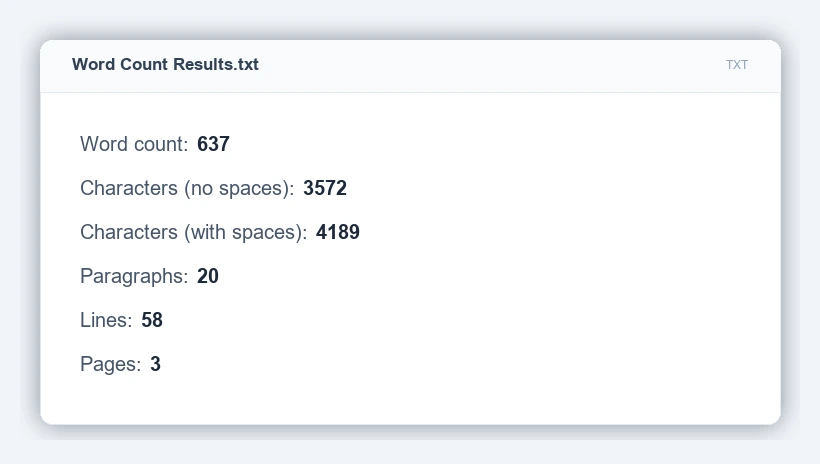
After the code above runs, the downloaded "Word Count Results.txt" contains the following:
Count the Words and Characters of a Specified Paragraph
The words and characters of a specified paragraph in a Word document can be read with the three properties Paragraph.WordCount, Paragraph.CharCount and Paragraph.CharCountIncludeSpace. Unlike the built-in properties of the whole document, paragraph-level statistics are calculated directly from the paragraph content, and the document statistics do not have to be updated before reading.
| Property | Meaning |
|---|---|
Paragraph.WordCount |
Word count of the current paragraph |
Paragraph.CharCount |
Character count of the current paragraph, excluding spaces |
Paragraph.CharCountIncludeSpace |
Character count of the current paragraph, including spaces |
The specific steps are as follows:
- Get the Spire.Doc WASM module and confirm that it is ready.
- Load the sample document and the font into the virtual file system (VFS), create a
Documentobject and load the file. - Get the second paragraph in the first section through
Document.Sections.get_Item(0).Paragraphs.get_Item(1). - Read the statistics of that paragraph through
Paragraph.WordCount,Paragraph.CharCountandParagraph.CharCountIncludeSpace. - Assemble the statistics as text, save them as a TXT file and trigger a browser download.
The code for counting the words and characters of a specified paragraph in a Word document is as follows:
function App() {
  const countParagraph = async () => {
    // Get the Spire.Doc WASM module
    const docModule = window.wasmModule?.spiredoc;

    // Make sure the WASM module has fully loaded
    if (!docModule) {
      alert('Spire.Doc is not ready yet');
      return;
    }

    // Load the sample document and the font into VFS
    await window.spire.FetchFileToVFS('Sample Document.docx', "", `${process.env.PUBLIC_URL}/data/`);
    await window.spire.FetchFileToVFS('ARIALUNI.TTF', "/Library/Fonts/", `${process.env.PUBLIC_URL}/font/`);

    // Create a Document instance and load the document
    const doc = new docModule.Document();
    doc.LoadFromFile('Sample Document.docx');

    // Get the second paragraph in the first section (index starts at 0)
    const paragraph = doc.Sections.get_Item(0).Paragraphs.get_Item(1);

    // Read the words and characters of that paragraph
    const wordCount = paragraph.WordCount;
    const charCount = paragraph.CharCount;
    const charCountIncludeSpace = paragraph.CharCountIncludeSpace;

    // Assemble the results
    const report = [
      'Word count: ' + wordCount,
      'Characters (no spaces): ' + charCount,
      'Characters (with spaces): ' + charCountIncludeSpace,
    ].join('\r\n');

    doc.Dispose();

    // Save the results as a TXT file and trigger the download
    const outputFileName = 'Paragraph Statistics.txt';
    const blob = new Blob([report], { type: 'text/plain;charset=utf-8' });
    const url = URL.createObjectURL(blob);
    const a = document.createElement('a');
    a.href = url;
    a.download = outputFileName;
    a.click();
    URL.revokeObjectURL(url);
  };

  return (
    <div style={{ textAlign: 'center', height: '300px' }}>
      <h1>Paragraph Statistics</h1>
      <button onClick={countParagraph}>
        Count Paragraph Statistics
      </button>
    </div>
  );
}

export default App;
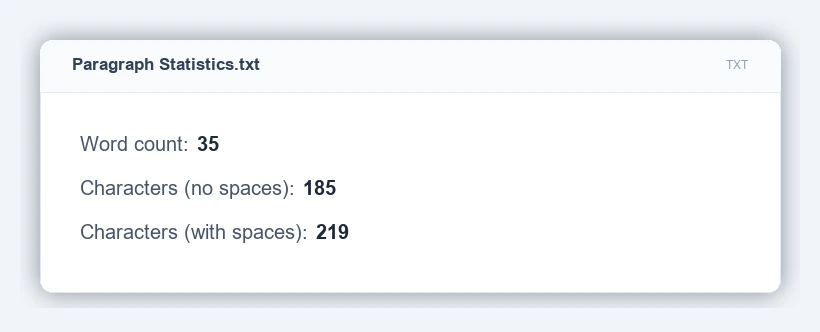
After the code above runs, the downloaded "Paragraph Statistics.txt" contains the following:
FAQ
Why is the calculated word count or character count 0
Cause: The statistics in the built-in properties come from the statistics saved inside the document. For a newly created document, or a document generated by some tools without statistics written into it, the word count, character count and paragraph count read back may be 0.
Solution: The example calls Document.UpdateWordCount() before reading, which recalculates these three values from the current content; the call updates the statistics without modifying the document body.
Why do the line count and page count differ from what Word displays
Cause: The line count and page count are layout statistics kept in the built-in properties of the document, and Document.UpdateWordCount() does not recalculate them, so the values returned are those already saved in the document. When the content has been edited but the document has not been saved again, these values may remain in their previous state and differ from what Word currently displays.
Solution: To verify them, open the "Word Count" dialog in Word; for the words and characters of a paragraph, read Paragraph.WordCount and Paragraph.CharCount directly.
What is the difference between the word count and the two character counts
Cause: The three statistics measure different things: WordCount returns the word count of the document, while CharCount and CharCountWithSpace return the character count without and with spaces respectively, both including punctuation.
Solution: When accounting for length or layout capacity, use the character count with spaces, that is, CharCountWithSpace.
How do I count the words and characters of other paragraphs
Cause: The indexes of Sections.get_Item() and Paragraphs.get_Item() both start at 0, and the Paragraphs.get_Item(1) in the example points to the second paragraph in the first section.
Solution: Change the index to count the corresponding paragraph; check Paragraphs.Count before reading to avoid an index out of range.
Get a Free License
Spire.Doc for JavaScript offers a 30-day full-featured free trial license with no functional limitations. Apply here to evaluate before purchasing.
