A quarterly report often needs its underlying data workbook attached, and archived contracts need the audit note and the metric definitions kept alongside them. Embedding these files in the body as OLE objects lets a reader double-click an icon and open the original with the application installed on the machine, so the document travels with its attachments instead of relying on an external path.
An OLE object stores two things in the document: the bytes of the original file (the native data) and the icon used for display. Word only draws the icon; the native data is handed to the matching application on a double-click. Changing the icon and replacing the data are therefore two independent operations.
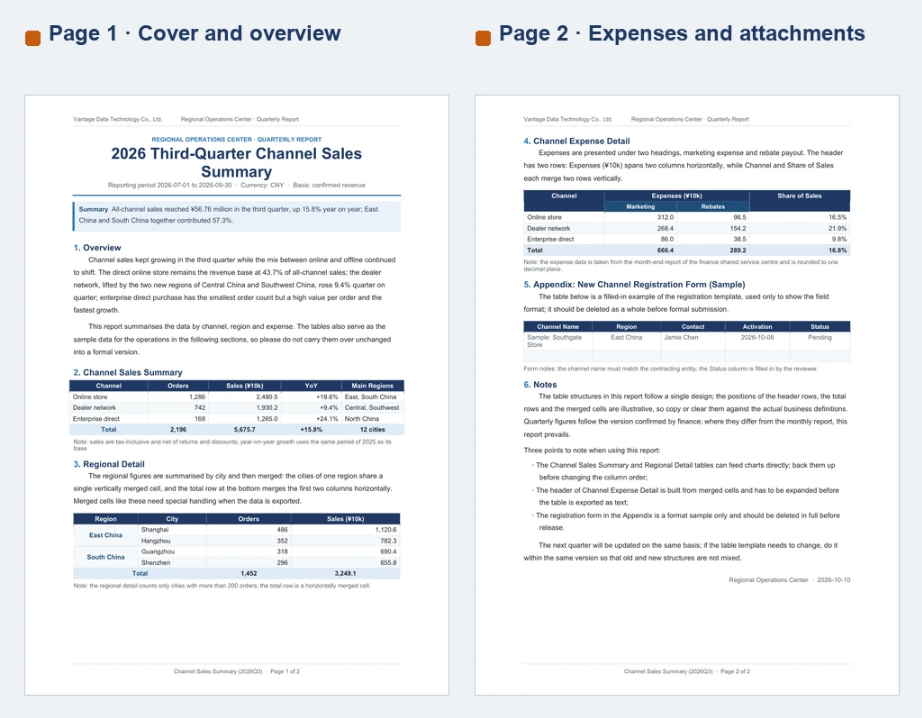
This article uses Spire.Doc for JavaScript to perform the four operations in the browser. The sample document is a two-page quarterly channel sales report, QuarterlyReport.docx, with an attachment area reserved at the end:
This article covers four core features:
- Add an OLE Object to a Word Document
- Modify the Display Icon of an OLE Object
- Replace the Native Data Embedded in an OLE Object
- Delete OLE Objects from a Word Document
For installation and project setup, refer to Integrating Spire.Doc for JavaScript in a React Project. The examples below assume that Spire.Doc is installed and the WebAssembly module is initialized.
OLE objects expose the following members:
| Member | Purpose |
|---|---|
paragraph.AppendOleObject({ pathToFile, olePicture, type }) |
Inserts an OLE object from a VFS path |
oleObject.DisplayAsIcon |
Whether the object is shown as an icon |
oleObject.ObjectType |
Object type; reading returns the ProgID string |
oleObject.NativeData |
The embedded original bytes |
oleObject.SetNativeData(bytes) |
Replaces the original bytes |
oleObject.SetOlePicture(picture) |
Replaces the display picture |
oleObject.OlePicture.ReplaceImage(bytes, true) |
Replaces the bytes of the display picture directly |
paragraph.ChildObjects.Remove(picture) |
Removes a temporary picture from the paragraph |
AppendOleObject() returns a DocOleObject object, and the icon, the native data and the object type are all read and written through it.
Add an OLE Object to a Word Document
Inserting an OLE object into a Word document needs three things: the original file, a display icon and an object type. The original file decides what opens on a double-click, the icon decides how it looks in the body, and the object type decides which application Word hands it to.
OleObjectType is divided by file format. The three common members are:
| File Format | OleObjectType Member |
ProgID Read Back |
|---|---|---|
.xlsx |
ExcelWorksheet |
Excel.Sheet.12 |
.docx |
WordDocument |
Word.Document.12 |
.pdf |
AdobeAcrobatDocument |
AcroExch.Document.7 |
The type and the file format have to match. Passing an .xlsx to Excel_97_2003_Worksheet throws This is not a structured storage file at run time; an .xlsx is a workbook in a ZIP container and has to use ExcelWorksheet.
AppendOleObject has several overloads, and positional arguments easily hit the wrong one. In a browser test, paragraph.AppendOleObject(file, picture, type) throws Ambiguous call, which steers you to the more explicit object form. Call it with an object argument:
paragraph.AppendOleObject({
  pathToFile: 'QuarterlyData.xlsx',
  olePicture: icon,
  type: docModule.OleObjectType.ExcelWorksheet,
});
The specific steps are as follows:
- Get the Spire.Doc WASM module and confirm that it is ready.
- Load the sample report, the three attachments and the three icons into the VFS.
- Create a
Documentobject, load the report and get its first section. - Add a new paragraph at the end of the section, write the attachment name, and set the alignment and the space before.
- Call
Paragraph.AppendPicture()to create the icon object, set its size, and pass it toAppendOleObject(). - Set
DisplayAsIcontotrue, remove the temporary picture, save, read the file from the VFS and download it.
The code for adding OLE objects to a Word document is as follows:
function App() {
  const insertOleObjects = async () => {
    // Get the Spire.Doc WASM module
    const docModule = window.wasmModule?.spiredoc;

    if (!docModule) {
      alert('Spire.Doc is not ready yet');
      return;
    }

    // Load the sample report, attachments and icons
    const files = [
      'QuarterlyReport.docx', 'QuarterlyData.xlsx', 'AuditBrief.pdf',
      'MetricGuide.docx', 'ExcelIcon.png', 'PdfIcon.png', 'WordIcon.png',
    ];
    for (const name of files) {
      await window.spire.FetchFileToVFS(name, '', `${process.env.PUBLIC_URL}/static/data/`);
    }

    // Create a Document instance and load the report
    const doc = new docModule.Document();
    doc.LoadFromFile('QuarterlyReport.docx');
    const section = doc.Sections.get_Item(0);

    const attachments = [
      {
        label: 'Attachment 1  Quarterly Detail Data (Excel)',
        file: 'QuarterlyData.xlsx',
        icon: 'ExcelIcon.png',
        type: docModule.OleObjectType.ExcelWorksheet,
      },
      {
        label: 'Attachment 2  Audit Brief (PDF)',
        file: 'AuditBrief.pdf',
        icon: 'PdfIcon.png',
        type: docModule.OleObjectType.AdobeAcrobatDocument,
      },
      {
        label: 'Attachment 3  Metric Guide (Word)',
        file: 'MetricGuide.docx',
        icon: 'WordIcon.png',
        type: docModule.OleObjectType.WordDocument,
      },
    ];

    for (const item of attachments) {
      // Add an attachment line at the end of the section
      const p = section.AddParagraph();
      p.Format.HorizontalAlignment = docModule.HorizontalAlignment.Center;
      p.Format.BeforeSpacing = 5;

      const label = p.AppendText(item.label + '  ');
      label.CharacterFormat.FontSize = 9.5;
      label.CharacterFormat.TextColor = docModule.Color.FromArgb(31, 56, 100);
      label.CharacterFormat.Bold = true;

      // Create the display icon at body line height
      const icon = p.AppendPicture(item.icon);
      icon.Width = 22;
      icon.Height = 22;

      // Insert the OLE object with object notation to avoid overload ambiguity
      const ole = p.AppendOleObject({
        pathToFile: item.file,
        olePicture: icon,
        type: item.type,
      });

      // Show it as an icon, and remove the temporary picture so the icon does not appear twice
      ole.DisplayAsIcon = true;
      p.ChildObjects.Remove(icon);

      const fileName = p.AppendText('  ' + item.file);
      fileName.CharacterFormat.FontSize = 8.5;
      fileName.CharacterFormat.TextColor = docModule.Color.FromArgb(127, 135, 148);
    }

    // Save the result file
    const outputFileName = 'ReportWithOle.docx';
    doc.SaveToFile({ fileName: outputFileName, fileFormat: docModule.FileFormat.Docx2013 });
    doc.Dispose();

    // Read the generated file from the VFS and trigger the download
    const fileArray = window.dotnetRuntime.Module.FS.readFile(outputFileName);
    const blob = new Blob([fileArray], {
      type: 'application/vnd.openxmlformats-officedocument.wordprocessingml.document',
    });
    const url = URL.createObjectURL(blob);
    const a = document.createElement('a');
    a.href = url;
    a.download = outputFileName;
    a.click();
    URL.revokeObjectURL(url);
  };

  return (
    <div style={{ textAlign: 'center', height: '300px' }}>
      <h1>Insert OLE Objects</h1>
      <button onClick={insertOleObjects}>Insert Attachments</button>
    </div>
  );
}

export default App;
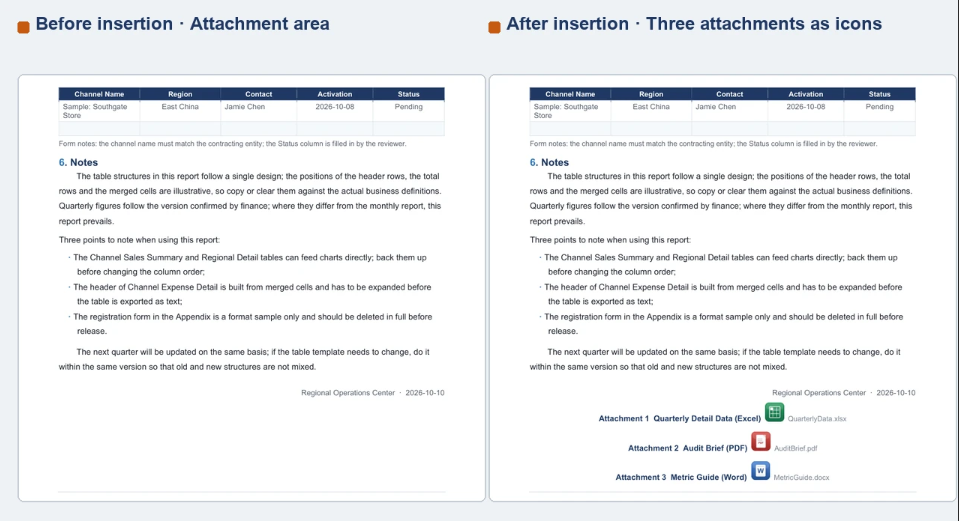
The attachment area after the three attachments are inserted:
Why the Icon Appears Twice
AppendPicture() first adds the picture to the paragraph as an ordinary child object, and AppendOleObject() only references it. Unless the temporary picture is removed, the paragraph keeps both the picture and the OLE object's preview, and two identical icons appear in the body. The sample calls paragraph.ChildObjects.Remove(icon) after insertion, which leaves the OLE object's own preview in place.
Why xlsx Cannot Use Excel_97_2003_Worksheet
Excel_97_2003_Worksheet corresponds to the compound-document structure of the older .xls. An .xlsx uses a ZIP container, and when it is handed to that member Spire parses it as a compound document and throws This is not a structured storage file. Use ExcelWorksheet for .xlsx, WordDocument for .docx and AdobeAcrobatDocument for .pdf.
Modify the Display Icon of an OLE Object
Modifying an OLE object's display icon suits an attachment that has been updated and needs a mark, for example a "Revised" badge in the corner so that a reader can tell at a glance that the file has changed. This operation replaces only the display picture; it does not touch the native data, and it does not change what opens on a double-click.
Spire.Doc for JavaScript offers two ways to replace the picture:
| Form | What It Handles |
|---|---|
oleObject.SetOlePicture(picture) |
Replaces the display picture with a new DocPicture |
oleObject.OlePicture.ReplaceImage(bytes, true) |
Replaces the bytes of the current display picture directly |
SetOlePicture needs a DocPicture first, usually still created with Paragraph.AppendPicture(); after creation it has to be removed from the paragraph as well, or an extra picture is left behind. ReplaceImage does not go through the paragraph and suits cases where only the picture bytes change.
DocOleObject.ObjectType can also be assigned, but it only changes how Word interprets the object; it does not convert the format of the native data. Changing a PDF's type to Excel does not turn the PDF into a workbook, and when the type does not match the original data a double-click may fail to open it. When modifying an OLE object, therefore, usually only the icon or the native data is replaced, and the type is kept consistent with the file format.
The specific steps are as follows:
- Get the Spire.Doc WASM module and confirm that it is ready.
- Load the report with the attachments,
ReportWithOle.docx, and the new icon. - Create a
Documentobject and load the report, then get the body of the first section. - Walk the paragraphs and their child objects, and find the first
OleObjecttogether with the paragraph that holds it. - Create the new icon, call
SetOlePicture()and then remove the temporary picture. - Save the result and download it.
The code for modifying the display icon of an OLE object is as follows:
const doc = new docModule.Document();
doc.LoadFromFile('ReportWithOle.docx');
await window.spire.FetchFileToVFS(
  'ExcelIconUpdated.png', '', `${process.env.PUBLIC_URL}/data/`
);

const body = doc.Sections.get_Item(0).Body;
let target = null;

// Walk the paragraphs, find the first OLE object and remember its paragraph
for (let i = 0; i < body.ChildObjects.Count; i++) {
  const obj = body.ChildObjects.get_Item(i);
  if (obj.DocumentObjectType !== docModule.DocumentObjectType.Paragraph) continue;

  for (let k = 0; k < obj.ChildObjects.Count; k++) {
    const child = obj.ChildObjects.get_Item(k);
    if (child.DocumentObjectType === docModule.DocumentObjectType.OleObject) {
      target = { paragraph: obj, ole: child };
      break;
    }
  }
  if (target) break;
}

if (target) {
  const paragraph = target.paragraph;

  // Create the new icon at 22 × 22 points
  const newIcon = paragraph.AppendPicture('ExcelIconUpdated.png');
  newIcon.Width = 22;
  newIcon.Height = 22;

  // Replace the display picture, then remove the temporary picture
  target.ole.SetOlePicture(newIcon);
  paragraph.ChildObjects.Remove(newIcon);
}

const outputFileName = 'ReportWithNewIcon.docx';
doc.SaveToFile({ fileName: outputFileName, fileFormat: docModule.FileFormat.Docx2013 });
doc.Dispose();
// The code that reads the result from the VFS and downloads it is the same as before
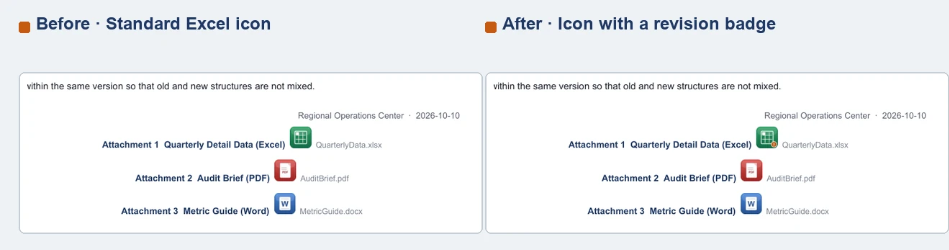
The first attachment icon before and after the replacement; the icon on the left is the standard Excel icon, and the icon on the right carries a gold "2" badge in its lower-right corner:
Replacing the Display Picture Bytes Directly
If going through a paragraph to create a DocPicture is not wanted, read the image bytes and pass them to OlePicture.ReplaceImage(). The second argument, true, keeps the picture's aspect ratio:
const iconBytes = window.dotnetRuntime.Module.FS.readFile('ExcelIconUpdated.png');
target.ole.OlePicture.ReplaceImage(iconBytes, true);
Replace the Native Data Embedded in an OLE Object
Replacing the native data embedded in an OLE object suits a case where the attachment's content changes but the body layout stays the same. If the quarterly data has been supplemented with overseas revenue, for example, the old data can be replaced with a revised workbook while the icon and the position stay put, and a double-click opens the new workbook.
SetNativeData() takes the original bytes, not a file path. Passing a path string writes a piece of invalid data, and a double-click reports that the file is corrupt. The correct approach is to read a Uint8Array with the VFS's FS.readFile() first and pass it to SetNativeData():
| Form | Result |
|---|---|
ole.SetNativeData('/data/QuarterlyDataRevised.xlsx') |
Writes the path string; the data is invalid |
ole.SetNativeData(FS.readFile('QuarterlyDataRevised.xlsx')) |
Writes the file bytes; the data is valid |
The specific steps are as follows:
- Get the Spire.Doc WASM module and confirm that it is ready.
- Load the report with the new icon,
ReportWithNewIcon.docx, and the revised workbook. - Create a
Documentobject and load the report, then walk the paragraphs to find the target OLE object. - Read the bytes of the revised workbook with
FS.readFile(). - Call
SetNativeData()to write the bytes;NativeData.lengthcan be read to confirm the change in length. - Save the result and download it.
The code for replacing the native data embedded in an OLE object is as follows:
const doc = new docModule.Document();
doc.LoadFromFile('ReportWithNewIcon.docx');
await window.spire.FetchFileToVFS(
  'QuarterlyDataRevised.xlsx', '', `${process.env.PUBLIC_URL}/data/`
);

const body = doc.Sections.get_Item(0).Body;
let oleObject = null;

for (let i = 0; i < body.ChildObjects.Count && !oleObject; i++) {
  const obj = body.ChildObjects.get_Item(i);
  if (obj.DocumentObjectType !== docModule.DocumentObjectType.Paragraph) continue;

  for (let k = 0; k < obj.ChildObjects.Count; k++) {
    const child = obj.ChildObjects.get_Item(k);
    if (child.DocumentObjectType === docModule.DocumentObjectType.OleObject) {
      oleObject = child;
      break;
    }
  }
}

if (oleObject) {
  // Read the bytes of the revised workbook, not its path
  const bytes = window.dotnetRuntime.Module.FS.readFile('QuarterlyDataRevised.xlsx');

  console.log('Before replacement:', oleObject.NativeData.length, 'bytes');
  oleObject.SetNativeData(bytes);
  console.log('After replacement:', oleObject.NativeData.length, 'bytes');
}

const outputFileName = 'ReportWithNewData.docx';
doc.SaveToFile({ fileName: outputFileName, fileFormat: docModule.FileFormat.Docx2013 });
doc.Dispose();
// The code that reads the result from the VFS and downloads it is the same as before
After the replacement the body still shows the icon, and the new data only becomes visible after a double-click opens the file in Excel. In the sample run the embedded data went from 12,805 bytes to 12,840 bytes, and reading NativeData.length confirms directly that the replacement took effect.
Why Nothing Changes After the Data Is Replaced
An OLE object's appearance in the body is decided by the display picture; the native data is not drawn on the page. After the data is replaced it is normal for the icon and the file name to stay the same, and the original should be opened by double-clicking the icon to confirm. If a double-click still shows the old content, the replacement usually went to another OLE object, or Word is still using the cache from the previous open; closing and reopening the document rules out the cache.
Delete OLE Objects from a Word Document
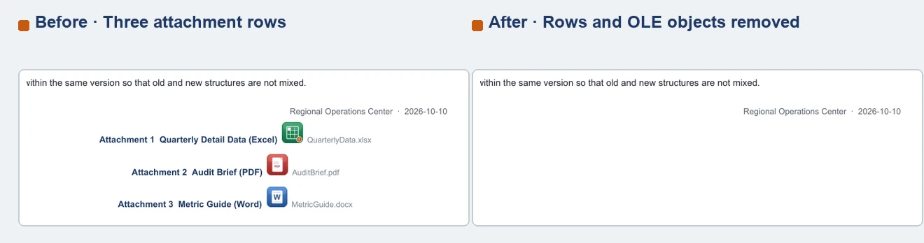
Deleting an OLE object from a Word document means removing it from the child-object collection of the paragraph that holds it. Each attachment line in the sample contains a single OLE object, so the whole paragraph can be removed and the icon, the attachment name and the file name disappear together; if the OLE object shares a paragraph with body text, remove only the child object and keep the paragraph text.
When deleting in a batch, iterate backwards. Each removal shifts the index of the elements that follow, so iterating forwards easily misses objects or runs past the end.
The specific steps are as follows:
- Get the Spire.Doc WASM module and confirm that it is ready.
- Load the report to clean up,
ReportWithNewData.docx. - Create a
Documentobject and load the report, then get the body of the first section. - Walk the body's child objects from the end and check whether each paragraph contains an
OleObject. - Call
ChildObjects.RemoveAt()on the attachment paragraphs that contain an OLE object. - Save the result and download it.
The code for deleting OLE objects from a Word document is as follows:
const doc = new docModule.Document();
doc.LoadFromFile('ReportWithNewData.docx');

const body = doc.Sections.get_Item(0).Body;

// Iterate backwards so removals do not shift the indices ahead
for (let i = body.ChildObjects.Count - 1; i >= 0; i--) {
  const obj = body.ChildObjects.get_Item(i);
  if (obj.DocumentObjectType !== docModule.DocumentObjectType.Paragraph) continue;

  let hasOle = false;
  for (let k = 0; k < obj.ChildObjects.Count; k++) {
    const child = obj.ChildObjects.get_Item(k);
    if (child.DocumentObjectType === docModule.DocumentObjectType.OleObject) {
      hasOle = true;
      break;
    }
  }

  // An attachment line carries a single OLE object, so remove the whole paragraph
  if (hasOle) {
    body.ChildObjects.RemoveAt(i);
  }
}

const outputFileName = 'ReportWithoutOle.docx';
doc.SaveToFile({ fileName: outputFileName, fileFormat: docModule.FileFormat.Docx2013 });
doc.Dispose();
// The code that reads the result from the VFS and downloads it is the same as before
The three attachment lines before and after deletion:
Remove Only the OLE Object and Keep the Paragraph Text
If the attachment icon and the description sit in the same paragraph, deleting the whole paragraph loses the text with it. In that case remove only the OleObject child objects and keep the TextRange:
for (let k = paragraph.ChildObjects.Count - 1; k >= 0; k--) {
  const child = paragraph.ChildObjects.get_Item(k);
  if (child.DocumentObjectType === docModule.DocumentObjectType.OleObject) {
    paragraph.ChildObjects.RemoveAt(k);
  }
}
After the removal the attachment name and the file name in the paragraph stay, and only the icon disappears. To clear the attachment line completely, remove the paragraph or clear its text.
The Four Operations at a Glance
| Operation | Main Call | Point to Watch |
|---|---|---|
| Insert | AppendOleObject({ pathToFile, olePicture, type }) |
Match the type to the format; remove the temporary picture |
| Modify icon | SetOlePicture / OlePicture.ReplaceImage |
Set the picture size to the line height |
| Replace data | SetNativeData(bytes) |
Pass bytes, not a path |
| Delete | ChildObjects.RemoveAt |
Iterate backwards; distinguish the whole paragraph from the object only |
FAQ
What to Do When the Inserted OLE Object Will Not Open on Someone Else's Computer
An OLE object depends on the client having the matching application and file association installed. After an Excel workbook is embedded, a device without Excel or compatible office software may not open it; an embedded PDF likewise needs a working PDF reader. Before distributing a document externally, confirm the recipients' software environment; if that cannot be guaranteed, embed images instead and add a note in the body explaining how to obtain the original.
How OLE Objects Differ from Ordinary Pictures and Hyperlinks
A picture stores pixels only, and the reader cannot open the original file from Word; a hyperlink stores an address only, and the file itself is not distributed with the document. An OLE object keeps the original file's bytes inside the document and has the matching application open them on a double-click, which suits archiving and offline distribution at the cost of a larger document as the attachments grow.
Why the Icon in the Document Did Not Change After the Icon Was Modified
There are three common causes: DisplayAsIcon is still false, so Word draws a preview of the embedded content instead of the custom icon; the temporary picture was not removed after SetOlePicture, so a different picture is what appears on the page; or an old file is being viewed. Set DisplayAsIcon to true first, remove the temporary picture, save, and reopen the document to confirm.
After the Native Data Is Replaced, a Double-Click Still Shows the Old Content
First confirm that the right OLE object was replaced: a document can hold several objects, and the loop should locate the target by type or position. Then compare NativeData.length before and after; a length that did not change usually means what was written was not file bytes. Word may also reuse the cache from the previous open, and closing and reopening the document rules that out.
The Attachment Description Text Is Still There After Deleting the OLE Object
OleObject and the description are two kinds of child object in the paragraph, and removing only the OleObject leaves the TextRange behind. If the whole attachment line only needs to carry the object, remove the paragraph; if the description has to stay, clear the text or adjust the paragraph after removing the object.
Get a Free License
Spire.Doc for JavaScript offers a 30-day full-featured free trial license with no functional limitations. Apply here to evaluate before purchasing.
