Replace Text in Word with Table in C#
This topic is just another request from one of our users on Spire.Doc Forum. In order to let more people know about this function, we’re going to present the whole procedure through a sample demo in the article. Additionally, we would like to remind you that we offer free customized demo for both pay users and test users.
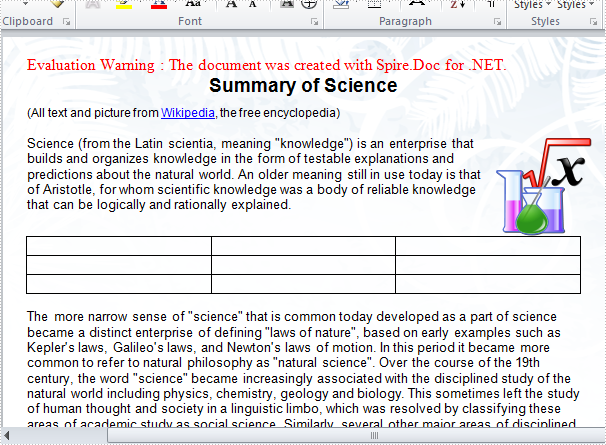
As a professional .NET Word component, Spire.Doc enables developers to replace specified paragraph with a newly created table or an existing table. In this example, the paragraph 3 in main body of the sample word file will be replaced by a newly-built table.
Test file:

Code snippets for replacing text with table:
Step 1: Create a new word document and load the test file.
Document doc = new Document();
doc.LoadFromFile(@"..\..\test.docx");
Step 2: Return TextSection by finding the key text string "classical antiquity science".
Section section = doc.Sections[0];
TextSelection selection = doc.FindString("classical antiquity science", true, true);
Step 3: Return TextRange from TextSection, then get OwnerParagraph through TextRange.
TextRange range = selection.GetAsOneRange();
Paragraph paragraph = range.OwnerParagraph;
Step 4: Return the zero-based index of the specified paragraph.
Body body = (Body)paragraph.OwnerTextBody;
int index = body.ChildObjects.IndexOf(paragraph);
Step 5: Create a new table.
Table table = section.AddTable(true);
table.ResetCells(3, 3);
Step 6: Remove the paragraph and insert table into the collection at the specified index.
body.ChildObjects.Remove(paragraph);
body.ChildObjects.Insert(index, table);
Step 7: Save and launch the file.
doc.SaveToFile("result.doc", FileFormat.Doc);
System.Diagnostics.Process.Start("result.doc");
Result:
Full C# code:
         static void Main(string[] args)
        {
            Document doc = new Document();
            doc.LoadFromFile(@"..\..\test.docx");
            Section section = doc.Sections[0];
            TextSelection selection = doc.FindString("classical antiquity science", true, true);
            TextRange range = selection.GetAsOneRange();
            Paragraph paragraph = range.OwnerParagraph;
            Body body = (Body)paragraph.OwnerTextBody;
            int index = body.ChildObjects.IndexOf(paragraph);

            Table table = section.AddTable(true);
            table.ResetCells(3, 3);
            body.ChildObjects.Remove(paragraph);
            body.ChildObjects.Insert(index, table);

            doc.SaveToFile("result.doc", FileFormat.Doc);
            System.Diagnostics.Process.Start("result.doc");

        }
Insert a footnote in a paragraph
This article shows how to place a footnote in a paragraph using Spire.Doc for .NET, for example, after the word "Spire.Doc" in the following example:


Step 1: Load a word document, Sample.docx.
Document document1 = new Document();
document1.LoadFromFile(@"Data\Sample.docx",FileFormat.Docx2010);
Step 2: Get the first paragraph of the first section of Sample.docx.
Paragraph paragraph1 = document1.Sections[0].Paragraphs[0];
Step 3: Add a footnote for paragraph1.
Footnote footnote1 = paragraph1.AppendFootnote(FootnoteType.Footnote);
Step 4: Find the word "Spire.Doc" and insert footnote1 after it.
DocumentObject obj=null;
for (int i = 0; i < paragraph1.ChildObjects.Count; i++)
{
    obj = paragraph1.ChildObjects[i];
    if (obj.DocumentObjectType == DocumentObjectType.TextRange)
    {
        TextRange textRange = obj as TextRange;
        // Find the word "Spire.Doc" in paragraph1
        if (textRange.Text == "Spire.Doc")
        {
            //Set bold format for the word "Spire.Doc"
            textRange.CharacterFormat.Bold = true;
            //Insert footnote1 after the word "Spire.Doc"
            paragraph1.ChildObjects.Insert(i + 1, footnote1);
            break;
        }
    }
}
Step 5: Type the footnote1 text and set the text's FontName, FontSize and Color.
TextRange text = footnote1.Body.AddParagraph().AppendText("Welcome to evaluate Spire.Doc");
text.CharacterFormat.FontName = "Arial Black";
text.CharacterFormat.FontSize = 10;
text.CharacterFormat.TextColor = Color.DarkGray;
Step 6: Set FontName, FontSize, Bold and Color for the footnote1 number.
footnote1.MarkerCharacterFormat.FontName = "Calibri";
footnote1.MarkerCharacterFormat.FontSize = 12;
footnote1.MarkerCharacterFormat.Bold = true;
footnote1.MarkerCharacterFormat.TextColor = Color.DarkGreen;
Step 7: Save Sample.docx to a new document, Footnote.docx.
document1.SaveToFile(@"Output\Footnote.docx", FileFormat.Docx2010);
Full code:
using System.Drawing;
using System.IO;
using Spire.Doc;
using Spire.Doc.Documents;
using Spire.Doc.Fields;

namespace InsertFootnote
{
    class Program
    {
        static void Main(string[] args)
        {
            Directory.CreateDirectory("Output");

            Document document1 = new Document();
            document1.LoadFromFile(@"Data\Sample.docx", FileFormat.Docx2010);
            Paragraph paragraph1 = document1.Sections[0].Paragraphs[0];
            Footnote footnote1 = paragraph1.AppendFootnote(FootnoteType.Footnote);
            DocumentObject obj = null;
            for (int i = 0; i < paragraph1.ChildObjects.Count; i++)
            {
                obj = paragraph1.ChildObjects[i];
                if (obj.DocumentObjectType == DocumentObjectType.TextRange)
                {
                    TextRange textRange = obj as TextRange;
                    // Find the word "Spire.Doc" in paragraph1
                    if (textRange.Text == "Spire.Doc")
                    {
                        //Set bold format for the word "Spire.Doc"
                        textRange.CharacterFormat.Bold = true;
                        //Insert footnote1 after the word "Spire.Doc"
                        paragraph1.ChildObjects.Insert(i + 1, footnote1);
                        break;
                    }
                }
            }

            TextRange text = footnote1.Body.AddParagraph().AppendText("Welcome to evaluate Spire.Doc");
            text.CharacterFormat.FontName = "Arial Black";
            text.CharacterFormat.FontSize = 10;
            text.CharacterFormat.TextColor = Color.DarkGray;

            footnote1.MarkerCharacterFormat.FontName = "Calibri";
            footnote1.MarkerCharacterFormat.FontSize = 12;
            footnote1.MarkerCharacterFormat.Bold = true;
            footnote1.MarkerCharacterFormat.TextColor = Color.DarkGreen;
            document1.SaveToFile(@"Output\Footnote.docx", FileFormat.Docx2010);
        }
    }
}
How to Convert Word to PDF/A in C# ?
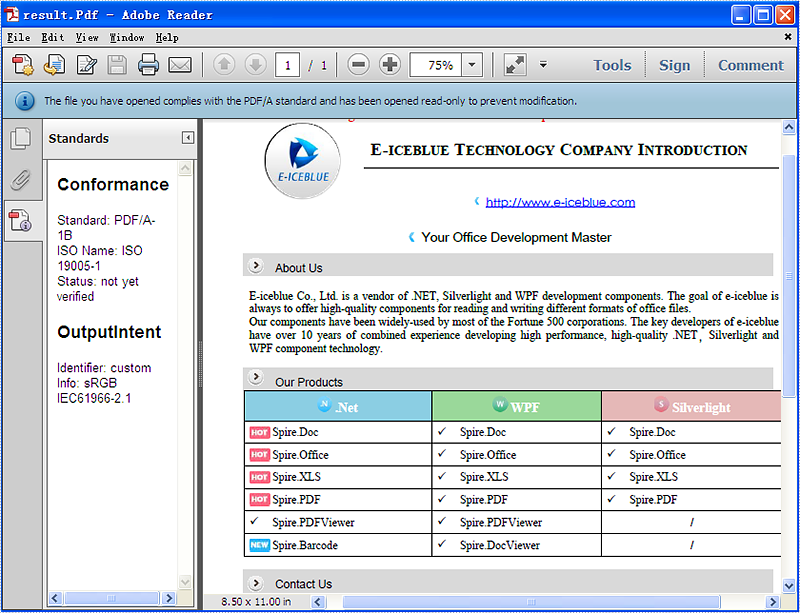
PDF/A is an ISO-standardized version of the Portable Document Format (PDF) specialized for the digital preservation of electronic documents. It is widely used for long term archiving for PDF format. This article mainly shows how to convert word document (doc and docx) to PDF/A in C# by using Spire.Doc.
Make sure Spire.Doc for .NET Version 5.0.26 (or above) has been installed correctly and then add Spire.Doc.dll as reference in the downloaded Bin folder though the below path: "..\Spire.Doc\Bin\NET4.0\ Spire.Doc.dll".
First, check the original word document that will be converted to PDF/A.

Here comes to the details of how developers convert word document to PDF/A directly by using Spire.Doc:
Step 1: Load a word document from the file.
Document document = new Document();
document.LoadFromFile("test.docx",FileFormat.Docx);
Step 2: Sets the Pdf document's Conformance-level to PDF_A1B.
ToPdfParameterList toPdf = new ToPdfParameterList();
toPdf.PdfConformanceLevel = Spire.Doc.PdfConformanceLevel.Pdf_A1B;
Step 3: Save word document to PDF
document.SaveToFile("result.Pdf",toPdf);
Please check the effective screenshot of the result PDF in PDF/A format.
Edit/Replace the Content of Word Bookmark with HTML Code
Bookmark can locate a range. Assuming the content of the range is some html code, how to change the content of the range. Spire.Doc supports bookmarks. And you can use Spire.Doc to fulfill the job.
In this article, a solution will be introduced. Spire.Doc provides you a method:
public void ReplaceBookmarkContent(TextBodyPart bodyPart)
Replace the content of bookmark with TextBodyPart bodyPart.
Note: since Spire.Doc 14.10.9, the TextBodyPart and TextBodySelection classes are defined in the Spire.Doc.Documents namespace (they were in Spire.Doc.Fields in earlier versions). Make sure the code file has a using Spire.Doc.Documents; directive.
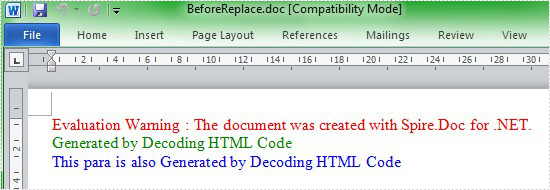
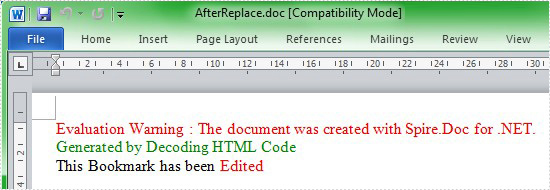
This method cannot handle html code directly. Here is what to do. First load the new html code to document. Then select the newly added data as TextBodyPart. At last, call the method to replace the content of the bookmark.
Step 1: Add bookmarks containing html code.
Paragraph p2 = section.AddParagraph();
p2.AppendBookmarkStart("bookmark2");
p2.AppendHTML("<p><font color='blue'>This para is also Generated by Decoding HTML Code</font></p>");
p2.AppendBookmarkEnd("bookmark2");
Step 2: Add new html code to document.
Section tempSection = document.AddSection();
String html
= "<p>This Bookmark has been <font color=\"#ff0000\">Edited</font></p>";
tempSection.AddParagraph().AppendHTML(html);
Step 3: Get the new added html as TextBodyPart.
ParagraphBase replacementFirstItem = tempSection.Paragraphs[0].Items.FirstItem as ParagraphBase;
ParagraphBase replacementLastItem  = tempSection.Paragraphs[tempSection.Paragraphs.Count - 1].Items.LastItem as ParagraphBase;
TextBodySelection selection = new TextBodySelection(replacementFirstItem, replacementLastItem);
TextBodyPart part = new TextBodyPart(selection);
Step 4: Locate the bookmark "bookmark2" and call the method ReplaceBookmarkContent to replace the content. Then remove the temp section.
BookmarksNavigator bookmarkNavigator = new BookmarksNavigator(document);
//locate the bookmark
bookmarkNavigator.MoveToBookmark("bookmark2");
//replace the content of bookmark
bookmarkNavigator.ReplaceBookmarkContent(part);
//remove temp section
document.Sections.Remove(tempSection);
Preview the original screenshot:
Preview the effect screenshot:
Here comes to the full code:
static void Main(string[] args)
{
 Document document = new Document();
 Section section = document.AddSection();

 //create bookmarks
 Paragraph p1 = section.AddParagraph();
 p1.AppendBookmarkStart("bookmark1");
 p1.AppendHTML("<p><font color='blue'>This para is also Generated by Decoding HTML Code</font></p>");
 p1.AppendBookmarkEnd("bookmark1");

 Paragraph p2 = section.AddParagraph();
 p2.AppendBookmarkStart("bookmark2");
 p2.AppendHTML("<p><font color='blue'>This para is also Generated by Decoding HTML Code</font></p>");
 p2.AppendBookmarkEnd("bookmark2");
 document.SaveToFile("BeforeReplace.doc");

 //create a temp section to contain multiple paragraph.
 Section tempSection = document.AddSection();
 String html
 = "<p>This Bookmark has been <font color=\"#ff0000\">Edited</font></p>";
 tempSection.AddParagraph().AppendHTML(html);

 ParagraphBase replacementFirstItem = tempSection.Paragraphs[0].Items.FirstItem as ParagraphBase;
 ParagraphBase replacementLastItem = tempSection.Paragraphs[tempSection.Paragraphs.Count - 1].Items.LastItem as ParagraphBase;
 TextBodySelection selection = new TextBodySelection(replacementFirstItem, replacementLastItem);
 TextBodyPart part = new TextBodyPart(selection);

 BookmarksNavigator bookmarkNavigator = new BookmarksNavigator(document);
 //locate the bookmark
 bookmarkNavigator.MoveToBookmark("bookmark2");
 //replace the content of bookmark
 bookmarkNavigator.ReplaceBookmarkContent(part);
 //remove temp section
 document.Sections.Remove(tempSection);

 document.SaveToFile(@"AfterReplace.doc");
}
Insert Endnote in Word in C#, VB.NET
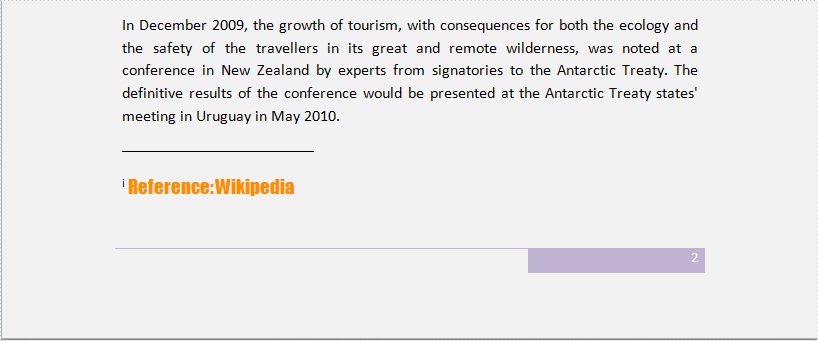
Word endnote is often put in the end of the document, which presents references of referred words/sentences/paragraphs. It includes two parts, marker and text. Marker can be customized or ordered automatically (i, ii, iii…). When one endnote is added, deleted or moved, the marker will be reordered automatically.
Spire.Doc for .NET, a stand-alone component used to manipulate Word document for .NET applications, enables users to insert endnote in Word by using C#, VB.NET. This guide introduces a method about how to realize this function via Spire.Doc for .NET.
Because endnote is included in footnote class, so invoke p.AppendFootnote(FootnoteType.Endnote) method to insert endnote. Then, use endnote.Body.AddParagraph().AppendText(string) method to add text and set CharacterFormat and MarkerCharacterFormat properties for endnote text and marker format. Download and install Spire.Doc for .NET and use the following code to insert endnote in Word.
using System.Drawing;
using Spire.Doc;
using Spire.Doc.Documents;
using Spire.Doc.Fields;

namespace WordEndnote
{
    class InsertEndnote
    {
        static void Main(string[] args)
        {
            //Load Document
            Document doc = new Document();
            doc.LoadFromFile(@"Data\Antarctic.docx", FileFormat.Docx);
            Section s = doc.Sections[0];
            Paragraph p = s.Paragraphs[3];

            //Add Footnote
            Footnote endnote = p.AppendFootnote(FootnoteType.Endnote);

            //Append Text
            TextRange text = endnote.Body.AddParagraph().AppendText("Reference: Wikipedia");

            //Text Format
            text.CharacterFormat.FontName = "Impact";
            text.CharacterFormat.FontSize = 14;
            text.CharacterFormat.TextColor = Color.DarkOrange;

            //Marker Format
            endnote.MarkerCharacterFormat.FontName = "Calibri";
            endnote.MarkerCharacterFormat.FontSize = 14;
            endnote.MarkerCharacterFormat.TextColor = Color.DarkBlue;

            //Save and Launch
            doc.SaveToFile("Endnote.docx", FileFormat.Docx);
            System.Diagnostics.Process.Start("Endnote.docx");
        }
    }
}
Imports System.Drawing
Imports Spire.Doc
Imports Spire.Doc.Documents
Imports Spire.Doc.Fields

Namespace WordEndnote
    Friend Class InsertEndnote
        Shared Sub Main(ByVal args() As String)
            'Load Document
            Dim doc As New Document()
            doc.LoadFromFile("Data\Antarctic.docx", FileFormat.Docx)
            Dim s As Section = doc.Sections(0)
            Dim p As Paragraph = s.Paragraphs(3)

            'Add Footnote
            Dim endnote As Footnote = p.AppendFootnote(FootnoteType.Endnote)

            'Append Text
            Dim text As TextRange = endnote.Body.AddParagraph().AppendText("Reference: Wikipedia")

            'Text Format
            text.CharacterFormat.FontName = "Impact"
            text.CharacterFormat.FontSize = 14
            text.CharacterFormat.TextColor = Color.DarkOrange

            'Marker Format
            endnote.MarkerCharacterFormat.FontName = "Calibri"
            endnote.MarkerCharacterFormat.FontSize = 14
            endnote.MarkerCharacterFormat.TextColor = Color.DarkBlue

            'Save and Launch
            doc.SaveToFile("Endnote.docx", FileFormat.Docx)
            System.Diagnostics.Process.Start("Endnote.docx")
        End Sub
    End Class
End Namespace
Spire.Doc is a Microsoft Word component, which enables users to perform a wide range of Word document processing tasks directly, such as generate, read, write and modify Word document in WPF, .NET and Silverlight.
Manage Word Headings to Form a Catalogue in C#, VB.NET
Word Heading can be taken as title of each part in Word document. This guide demonstrates solution to manage these Word headings and form them as a catalogue in C# and VB.NET.
In Word document, users can set some contents, for example, phrases of summary of the following paragraphs, as headings. These Word headings can be displayed in the first page of whole document and form as catalogue after arrangement so that readers can get outline of whole document. Solution in this guide presents how to manage Word headings with numbered style in a new created document in C# and VB.NET via Spire.Doc for .NET and screenshot below shows results of managing Word headings.
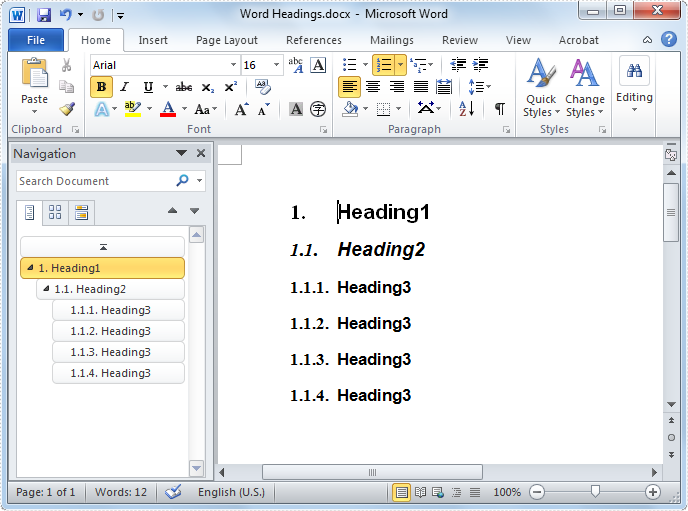
Heading is one of kind of styles for paragraphs and Spire.Doc for .NET provides several BuiltinStyle types for paragraphs. In this example, three BuiltinStyle types will be applied: Heading1, Heading2 and Heading3. Following, details will be presented step by step.
Firstly, initialize a Document instance and add section, paragraph for this instance. Secondly, invoke AppendText method with parameter string text and ApplyStyle(BuiltinStyle.Heading1) method of Paragraph class to add text and set heading style for new added paragraph. Then, invoke ListFormat.ApplyNumberedStyle() method of Paragraph class to set number list for it. Thirdly, add new paragraph and set Heading2 style for it as the previous step. Call Document.AddListDefinitionReference with Numbered ListType and the name MyStyle2 to create a named list definition. Then, iterate the ListDefinitionReference.Levels collection and set UsePrevLevelPattern and NumberPrefix properties for each ListLevel instance. After that, invoke ListFormat.ApplyListRef method of Paragraph class with the list definition and level number 0 to apply the list to Heading2. Fourthly, add a new paragraph and set BuiltinStyle as Heading3 and apply ListStyle for this paragraph as the previous step. Finally, invoke SaveToFile method of Document class with parameter string fileName and FileFormat to save this document. Refer the code:
using Spire.Doc;
using Spire.Doc.Documents;

namespace WordHeading
{
    class Heading
    {
        static void Main(string[] args)
        {
            //Create Document
            Document document = new Document();
            Section section = document.AddSection();
            Paragraph paragraph
                = section.Paragraphs.Count > 0 ? section.Paragraphs[0] : section.AddParagraph();

            //Add Heading 1
            paragraph = section.AddParagraph();
            paragraph.AppendText(BuiltinStyle.Heading1.ToString());
            paragraph.ApplyStyle(BuiltinStyle.Heading1);
            paragraph.ListFormat.ApplyNumberedStyle();

            //Add Heading 2
            paragraph = section.AddParagraph();
            paragraph.AppendText(BuiltinStyle.Heading2.ToString());
            paragraph.ApplyStyle(BuiltinStyle.Heading2);

            //List Style for Headings 2
            ListDefinitionReference listDef2 = document.AddListDefinitionReference(ListType.Numbered, "MyStyle2");
            foreach (ListLevel listLev in listDef2.Levels)
            {
                listLev.UsePrevLevelPattern = true;
                listLev.NumberPrefix = "1.";
            }
            paragraph.ListFormat.ApplyListRef(listDef2, 0);

            //Add List Style 3
            ListDefinitionReference listDef3 = document.AddListDefinitionReference(ListType.Numbered, "MyStyle3");
            foreach (ListLevel listLev in listDef3.Levels)
            {
                listLev.UsePrevLevelPattern = true;
                listLev.NumberPrefix = "1.1.";
            }

            //Add Heading 3
            for (int i = 0; i < 4; i++)
            {
                paragraph = section.AddParagraph();

                //Append Text
                paragraph.AppendText(BuiltinStyle.Heading3.ToString());

                //Apply List Style 3 for Heading 3
                paragraph.ApplyStyle(BuiltinStyle.Heading3);
                paragraph.ListFormat.ApplyListRef(listDef3, 0);
            }

            //Save and Launch
            document.SaveToFile("Word Headings.docx", FileFormat.Docx);
            System.Diagnostics.Process.Start("Word Headings.docx");
        }
    }
}
Imports Spire.Doc
Imports Spire.Doc.Documents

Namespace WordHeading
    Friend Class Heading
        Shared Sub Main(ByVal args() As String)
            'Create Document
            Dim document As New Document()
            Dim section As Section = document.AddSection()
            Dim paragraph As Paragraph = If(section.Paragraphs.Count > 0, section.Paragraphs(0), section.AddParagraph())

            'Add Heading 1
            paragraph = section.AddParagraph()
            paragraph.AppendText(BuiltinStyle.Heading1.ToString())
            paragraph.ApplyStyle(BuiltinStyle.Heading1)
            paragraph.ListFormat.ApplyNumberedStyle()

            'Add Heading 2
            paragraph = section.AddParagraph()
            paragraph.AppendText(BuiltinStyle.Heading2.ToString())
            paragraph.ApplyStyle(BuiltinStyle.Heading2)

            'List Style for Headings 2
            Dim listDef2 As ListDefinitionReference = document.AddListDefinitionReference(ListType.Numbered, "MyStyle2")
            For Each listLev As ListLevel In listDef2.Levels
                listLev.UsePrevLevelPattern = True
                listLev.NumberPrefix = "1."
            Next listLev
            paragraph.ListFormat.ApplyListRef(listDef2, 0)

            'Add List Style 3
            Dim listDef3 As ListDefinitionReference = document.AddListDefinitionReference(ListType.Numbered, "MyStyle3")
            For Each listLev As ListLevel In listDef3.Levels
                listLev.UsePrevLevelPattern = True
                listLev.NumberPrefix = "1.1."
            Next listLev

            'Add Heading 3
            For i As Integer = 0 To 3
                paragraph = section.AddParagraph()

                'Append Text
                paragraph.AppendText(BuiltinStyle.Heading3.ToString())

                'Apply List Style 3 for Heading 3
                paragraph.ApplyStyle(BuiltinStyle.Heading3)
                paragraph.ListFormat.ApplyListRef(listDef3, 0)
            Next i

            'Save and Launch
            document.SaveToFile("Word Headings.docx", FileFormat.Docx)
            System.Diagnostics.Process.Start("Word Headings.docx")
        End Sub
    End Class
End Namespace
Spire.Doc, as professional Word component, is very powerful on fast generating, loading, writing, modifying and saving Word documents in .NET, WPF, Silverlight without Word automation and any third party tools.
How to Traverse a Document Tree
Document Tree Traversal
using System;
using System.Collections.Generic;
using Spire.Doc;
using Spire.Doc.Documents;
using Spire.Doc.Fields;
using Spire.Doc.Interface;
using Spire.Doc.Collections;

namespace ExtractText
{
    class Program
    {
        static void Main(string[] args)
        {
            //Open a word document.
            Document document = new Document("Sample.doc");
            IList<IDocumentObject> nodes = GetAllObjects(document);
            foreach (IDocumentObject node in nodes)
            {
                //Judge the object type.
                if (node.DocumentObjectType == DocumentObjectType.TextRange)
                {
                    TextRange textNode = node as TextRange;
                    Console.WriteLine(textNode.Text);
                }
            }
        }

        private static IList<IDocumentObject> GetAllObjects(Document document)
        {

            //Create a list.
            List<IDocumentObject> nodes = new List<IDocumentObject>();

            //Create a new queue.
            Queue<ICompositeObject> containers = new Queue<ICompositeObject>();

            //Put the document objects in the queue.
            containers.Enqueue(document);
            while (containers.Count > 0)
            {
                ICompositeObject container = containers.Dequeue();
                DocumentObjectCollection docObjects = container.ChildObjects;
                foreach (DocumentObject docObject in docObjects)
                {
                    nodes.Add(docObject);

                    //Judge the docObject.
                    if (docObject is ICompositeObject)
                    {
                        containers.Enqueue(docObject as ICompositeObject);
                    }
                }
            }

            return nodes;
        }
    }
}
Imports System
Imports System.Collections.Generic
Imports Spire.Doc
Imports Spire.Doc.Documents
Imports Spire.Doc.Fields
Imports Spire.Doc.Interface
Imports Spire.Doc.Collections

Module Module1

    Sub Main()
        'Open a word document.
        Dim document As New Document("Sample.doc")
        Dim nodes As IList(Of IDocumentObject) = GetAllObjects(document)
        Dim containers As New Queue(Of ICompositeObject)()

        For Each node As IDocumentObject In nodes

            'Judge the object type.
            If (node.DocumentObjectType = DocumentObjectType.TextRange) Then
                Dim textNode As TextRange = node
                Console.WriteLine(textNode.Text)

            End If
        Next
    End Sub
    Function GetAllObjects(ByVal document As Document) As IList(Of IDocumentObject)

        'Create a list.
        Dim nodes As New List(Of IDocumentObject)()

        'Create a new queue.
        Dim containers As New Queue(Of ICompositeObject)()

        'Put the document objects in the queue.
        containers.Enqueue(document)
        While (containers.Count > 0)
            Dim container As ICompositeObject = containers.Dequeue()
            Dim docObjects As DocumentObjectCollection = container.ChildObjects
            For Each docObject As DocumentObject In docObjects
                nodes.Add(docObject)

                'Judge the docObject.
                If TypeOf docObject Is ICompositeObject Then
                    containers.Enqueue(TryCast(docObject, ICompositeObject))
                End If
            Next
        End While

        Return nodes
    End Function
End Module