C++: Convert HTML to Images (JPG, PNG, BMP)
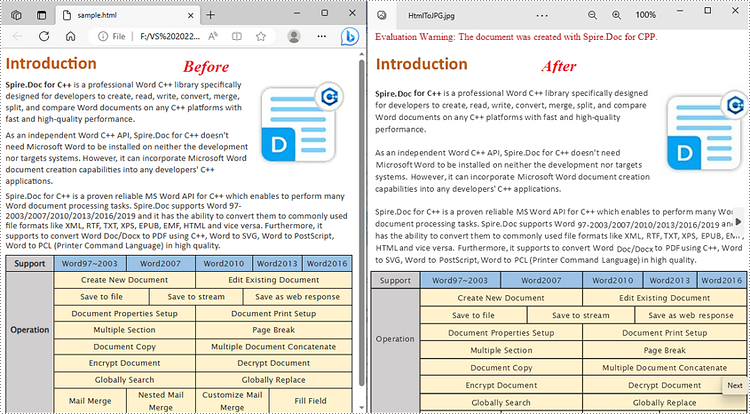
HTML is a markup language for creating websites or other web applications. In daily work, you might need to convert HTML to images for various reasons, such as creating thumbnails of web pages to use in search engine results pages or social media posts, generating snapshots of your html files for archiving or other purposes, and so on. In this article, you will learn how to convert Html to JPG, PNG, or BMP images in C++ using Spire.Doc for C++.
Install Spire.Doc for C++
There are two ways to integrate Spire.Doc for C++ into your application. One way is to install it through NuGet, and the other way is to download the package from our website and copy the libraries into your program. Installation via NuGet is simpler and more recommended. You can find more details by visiting the following link.
Integrate Spire.Doc for C++ in a C++ Application
Convert HTML to JPG, PNG and BMP Images in C++
To complete the task, you’ll need to load an HTML file first and then convert it to images using Document->SaveImageToStreams() method. These images can also be further saved as JPEG, PNG, BMP, EMF, GIF or WMF image formats. The following are the detailed steps.
- Create a Document instance.
- Load a sample html file using Document->LoadFromFile(LPCWSTR_S filename, FileFormat::Html, XHTMLValidationType::None) method.
- Convert the html file to an image stream using Document->SaveImageToStreams() method.
- Convert the image stream to an Image object using Image::FromStream(intrusive_ptr<Stream> stream) method.
- Save the Image object as a JPEG, PNG, BMP, or other image formats using Image->Save(LPCWSTR_S filename, ImageFormat format) method.
- C++
#include <iostream>
#include <fstream>
#include <string>
#include <vector>
#include "Spire/Doc/pch.h"
#ifdef DocumentProperties
#undef DocumentProperties
#endif
#define DocumentProperties DocumentPropertiesA
#include "Spire.Doc.C.h"
#include "Spire/Doc/Document.h"
#include "Spire/Doc/Documents/ImageType.h"
#include "Spire/Doc/Documents/XHTMLValidationType.h"
#include "Spire/Doc/FileFormat.h"
#include "Spire/Doc/common/h/ReferenceCounter.h"
#include "Spire/Doc/common/h/Stream.h"
using namespace std;
using namespace Spire::Doc;
using namespace Spire::Doc::Common;

int main() {
	//Specify the input file path
	string inputFile = "sample.html";

	//Create a Document instance
	intrusive_ptr<Document> document = new Document();

	//Load a sample html file from disk
	document->LoadFromFile(inputFile.c_str(), FileFormat::Html, XHTMLValidationType::None);

	//Convert the html to image streams
	intrusive_ptr<Stream> imageStream = document->SaveImageToStreams(0, ImageType::Bitmap);
	std::vector<byte> imageData = imageStream->ToArray();

	//Save the image stream as a PNG file
	std::ofstream outFile("Output/HtmlToImage.png", std::ios::binary);
	if (outFile.is_open())
	{
		outFile.write(reinterpret_cast<const char*>(imageData.data()), imageData.size());
		outFile.close();
	}
	document->Close();
	imageStream->Dispose();
}
Apply for a Temporary License
If you'd like to remove the evaluation message from the generated documents, or to get rid of the function limitations, please request a 30-day trial license for yourself.
C++: Merge Word Documents
Merging Word documents can be useful when you want to consolidate information from multiple files. For example, if you have a series of reports that relate to a specific project or topic, you may want to merge them into one document for easier access, distribution, and archiving purposes. In this article, we will demonstrate how to merge Word documents into one in C++ using Spire.Doc for C++.
Install Spire.Doc for C++
There are two ways to integrate Spire.Doc for C++ into your application. One way is to install it through NuGet, and the other way is to download the package from our website and copy the libraries into your program. Installation via NuGet is simpler and more recommended. You can find more details by visiting the following link.
Integrate Spire.Doc for C++ in a C++ Application
Merge Word Documents by Inserting Files in C++
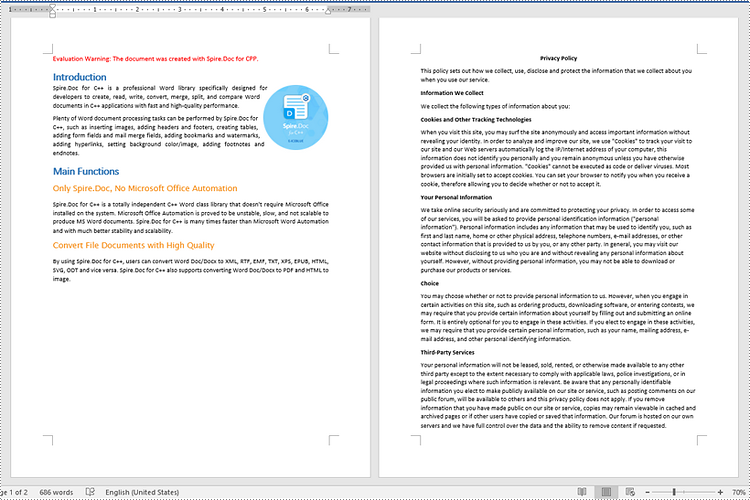
The Document->InsertTextFromFile(LPCWSTR_S fileName, FileFormat fileFormat) method provided by Spire.Doc for C++ enables developers to merge Word documents by inserting the contents of other Word documents into the original Word document. Using this method, the inserted contents will begin on a new page. The detailed steps are as follows:
- Initialize an instance of the Document class.
- Load a Word document using the Document->LoadFromFile(LPCWSTR_S fileName) method.
- Insert another document into the loaded Word document using the Document->InsertTextFromFile(LPCWSTR_S fileName, FileFormat fileFormat) method.
- Save the result document to a specific location using the Document->SaveToFile(LPCWSTR_S fileName, FileFormat fileFormat) method.
- C++
#include <iostream>
#include <string>
#include "Spire/Doc/pch.h"
#ifdef DocumentProperties
#undef DocumentProperties
#endif
#define DocumentProperties DocumentPropertiesA
#include "Spire/Doc/Document.h"
#include "Spire/Doc/FileFormat.h"
using namespace std;
using namespace Spire::Doc;

int main()
{
	//Specify the input file paths
	string inputFile_1 = "Sample1.docx";
	string inputFile_2 = "Sample2.docx";
	//Specify the output file path
	string outputFile = "MergeWordDocumentsByInsertingFile.docx";

	//Initialize an instance of the Document class
	intrusive_ptr<Document> doc = new Document();
	//Load a Word document
	doc->LoadFromFile(inputFile_1.c_str());

	//Insert another document into the loaded document
	doc->InsertTextFromFile(inputFile_2.c_str(), FileFormat::Auto);

	//Save the result document to a specific location
	doc->SaveToFile(outputFile.c_str(), FileFormat::Docx2013);
	doc->Close();
}
Merge Word Documents by Cloning Contents in C++
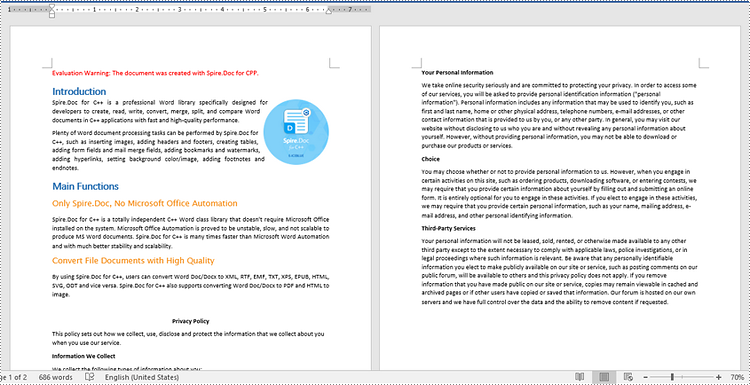
If you want to merge documents without starting from a new page, you can clone the contents of other documents and add them to the end of the original document. This approach can avoid creating unwanted section breaks. The detailed steps are as follows:
- Initialize an instance of the Document class.
- Load the first Word document using the Document->LoadFromFile(LPCWSTR_S fileName) method.
- Get the last section of the first Word document using the Document->GetLastSection() method.
- Initialize an instance of the Document class.
- Load the second Word document using the Document->LoadFromFile(LPCWSTR_S fileName) method.
- Iterate through all sections of the second Word document, and then iterate through all child objects of each section.
- Clone each child object using the DocumentObject->Clone() method.
- Add the cloned child object to the end of the last section of the first Word document using the Section->GetBody()->GetChildObjects()->Add(intrusive_ptr<IDocumentObject> entity) method.
- Save the first Word document to a specific location using the Document->SaveToFile(LPCWSTR_S fileName, FileFormat fileFormat) method.
- C++
#include <iostream>
#include <string>
#include "Spire/Doc/pch.h"
#ifdef DocumentProperties
#undef DocumentProperties
#endif
#define DocumentProperties DocumentPropertiesA
#include "Spire/Doc/Body.h"
#include "Spire/Doc/Collections/SectionCollection.h"
#include "Spire/Doc/Document.h"
#include "Spire/Doc/DocumentObject.h"
#include "Spire/Doc/FileFormat.h"
#include "Spire/Doc/Section.h"
using namespace std;
using namespace Spire::Doc;
using namespace Spire::Doc::Collections;

int main()
{
	//Specify the input file paths
	string inputFile_1 = "Sample1.docx";
	string inputFile_2 = "Sample2.docx";
	//Specify the output file path
	string outputFile =  "MergeWordDocumentsByCloningContents.docx";

	//Initialize an instance of the Document class
	intrusive_ptr<Document> document1 = new Document();
	//Load the first Word document
	document1->LoadFromFile(inputFile_1.c_str(), FileFormat::Auto);
	//Get the last section of the first Word document
	intrusive_ptr<Section> lastSection = document1->GetLastSection();

	//Initialize an instance of the Document class
	intrusive_ptr<Document> document2 = new Document();
	//Load the second Word document
	document2->LoadFromFile(inputFile_2.c_str(), FileFormat::Auto);

	//Get the number of sections of the second Word document
	int sectionCount = document2->GetSections()->GetCount();

	//Iterate through the sections of the second Word document
	for (int i = 0; i < sectionCount; i++)
	{
		intrusive_ptr<Section> section = document2->GetSections()->GetItem(i);
		int sectionChildObjectsCount = section->GetBody()->GetChildObjects()->GetCount();
		//Iterate through the child objects in each section of the second Word document
		for (int j = 0; j < sectionChildObjectsCount; j++)
		{
			intrusive_ptr<DocumentObject> documentObject = section->GetBody()->GetChildObjects()->GetItem(j);
			//Clone each child object
			intrusive_ptr<DocumentObject> clonedObject = documentObject->Clone();
			//Add each cloned child object to the end of the last section of the first Word document
			lastSection->GetBody()->GetChildObjects()->Add(clonedObject);
		}
	}

	//Save the first Word document to a specific location
	document1->SaveToFile(outputFile.c_str(), FileFormat::Docx);
	document1->Close();
	document2->Close();
}
Apply for a Temporary License
If you'd like to remove the evaluation message from the generated documents, or to get rid of the function limitations, please request a 30-day trial license for yourself.
C++: Convert Word Documents to Images (JPEG, PNG, BMP, SVG)
Converting a Word document to images can have several benefits. Firstly, it enables you to preserve the original formatting and layout of the document, which is especially useful when sharing the document on different devices or systems. Secondly, it prevents unauthorized changes to the content, which ensures the document's integrity. Lastly, converting a Word document to images makes the content accessible for people who do not have access to Microsoft Word. In this article, we will explain how to convert Word documents to images in C++ using Spire.Doc for C++.
- Convert a Word Document to JPEG, PNG or BMP Images in C++
- Convert a Specific Page of a Word Document to IPEG, PNG or BMP Images in C++
- Convert a Word Document to SVG Images in C++
Install Spire.Doc for C++
There are two ways to integrate Spire.Doc for C++ into your application. One way is to install it through NuGet, and the other way is to download the package from our website and copy the libraries into your program. Installation via NuGet is simpler and more recommended. You can find more details by visiting the following link.
Integrate Spire.Doc for C++ in a C++ Application
Convert a Word Document to JPEG, PNG or BMP Images in C++
Spire.Doc for C++ offers the Document->SaveImageToStreams(ImageType type) method which enables you to convert a Word document to a vector of image streams. Then you can iterate through the vector of image streams, and save each image stream to an image file such as a JPEG file, a PNG file, or a BMP file. The detailed steps are as follows:
- Initialize an instance of the Document class.
- Load a Word document using the Document->LoadFromFile(LPCWSTR_S fileName) method.
- Convert the Word document to a vector of image streams using the Document->SaveImageToStreams(ImageType type) method.
- Iterate through the vector of image streams.
- Convert each image stream to an Image object using the Image::FromStream(intrusive_ptr<Stream> stream) method.
- Save the Image object to a JPEG, PNG, BMP, or another type of image file using the Image->Save(LPCWSTR_S filename, intrusive_ptr<ImageFormat> format) method.
- C++
#include <iostream>
#include <fstream>
#include <string>
#include <vector>
#include "Spire/Doc/pch.h"
#ifdef DocumentProperties
#undef DocumentProperties
#endif
#define DocumentProperties DocumentPropertiesA
#include "Spire.Doc.C.h"
#include "Spire/Doc/Document.h"
#include "Spire/Doc/Documents/ImageType.h"
#include "Spire/Doc/common/h/ReferenceCounter.h"
#include "Spire/Doc/common/h/Stream.h"
using namespace std;
using namespace Spire::Doc;
using namespace Spire::Doc::Common;

int main()
{
	//Initialize an instance of the Document class
	intrusive_ptr<Document> document = new Document();
	//Load a Word document
	document->LoadFromFile("Input.docx");

	//Convert the Word document to image streams and store the result in a vector
	std::vector<intrusive_ptr<Stream>> images = document->SaveImageToStreams(ImageType::Bitmap);

	//Iterate through the vector of image streams
	for (int i = 0; i < images.size(); i++)
	{
		//Save each image stream to a PNG image
		std::vector<byte> imgBytes = images[i]->ToArray();
		std::ofstream outFile("Output/" + to_string(i) + ".png", std::ios::binary);
		if (outFile.is_open())
		{
			outFile.write(reinterpret_cast<const char*>(imgBytes.data()), imgBytes.size());
			outFile.close();
		}

	}

	document->Close();
}

Convert a Specific Page of a Word Document to JPEG, PNG or BMP Images in C++
In addition to converting a whole Word document to images, Spire.Doc for C++ also enables you to convert a specific page of a Word document to an image by using the Document->SaveImageToStreams(int pageIndex, ImageType type) method. The detailed steps are as follows:
- Initialize an instance of the Document class.
- Load a Word document using the Document->LoadFromFile(LPCWSTR_S fileName) method.
- Convert a specific page of the Word document to an image stream using the Document->SaveImageToStreams(int pageIndex, ImageType type) method.
- Convert the image stream to an Image object using the Image::FromStream(intrusive_ptr<Stream> stream) method.
- Save the Image object to a JPEG, PNG, BMP, or another type of image file using the Image->Save(LPCWSTR_S filename, intrusive_ptr<ImageFormat> format) method.
- C++
#include <iostream>
#include <fstream>
#include <vector>
#include "Spire/Doc/pch.h"
#ifdef DocumentProperties
#undef DocumentProperties
#endif
#define DocumentProperties DocumentPropertiesA
#include "Spire.Doc.C.h"
#include "Spire/Doc/Document.h"
#include "Spire/Doc/Documents/ImageType.h"
#include "Spire/Doc/common/h/ReferenceCounter.h"
#include "Spire/Doc/common/h/Stream.h"
using namespace std;
using namespace Spire::Doc;
using namespace Spire::Doc::Common;

int main()
{
	//Initialize an instance of the Document class
	intrusive_ptr<Document> document = new Document();
	//Load a Word document
	document->LoadFromFile("Input.docx");

	//Convert the first page of the Word document to a image stream
	intrusive_ptr<Stream> imageStream = document->SaveImageToStreams(0, ImageType::Bitmap);

	//Obtain image data in the default format of png, you can use it to convert other image format
	std::vector<byte> imgBytes = imageStream->ToArray();
	std::ofstream outFile("Output/ToImage.png", std::ios::binary);
	if (outFile.is_open())
	{
		outFile.write(reinterpret_cast<const char*>(imgBytes.data()), imgBytes.size());
		outFile.close();
	}

	document->Close();
	imageStream->Dispose();
}

Convert a Word Document to SVG Images in C++
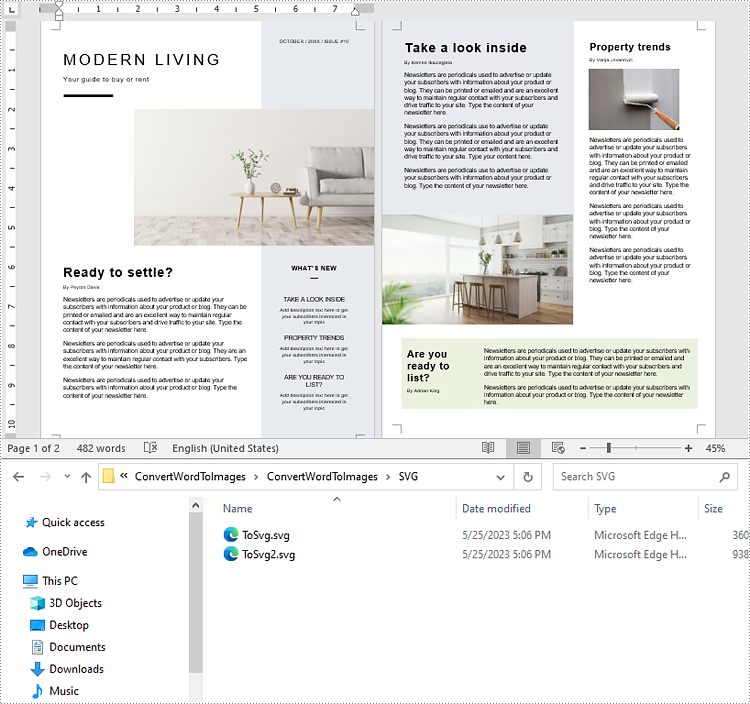
You can convert a Word document to SVG images easily by using the Document->SaveToFile(LPCWSTR_S fileName, FileFormat fileFormat) method. The detailed steps are as follows:
- Initialize an instance of the Document class.
- Load a Word document using the Document->LoadFromFile(LPCWSTR_S fileName) method.
- Save the document to SVG images using the Document->SaveToFile(LPCWSTR_S fileName, FileFormat fileFormat) method.
- C++
#include <iostream>
#include <string>
#include "Spire/Doc/pch.h"
#ifdef DocumentProperties
#undef DocumentProperties
#endif
#define DocumentProperties DocumentPropertiesA
#include "Spire/Doc/Document.h"
#include "Spire/Doc/FileFormat.h"
using namespace std;
using namespace Spire::Doc;

int main()
{
	//Initialize an instance of the Document class
	intrusive_ptr<Document> document = new Document();
	//Load a Word document
	document->LoadFromFile("Input.docx");

	string fileName = "Output/ToSvg.svg";
	//Save the document to SVG images
	document->SaveToFile(fileName.c_str(), FileFormat::SVG);
	document->Close();
}
Apply for a Temporary License
If you'd like to remove the evaluation message from the generated documents, or to get rid of the function limitations, please request a 30-day trial license for yourself.
C++: Add, Reply to, or Delete Comments in Word Documents
Comments are a commonly used feature in situations where multiple people are collaborating on the same document simultaneously. By using comments, collaborators can offer their thoughts or ideas directly in the document without making any changes to the actual text. This allows authors to review and consider the feedback before making any revisions. Additionally, comments provide an efficient way to identify specific issues within the document, as each comment is linked directly to the corresponding text or location in the document. In this article, we will explain how to work with comments in Word, specifically, how to add, reply to and delete comments in Word documents using Spire.Doc for C++.
- Add a Comment to a Paragraph in Word in C++
- Add a Comment to a Specific Text in Word in C++
- Add a Comment with a Picture in Word in C++
- Reply to a Comment in Word in C++
- Delete a Comment from Word in C++
Install Spire.Doc for C++
There are two ways to integrate Spire.Doc for C++ into your application. One way is to install it through NuGet, and the other way is to download the package from our website and copy the libraries into your program. Installation via NuGet is simpler and more recommended. You can find more details by visiting the following link.
Integrate Spire.Doc for C++ in a C++ Application
Add a Comment to a Paragraph in Word in C++
You can add a comment to a paragraph to provide a suggestion or additional information about the content of the paragraph. The following steps explain how to add a comment to a specific paragraph in a Word document using Spire.Doc for C++:
- Initialize an instance of the Document class.
- Load a Word document using the Document->LoadFromFile(LPCWSTR_S fileName) method.
- Get a specific section of the document using the Document->GetSections()->GetItemInSectionCollection(int index) method.
- Get a specific paragraph of the section using the Section->GetParagraphs()->GetItemInParagraphCollection(int index) method.
- Add a comment to the paragraph using the Paragraph->AppendComment(LPCWSTR_S text) method.
- Set the author and ID for the comment using the Comment->GetFormat()->SetAuthor(LPCWSTR_S value) and Comment->GetFormat()->SetCommentId(int value) methods.
- Save the result document using the Document->SaveToFile(LPCWSTR_S fileName, FileFormat fileFormat) method.
- C++
#include <iostream>
#include "Spire/Doc/pch.h"
#ifdef DocumentProperties
#undef DocumentProperties
#endif
#define DocumentProperties DocumentPropertiesA
#include "Spire/Doc/Collections/ParagraphCollection.h"
#include "Spire/Doc/Collections/SectionCollection.h"
#include "Spire/Doc/Document.h"
#include "Spire/Doc/Documents/Paragraph.h"
#include "Spire/Doc/Fields/Comment.h"
#include "Spire/Doc/FileFormat.h"
#include "Spire/Doc/Formatting/CommentFormat.h"
#include "Spire/Doc/Section.h"
using namespace std;
using namespace Spire::Doc;
using namespace Spire::Doc::Collections;
using namespace Spire::Doc::Documents;
using namespace Spire::Doc::Fields;
using namespace Spire::Doc::Formatting;

int main()
{
	//Initialize an instance of the Document class
	intrusive_ptr<Document> document = new Document();
	//Load a Word document
	document->LoadFromFile("Input.docx");

	//Get the first section of the document
	intrusive_ptr<Section> section = document->GetSections()->GetItem(0);

	//Get the second paragraph of the first section
	intrusive_ptr<Paragraph> paragraph = section->GetParagraphs()->GetItem(1);

	//Add a comment to the paragraph
	intrusive_ptr<Comment> comment = paragraph->AppendComment("This comment is added using Spire.Doc for Cpp.");
	//Set the author and ID for the comment
	comment->GetFormat()->SetAuthor("E-iceblue");
	comment->GetFormat()->SetCommentId(0);
	comment->GetFormat()->SetInitial("CM");

	//Save the result document
	document->SaveToFile("AddCommentToParagraph.docx", FileFormat::Docx2019);
	document->Close();
}

Add a Comment to a Specific Text in Word in C++
In addition to adding comments to paragraphs, Spire.Doc for C++ is also capable of adding comments to specific text in Word documents. The following steps explain how to add a comment to a specific text in a Word document using Spire.Doc for C++:
- Initialize an instance of the Document class.
- Load a Word document using the Document->LoadFromFile(LPCWSTR_S fileName) method.
- Find the specific text in the document using the Document->FindString(LPCWSTR_S stringValue, bool caseSensitive, bool wholeWord) method.
- Initialize an instance of the Comment class to create a new comment. Then set the content, author, and ID for the comment.
- Initialize an instance of the CommentMark class and set its type as CommentMarkType::CommentStart to create a comment start mark. Then set the ID of the comment start mark to be the same as the ID of the comment.
- Initialize an instance of the CommentMark class and set its type as CommentMarkType::CommentEnd to create a comment end mark. Then set the ID of the comment end mark to be the same as the ID of the comment.
- Get the owner paragraph of the found text. Then add the comment to the owner paragraph using the Paragraph->GetChildObjects()->Add(intrusive_ptr<IDocumentObject> entity) method.
- Get the index position of the found text in the owner paragraph using the Paragraph->GetChildObjects()->IndexOf(intrusive_ptr<IDocumentObject> entity) method.
- Insert the comment start mark before the index position of the found text using the Paragraph->GetChildObjects()->Insert(int index, intrusive_ptr<IDocumentObject> entity) method.
- Insert the comment end mark after the index position of the found text using the Paragraph->GetChildObjects()->Insert(int index, intrusive_ptr<IDocumentObject> entity) method.
- Save the result document using the Document->SaveToFile(LPCWSTR_S fileName, FileFormat fileFormat) method.
- C++
#include <iostream>
#include "Spire/Doc/pch.h"
#ifdef DocumentProperties
#undef DocumentProperties
#endif
#define DocumentProperties DocumentPropertiesA
#include "Spire/Doc/Body.h"
#include "Spire/Doc/Collections/DocumentObjectCollection.h"
#include "Spire/Doc/Document.h"
#include "Spire/Doc/Documents/CommentMark.h"
#include "Spire/Doc/Documents/CommentMarkType.h"
#include "Spire/Doc/Documents/Paragraph.h"
#include "Spire/Doc/Documents/TextSelection.h"
#include "Spire/Doc/Fields/Comment.h"
#include "Spire/Doc/Fields/TextRange.h"
#include "Spire/Doc/FileFormat.h"
#include "Spire/Doc/Formatting/CommentFormat.h"
using namespace std;
using namespace Spire::Doc;
using namespace Spire::Doc::Collections;
using namespace Spire::Doc::Documents;
using namespace Spire::Doc::Fields;
using namespace Spire::Doc::Formatting;

int main()
{
	//Initialize an instance of the Document class
	intrusive_ptr<Document> document = new Document();
	//Load a Word document
	document->LoadFromFile("Input.docx");

	//Find a specific text
	intrusive_ptr<TextSelection> find = document->FindString("Microsoft Office", false, true);


	//Create a comment and set its content, author and ID
	intrusive_ptr<Comment> comment = new Comment(document);
	comment->GetBody()->AddParagraph()->SetText("A software developed by Microsoft in 1988.");
	comment->GetFormat()->SetAuthor("George");
	comment->GetFormat()->SetCommentId(0);

	//Create a comment start mark
	intrusive_ptr<CommentMark> commentmarkStart = new CommentMark(document);
	commentmarkStart->SetType(CommentMarkType::CommentStart);
	//Set its ID to be the same as the ID of the comment
	commentmarkStart->SetCommentId(0);
	//Create a comment end mark
	intrusive_ptr<CommentMark> commentmarkEnd = new CommentMark(document);
	commentmarkEnd->SetType(CommentMarkType::CommentEnd);
	//Set its ID to be the same as the ID of the comment
	commentmarkEnd->SetCommentId(0);

	//Get the found text as a single text range
	intrusive_ptr<TextRange> range = find->GetAsOneRange();

	//Get the owner paragraph of the text range
	intrusive_ptr<Paragraph> para = range->GetOwnerParagraph();

	//Add the comment to the owner paragraph
	para->GetChildObjects()->Add(comment);

	//Get the index position of the text range in the owner paragraph
	int index = para->GetChildObjects()->IndexOf(range);

	//Insert the comment start mark before the index position of the text range
	para->GetChildObjects()->Insert(index, commentmarkStart);
	//Insert the comment end mark after the index position of the text range
	para->GetChildObjects()->Insert(index + 2, commentmarkEnd);

	//Save the result document
	document->SaveToFile("AddCommentForSpecificText.docx", FileFormat::Docx2019);
	document->Close();
}

Add a Comment with a Picture in Word in C++
Sometimes, you may want to include a picture in your comment to supplement the textual content. The following steps explain how to add a comment with a picture to a Word document using Spire.Doc for C++:
- Initialize an instance of the Document class.
- Load a Word document using the Document->LoadFromFile(LPCWSTR_S fileName) method.
- Get a specific section of the document using the Document->GetSections()->GetItemInSectionCollection(int index) method.
- Get a specific paragraph of the section using the Section->GetParagraphs()->GetItemInParagraphCollection(int index) method.
- Add a comment to the paragraph using the Paragraph->AppendComment(LPCWSTR_S text) method. Then set the author name and ID for the comment.
- Initialize an instance of the DocPicture class.
- Load a picture using the DocPicture->LoadImageSpire(LPCWSTR_S imgFile) method. Then set the width and height for the picture.
- Add a paragraph to the comment. Then add the picture to the paragraph using the Paragraph->GetChildObjects()->Add() method.
- Save the result document using the Document->SaveToFile(LPCWSTR_S fileName, FileFormat fileFormat) method.
- C++
#include <iostream>
#include "Spire/Doc/pch.h"
#ifdef LoadImage
#undef LoadImage
#endif
#define LoadImage LoadImageA
#ifdef DocumentProperties
#undef DocumentProperties
#endif
#define DocumentProperties DocumentPropertiesA
#include "Spire/Doc/Body.h"
#include "Spire/Doc/Collections/DocumentObjectCollection.h"
#include "Spire/Doc/Collections/ParagraphCollection.h"
#include "Spire/Doc/Collections/SectionCollection.h"
#include "Spire/Doc/Document.h"
#include "Spire/Doc/Documents/Paragraph.h"
#include "Spire/Doc/Fields/Comment.h"
#include "Spire/Doc/Fields/DocPicture.h"
#include "Spire/Doc/FileFormat.h"
#include "Spire/Doc/Formatting/CommentFormat.h"
#include "Spire/Doc/Section.h"
using namespace std;
using namespace Spire::Doc;
using namespace Spire::Doc::Collections;
using namespace Spire::Doc::Documents;
using namespace Spire::Doc::Fields;
using namespace Spire::Doc::Formatting;

int main()
{
	//Initialize an instance of the Document class
	intrusive_ptr<Document> document = new Document();
	//Load a Word document
	document->LoadFromFile("Input.docx");

	//Get the first section of the document
	intrusive_ptr<Section> section = document->GetSections()->GetItem(0);

	//Get the first paragraph of the first section
	intrusive_ptr<Paragraph> paragraph = section->GetParagraphs()->GetItem(0);

	//Add a comment to the paragraph
	intrusive_ptr<Comment> comment = paragraph->AppendComment("Spire.Doc for Cpp");
	comment->GetFormat()->SetAuthor("E-iceblue");
	comment->GetFormat()->SetCommentId(0);

	//Load a picture
	intrusive_ptr<DocPicture> docPicture = new DocPicture(document);
	docPicture->LoadImage("Doc-CPP.png");
	//Set picture width and height
	docPicture->SetWidth(100);
	docPicture->SetHeight(100);

	//Add the picture to the comment
	intrusive_ptr<Paragraph> picParagraph = comment->GetBody()->AddParagraph();
	picParagraph->GetChildObjects()->Add(docPicture);

	//Save the result document
	document->SaveToFile("AddCommentWithPicture.docx", FileFormat::Docx2019);
	document->Close();
}

Reply to a Comment in Word in C++
When reviewing a comment added by others, you may want to reply to it to provide your insights. The following steps explain how to reply to an existing comment in a Word document using Spire.Doc for C++:
- Initialize an instance of the Document class.
- Load a Word document using the Document->LoadFromFile(LPCWSTR_S fileName) method.
- Get a specific comment in the document using the Document-> GetComments()->GetItem(int index) method.
- Initialize an instance of the Comment class to create a new comment. Then set the content, author, and ID for the comment.
- Add the new comment as a reply to the specific comment using the Comment->ReplyToComment(intrusive_ptr<Comment> replyComment) method.
- Save the result document using the Document->SaveToFile(LPCWSTR_S fileName, FileFormat fileFormat) method.
- C++
#include <iostream>
#include "Spire/Doc/pch.h"
#ifdef DocumentProperties
#undef DocumentProperties
#endif
#define DocumentProperties DocumentPropertiesA
#include "Spire/Doc/Body.h"
#include "Spire/Doc/Collections/CommentsCollection.h"
#include "Spire/Doc/Collections/DocumentObjectCollection.h"
#include "Spire/Doc/CompositeDocumentObject.h"
#include "Spire/Doc/Document.h"
#include "Spire/Doc/DocumentObject.h"
#include "Spire/Doc/Documents/DropDownItem.h"
#include "Spire/Doc/Documents/Paragraph.h"
#include "Spire/Doc/Fields/Comment.h"
#include "Spire/Doc/Fields/ShapeObject.h"
#include "Spire/Doc/Fields/TextRange.h"
#include "Spire/Doc/FileFormat.h"
#include "Spire/Doc/Formatting/CommentFormat.h"
using namespace std;
using namespace Spire::Doc;
using namespace Spire::Doc::Collections;
using namespace Spire::Doc::Documents;
using namespace Spire::Doc::Fields;
using namespace Spire::Doc::Formatting;

int main()
{
	//Initialize an instance of the Document class
	intrusive_ptr<Document> document = new Document();
	//Load a Word document
	document->LoadFromFile("AddCommentToParagraph.docx");

	//Get the first comment of the document
	intrusive_ptr<Comment> comment = document->GetComments()->GetItem(0);

	//Create a comment and set its author, ID and content
	intrusive_ptr<Comment> replyComment = new Comment(document);
	replyComment->GetFormat()->SetAuthor("Michael");
	replyComment->GetFormat()->SetCommentId(1);
	replyComment->GetBody()->AddParagraph()->AppendText("Spire.Doc is a wonderful Word library.");

	//Add the new comment as a reply to the first comment
	comment->ReplyToComment(replyComment);

	//Save the result document
	document->SaveToFile("ReplyToComment.docx", FileFormat::Docx2019);
	document->Close();
}

Delete a Comment from Word in C++
After you have finished revising the file and want to publish a formal version, you may need to remove the comments from the file. The following steps show you how to delete a comment from a Word document using Spire.Doc for C++:
- Initialize an instance of the Document class.
- Load a Word document using the Document->LoadFromFile(LPCWSTR_S fileName) method.
- Delete a specific comment from the document using the Document->GetComments()->RemoveAt(int index) method.
- Save the result document using the Document->SaveToFile(LPCWSTR_S fileName, FileFormat fileFormat) method.
- C++
#include <iostream>
#include "Spire/Doc/pch.h"
#ifdef DocumentProperties
#undef DocumentProperties
#endif
#define DocumentProperties DocumentPropertiesA
#include "Spire/Doc/Collections/CommentsCollection.h"
#include "Spire/Doc/Document.h"
#include "Spire/Doc/FileFormat.h"
using namespace std;
using namespace Spire::Doc;
using namespace Spire::Doc::Collections;

int main()
{
	//Initialize an instance of the Document class
	intrusive_ptr<Document> document = new Document();
	//Load a Word document
	document->LoadFromFile("AddCommentToParagraph.docx");

	//Delete the first comment from the document
	document->GetComments()->RemoveAt(0);

	//Save the result document
	document->SaveToFile("DeleteComment.docx", FileFormat::Docx2019);
	document->Close();
}

Apply for a Temporary License
If you'd like to remove the evaluation message from the generated documents, or to get rid of the function limitations, please request a 30-day trial license for yourself.
C++: Create Lists in a Word Document
If you want to make your paragraphs easier to navigate and read, rearranging them into alphabetical, numerical, or even bullet order will allow your readers to quickly find what they are looking for and search through the list in an instant. In this article, you will learn how to create numbered lists, bulleted lists, and multilevel lists in a Word document in C++ using Spire.Doc for C++.
- Create a Numbered List in Word in C++
- Create a Bulleted List in Word in C++
- Create a Multilevel Numbered List in Word in C++
- Create a Multilevel Mixed-Type List in Word in C++
Install Spire.Doc for C++
There are two ways to integrate Spire.Doc for C++ into your application. One way is to install it through NuGet, and the other way is to download the package from our website and copy the libraries into your program. Installation via NuGet is simpler and more recommended. You can find more details by visiting the following link.
Integrate Spire.Doc for C++ in a C++ Application
Create a Numbered List in Word in C++
Spire.Doc for C++ offers the ListStyle class that you can use to create a numbered list style or a bulleted style. Then, the list style can be applied to a paragraph using Paragraph->GetListFormat()->ApplyStyle() method. The steps to create a numbered list are as follows.
- Create a Document object.
- Add a section using Document->AddSection() method.
- Create an instance of ListStyle class, specifying the list type to Numbered.
- Get a specific level of the list using ListStyle->GetListRef()->GetLevels()->GetItem(index) method, and set the numbering type using ListLevel->SetPatternType() method.
- Add the list style to the document using Document->GetStyles()->Add() method.
- Add several paragraphs to the document using Section->AddParagraph() method.
- Apply the list style to a specific paragraph using Paragraph->GetListFormat()->ApplyStyle() method.
- Specify the list level using Paragraph->GetListFormat()->SetListLevelNumber() method.
- Save the document to a Word file using Document->SaveToFile() method.
- C++
#include <iostream>
#include "Spire/Doc/pch.h"
#ifdef DocumentProperties
#undef DocumentProperties
#endif
#define DocumentProperties DocumentPropertiesA
#include "Spire/Doc/Collections/DocumentObjectCollection.h"
#include "Spire/Doc/Collections/ListLevelCollection.h"
#include "Spire/Doc/Collections/StyleCollection.h"
#include "Spire/Doc/CompositeDocumentObject.h"
#include "Spire/Doc/Document.h"
#include "Spire/Doc/DocumentObject.h"
#include "Spire/Doc/Documents/DropDownItem.h"
#include "Spire/Doc/Documents/ListDefinitionReference.h"
#include "Spire/Doc/Documents/ListLevel.h"
#include "Spire/Doc/Documents/ListPatternType.h"
#include "Spire/Doc/Documents/ListStyle.h"
#include "Spire/Doc/Documents/ListType.h"
#include "Spire/Doc/Documents/Paragraph.h"
#include "Spire/Doc/Fields/ShapeObject.h"
#include "Spire/Doc/Fields/TextRange.h"
#include "Spire/Doc/FileFormat.h"
#include "Spire/Doc/Formatting/ListFormat.h"
#include "Spire/Doc/Formatting/ParagraphFormat.h"
#include "Spire/Doc/Section.h"
using namespace std;
using namespace Spire::Doc;
using namespace Spire::Doc::Collections;
using namespace Spire::Doc::Documents;
using namespace Spire::Doc::Fields;
using namespace Spire::Doc::Formatting;

int main() {

    //Create a Document object
    intrusive_ptr<Document> document = new Document();

    //Add a section
    intrusive_ptr<Section> section = document->AddSection();

    //Create a numbered list style
    intrusive_ptr<ListStyle> listStyle = document->GetStyles()->Add(ListType::Numbered, "numberList");
    listStyle->GetListRef()->GetLevels()->GetItem(0)->SetPatternType(ListPatternType::DecimalEnclosedFullstop);
    listStyle->GetListRef()->GetLevels()->GetItem(0)->SetTextPosition(20);
    document->GetStyles()->Add(listStyle);

    //Add a paragraph
    intrusive_ptr<Paragraph> paragraph = section->AddParagraph();
    paragraph->AppendText("Required Web Development Skills:");
    paragraph->GetFormat()->SetAfterSpacing(5);

    //Add a paragraph and apply the numbered list style to it
    paragraph = section->AddParagraph();
    paragraph->AppendText("HTML");
    paragraph->GetListFormat()->ApplyStyle(listStyle);
    paragraph->GetListFormat()->SetListLevelNumber(0);

    //Add another four paragraphs and apply the numbered list style to them
    paragraph = section->AddParagraph();
    paragraph->AppendText("CSS");
    paragraph->GetListFormat()->ApplyStyle(listStyle);
    paragraph->GetListFormat()->SetListLevelNumber(0);

    paragraph = section->AddParagraph();
    paragraph->AppendText("C++Script");
    paragraph->GetListFormat()->ApplyStyle(listStyle);
    paragraph->GetListFormat()->SetListLevelNumber(0);

    paragraph = section->AddParagraph();
    paragraph->AppendText("Python");
    paragraph->GetListFormat()->ApplyStyle(listStyle);
    paragraph->GetListFormat()->SetListLevelNumber(0);

    paragraph = section->AddParagraph();
    paragraph->AppendText("MySQL");
    paragraph->GetListFormat()->ApplyStyle(listStyle);
    paragraph->GetListFormat()->SetListLevelNumber(0);

    //Save the document to file
    document->SaveToFile("Output/NumberedList.docx", FileFormat::Docx2019);
    document->Dispose();
}
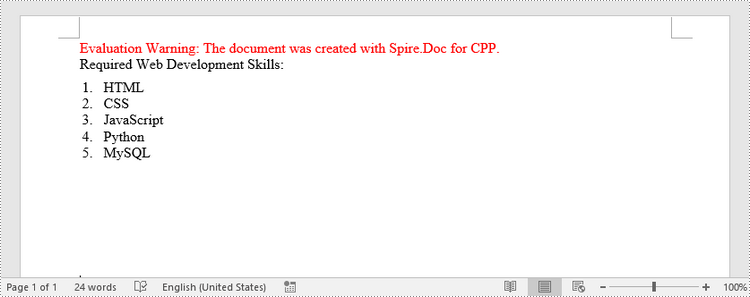
Create a Bulleted List in Word in C++
The process of creating a bulleted list is similar to that of creating a numbered list. The difference is that when creating a list style, you must specify the list type as Bulleted and set a bullet symbol for it. The following are the detailed steps.
- Create a Document object.
- Add a section using Document->AddSection() method.
- Create an instance of ListStyle class, specifying the list type to Bulleted.
- Get a specific level of the list using ListStyle->GetListRef()->GetLevels()->GetItem(index) method, and set the bullet symbol using ListLevel->SetBulletCharacter() method.
- Add the list style to the document using Document->GetStyles()->Add() method.
- Add several paragraphs to the document using Section->AddParagraph() method.
- Apply the list style to a specific paragraph using Paragraph->GetListFormat()->ApplyStyle() method.
- Specify the list level using Paragraph->GetListFormat()->SetListLevelNumber() method.
- Save the document to a Word file using Document->SaveToFile() method.
- C++
#include <iostream>
#include "Spire/Doc/pch.h"
#ifdef DocumentProperties
#undef DocumentProperties
#endif
#define DocumentProperties DocumentPropertiesA
#include "Spire/Doc/Collections/DocumentObjectCollection.h"
#include "Spire/Doc/Collections/ListLevelCollection.h"
#include "Spire/Doc/Collections/StyleCollection.h"
#include "Spire/Doc/CompositeDocumentObject.h"
#include "Spire/Doc/Document.h"
#include "Spire/Doc/DocumentObject.h"
#include "Spire/Doc/Documents/DropDownItem.h"
#include "Spire/Doc/Documents/ListDefinitionReference.h"
#include "Spire/Doc/Documents/ListLevel.h"
#include "Spire/Doc/Documents/ListStyle.h"
#include "Spire/Doc/Documents/ListType.h"
#include "Spire/Doc/Documents/Paragraph.h"
#include "Spire/Doc/Fields/ShapeObject.h"
#include "Spire/Doc/Fields/TextRange.h"
#include "Spire/Doc/FileFormat.h"
#include "Spire/Doc/Formatting/CharacterFormat.h"
#include "Spire/Doc/Formatting/ListFormat.h"
#include "Spire/Doc/Formatting/ParagraphFormat.h"
#include "Spire/Doc/Section.h"
using namespace std;
using namespace Spire::Doc;
using namespace Spire::Doc::Collections;
using namespace Spire::Doc::Documents;
using namespace Spire::Doc::Fields;
using namespace Spire::Doc::Formatting;

int main() {

    //Create a Document object
    intrusive_ptr<Document> document = new Document();

    //Add a section
    intrusive_ptr<Section> section = document->AddSection();

    //Create a bulleted list style
    intrusive_ptr<ListStyle> listStyle = document->GetStyles()->Add(ListType::Bulleted, "bulletedList");
    listStyle->GetListRef()->GetLevels()->GetItem(0)->SetBulletCharacter("\u00B7");
    listStyle->GetListRef()->GetLevels()->GetItem(0)->GetCharacterFormat()->SetFontName("Symbol");
    listStyle->GetListRef()->GetLevels()->GetItem(0)->SetTextPosition(20);
    document->GetStyles()->Add(listStyle);

    //Add a paragraph
    intrusive_ptr<Paragraph> paragraph = section->AddParagraph();
    paragraph->AppendText("Computer Science Subjects:");
    paragraph->GetFormat()->SetAfterSpacing(5);

    //Add a paragraph and apply the bulleted list style to it
    paragraph = section->AddParagraph();
    paragraph->AppendText("Data Structure");
    paragraph->GetListFormat()->ApplyStyle("bulletedList");
    paragraph->GetListFormat()->SetListLevelNumber(0);

    //Add another five paragraphs and apply the bulleted list style to them
    paragraph = section->AddParagraph();
    paragraph->AppendText("Algorithm");
    paragraph->GetListFormat()->ApplyStyle("bulletedList");
    paragraph->GetListFormat()->SetListLevelNumber(0);

    paragraph = section->AddParagraph();
    paragraph->AppendText("Computer Networks");
    paragraph->GetListFormat()->ApplyStyle("bulletedList");
    paragraph->GetListFormat()->SetListLevelNumber(0);

    paragraph = section->AddParagraph();
    paragraph->AppendText("Operating System");
    paragraph->GetListFormat()->ApplyStyle("bulletedList");
    paragraph->GetListFormat()->SetListLevelNumber(0);

    paragraph = section->AddParagraph();
    paragraph->AppendText("C Programming");
    paragraph->GetListFormat()->ApplyStyle("bulletedList");
    paragraph->GetListFormat()->SetListLevelNumber(0);

    paragraph = section->AddParagraph();
    paragraph->AppendText("Theory of Computations");
    paragraph->GetListFormat()->ApplyStyle("bulletedList");
    paragraph->GetListFormat()->SetListLevelNumber(0);

    //Save the document to file
    document->SaveToFile("Output/BulletedList.docx", FileFormat::Docx2019);
    document->Dispose();
}
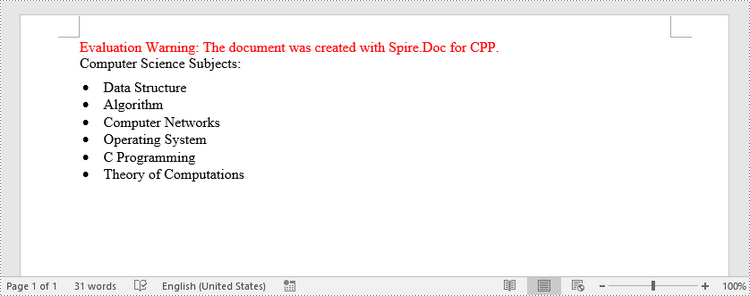
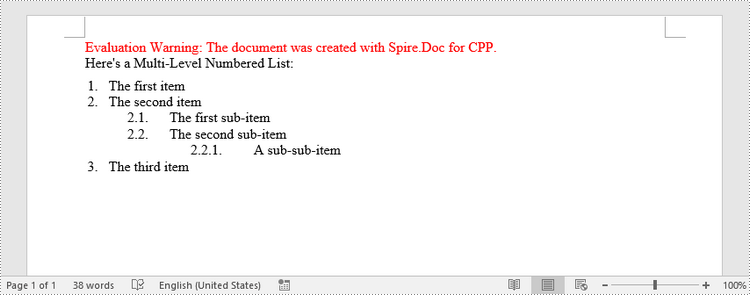
Create a Multilevel Numbered List in Word in C++
A multilevel list consists of at least two different levels. Each level of a nested list can be accessed using ListStyle ->GetListRef()->GetLevels()->GetItem(index) method. Through ListLevel object, you can set the numbering type and prefix for a certain level. The following are the steps to create a multilevel numbered list in Word.
- Create a Document object.
- Add a section using Document->AddSection() method.
- Create an instance of ListStyle class, specifying the list type to Numbered.
- Get a specific level of the list using ListStyle ->GetListRef()->GetLevels()->GetItem(index) method, and set the numbering type and prefix.
- Add the list style to the document using Document->GetStyles()->Add() method.
- Add several paragraphs to the document using Section->AddParagraph() method.
- Apply the list style to a specific paragraph using Paragraph->GetListFormat()->ApplyStyle() method.
- Specify the list level using Paragraph->GetListFormat()->SetListLevelNumber() method.
- Save the document to a Word file using Document->SaveToFile() method.
- C++
#include <iostream>
#include "Spire/Doc/pch.h"
#ifdef DocumentProperties
#undef DocumentProperties
#endif
#define DocumentProperties DocumentPropertiesA
#include "Spire/Doc/Collections/DocumentObjectCollection.h"
#include "Spire/Doc/Collections/ListLevelCollection.h"
#include "Spire/Doc/Collections/StyleCollection.h"
#include "Spire/Doc/CompositeDocumentObject.h"
#include "Spire/Doc/Document.h"
#include "Spire/Doc/DocumentObject.h"
#include "Spire/Doc/Documents/DropDownItem.h"
#include "Spire/Doc/Documents/ListDefinitionReference.h"
#include "Spire/Doc/Documents/ListLevel.h"
#include "Spire/Doc/Documents/ListPatternType.h"
#include "Spire/Doc/Documents/ListStyle.h"
#include "Spire/Doc/Documents/ListType.h"
#include "Spire/Doc/Documents/Paragraph.h"
#include "Spire/Doc/Fields/ShapeObject.h"
#include "Spire/Doc/Fields/TextRange.h"
#include "Spire/Doc/FileFormat.h"
#include "Spire/Doc/Formatting/ListFormat.h"
#include "Spire/Doc/Formatting/ParagraphFormat.h"
#include "Spire/Doc/Section.h"
using namespace std;
using namespace Spire::Doc;
using namespace Spire::Doc::Collections;
using namespace Spire::Doc::Documents;
using namespace Spire::Doc::Fields;
using namespace Spire::Doc::Formatting;

int main() {

    //Create a Document object
    intrusive_ptr<Document> document = new Document();

    //Add a section
    intrusive_ptr<Section> section = document->AddSection();

    //Create a numbered list style, specifying number prefix and pattern type of each level
    intrusive_ptr<ListStyle> listStyle = document->GetStyles()->Add(ListType::Numbered, "nestedStyle");
    listStyle->GetListRef()->GetLevels()->GetItem(0)->SetPatternType(ListPatternType::Arabic);
    listStyle->GetListRef()->GetLevels()->GetItem(0)->SetTextPosition(20);
    listStyle->GetListRef()->GetLevels()->GetItem(1)->SetNumberPrefix("%1.");
    listStyle->GetListRef()->GetLevels()->GetItem(1)->SetPatternType(ListPatternType::Arabic);
    listStyle->GetListRef()->GetLevels()->GetItem(2)->SetNumberPrefix("%1.%2.");
    listStyle->GetListRef()->GetLevels()->GetItem(2)->SetPatternType(ListPatternType::Arabic);
    document->GetStyles()->Add(listStyle);

    //Add a paragraph
    intrusive_ptr<Paragraph> paragraph = section->AddParagraph();
    paragraph->AppendText("Here's a Multi-Level Numbered List:");
    paragraph->GetFormat()->SetAfterSpacing(5);

    //Add a paragraph and apply the numbered list style to it
    paragraph = section->AddParagraph();
    paragraph->AppendText("The first item");
    paragraph->GetListFormat()->ApplyStyle("nestedStyle");
    paragraph->GetListFormat()->SetListLevelNumber(0);

    //Add another five paragraphs and apply the numbered list stype to them
    paragraph = section->AddParagraph();
    paragraph->AppendText("The second item");
    paragraph->GetListFormat()->ApplyStyle("nestedStyle");
    paragraph->GetListFormat()->SetListLevelNumber(0);

    paragraph = section->AddParagraph();
    paragraph->AppendText("The first sub-item");
    paragraph->GetListFormat()->ApplyStyle("nestedStyle");
    paragraph->GetListFormat()->SetListLevelNumber(1);

    paragraph = section->AddParagraph();
    paragraph->AppendText("The second sub-item");
    paragraph->GetListFormat()->ContinueListNumbering();
    paragraph->GetListFormat()->ApplyStyle("nestedStyle");

    paragraph = section->AddParagraph();
    paragraph->AppendText("A sub-sub-item");
    paragraph->GetListFormat()->ApplyStyle("nestedStyle");
    paragraph->GetListFormat()->SetListLevelNumber(2);

    paragraph = section->AddParagraph();
    paragraph->AppendText("The third item");
    paragraph->GetListFormat()->ApplyStyle("nestedStyle");
    paragraph->GetListFormat()->SetListLevelNumber(0);

    //Save the document to file
    document->SaveToFile("Output/MultilevelNumberedList.docx", FileFormat::Docx2019);
    document->Dispose();
}
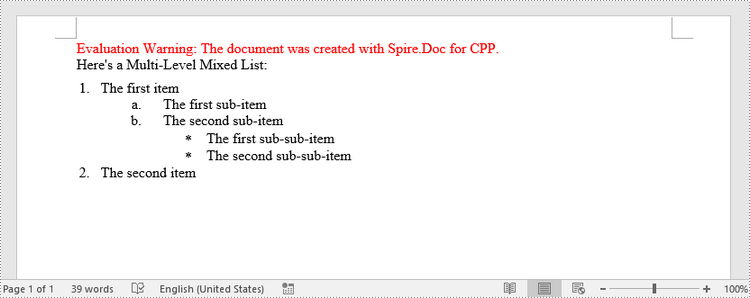
Create a Multilevel Mixed-Type List in Word in C++
A multilevel list can be a combination of numbered lists and bulleted lists. To create a mixed-type list, you just need to create a numbered list style and a bulleted list style and apply them to different paragraphs. The detailed steps are as follows.
- Create a Document object.
- Add a section using Document->AddSection() method.
- Create a numbered list style and a bulleted list style.
- Add several paragraphs to the document using Section->AddParagraph() method.
- Apply different list style to different paragraphs using Paragraph->GetListFormat()->ApplyStyle() method.
- Save the document to a Word file using Document->SaveToFile() method.
- C++
#include <iostream>
#include "Spire/Doc/pch.h"
#ifdef DocumentProperties
#undef DocumentProperties
#endif
#define DocumentProperties DocumentPropertiesA
#include "Spire/Doc/Collections/DocumentObjectCollection.h"
#include "Spire/Doc/Collections/ListLevelCollection.h"
#include "Spire/Doc/Collections/StyleCollection.h"
#include "Spire/Doc/CompositeDocumentObject.h"
#include "Spire/Doc/Document.h"
#include "Spire/Doc/DocumentObject.h"
#include "Spire/Doc/Documents/DropDownItem.h"
#include "Spire/Doc/Documents/ListDefinitionReference.h"
#include "Spire/Doc/Documents/ListLevel.h"
#include "Spire/Doc/Documents/ListPatternType.h"
#include "Spire/Doc/Documents/ListStyle.h"
#include "Spire/Doc/Documents/ListType.h"
#include "Spire/Doc/Documents/Paragraph.h"
#include "Spire/Doc/Fields/ShapeObject.h"
#include "Spire/Doc/Fields/TextRange.h"
#include "Spire/Doc/FileFormat.h"
#include "Spire/Doc/Formatting/CharacterFormat.h"
#include "Spire/Doc/Formatting/ListFormat.h"
#include "Spire/Doc/Formatting/ParagraphFormat.h"
#include "Spire/Doc/Section.h"
using namespace std;
using namespace Spire::Doc;
using namespace Spire::Doc::Collections;
using namespace Spire::Doc::Documents;
using namespace Spire::Doc::Fields;
using namespace Spire::Doc::Formatting;

int main() {
    //Create a Document object
    intrusive_ptr<Document> document = new Document();

    //Add a section
    intrusive_ptr<Section> section = document->AddSection();

    //Create a numbered list style
    intrusive_ptr<ListStyle> numberedListStyle = document->GetStyles()->Add(ListType::Numbered, "numberedStyle");
    numberedListStyle->GetListRef()->GetLevels()->GetItem(0)->SetPatternType(ListPatternType::Arabic);
    numberedListStyle->GetListRef()->GetLevels()->GetItem(0)->SetTextPosition(20);
    numberedListStyle->GetListRef()->GetLevels()->GetItem(1)->SetPatternType(ListPatternType::LowLetter);
    document->GetStyles()->Add(numberedListStyle);

    //Create a bulleted list style
    intrusive_ptr<ListStyle> bulletedListStyle = document->GetStyles()->Add(ListType::Numbered, "bulletedStyle");
    bulletedListStyle->GetListRef()->GetLevels()->GetItem(2)->SetBulletCharacter("\u002A");
    bulletedListStyle->GetListRef()->GetLevels()->GetItem(2)->GetCharacterFormat()->SetFontName("Symbol");
    document->GetStyles()->Add(bulletedListStyle);

    //Add a paragraph
    intrusive_ptr<Paragraph> paragraph = section->AddParagraph();
    paragraph->AppendText("Here's a Multi-Level Mixed List:");
    paragraph->GetFormat()->SetAfterSpacing(5);

    //Add a paragraph and apply the numbered list style to it
    paragraph = section->AddParagraph();
    paragraph->AppendText("The first item");
    paragraph->GetListFormat()->ApplyStyle("numberedStyle");
    paragraph->GetListFormat()->SetListLevelNumber(0);

    //Add another five paragraphs and apply different list stype to them
    paragraph = section->AddParagraph();
    paragraph->AppendText("The first sub-item");
    paragraph->GetListFormat()->ApplyStyle("numberedStyle");
    paragraph->GetListFormat()->SetListLevelNumber(1);

    paragraph = section->AddParagraph();
    paragraph->AppendText("The second sub-item");
    paragraph->GetListFormat()->SetListLevelNumber(1);
    paragraph->GetListFormat()->ApplyStyle("numberedStyle");

    paragraph = section->AddParagraph();
    paragraph->AppendText("The first sub-sub-item");
    paragraph->GetListFormat()->ApplyStyle("bulletedStyle");
    paragraph->GetListFormat()->SetListLevelNumber(2);

    paragraph = section->AddParagraph();
    paragraph->AppendText("The second sub-sub-item");
    paragraph->GetListFormat()->ApplyStyle("bulletedStyle");
    paragraph->GetListFormat()->SetListLevelNumber(2);

    paragraph = section->AddParagraph();
    paragraph->AppendText("The second item");
    paragraph->GetListFormat()->ApplyStyle("numberedStyle");
    paragraph->GetListFormat()->SetListLevelNumber(0);

    //Save the document to file
    document->SaveToFile("Output/MultilevelMixedList.docx", FileFormat::Docx);
    document->Dispose();
}
Apply for a Temporary License
If you'd like to remove the evaluation message from the generated documents, or to get rid of the function limitations, please request a 30-day trial license for yourself.
C#/VB.NET: Insert Lists in a Word Document
Lists are used in Word documents to outline, arrange, and emphasize text, making it easy for users to scan and understand a series of items. There are three different types of lists in Word, namely numbered lists, bulleted lists and multi-level lists. Numbered lists are used for items that have a sequence or priority, such as a series of instructions. Bulleted lists are used for items that have no particular priority, such as a list of functions or facts. Multi-level lists are used where there is a sequence and you want each paragraph numbered separately.
In this article, you will learn how to insert these types of lists into a Word document in C# and VB.NET using Spire.Doc for .NET.
- Insert a Numbered List in Word
- Insert a Bulleted List in Word
- Insert a Multi-Level Numbered List in Word
- Insert a Multi-Level Mixed-Type List in Word
Install Spire.Doc for .NET
To begin with, you need to add the DLL files included in the Spire.Doc for.NET package as references in your .NET project. The DLL files can be either downloaded from this link or installed via NuGet.
PM> Install-Package Spire.Doc
Insert a Numbered List in Word in C#, VB.NET
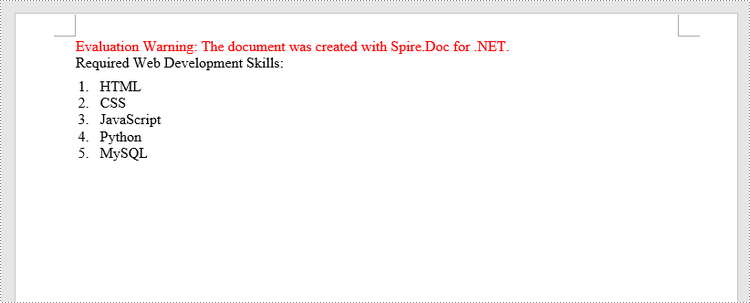
Spire.Doc for .NET offers the ListStyle class that you can use to create a numbered list style or a bulleted style. Then, the list style can be applied to a paragraph using Paragraph.ListFormat.ApplyStyle() method. The steps to create a numbered list are as follows.
- Create a Document object.
- Add a section using Document.AddSection() method.
- Create an instance of ListStyle class, specifying the list type to Numbered.
- Get a specific level of the list through ListStyle.ListRef.Levels[index] property, and set the numbering type through ListLevel.PatternType property.
- Add the list style to the document using Document.Styles.Add() method.
- Add several paragraphs to the document using Section.AddParagraph() method.
- Apply the list style to a specific paragraph using Paragraph.ListFormat.ApplyStyle() method.
- Specify the list level through Paragraph.ListFormat.ListLevelNumber property.
- Save the document to a Word file using Document.SaveToFile() method.
- C#
- VB.NET
using Spire.Doc;
using Spire.Doc.Documents;

namespace CreateOrderedList
{
    class Program
    {
        static void Main(string[] args)
        {
            //Create a Document object
            Document document = new Document();

            //Add a section
            Section section = document.AddSection();

            //Create a numbered list style
            ListStyle listStyle = document.Styles.Add(ListType.Numbered, "numberedList");
            listStyle.ListRef.Levels[0].PatternType = ListPatternType.DecimalEnclosedParen;
            listStyle.ListRef.Levels[0].TextPosition = 20;

            //Add a paragraph
            Paragraph paragraph = section.AddParagraph();
            paragraph.AppendText("Required Web Development Skills:");
            paragraph.Format.AfterSpacing = 5f;

            //Add a paragraph and apply the numbered list style to it
            paragraph = section.AddParagraph();
            paragraph.AppendText("HTML");
            paragraph.ListFormat.ApplyStyle("numberedList");
            paragraph.ListFormat.ListLevelNumber = 0;

            //Add another four paragraphs and apply the numbered list style to them
            paragraph = section.AddParagraph();
            paragraph.AppendText("CSS");
            paragraph.ListFormat.ApplyStyle("numberedList");
            paragraph.ListFormat.ListLevelNumber = 0;

            paragraph = section.AddParagraph();
            paragraph.AppendText("JavaScript");
            paragraph.ListFormat.ApplyStyle("numberedList");
            paragraph.ListFormat.ListLevelNumber = 0;

            paragraph = section.AddParagraph();
            paragraph.AppendText("Python");
            paragraph.ListFormat.ApplyStyle("numberedList");
            paragraph.ListFormat.ListLevelNumber = 0;

            paragraph = section.AddParagraph();
            paragraph.AppendText("MySQL");
            paragraph.ListFormat.ApplyStyle("numberedList");
            paragraph.ListFormat.ListLevelNumber = 0;

            //Save the document to file
            document.SaveToFile("Output\\NumberedList.docx", FileFormat.Docx);
        }
    }
}
Insert a Bulleted List in Word in C#, VB.NET
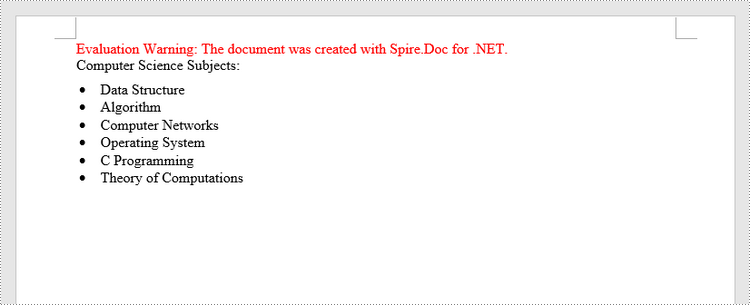
The process of creating a bulleted list is similar to that of creating a numbered list. The difference is that when creating a list style, you must specify the list type as Bulleted and set a bullet symbol for it. The following are the detailed steps.
- Create a Document object.
- Add a section using Document.AddSection() method.
- Create an instance of ListStyle class, specifying the list type to Bulleted.
- Get a specific level of the list through ListStyle.ListRef.Levels[index] property, and set the bullet symbol through ListLevel.BulletCharacter property.
- Add the list style to the document using Document.Styles.Add() method.
- Add several paragraphs to the document using Section.AddParagraph() method.
- Apply the list style to a specific paragraph using Paragraph.ListFormat.ApplyStyle() method.
- Specify the list level through Paragraph.ListFormat.ListLevelNumber property.
- Save the document to a Word file using Document.SaveToFile() method.
- C#
- VB.NET
using Spire.Doc;
using Spire.Doc.Documents;

namespace CreateUnorderedList
{
    class Program
    {
        static void Main(string[] args)
        {
            //Create a Document object
            Document document = new Document();

            //Add a section
            Section section = document.AddSection();

            //Create a bulleted list style
            ListStyle listStyle = document.Styles.Add( ListType.Bulleted, "bulletedList");
            listStyle.ListRef.Levels[0].BulletCharacter = "\x00B7";
            listStyle.ListRef.Levels[0].CharacterFormat.FontName = "Symbol";
            listStyle.ListRef.Levels[0].TextPosition = 20;

            //Add a paragraph
            Paragraph paragraph = section.AddParagraph();
            paragraph.AppendText("Computer Science Subjects:");
            paragraph.Format.AfterSpacing = 5f;

            //Add a paragraph and apply the bulleted list style to it
            paragraph = section.AddParagraph();
            paragraph.AppendText("Data Structure");
            paragraph.ListFormat.ApplyStyle("bulletedList");
            paragraph.ListFormat.ListLevelNumber = 0;

            //Add another five paragraphs and apply the bulleted list style to them
            paragraph = section.AddParagraph();
            paragraph.AppendText("Algorithm");
            paragraph.ListFormat.ApplyStyle("bulletedList");
            paragraph.ListFormat.ListLevelNumber = 0;

            paragraph = section.AddParagraph();
            paragraph.AppendText("Computer Networks");
            paragraph.ListFormat.ApplyStyle("bulletedList");
            paragraph.ListFormat.ListLevelNumber = 0;

            paragraph = section.AddParagraph();
            paragraph.AppendText("Operating System");
            paragraph.ListFormat.ApplyStyle("bulletedList");
            paragraph.ListFormat.ListLevelNumber = 0;

            paragraph = section.AddParagraph();
            paragraph.AppendText("C Programming");
            paragraph.ListFormat.ApplyStyle("bulletedList");
            paragraph.ListFormat.ListLevelNumber = 0;

            paragraph = section.AddParagraph();
            paragraph.AppendText("Theory of Computations");
            paragraph.ListFormat.ApplyStyle("bulletedList");
            paragraph.ListFormat.ListLevelNumber = 0;

            //Save the document to file
            document.SaveToFile("Output\\BulletedList.docx", FileFormat.Docx);
        }
    }
}
Insert a Multi-Level Numbered List in Word in C#, VB.NET
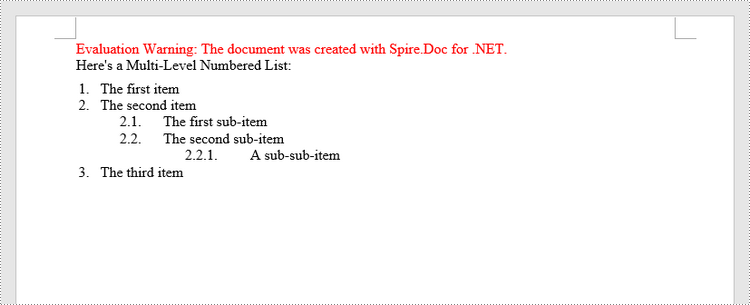
A multi-level list consists of at least two different levels. Each level of a nested list is represented by the ListStyle.ListRef.Levels[index] property, through which you can set the numbering type and prefix for a certain level. The following are the steps to create a multi-level numbered list in Word.
- Create a Document object.
- Add a section using Document.AddSection() method.
- Create an instance of ListStyle class, specifying the list type to Numbered.
- Get a specific level of the list through ListStyle.ListRef.Levels[index] property, and set the numbering type and prefix.
- Add the list style to the document using Document.Styles.Add() method.
- Add several paragraphs to the document using Section.AddParagraph() method.
- Apply the list style to a specific paragraph using Paragraph.ListFormat.ApplyStyle() method.
- Specify the list level through Paragraph.ListFormat.ListLevelNumber property.
- Save the document to a Word file using Document.SaveToFile() method.
- C#
- VB.NET
using Spire.Doc;
using Spire.Doc.Documents;

namespace CreateMultiLevelList
{
    class Program
    {
        static void Main(string[] args)
        {
            //Create a Document object
            Document document = new Document();

            //Add a section
            Section section = document.AddSection();

            //Create a numbered list style, specifying number prefix and pattern type of each level
            ListStyle listStyle = document.Styles.Add(ListType.Numbered, "levelstyle");
            listStyle.ListRef.Levels[0].PatternType = ListPatternType.Arabic;
            listStyle.ListRef.Levels[0].TextPosition = 20;
            listStyle.ListRef.Levels[1].NumberPrefix = "\x0000.";
            listStyle.ListRef.Levels[1].PatternType = ListPatternType.Arabic;
            listStyle.ListRef.Levels[2].NumberPrefix = "\x0000.\x0001.";
            listStyle.ListRef.Levels[2].PatternType = ListPatternType.Arabic;

            //Add a paragraph
            Paragraph paragraph = section.AddParagraph();
            paragraph.AppendText("Here's a Multi-Level Numbered List:");
            paragraph.Format.AfterSpacing = 5f;

            //Add a paragraph and apply the numbered list style to it
            paragraph = section.AddParagraph();
            paragraph.AppendText("The first item");
            paragraph.ListFormat.ApplyStyle("levelstyle");
            paragraph.ListFormat.ListLevelNumber = 0;

            //Add another five paragraphs and apply the numbered list stype to them
            paragraph = section.AddParagraph();
            paragraph.AppendText("The second item");
            paragraph.ListFormat.ApplyStyle("levelstyle");
            paragraph.ListFormat.ListLevelNumber = 0;

            paragraph = section.AddParagraph();
            paragraph.AppendText("The first sub-item");
            paragraph.ListFormat.ApplyStyle("levelstyle");
            paragraph.ListFormat.ListLevelNumber = 1;

            paragraph = section.AddParagraph();
            paragraph.AppendText("The second sub-item");
            paragraph.ListFormat.ContinueListNumbering();
            paragraph.ListFormat.ApplyStyle("levelstyle");

            paragraph = section.AddParagraph();
            paragraph.AppendText("A sub-sub-item");
            paragraph.ListFormat.ApplyStyle("levelstyle");
            paragraph.ListFormat.ListLevelNumber = 2;

            paragraph = section.AddParagraph();
            paragraph.AppendText("The third item");
            paragraph.ListFormat.ApplyStyle("levelstyle");
            paragraph.ListFormat.ListLevelNumber = 0;

            //Save the document to file
            document.SaveToFile("Output\\MultilevelNumberedList.docx", FileFormat.Docx);
        }
    }
}
Insert a Multi-Level Mixed-Type List in Word in C#, VB.NET
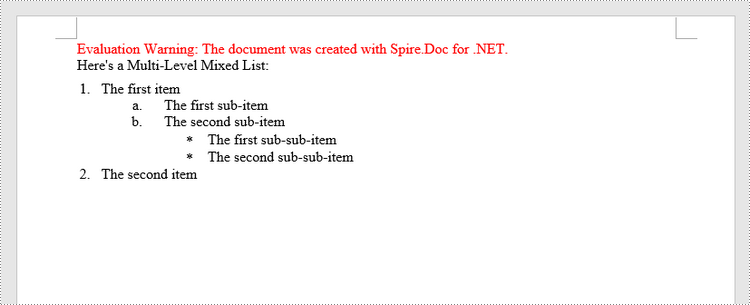
In some cases, you may want to mix number and symbol bullet points in a multi-level list. To create a mixed-type list, you just need to create a numbered list style and a bulleted list style and apply them to different paragraphs. The detailed steps are as follows.
- Create a Document object.
- Add a section using Document.AddSection() method.
- Create a numbered list style and a bulleted list style.
- Add several paragraphs to the document using Section.AddParagraph() method.
- Apply different list style to different paragraphs using Paragraph.ListFormat.ApplyStyle() method.
- Save the document to a Word file using Document.SaveToFile() method.
- C#
- VB.NET
using Spire.Doc;
using Spire.Doc.Documents;

namespace CreateMultilevelMixedList
{
    class Program
    {
        static void Main(string[] args)
        {
            //Create a Document object
            Document document = new Document();

            //Add a section
            Section section = document.AddSection();

            //Create a numbered list style
            ListStyle numberedListStyle = document.Styles.Add(ListType.Numbered, "numberedStyle");
            numberedListStyle.ListRef.Levels[0].PatternType = ListPatternType.Arabic;
            numberedListStyle.ListRef.Levels[0].TextPosition = 20;
            numberedListStyle.ListRef.Levels[1].PatternType = ListPatternType.LowLetter;

            //Create a bulleted list style
            ListStyle bulletedListStyle = document.Styles.Add(ListType.Bulleted, "bulltedStyle");
            bulletedListStyle.ListRef.Levels[2].BulletCharacter = "\x002A";
            bulletedListStyle.ListRef.Levels[2].CharacterFormat.FontName = "Symbol";

            //Add a paragraph
            Paragraph paragraph = section.AddParagraph();
            paragraph.AppendText("Here's a Multi-Level Mixed List:");
            paragraph.Format.AfterSpacing = 5f;

            //Add a paragraph and apply the numbered list style to it
            paragraph = section.AddParagraph();
            paragraph.AppendText("The first item");
            paragraph.ListFormat.ApplyStyle("numberedStyle");
            paragraph.ListFormat.ListLevelNumber = 0;

            //Add another five paragraphs and apply different list stype to them
            paragraph = section.AddParagraph();
            paragraph.AppendText("The first sub-item");
            paragraph.ListFormat.ApplyStyle("numberedStyle");
            paragraph.ListFormat.ListLevelNumber = 1;

            paragraph = section.AddParagraph();
            paragraph.AppendText("The second sub-item");
            paragraph.ListFormat.ListLevelNumber = 1;
            paragraph.ListFormat.ApplyStyle("numberedStyle");

            paragraph = section.AddParagraph();
            paragraph.AppendText("The first sub-sub-item");
            paragraph.ListFormat.ApplyStyle("bulltedStyle");
            paragraph.ListFormat.ListLevelNumber = 2;

            paragraph = section.AddParagraph();
            paragraph.AppendText("The second sub-sub-item");
            paragraph.ListFormat.ApplyStyle("bulltedStyle");
            paragraph.ListFormat.ListLevelNumber = 2;

            paragraph = section.AddParagraph();
            paragraph.AppendText("The second item");
            paragraph.ListFormat.ApplyStyle("numberedStyle");
            paragraph.ListFormat.ListLevelNumber = 0;

            //Save the document to file
            document.SaveToFile("Output\\MultilevelMixedList.docx", FileFormat.Docx);
        }
    }
}
Apply for a Temporary License
If you'd like to remove the evaluation message from the generated documents, or to get rid of the function limitations, please request a 30-day trial license for yourself.
C++: Find and Highlight Text in Word
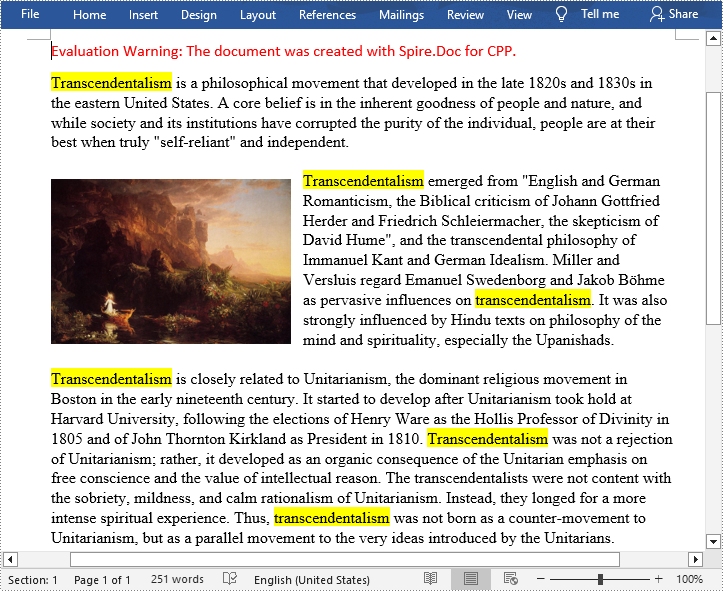
In a large document, it is inevitable to use the find function when you want to quickly locate specific key information. At the same time, highlighting them with a bright color is also an effective way to make them stand out to grab the reader's attention. In this article, you will learn how to programmatically find and highlight text in a Word document using Spire.Doc for C++.
- Find and Highlight All Instances of a Specified Text in Word
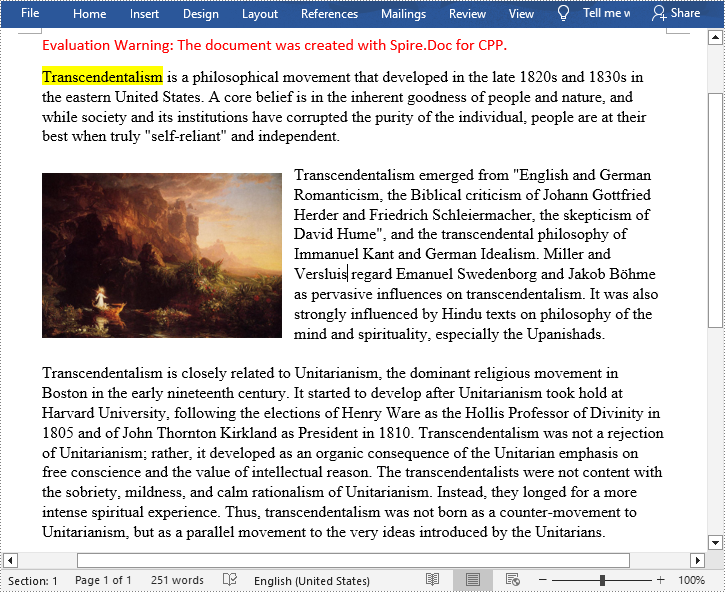
- Find and Highlight the First Instance of a Specified Text in Word
Install Spire.Doc for C++
There are two ways to integrate Spire.Doc for C++ into your application. One way is to install it through NuGet, and the other way is to download the package from our website and copy the libraries into your program. Installation via NuGet is simpler and more recommended. You can find more details by visiting the following link.
Integrate Spire.Doc for C++ in a C++ Application
Find and Highlight All Instances of a Specified Text in Word in C++
Spire.Doc for C++ offers the Document->FindAllString(LPCWSTR_S matchString, bool caseSensitive, bool wholeWord) method to find all instances of a specified text string, and then you can iterate through these instances to highlight them with a bright color. The following are the detailed steps.
- Create a Document instance.
- Load a Word document using Document->LoadFromFile() method.
- Find all matching text in the document using Document->FindAllString() method.
- Loop through all matching text in the document.
- Get the text range of a specific matching text using TextSelection->GetAsOneRange() method, and then set its highlight color using TextRange->GetCharacterFormat()->SetHighlightColor() method.
- Save the result document using Document->SaveToFile() method.
- C++
#include <iostream>
#include <string>
#include <vector>
#include "Spire/Doc/pch.h"
#ifdef DocumentProperties
#undef DocumentProperties
#endif
#define DocumentProperties DocumentPropertiesA
#include "Spire/Doc/Document.h"
#include "Spire/Doc/Documents/TextSelection.h"
#include "Spire/Doc/Fields/TextRange.h"
#include "Spire/Doc/FileFormat.h"
#include "Spire/Doc/Formatting/CharacterFormat.h"
#include "Spire/Doc/common/h/Color.h"
using namespace std;
using namespace Spire::Doc;
using namespace Spire::Doc::Common;
using namespace Spire::Doc::Documents;
using namespace Spire::Doc::Fields;
using namespace Spire::Doc::Formatting;

int main() {
 //Specify the input and output file paths
 std::string inputFile = "input1.docx";
 std::string outputFile = "Output/FindAndHighlightAll.docx";

 //Create a Document instance
 intrusive_ptr<Document> document = new Document();

 //Load a Word document from disk
 document->LoadFromFile(inputFile.c_str());

 //Find all matching text in the document
 std::vector<intrusive_ptr<TextSelection>> textSelections = document->FindAllString("Transcendentalism", false, true);

 //Loop through all matching text and set highlight color for them
 for (auto selection : textSelections)
 {
  selection->GetAsOneRange()->GetCharacterFormat()->SetHighlightColor(Color::GetYellow());
 }

 //Save the result document
 document->SaveToFile(outputFile.c_str(), FileFormat::Docx);
 document->Close();
}
Find and Highlight the First Instance of a Specified Text in Word in C++
You can also use the Document->FindString(LPCWSTR_S matchString, bool caseSensitive, bool wholeWord) method to find only the first instance of a specified text string and then set highlight color for it. The following are the detailed steps.
- Create a Document instance.
- Load a Word document using Document->LoadFromFile() method.
- Find the first matching text using Document->FindString() method.
- Get the text range of the first matching text using TextSelection->GetAsOneRange() method, and then set its highlight color using TextRange->GetCharacterFormat()->SetHighlightColor() method.
- Save the result document using Document->SaveToFile() method.
- C++
#include <iostream>
#include <string>
#include "Spire/Doc/pch.h"
#ifdef DocumentProperties
#undef DocumentProperties
#endif
#define DocumentProperties DocumentPropertiesA
#include "Spire/Doc/Document.h"
#include "Spire/Doc/Documents/TextSelection.h"
#include "Spire/Doc/Fields/TextRange.h"
#include "Spire/Doc/FileFormat.h"
#include "Spire/Doc/Formatting/CharacterFormat.h"
#include "Spire/Doc/common/h/Color.h"
using namespace std;
using namespace Spire::Doc;
using namespace Spire::Doc::Common;
using namespace Spire::Doc::Documents;
using namespace Spire::Doc::Fields;
using namespace Spire::Doc::Formatting;

int main() {
 //Specify the input and output file paths
 std::string inputFile = "input1.docx";
 std::string outputFile = "Output/FindAndHighlight.docx";

 //Create a Document instance
 intrusive_ptr<Document> document = new Document();

 //Load a Word document from disk
 document->LoadFromFile(inputFile.c_str());

 //Find the first matching text
 intrusive_ptr<TextSelection> textSelection = document->FindString("Transcendentalism", false, true);

 //Set highlight color for the text
 textSelection->GetAsOneRange()->GetCharacterFormat()->SetHighlightColor(Color::GetYellow());

 //Save the result document
 document->SaveToFile(outputFile.c_str(), FileFormat::Docx);
 document->Close();
}
Apply for a Temporary License
If you'd like to remove the evaluation message from the generated documents, or to get rid of the function limitations, please request a 30-day trial license for yourself.
C++: Compare Two Word Documents for Differences
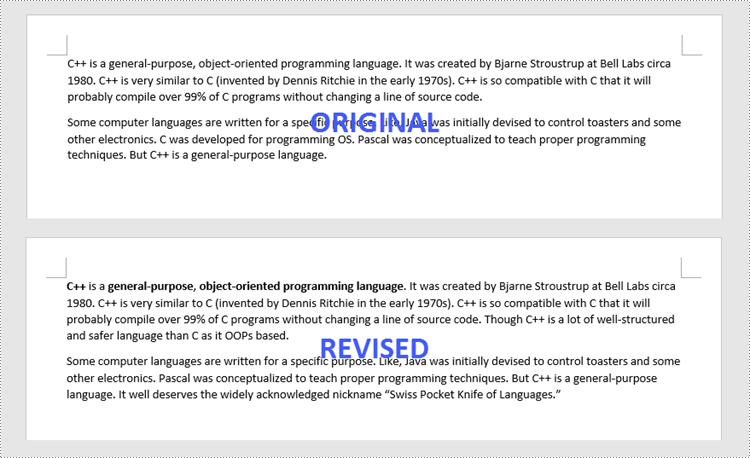
Comparison of two versions of a document is the process of checking the new version against the previous one to identify changes made by different contributors. By comparing documents, legal staffs can easily review contracts to determine what changes have been made or still need to be made, and teachers can quickly compare student papers to determine whether or not necessary changes have been applied. In this article, you will learn how to compare two Word documents in C++ using Spire.Doc for C++.
The following is a screenshot of the two Word documents we’re going to compare.
Install Spire.Doc for C++
There are two ways to integrate Spire.Doc for C++ into your application. One way is to install it through NuGet, and the other way is to download the package from our website and copy the libraries into your program. Installation via NuGet is simpler and more recommended. You can find more details by visiting the following link.
Integrate Spire.Doc for C++ in a C++ Application
Compare Two Word Documents in C++
Spire.Doc for C++ allows to compare two Word documents and save the result in a third document. When opening this document with MS Word, you can see all changes that have been made to the original document, including insertions, deletions as well as formatting modifications. The following are the detailed steps.
- Load two Word documents separately while initialing two different Document objects.
- Compare these two documents using Document->Compare() method.
- Save the result in a third Word document using Document->SaveToFile() method.
- C++
#include <iostream>
#include "Spire/Doc/pch.h"
#ifdef DocumentProperties
#undef DocumentProperties
#endif
#define DocumentProperties DocumentPropertiesA
#include "Spire/Doc/Document.h"
#include "Spire/Doc/FileFormat.h"
using namespace std;
using namespace Spire::Doc;

int main() {

 //Load the first document
 intrusive_ptr<Document> doc1 = new Document("Original.docx");

 //Load the second document
 intrusive_ptr<Document> doc2 = new Document("Revised.docx");

 //Compare the second document on the basis of the first document
 doc1->Compare(doc2, "Patrick");

 //Save to a docx file
 doc1->SaveToFile("Output/Result.docx", Spire::Doc::FileFormat::Docx2013);

 doc1->Close();
 doc2->Close();
}
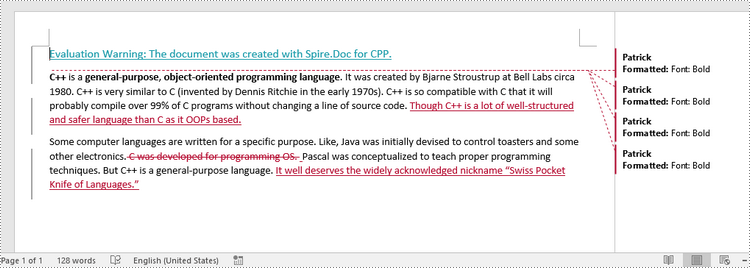
Apply for a Temporary License
If you'd like to remove the evaluation message from the generated documents, or to get rid of the function limitations, please request a 30-day trial license for yourself.
C++: Change Font Color in Word
Changing the font color in a Word document can be an effective way to emphasize important points. For example, if you are creating a report that contains crucial data, changing the font color of the data text to a brighter color can make it stand out from other text and quickly grab your reader's attention. Another benefit of changing the font color is that it can enhance the visual appearance and readability of the document. For instance, when preparing marketing materials, changing the font color of headings and subheadings to a different font color than the rest of the text can help create a clear information hierarchy, making the materials more attractive and easier to read. In this article, we will demonstrate how to change the font color in a Word document in C++ using Spire.Doc for C++.
- Change the Font Color of a Paragraph in Word in C++
- Change the Font Color of a Specific Text in Word in C++
Install Spire.Doc for C++
There are two ways to integrate Spire.Doc for C++ into your application. One way is to install it through NuGet, and the other way is to download the package from our website and copy the libraries into your program. Installation via NuGet is simpler and more recommended. You can find more details by visiting the following link.
Integrate Spire.Doc for C++ in a C++ Application
Change the Font Color of a Paragraph in Word in C++
To change the font color of a specific paragraph in a Word document, you can create a custom paragraph style with a specific font color, then add the style to the document and apply it to the paragraph you want to modify. The detailed steps are as follows:
- Create an instance of the Document class.
- Load a Word document using the Document->LoadFromFile() method.
- Access a specific section in the document by its index using the Document->GetSections()->GetItem(int index) method.
- Access the paragraph you want to modify by its index using the Section->GetParagraphs()->GetItem(int index) method.
- Create an instance of the ParagraphStyle class to define a custom paragraph style.
- Set the name and font color of the paragraph style using the ParagraphStyle->SetName() and ParagraphStyle->GetCharacterFormat()->SetTextColor() methods.
- Add the custom paragraph style to the document using the Document->GetStyles()->Add() method.
- Apply the custom paragraph style to the specific paragraph using the Paragraph->ApplyStyle() method.
- Save the modified document using the Document->SaveToFile() method.
- C++
#include <iostream>
#include "Spire/Doc/pch.h"
#ifdef DocumentProperties
#undef DocumentProperties
#endif
#define DocumentProperties DocumentPropertiesA
#include "Spire/Doc/Collections/ParagraphCollection.h"
#include "Spire/Doc/Collections/SectionCollection.h"
#include "Spire/Doc/Collections/StyleCollection.h"
#include "Spire/Doc/Document.h"
#include "Spire/Doc/Documents/Paragraph.h"
#include "Spire/Doc/Documents/ParagraphStyle.h"
#include "Spire/Doc/FileFormat.h"
#include "Spire/Doc/Formatting/CharacterFormat.h"
#include "Spire/Doc/Section.h"
#include "Spire/Doc/common/h/Color.h"
using namespace std;
using namespace Spire::Doc;
using namespace Spire::Doc::Collections;
using namespace Spire::Doc::Common;
using namespace Spire::Doc::Documents;
using namespace Spire::Doc::Formatting;

int main()
{
    //Create a Document instance
    intrusive_ptr<Document> document = new Document();

    //Load a Word document
    document->LoadFromFile("Sample.docx");

    //Get the first section
    intrusive_ptr<Section> section = document->GetSections()->GetItem(0);

    //Change the font color of the first Paragraph
    intrusive_ptr<Paragraph> p1 = section->GetParagraphs()->GetItem(0);
    intrusive_ptr<ParagraphStyle> style1 = new ParagraphStyle(document);
    style1->SetName("Color1");
    style1->GetCharacterFormat()->SetTextColor(Color::GetRosyBrown());
    document->GetStyles()->Add(style1);
    p1->ApplyStyle(style1);

    //Change the font color of the second Paragraph
    intrusive_ptr<Paragraph> p2 = section->GetParagraphs()->GetItem(1);
    intrusive_ptr<ParagraphStyle> style2 = new ParagraphStyle(document);
    style2->SetName("Color2");
    style2->GetCharacterFormat()->SetTextColor(Color::GetDarkGreen());
    document->GetStyles()->Add(style2);
    p2->ApplyStyle(style2);

    //Save the result document
    document->SaveToFile("ChangeFontColorForParagraph.docx", FileFormat::Docx2013);
    document->Close();
}
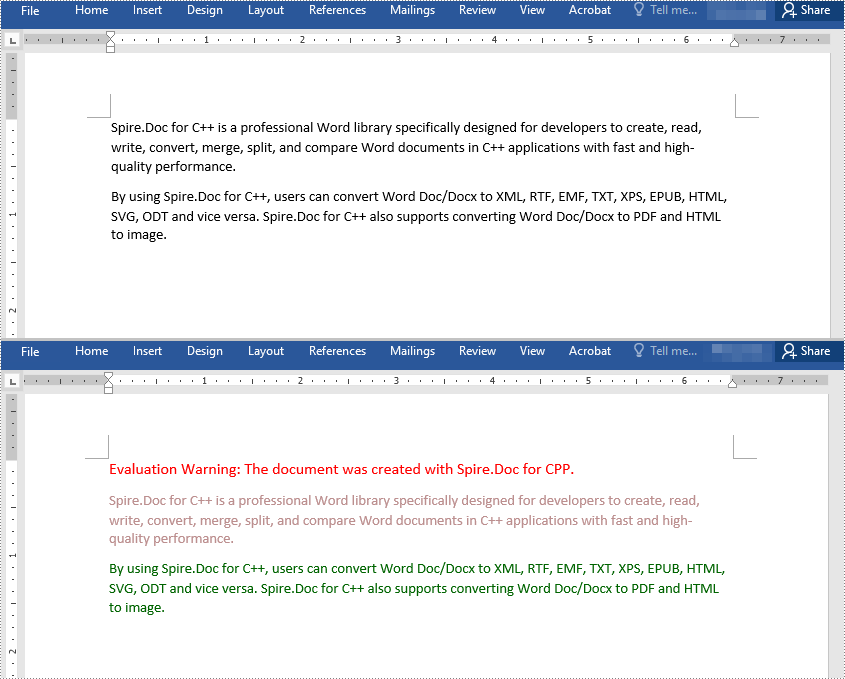
Change the Font Color of a Specific Text in Word in C++
To change the font color of a specific text in a Word document, you need to search for the text in the document, then change the font color of its all occurrences. The detailed steps are as follows:
- Create an instance of the Document class.
- Load a Word document using the Document->LoadFromFile() method.
- Find the text that you want to change the font color of using the Document->FindAllString() method.
- Iterate through all occurrences of the text and change the font color of each occurrence using the TextSelection->GetAsOneRange()->GetCharacterFormat()->SetTextColor() method.
- Save the result document using the Document->SaveToFile() method.
- C++
#include <iostream>
#include <vector>
#include "Spire/Doc/pch.h"
#ifdef DocumentProperties
#undef DocumentProperties
#endif
#define DocumentProperties DocumentPropertiesA
#include "Spire/Doc/Document.h"
#include "Spire/Doc/Documents/TextSelection.h"
#include "Spire/Doc/Fields/TextRange.h"
#include "Spire/Doc/FileFormat.h"
#include "Spire/Doc/Formatting/CharacterFormat.h"
#include "Spire/Doc/common/h/Color.h"
using namespace std;
using namespace Spire::Doc;
using namespace Spire::Doc::Common;
using namespace Spire::Doc::Documents;
using namespace Spire::Doc::Fields;
using namespace Spire::Doc::Formatting;

int main()
{
 //Create a Document instance
 intrusive_ptr<Document> document = new Document();

 //Load a Word document
 document->LoadFromFile("Sample.docx");

 //Find the text that you want to change the font color of
 vector<intrusive_ptr<TextSelection>> selection = document->FindAllString("Spire.Doc for C++", false, true);

 //Change the font color of all occurrences of the text
 for (auto text : selection)
 {
  text->GetAsOneRange()->GetCharacterFormat()->SetTextColor(Color::GetRed());
 }

 //Save the result document
 document->SaveToFile("ChangeFontColorForCertainText.docx", FileFormat::Docx2013);
 document->Close();
}
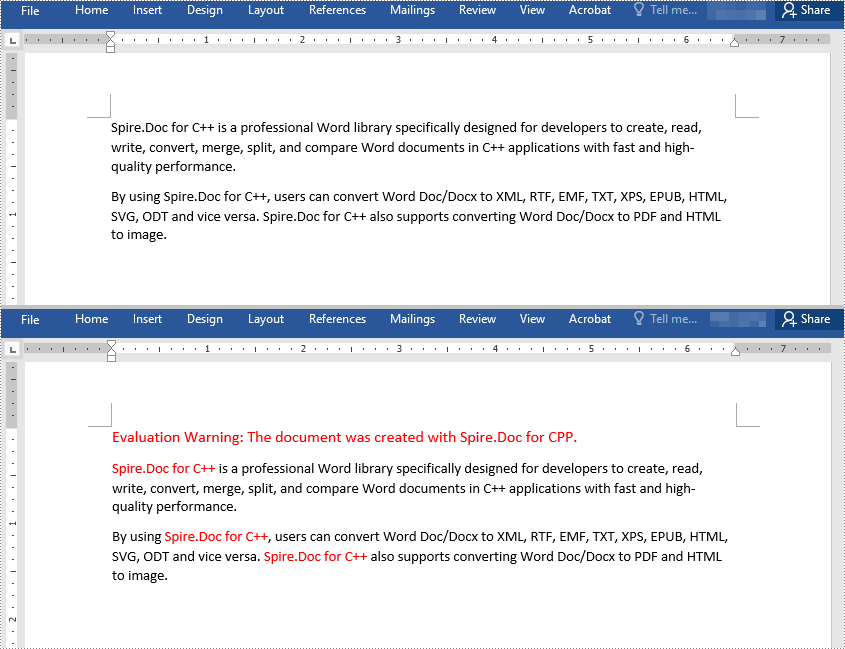
Apply for a Temporary License
If you'd like to remove the evaluation message from the generated documents, or to get rid of the function limitations, please request a 30-day trial license for yourself.
C++: Add or Remove Bookmarks in Word Documents
A bookmark in a Word document enables you to navigate to any specific place within the document without having to scroll through large blocks of text. It functions just like an internal link between sections of your document. Bookmarks are particularly useful for navigating through lengthy documents. In this article, you will learn how to add or remove bookmarks in Word documents in C++ using Spire.Doc for C++.
- Add a Bookmark to a Paragraph in C++
- Add a Bookmark to Selected Text in C++
- Remove Bookmarks from a Word Document in C++
Install Spire.Doc for C++
There are two ways to integrate Spire.Doc for C++ into your application. One way is to install it through NuGet, and the other way is to download the package from our website and copy the libraries into your program. Installation via NuGet is simpler and more recommended. You can find more details by visiting the following link.
Integrate Spire.Doc for C++ in a C++ Application
Add a Bookmark to a Paragraph in C++
Bookmarks are usually created based on whole paragraphs, especially when the paragraphs themselves are headings. The following are the steps to add a bookmark to a paragraph using Spire.Doc for C++.
- Create a Document object.
- Load a Word file using Document->LoadFromFile() method.
- Get a specific section using Document->GetSections()->GetItem() method.
- Get a specific paragraph from the section using Section->GetParagraphs()->GetItem() method.
- Create a BookmarkStart object, and insert it at the beginning of the paragraph using Paragraph->GetChildObjects()->Insert(int index, Spire::Doc::IDocumentObject *entity) method.
- Append a BookmarkEnd object at the end of the paragraph using Paragraph->AppendBookmarkEnd(LPCWSTR_S name) method.
- Save the document to another Word file using Document->SaveToFile() method.
- C++
#include <iostream>
#include "Spire/Doc/pch.h"
#ifdef DocumentProperties
#undef DocumentProperties
#endif
#define DocumentProperties DocumentPropertiesA
#include "Spire/Doc/BookmarkEnd.h"
#include "Spire/Doc/BookmarkStart.h"
#include "Spire/Doc/Collections/DocumentObjectCollection.h"
#include "Spire/Doc/Collections/ParagraphCollection.h"
#include "Spire/Doc/Collections/SectionCollection.h"
#include "Spire/Doc/CompositeDocumentObject.h"
#include "Spire/Doc/Document.h"
#include "Spire/Doc/DocumentObject.h"
#include "Spire/Doc/Documents/DropDownItem.h"
#include "Spire/Doc/Documents/Paragraph.h"
#include "Spire/Doc/Fields/ShapeObject.h"
#include "Spire/Doc/FileFormat.h"
#include "Spire/Doc/Section.h"
using namespace std;
using namespace Spire::Doc;
using namespace Spire::Doc::Collections;
using namespace Spire::Doc::Documents;
using namespace Spire::Doc::Fields;

int main() {

 //Create a Document object
 intrusive_ptr<Document> document = new Document();

 //Load a Word file
 document->LoadFromFile("sample2.docx");

 //Get a specific paragraph
 intrusive_ptr<Paragraph> paragraph = document->GetSections()->GetItem(0)->GetParagraphs()->GetItem(1);

 //Create a bookmark start
 intrusive_ptr<BookmarkStart> start = new BookmarkStart(document, "myBookmark");

 //Insert the bookmark start before the selected text
 paragraph->GetChildObjects()->Insert(0, start);

 //Append a bookmark end at the end of the paragraph
 paragraph->AppendBookmarkEnd("myBookmark");

 //Save the document to another Word file
 document->SaveToFile("Output/AddBookmarkToParagraph.docx", FileFormat::Docx2013);
 document->Close();
}
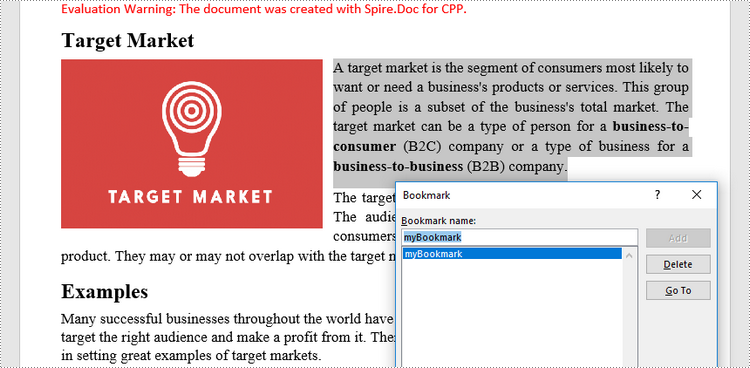
Add a Bookmark to Selected Text in C++
A bookmark can also be inserted to a specific position within a paragraph. The following are the steps to add a bookmark to selected text using Spire.Doc for C++.
- Create a Document object.
- Load a Word file using Document->LoadFromFile() method.
- Find the selected text from the document using Document->FindAllString() method.
- Find the owner paragraph of the text using TextSelection-> ->GetAsOneRange()->GetOwnerParagraph() method.
- Get the index of the text in the paragraph using Paragraph->GetChildObjects()->IndexOf() method.
- Create a BookmarkStart object, and insert it before the selected text using Paragraph->GetChildObjects()->Insert(int index, Spire::Doc::IDocumentObject *entity) method.
- Create a BookmarkEnd object, and insert it after the selected text using Paragraph->GetChildObjects()->Insert(int index, Spire::Doc::IDocumentObject *entity) method.
- Save the document to another Word file using Document->SaveToFile() method.
- C++
#include <iostream>
#include <string>
#include <vector>
#include "Spire/Doc/pch.h"
#ifdef DocumentProperties
#undef DocumentProperties
#endif
#define DocumentProperties DocumentPropertiesA
#include "Spire/Doc/BookmarkEnd.h"
#include "Spire/Doc/BookmarkStart.h"
#include "Spire/Doc/Collections/DocumentObjectCollection.h"
#include "Spire/Doc/Document.h"
#include "Spire/Doc/Documents/Paragraph.h"
#include "Spire/Doc/Documents/TextSelection.h"
#include "Spire/Doc/Fields/TextRange.h"
#include "Spire/Doc/FileFormat.h"
using namespace std;
using namespace Spire::Doc;
using namespace Spire::Doc::Collections;
using namespace Spire::Doc::Documents;
using namespace Spire::Doc::Fields;

int main() {

    //Create a Document object
    intrusive_ptr<Document> document = new Document();

    //Load a Word file
    document->LoadFromFile("sample2.docx");

    //Specify text to find
    string stringToFind = "business-to-consumer";

    //Find the text from the document
    vector<intrusive_ptr<TextSelection>>  finds = document->FindAllString(stringToFind.c_str(), false, true);
    intrusive_ptr<TextSelection> specificText = finds[0];

    //Find the paragraph where the text is located
    intrusive_ptr<Paragraph> para = specificText->GetAsOneRange()->GetOwnerParagraph();

    //Get the index of the text in the paragraph
    int index = para->GetChildObjects()->IndexOf(specificText->GetAsOneRange());

    //Create a bookmark start
    intrusive_ptr<BookmarkStart> start = new BookmarkStart(document, "myBookmark");

    //Insert the bookmark start before the selected text
    para->GetChildObjects()->Insert(index, start);

    //Create a bookmark end
    intrusive_ptr<BookmarkEnd> end = new BookmarkEnd(document, "myBookmark");

    //Insert the bookmark end after the selected text
    para->GetChildObjects()->Insert(index + 2, end);

    //Save the document to another Word file
    document->SaveToFile("Output/AddBookmarkToText.docx", FileFormat::Docx2013);
    document->Close();
}

Remove Bookmarks from a Word Document in C++
Using Spire.Doc for C++, you can easily get and remove all bookmarks or a particular bookmark from a Word document. The following are the detailed steps.
- Create a Document object.
- Load a Word file containing bookmarks using Document->LoadFromFile() method.
- Get a specific bookmark using Document->GetBookmarks()->GetItem() method.
- Remove the bookmark using Document->GetBookmarks()->Remove() method. To remove all bookmarks at once, use Document->GetBookmarks()->Clear() method.
- Save the document to another Word file using Document->SaveToFile() method.
- C++
#include <iostream>
#include "Spire/Doc/pch.h"
#ifdef DocumentProperties
#undef DocumentProperties
#endif
#define DocumentProperties DocumentPropertiesA
#include "Spire/Doc/Bookmark.h"
#include "Spire/Doc/Collections/BookmarkCollection.h"
#include "Spire/Doc/Document.h"
#include "Spire/Doc/FileFormat.h"
using namespace std;
using namespace Spire::Doc;
using namespace Spire::Doc::Collections;

int main() {

 //Create a Document object
 intrusive_ptr<Document> document = new Document();

 //Load a Word file
 document->LoadFromFile("Bookmarks.docx");

 //Get a specific bookmark by its index
 intrusive_ptr<Bookmark> bookmark = document->GetBookmarks()->GetItem(0);

 //Remove the bookmark
 document->GetBookmarks()->Remove(bookmark);

 //Remove all bookmarks
 //document->GetBookmarks()->Clear();

 //Save the document to another Word file
 document->SaveToFile("Output/RemoveBookmarks.docx", FileFormat::Docx2013);
 document->Close();
}
Apply for a Temporary License
If you'd like to remove the evaluation message from the generated documents, or to get rid of the function limitations, please request a 30-day trial license for yourself.