C++: Extract Text and Images from Word Documents
Extracting text and images is a common requirement while working with Word documents. This will help you to save useful content out of the original document to re-use in a new document or for other purposes. In this article, you will learn how to extract text or images from a Word document using Spire.Doc for C++.
Install Spire.Doc for C++
There are two ways to integrate Spire.Doc for C++ into your application. One way is to install it through NuGet, and the other way is to download the package from our website and copy the libraries into your program. Installation via NuGet is simpler and more recommended. You can find more details by visiting the following link.
Integrate Spire.Doc for C++ in a C++ Application
Extract Text from a Word Document in C++
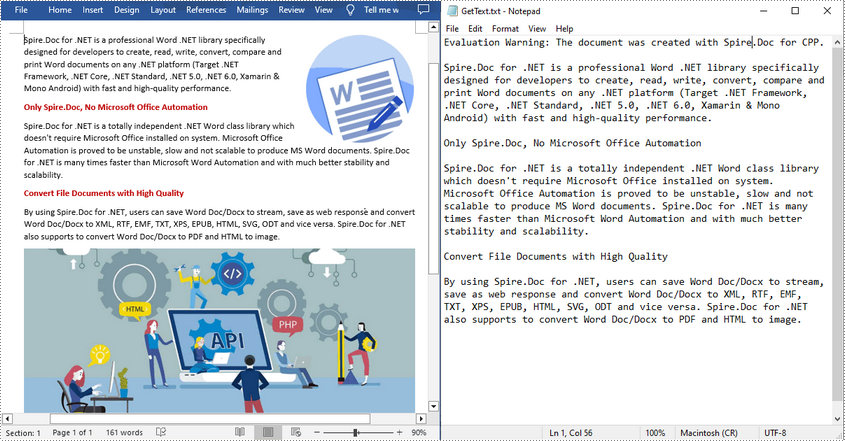
To extract the text content from an existing Word document, Spire.Doc for C++ provides the Document->GetText() method. The following are steps to extract text and save in a TXT file.
- Create a Document instance.
- Load a sample Word document using Document->LoadFromFile() method.
- Get text from the document using Document->GetText() method.
- Create a new txt file and write the extracted text to the file.
- C++
#include <iostream>
#include <fstream>
#include <string>
#include "Spire/Doc/pch.h"
#ifdef DocumentProperties
#undef DocumentProperties
#endif
#define DocumentProperties DocumentPropertiesA
#include "Spire/Doc/Document.h"
using namespace std;
using namespace Spire::Doc;

int main() {
 //Specify input file path and name
 std::string data_path = "";
 std::string inputFile = data_path + "input.docx";

 //Specify output file path and name
 std::string outputPath = "Output/";
 std::string outputFile = outputPath + "GetText.txt";

 //Create a Document instance
 intrusive_ptr<Document> document = new Document();

 //Load a sample Word document from disk
 document->LoadFromFile(inputFile.c_str());

 //Get text from the document
 std::string text = document->GetText();

 //Create a new TXT File to save the extracted text
 std::ofstream write(outputFile);
 write << text;
 write.close();
 document->Close();
}
Extract Images from a Word Document in C++
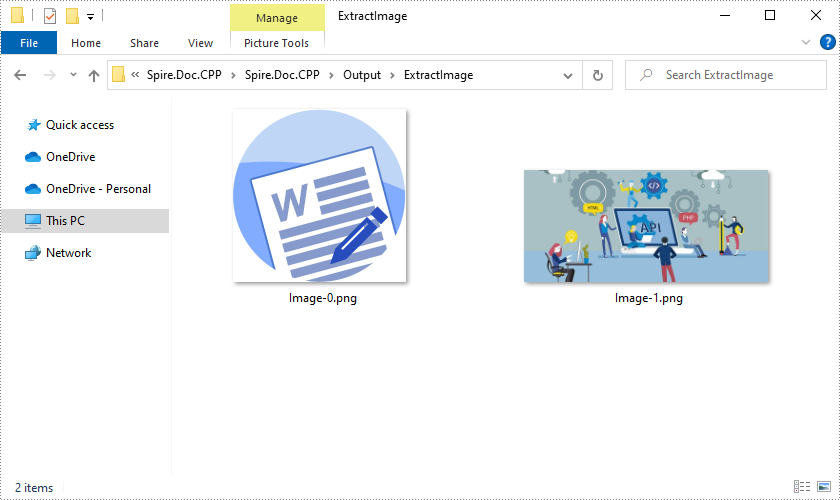
For a Word document with a lot of images, manually saving these images one by one is quite time-consuming. Below are steps to extract all images at once using Spire.Doc for C++.
- Load a sample Word document using Document->LoadFromFile() method.
- Append the document to the end of the deque, and then create a vector of images list.
- Traverse through all child objects of the document.
- Determine whether the object type is picture. If yes, get each image using DocPicture->GetImage() method and add it to the list.
- Save the extracted images out of the document in a specified output file path.
- C++
#include <iostream>
#include <deque>
#include <fstream>
#include <string>
#include <vector>
#include "Spire/Doc/pch.h"
#ifdef LoadImage
#undef LoadImage
#endif
#define LoadImage LoadImageA
#ifdef DocumentProperties
#undef DocumentProperties
#endif
#define DocumentProperties DocumentPropertiesA
#include "Spire.Doc.C.h"
#include "Spire/Doc/Collections/DocumentObjectCollection.h"
#include "Spire/Doc/Document.h"
#include "Spire/Doc/DocumentObject.h"
#include "Spire/Doc/Documents/DocumentObjectType.h"
#include "Spire/Doc/Fields/DocPicture.h"
#include "Spire/Doc/Interface/IDocumentObject.h"
#include "Spire/Doc/common/h/Object.h"
using namespace std;
using namespace Spire::Doc;
using namespace Spire::Doc::Collections;
using namespace Spire::Doc::Common;
using namespace Spire::Doc::Fields;
using namespace Spire::Doc::Interface;

int main() {
 //Specify input file path and name
 std::string data_path = "";
 std::string inputFile = data_path + "input.docx";

 //Specify output file path and name
 std::string outputPath = "Output/";
 std::string outputFile = outputPath + "ExtractImage/";

 //Load a sample Word document
 intrusive_ptr<Document> document = new Document();
 document->LoadFromFile(inputFile.c_str());

 //Append the document to the end of the deque
 std::deque<intrusive_ptr<DocumentObject>> nodes;
 nodes.push_back(document);

 //Create a vector of images list
 std::vector<std::vector<char>> images;

 //Traverse through all child objects of the document
 while (nodes.size() > 0)
 {
  intrusive_ptr<DocumentObject> node = nodes.front();
  nodes.pop_front();
  for (int i = 0; i < node->GetChildObjects()->GetCount(); i++)
  {
   intrusive_ptr<IDocumentObject> child = node->GetChildObjects()->GetItem(i);
   if (child->GetDocumentObjectType() == DocumentObjectType::Picture)
   {
    intrusive_ptr<DocPicture> picture = Object::Dynamic_cast<DocPicture>(child);
    std::vector<char> imageByte = picture->GetImageBytes();
    images.push_back(imageByte);
   }
   else if (Object::CheckType<DocumentObject>(child))
   {
    nodes.push_back(boost::dynamic_pointer_cast<DocumentObject>(child));
   }
  }
 }
 //Save the images out of the document
 for (size_t i = 0; i < images.size(); i++)
 {
  std::string fileName = outputPath + "Image-" + std::to_string(i) + ".png";
  std::ofstream outFile(fileName, std::ios::binary);
  if (outFile.is_open())
  {
   outFile.write(reinterpret_cast<const char*>(images[i].data()), images[i].size());
   outFile.close();
  }
 }
 document->Close();
}
Apply for a Temporary License
If you'd like to remove the evaluation message from the generated documents, or to get rid of the function limitations, please request a 30-day trial license for yourself.
C++: Create or Edit Word Documents
Word documents are files created with Microsoft Word or other word-processing programs. They are used by almost all types of businesses around the world. A wide variety of professional documents, such as business contracts, essays, brochures, letters, resumes, and reports, are created and saved in the form of Word documents. In this article, you will learn how to create or edit Word documents programmatically in C++ using Spire.Doc for C++ library.
Install Spire.Doc for C++
There are two ways to integrate Spire.Doc for C++ into your application. One way is to install it through NuGet, and the other way is to download the package from our website and copy the libraries into your program. Installation via NuGet is simpler and more recommended. You can find more details by visiting the following link.
Integrate Spire.Doc for C++ in a C++ Application
Create a Word Document in C++
Using Spire.Doc for C++, you can create a Word document with one or more sections and add various elements to it, such as paragraphs, tables, images, lists, hyperlinks, watermarks, headers, footers, content controls, and comments.
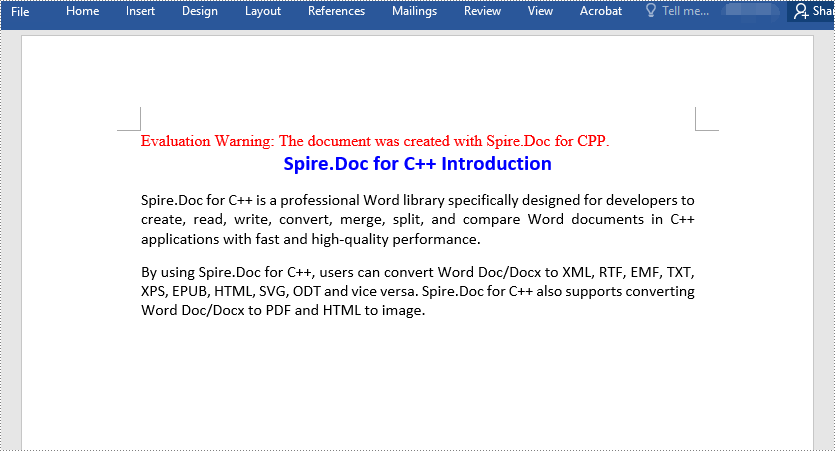
The following steps show you how to create a simple Word document with a section and three paragraphs:
- Initialize an instance of the Document class.
- Add a section to the document using Document->AddSection() method.
- Set page margins for the section.
- Add three paragraphs to the section using Section->AddParagraph() method.
- Add text to the paragraphs using Paragraph->AppendText() method.
- Initialize two instances of the ParagraphStyle class to create two paragraph styles, and then apply the styles to the paragraphs respectively using Paragraph->ApplyStyle() method.
- Save the result document to a Word file using Document->SaveToFile() method.
- C++
#include <iostream>
#include "Spire/Doc/pch.h"
#ifdef DocumentProperties
#undef DocumentProperties
#endif
#define DocumentProperties DocumentPropertiesA
#include "Spire/Doc/Collections/DocumentObjectCollection.h"
#include "Spire/Doc/Collections/StyleCollection.h"
#include "Spire/Doc/CompositeDocumentObject.h"
#include "Spire/Doc/Document.h"
#include "Spire/Doc/DocumentObject.h"
#include "Spire/Doc/Documents/DropDownItem.h"
#include "Spire/Doc/Documents/HorizontalAlignment.h"
#include "Spire/Doc/Documents/MarginsF.h"
#include "Spire/Doc/Documents/Paragraph.h"
#include "Spire/Doc/Documents/ParagraphStyle.h"
#include "Spire/Doc/Fields/ShapeObject.h"
#include "Spire/Doc/Fields/TextRange.h"
#include "Spire/Doc/FileFormat.h"
#include "Spire/Doc/Formatting/CharacterFormat.h"
#include "Spire/Doc/Formatting/ParagraphFormat.h"
#include "Spire/Doc/PageSetup.h"
#include "Spire/Doc/Section.h"
#include "Spire/Doc/common/h/Color.h"
using namespace std;
using namespace Spire::Doc;
using namespace Spire::Doc::Collections;
using namespace Spire::Doc::Common;
using namespace Spire::Doc::Documents;
using namespace Spire::Doc::Fields;
using namespace Spire::Doc::Formatting;

int main()
{
    //Initialize an instance of the Document class
    intrusive_ptr<Document> doc = new Document();
    //Add a section to the document
    intrusive_ptr<Section> section = doc->AddSection();

    //Set page margins
    section->GetPageSetup()->GetMargins()->SetAll(72);

    //Add a title paragraph to the section
    intrusive_ptr<Paragraph> titlePara = section->AddParagraph();
    //Add text to the paragraph
    titlePara->AppendText("Spire.Doc for C++ Introduction");

    //Add a body paragraph to the section
    intrusive_ptr<Paragraph> bodyPara1 = section->AddParagraph();
    //Add text to the paragraph
    bodyPara1->AppendText("Spire.Doc for C++ is a professional Word library specifically designed for developers to create, read, write, convert, merge, split, and compare Word documents in C++ applications with fast and high-quality performance.");

    //Add a body paragraph to the section
    intrusive_ptr<Paragraph> bodyPara2 = section->AddParagraph();
    //Add text to the paragraph
    bodyPara2->AppendText("By using Spire.Doc for C++, users can convert Word Doc/Docx to XML, RTF, EMF, TXT, XPS, EPUB, HTML, SVG, ODT and vice versa. Spire.Doc for C++ also supports converting Word Doc/Docx to PDF and HTML to image.");

    //Create a style and apply it to the title paragraph
    intrusive_ptr<ParagraphStyle> style1 = new ParagraphStyle(doc);
    style1->SetName("titleStyle");
    style1->GetCharacterFormat()->SetBold(true);
    style1->GetCharacterFormat()->SetTextColor(Color::GetBlue());
    style1->GetCharacterFormat()->SetFontName("Calibri");
    style1->GetCharacterFormat()->SetFontSize(16);
    doc->GetStyles()->Add(style1);
    titlePara->ApplyStyle("titleStyle");

    //Create a style and apply it to the body paragraphs
    intrusive_ptr<ParagraphStyle> style2 = new ParagraphStyle(doc);
    style2->SetName("paraStyle");
    style2->GetCharacterFormat()->SetFontName("Calibri");
    style2->GetCharacterFormat()->SetFontSize(12);
    doc->GetStyles()->Add(style2);
    bodyPara1->ApplyStyle("paraStyle");
    bodyPara2->ApplyStyle("paraStyle");

    //Set horizontal alignment for the title and body paragraphs
    titlePara->GetFormat()->SetHorizontalAlignment(HorizontalAlignment::Center);
    bodyPara1->GetFormat()->SetHorizontalAlignment(HorizontalAlignment::Justify);
    bodyPara2->GetFormat()->SetHorizontalAlignment(HorizontalAlignment::Justify);

    //Set spacing after the title and body paragraphs
    titlePara->GetFormat()->SetAfterSpacing(10);
    bodyPara1->GetFormat()->SetAfterSpacing(10);

    //Save the result document
    doc->SaveToFile("CreateWord.docx", FileFormat::Docx2013);
    doc->Dispose();
}
Edit an Existing Word Document in C++
Apart from creating Word documents from scratch, Spire.Doc for C++ also enables you to edit existing Word documents. For example, you can modify existing elements in the document or add new elements to the document.
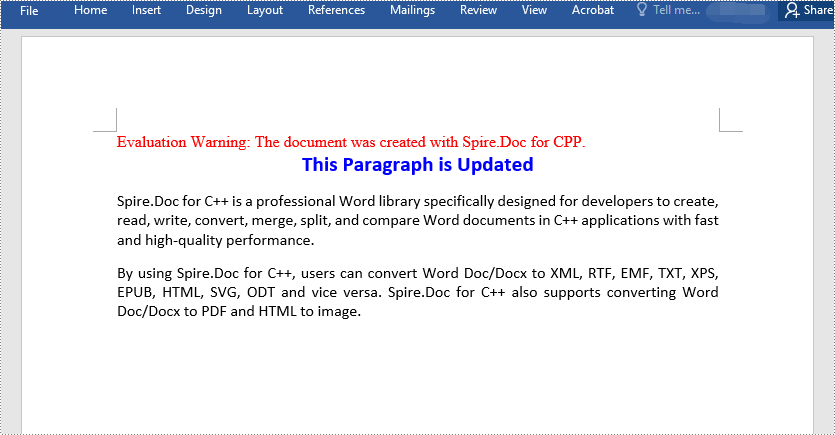
The following steps show you how to modify the text of a specific paragraph in a Word document:
- Initialize an instance of the Document class.
- Load the Word document using Document->LoadFromFile() method.
- Access a specific section in the document by its index using Document->GetSections()->GetItem(int index) method.
- Access a specific paragraph in the section by its index using Section->GetParagraphs()->GetItem(int index) method.
- Modify the paragraph text using Paragraph->SetText() method.
- Save the result document using Document->SaveToFile() method.
- C++
#include <iostream>
#include "Spire/Doc/pch.h"
#ifdef DocumentProperties
#undef DocumentProperties
#endif
#define DocumentProperties DocumentPropertiesA
#include "Spire/Doc/Collections/ParagraphCollection.h"
#include "Spire/Doc/Collections/SectionCollection.h"
#include "Spire/Doc/Document.h"
#include "Spire/Doc/Documents/Paragraph.h"
#include "Spire/Doc/FileFormat.h"
#include "Spire/Doc/Section.h"
using namespace std;
using namespace Spire::Doc;
using namespace Spire::Doc::Collections;
using namespace Spire::Doc::Documents;

int main()
{
    //Initialize an instance of the Document class
    intrusive_ptr<Document> doc = new Document();
    //Load a Word document
    doc->LoadFromFile("CreateWord.docx");

    //Access the first section in the document
    intrusive_ptr<Section> section = doc->GetSections()->GetItem(0);

    //Access the second paragraph in the first section
    intrusive_ptr<Paragraph> para = section->GetParagraphs()->GetItem(1);
    //Modify the paragraph text
    para->SetText("This Paragraph is Updated");

    //Save the result document
    doc->SaveToFile("EditWord.docx", FileFormat::Docx2013);
    doc->Dispose();
}
Apply for a Temporary License
If you'd like to remove the evaluation message from the generated documents, or to get rid of the function limitations, please request a 30-day trial license for yourself.
Add checkbox and picture content control to word document in C#
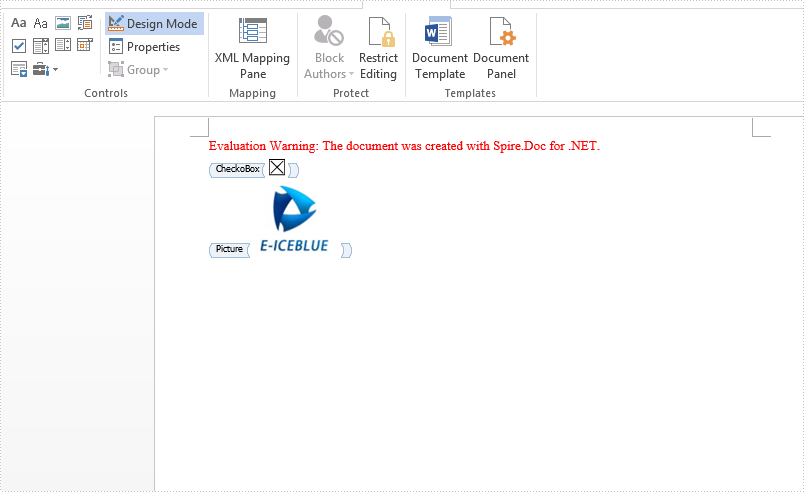
Besides the Combo Box, Text, Date Picker and Drop-Down List content controls, Checkbox and picture content control also are the mostly used content control in word document. Spire.Doc supports to add many kinds of content controls to the word document. This article will show you how to add checkbox and picture content control to word document by Spire.Doc for .NET.
Code snippets of how to add checkbox and picture content control:
using System;
using System.Drawing;
using System.IO;
using Spire.Doc;
using Spire.Doc.Documents;
using Spire.Doc.Fields;

namespace AddCheckbox
{

    class Program
    {

        static void Main(string[] args)
        {
            Directory.CreateDirectory("Output");

            //Create a new word document
            Document document = new Document();

            //Add a section to the document
            Section section = document.AddSection();

            //Add a paragraph to the section
            Paragraph paragraph = section.AddParagraph();

            //Add checkbox content control
            StructureDocumentTagInline sdt = new StructureDocumentTagInline(document);
            sdt.CharacterFormat.FontSize = 20;
            paragraph.ChildObjects.Add(sdt);
            sdt.SDTProperties.SDTType = SdtType.CheckBox;
            SdtCheckBox scb = new SdtCheckBox();
            sdt.SDTProperties.ControlProperties = scb;
            TextRange tr = new TextRange(document);
            tr.CharacterFormat.FontName = "MS Gothic";
            tr.CharacterFormat.FontSize = 20;
            sdt.ChildObjects.Add(tr);
            scb.Checked = true;

            sdt.SDTProperties.Alias = "CheckoBox";
            sdt.SDTProperties.Tag = "Checkbox";

            //Add picture content control
            paragraph = section.AddParagraph();
            sdt = new StructureDocumentTagInline(document);
            paragraph.ChildObjects.Add(sdt);
            sdt.SDTProperties.ControlProperties = new SdtPicture();

            sdt.SDTProperties.Alias = "Picture";
            sdt.SDTProperties.Tag = "Picture";

            DocPicture pic = new DocPicture(document) { Width = 10, Height = 10 };
            pic.LoadImage(Image.FromFile(Path.Combine("Data", "Logo.jpg")));
            sdt.ChildObjects.Add(pic);

            document.SaveToFile(Path.Combine("Output", "Sample.docx"), FileFormat.Docx2013);

        }
    }
}
Effective screenshot after adding checkbox and picture content control to word document:
Insert, Read and Delete Table from Word Textbox in C#
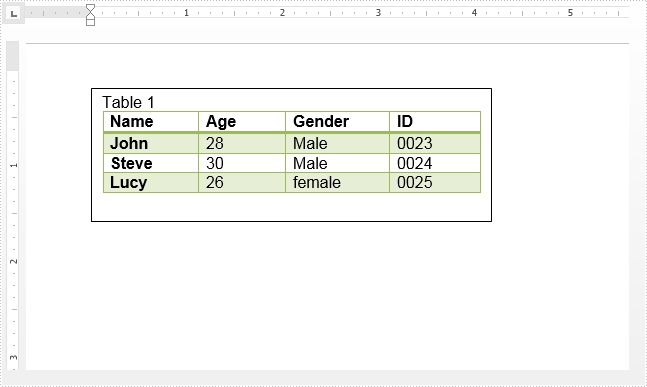
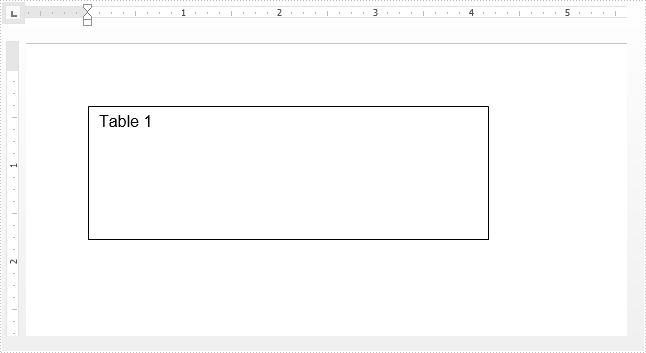
In Word, textbox can contain multiple elements such as text, image and table. This article demonstrates how to insert table into word textbox, and read and delete existing table from word textbox using Spire.Doc.
Insert table
using Spire.Doc;
using Spire.Doc.Documents;
using Spire.Doc.Fields;
namespace InsertTable
{
    class Program
    {

        static void Main(string[] args)
        {

            //Create a Document instance
            Document document = new Document();

            //Add a section
            Section section = document.AddSection();
            //Add a paragraph to the section
            Paragraph paragraph = section.AddParagraph();

            //Add textbox to the paragraph
            TextBox textbox = paragraph.AppendTextBox(300, 100);

            //Add text to textbox
            Paragraph textboxParagraph = textbox.Body.AddParagraph();
            TextRange textboxRange = textboxParagraph.AppendText("Table 1");
            textboxRange.CharacterFormat.FontName = "Arial";

            //Insert table to textbox
            Table table = textbox.Body.AddTable(true);
            //Specify the number of rows and columns of the table
            table.ResetCells(4, 4);

            string[,] data = new string[,]
{
{"Name","Age","Gender","ID" },
{"John","28","Male","0023" },
{"Steve","30","Male","0024" },
{"Lucy","26","female","0025" }
};

            //Add data to table
            for (int i = 0; i < 4; i++)
            {
                for (int j = 0; j < 4; j++)
                {
                    TextRange tableRange = table[i, j].AddParagraph().AppendText(data[i, j]);
                    tableRange.CharacterFormat.FontName = "Arial";
                }
            }

            //Apply style to table
            table.ApplyStyle(DefaultTableStyle.LightGridAccent3);

            //Save the document
            document.SaveToFile(@"Output\Output.docx", FileFormat.Docx2013);

        }
    }
}
Read table
using Spire.Doc;
using Spire.Doc.Documents;
using Spire.Doc.Fields;
using System.IO;
using System.Text;
namespace ReadTable
{
    class Program
    {

        static void Main(string[] args)
        {
            //Create a Document instance and load the word document
            Document document = new Document(@"Output\Output.docx");

            //Get the first textbox
            TextBox textbox = (TextBox)document.TextBoxes[0];

            //Get the first table in the textbox
            Table table = textbox.Body.Tables[0] as Table;

            StringBuilder sb = new StringBuilder();

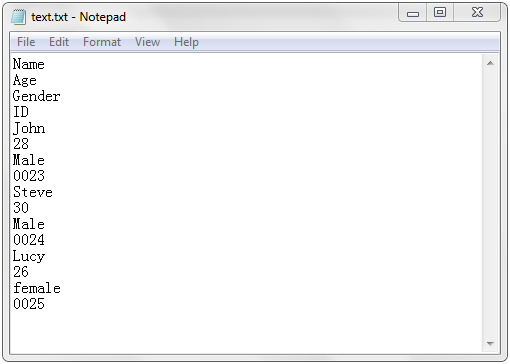
            //Loop through the paragraphs of the table and extract text to a .txt file
            foreach (TableRow row in table.Rows)
            {
                foreach (TableCell cell in row.Cells)
                {
                    foreach (Paragraph paragraph in cell.Paragraphs)
                    {
                        sb.AppendLine(paragraph.Text);
                    }
                }
            }
            File.WriteAllText(@"Output\text.txt", sb.ToString());

        }
    }
}
Delete table
using Spire.Doc;
using Spire.Doc.Fields;
namespace DeleteTable
{
    class Program
    {

        static void Main(string[] args)
        {
            //Create a Document instance and load the word document
            Document document = new Document(@"Output\Output.docx");

            //Get the first textbox
            TextBox textbox = (TextBox)document.TextBoxes[0];

            //Remove the first table from the textbox
            textbox.Body.Tables.RemoveAt(0);

            //Save the document
            document.SaveToFile(@"Output\RemoveTable.docx", FileFormat.Docx2013);


        }
    }
}
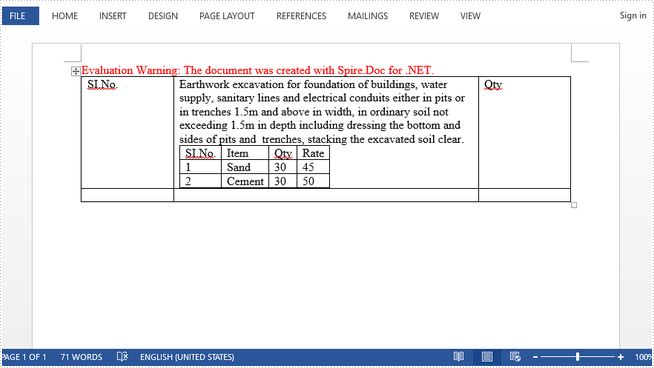
How to Create a Nested Table in Word in C#
A nested table is one table placed inside of another, where the larger table functions as a container for the smaller one. Nested tables allow you to arrange different sets of data in groups to show clients.
This article presents how we can create a nested table using Spire.Doc in C#.
Step 1: Create a new PDF document and add a section to it.
Document doc = new Document();
Section section = doc.AddSection();
Step 2: Add a table to the section.
Table table = section.AddTable(true);
table.ResetCells(2, 3);
Step 3: Adjust the column with.
table.Rows[0].Cells[0].Width = table.Rows[0].Cells[2].Width = 50F;
table.Rows[1].Cells[0].Width = table.Rows[1].Cells[2].Width = 50F;
table.AutoFit(AutoFitBehaviorType.AutoFitToWindow);
Step 4: Insert content to the cells of the table.
table[0, 0].AddParagraph().AppendText("SI.No.");
string text = "Earthwork excavation for foundation of buildings, water supply, "
             + "sanitary lines and electrical conduits either in pits or in "
             + "trenches 1.5m and above in width, in ordinary soil not exceeding "
             + "1.5m in depth including dressing the bottom and sides of pits and  "
             + "trenches, stacking the excavated soil clear.";
table[0, 1].AddParagraph().AppendText(text);
table[0, 2].AddParagraph().AppendText("Qty");
Step 5: Insert a nested table to the cell (first row, second column).
Table nestedTable= table[0, 1].AddTable(true);
nestedTable.ResetCells(3, 4);
nestedTable.AutoFit(AutoFitBehaviorType.AutoFitToContents);
Step 6: Add content to nested cells.
nestedTable[0, 0].AddParagraph().AppendText("SI.No.");
nestedTable[0, 1].AddParagraph().AppendText("Item");
nestedTable[0, 2].AddParagraph().AppendText("Qty");
nestedTable[0, 3].AddParagraph().AppendText("Rate");
nestedTable[1, 0].AddParagraph().AppendText("1");
nestedTable[1, 1].AddParagraph().AppendText("Sand");
nestedTable[1, 2].AddParagraph().AppendText("30");
nestedTable[1, 3].AddParagraph().AppendText("45");
nestedTable[2, 0].AddParagraph().AppendText("2");
nestedTable[2, 1].AddParagraph().AppendText("Cement");
nestedTable[2, 2].AddParagraph().AppendText("30");
nestedTable[2, 3].AddParagraph().AppendText("50");
Step 7: Save the file.
doc.SaveToFile("Nested_Table.docx", FileFormat.Docx2013);
Output:
Full Code:
//create a new word document
Document doc = new Document();
Section section = doc.AddSection();

//add a table
Table table = section.AddTable(true);
table.ResetCells(2, 3);

//set column width
table.Rows[0].Cells[0].SetCellWidth(50F,CellWidthType.Point);
table.Rows[0].Cells[2].SetCellWidth(50F, CellWidthType.Point);
table.Rows[1].Cells[0].SetCellWidth(50F, CellWidthType.Point);
table.Rows[1].Cells[2].SetCellWidth(50F, CellWidthType.Point);
table.AutoFit(AutoFitBehaviorType.AutoFitToWindow);

//insert content to cells
table[0, 0].AddParagraph().AppendText("SI.No.");
string text = "Earthwork excavation for foundation of buildings, water supply, "
             + "sanitary lines and electrical conduits either in pits or in "
             + "trenches 1.5m and above in width, in ordinary soil not exceeding "
             + "1.5m in depth including dressing the bottom and sides of pits and  "
             + "trenches, stacking the excavated soil clear.";
table[0, 1].AddParagraph().AppendText(text);
table[0, 2].AddParagraph().AppendText("Qty");

//add a nested table to cell(first row, second column)
Table nestedTable= table[0, 1].AddTable(true);
nestedTable.ResetCells(3, 4);
nestedTable.AutoFit(AutoFitBehaviorType.AutoFitToContents);

//add content to nested cells
nestedTable[0, 0].AddParagraph().AppendText("SI.No.");
nestedTable[0, 1].AddParagraph().AppendText("Item");
nestedTable[0, 2].AddParagraph().AppendText("Qty");
nestedTable[0, 3].AddParagraph().AppendText("Rate");
nestedTable[1, 0].AddParagraph().AppendText("1");
nestedTable[1, 1].AddParagraph().AppendText("Sand");
nestedTable[1, 2].AddParagraph().AppendText("30");
nestedTable[1, 3].AddParagraph().AppendText("45");
nestedTable[2, 0].AddParagraph().AppendText("2");
nestedTable[2, 1].AddParagraph().AppendText("Cement");
nestedTable[2, 2].AddParagraph().AppendText("30");
nestedTable[2, 3].AddParagraph().AppendText("50");

//save
doc.SaveToFile("Nested_Table.docx", FileFormat.Docx2013);
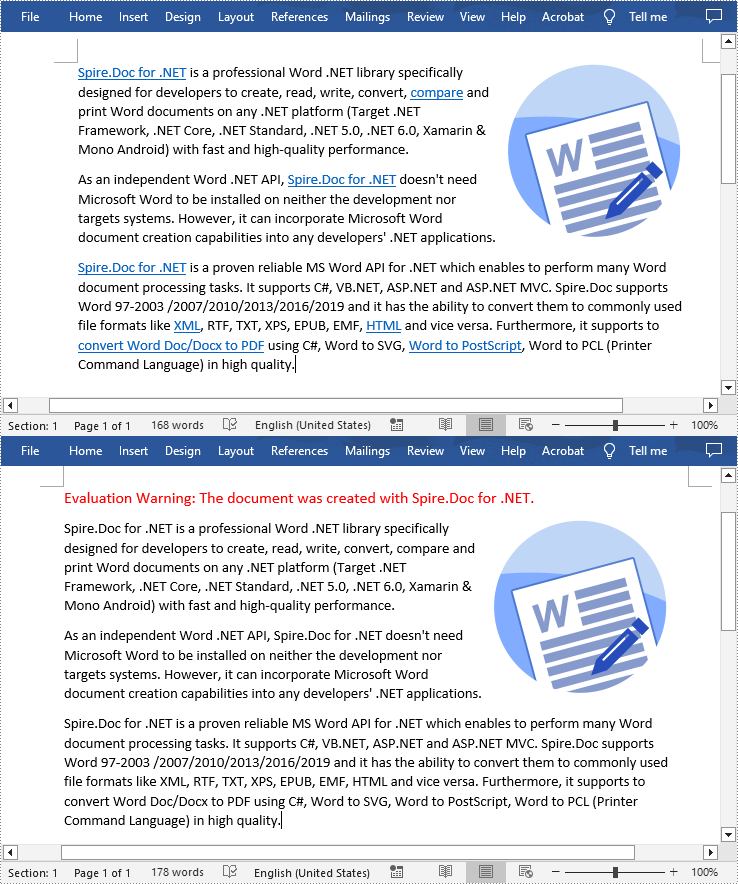
C#/VB.NET: Remove Hyperlinks in Word Documents
Hyperlinks in Word documents are clickable links that allow readers to navigate to a website or another document. While hyperlinks can provide valuable supplemental information, sometimes they can also be distracting or unnecessarily annoying, so you may want to remove them. In this article, you will learn how to remove hyperlinks from a Word document in C# and VB.NET using Spire.Doc for .NET.
Install Spire.Doc for .NET
To begin with, you need to add the DLL files included in the Spire.Doc for.NET package as references in your .NET project. The DLL files can be either downloaded from this link or installed via NuGet.
PM> Install-Package Spire.Doc
Remove All the Hyperlinks in a Word Document
To delete all hyperlinks in a Word document at once, you'll need to find all the hyperlinks in the document and then create a custom method FlattenHyperlinks() to flatten them. The following are the detailed steps.
- Create a Document object.
- Load a sample Word document using Document.LoadFromFile() method.
- Find all the hyperlinks in the document using custom method FindAllHyperlinks().
- Loop through the hyperlinks and flatten all of them using custom method FlattenHyperlinks().
- Save the result document using Document.SaveToFile() method.
- C#
- VB.NET
using System.Drawing;
using Spire.Doc;
using Spire.Doc.Documents;
using System.Collections.Generic;
using Spire.Doc.Fields;


namespace removeWordHyperlink
{
    class Program
    {
        static void Main(string[] args)
        {
            //Create a Document instance
            Document doc = new Document();

            //Load a sample Word document
            doc.LoadFromFile("Hyperlink.docx");

            //Find all hyperlinks
            List<Field> hyperlinks = FindAllHyperlinks(doc);

            //Flatten all hyperlinks
            for (int i = hyperlinks.Count - 1; i >= 0; i--)
            {
                FlattenHyperlinks(hyperlinks[i]);
            }

            //Save the result document
            doc.SaveToFile("RemoveHyperlinks.docx", FileFormat.Docx);

        }

        //Create a method FindAllHyperlinks() to get all the hyperlinks from the sample document
        private static List<Field> FindAllHyperlinks(Document document)
        {
            List<Field> hyperlinks = new List<Field>();

            //Iterate through the items in the sections to find all hyperlinks
            foreach (Section section in document.Sections)
            {
                foreach (DocumentObject sec in section.Body.ChildObjects)
                {
                    if (sec.DocumentObjectType == DocumentObjectType.Paragraph)
                    {
                        foreach (DocumentObject para in (sec as Paragraph).ChildObjects)
                        {
                            if (para.DocumentObjectType == DocumentObjectType.Field)
                            {
                                Field field = para as Field;

                                if (field.Type == FieldType.FieldHyperlink)
                                {
                                    hyperlinks.Add(field);
                                }
                            }
                        }
                    }
                }
            }
            return hyperlinks;
        }

        //Create a method FlattenHyperlinks() to flatten the hyperlink field
        private static void FlattenHyperlinks(Field field)
        {
            int ownerParaIndex = field.OwnerParagraph.OwnerTextBody.ChildObjects.IndexOf(field.OwnerParagraph);
            int fieldIndex = field.OwnerParagraph.ChildObjects.IndexOf(field);
            Paragraph sepOwnerPara = field.Separator.OwnerParagraph;
            int sepOwnerParaIndex = field.Separator.OwnerParagraph.OwnerTextBody.ChildObjects.IndexOf(field.Separator.OwnerParagraph);
            int sepIndex = field.Separator.OwnerParagraph.ChildObjects.IndexOf(field.Separator);
            int endIndex = field.End.OwnerParagraph.ChildObjects.IndexOf(field.End);
            int endOwnerParaIndex = field.End.OwnerParagraph.OwnerTextBody.ChildObjects.IndexOf(field.End.OwnerParagraph);
            FormatFieldResultText((Body)field.Separator.OwnerParagraph.OwnerTextBody, sepOwnerParaIndex, endOwnerParaIndex, sepIndex, endIndex);

            field.End.OwnerParagraph.ChildObjects.RemoveAt(endIndex);

            for (int i = sepOwnerParaIndex; i >= ownerParaIndex; i--)
            {
                if (i == sepOwnerParaIndex && i == ownerParaIndex)
                {
                    for (int j = sepIndex; j >= fieldIndex; j--)
                    {
                        field.OwnerParagraph.ChildObjects.RemoveAt(j);

                    }
                }
                else if (i == ownerParaIndex)
                {
                    for (int j = field.OwnerParagraph.ChildObjects.Count - 1; j >= fieldIndex; j--)
                    {
                        field.OwnerParagraph.ChildObjects.RemoveAt(j);
                    }

                }
                else if (i == sepOwnerParaIndex)
                {
                    for (int j = sepIndex; j >= 0; j--)
                    {
                        sepOwnerPara.ChildObjects.RemoveAt(j);
                    }
                }
                else
                {
                    field.OwnerParagraph.OwnerTextBody.ChildObjects.RemoveAt(i);
                }
            }
        }

        //Create a method FormatFieldResultText() to remove the font color and underline format of the hyperlinks
        private static void FormatFieldResultText(Body ownerBody, int sepOwnerParaIndex, int endOwnerParaIndex, int sepIndex, int endIndex)
        {
            for (int i = sepOwnerParaIndex; i <= endOwnerParaIndex; i++)
            {
                Paragraph para = ownerBody.ChildObjects[i] as Paragraph;
                if (i == sepOwnerParaIndex && i == endOwnerParaIndex)
                {
                    for (int j = sepIndex + 1; j < endIndex; j++)
                    {
                        FormatText(para.ChildObjects[j] as TextRange);
                    }

                }
                else if (i == sepOwnerParaIndex)
                {
                    for (int j = sepIndex + 1; j < para.ChildObjects.Count; j++)
                    {
                        FormatText(para.ChildObjects[j] as TextRange);
                    }
                }
                else if (i == endOwnerParaIndex)
                {
                    for (int j = 0; j < endIndex; j++)
                    {
                        FormatText(para.ChildObjects[j] as TextRange);
                    }
                }
                else
                {
                    for (int j = 0; j < para.ChildObjects.Count; j++)
                    {
                        FormatText(para.ChildObjects[j] as TextRange);
                    }
                }
            }
        }

        //Create a method FormatText() to change the color of the text to black and remove the underline
        private static void FormatText(TextRange tr)
        {
            //Set the text color to black
            tr.CharacterFormat.TextColor = Color.Black;

            //Set the text underline style to none
            tr.CharacterFormat.UnderlineStyle = UnderlineStyle.None;
        }
    }
}
Apply for a Temporary License
If you'd like to remove the evaluation message from the generated documents, or to get rid of the function limitations, please request a 30-day trial license for yourself.
C#/VB.NET: Insert or Remove Footnotes in Word
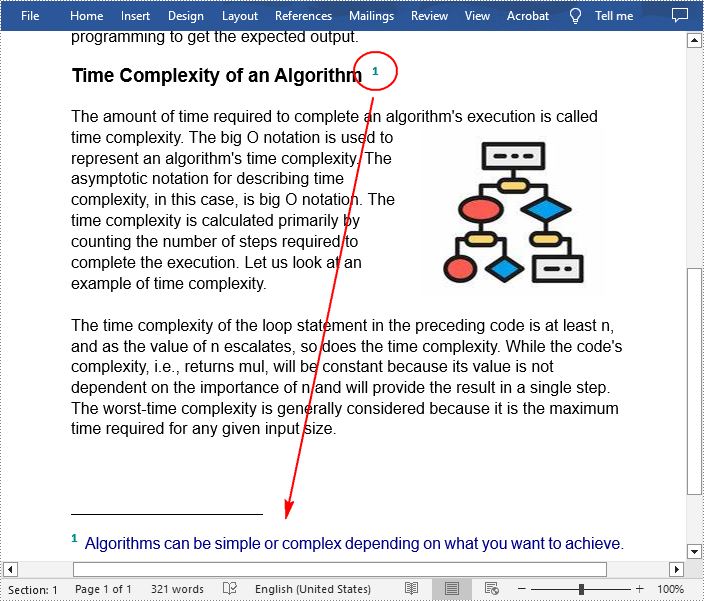
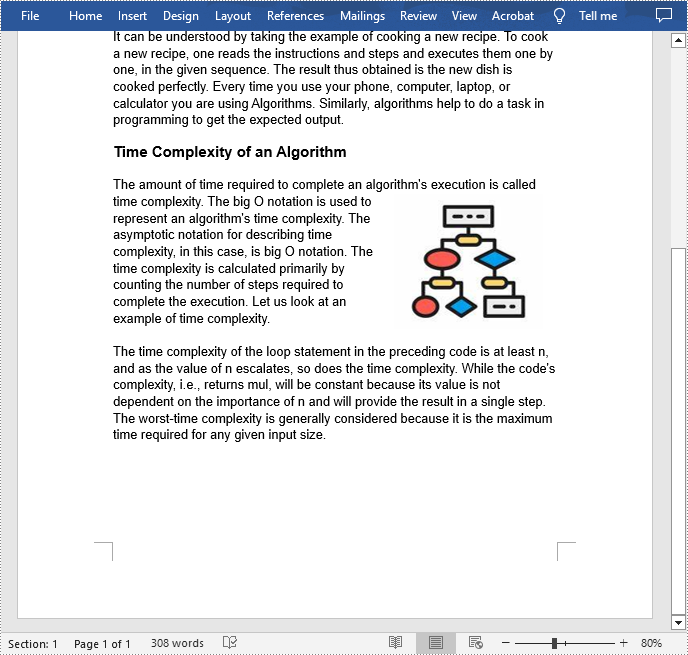
Footnotes are notes placed at the bottom of a page. In MS Word, you can use footnotes to cite references, give explanations, or make comments without affecting the main text. In this article, you will learn how to insert or delete footnotes in a Word document using Spire.Doc for .NET.
- Insert a Footnote after a Specific Paragraph in Word in C# and VB.NET
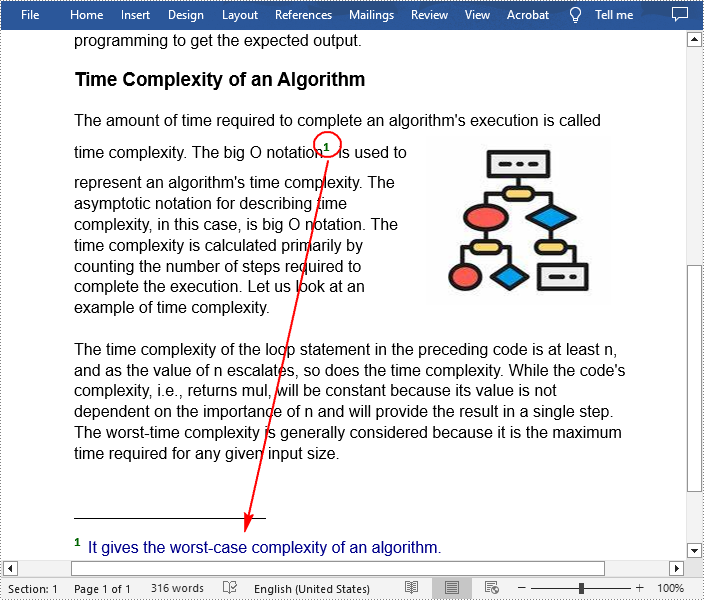
- Insert a Footnote after a Specific Text in Word in C# and VB.NET
- Remove Footnotes in a Word Document in C# and VB.NET
Install Spire.Doc for .NET
To begin with, you need to add the DLL files included in the Spire.Doc for.NET package as references in your .NET project. The DLL files can be either downloaded from this link or installed via NuGet.
PM> Install-Package Spire.Doc
Insert a Footnote after a Specific Paragraph in Word in C# and VB.NET
The Paragraph.AppendFootnote(FootnoteType.Footnote) method provided by Spire.Doc for .NET allows you to insert a footnote after a specified paragraph. The following are the detailed steps.
- Create a Document instance
- Load a sample Word document using Document.LoadFromFile() method.
- Get the first section and then get a specified paragraph in the section.
- Add a footnote at the end of the paragraph using Paragraph.AppendFootnote(FootnoteType.Footnote) method.
- Set the text content, font and color of the footnote, and then set the format of the footnote superscript number.
- Save the result document using Document.SaveToFile() method.
- C#
- VB.NET
using Spire.Doc;
using Spire.Doc.Documents;
using Spire.Doc.Fields;
using System.Drawing;

namespace AddFootnote
{
    class Program
    {
        static void Main(string[] args)
        {
            //Create a Document instance
            Document document = new Document();

            //Load a sample Word document
            document.LoadFromFile("Sample.docx");

            //Get the first section
            Section section = document.Sections[0];

            //Get a specified paragraph in the section
            Paragraph paragraph = section.Paragraphs[3];

            //Add a footnote at the end of the paragraph
            Footnote footnote = paragraph.AppendFootnote(FootnoteType.Footnote);

            //Set the text content of the footnote
            TextRange text = footnote.Body.AddParagraph().AppendText("Algorithms can be simple or complex depending on what you want to achieve.");

            //Set the text font and color
            text.CharacterFormat.FontName = "Arial";
            text.CharacterFormat.FontSize = 12;
            text.CharacterFormat.TextColor = Color.DarkBlue;

            //Set the format of the footnote superscript number
            footnote.MarkerCharacterFormat.FontName = "Calibri";
            footnote.MarkerCharacterFormat.FontSize = 15;
            footnote.MarkerCharacterFormat.Bold = true;
            footnote.MarkerCharacterFormat.TextColor = Color.DarkCyan;

            //Save the result document
            document.SaveToFile("AddFootnote.docx", FileFormat.Docx);

        }
    }
}
Insert a Footnote after a Specific Text in Word in C# and VB.NET
With Spire.Doc for .NET, a footnote can also be inserted after a specified text located anywhere in the document. The following are the detailed steps.
- Create a Document instance.
- Load a Word document using Document.LoadFromFile() method.
- Find a specified text using Document.FindString() method.
- Get the text range of the specified text using TextSelection.GetAsOneRange() method.
- Get the paragraph where the text range is located using TextRange.OwnerParagraph property.
- Get the position index of the text range in the paragraph using Paragraph.ChildObjects.IndexOf() method.
- Add a footnote using Paragraph.AppendFootnote(FootnoteType.Footnote) method, and then insert the footnote after the specified text using Paragraph.ChildObjects.Insert() method
- Set the text content, font and color of the footnote, and then set the format of the footnote superscript number.
- Save the result document using Document.SaveToFile() method.
- C#
- VB.NET
using Spire.Doc;
using Spire.Doc.Documents;
using Spire.Doc.Fields;
using System.Drawing;

namespace InsertFootnote
{
    class Program
    {
        static void Main(string[] args)
        {
            //Create a Document instance
            Document document = new Document();

            //Load a sample Word document
            document.LoadFromFile("Sample.docx");

            //Find a specified text string
            TextSelection selection = document.FindString("big O notation", false, true);

            //Get the text range of the specified text
            TextRange textRange = selection.GetAsOneRange();

            //Get the paragraph where the text range is located
            Paragraph paragraph = textRange.OwnerParagraph;

            //Get the position index of the text range in the paragraph
            int index = paragraph.ChildObjects.IndexOf(textRange);

            //Add a footnote
            Footnote footnote = paragraph.AppendFootnote(FootnoteType.Footnote);

            //Insert the footnote after the specified paragraph
            paragraph.ChildObjects.Insert(index + 1, footnote);

            //Set the text content of the footnote
            TextRange text = footnote.Body.AddParagraph().AppendText("It gives the worst-case complexity of an algorithm.");

            //Set the text font and color
            text.CharacterFormat.FontName = "Arial";
            text.CharacterFormat.FontSize = 12;
            text.CharacterFormat.TextColor = Color.DarkBlue;

            //Set the format of the footnote superscript number
            footnote.MarkerCharacterFormat.FontName = "Calibri";
            footnote.MarkerCharacterFormat.FontSize = 15;
            footnote.MarkerCharacterFormat.Bold = true;
            footnote.MarkerCharacterFormat.TextColor = Color.DarkGreen;

            //Save the result document
            document.SaveToFile("InsertFootnote.docx", FileFormat.Docx);
        }
    }
}
Remove Footnotes in a Word Document in C# and VB.NET
It takes time and effort to search and delete the existing footnotes in your document manually. The following are the steps to remove all footnotes at once programmatically.
- Create a Document instance.
- Load a Word document using Document.LoadFromFile() method.
- Get a specified section using Document.Sections property.
- Traverse through each paragraph in the section to find the footnote.
- Remove the footnote using Paragraph.ChildObjects.RemoveAt() method.
- Save the result document using Document.SaveToFile() method.
- C#
- VB.NET
using Spire.Doc;
using Spire.Doc.Documents;
using Spire.Doc.Fields;

namespace RemoveFootnote
{
    class Program
    {
        static void Main(string[] args)
        {
            //Create a Document instance
            Document document = new Document();

            //Load a sample Word document
            document.LoadFromFile("AddFootnote.docx");

            //Get the first section
            Section section = document.Sections[0];

            //Traverse through each paragraph in the section to find the footnote
            foreach (Paragraph para in section.Paragraphs)
            {
                int index = -1;
                for (int i = 0, cnt = para.ChildObjects.Count; i < cnt; i++)
                {
                    if (para.ChildObjects[i] is Footnote)
                    {
                        index = i;
                        break;
                    }
                }

                if (index > -1)

                    //Remove the footnote
                    para.ChildObjects.RemoveAt(index);
            }

            //Save the result document
            document.SaveToFile("RemoveFootnote.docx", FileFormat.Docx);
        }
    }
}
Apply for a Temporary License
If you'd like to remove the evaluation message from the generated documents, or to get rid of the function limitations, please request a 30-day trial license for yourself.
New method get alias, tag and id of content controls in a Word document in C#
Content controls provide a way for you to design documents. When you add a content control to a document, the control is identified by a border, a title, and temporary text that can provide instructions to the user, and can prevent users from editing or deleting protected sections of a document.
Bind parts of a document or template to data. You can bind content controls to database fields, managed objects in the .NET Framework, XML elements that are stored in the document, and other data sources.
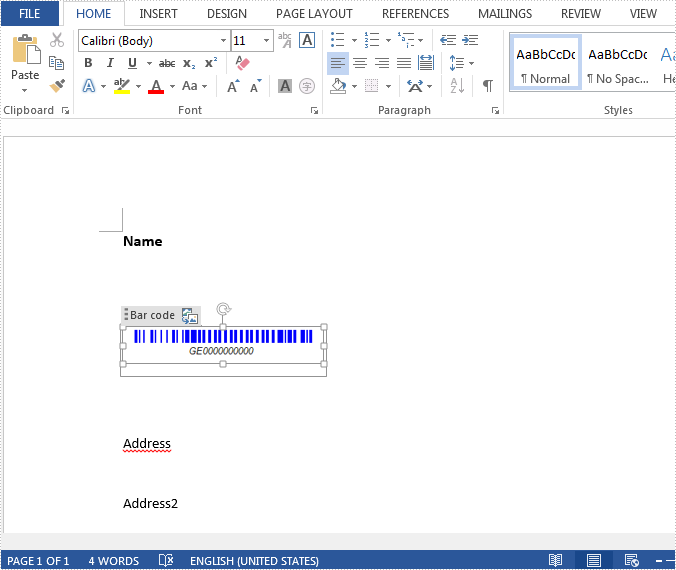
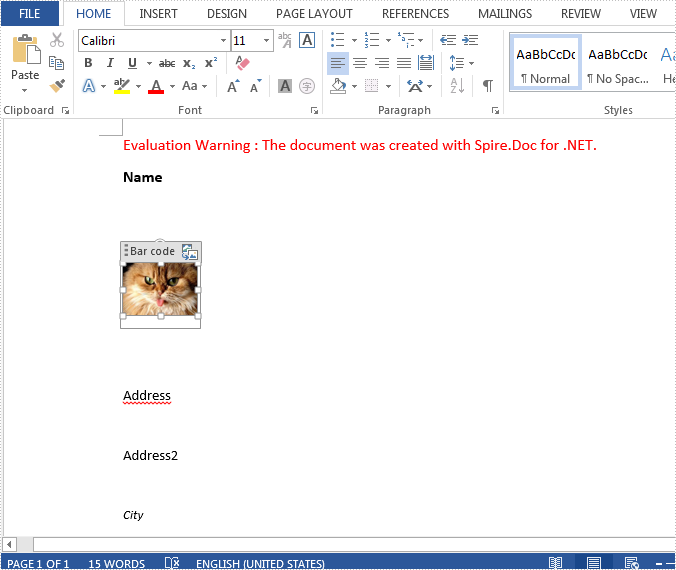
This article illustrates how to get all controls and their properties including alias, id and tag via Spire.Doc with new method and replace the Barcode with another image.
Refer this article to check old method: Get alias, tag and id of content controls in a Word document in C#
The following is test file new.docx.
Note: The code in this article has been updated for Spire.Doc 14.10.9. StructureDocumentTag, StructureDocumentTagCell and StructureDocumentTagInline are now defined in the Spire.Doc.Documents namespace, they no longer share a common base class, and StructureDocumentTagCell is no longer derived from TableCell — therefore the table rows are traversed through TableRow.ChildObjects and the properties of a control are read from its concrete type.
Here are the steps:
Step 1: Create a new Word document and load the test file.
Document doc = new Document(Path.Combine("Data", "new.docx"));
Step 2: Create a list StructureDocument to store tags. Here, each content control will be identified by tag. The list stores DocumentObject items, because the three content control types do not share a common base class.
public class StructureTags
        {
            List<DocumentObject> m_structureDocumnt;
            public List<DocumentObject> StructureDocument
            {
                get
                {
                    if (m_structureDocumnt == null)
                        m_structureDocumnt = new List<DocumentObject>();

                    return m_structureDocumnt;
                }
            }

        }
Step 3: Use foreach sentence to get all tags in the Word document.
foreach (Section section in doc.Sections)
            {
                foreach (Body body in section.ChildObjects)
                {
                    ModifyBody(body);
                }
            }
Step 4: Show the properties of all controls. In Spire.Doc 14.10.9 the three control types derive from different base classes, so SDTProperties is read through the GetSDTProperties helper shown in the full code; the items are cast to CompositeDocumentObject when their child objects are accessed.
List<DocumentObject> tagInlines = structureTags.StructureDocument;
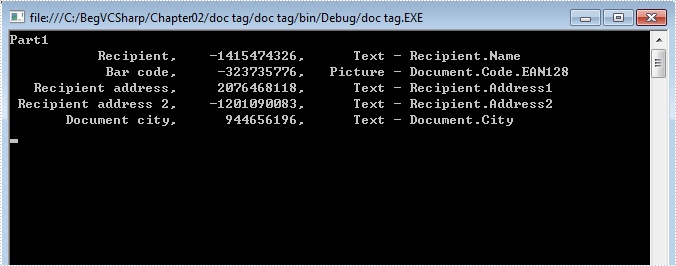
            Console.WriteLine("Part1");
            for (int i = 0; i < tagInlines.Count; i++)
            {
                SDTProperties properties = GetSDTProperties(tagInlines[i]);
                string alias = properties.Alias;   // Can be null or empty
                decimal id = properties.Id;
                string tag = properties.Tag;
                string STDType = properties.SDTType.ToString();

                Console.WriteLine("{0,20},{1,15},{2, 10} - {3}", alias, id, STDType, tag);
             }
Step 5: Replace image inside of Picture Content Control.
Directory.CreateDirectory("Output");
            string output = Path.Combine("Output", "replace1.docx");
            doc.SaveToFile(output, FileFormat.Docx2013);
            System.Diagnostics.Process.Start(output);
Result Screenshot:
Full code:
using Spire.Doc;
using Spire.Doc.Documents;
using Spire.Doc.Fields;
using System;
using System.Collections.Generic;
using System.Drawing;
using System.IO;
namespace GetAlias
{

    class Program
    {

           static StructureTags structureTags = new StructureTags();
        static void Main(string[] args)
        {
            Document doc = new Document(Path.Combine("Data", "new.docx"));

            foreach (Section section in doc.Sections)
            {
                foreach (Body body in section.ChildObjects)
                {
                    ModifyBody(body);
                }
            }

            List<DocumentObject> tagInlines = structureTags.StructureDocument;
            Console.WriteLine("Part1");
            for (int i = 0; i < tagInlines.Count; i++)
            {
                SDTProperties properties = GetSDTProperties(tagInlines[i]);
                string alias = properties.Alias;
                decimal id = properties.Id;
                string tag = properties.Tag;
                string STDType = properties.SDTType.ToString();

                Console.WriteLine("{0,20},{1,15},{2, 10} - {3}", alias, id, STDType, tag);

                if (properties.SDTType == SdtType.Picture)
                {
                    CompositeDocumentObject sdt = (CompositeDocumentObject)tagInlines[i];
                    DocPicture picture = sdt.ChildObjects.FirstItem as DocPicture;
                    if (picture == null)
                    {
                        picture = new DocPicture(doc);
                        picture.LoadImage(Image.FromFile(Path.Combine("Data", "cat.jpg")));
                        sdt.ChildObjects.Add(picture);
                    }
                    else
                    {
                        picture.LoadImage(Image.FromFile(Path.Combine("Data", "cat.jpg")));
                    }
                }
            }

            Directory.CreateDirectory("Output");
            string output = Path.Combine("Output", "replace1.docx");
            doc.SaveToFile(output, FileFormat.Docx2013);
            System.Diagnostics.Process.Start(output);
        }

        // StructureDocumentTag, StructureDocumentTagCell and StructureDocumentTagInline
        // derive from different base classes in Spire.Doc 14.10.9, so SDTProperties
        // has to be read from the concrete type.
        static SDTProperties GetSDTProperties(DocumentObject documentObject)
        {
            if (documentObject is StructureDocumentTag)
                return ((StructureDocumentTag)documentObject).SDTProperties;
            if (documentObject is StructureDocumentTagCell)
                return ((StructureDocumentTagCell)documentObject).SDTProperties;
            return ((StructureDocumentTagInline)documentObject).SDTProperties;
        }

        static void ModifyBody(Body body)
        {
            if (body == null)
                return;

            foreach (DocumentObject docObj in body.ChildObjects)
            {
                if (docObj is StructureDocumentTag)
                {
                    structureTags.StructureDocument.Add(docObj as StructureDocumentTag);

                }
                else if (docObj is Table)
                {
                    ModifyTable(docObj as Table);
                }
                else if (docObj is Paragraph)
                {
                    ModifyParagraph(docObj as Paragraph);
                }
            }
        }

        static void ModifyTable(Table table)
        {
            if (table == null)
                return;

            foreach (TableRow row in table.Rows)
            {
                foreach (DocumentObject cellObject in row.ChildObjects)
                {
                    if (cellObject is StructureDocumentTagCell)
                    {
                        structureTags.StructureDocument.Add(cellObject as StructureDocumentTagCell);
                    }
                    else if (cellObject is TableCell)
                    {
                        ModifyBody(cellObject as TableCell);
                    }
                }
            }
        }

        static void ModifyParagraph(Paragraph para)
        {
            if (para == null)
                return;

            foreach (DocumentObject docObj in para.ChildObjects)
            {
                if (docObj is StructureDocumentTagInline)
                {

                    structureTags.StructureDocument.Add(docObj as StructureDocumentTagInline);
                }
            }
        }

        public class StructureTags
        {
            List<DocumentObject> m_structureDocumnt;
            public List<DocumentObject> StructureDocument
            {
                get
                {
                    if (m_structureDocumnt == null)
                        m_structureDocumnt = new List<DocumentObject>();

                    return m_structureDocumnt;
                }
            }
        }

        }
    }
Get alias, tag and id of content controls in a Word document in C#
Content controls provide a way for you to design documents. When you add a content control to a document, the control is identified by a border, a title, and temporary text that can provide instructions to the user. According to Microsoft, content controls mainly benefit from two features:
- Prevent users from editing or deleting protected sections of a document.
- Bind parts of a document or template to data. You can bind content controls to database fields, managed objects in the .NET Framework, XML elements that are stored in the document, and other data sources.
Therefore, it is necessary for developers to get the properties of content controls when dealing content controls at run time. This article illustrates how to get all controls and their properties including alias, id and tag via Spire.Doc.
Firstly, check the test file that contains six content controls distributed in lines and a table. By default, the border and the title of the control do not appear if we don't click the protected section.
Test File:
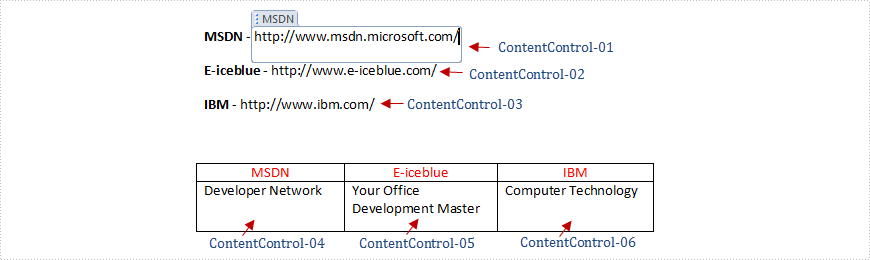
Main Steps:
Step 1: Create a new Word document and load the test file.
Step 2: Create two lists to store tags which are distributed in lines and a table separately. Here, each content control will be identified by tag.
Step 3: Use foreach sentence to get all tags in the Word document.
Note: In Spire.Doc 14.10.9, the StructureDocumentTag and StructureDocumentTagInline classes are defined in the Spire.Doc.Documents namespace.
Full Code:
//Required namespaces in Spire.Doc 14.10.9:
//using Spire.Doc;
//using Spire.Doc.Documents;   //StructureDocumentTag and StructureDocumentTagInline moved here
//using System.Collections.Generic;

       static void Main(string[] args)
        {
            using (Document document = new Document("Data\\test.docx"))
            {
                StructureTags structureTags = GetAllTags(document);
                List<StructureDocumentTagInline> tagInlines = structureTags.tagInlines;

                string alias = tagInlines[0].SDTProperties.Alias;
                decimal id = tagInlines[0].SDTProperties.Id;
                string tag = tagInlines[0].SDTProperties.Tag;

                List<StructureDocumentTag> tags = structureTags.tags;
                alias = tags[0].SDTProperties.Alias;
                id = tags[0].SDTProperties.Id;
                tag = tags[0].SDTProperties.Tag;

            }
        }
       static StructureTags GetAllTags(Document document)
        {
            StructureTags structureTags = new StructureTags();
            foreach (Section section in document.Sections)
            {
                foreach (DocumentObject obj in section.Body.ChildObjects)
                {
                    if (obj.DocumentObjectType == DocumentObjectType.Paragraph)
                    {
                        foreach (DocumentObject pobj in (obj as Paragraph).ChildObjects)
                        {
                            if (pobj.DocumentObjectType == DocumentObjectType.StructureDocumentTagInline)
                            {
                                structureTags.tagInlines.Add(pobj as StructureDocumentTagInline);
                            }
                        }
                    }
                    else if (obj.DocumentObjectType == DocumentObjectType.Table)
                    {
                        foreach (TableRow row in (obj as Table).Rows)
                        {
                            foreach (TableCell cell in row.Cells)
                            {
                                foreach (DocumentObject cellChild in cell.ChildObjects)
                                {
                                    if (cellChild.DocumentObjectType == DocumentObjectType.StructureDocumentTag)
                                    {
                                        structureTags.tags.Add(cellChild as StructureDocumentTag);
                                    }
                                    else if (cellChild.DocumentObjectType == DocumentObjectType.Paragraph)
                                    {
                                        foreach (DocumentObject pobj in (cellChild as Paragraph).ChildObjects)
                                        {
                                            if (pobj.DocumentObjectType == DocumentObjectType.StructureDocumentTagInline)
                                            {
                                                structureTags.tagInlines.Add(pobj as StructureDocumentTagInline);
                                            }
                                        }
                                    }
                                }
                            }
                        }
                    }
                }
            }
            return structureTags;
        }
        public class StructureTags
        {
            List<StructureDocumentTagInline> m_tagInlines;
            public List<StructureDocumentTagInline> tagInlines
            {
                get
                {
                    if (m_tagInlines == null)
                        m_tagInlines = new List<StructureDocumentTagInline>();
                    return m_tagInlines;
                }
                set
                {
                    m_tagInlines = value;
                }
            }
            List<StructureDocumentTag> m_tags;
            public List<StructureDocumentTag> tags
            {
                get
                {
                    if (m_tags == null)
                        m_tags = new List<StructureDocumentTag>();
                    return m_tags;
                }
                set
                {
                    m_tags = value;
                }
            }
        }
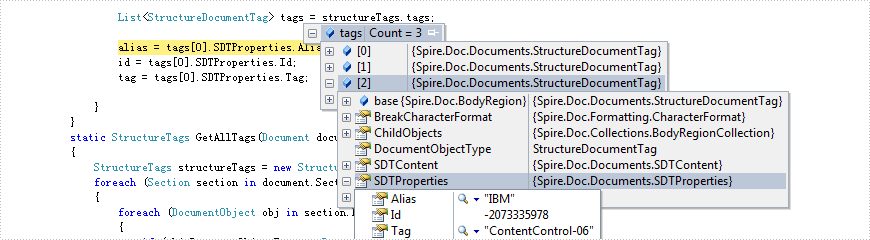
Effect Screenshot:
Content controls in lines
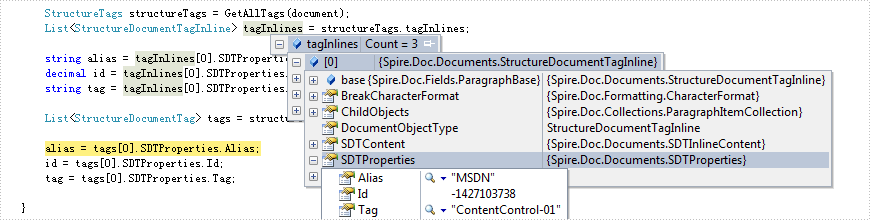
Content controls in table
How to replace text with table in a word document in C#
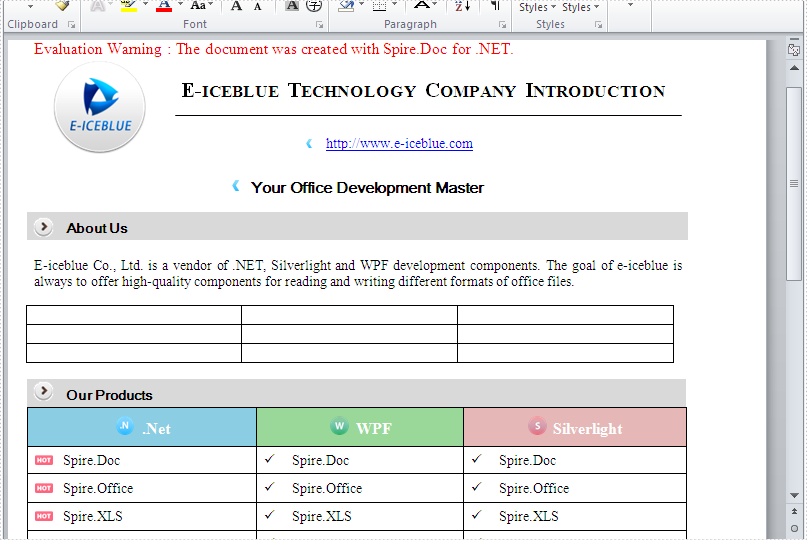
Spire.Doc has a powerful function of processing word table such as create and remove word table, set the table column width, style and so on. Spire.Doc also supports to add the table in the middle of the word document. This article will show you how to replace text with table by finding the key text in the word document.
Download and install Spire.Doc for .NET and then add Spire.Doc.dll as reference in the downloaded Bin folder though the below path: "..\Spire.Doc\Bin\NET4.0\ Spire.Doc.dll". Here comes to the details of how to finding the text and then replace it with table in C#.
Check the original word document at first:
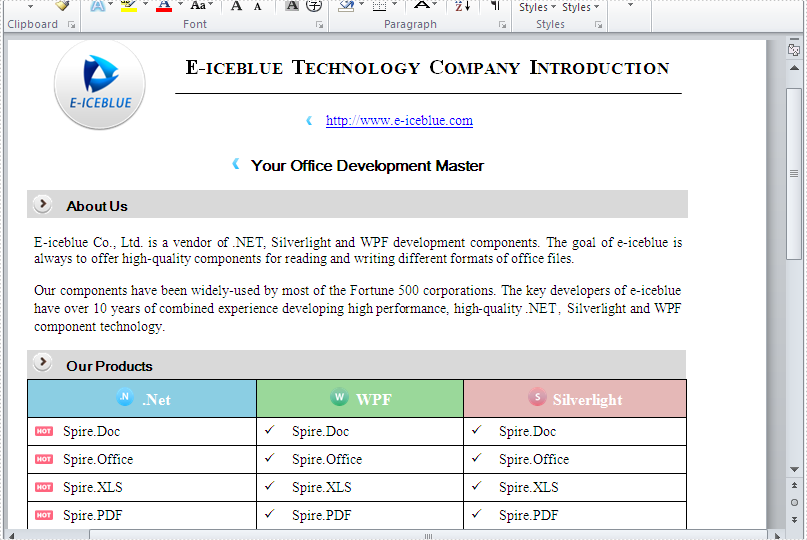
Step 1: Create a new document and load from file.
Document doc = new Document();
doc.LoadFromFile("sample.docx");
Step 2: Find the place where you want to replace with table.
Section section = doc.Sections[0];
//"Fortune" as a "key text"
TextSelection selection = doc.FindString("Fortune", true, true);
TextRange range = selection.GetAsOneRange();
Paragraph paragraph = range.OwnerParagraph;
Body body = (Body)paragraph.OwnerTextBody;
int index = body.ChildObjects.IndexOf(paragraph);
Step 3: Add a table and set its style.
Table table = section.AddTable(true);
table.ResetCells(3,3);
Step 4: Remove the paragraph and insert the table.
body.ChildObjects.Remove(paragraph);
body.ChildObjects.Insert(index, table);
Step 5: Save the document to file.
doc.SaveToFile("Result.docx", FileFormat.Docx);
Effective screenshot of add a table in the middle of the word document by replacing the text.
Full codes:
namespace replaceTextwithTable
{
    class Program
    {
        static void Main(string[] args)
        {

            Document doc = new Document();
            doc.LoadFromFile("sample.docx");
            Section section = doc.Sections[0];
            TextSelection selection = doc.FindString("Fortune", true, true);
            TextRange range = selection.GetAsOneRange();
            Paragraph paragraph = range.OwnerParagraph;
            Body body = (Body)paragraph.OwnerTextBody;
            int index = body.ChildObjects.IndexOf(paragraph);
            Table table = section.AddTable(true);
            table.ResetCells(3,3);
            body.ChildObjects.Remove(paragraph);
            body.ChildObjects.Insert(index, table);
            doc.SaveToFile("Result.docx", FileFormat.Docx);
        }
    }
}