Exporting Excel worksheets and charts to SVG vector graphics lets you display data clearly at any resolution on the web, while keeping text selectable and searchable. Spire.XLS for JavaScript runs entirely in the browser via WebAssembly, using a virtual file system (VFS) to manage input and output files — no backend server required.
This article covers two core features:
For installation and project setup, refer to Integrating Spire.XLS for JavaScript in a React Project. The examples below assume Spire.XLS is installed and the WebAssembly module is initialized.
Worksheet to SVG
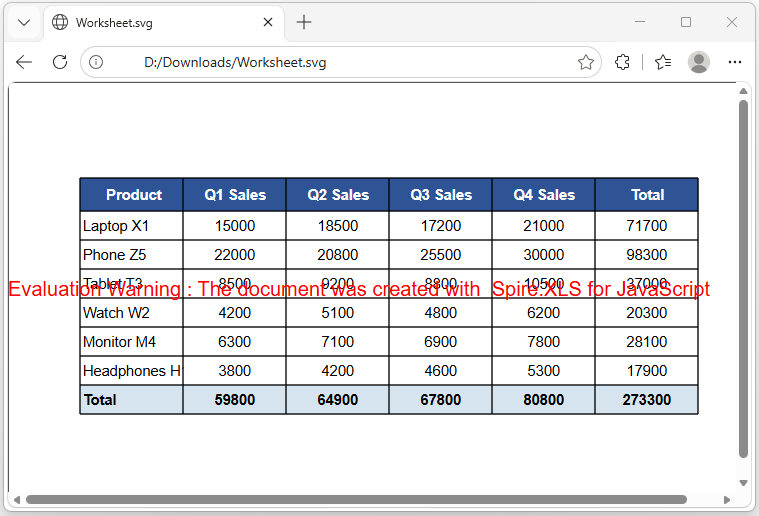
Converting a worksheet to SVG involves three steps: first, load the font files and the target Excel file into the WASM virtual file system via FetchFileToVFS; then instantiate a Workbook, load the file, retrieve the target worksheet, and call ToSVGStream to render it into a Stream object; finally, read the generated SVG file from VFS, wrap it as a Blob, and trigger a browser download.
function App() {
  const sheetToSVG = async () => {
    // Get the Spire.XLS WASM module
    const xlsModule = window.wasmModule?.spirexls;

    // Check if the module is ready
    if (!xlsModule) {
      alert('Spire.Xls is not ready yet');
      return;
    }

    // Load fonts and the Excel file into VFS
    await window.spire.FetchFileToVFS('arial.ttf', '/Library/Fonts/', `${process.env.PUBLIC_URL}/font/`);
    const inputFileName = 'ImageHeaderFooter.xlsx';
    await window.spire.FetchFileToVFS(inputFileName, '', `${process.env.PUBLIC_URL}data/`);

    // Load the workbook and get the first worksheet
    const workbook = new xlsModule.Workbook();
    workbook.LoadFromFile({ fileName: inputFileName });
    const sheet = workbook.Worksheets.get(0);

    // Convert the worksheet to an SVG stream
    const outputFileName = "Worksheet.svg";
    let fs = new xlsModule.Stream(outputFileName);
    sheet.ToSVGStream(fs, 0, 0, 0, 0);
    fs.Flush();
    fs.Dispose();

    // Read the converted file from VFS and trigger download
    const fileArray = window.dotnetRuntime.Module.FS.readFile(outputFileName);
    const blob = new Blob([fileArray], { type: "image/svg+xml;charset=utf-8"});
    const url = URL.createObjectURL(blob);
    const a = document.createElement('a');
    a.href = url;
    a.download = outputFileName;
    a.click();
    URL.revokeObjectURL(url);

    // Release resources
    workbook.Dispose();
  };

  return (
    <div style={{ textAlign: 'center', height: '300px' }}>
      <h1>Convert Excel To SVG</h1>
      <button onClick={sheetToSVG}>
        Generate
      </button>
    </div>
  );
}

export default App;
SVG output generated from a worksheet via ToSVGStream
ChartSheet to SVG
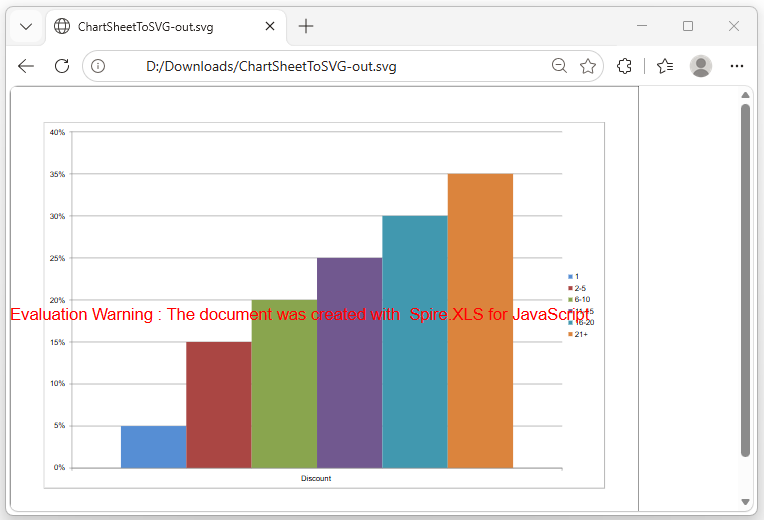
A ChartSheet is a special type of worksheet that contains an embedded chart instead of cell data. The conversion process is similar to worksheet-to-SVG, with two key differences: retrieve the chartsheet by name using GetChartSheetByName("Chart1") instead of by index; and call ToSVGStream(fs) without specifying cell range parameters, since the rendering area is determined by the chart itself.
function App() {
  const chartsheetToSVG = async () => {
    // Get the Spire.XLS WASM module
    const xlsModule = window.wasmModule?.spirexls;

    // Check if the module is ready
    if (!xlsModule) {
      alert('Spire.Xls is not ready yet');
      return;
    }

    // Load fonts and the Excel file into VFS
    await window.spire.FetchFileToVFS('arial.ttf', '/Library/Fonts/', `${process.env.PUBLIC_URL}/font/`);
    const inputFileName = 'ChartSheet.xlsx';
    await window.spire.FetchFileToVFS(inputFileName, '', `${process.env.PUBLIC_URL}data/`);

    // Load the workbook
    const workbook = new xlsModule.Workbook();
    workbook.LoadFromFile({ fileName: inputFileName });

    // Get the chartsheet by name
    let cs = workbook.GetChartSheetByName("Chart1");

    // Define the output file name
    const outputFileName = 'ChartSheetToSVG-out.svg';

    // Create a stream and convert the chartsheet to SVG
    const fs = new xlsModule.Stream(outputFileName);
    cs.ToSVGStream(fs);
    fs.Flush();

    // Read the converted file from VFS and trigger download
    const fileArray = window.dotnetRuntime.Module.FS.readFile(outputFileName);
    const blob = new Blob([fileArray], { type: "image/svg+xml;charset=utf-8" });
    const url = URL.createObjectURL(blob);
    const a = document.createElement('a');
    a.href = url;
    a.download = outputFileName;
    a.click();
    URL.revokeObjectURL(url);

    // Release resources
    workbook.Dispose();
  };

  return (
    <div style={{ textAlign: 'center', height: '300px' }}>
      <h1>Convert Chartsheet To SVG</h1>
      <button onClick={chartsheetToSVG}>
        Generate
      </button>
    </div>
  );
}

export default App;
SVG output generated from a chartsheet via ToSVGStream
SVG vs PNG Comparison
| Feature | SVG | PNG |
|---|---|---|
| Scaling Quality | Sharp at any zoom | Blurry when enlarged |
| Text | Selectable and searchable | Rasterized (flat image) |
| File Size | Small (a few KB) | Large at high resolutions |
| CSS Styling | Supports inline styles | Not supported |
| Post-processing | Editable in Illustrator, Inkscape | Requires pixel-level editing |
| Browser Embedding | <img> or <embed> |
<img> tag |
Recommendation: Use SVG for web reports or scenarios where selectable text matters; use PNG when compatibility with image editors or legacy systems is required.
FAQ
Missing or garbled SVG text
Cause: The required font files are not present in the WASM virtual file system. ToSVGStream reads fonts from VFS when rendering text — if fonts are not preloaded, text areas will appear blank or garbled.
Solution: Load the font files into VFS via FetchFileToVFS before conversion:
await window.spire.FetchFileToVFS(
  'ARIAL.TTF', '/Library/Fonts/', '/'
);
SVG file cannot be opened or appears corrupted
Cause: The MIME type is incorrect when creating the Blob, so the browser cannot properly identify the file format.
Solution: Use the correct SVG MIME type:
const blob = new Blob([data], {
  type: "image/svg+xml;charset=utf-8"
});
Get a Free License
Spire.XLS for JavaScript offers a 30-day full-featured free trial license with no functional limitations. Apply here to evaluate before purchasing.
