A workbook is made for editing, which does not always make it the right thing to hand over for archiving or printing. XPS, OFD and PostScript are all fixed-layout documents: the page size, the position of every piece of text and the fonts are pinned when the file is written, so the document looks the same on any machine that opens it. Spire.XLS for JavaScript performs all three conversions in the browser on WebAssembly, handling input and output files through a virtual file system (VFS) with no backend service.
This article covers three core feature points:
For installation and project setup, see Integrating Spire.XLS for JavaScript in a React Project. The examples below assume Spire.XLS is installed and the WebAssembly module has been initialised.
Convert Excel to XPS
XPS is a fixed-layout document format that ships with Windows, and saving a workbook as XPS gives it an archived copy that no longer rearranges itself to suit the program that opens it, which is what makes it fit for a report that has to be read on a machine without Excel installed. The conversion changes only the format the file is saved in: the page setup, the cell formatting and the fonts of the worksheet are all written out with it, and a fileFormat argument names the target.
The fileFormat argument of workbook.SaveToFile decides which of the formats is written:
| Syntax | Result |
|---|---|
workbook.LoadFromFile({ fileName: inputFileName }) |
Loads the workbook to convert from the VFS |
workbook.SaveToFile({ fileName: 'ExcelToXPS.xps', fileFormat: xlsModule.FileFormat.XPS }) |
Writes the workbook as XPS, pinning the page size, the text position and the fonts |
workbook.Dispose() |
Releases the resources held by the workbook object |
The steps are:
- Load the font and the test data file into the VFS with
window.spire.FetchFileToVFS. - Create a workbook with
new Workbook(), then load the Excel file withworkbook.LoadFromFile. - Save the workbook with
workbook.SaveToFile, namingxlsModule.FileFormat.XPSinfileFormat. - Dispose of the workbook with
workbook.Disposeto free resources.
The code below is the complete example of converting a workbook to XPS in React:
function App() {
  const excelToXps = async () => {
    // get the Spire.XLS WASM module
    const xlsModule = window.wasmModule?.spirexls;

    // check that the module is ready
    if (!xlsModule) {
      alert('Spire.Xls is not ready yet');
      return;
    }

    // load the font and the test data file into the VFS
    await window.spire.FetchFileToVFS('ARIAL.TTF', '/Library/Fonts/', `${process.env.PUBLIC_URL}/font/`);
    const inputFileName = 'SalesReport.xlsx';
    await window.spire.FetchFileToVFS(inputFileName, '', `${process.env.PUBLIC_URL}data/`);

    // load the workbook
    const workbook = new xlsModule.Workbook();
    workbook.LoadFromFile({ fileName: inputFileName });

    // save as XPS, naming the format with fileFormat
    const outputFileName = 'ExcelToXPS.xps';
    workbook.SaveToFile({ fileName: outputFileName, fileFormat: xlsModule.FileFormat.XPS });

    // dispose of the workbook to free resources
    workbook.Dispose();

    // read the result file from the VFS and start the download
    const fileArray = window.dotnetRuntime.Module.FS.readFile(outputFileName);
    const blob = new Blob([fileArray], { type: 'application/vnd.ms-xpsdocument' });
    const url = URL.createObjectURL(blob);
    const a = document.createElement('a');
    a.href = url;
    a.download = outputFileName;
    a.click();
    URL.revokeObjectURL(url);
  };

  return (
    <div style={{ textAlign: 'center', height: '300px' }}>
      <h1>Convert Excel to XPS, OFD or PostScript</h1>
      <button id="excel-to-xps" onClick={excelToXps}>Convert Excel to XPS</button>
    </div>
  );
}

export default App;
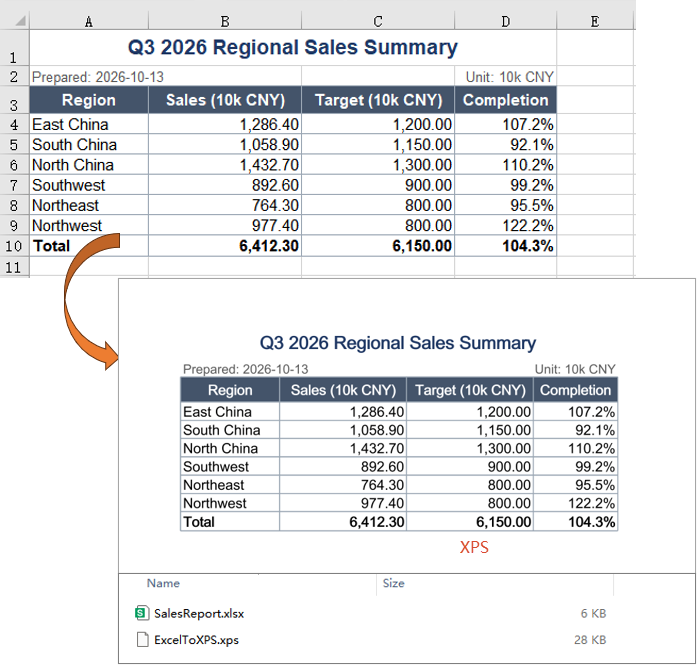
The document after converting Excel to XPS:
Convert Excel to OFD
OFD is the fixed-layout document format used by Chinese electronic official documents and e-invoices, describing a page in a national standard so that it can be kept for the long term. Saving a sales report as OFD hands other systems a page whose layout is already fixed, and it no longer matters whether that system has the fonts or applies the same row heights. The conversion runs exactly like the previous feature point, with OFD named as the format.
| Syntax | Result |
|---|---|
workbook.LoadFromFile({ fileName: inputFileName }) |
Loads the workbook to convert from the VFS |
workbook.SaveToFile({ fileName: 'ExcelToOFD.ofd', fileFormat: xlsModule.FileFormat.OFD }) |
Writes the workbook as OFD, describing the page in the national standard |
workbook.Dispose() |
Releases the resources held by the workbook object |
The steps are:
- Load the font and the test data file into the VFS with
window.spire.FetchFileToVFS. - Create a workbook with
new Workbook(), then load the Excel file withworkbook.LoadFromFile. - Save the workbook with
workbook.SaveToFile, namingxlsModule.FileFormat.OFDinfileFormat. - Dispose of the workbook with
workbook.Disposeto free resources.
The code below is the complete example of converting a workbook to OFD in React:
function App() {
  const excelToOfd = async () => {
    // get the Spire.XLS WASM module
    const xlsModule = window.wasmModule?.spirexls;

    // check that the module is ready
    if (!xlsModule) {
      alert('Spire.Xls is not ready yet');
      return;
    }

    // load the font and the test data file into the VFS
    await window.spire.FetchFileToVFS('ARIAL.TTF', '/Library/Fonts/', `${process.env.PUBLIC_URL}/font/`);
    const inputFileName = 'SalesReport.xlsx';
    await window.spire.FetchFileToVFS(inputFileName, '', `${process.env.PUBLIC_URL}data/`);

    // load the workbook
    const workbook = new xlsModule.Workbook();
    workbook.LoadFromFile({ fileName: inputFileName });

    // save as OFD, naming the format with fileFormat
    const outputFileName = 'ExcelToOFD.ofd';
    workbook.SaveToFile({ fileName: outputFileName, fileFormat: xlsModule.FileFormat.OFD });

    // dispose of the workbook to free resources
    workbook.Dispose();

    // read the result file from the VFS and start the download
    const fileArray = window.dotnetRuntime.Module.FS.readFile(outputFileName);
    const blob = new Blob([fileArray], { type: 'application/ofd' });
    const url = URL.createObjectURL(blob);
    const a = document.createElement('a');
    a.href = url;
    a.download = outputFileName;
    a.click();
    URL.revokeObjectURL(url);
  };

  return (
    <div style={{ textAlign: 'center', height: '300px' }}>
      <h1>Convert Excel to XPS, OFD or PostScript</h1>
      <button id="excel-to-ofd" onClick={excelToOfd}>Convert Excel to OFD</button>
    </div>
  );
}

export default App;
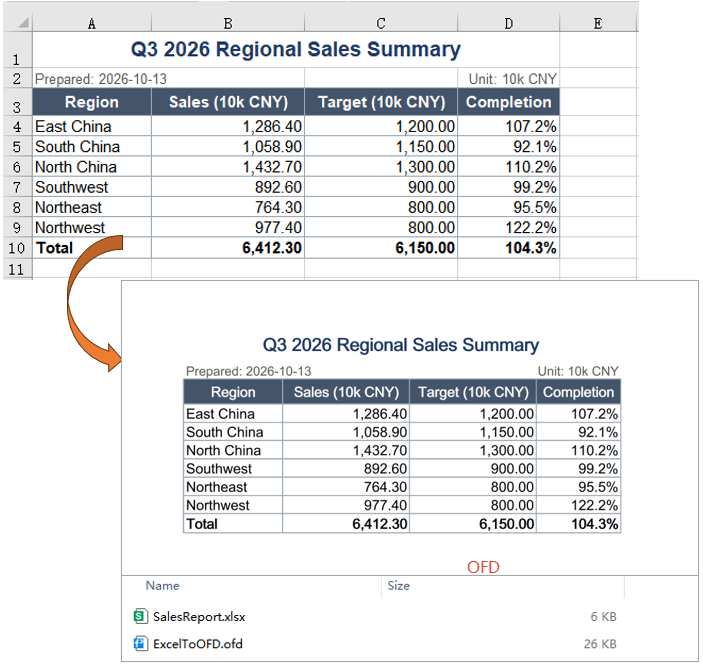
The document after converting Excel to OFD:
Convert Excel to PostScript
PostScript is the page description language used by printing devices and print workflows. The file is readable text that carries both the page description and the fonts embedded in it, so it can go straight to a PostScript printer or to typesetting software. When a report is headed for a print run, handing over PostScript is safer than handing over the original workbook. The usage matches the first two feature points, with PostScript named as the format.
| Syntax | Result |
|---|---|
workbook.LoadFromFile({ fileName: inputFileName }) |
Loads the workbook to convert from the VFS |
workbook.SaveToFile({ fileName: 'ExcelToPostScript.ps', fileFormat: xlsModule.FileFormat.PostScript }) |
Writes the workbook as PostScript, a readable page description |
workbook.Dispose() |
Releases the resources held by the workbook object |
The steps are:
- Load the font and the test data file into the VFS with
window.spire.FetchFileToVFS. - Create a workbook with
new Workbook(), then load the Excel file withworkbook.LoadFromFile. - Save the workbook with
workbook.SaveToFile, namingxlsModule.FileFormat.PostScriptinfileFormat. - Dispose of the workbook with
workbook.Disposeto free resources.
The code below is the complete example of converting a workbook to PostScript in React:
function App() {
  const excelToPostScript = async () => {
    // get the Spire.XLS WASM module
    const xlsModule = window.wasmModule?.spirexls;

    // check that the module is ready
    if (!xlsModule) {
      alert('Spire.Xls is not ready yet');
      return;
    }

    // load the font and the test data file into the VFS
    await window.spire.FetchFileToVFS('ARIAL.TTF', '/Library/Fonts/', `${process.env.PUBLIC_URL}/font/`);
    const inputFileName = 'SalesReport.xlsx';
    await window.spire.FetchFileToVFS(inputFileName, '', `${process.env.PUBLIC_URL}data/`);

    // load the workbook
    const workbook = new xlsModule.Workbook();
    workbook.LoadFromFile({ fileName: inputFileName });

    // save as PostScript, naming the format with fileFormat
    const outputFileName = 'ExcelToPostScript.ps';
    workbook.SaveToFile({ fileName: outputFileName, fileFormat: xlsModule.FileFormat.PostScript });

    // dispose of the workbook to free resources
    workbook.Dispose();

    // read the result file from the VFS and start the download
    const fileArray = window.dotnetRuntime.Module.FS.readFile(outputFileName);
    const blob = new Blob([fileArray], { type: 'application/postscript' });
    const url = URL.createObjectURL(blob);
    const a = document.createElement('a');
    a.href = url;
    a.download = outputFileName;
    a.click();
    URL.revokeObjectURL(url);
  };

  return (
    <div style={{ textAlign: 'center', height: '300px' }}>
      <h1>Convert Excel to XPS, OFD or PostScript</h1>
      <button id="excel-to-ps" onClick={excelToPostScript}>Convert Excel to PostScript</button>
    </div>
  );
}

export default App;
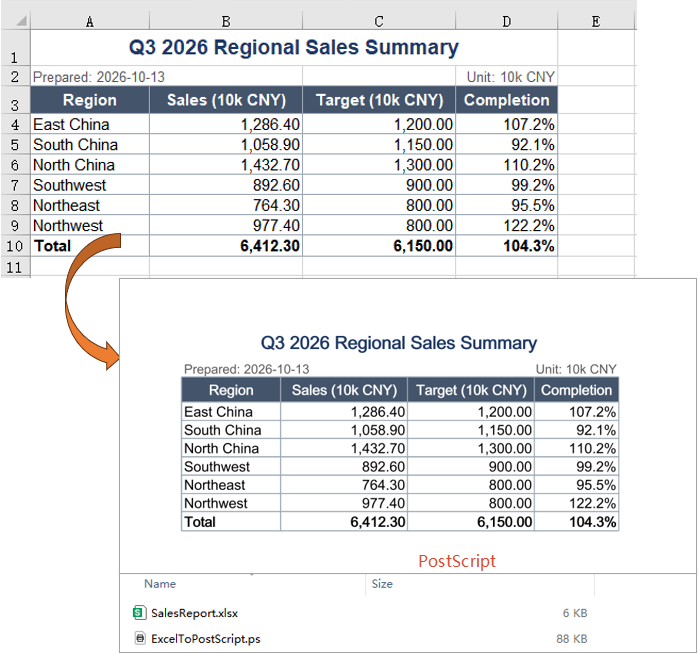
The document after converting Excel to PostScript:
FAQ
Why does the conversion fail with Cannot found font?
Cause: Writing XPS, OFD and PostScript means embedding every font the document uses, so a workbook whose text is not in the default Latin range needs the font file for it. If the font was never loaded into the VFS before the conversion, the module cannot find it and SaveToFile stops with a Cannot found font(...) installed on the system. error instead of writing a document.
Solution: Put the font file in public/font and load it into the VFS before loading the workbook, using the same file name the code refers to:
await window.spire.FetchFileToVFS('ARIAL.TTF', '/Library/Fonts/', `${process.env.PUBLIC_URL}/font/`);
Does the worksheet's page setup affect the converted document?
Cause: XPS, OFD and PostScript are all written page by page, and the size and the orientation of that page come from the worksheet's own page setup rather than from a decision the conversion makes on its own.
Solution: They carry over as they are. Taking the report in this example, the XPS page box is 794 x 1122 (portrait) while the report keeps its default orientation; set the first worksheet's sheet.PageSetup.Orientation to xlsModule.PageOrientationType.Landscape before converting, and the page box becomes 1122 x 794 (landscape). Paper size, margins and print area take effect on the way out in the same manner.
Why is the converted file much larger than the original workbook
Cause: Writing XPS, OFD and PostScript embeds every font the workbook uses, so the result comes out several times the size of a workbook that only holds cell data. That embedding is what lets a fixed-layout document be opened away from the machine it was made on.
Solution: This is normal and nothing needs fixing. To bring the size down, use a smaller font file, or check first that the report does not rely on several font files at once.
Get a Free License
Spire.XLS for JavaScript offers a 30-day full-featured free trial license with no functional limitations. Apply here to evaluate before purchasing.
