JSON is widely used to exchange data between web applications and APIs, but it is not always the most convenient format for reviewing or sharing records. Exporting JSON to Excel turns that data into a worksheet that users can sort, edit, and use in reports.
This tutorial explains how to convert JSON to Excel in a React application using JavaScript and Spire.XLS for JavaScript. It covers both a simple array of employee records and nested JSON that must be flattened before export. You will also learn how to preserve basic data types, format the worksheet, and download the resulting XLSX file in the browser.
Table of Contents:
- Set Up Spire.XLS for JavaScript in React
- Convert a Simple JSON Array to Excel in React
- Convert Nested JSON to Excel in React
- Common Issues and Solutions
- FAQs
- Conclusion
1. Set Up Spire.XLS for JavaScript in React
Spire.XLS for JavaScript provides APIs for creating workbooks, writing cell values, applying styles, and saving Excel files. In this workflow, JavaScript parses and prepares the JSON data, while Spire.XLS builds the Excel workbook.
In your React project, install the package:
npm i spire.office
Copy the corresponding runtime files from the package into your project's public folder: spire.xls.js, Spire.Xls.Wasm.zip, spire.common.js, Spire.Common.Wasm.zip, and the _framework folder. Keep these files from the same package version. For detailed setup instructions, see How to Integrate Spire.XLS for JavaScript in a React Project.
Place the JSON input files in public as well. The examples below use employees.json and employees_nested.json.
The React component loads spire.xls.js inside useEffect() and keeps the initialized module in state. The conversion button remains disabled until initialization completes.
Project configuration: These examples follow the process.env.PUBLIC_URL and webpack-based loading convention in the supplied React component. If your project uses Vite or another build tool, adapt the public asset URL and dynamic import configuration to that environment.
2. Convert a Simple JSON Array to Excel in React
A flat array of objects maps naturally to a worksheet: property names become column headers, and each object becomes one data row.
Prepare the JSON File
Save the following content as public/employees.json:
[
  {
    "employee_id": "E001",
    "name": "Jane Doe",
    "department": "HR",
    "salary": 85000.5,
    "active": true,
    "hire_date": "2022-03-15"
  },
  {
    "employee_id": "E002",
    "name": "Michael Smith",
    "department": "IT",
    "salary": 96000,
    "active": true,
    "hire_date": "2021-07-01"
  },
  {
    "employee_id": "E003",
    "name": "Sara Lin",
    "department": "Finance",
    "salary": 92000.75,
    "active": false,
    "hire_date": "2023-01-12"
  },
  {
    "employee_id": "E004",
    "name": "李伟",
    "department": "Operations",
    "salary": 81500,
    "active": true,
    "hire_date": "2020-11-30"
  },
  {
    "employee_id": "E005",
    "name": "Anna Petrova",
    "department": "Marketing",
    "salary": 78000,
    "active": true,
    "hire_date": "2019-08-19"
  },
  {
    "employee_id": "E006",
    "name": "David Chen",
    "department": null,
    "salary": 0,
    "active": false
  }
]
This example includes strings, numbers, Boolean values, Chinese characters, a null value, and a missing property. These cases illustrate how the export handles different values without losing zero or false.
Convert JSON to Excel
The conversion follows these steps:
- Load the JSON file into the virtual file system (VFS), decode its UTF-8 content, and parse it with
JSON.parse(). - Create a workbook, remove its default worksheets, and add an
Employeesworksheet. - Write the first object's keys into the header row.
- Write each record to a new row, using
NumberValue,BooleanValue, orTextaccording to the JavaScript value type. - Style the headers, estimate column widths from the content, and add thin borders.
- Save the workbook to the VFS, read the generated bytes, and download them as an XLSX file.
Complete React Example
Replace the contents of App.js with the following component:
import React, { useState, useEffect } from 'react';

function App() {
  const [wasmModule, setWasmModule] = useState(null);

  // Load Spire.XLS
  useEffect(() => {
    (async () => {
      try {
        const publicUrl = process.env.PUBLIC_URL || '';
        const spireModule = await import(/* webpackIgnore: true */ `${publicUrl}/spire.xls.js`);
        const rawModule = spireModule.default || spireModule;
        window.wasmModule = typeof rawModule === 'function'
          ? await rawModule({ locateFile: p => p.endsWith('.wasm') ? `${publicUrl}/${p}` : p })
          : rawModule;
        setWasmModule(window.wasmModule);
      } catch (error) {
        console.error('Failed to load spire.xls.js WASM module:', error);
      }
    })();
  }, []);

  // Convert JSON data to an Excel file
  const JsonToExcel = async () => {
    const spirexls = wasmModule?.spirexls;
    if (!spirexls) {
      console.error('Spire.XLS is not initialized.');
      return;
    }

    let workbook;

    try {
      // 1. Load the JSON file into the Virtual File System (VFS)
      const inputFileName = 'employees.json';
      const inputVfsPath = await window.spire.FetchFileToVFS(
        inputFileName,
        '/',
        `${process.env.PUBLIC_URL || ''}/`
      );

      // 2. Read it back as UTF-8 text and parse it into JS objects
      const jsonBytes = window.dotnetRuntime.Module.FS.readFile(inputVfsPath);
      const jsonText = new TextDecoder('utf-8').decode(jsonBytes);
      const data = JSON.parse(jsonText);

      // Guard against empty / invalid input
      if (!Array.isArray(data) || data.length === 0) {
        throw new Error('JSON must be a non-empty array of objects.');
      }

      // 3. Create a new workbook and worksheet
      workbook = new spirexls.Workbook();
      workbook.Worksheets.Clear();
      const sheet = workbook.Worksheets.Add('Employees');

      // 4. Write headers (row 1) from the keys of the first record
      const headers = Object.keys(data[0]);
      headers.forEach((header, col) => {
        const cell = sheet.get(1, col + 1); // 1-based
        cell.Text = header;
        cell.Style.Font.IsBold = true;
        cell.Style.Font.Size = 12;
        cell.Style.Font.Color = spirexls.Color.get_White();
        cell.Style.Color = spirexls.Color.get_DarkBlue();
      });

      // 5. Write data rows (from row 2), keeping the correct cell types
      data.forEach((record, rowIdx) => {
        headers.forEach((key, colIdx) => {
          const cell = sheet.get(rowIdx + 2, colIdx + 1);
          const value = record[key];
          if (typeof value === 'number') {
            cell.NumberValue = value;
          } else if (typeof value === 'boolean') {
            cell.BooleanValue = value;
          } else {
            cell.Text = value == null ? '' : String(value);
          }
        });
      });

      // 6. Set column widths explicitly
      const widths = headers.map((header) => {
        let maxLen = header.length;
        data.forEach(record => {
          const v = record[header];
          maxLen = Math.max(maxLen, v == null ? 0 : String(v).length);
        });
        return Math.min(Math.max(maxLen + 4, 10), 40);
      });
      const columns = sheet.Columns;
      widths.forEach((w, i) => { columns[i].ColumnWidth = w; }); // 0-based

      // 7. Add thin borders to the used range
      const usedRange = sheet.get(1, 1, data.length + 1, headers.length);
      usedRange.Borders.LineStyle = spirexls.LineStyleType.Thin;
      usedRange.Borders.Color = spirexls.Color.get_LightSteelBlue();

      // 8. Save the workbook to the VFS
      const outputFileName = 'employees.xlsx';
      workbook.SaveToFile({
        fileName: outputFileName,
        version: spirexls.ExcelVersion.Version2016
      });

      // 9. Read the saved file, convert to a Blob and trigger download
      const modifiedFileArray = window.dotnetRuntime.Module.FS.readFile(outputFileName);
      const modifiedFile = new Blob([modifiedFileArray], {
        type: 'application/vnd.openxmlformats-officedocument.spreadsheetml.sheet'
      });
      const url = URL.createObjectURL(modifiedFile);
      const a = document.createElement('a');
      a.href = url;
      a.download = outputFileName;
      document.body.appendChild(a);
      a.click();
      document.body.removeChild(a);
      URL.revokeObjectURL(url);

    } catch (error) {
      console.error('Failed to convert JSON to Excel:', error);
    } finally {
      // Clean up resources even when conversion fails part-way through.
      try {
        workbook?.Dispose();
      } catch (cleanupError) {
        console.warn('Failed to dispose workbook:', cleanupError);
      }
    }
  };

  return (
    <div style={{ textAlign: 'center', height: '300px' }}>
      <h1>Convert JSON to Excel Using JavaScript in React</h1>
      <button onClick={JsonToExcel} disabled={!wasmModule}>
        Convert
      </button>
    </div>
  );
}

export default App;
The code uses 1-based row and column indexes for sheet.get(), while the sheet.Columns collection is accessed with a 0-based index. Column widths are estimated from string length and capped at 40; this is a simple sizing rule rather than an exact measurement of rendered text.
Output:
The screenshot below shows the generated employees.xlsx file, with a styled header row and six employee records. Numbers and Boolean values retain their cell types, Chinese characters are preserved, and null or missing values appear as blank cells. Date strings remain in their original YYYY-MM-DD text format.
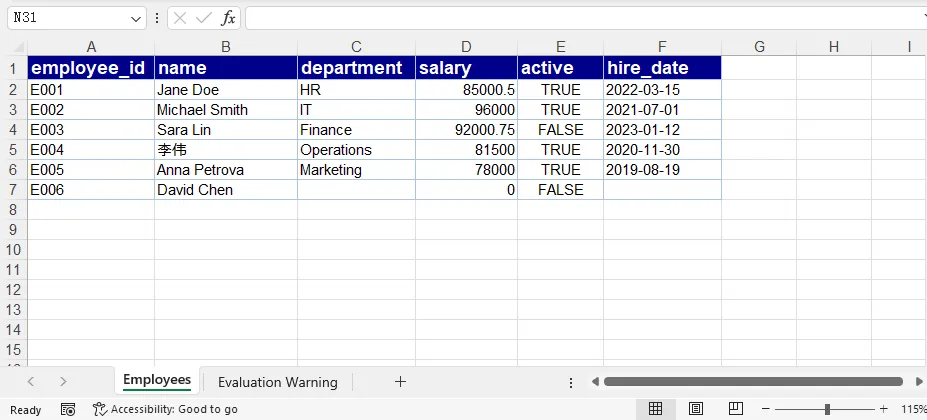
JSON has no native date type, and this code does not convert date strings into Excel dates. Also, the headers come from the first record: properties found only in later records are not included. The next example collects fields across all records to address that limitation.
3. Convert Nested JSON to Excel in React
Nested objects do not map directly to individual worksheet cells. Before exporting them, flatten their properties into a single level and decide how arrays should appear in the worksheet.
For this example, nested object paths become dot-separated column names, and arrays of simple values become comma-separated text. Each employee remains on one row.
Prepare a Nested JSON Example
Save the following content as public/employees_nested.json:
[
  {
    "employee_id": "E001",
    "name": "Jane Doe",
    "salary": 85000.5,
    "active": true,
    "address": {
      "city": "Seattle",
      "country": "USA"
    },
    "skills": ["Recruitment", "Training"]
  },
  {
    "employee_id": "E002",
    "name": "Michael Smith",
    "salary": 96000,
    "active": true,
    "address": {
      "city": "London",
      "country": "UK",
      "postal_code": "SW1A 1AA"
    },
    "skills": ["JavaScript", "React"]
  },
  {
    "employee_id": "E004",
    "name": "李伟",
    "salary": 81500,
    "active": false,
    "address": {
      "city": "Shanghai",
      "country": "China"
    },
    "skills": []
  }
]
The postal_code property appears only in the second employee's address. The export must therefore gather the column names from all flattened records, rather than using only the first one.
Flatten Nested Objects and Handle Arrays
Add these helper functions above function App() in the existing App.js file:
function isRecord(value) {
  return value !== null && typeof value === 'object' && !Array.isArray(value);
}

function flattenRecord(record) {
  // A null-prototype object safely holds arbitrary JSON property names.
  const result = Object.create(null);

  const visit = (value, path) => {
    if (Array.isArray(value)) {
      const containsComplexValues = value.some(
        item => item !== null && typeof item === 'object'
      );

      // Preserve complex arrays as JSON text; join simple arrays for readability.
      result[path] = containsComplexValues
        ? JSON.stringify(value)
        : value.map(item => item == null ? '' : String(item)).join(', ');
    } else if (isRecord(value)) {
      const entries = Object.entries(value);
      if (entries.length === 0 && path) {
        result[path] = '';
      } else {
        entries.forEach(([key, child]) => {
          visit(child, path ? `${path}.${key}` : key);
        });
      }
    } else {
      result[path] = value;
    }
  };

  visit(record, '');
  return result;
}
For the first employee, the resulting object is equivalent to:
{
  "employee_id": "E001",
  "name": "Jane Doe",
  "salary": 85000.5,
  "active": true,
  "address.city": "Seattle",
  "address.country": "USA",
  "skills": "Recruitment, Training"
}
Numbers and Boolean values remain unchanged outside arrays. Empty arrays become empty text. If an array contains objects or other arrays, the helper stores it as JSON text instead of producing an unhelpful [object Object] string.
This dot-separated naming convention assumes that the original property names do not contain dots. If your data includes literal keys such as "address.city", use an escaped path convention or an explicit column mapping to avoid collisions. Array-to-text conversion is intended for readable export, not lossless reconstruction of the original JSON.
Export the Flattened Data to Excel
Keep the module initialization and component layout from the simple example. Replace its JsonToExcel handler with the following handler. It loads the nested JSON file, flattens each record, collects every available field, and exports the resulting table:
const JsonToExcel = async () => {
  const spirexls = wasmModule?.spirexls;
  if (!spirexls) {
    console.error('Spire.XLS is not initialized.');
    return;
  }

  let workbook;

  try {
    // 1. Load and parse the nested JSON file
    const inputVfsPath = await window.spire.FetchFileToVFS(
      'employees_nested.json',
      '/',
      `${process.env.PUBLIC_URL || ''}/`
    );
    const bytes = window.dotnetRuntime.Module.FS.readFile(inputVfsPath);
    const data = JSON.parse(new TextDecoder('utf-8').decode(bytes));

    if (!Array.isArray(data) || data.length === 0 || !data.every(isRecord)) {
      throw new Error('JSON must be a non-empty array of objects.');
    }

    // 2. Flatten records and collect fields from every record
    const flatData = data.map(flattenRecord);
    const headers = [...new Set(flatData.flatMap(record => Object.keys(record)))];
    if (headers.length === 0) {
      throw new Error('JSON records contain no exportable fields.');
    }

    // 3. Create a workbook and worksheet
    workbook = new spirexls.Workbook();
    workbook.Worksheets.Clear();
    const sheet = workbook.Worksheets.Add('Employees');

    // 4. Write and style the headers
    headers.forEach((header, col) => {
      const cell = sheet.get(1, col + 1);
      cell.Text = header;
      cell.Style.Font.IsBold = true;
      cell.Style.Font.Size = 12;
      cell.Style.Font.Color = spirexls.Color.get_White();
      cell.Style.Color = spirexls.Color.get_DarkBlue();
    });

    // 5. Write flattened values, preserving scalar types
    flatData.forEach((record, row) => {
      headers.forEach((key, col) => {
        const cell = sheet.get(row + 2, col + 1);
        const value = record[key];
        if (typeof value === 'number') {
          cell.NumberValue = value;
        } else if (typeof value === 'boolean') {
          cell.BooleanValue = value;
        } else {
          cell.Text = value == null ? '' : String(value);
        }
      });
    });

    // 6. Estimate column widths and add borders
    const columns = sheet.Columns;
    headers.forEach((header, col) => {
      let maxLen = header.length;
      flatData.forEach(record => {
        const value = record[header];
        maxLen = Math.max(maxLen, value == null ? 0 : String(value).length);
      });
      columns[col].ColumnWidth = Math.min(Math.max(maxLen + 4, 10), 40);
    });

    const usedRange = sheet.get(1, 1, flatData.length + 1, headers.length);
    usedRange.Borders.LineStyle = spirexls.LineStyleType.Thin;
    usedRange.Borders.Color = spirexls.Color.get_LightSteelBlue();

    // 7. Save and download the workbook
    const outputFileName = 'employees_nested.xlsx';
    workbook.SaveToFile({
      fileName: outputFileName,
      version: spirexls.ExcelVersion.Version2016
    });

    const outputBytes = window.dotnetRuntime.Module.FS.readFile(outputFileName);
    const blob = new Blob([outputBytes], {
      type: 'application/vnd.openxmlformats-officedocument.spreadsheetml.sheet'
    });
    const url = URL.createObjectURL(blob);
    const link = document.createElement('a');
    link.href = url;
    link.download = outputFileName;
    document.body.appendChild(link);
    link.click();
    link.remove();
    URL.revokeObjectURL(url);

  } catch (error) {
    console.error('Failed to convert nested JSON to Excel:', error);
  } finally {
    try {
      workbook?.Dispose();
    } catch (cleanupError) {
      console.warn('Failed to dispose workbook:', cleanupError);
    }
  }
};
Output:
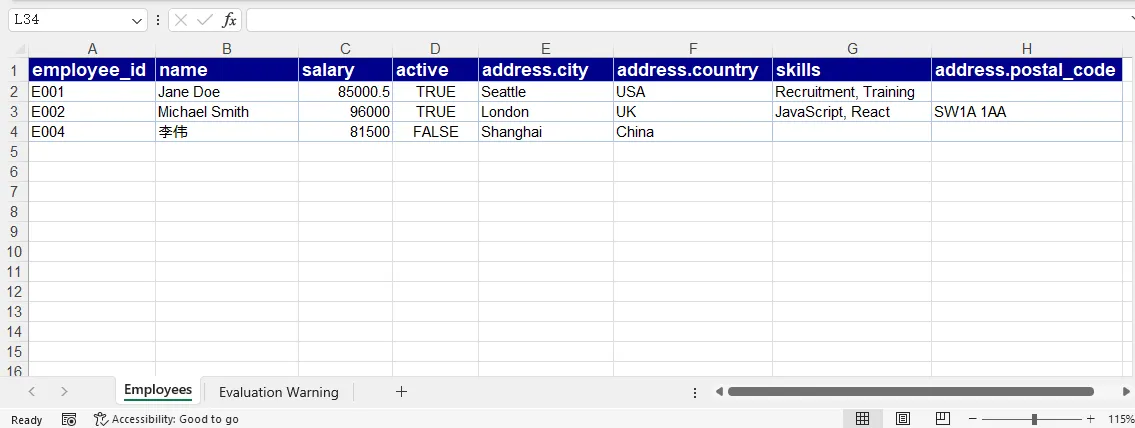
The generated worksheet includes address.city, address.country, and address.postal_code as separate columns. Skills appear as readable text in one cell, and employees without a postal code have an empty cell in that column. Header order follows the first appearance of each field across the records.
For arrays of objects that need to be analyzed as individual items, a separate worksheet or an explicitly defined one-to-many row expansion is usually more useful than storing JSON text. That approach requires deciding which parent fields to repeat and how related records should be linked.
4. Common Issues and Solutions
| Issue | Solution |
|---|---|
| The conversion button stays disabled | Check the browser console and Network panel for module-loading errors. Verify that the runtime files are accessible and come from the same package version. |
| The JSON file cannot be loaded | Confirm that it is in public and that the public URL points to the correct location. An HTML error page returned instead of JSON can also cause a parse error. |
JSON.parse() throws an error |
Check for malformed JSON, comments, trailing commas, or an unexpected response body. |
| Input is empty or has the wrong structure | Provide a non-empty array of objects. For API responses wrapped in an object, select the array property before exporting. |
| Some columns are missing | Collect the union of keys from all records, as shown in the nested example, instead of reading only data[0]. |
A cell contains [object Object] |
Flatten nested objects before writing them, or deliberately serialize complex values with JSON.stringify(). |
| Dates behave like text in Excel | The examples write date strings as text. Add explicit date parsing and Excel date formatting if date calculations are required. |
The simple example validates that the input is a non-empty array but does not verify each member's type. For less predictable input, use the stronger data.every(isRecord) validation from the nested example and reject records with no usable fields.
5. FAQs
Can I convert JSON from an API response to Excel?
Yes. Use fetch() and response.json() to obtain the data, then pass the resulting array through the same worksheet-writing process. If the response has a wrapper such as { "employees": [...] }, select responseData.employees first. Loading a static JSON file into the VFS is not necessary when the data is already available as JavaScript objects.
How do I handle records with different fields?
Build the column list from every record's keys. The nested example uses Set to collect unique field names in their first-seen order. When a record does not contain a column's field, the code writes empty text to that cell.
How can I export nested objects and arrays?
Flatten nested objects into path-based columns, such as address.city. For simple arrays, joining values into one cell keeps each parent record on one row. Arrays of objects can be stored as JSON text, expanded into multiple rows, or exported to a separate worksheet, depending on how users need to work with the data.
Are numbers and Boolean values preserved in Excel?
Yes. These examples assign JavaScript numbers to NumberValue and Boolean values to BooleanValue. Strings remain text, including numeric-looking identifiers and date strings. The null check uses value == null, so valid values such as 0 and false are not replaced with blanks.
6. Conclusion
Converting JSON to Excel in React involves preparing the data, writing it to a worksheet, and downloading the generated workbook. Flat JSON arrays can be exported directly, while nested data needs a defined flattening strategy. With type-aware cell assignments and consistent field collection, both workflows produce readable Excel files for sharing and further analysis.
