When a workbook has to be handed to a front-end program, JSON is the shape that fits APIs, caches and components alike: one array per worksheet, one object per row, and the column headers as the keys. Once the workbook is converted, the table data joins the data flow of the page without a backend parsing it first. Spire.XLS for JavaScript performs the conversion in the browser on WebAssembly, handling input and output files through a virtual file system (VFS) with no backend service.
This article covers four core feature points:
- Convert the Entire Workbook to JSON
- Convert a Specific Worksheet to JSON
- Convert a Specific Cell Range to JSON
- Customize the JSON Output Format
For installation and project setup, see Integrating Spire.XLS for JavaScript in a React Project. The examples below assume Spire.XLS is installed and the WebAssembly module has been initialised.
Convert the Entire Workbook to JSON
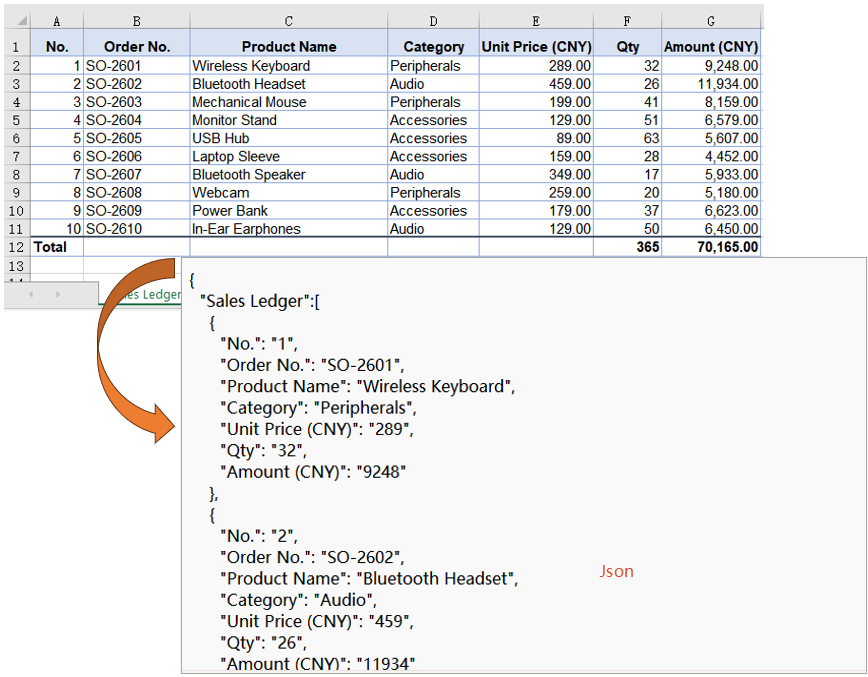
Every worksheet is a set of records that share a shape: the first row names the fields, and each row below it is one record. Handing over the whole workbook writes all of them at once, with the worksheet name as the key and the records as an array under it, so there is no need to call the conversion once per worksheet or to pick a range in advance. The sample workbook's three worksheets, the sales ledger, the customers and the notes, are written together, one top-level key each.
The whole-workbook conversion only has to name the target format when saving:
| Syntax | Result |
|---|---|
fileFormat: xlsModule.FileFormat.Json |
Writes the workbook as JSON, one top-level key per worksheet |
The steps are:
- Load the font and the test data file into the VFS with
window.spire.FetchFileToVFS. - Create a workbook with
new Workbook(), then load the input file withworkbook.LoadFromFile. - Save the workbook with
workbook.SaveToFile, namingxlsModule.FileFormat.JsoninfileFormat. - Dispose of the workbook with
workbook.Disposeto free resources.
The code below is the complete example of converting the entire workbook to JSON:
function App() {
  const workbookToJson = async () => {
    // get the Spire.XLS WASM module
    const xlsModule = window.wasmModule?.spirexls;

    // check that the module is ready
    if (!xlsModule) {
      alert('Spire.Xls is not ready yet');
      return;
    }

    // load the font and the test data file into the VFS
    await window.spire.FetchFileToVFS('ARIAL.TTF', '/Library/Fonts/', `${process.env.PUBLIC_URL}/font/`);
    const inputFileName = 'Sample.xlsx';
    await window.spire.FetchFileToVFS(inputFileName, '', `${process.env.PUBLIC_URL}data/`);

    // load the workbook
    const workbook = new xlsModule.Workbook();
    workbook.LoadFromFile({ fileName: inputFileName });

    // save the whole workbook as JSON
    const outputFileName = 'WorkbookToJson.json';
    workbook.SaveToFile({ fileName: outputFileName, fileFormat: xlsModule.FileFormat.Json });

    // dispose of the workbook to release its resources
    workbook.Dispose();

    // read the result back out of the VFS and trigger the download
    const fileArray = window.dotnetRuntime.Module.FS.readFile(outputFileName);
    const blob = new Blob([fileArray], { type: 'application/json' });
    const url = URL.createObjectURL(blob);
    const a = document.createElement('a');
    a.href = url;
    a.download = outputFileName;
    a.click();
    URL.revokeObjectURL(url);
  };

  return (
    <div style={{ textAlign: 'center', height: '300px' }}>
      <h1>Convert Excel to JSON</h1>
      <button id="workbook-to-json" onClick={workbookToJson}>Convert the Entire Workbook to JSON</button>
    </div>
  );
}

export default App;
The JSON file after converting the entire workbook:
Convert a Specific Worksheet to JSON
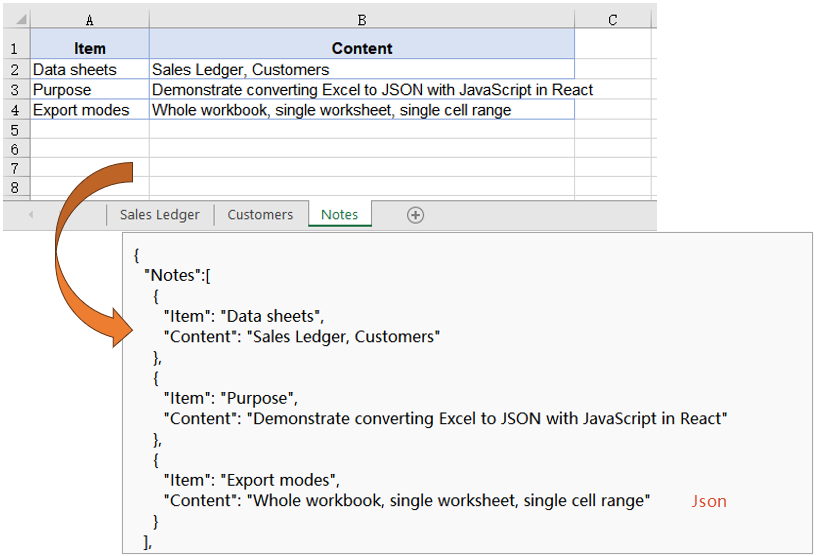
Most of the time only one worksheet is meant for the front end, while the rest are internal ledgers or instructions. Writing them all out lengthens the response and leaves the caller to pick the right one. The way around it is to copy the worksheet into a new workbook that holds nothing else and save that, so the result carries this one worksheet only. In the example the third worksheet, the notes, is exported, and the sales ledger and customers worksheets stay out of the result.
Isolating one worksheet comes down to three operations on the Worksheets collection:
| Syntax | Result |
|---|---|
workbook.Worksheets.get(2) |
Takes the third worksheet by index, counting from 0 |
workbook.Worksheets.Clear() |
Clears the worksheets the workbook already holds |
workbook.Worksheets.AddCopy({ sheet }) |
Copies the whole source worksheet into the cleared workbook |
The steps are:
- Load the font and the test data file into the VFS with
window.spire.FetchFileToVFS. - Create the source workbook with
new Workbook()and load the input file withworkbook.LoadFromFile, then take the worksheet to export withWorksheets.get(2). - Create a second workbook with
new Workbook()and clear the three blank worksheets it starts with usingWorksheets.Clear(). - Copy the target worksheet in with
Worksheets.AddCopy({ sheet }), so that it is the only one left. - Save the new workbook with
SaveToFile, namingxlsModule.FileFormat.JsoninfileFormat. - Dispose of both workbook objects with
Dispose.
The code below is the complete example of converting a specific worksheet to JSON:
function App() {
  const worksheetToJson = async () => {
    // get the Spire.XLS WASM module
    const xlsModule = window.wasmModule?.spirexls;

    // check that the module is ready
    if (!xlsModule) {
      alert('Spire.Xls is not ready yet');
      return;
    }

    // load the font and the test data file into the VFS
    await window.spire.FetchFileToVFS('ARIAL.TTF', '/Library/Fonts/', `${process.env.PUBLIC_URL}/font/`);
    const inputFileName = 'Sample.xlsx';
    await window.spire.FetchFileToVFS(inputFileName, '', `${process.env.PUBLIC_URL}data/`);

    // load the source workbook and take the third worksheet
    const sourceWorkbook = new xlsModule.Workbook();
    sourceWorkbook.LoadFromFile({ fileName: inputFileName });
    const targetSheet = sourceWorkbook.Worksheets.get(2);

    // create a new workbook and clear the three worksheets it starts with
    const targetWorkbook = new xlsModule.Workbook();
    targetWorkbook.Worksheets.Clear();

    // copy the target worksheet in, so that it is the only one left
    targetWorkbook.Worksheets.AddCopy({ sheet: targetSheet });

    // save that worksheet alone
    const outputFileName = 'WorksheetToJson.json';
    targetWorkbook.SaveToFile({ fileName: outputFileName, fileFormat: xlsModule.FileFormat.Json });

    // dispose of the workbook to release its resources
    sourceWorkbook.Dispose();
    targetWorkbook.Dispose();

    // read the result back out of the VFS and trigger the download
    const fileArray = window.dotnetRuntime.Module.FS.readFile(outputFileName);
    const blob = new Blob([fileArray], { type: 'application/json' });
    const url = URL.createObjectURL(blob);
    const a = document.createElement('a');
    a.href = url;
    a.download = outputFileName;
    a.click();
    URL.revokeObjectURL(url);
  };

  return (
    <div style={{ textAlign: 'center', height: '300px' }}>
      <h1>Convert Excel to JSON</h1>
      <button id="worksheet-to-json" onClick={worksheetToJson}>Convert a Specific Worksheet to JSON</button>
    </div>
  );
}

export default App;
The JSON file after converting a specific worksheet:
Convert a Specific Cell Range to JSON
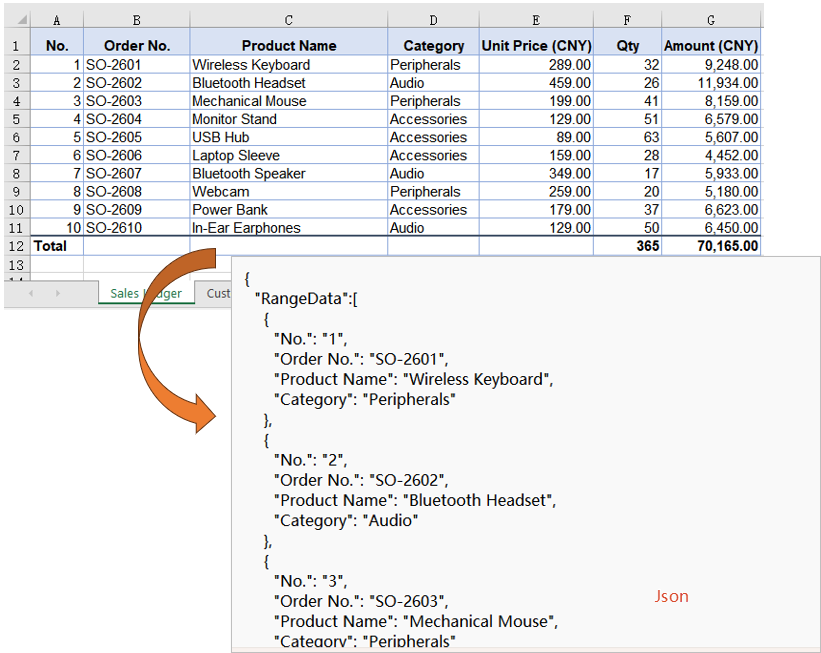
A worksheet usually carries more than the records themselves: title rows, totals formulas, helper columns pasted in from somewhere else. Exporting the whole sheet takes all of that along, when the caller only wants the tidy block in the middle. Naming the range first keeps everything outside it out of the result. The example takes A1:D6 of the sales ledger, six rows by four columns, leaving the price, quantity and amount columns behind in the workbook.
A range export follows the same path as a worksheet export, with a block of cells standing in for the whole sheet:
| Syntax | Result |
|---|---|
sourceSheet.Range.get('A1:D6') |
Takes the source cell range by address |
workbook.Worksheets.Add('RangeData') |
Adds a worksheet called RangeData to the cleared workbook |
targetSheet.Range.get('A1:D6') |
Takes a destination range of the same size as the source |
sourceSheet.Copy({ sourceRange, destRange, copyStyle: true }) |
Copies the values and styles into the destination range; copyStyle set to true brings the styles along |
The steps are:
- Load the font and the test data file into the VFS with
window.spire.FetchFileToVFS. - Create the source workbook with
new Workbook()and load the input file withworkbook.LoadFromFile, then take the source worksheet withWorksheets.get(0). - Mark out the cell range to export with
sourceSheet.Range.get('A1:D6'). - Create a target workbook and clear its default worksheets with
Worksheets.Clear(), then add a worksheet to receive the range withWorksheets.Add('RangeData'). - Take a destination range of the same size with
targetSheet.Range.get('A1:D6')and copy the values and styles across withsourceSheet.Copy({ sourceRange, destRange, copyStyle: true }). - Save the new workbook with
SaveToFile, namingxlsModule.FileFormat.JsoninfileFormat, and dispose of both workbook objects.
The code below is the complete example of converting a specific cell range to JSON:
function App() {
  const rangeToJson = async () => {
    // get the Spire.XLS WASM module
    const xlsModule = window.wasmModule?.spirexls;

    // check that the module is ready
    if (!xlsModule) {
      alert('Spire.Xls is not ready yet');
      return;
    }

    // load the font and the test data file into the VFS
    await window.spire.FetchFileToVFS('ARIAL.TTF', '/Library/Fonts/', `${process.env.PUBLIC_URL}/font/`);
    const inputFileName = 'Sample.xlsx';
    await window.spire.FetchFileToVFS(inputFileName, '', `${process.env.PUBLIC_URL}data/`);

    // load the source workbook and take the first worksheet
    const sourceWorkbook = new xlsModule.Workbook();
    sourceWorkbook.LoadFromFile({ fileName: inputFileName });
    const sourceSheet = sourceWorkbook.Worksheets.get(0);

    // name the cell range to export
    const sourceRange = sourceSheet.Range.get('A1:D6');

    // create a new workbook, clear its default worksheets and add one to receive the range
    const targetWorkbook = new xlsModule.Workbook();
    targetWorkbook.Worksheets.Clear();
    const targetSheet = targetWorkbook.Worksheets.Add('RangeData');

    // copy the values and styles across; the destination range must match the source size
    const destRange = targetSheet.Range.get('A1:D6');
    sourceSheet.Copy({ sourceRange, destRange, copyStyle: true });

    // save the new workbook
    const outputFileName = 'RangeToJson.json';
    targetWorkbook.SaveToFile({ fileName: outputFileName, fileFormat: xlsModule.FileFormat.Json });

    // dispose of the workbook to release its resources
    sourceWorkbook.Dispose();
    targetWorkbook.Dispose();

    // read the result back out of the VFS and trigger the download
    const fileArray = window.dotnetRuntime.Module.FS.readFile(outputFileName);
    const blob = new Blob([fileArray], { type: 'application/json' });
    const url = URL.createObjectURL(blob);
    const a = document.createElement('a');
    a.href = url;
    a.download = outputFileName;
    a.click();
    URL.revokeObjectURL(url);
  };

  return (
    <div style={{ textAlign: 'center', height: '300px' }}>
      <h1>Convert Excel to JSON</h1>
      <button id="range-to-json" onClick={rangeToJson}>Convert a Specific Cell Range to JSON</button>
    </div>
  );
}

export default App;
The JSON file after converting a specific cell range:
Customize the JSON Output Format
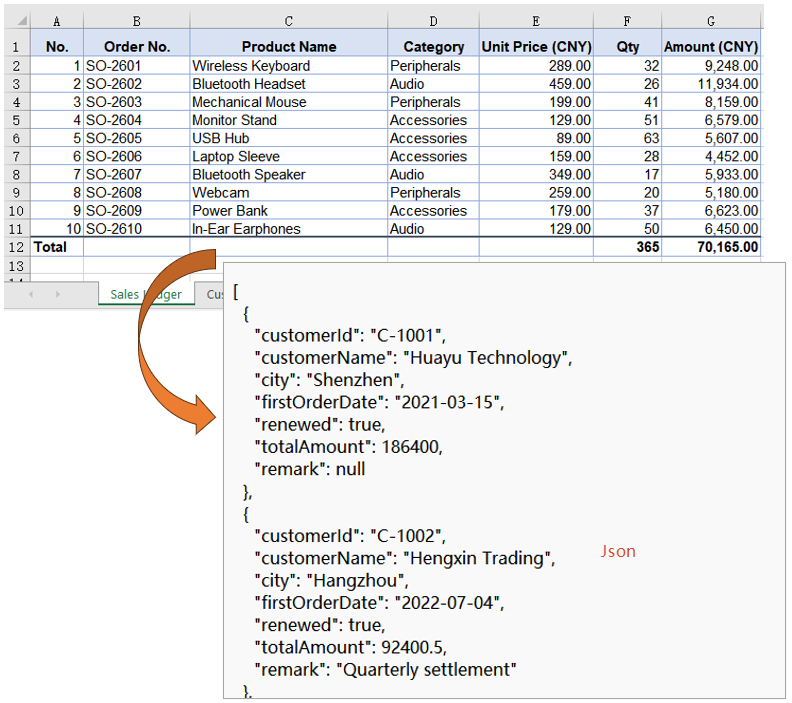
The three conversions above all produce a fixed shape: the field names are taken from the header row as they stand, every value is written as a string, an amount comes out as "186400", a boolean as "TRUE", a date in the runtime's own format rather than as yyyy-MM-dd, and a blank cell leaves its field out altogether. A result like that still has to be cleaned up before an API or a component binding can use it. Reading the cells one by one instead lets you decide the field names, the type of every value, and how a blank is represented.
Reading the cells yourself calls for the getters that return real types:
| Syntax | Result |
|---|---|
sheet.get(row, column) |
Takes a cell by row and column number, both counting from 1 |
sheet.LastRow / sheet.LastColumn |
The last row and column of the used range |
cell.Text |
The text in the cell; a blank cell returns an empty string |
cell.NumberValue |
The number in a numeric column, as a number; a blank cell returns null |
cell.BooleanValue |
The true or false of a boolean column, as a boolean |
cell.DateTimeValue |
The Date object of a date column, ready to be formatted |
JSON.stringify(records, null, 2) |
Serialises the records into JSON text indented by two spaces |
The steps are:
- Load the font and the test data file into the VFS with
window.spire.FetchFileToVFS, load the workbook withnew Workbook()andworkbook.LoadFromFile, and take the customers worksheet withWorksheets.get(1). - List the fields to keep in an array, each entry naming its column header, its output field name and how its value is read.
- Read the header row with
sheet.get(1, column)and, usingsheet.LastColumn, map each column header to its column number. - Walk the rows from row 2 to
sheet.LastRow, reading each value withcell.Text,cell.NumberValue,cell.BooleanValueorcell.DateTimeValueaccording to its field, and recording a blank cell asnull. - Build a
yyyy-MM-dddate from the year, month and day of theDateobject. - Serialise the records with
JSON.stringifyand a two-space indent, then write the text into the VFS withFS.writeFile. - Dispose of the workbook with
workbook.Disposeto free resources.
The code below is the complete example of customizing the JSON output format:
function App() {
  const customJsonFormat = async () => {
    // get the Spire.XLS WASM module
    const xlsModule = window.wasmModule?.spirexls;

    // check that the module is ready
    if (!xlsModule) {
      alert('Spire.Xls is not ready yet');
      return;
    }

    // load the font and the test data file into the VFS
    await window.spire.FetchFileToVFS('ARIAL.TTF', '/Library/Fonts/', `${process.env.PUBLIC_URL}/font/`);
    const inputFileName = 'Sample.xlsx';
    await window.spire.FetchFileToVFS(inputFileName, '', `${process.env.PUBLIC_URL}data/`);

    // load the workbook and take the customers worksheet
    const workbook = new xlsModule.Workbook();
    workbook.LoadFromFile({ fileName: inputFileName });
    const sheet = workbook.Worksheets.get(1);

    // the fields to keep: column header, output field name, how to read the value
    const fields = [
      { header: 'Customer ID', key: 'customerId', type: 'text' },
      { header: 'Customer Name', key: 'customerName', type: 'text' },
      { header: 'City', key: 'city', type: 'text' },
      { header: 'First Order Date', key: 'firstOrderDate', type: 'date' },
      { header: 'Renewed', key: 'renewed', type: 'boolean' },
      { header: 'Total Amount (CNY)', key: 'totalAmount', type: 'number' },
      { header: 'Remark', key: 'remark', type: 'text' },
    ];

    // read the header row and map each column header to its column number
    const columnOf = {};
    for (let column = 1; column <= sheet.LastColumn; column++) {
      columnOf[sheet.get(1, column).Text] = column;
    }

    // dates all go out as yyyy-MM-dd
    const pad = (value) => String(value).padStart(2, '0');
    const formatDate = (date) =>
      `${date.getFullYear()}-${pad(date.getMonth() + 1)}-${pad(date.getDate())}`;

    // walk the rows; a blank cell becomes null
    const records = [];
    for (let row = 2; row <= sheet.LastRow; row++) {
      const record = {};
      for (const field of fields) {
        const cell = sheet.get(row, columnOf[field.header]);
        if (field.type === 'number') {
          record[field.key] = cell.NumberValue;
        } else if (field.type === 'boolean') {
          record[field.key] = cell.BooleanValue;
        } else if (field.type === 'date') {
          record[field.key] = formatDate(cell.DateTimeValue);
        } else {
          const text = cell.Text;
          record[field.key] = text === '' ? null : text;
        }
      }
      records.push(record);
    }

    // write with a two-space indent so the result stays readable
    const json = JSON.stringify(records, null, 2);

    // write the JSON string into the VFS
    const outputFileName = 'CustomJsonFormat.json';
    window.dotnetRuntime.Module.FS.writeFile(outputFileName, new TextEncoder().encode(json));

    // dispose of the workbook to release its resources
    workbook.Dispose();

    // read the result back out of the VFS and trigger the download
    const fileArray = window.dotnetRuntime.Module.FS.readFile(outputFileName);
    const blob = new Blob([fileArray], { type: 'application/json' });
    const url = URL.createObjectURL(blob);
    const a = document.createElement('a');
    a.href = url;
    a.download = outputFileName;
    a.click();
    URL.revokeObjectURL(url);
  };

  return (
    <div style={{ textAlign: 'center', height: '300px' }}>
      <h1>Convert Excel to JSON</h1>
      <button id="custom-json-format" onClick={customJsonFormat}>Customize the JSON Output Format</button>
    </div>
  );
}

export default App;
The JSON file after applying the custom output format:
FAQ
Why are numbers, booleans and dates all strings in the exported JSON
Cause: SaveToFile writes the stored value of each cell. It neither applies the cell's number format nor infers a type, so an amount is written as "186400", a boolean as "TRUE", and a date in the runtime's own format instead of yyyy-MM-dd.
Solution: To get real types, read the cells yourself and take the value with cell.NumberValue, cell.BooleanValue or cell.DateTimeValue, then let JSON.stringify serialise the result.
Why do blank cells not appear in the JSON
Cause: Both the workbook and the worksheet conversion use the header row as the field names, and a blank cell produces no field at all, so that object ends up with fewer keys than the others.
Solution: If the caller needs every object to carry the same keys, read the cells yourself and write null whenever cell.Text comes back as an empty string.
Why is there an extra Evaluation Warning key at the top level of the JSON
Cause: The trial build adds an evaluation warning worksheet to the workbook, and in a whole-workbook conversion it becomes one more top-level key alongside the real worksheets.
Solution: Convert a specific worksheet or a specific cell range instead, and only the data you asked for is written; if the whole workbook has to be exported as it stands, contact sales for a temporary license that removes the evaluation message.
How do I export only a few columns
Cause: The workbook and worksheet conversions both write every column in the worksheet, while a range export can only take a consecutive block, so columns such as A, C and E cannot be expressed as a range.
Solution: Read the cells yourself the way the custom output format does and keep the fields you need; when the columns happen to be consecutive, a range export narrows the result just as well.
Get a Free License
Spire.XLS for JavaScript offers a 30-day full-featured free trial license with no functional limitations. Apply here to evaluate before purchasing.
