The same PDF can look different to everyone who opens it: one viewer starts centered, another pins the toolbar and menu bar to the top, one shows a single page at a time, another puts two pages side by side. When the document is a manual, a brochure, or a report meant for other people, the author usually wants control over those defaults — centered on open, minimal interface, straight into a two-column view. This behavior comes from the document's own viewer preferences, written into the PDF catalog and shipped with the file, so no viewer-side configuration is needed.
Spire.PDF for JavaScript loads, modifies, and saves PDF documents in the browser through WebAssembly. Viewer preferences are read and written through PdfDocument.ViewerPreferences, and files move in and out through a virtual file system (VFS), with no backend involved.
This article covers two features:
For installation and project setup, see Integrate Spire.PDF for JavaScript in a React project. The examples below assume Spire.PDF is installed and the WebAssembly module is initialized.
Set window and interface preferences
A few boolean switches on ViewerPreferences decide how the reader looks when it opens the document. All of them default to false, which leaves the reader's own interface untouched:
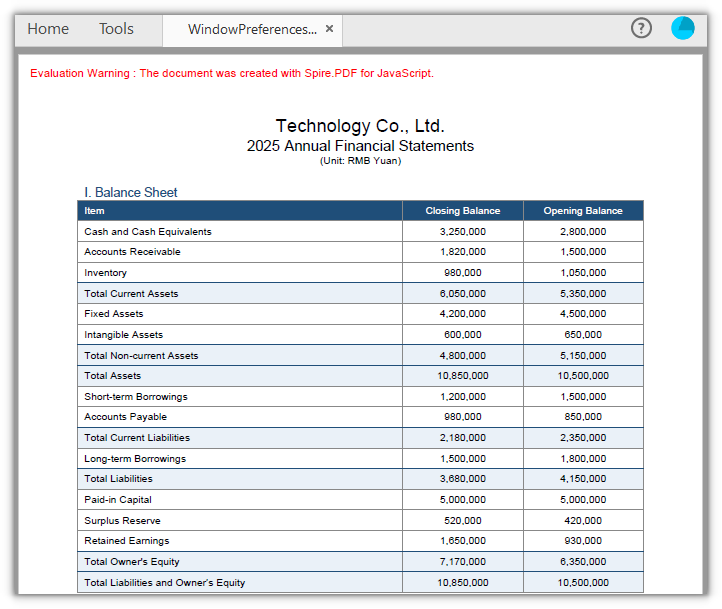
CenterWindowcenters the reader windowDisplayTitledecides whether the title bar uses the document title (with no title metadata in the document, the reader falls back to the file name)FitWindowdecides whether the window is scaled to fit the first pageHideMenubarhides the menu barHideToolbarhides the toolbarHideWindowUIhides interface elements such as scroll bars, leaving only the page content
function App() {
  const setWindowPreferences = async () => {
    // Get the Spire.PDF WASM module
    const pdfModule = window.wasmModule?.spirepdf;

    // Check that the module is ready
    if (!pdfModule) {
      alert('Spire.PDF is not ready yet');
      return;
    }

    // Load the PDF file to process into the VFS
    const inputFileName = 'FinancialStatement2025.pdf';
    await window.spire.FetchFileToVFS(inputFileName, "", `${process.env.PUBLIC_URL}/data/`);

    // Create a PdfDocument object and load the PDF document
    let doc = new pdfModule.PdfDocument();
    doc.LoadFromFile(inputFileName);

    // Center the reader window
    doc.ViewerPreferences.CenterWindow = true;
    // Do not use the document title in the title bar (keep showing the file name)
    doc.ViewerPreferences.DisplayTitle = false;
    // Do not scale the window to fit the first page
    doc.ViewerPreferences.FitWindow = false;
    // Hide the menu bar
    doc.ViewerPreferences.HideMenubar = true;
    // Hide the toolbar
    doc.ViewerPreferences.HideToolbar = true;
    // Hide interface elements such as scroll bars, leaving only the page content
    doc.ViewerPreferences.HideWindowUI = true;

    const outputFileName = 'WindowPreferences.pdf';
    doc.SaveToFile(outputFileName);
    doc.Close();

    // Read the generated file from the VFS and trigger the download
    const fileArray = window.dotnetRuntime.Module.FS.readFile(outputFileName);
    const blob = new Blob([fileArray], { type: 'application/pdf' });
    const url = URL.createObjectURL(blob);
    const a = document.createElement('a');
    a.href = url;
    a.download = outputFileName;
    a.click();
    URL.revokeObjectURL(url);
  };

  return (
    <div style={{ textAlign: 'center', height: '300px' }}>
      <h1>Window and Interface Preferences</h1>
      <button onClick={setWindowPreferences}>
        Apply
      </button>
    </div>
  );
}

export default App;
A PDF document with the window centered and the toolbar and menu bar hidden
Set page layout and opening display mode
How pages are arranged, and what appears first on open, are also decided by enum properties on ViewerPreferences. Their defaults are SinglePage and UseNone:
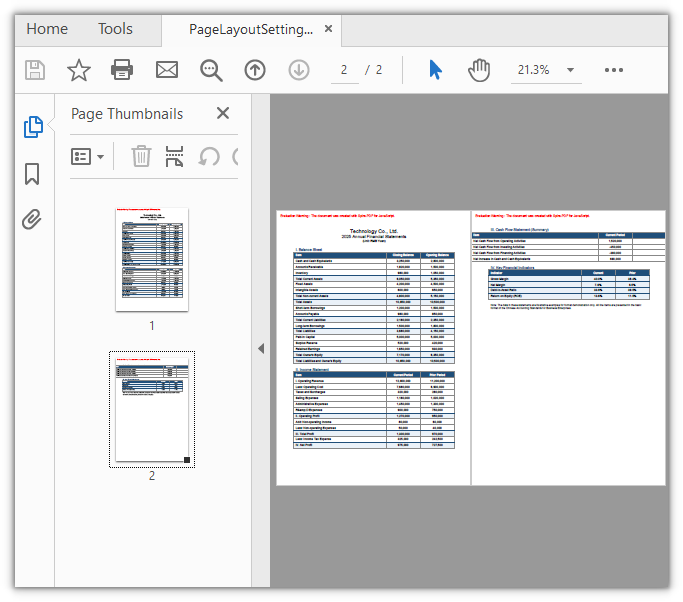
PageLayoutcontrols how pages are arranged:SinglePageshows one page at a time,TwoColumnLeftputs two pages side by side with odd-numbered pages on the leftPageModecontrols what the document shows first:UseNonegoes straight to the page content,UseThumbsexpands a thumbnail panel in the sidebar
function App() {
  const setPageLayout = async () => {
    // Get the Spire.PDF WASM module
    const pdfModule = window.wasmModule?.spirepdf;

    // Check that the module is ready
    if (!pdfModule) {
      alert('Spire.PDF is not ready yet');
      return;
    }

    // Load the PDF file to process into the VFS
    const inputFileName = 'FinancialStatement2025.pdf';
    await window.spire.FetchFileToVFS(inputFileName, "", `${process.env.PUBLIC_URL}/data/`);

    // Create a PdfDocument object and load the PDF document
    let doc = new pdfModule.PdfDocument();
    doc.LoadFromFile(inputFileName);

    // Show two pages side by side, with odd-numbered pages on the left
    doc.ViewerPreferences.PageLayout = pdfModule.PdfPageLayout.TwoColumnLeft;
    // Expand the thumbnail panel when the document opens
    doc.ViewerPreferences.PageMode = pdfModule.PdfPageMode.UseThumbs;

    const outputFileName = 'PageLayoutSettings.pdf';
    doc.SaveToFile(outputFileName);
    doc.Close();

    // Read the generated file from the VFS and trigger the download
    const fileArray = window.dotnetRuntime.Module.FS.readFile(outputFileName);
    const blob = new Blob([fileArray], { type: 'application/pdf' });
    const url = URL.createObjectURL(blob);
    const a = document.createElement('a');
    a.href = url;
    a.download = outputFileName;
    a.click();
    URL.revokeObjectURL(url);
  };

  return (
    <div style={{ textAlign: 'center', height: '300px' }}>
      <h1>Page Layout and Display Mode</h1>
      <button onClick={setPageLayout}>
        Apply
      </button>
    </div>
  );
}

export default App;
A PDF document that opens in two columns with the thumbnail panel expanded on the left
FAQ
I set the preferences but the document looks the same on open
Cause: Per the PDF specification, /ViewerPreferences is a hint to the reader, not a requirement. The built-in browser PDF viewers and many lightweight readers implement only a small part of it, and interface entries such as HideToolbar, HideMenubar, and PageLayout are often ignored outright. Adobe Acrobat also overrides the document values with the view state it remembers when "Restore last view settings" is turned on.
Solution: Open the file in Adobe Acrobat Reader to verify, and in Preferences → Documents make sure "Restore last view settings when reopening documents" is cleared. When troubleshooting, rule out the reader itself first, then check whether the settings made it into the file — the preferences only reach disk after SaveToFile, and calling Close() before saving discards the changes.
What is the difference between PageLayout and PageMode
Cause: The two property names are close and both affect how the document looks on open, so they are easy to mix up. They govern different things: PageLayout decides how pages are arranged, PageMode decides which panel shows first.
Solution: Pick one value for each as needed; the two do not affect each other:
// Page arrangement: single page, continuous single column, two columns, two pages
doc.ViewerPreferences.PageLayout = pdfModule.PdfPageLayout.TwoColumnLeft;

// Panel shown first on open: pages only, thumbnails, bookmark outlines
doc.ViewerPreferences.PageMode = pdfModule.PdfPageMode.UseThumbs;
PdfPageLayout accepts SinglePage, OneColumn, TwoColumnLeft, TwoColumnRight, TwoPageLeft, and TwoPageRight; PdfPageMode accepts UseNone, UseOutlines, UseThumbs, FullScreen, UseOC, and UseAttachments.
Can hiding the toolbar stop users from printing or saving a copy
Cause: No. HideToolbar, HideMenubar, and HideWindowUI only affect how the reader interface is displayed; they have nothing to do with the permissions for printing, copying, or saving a copy. Opening the file in a reader that ignores the setting, or using the menu directly, still allows both.
Solution: Restricting operations takes a permissions password — use PdfPasswordSecurityPolicy together with PdfDocumentPrivilege to turn off printing, copying, and the like. Those restrictions are enforced by the document's encryption dictionary, and readers honor them. Viewer preferences govern how it looks; permission settings govern what is allowed.
Get a Free License
If you want to remove the evaluation message from the result document or lift the feature limits, contact sales for a temporary 30-day license.
