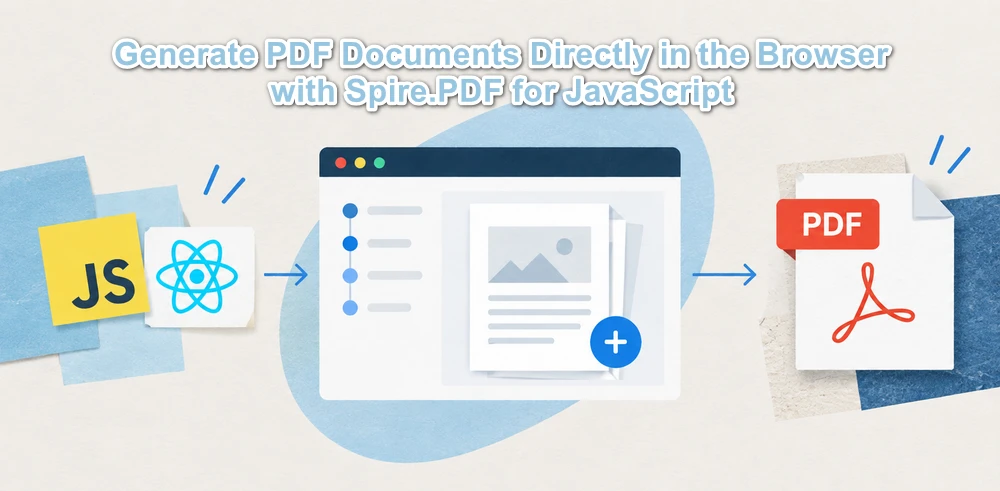
JavaScript can generate PDF files programmatically by creating a document, adding pages, drawing text and other elements, and saving the document. In a React application, this workflow can run entirely in the browser with Spire.PDF for JavaScript and WebAssembly, without requiring a backend server.
At a high level, JavaScript PDF generation consists of five steps: create the document, add pages, add content, save the PDF, and download the generated file. This tutorial uses React as the example environment, but the PDF-generation workflow itself is JavaScript-based and applies to any frontend framework.
Here, “generating a PDF” means creating a PDF document programmatically from scratch, rather than printing an existing HTML page to PDF. JavaScript applications can generate PDFs through HTML-to-PDF conversion, canvas-based rendering, or programmatic PDF construction. This tutorial focuses on programmatic PDF generation with Spire.PDF for JavaScript.
What You Need
This tutorial assumes that Spire.PDF for JavaScript has already been installed and initialized in your React project. For setup details, see How to Integrate Spire.PDF for JavaScript in a React Project. You also need the WebAssembly resources configured so that the PDF module is available through window.spirepdf (Spire.Office for JavaScript 11.7.0 or later).
How to Generate a PDF in JavaScript
Create PdfDocument -> Add Page -> Draw Content -> Save -> Download
1. Create a PDF document
Start by creating a PdfDocument object. This is the in-memory representation of the PDF file you will build.
const pdf = window.spirepdf;
let doc = new pdf.PdfDocument();
2. Add a page
A PDF document needs at least one page. Call Pages.Add() to create a blank page with a default size.
let page = doc.Pages.Add();
3. Add text and other content
The page has a Canvas property that exposes drawing methods. Use DrawString to add text, DrawImage to add images, DrawLine to draw lines, and DrawRectangle to draw filled or outlined rectangles. Coordinates are measured in points (1 point = 1/72 inch) from the top-left corner.
let font = new pdf.PdfFont({ fontFamily: pdf.PdfFontFamily.Helvetica, size: 12 });
let brush = new pdf.PdfSolidBrush({ pdfRGBColor: new pdf.PdfRGBColor(0, 0, 0) });
page.Canvas.DrawString({ s: "Hello, World!", font: font, brush: brush, x: 50, y: 50 });
4. Save the generated PDF
Once all content is in place, call SaveToFile to write the PDF to the WebAssembly virtual file system (VFS). The VFS is an in-browser file system that Spire.PDF uses to manage input and output files without touching the real disk or a server.
doc.SaveToFile({ fileName: 'Output.pdf' });
doc.Close();
5. Download the PDF in the browser
After saving to the VFS, read the file back as a byte array, wrap it in a Blob, and trigger a download by creating a temporary anchor element. This pattern is used in every Spire.PDF for JavaScript example.
const fileArray = window.dotnetRuntime.Module.FS.readFile('Output.pdf');
const blob = new Blob([fileArray], { type: 'application/pdf' });
const url = URL.createObjectURL(blob);
const a = document.createElement('a');
a.href = url;
a.download = 'Output.pdf';
a.click();
URL.revokeObjectURL(url);
Programmatic PDF generation is useful when you need precise control over the document structure, page layout, text, graphics, or metadata. If you already have a web page or HTML template and simply need to convert that layout into a PDF, an JavaScript HTML-to-PDF workflow may be a better fit.
The next section puts these steps together in a complete example that generates a PDF from JavaScript data.
Generate an Invoice PDF from JavaScript Data
Real applications generate structured documents — invoices, reports, quotations — from application data, not hardcoded strings. In a React application, the invoice object could come from form input, component state, or an API response; the PDF generation code only needs the data needed for the document layout. This example defines an invoice as a JavaScript object and renders a print-ready PDF from it: a bleed header, a billed-to block, a line-item table, a totals cascade, and payment details. It combines DrawString, DrawRectangle, DrawLine, and PdfGrid into one complete runnable React component.
function App() {
  const generateInvoicePdf = async () => {
    // spire.office 11.7.0 hangs the engine off window.spirepdf.
    const pdf = window.spirepdf;
    if (!pdf) return alert('Spire.PDF is not ready yet');

    // ── The invoice, as data. Swap this object and the layout follows. ────
    const invoice = {
      number: 'INV-2026-0148', issued: '23 September 2026',
      due: '23 October 2026', po: 'PO-ACME-88231', terms: 'Net 30',
      seller: ['NIMBUS SOFTWARE LTD.', 'Cloud platforms for manufacturing teams',
        '12 Kingsway, London WC2B 6UN, United Kingdom'],
      buyer: ['Acme Manufacturing Co.', 'Attn: Sarah Chen, Procurement',
        '1400 Harbor Boulevard, Suite 320', 'Long Beach, CA 90802', 'United States'],
      // [description, quantity, unit price] — the amount is derived below
      items: [
        ['CloudDesk Pro — annual subscription (25 seats)', 25, 120],
        ['Implementation & onboarding (remote, 16 hours)', 16, 95],
        ['Priority support — Premium tier (12 months)', 1, 2400],
        ['Additional object storage (500 GB per year)', 1, 480],
      ],
      discountRate: 0.05, taxRate: 0.08,
      bank: ['Barclays Bank PLC · Sort code 20-00-00 · Account 5571 2043',
        'IBAN GB29 BARC 2000 0055 7120 43 · SWIFT BARCGB22'],
      remark: ['Quote the invoice number as the payment reference.',
        'Amounts unpaid after the due date accrue interest at 1.5% per month.'],
      legal:
        'Nimbus Software Ltd. · 12 Kingsway, London WC2B 6UN · VAT GB 412 8876 21 · Company No. 09882417',
      contact: '[email protected] · +44 20 7946 0812 · nimbussoftware.com',
    };

    const round = (n) => Math.round(n * 100) / 100;
    const subtotal = round(invoice.items.reduce((sum, [, qty, unit]) => sum + qty * unit, 0));
    const discount = -round(subtotal * invoice.discountRate);
    const tax = round((subtotal + discount) * invoice.taxRate);
    const total = round(subtotal + discount + tax);
    const money = (n) =>
      '$' + Math.abs(n).toLocaleString('en-US', { minimumFractionDigits: 2, maximumFractionDigits: 2 });
    const pct = (rate) => Math.round(rate * 100) + '%';

    // ── Document ──────────────────────────────────────────────────────────
    const doc = new pdf.PdfDocument();
    doc.PageSettings.Margins.All = 0; // before Pages.Add(), or the origin stays at the margin
    const page = doc.Pages.Add();

    // Text is dropped past the canvas client area, so lay out against it.
    const W = page.Canvas.ClientSize.Width;
    const H = page.Canvas.ClientSize.Height;
    const PAD = 28;
    const EDGE = W - PAD;

    // ── Drawing toolkit ───────────────────────────────────────────────────
    // Object notation selects the PdfFont / PdfSolidBrush / PdfPen overload —
    // the positional constructors all report "Ambiguous call" here.
    const rgb = (c) => new pdf.PdfRGBColor(c[0], c[1], c[2]);
    const paint = (c) => new pdf.PdfSolidBrush({ pdfRGBColor: rgb(c) });
    const font = (size, bold) =>
      new pdf.PdfFont({
        fontFamily: pdf.PdfFontFamily.Helvetica,
        size,
        ...(bold ? { style: pdf.PdfFontStyle.Bold } : {}),
      });
    // DrawString's first parameter is `s`, and it has no alignment option in
    // point mode — measure the string when it has to be right-aligned.
    const text = (s, f, colour, x, y, align) => {
      const dx = align === 'right' ? f.MeasureString({ text: s }).Width : 0;
      page.Canvas.DrawString({ s, font: f, brush: paint(colour), x: x - dx, y });
    };
    const box = (colour, x, y, w, h) =>
      page.Canvas.DrawRectangle({ brush: paint(colour), x, y, width: w, height: h });

    const INK = [26, 31, 43], NAVY = [23, 54, 93], ACCENT = [47, 111, 181];
    const MUTED = [107, 114, 128], RULE = [220, 225, 232], ZEBRA = [246, 248, 251];
    const SOFT = [238, 243, 249], WHITE = [255, 255, 255], ON_NAVY = [186, 200, 220];
    const fHero = font(26, true), fBrand = font(17, true), fTitle = font(11, true);
    const fBody = font(9.5), fBold = font(9.5, true), fSmall = font(8.5);
    const fLabel = font(7.5, true), fFoot = font(7.5), fCell = font(9), fHead = font(8, true);

    // ── Header band, bleeding to the sheet edges ──────────────────────────
    box(NAVY, 0, 0, W, 106);
    box(ACCENT, 0, 106, W, 3.5);
    text(invoice.seller[0], fBrand, WHITE, PAD, 30);
    text(invoice.seller[1], fSmall, ON_NAVY, PAD, 52);
    text(invoice.seller[2], fFoot, ON_NAVY, PAD, 68);
    text('INVOICE', fHero, WHITE, EDGE, 22, 'right');
    text(invoice.number, fBody, ON_NAVY, EDGE, 56, 'right');
    text(`Issued ${invoice.issued}`, fFoot, ON_NAVY, EDGE, 74, 'right');

    // ── Billed to / invoice details ───────────────────────────────────────
    const top = 158;
    text('BILL TO', fLabel, MUTED, PAD, top);
    text(invoice.buyer[0], fBold, INK, PAD, top + 17);
    invoice.buyer.slice(2).forEach((line, i) => text(line, fBody, MUTED, PAD, top + 35 + i * 14));
    text(invoice.buyer[1], fSmall, MUTED, PAD, top + 83);

    const details = [
      ['Invoice No.', invoice.number], ['Issue date', invoice.issued], ['Due date', invoice.due],
      ['PO number', invoice.po], ['Payment terms', invoice.terms],
    ];
    text('INVOICE DETAILS', fLabel, MUTED, EDGE, top, 'right');
    details.forEach(([key, value], i) => {
      text(key, fSmall, MUTED, EDGE - 128, top + 20 + i * 16);
      text(value, fBold, INK, EDGE, top + 20 + i * 16, 'right');
    });

    const tableY = top + 106;
    page.Canvas.DrawLine({
      pen: new pdf.PdfPen({ pdfRGBColor: rgb(RULE), width: 0.75 }),
      x1: PAD, y1: tableY, x2: EDGE, y2: tableY,
    });

    // ── Line items ────────────────────────────────────────────────────────
    const grid = new pdf.PdfGrid();
    grid.Columns.Add(4);
    [255, 44, 112, 128].forEach((w, i) => (grid.Columns.get_Item(i).Width = w));

    const alignRight = new pdf.PdfStringFormat({ alignment: pdf.PdfTextAlignment.Right });
    [1, 2, 3].forEach((i) => (grid.Columns.get_Item(i).Format = alignRight));

    // Cell padding is subtracted from row.Height — leave room for one line box
    // or every cell renders blank, with no error at all.
    const padding = new pdf.PdfPaddings();
    padding.Left = padding.Right = 8;
    padding.Top = padding.Bottom = 2;
    grid.Style.CellPadding = padding;
    grid.Style.Font = fCell;

    const hairline = new pdf.PdfBorders();
    hairline.All = new pdf.PdfPen({ pdfRGBColor: rgb(RULE), width: 0.5 });

    try { grid.Headers.Add(1); } catch {}
    const head = grid.Headers.get_Item(0);
    head.Height = 26;
    head.Style.BackgroundBrush = paint(NAVY);
    head.Style.TextBrush = paint(WHITE);
    head.Style.Font = fHead;
    ['DESCRIPTION', 'QTY', 'UNIT PRICE', 'AMOUNT'].forEach((label, i) => {
      const cell = head.Cells.get_Item(i);
      cell.Value = new pdf.String(label); // .Value is a .NET object — box the string
      if (i) cell.StringFormat = alignRight;
      cell.Style.Borders = hairline;
    });

    invoice.items.forEach(([description, qty, unit], r) => {
      const row = grid.Rows.Add();
      row.Height = 26;
      if (r % 2) row.Style.BackgroundBrush = paint(ZEBRA);
      [description, String(qty), money(unit), money(qty * unit)].forEach((value, i) => {
        const cell = row.Cells.get_Item(i);
        cell.Value = new pdf.String(value);
        cell.Style.Borders = hairline;
      });
    });

    const layout = new pdf.PdfGridLayoutFormat();
    layout.Layout = pdf.PdfLayoutType.Paginate;
    // The parameter is `format`, not `layout`.
    const tableBottom = grid.Draw({ page, x: PAD, y: tableY + 26, format: layout }).Bounds.Bottom;

    // ── Totals cascade ────────────────────────────────────────────────────
    let y = tableBottom + 22;
    const summary = [
      ['Subtotal', money(subtotal)],
      [`Discount · partner rate ${pct(invoice.discountRate)}`, '-' + money(discount)],
      [`Sales tax · ${pct(invoice.taxRate)}`, money(tax)],
    ];
    summary.forEach(([label, value], i) => {
      text(label, fBody, MUTED, EDGE - 220, y + i * 18);
      text(value, fBody, INK, EDGE, y + i * 18, 'right');
    });
    y += 58;

    box(NAVY, EDGE - 220, y, 220, 34);
    text('TOTAL DUE', fTitle, WHITE, EDGE - 204, y + 11);
    text(money(total), font(14, true), WHITE, EDGE - 14, y + 8, 'right');
    y += 34;

    // ── Payment details ───────────────────────────────────────────────────
    const cardTop = y + 34;
    box(SOFT, PAD, cardTop, W - 2 * PAD, 104);
    box(ACCENT, PAD, cardTop, 3, 104);
    text('PAYMENT DETAILS', fLabel, ACCENT, PAD + 18, cardTop + 16);
    text(invoice.bank[0], fBody, INK, PAD + 18, cardTop + 34);
    text(invoice.bank[1], fBody, INK, PAD + 18, cardTop + 50);
    invoice.remark.forEach((line, i) => text(line, fSmall, MUTED, PAD + 18, cardTop + 72 + i * 14));

    // ── Footer band, mirroring the header ─────────────────────────────────
    box(NAVY, 0, H - 58, W, 58);
    text(invoice.legal, fFoot, ON_NAVY, PAD, H - 41);
    text(invoice.contact, fFoot, ON_NAVY, PAD, H - 27);
    text('Page 1 of 1', fFoot, ON_NAVY, EDGE, H - 41, 'right');
    text(invoice.number, fFoot, ON_NAVY, EDGE, H - 27, 'right');

    // ── Save and download ─────────────────────────────────────────────────
    const fileName = 'Invoice.pdf';
    doc.SaveToFile({ fileName });
    doc.Close();

    const bytes = window.dotnetRuntime.Module.FS.readFile(fileName);
    const url = URL.createObjectURL(new Blob([bytes], { type: 'application/pdf' }));
    Object.assign(document.createElement('a'), { href: url, download: fileName }).click();
    URL.revokeObjectURL(url);
  };

  return (
    <div style={{ textAlign: 'center', height: '300px' }}>
      <h1>Generate Invoice PDF</h1>
      <button onClick={generateInvoicePdf}>Generate Invoice PDF</button>
    </div>
  );
}

export default App;
Invoice PDF generated from JavaScript data
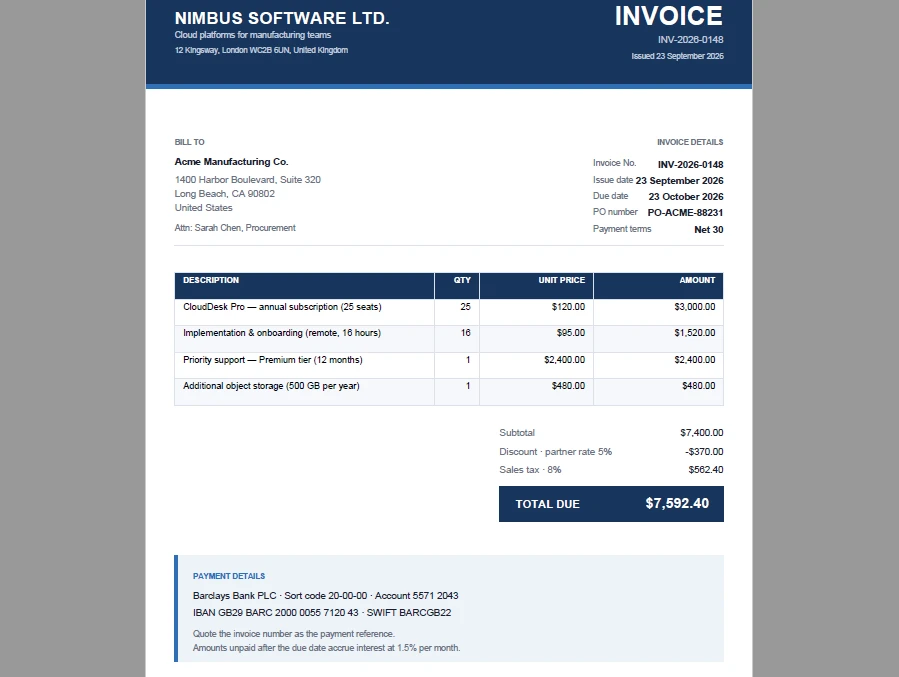
What the code does:
- Defines an
invoiceobject with the seller, the customer, the invoice metadata, and anitemsarray — the shape a React app would receive from a form, an API response, or component state. - Derives
subtotal,discount,tax, andtotalfrom that data withreduce, so the figures printed on the PDF always match the figures in the app. - Sets
Margins.Allto0before callingPages.Add(). The canvas origin sits at the page's margin origin, so this is what makes(0, 0)the top-left corner of the sheet and lets the header and footer bands bleed to the edges. - Lays the page out against
Canvas.ClientSizeinstead ofSize, because text drawn past the client area is dropped rather than clipped. - Draws the header band, the billed-to and invoice-details blocks, the totals cascade, and the payment box with
DrawRectangle,DrawLine, andDrawString. Right-aligned strings are measured withMeasureStringfirst, sinceDrawStringhas no alignment option when you draw at a point. - Builds the line-item table with
PdfGrid: fixed column widths, a styled header row, zebra-striped body rows, and right-aligned numeric columns driven by aPdfStringFormat. - Saves the document to the VFS and downloads it with the blob-and-anchor pattern from step 5.
The same pattern works for any structured document — replace the invoice object with report data, quotation data, or receipt data, and the five-step workflow stays the same.
Add More Content to the PDF
After creating the basic document, you can extend the same workflow with other PDF elements depending on the document you need to generate.
| Element | Typical use | Tutorial |
|---|---|---|
| Text | Titles, labels, paragraphs | Covered in this tutorial |
| Images | Logos, signatures, charts | Add Images to a PDF |
| Tables | Invoices, reports, statements | Document Operation guide |
| Shapes | Borders, separators, diagrams | Draw Shapes in PDF |
| Headers & Footers | Page numbers, repeating headers | Page Setting guide |
| Form fields | Interactive forms, editable documents | Form Field guide |
The five-step workflow does not change — only the content you draw in step 3 differs.
Generate PDFs in the Browser with WebAssembly
Spire.PDF for JavaScript runs its PDF processing engine through WebAssembly. Once the WASM module loads, your application can create, edit, and save PDFs on the client side. Files move through an in-browser Virtual File System (VFS):
JavaScript -> Spire.PDF WebAssembly -> VFS -> Blob -> Download
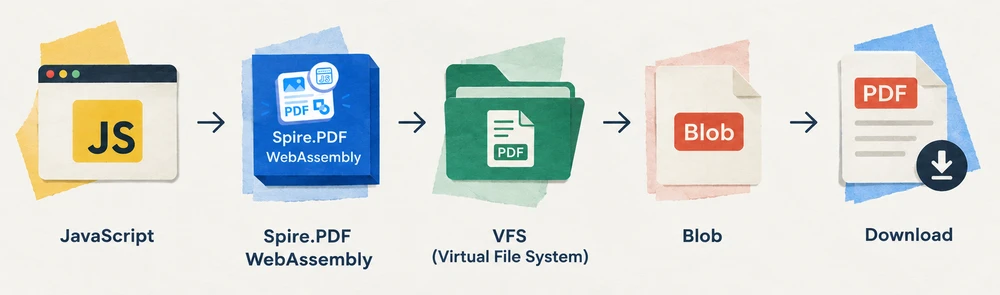
This means no PDF-generation backend is required. The browser handles document creation, rendering, and file output locally. The generated PDF is read from the VFS as a byte array and downloaded as a standard Blob.
The trade-off is the initial WASM download size, which is a one-time cost per session. For applications that generate documents frequently, subsequent generations are fast since the module is already loaded. For very large or complex PDFs, client-side performance depends on the user's device and available memory.
Common Use Cases
Common use cases include invoices, reports, quotations, certificates, receipts, and other structured business documents generated from application data. The specific layout changes, but the underlying workflow — create, add page, draw, save, download — remains the same.
Troubleshooting
WASM Module Not Initialized
If window.spirepdf is undefined, ensure the WebAssembly runtime is fully initialized before using the API:
const commonModule = await import('/node_modules/spire.office/spire.common.js');
await commonModule.initializeWasm();
await import('/node_modules/spire.office/spire.pdf.js');
Generated PDF Cannot Be Downloaded
If the download does not trigger or the file is empty, verify that SaveToFile was called before reading from the VFS. The file must exist in the VFS before FS.readFile can read it:
doc.SaveToFile({ fileName: 'Output.pdf' });
doc.Close();

// Only read after saving
const fileArray = window.dotnetRuntime.Module.FS.readFile('Output.pdf');
Conclusion
Spire.PDF for JavaScript provides a practical way to generate PDF files directly in the browser using JavaScript and WebAssembly. The five-step workflow — create, add page, draw, save, download — handles everything from simple text documents to structured invoices with tables and totals. You can apply for a 30-day free license to evaluate all features before purchasing.
