A PDF's version number decides which features the document may use, and whether older readers, print systems, and archival platforms can open it at all. Documents collected from many sources come with mixed versions: some produced by new tools and declaring 1.7, others from systems that have not been updated in years and still sit at 1.4. To deliver a uniform format for a target environment, the version number has to be rewritten — and desktop software only lets you do that by hand, one file at a time.
This article uses Spire.PDF for JavaScript to change a PDF document's version number. It runs on WebAssembly to load, modify, and save PDFs directly in the browser, working through a virtual file system (VFS) with no backend required.
For installation and project configuration, refer to Integrating Spire.PDF for JavaScript in a React Project. The examples below assume Spire.PDF is installed and the WebAssembly module has been initialized.
Change the PDF Version
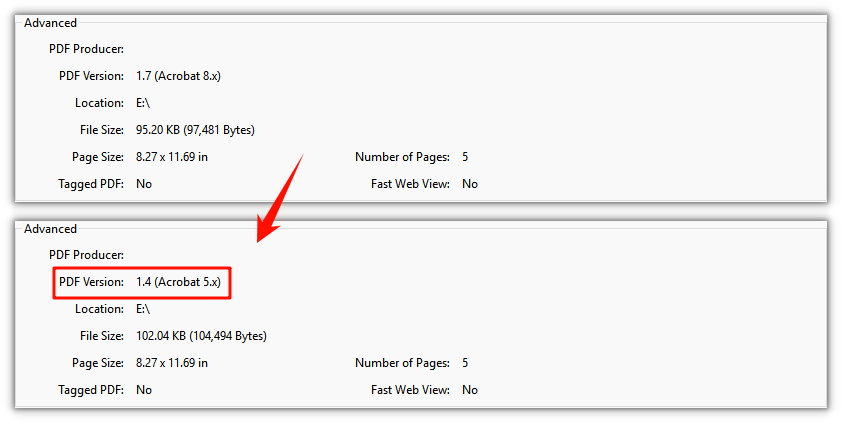
Assign a PdfVersion value to doc.FileInfo.Version to rewrite the version number; once saved, the file header is written as the matching %PDF-x.y. Set it to Version1_4 and a 1.7 document drops to 1.4, ready for readers or print systems that only accept the older specification.
function App() {
  const changePdfVersion = async () => {
    // Get the Spire.PDF WASM module
    const pdfModule = window.wasmModule?.spirepdf;

    // Check that the module is ready
    if (!pdfModule) {
      alert('Spire.PDF is not ready yet');
      return;
    }

    // Load the PDF to be processed into the VFS
    const inputFileName = 'Multipage_Document.pdf';
    await window.spire.FetchFileToVFS(inputFileName, '', `${process.env.PUBLIC_URL}/data/`);

    // Create a PdfDocument and load the PDF
    const doc = new pdfModule.PdfDocument();
    doc.LoadFromFile(inputFileName);

    // Set the version number to the target value, here downgrading to 1.4
    doc.FileInfo.Version = pdfModule.PdfVersion.Version1_4;

    const outputFileName = 'Version-1.4.pdf';
    doc.SaveToFile(outputFileName);
    doc.Close();

    // Read the generated file from the VFS and trigger the download
    const fileArray = window.dotnetRuntime.Module.FS.readFile(outputFileName);
    const blob = new Blob([fileArray], { type: 'application/pdf' });
    const url = URL.createObjectURL(blob);
    const a = document.createElement('a');
    a.href = url;
    a.download = outputFileName;
    a.click();
    URL.revokeObjectURL(url);
  };

  return (
    <div style={{ textAlign: 'center', height: '300px' }}>
      <h1>Change PDF Version</h1>
      <button onClick={changePdfVersion}>
        Change
      </button>
    </div>
  );
}

export default App;
A document saved with the version set to 1.4 — its file header now reads %PDF-1.4
FAQ
Why does the version stay the same after I set it and reopen the file
Reason: FileInfo.Version changes a property of the in-memory document object, and only saving writes it into the file. Close the document right after setting the version, or open the original input file again, and you will of course still see the old version number.
Solution: After assigning the value you must call SaveToFile to write a new output file, then open that result to check it:
// Set the version number first
doc.FileInfo.Version = pdfModule.PdfVersion.Version1_4;

// Then save — only now is the version number written to the file
doc.SaveToFile('Version-1.4.pdf');
Which version number should I set
Reason: It depends on what the recipient supports. Older print systems and archival platforms often require 1.4 or lower, while newer tools mostly handle 1.7. FileInfo.Version takes a PdfVersion enum, where Version1_0 through Version1_7 map to PDF 1.0 through PDF 1.7 in order.
Solution: Set the highest version the recipient accepts, assigning the enum directly:
// Deliver to readers or print systems that only accept the older specification
doc.FileInfo.Version = pdfModule.PdfVersion.Version1_4;

// The target environment is newer — keep or raise it to 1.7
doc.FileInfo.Version = pdfModule.PdfVersion.Version1_7;
Why does the document fail to open or render incorrectly after downgrading
Reason: FileInfo.Version only changes the declaration; it does not clean up objects in the document that go beyond that version's specification. If the source uses features introduced in a later version — such as cross-reference streams, object streams, or compressed transparency from PDF 1.5 onward — an older reader parsing it as a lower version will fail.
Solution: Before changing the declaration, confirm the source file does not rely on those features. If it is clean, changing the version number is enough; otherwise, use a source file that avoids the newer features, or first rebuild the document in a way that pushes its objects back to the older specification (re-export, or print to PDF) and then change the version number.
Get a Free License
If you want to remove the evaluation message from the result documents or get rid of feature limitations, please contact sales to obtain a free 30-day temporary license.
