A PDF's properties panel records the title, author, subject, and keywords, and knowledge bases, archival systems, and full-text search all use them as the basis for classification. The files you actually receive tend to be the opposite: the title still carries the name left over from a previous template, the author field is empty, and keywords are missing altogether. Filling them in means typing into each field by hand in a reader, and checking the author or subject of a batch of documents means opening the properties dialog one file at a time — desktop software cannot do it in bulk, and uploading the files to a server means the content leaves the user's device.
This article uses Spire.PDF for JavaScript to set and get PDF document properties. It runs on WebAssembly to load, modify, and save PDFs directly in the browser, working through a virtual file system (VFS) with no backend required.
This article covers two core features:
For installation and project configuration, refer to Integrating Spire.PDF for JavaScript in a React Project. The examples below assume Spire.PDF is installed and the WebAssembly module has been initialized.
Set PDF Document Properties
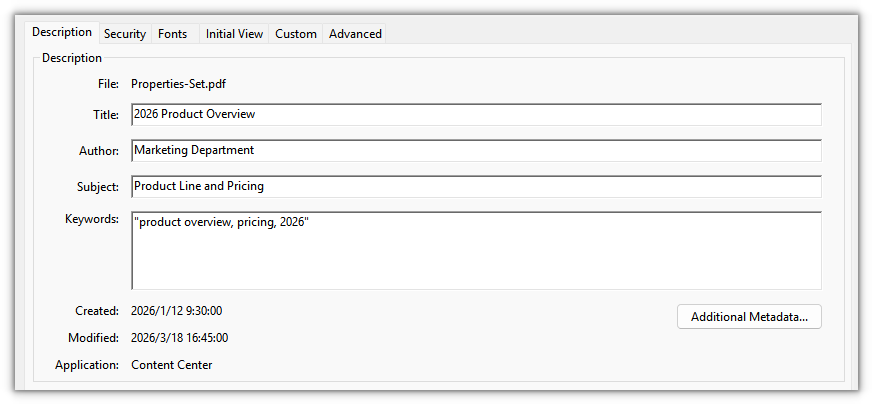
Spire.PDF for JavaScript provides doc.DocumentInformation for writing the standard document properties — title, author, subject, and keywords each take one field, while Creator and Producer record who generated the file, all of them plain strings.
function App() {
  const setPdfProperties = async () => {
    // Get the Spire.PDF WASM module
    const pdfModule = window.wasmModule?.spirepdf;

    // Check that the module is ready
    if (!pdfModule) {
      alert('Spire.PDF is not ready yet');
      return;
    }

    // Load the PDF to be processed into the VFS
    const inputFileName = 'ProductOverview.pdf';
    await window.spire.FetchFileToVFS(inputFileName, '', `${process.env.PUBLIC_URL}/data/`);

    // Create a PdfDocument and load the PDF
    const doc = new pdfModule.PdfDocument();
    doc.LoadFromFile(inputFileName);

    // Write the standard document properties
    doc.DocumentInformation.Title = '2026 Product Overview';
    doc.DocumentInformation.Author = 'Marketing Department';
    doc.DocumentInformation.Subject = 'Product Line and Pricing';
    doc.DocumentInformation.Keywords = 'product overview, pricing, 2026';
    doc.DocumentInformation.Creator = 'Content Center';
    doc.DocumentInformation.Producer = 'Spire.PDF for JavaScript';

    const outputFileName = 'Properties-Set.pdf';
    doc.SaveToFile(outputFileName);
    doc.Close();

    // Read the generated file from the VFS and trigger the download
    const fileArray = window.dotnetRuntime.Module.FS.readFile(outputFileName);
    const blob = new Blob([fileArray], { type: 'application/pdf' });
    const url = URL.createObjectURL(blob);
    const a = document.createElement('a');
    a.href = url;
    a.download = outputFileName;
    a.click();
    URL.revokeObjectURL(url);
  };

  return (
    <div style={{ textAlign: 'center', height: '300px' }}>
      <h1>Set PDF Document Properties</h1>
      <button onClick={setPdfProperties}>
        Set Properties
      </button>
    </div>
  );
}

export default App;
The standard fields shown in the reader's document properties panel after setting:
Get PDF Document Properties
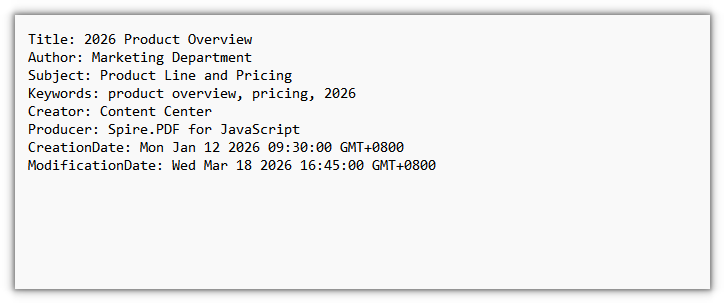
Reading goes through the same DocumentInformation: the standard fields come back as strings. Joining the values you get into text and writing it out lets a batch pipeline compare or store them directly, without going through a reader's properties panel.
function App() {
  const getPdfProperties = async () => {
    // Get the Spire.PDF WASM module
    const pdfModule = window.wasmModule?.spirepdf;

    // Check that the module is ready
    if (!pdfModule) {
      alert('Spire.PDF is not ready yet');
      return;
    }

    // Load the PDF to be read into the VFS
    const inputFileName = 'Properties-Set.pdf';
    await window.spire.FetchFileToVFS(inputFileName, '', `${process.env.PUBLIC_URL}/data/`);

    // Create a PdfDocument and load the PDF
    const doc = new pdfModule.PdfDocument();
    doc.LoadFromFile(inputFileName);

    // Read the standard properties and the creation/modification dates one by one
    const info = doc.DocumentInformation;

    const lines = [
      `Title: ${info.Title}`,
      `Author: ${info.Author}`,
      `Subject: ${info.Subject}`,
      `Keywords: ${info.Keywords}`,
      `Creator: ${info.Creator}`,
      `Producer: ${info.Producer}`,
      `CreationDate: ${info.CreationDate.toString()}`,
      `ModificationDate: ${info.ModificationDate.toString()}`,
    ];

    // Write the result to a text file
    const outputFileName = 'Document-Properties.txt';
    window.dotnetRuntime.Module.FS.writeFile(outputFileName, lines.join('\n'));
    doc.Close();

    // Read the generated file from the VFS and trigger the download
    const fileArray = window.dotnetRuntime.Module.FS.readFile(outputFileName);
    const blob = new Blob([fileArray], { type: 'text/plain' });
    const url = URL.createObjectURL(blob);
    const a = document.createElement('a');
    a.href = url;
    a.download = outputFileName;
    a.click();
    URL.revokeObjectURL(url);
  };

  return (
    <div style={{ textAlign: 'center', height: '300px' }}>
      <h1>Get PDF Document Properties</h1>
      <button onClick={getPdfProperties}>
        Get Properties
      </button>
    </div>
  );
}

export default App;
The exported text file lists the standard properties that were read, one per line:
FAQ
Why do my property changes disappear after I reopen the file
Reason: the fields on DocumentInformation change the document object in memory, and only calling SaveToFile writes them into the file. Assign the values and close the document right away, or open the original input file again, and you will of course still see the old values.
Solution: after assigning the values, save the document to a new output file, then open that result to check it:
doc.DocumentInformation.Title = '2026 Product Overview';
doc.DocumentInformation.Author = 'Marketing Department';

// Only after saving do the properties land in the file
doc.SaveToFile('Properties-Set.pdf');
Get a Free License
If you want to remove the evaluation message from the result documents or get rid of feature limitations, please contact sales to obtain a free 30-day temporary license.
