Besides the fixed fields such as title and author, a PDF's properties panel keeps a column for custom properties: both the property name and its value are named by you, and internal markers such as department, secrecy level, or source template live there. Contracts, tenders, and project documents often rely on it to carry this information, but a reader only lets you fill them in one by one by hand — adding markers to a batch of documents, or checking which markers a given file carries, is out of reach; and sending the files to a server for batch processing means the content leaves the user's device.
This article uses Spire.PDF for JavaScript to add, get, and delete a PDF's custom document properties. It runs on WebAssembly to load, modify, and save PDFs directly in the browser, working through a virtual file system (VFS) with no backend required.
This article covers three core features:
For installation and project configuration, refer to Integrating Spire.PDF for JavaScript in a React Project. The examples below assume Spire.PDF is installed and the WebAssembly module has been initialized. They take a PDF without custom properties as input, and the last two sections read the Custom-Properties-Added.pdf produced by the first section, so run the code in the first section before the others.
Add Custom Document Properties
Spire.PDF for JavaScript provides DocumentInformation.SetCustomProperty() for writing custom document properties: the property name is up to you, the value is stored as a string, and a repeated name overwrites the previous entry.
function App() {
  const addCustomProperties = async () => {
    // Get the Spire.PDF WASM module
    const pdfModule = window.wasmModule?.spirepdf;

    // Check that the module is ready
    if (!pdfModule) {
      alert('Spire.PDF is not ready yet');
      return;
    }

    // Load the PDF to be processed into the VFS
    const inputFileName = 'ProductOverview.pdf';
    await window.spire.FetchFileToVFS(inputFileName, '', `${process.env.PUBLIC_URL}/data/`);

    // Create a PdfDocument and load the PDF
    const doc = new pdfModule.PdfDocument();
    doc.LoadFromFile(inputFileName);

    // Write the custom document properties; the names are up to you
    doc.DocumentInformation.SetCustomProperty('Department', 'Research & Development');
    doc.DocumentInformation.SetCustomProperty('SecrecyLevel', 'Internal');
    doc.DocumentInformation.SetCustomProperty('Company', 'Ice Blue Technology');

    const outputFileName = 'Custom-Properties-Added.pdf';
    doc.SaveToFile(outputFileName);
    doc.Close();

    // Read the generated file from the VFS and trigger the download
    const fileArray = window.dotnetRuntime.Module.FS.readFile(outputFileName);
    const blob = new Blob([fileArray], { type: 'application/pdf' });
    const url = URL.createObjectURL(blob);
    const a = document.createElement('a');
    a.href = url;
    a.download = outputFileName;
    a.click();
    URL.revokeObjectURL(url);
  };

  return (
    <div style={{ textAlign: 'center', height: '300px' }}>
      <h1>Add Custom Document Properties</h1>
      <button onClick={addCustomProperties}>
        Add Properties
      </button>
    </div>
  );
}

export default App;
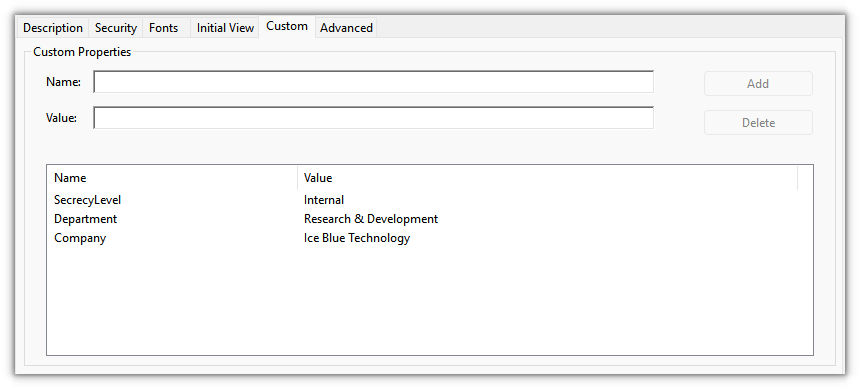
The result shows three more properties — Department, SecrecyLevel, and Company — in the custom column of the reader's properties panel
Get Custom Document Properties
Reading goes through the same DocumentInformation: GetCustomProperty() returns the value for a given property name, and returns null rather than throwing when the key does not exist.
function App() {
  const getCustomProperties = async () => {
    // Get the Spire.PDF WASM module
    const pdfModule = window.wasmModule?.spirepdf;

    // Check that the module is ready
    if (!pdfModule) {
      alert('Spire.PDF is not ready yet');
      return;
    }

    // Read the document produced by the previous section, already in the VFS
    const inputFileName = 'Custom-Properties-Added.pdf';

    // Create a PdfDocument and load the PDF
    const doc = new pdfModule.PdfDocument();
    doc.LoadFromFile(inputFileName);

    const info = doc.DocumentInformation;

    // Read each property by name; a missing key returns null
    const lines = [
      `Department: ${info.GetCustomProperty('Department')}`,
      `SecrecyLevel: ${info.GetCustomProperty('SecrecyLevel')}`,
      `Company: ${info.GetCustomProperty('Company')}`,
      `Owner: ${info.GetCustomProperty('Owner') ?? '(not set)'}`,
    ];

    // Write the result to a text file
    const outputFileName = 'Custom-Properties.txt';
    window.dotnetRuntime.Module.FS.writeFile(outputFileName, lines.join('\n'));
    doc.Close();

    // Read the generated file from the VFS and trigger the download
    const fileArray = window.dotnetRuntime.Module.FS.readFile(outputFileName);
    const blob = new Blob([fileArray], { type: 'text/plain' });
    const url = URL.createObjectURL(blob);
    const a = document.createElement('a');
    a.href = url;
    a.download = outputFileName;
    a.click();
    URL.revokeObjectURL(url);
  };

  return (
    <div style={{ textAlign: 'center', height: '300px' }}>
      <h1>Get Custom Document Properties</h1>
      <button onClick={getCustomProperties}>
        Get Properties
      </button>
    </div>
  );
}

export default App;
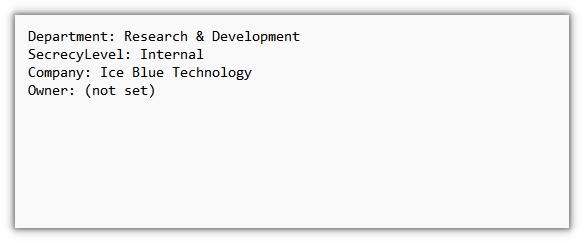
The exported text file lists the property values that were read, one per line:
Delete Custom Document Properties
Deleting uses RemoveCustomProperty(), which removes a single key by property name.
function App() {
  const removeCustomProperties = async () => {
    // Get the Spire.PDF WASM module
    const pdfModule = window.wasmModule?.spirepdf;

    // Check that the module is ready
    if (!pdfModule) {
      alert('Spire.PDF is not ready yet');
      return;
    }

    // Read the document produced by the previous section, already in the VFS
    const inputFileName = 'Custom-Properties-Added.pdf';

    // Create a PdfDocument and load the PDF
    const doc = new pdfModule.PdfDocument();
    doc.LoadFromFile(inputFileName);

    // Remove single custom properties by name; the rest are unaffected
    doc.DocumentInformation.RemoveCustomProperty('SecrecyLevel');
    doc.DocumentInformation.RemoveCustomProperty('Company');

    const outputFileName = 'Custom-Properties-Removed.pdf';
    doc.SaveToFile(outputFileName);
    doc.Close();

    // Read the generated file from the VFS and trigger the download
    const fileArray = window.dotnetRuntime.Module.FS.readFile(outputFileName);
    const blob = new Blob([fileArray], { type: 'application/pdf' });
    const url = URL.createObjectURL(blob);
    const a = document.createElement('a');
    a.href = url;
    a.download = outputFileName;
    a.click();
    URL.revokeObjectURL(url);
  };

  return (
    <div style={{ textAlign: 'center', height: '300px' }}>
      <h1>Delete Custom Document Properties</h1>
      <button onClick={removeCustomProperties}>
        Delete Properties
      </button>
    </div>
  );
}

export default App;
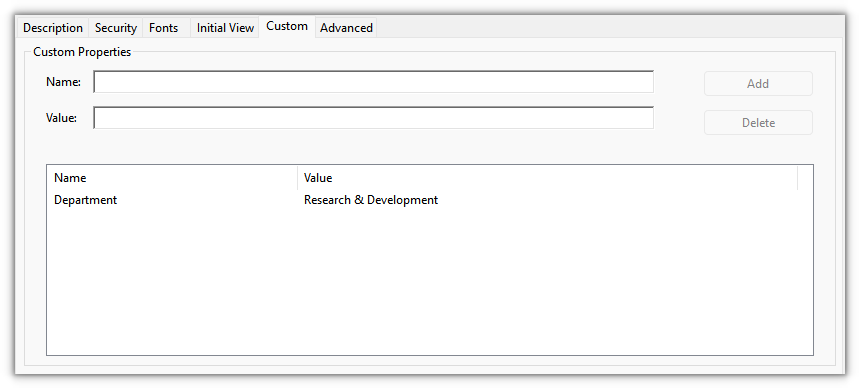
The result keeps only one custom property, Department; the two that were removed are gone from the panel:
FAQ
How are custom properties different from fields like title and author
Reason: the PDF spec fixes the standard fields Title, Author, Subject, Keywords, Creator, and Producer; any key-value pair outside the spec counts as a custom property. Readers show them in two columns: the standard fields in the upper part, and the custom properties in a column of their own.
Solution: the two kinds take two different styles. Assign standard fields such as title and author to the same-named property, and route business markers through custom properties:
// Standard fields
doc.DocumentInformation.Title = '2026 Product Overview';
doc.DocumentInformation.Author = 'Marketing Department';

// Custom properties
doc.DocumentInformation.SetCustomProperty('Department', 'Marketing Department');
Reading splits the same way: standard fields are read as properties such as info.Title, while custom properties can only be read with info.GetCustomProperty('Department').
After deleting, what comes back when I read it, and what if I get the key name wrong
Reason: GetCustomProperty() returns null for any key that does not exist, so a deleted entry and one that was never written look the same; passing a key that does not exist to RemoveCustomProperty() neither throws nor changes the document.
Solution: after deleting, reopen the result and check once — null means it is gone, and you can confirm the other properties still read back. A wrong key name has no side effects; just delete again with the correct name:
doc.DocumentInformation.RemoveCustomProperty('SecrecyLevel');
doc.SaveToFile(outputFileName);

// Reopen the result to check: null means it was removed
const check = new pdfModule.PdfDocument();
check.LoadFromFile(outputFileName);
console.log(check.DocumentInformation.GetCustomProperty('SecrecyLevel'));
Get a Free License
If you want to remove the evaluation message from the result documents or get rid of feature limitations, please contact sales to obtain a free 30-day temporary license.
