
JavaScript (209)
Insert Images and Tables into a Word Textbox with JavaScript in React
2026-07-08 06:32:11 Written by Amy ZhaoIn practical document layout, a textbox is an ideal container for standalone content — it can be positioned freely without being constrained by the page flow, making it perfect for sidebars, pull quotes, product diagrams, and more. Inserting images or tables into a textbox is a common requirement for achieving rich layouts. Spire.Doc for JavaScript processes Word documents directly in the browser via WebAssembly, using a virtual file system (VFS) to manage fonts and file resources — no backend server required.
This article covers two core features:
For installation and project setup, refer to Integrating Spire.Doc for JavaScript in a React Project. The examples below assume Spire.Doc is installed and the WebAssembly module is initialized.
Insert Image into Textbox
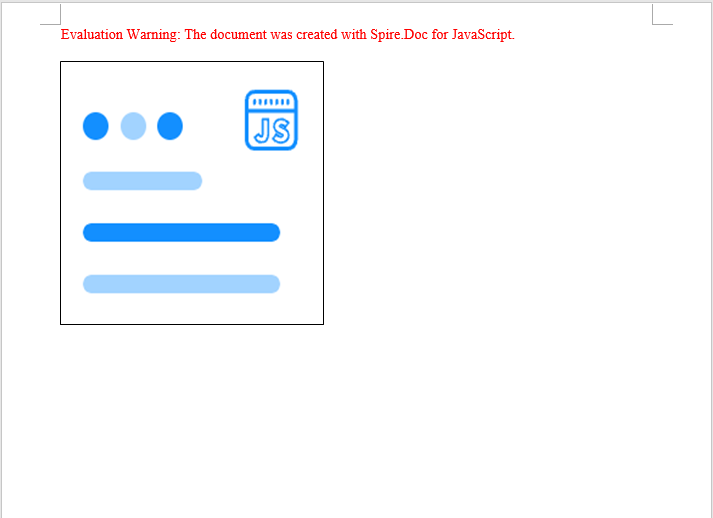
Filling a textbox with a picture is a common technique for creating product labels, business cards, or promotional materials. Spire.Doc creates a textbox via the AppendTextBox method, then fills its background with a picture using FillEfects.SetPicture. The core process involves three steps: first, load font files and the target image into the WASM virtual file system via FetchFileToVFS; then create a document, add a textbox with position properties, and apply the picture to the textbox through fill effects; finally, save the document, read the generated file from VFS, wrap it as a Blob, and trigger a browser download.
function App() {
  const InsertImageIntoTextBox = async () => {
    // Get the Spire.Doc WASM module
    const docModule = window.wasmModule?.spiredoc;

    // Check if the module is ready
    if (!docModule) {
      alert('Spire.Doc is not ready yet');
      return;
    }

    // Load fonts and the image file into VFS
    const imageFileName = 'Spire.Doc.png';
    await window.spire.FetchFileToVFS(imageFileName, '', `${process.env.PUBLIC_URL}/data/`);

    // Create a document
    const doc = new docModule.Document();

    // Add a section
    let section = doc.AddSection();

    // Add a paragraph
    let paragraph = section.AddParagraph();

    // Append a 220x220 textbox to the paragraph
    let tb = paragraph.AppendTextBox(220, 220);

    // Set textbox position
    tb.Format.HorizontalOrigin = docModule.HorizontalOrigin.Page;
    tb.Format.HorizontalPosition = 50;
    tb.Format.VerticalOrigin = docModule.VerticalOrigin.Page;
    tb.Format.VerticalPosition = 50;

    // Set the textbox fill type to Picture
    tb.Format.FillEfects.Type = docModule.BackgroundType.Picture;

    // Fill the textbox with the image
    tb.Format.FillEfects.SetPicture(imageFileName);

    // Define output file name and save
    const outputFileName = "InsertImageIntoTextBox_output.docx";
    doc.SaveToFile({ fileName: outputFileName, fileFormat: docModule.FileFormat.Docx2013 });

    // Release resources
    doc.Close();
    doc.Dispose();

    // Read the generated file from VFS and trigger download
    const modifiedFileArray = window.dotnetRuntime.Module.FS.readFile(outputFileName);
    const blob = new Blob([modifiedFileArray], { type: 'application/vnd.openxmlformats-officedocument.wordprocessingml.document'});
    const url = URL.createObjectURL(blob);
    const a = document.createElement('a');
    a.href = url;
    a.download = outputFileName;
    a.click();
    URL.revokeObjectURL(url);
  };

  return (
    <div style={{ textAlign: 'center', height: '300px' }}>
      <h1>Insert Image into a Word Textbox</h1>
      <button onClick={InsertImageIntoTextBox}>
        Generate
      </button>
    </div>
  );
}

export default App;
Image filled into the textbox, automatically scaled to fit
Insert Table into Textbox
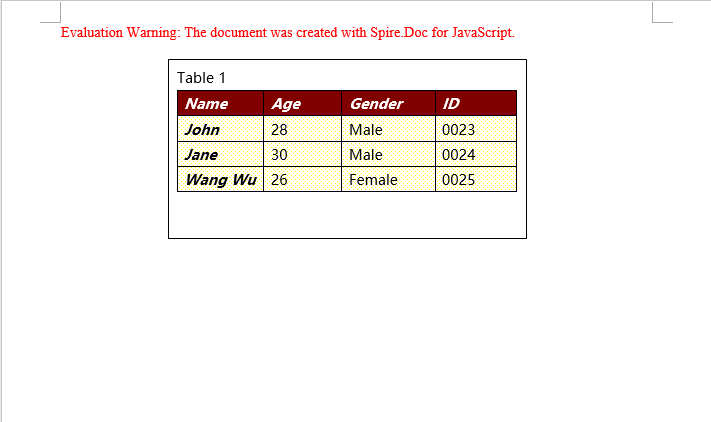
Embedding structured table data in sidebars or reference areas is a common requirement in technical documents and reports. Spire.Doc supports creating tables within a textbox and adding them directly to the textbox body via the textbox.Body.AddTable method. Compared to creating tables in the main document body, tables inside a textbox can be positioned independently without being affected by page layout. The core process involves three steps: first, load font files into the WASM virtual file system via FetchFileToVFS; then create a document and a textbox, add a table via textbox.Body.AddTable with specified row and column counts, fill data row by row, and apply styles; finally, save the document, read the generated file from VFS, wrap it as a Blob, and trigger a browser download.
function App() {
  const InsertTableIntoTextBox = async () => {
    // Get the Spire.Doc WASM module
    const docModule = window.wasmModule?.spiredoc;

    // Check if the module is ready
    if (!docModule) {
      alert('Spire.Doc is not ready yet');
      return;
    }

    // Load font files into VFS
    await window.spire.FetchFileToVFS('msyh.ttc', '/Library/Fonts/', `${process.env.PUBLIC_URL}/font/`);

    // Create a document
    const doc = new docModule.Document();

    // Add a section
    let section = doc.AddSection();

    // Add a paragraph
    let paragraph = section.AddParagraph();

    // Add a 300x150 textbox
    let textbox = paragraph.AppendTextBox(300, 150);

    // Set textbox position
    textbox.Format.HorizontalOrigin = docModule.HorizontalOrigin.Page;
    textbox.Format.HorizontalPosition = 140;
    textbox.Format.VerticalOrigin = docModule.VerticalOrigin.Page;
    textbox.Format.VerticalPosition = 50;

    // Add a title paragraph in the textbox
    let textboxParagraph = textbox.Body.AddParagraph();
    let textboxRange = textboxParagraph.AppendText("Table 1");
    textboxRange.CharacterFormat.FontName = "Microsoft YaHei";

    // Insert a table into the textbox
    let table = textbox.Body.AddTable({ showBorder: true });

    // Specify the number of rows and columns
    table.ResetCells(4, 4);

    let data = [
      ["Name", "Age", "Gender", "ID"],
      ["John", "28", "Male", "0023"],
      ["Jane", "30", "Male", "0024"],
      ["Wang Wu", "26", "Female", "0025"]
    ];
    // Populate data into the table
    for (let i = 0; i < 4; i++) {
      for (let j = 0; j < 4; j++) {
        let tableRange = table.Rows.get_Item(i).Cells.get_Item(j).AddParagraph().AppendText(data[i][j]);
        tableRange.CharacterFormat.FontName = "Microsoft YaHei";
      }
    }

    // Apply table style
    table.ApplyStyle({ builtinTableStyle: docModule.DefaultTableStyle.TableColorful2 });

    // Define output file name and save
    const outputFileName = "InsertTableIntoTextBox_output.docx";
    doc.SaveToFile({ fileName: outputFileName, fileFormat: docModule.FileFormat.Docx2013 });

    // Release resources
    doc.Close();
    doc.Dispose();

    // Read the generated file from VFS and trigger download
    const modifiedFileArray = window.dotnetRuntime.Module.FS.readFile(outputFileName);
    const blob = new Blob([modifiedFileArray], { type: 'application/vnd.openxmlformats-officedocument.wordprocessingml.document'});
    const url = URL.createObjectURL(blob);
    const a = document.createElement('a');
    a.href = url;
    a.download = outputFileName;
    a.click();
    URL.revokeObjectURL(url);
  };

  return (
    <div style={{ textAlign: 'center', height: '300px' }}>
      <h1>Insert Table into a Word Textbox</h1>
      <button onClick={InsertTableIntoTextBox}>
        Generate
      </button>
    </div>
  );
}

export default App;
Table created inside the textbox, contained within the textbox and freely positionable
FAQ
Image in the textbox is truncated or not fully displayed
Cause: The textbox size does not match the image aspect ratio, so the dimensions specified when creating the textbox cannot fully accommodate the image.
Solution: Adjust the textbox size to match the image proportions, or choose an image that fits the textbox dimensions:
let tb = paragraph.AppendTextBox(400, 300);
Table in the textbox has no visible borders
Cause: The showBorder parameter was not set or was set to false when creating the table, resulting in a borderless table.
Solution: Confirm the showBorder parameter is set to true when creating the table:
let table = textbox.Body.AddTable({ showBorder: true });
Textbox position is not as expected after saving
Cause: The HorizontalOrigin or VerticalOrigin values were configured incorrectly, causing the positioning reference point to differ from what was expected.
Solution: Choose the appropriate origin type based on your requirements, and fine-tune the position using HorizontalPosition / VerticalPosition:
tb.Format.HorizontalOrigin = docModule.HorizontalOrigin.Page;
tb.Format.HorizontalPosition = 50;
tb.Format.VerticalOrigin = docModule.VerticalOrigin.Page;
tb.Format.VerticalPosition = 50;
Get a Free License
Spire.Doc for JavaScript offers a 30-day full-featured free trial license with no functional limitations. Apply here to evaluate before purchasing.
Splitting Excel files into separate files by worksheet, by row, or by column is a common requirement for data distribution and management. Spire.XLS for JavaScript performs the splitting process entirely in the browser via WebAssembly, using a virtual file system (VFS) to manage input and output files — no backend server required.
This article covers three core features:
For installation and project setup, refer to Integrating Spire.XLS for JavaScript in a React Project. The examples below assume Spire.XLS is installed and the WebAssembly module is initialized.
Split by Worksheet
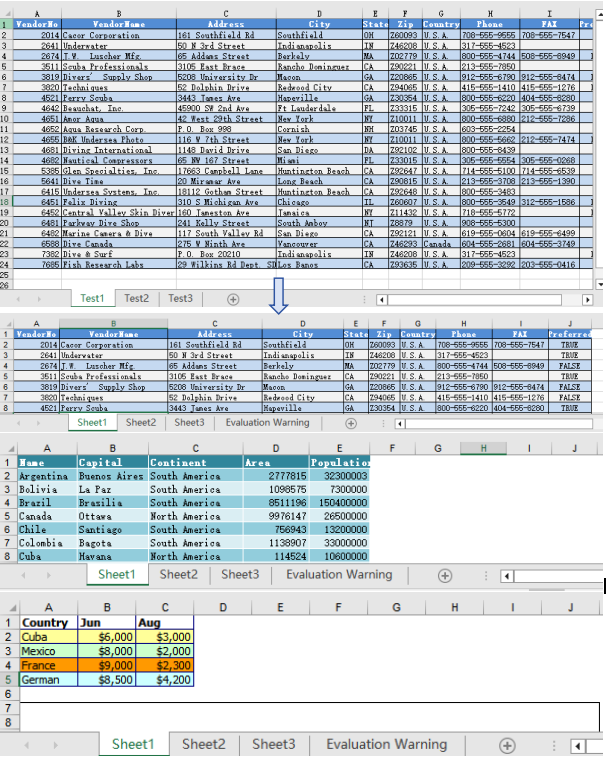
Splitting by worksheet exports each sheet in a multi-sheet workbook as an independent Excel file. When a workbook contains multiple worksheets, each representing different data such as separate departments or months, you can split each worksheet into its own file. Spire.XLS accomplishes this by iterating through all worksheets in the source file, creating new workbooks, and copying each sheet. The steps are as follows:
- Create a
Workbookobject and load the source Excel document withLoadFromFile(). - Iterate through all worksheets in the source document.
- Create a new
Workbookobject. - Copy the source worksheet to the default worksheet of the new workbook using the
CopyFrommethod. - Get the worksheet name via
sheet.Nameas the output file name. - Save the new workbook as an Excel file with
SaveToFile().
Below is a complete code example demonstrating how to split worksheets into separate Excel files:
function App() {
  const splitByWorksheet = async () => {
    // Get the Spire.XLS WASM module
    const xlsModule = window.wasmModule?.spirexls;

    // Check if the module is ready
    if (!xlsModule) {
      alert('Spire.Xls is not ready yet');
      return;
    }

    // Load fonts and the Excel file into VFS
    await window.spire.FetchFileToVFS('arial.ttf', '/Library/Fonts/', `${process.env.PUBLIC_URL}/font/`);
    const inputFileName = 'Sample.xlsx';
    await window.spire.FetchFileToVFS(inputFileName, '', `${process.env.PUBLIC_URL}data/`);

    // Load the workbook
    const workbook = new xlsModule.Workbook();
    workbook.LoadFromFile({ fileName: inputFileName });

    // Iterate through each worksheet and export it as a separate file
    for (let i = 0; i < workbook.Worksheets.Count; i++) {
      let sheet = workbook.Worksheets.get(i);

      // Create a new workbook and copy the current worksheet
      let newWorkbook = new xlsModule.Workbook();
      let newSheet = newWorkbook.Worksheets.get(0);
      newSheet.CopyFrom(sheet);

      // Use the worksheet name as the output file name
      const outputFileName = `${sheet.Name}.xlsx`;
      newWorkbook.SaveToFile({ fileName: outputFileName, version: xlsModule.ExcelVersion.Version2010 });
      newWorkbook.Dispose();

      // Read the split file from VFS and trigger a browser download
      const fileArray = window.dotnetRuntime.Module.FS.readFile(outputFileName);
      const blob = new Blob([fileArray], { type: 'application/vnd.openxmlformats-officedocument.spreadsheetml.sheet' });
      const url = URL.createObjectURL(blob);
      const a = document.createElement('a');
      a.href = url;
      a.download = outputFileName;
      a.click();
      URL.revokeObjectURL(url);
    }

    // Release resources
    workbook.Dispose();
  };

  return (
    <div style={{ textAlign: 'center', height: '300px' }}>
      <h1>Split Excel By Worksheet</h1>
      <button onClick={splitByWorksheet}>
        Generate
      </button>
    </div>
  );
}

export default App;
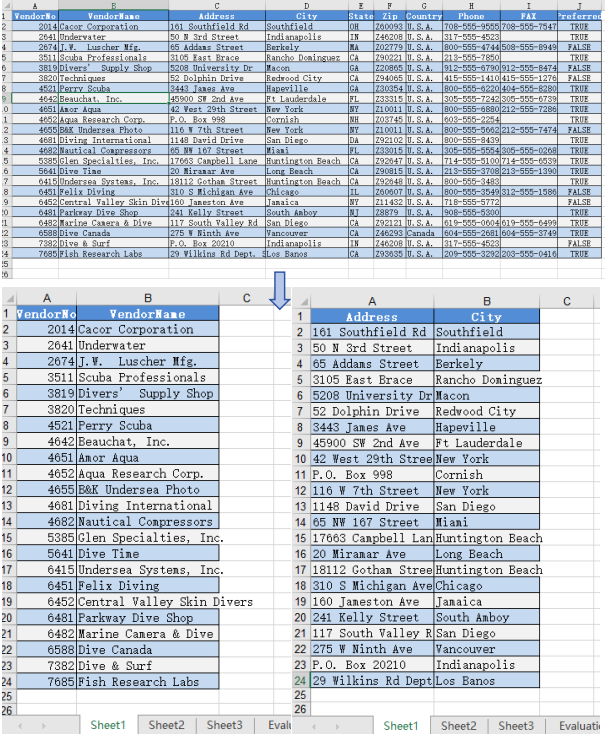
After splitting by worksheet, each resulting file contains a single worksheet from the original workbook
Split by Row
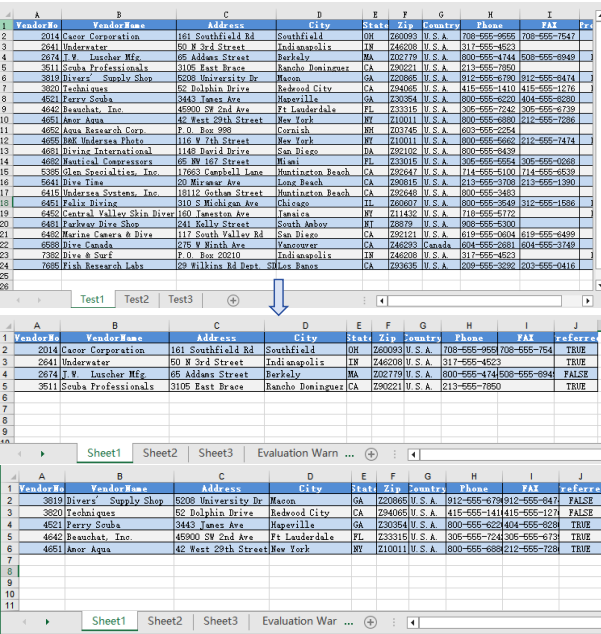
Splitting by row is suitable for breaking up large tables into multiple smaller files by a fixed number of rows, making pagination and distribution easier. When a worksheet contains a large amount of data rows that need to be split into multiple files, Spire.XLS accomplishes this by copying source rows one by one into a new workbook. The steps are as follows:
- Create a
Workbookobject, load the source Excel document withLoadFromFile(), and retrieve the first worksheet. - Create a new
Workbookobject. - Use a loop to call the
Copymethod row by row, copying specified rows from the source worksheet to the new worksheet. - Copy the column widths from the source worksheet to the new worksheet.
- Save the new workbook as an Excel file with
SaveToFile(). - Repeat the steps above to create more split files, copying the header row separately when needed.
Below is a complete code example demonstrating how to split a worksheet into multiple Excel files by row:
function App() {
  const splitByRow = async () => {
    // Get the Spire.XLS WASM module
    const xlsModule = window.wasmModule?.spirexls;

    // Check if the module is ready
    if (!xlsModule) {
      alert('Spire.Xls is not ready yet');
      return;
    }

    // Load fonts and the Excel file into VFS
    await window.spire.FetchFileToVFS('arial.ttf', '/Library/Fonts/', `${process.env.PUBLIC_URL}/font/`);
    const inputFileName = 'Sample.xlsx';
    await window.spire.FetchFileToVFS(inputFileName, '', `${process.env.PUBLIC_URL}data/`);

    // Load the workbook and get the first worksheet
    const workbook = new xlsModule.Workbook();
    workbook.LoadFromFile({ fileName: inputFileName });
    const sheet = workbook.Worksheets.get(0);

    // Create a new workbook (comes with one default worksheet)
    let newWorkbook1 = new xlsModule.Workbook();
    let newSheet1 = newWorkbook1.Worksheets.get(0);

    // Copy rows 1-5 to the target file
    let destRow = 1;
    for (let i = 0; i < 5; i++) {
      sheet.Copy({
        sourceRange: sheet.Rows[i],
        worksheet: newSheet1,
        destRow: destRow,
        destColumn: 1,
        copyStyle: true
      });
      destRow++;
    }

    // Copy column widths
    for (let c = 0; c < sheet.Columns.length; c++) {
      newSheet1.SetColumnWidth(c + 1, sheet.GetColumnWidth(c + 1));
    }

    // Save the first split file
    const outputFileName1 = "Rows1-5.xlsx";
    newWorkbook1.SaveToFile({ fileName: outputFileName1, version: xlsModule.ExcelVersion.Version2010 });
    newWorkbook1.Dispose();

    // Read file data from VFS
    const fileData1 = window.dotnetRuntime.Module.FS.readFile(outputFileName1);

    // Create a second new workbook
    let newWorkbook2 = new xlsModule.Workbook();
    let newSheet2 = newWorkbook2.Worksheets.get(0);

    destRow = 1;

    // Copy the header row
    sheet.Copy({
      sourceRange: sheet.Rows[0],
      worksheet: newSheet2,
      destRow: destRow,
      destColumn: 1,
      copyStyle: true
    });
    destRow++;

    // Copy rows 6-10 to the second target file
    for (let i = 5; i < 10; i++) {
      sheet.Copy({
        sourceRange: sheet.Rows[i],
        worksheet: newSheet2,
        destRow: destRow,
        destColumn: 1,
        copyStyle: true
      });
      destRow++;
    }

    // Copy column widths
    for (let c = 0; c < sheet.Columns.length; c++) {
      newSheet2.SetColumnWidth(c + 1, sheet.GetColumnWidth(c + 1));
    }

    // Save the second split file
    const outputFileName2 = "Rows6-10.xlsx";
    newWorkbook2.SaveToFile({ fileName: outputFileName2, version: xlsModule.ExcelVersion.Version2010 });
    newWorkbook2.Dispose();

    // Read file data from VFS
    const fileData2 = window.dotnetRuntime.Module.FS.readFile(outputFileName2);

    // Package the split files into a ZIP for download
    const zip = new JSZip();
    zip.file(outputFileName1, fileData1);
    zip.file(outputFileName2, fileData2);
    const zipBlob = await zip.generateAsync({ type: 'blob' });
    const zipUrl = URL.createObjectURL(zipBlob);
    const a = document.createElement('a');
    a.href = zipUrl;
    a.download = "SplitByRows.zip";
    a.click();
    URL.revokeObjectURL(zipUrl);

    // Release resources
    workbook.Dispose();
  };

  return (
    <div style={{ textAlign: 'center', height: '300px' }}>
      <h1>Split Excel By Row</h1>
      <button onClick={splitByRow}>
        Generate
      </button>
    </div>
  );
}

export default App;
After splitting by row, each file contains the header row and the specified number of data rows
Split by Column
Splitting by column is suitable for breaking up wide tables into multiple files by column groups, making the data structure clearer. When a worksheet contains many columns and you need to split different column groups into separate files, Spire.XLS accomplishes this by copying source columns one by one into a new workbook. The steps are as follows:
- Create a
Workbookobject, load the source Excel document withLoadFromFile(), and retrieve the first worksheet. - Create a new
Workbookobject. - Use a loop to call the
Copymethod column by column, copying specified columns from the source worksheet to the new worksheet. - Copy the column widths from the source worksheet to the new worksheet.
- Save the new workbook as an Excel file with
SaveToFile(). - Repeat the steps above to create more split files.
Below is a complete code example demonstrating how to split a worksheet into multiple Excel files by column:
function App() {
  const splitByColumn = async () => {
    // Get the Spire.XLS WASM module
    const xlsModule = window.wasmModule?.spirexls;

    // Check if the module is ready
    if (!xlsModule) {
      alert('Spire.Xls is not ready yet');
      return;
    }

    // Load fonts and the Excel file into VFS
    await window.spire.FetchFileToVFS('arial.ttf', '/Library/Fonts/', `${process.env.PUBLIC_URL}/font/`);
    const inputFileName = 'Sample.xlsx';
    await window.spire.FetchFileToVFS(inputFileName, '', `${process.env.PUBLIC_URL}data/`);

    // Load the workbook and get the first worksheet
    const workbook = new xlsModule.Workbook();
    workbook.LoadFromFile({ fileName: inputFileName });
    const sheet = workbook.Worksheets.get(0);

    // Create a new workbook and copy columns 1-2 (columns A-B) to the new file
    let newWorkbook1 = new xlsModule.Workbook();
    let newSheet1 = newWorkbook1.Worksheets.get(0);

    for (let i = 1; i <= 2; i++) {
      sheet.Copy({
        sourceRange: sheet.Columns[i - 1],
        worksheet: newSheet1,
        destRow: 1,
        destColumn: i,
        copyStyle: true
      });
    }

    // Copy column widths
    for (let i = 1; i <= 2; i++) {
      newSheet1.SetColumnWidth(i, sheet.GetColumnWidth(i));
    }

    // Save the first split file
    const outputFileName1 = "ColumnsAB.xlsx";
    newWorkbook1.SaveToFile({ fileName: outputFileName1, version: xlsModule.ExcelVersion.Version2010 });
    newWorkbook1.Dispose();

    // Read file data from VFS
    const fileData1 = window.dotnetRuntime.Module.FS.readFile(outputFileName1);

    // Create a second new workbook and copy columns 3-4 (columns C-D) to the new file
    let newWorkbook2 = new xlsModule.Workbook();
    let newSheet2 = newWorkbook2.Worksheets.get(0);

    for (let i = 3; i <= 4; i++) {
      sheet.Copy({
        sourceRange: sheet.Columns[i - 1],
        worksheet: newSheet2,
        destRow: 1,
        destColumn: i - 2,
        copyStyle: true
      });
    }

    // Copy column widths
    for (let i = 3; i <= 4; i++) {
      newSheet2.SetColumnWidth(i - 2, sheet.GetColumnWidth(i));
    }

    // Save the second split file
    const outputFileName2 = "ColumnsCD.xlsx";
    newWorkbook2.SaveToFile({ fileName: outputFileName2, version: xlsModule.ExcelVersion.Version2010 });
    newWorkbook2.Dispose();

    // Read file data from VFS
    const fileData2 = window.dotnetRuntime.Module.FS.readFile(outputFileName2);

    // Package the split files into a ZIP for download
    const zip = new JSZip();
    zip.file(outputFileName1, fileData1);
    zip.file(outputFileName2, fileData2);
    const zipBlob = await zip.generateAsync({ type: 'blob' });
    const zipUrl = URL.createObjectURL(zipBlob);
    const a = document.createElement('a');
    a.href = zipUrl;
    a.download = "SplitByColumns.zip";
    a.click();
    URL.revokeObjectURL(zipUrl);

    // Release resources
    workbook.Dispose();
  };

  return (
    <div style={{ textAlign: 'center', height: '300px' }}>
      <h1>Split Excel By Column</h1>
      <button onClick={splitByColumn}>
        Generate
      </button>
    </div>
  );
}

export default App;
After splitting by column, each file contains a portion of the columns from the original worksheet
FAQ
Worksheet name shows as default (Sheet1) instead of the original name
Cause: The CopyFrom method only copies worksheet content — it does not retain the original worksheet name. The new workbook's default worksheet keeps its default name.
Solution: Manually set the worksheet name after copying using newSheet.Name = sheet.Name:
let newSheet = newWorkbook.Worksheets.get(0);
newSheet.CopyFrom(sheet);
newSheet.Name = sheet.Name;
VFS file loading fails or path is incorrect
Cause: The file path or VFS file name is incorrect, or the required font files have not been loaded into VFS, causing the workbook to fail to load.
Solution: Verify that the FetchFileToVFS parameters use the correct paths. The font file path should be /Library/Fonts/, and ensure the font file name matches exactly (e.g., arial.ttf):
await window.spire.FetchFileToVFS('arial.ttf', '/Library/Fonts/', fontSourcePath);
Get a Free License
Spire.XLS for JavaScript offers a 30-day full-featured free trial license with no functional limitations. Apply here to evaluate before purchasing.
Add and Set Headers and Footers in Word with JavaScript in React
2026-07-07 03:40:23 Written by Amy ZhaoHeaders and footers are essential parts of any Word document — headers typically hold a company logo or document title, while footers display page numbers, copyright notices, and other supplementary information. Spire.Doc for JavaScript leverages WebAssembly to create and edit Word documents directly in the browser, managing fonts and file resources through a virtual file system (VFS) with no backend server required.
This article covers three core features:
- Add headers and footers (image, text, page number)
- Set a different header/footer for the first page
- Set different headers and footers for odd and even pages
For installation and project setup, refer to Integrating Spire.Doc for JavaScript in a React Project. The examples below assume Spire.Doc is installed and the WebAssembly module is initialized.
Add Headers and Footers (Image, Text, Page Number)
In real-world development, the most common requirement is adding headers and footers to a document: inserting a company logo and document title in the header, and page numbers with copyright information in the footer. Spire.Doc provides the HeadersFooters.Header and HeadersFooters.Footer properties to access header and footer objects, then uses AppendPicture to insert images, AppendText to insert text, and AppendField to insert page number fields. The core workflow has three phases: first, load font files and the target Word document into the WASM virtual file system via FetchFileToVFS; then instantiate a Document, load the file, retrieve the section, and call a custom function to populate the header and footer content; finally, save the document, read the generated file from VFS, wrap it as a Blob, and trigger a browser download.
function InsertHeaderAndFooter(section, inputImgFileName, inputImgFileName_1) {
    let wasmModule = window.wasmModule.spiredoc;
    let header = section.HeadersFooters.Header;
    let footer = section.HeadersFooters.Footer;

    // Insert an image and text in the header
    let headerParagraph = header.AddParagraph();

    let headerPicture = headerParagraph.AppendPicture({ imgFile: inputImgFileName });
    // Header text
    let text = headerParagraph.AppendText("Demo of Spire.Doc");
    text.CharacterFormat.FontName = "Arial";
    text.CharacterFormat.FontSize = 10;
    text.CharacterFormat.Italic = true;
    headerParagraph.Format.HorizontalAlignment = wasmModule.HorizontalAlignment.Right;

    // Bottom border for the header
    headerParagraph.Format.Borders.Bottom.BorderType = wasmModule.BorderStyle.Single;
    headerParagraph.Format.Borders.Bottom.Space = 0.05;

    // Header image layout - text wrapping
    headerPicture.TextWrappingStyle = wasmModule.TextWrappingStyle.Behind;

    // Header image layout - position
    headerPicture.HorizontalOrigin = wasmModule.HorizontalOrigin.Page;
    headerPicture.HorizontalAlignment = wasmModule.ShapeHorizontalAlignment.Left;
    headerPicture.VerticalOrigin = wasmModule.VerticalOrigin.Page;
    headerPicture.VerticalAlignment = wasmModule.ShapeVerticalAlignment.Top;

    // Insert an image in the footer
    let footerParagraph = footer.AddParagraph();

    let footerPicture = footerParagraph.AppendPicture({ imgFile: inputImgFileName_1 });

    // Footer image layout
    footerPicture.TextWrappingStyle = wasmModule.TextWrappingStyle.Behind;
    footerPicture.HorizontalOrigin = wasmModule.HorizontalOrigin.Page;
    footerPicture.HorizontalAlignment = wasmModule.ShapeHorizontalAlignment.Left;
    footerPicture.VerticalOrigin = wasmModule.VerticalOrigin.Page;
    footerPicture.VerticalAlignment = wasmModule.ShapeVerticalAlignment.Bottom;

    // Insert page number
    footerParagraph.AppendField("page number", wasmModule.FieldType.FieldPage);
    footerParagraph.AppendText(" of ");
    footerParagraph.AppendField("number of pages", wasmModule.FieldType.FieldNumPages);
    footerParagraph.Format.HorizontalAlignment = wasmModule.HorizontalAlignment.Right;

    // Top border for the footer
    footerParagraph.Format.Borders.Top.BorderType = wasmModule.BorderStyle.Single;
    footerParagraph.Format.Borders.Top.Space = 0.05;
}

function App() {
  const AddHeaderAndFooter = async () => {
    // Get the Spire.Doc WASM module
    const wasmModule = window.wasmModule?.spiredoc;

    // Check if the module is ready
    if (!wasmModule) {
      alert('Spire.Doc is not ready yet');
      return;
    }

    // Load the sample Word file into VFS
    const inputFileName = "Sample.docx";
    await window.spire.FetchFileToVFS(inputFileName, "", `${process.env.PUBLIC_URL}/data/`);

    const inputImgFileName = "Header.png";
    await window.spire.FetchFileToVFS(inputImgFileName, "", `${process.env.PUBLIC_URL}/data/`);

    const inputImgFileName_1 = "Footer.png";
    await window.spire.FetchFileToVFS(inputImgFileName_1, "", `${process.env.PUBLIC_URL}/data/`);

    // Load the document
    let doc = new wasmModule.Document();
    doc.LoadFromFile(inputFileName);
    let section = doc.Sections.get_Item(0);

    // Insert header and footer
    InsertHeaderAndFooter(section, inputImgFileName, inputImgFileName_1);

    // Define the output file name
    const outputFileName = "HeaderAndFooter.docx";

    // Save the document
    doc.SaveToFile({ fileName: outputFileName, fileFormat: wasmModule.FileFormat.Docx2013 });

    // Release resources
    doc.Close();
    doc.Dispose();

    // Read the generated file from VFS and trigger download
    const modifiedFileArray = window.dotnetRuntime.Module.FS.readFile(outputFileName);
    const blob = new Blob([modifiedFileArray], { type: 'application/vnd.openxmlformats-officedocument.wordprocessingml.document'});
    const url = URL.createObjectURL(blob);
    const a = document.createElement('a');
    a.href = url;
    a.download = outputFileName;
    a.click();
    URL.revokeObjectURL(url);
  };

  return (
    <div style={{ textAlign: 'center', height: '300px' }}>
      <h1>Add Headers And Footers To Word Document</h1>
      <button onClick={AddHeaderAndFooter}>
        Generate
      </button>
    </div>
  );
}

export default App;
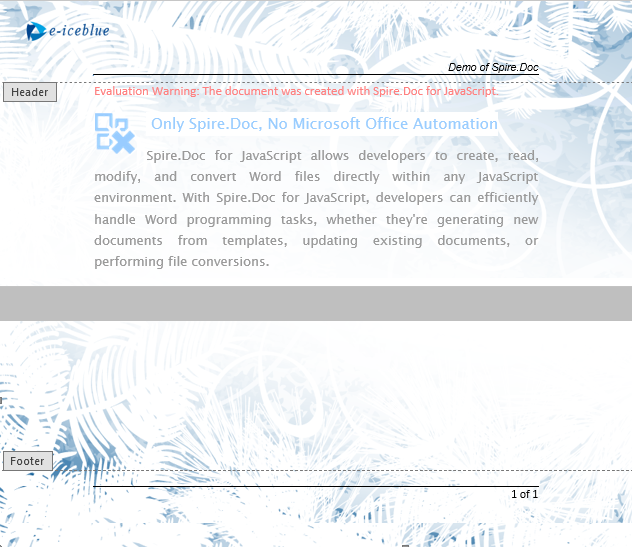
Header and footer with image, text, and page numbers applied
Set a Different Header/Footer for the First Page
In many real-world scenarios, the first page (cover page) of a document needs different headers and footers than the rest of the pages, or even no headers and footers at all. Spire.Doc enables this by setting PageSetup.DifferentFirstPageHeaderFooter = true. The first page content is configured via HeadersFooters.FirstPageHeader / FirstPageFooter, while the remaining pages use HeadersFooters.Header / Footer.
function App() {
  const DifferentFirstPage = async () => {
    // Get the Spire.Doc WASM module
    const wasmModule = window.wasmModule?.spiredoc;

    // Check if the module is ready
    if (!wasmModule) {
      alert('Spire.Doc is not ready yet');
      return;
    }

     // Load the sample file into VFS
    let inputFileName = "MultiplePages.docx";
    await window.spire.FetchFileToVFS(inputFileName, "", `${process.env.PUBLIC_URL}/data/`);
    let inputImgFileName = "E-iceblue.png";
    await window.spire.FetchFileToVFS(inputImgFileName, "", `${process.env.PUBLIC_URL}/data/`);

    // Load the document
    let doc = new wasmModule.Document();
    doc.LoadFromFile(inputFileName);

    // Get the section and enable a different first-page header/footer
    let section = doc.Sections.get_Item(0);
    section.PageSetup.DifferentFirstPageHeaderFooter = true;

    // Set the first page header: insert an image aligned to the right
    let paragraph1 = section.HeadersFooters.FirstPageHeader.AddParagraph();
    paragraph1.Format.HorizontalAlignment = wasmModule.HorizontalAlignment.Right;
    let headerimage = paragraph1.AppendPicture({ imgFile: inputImgFileName });

    // Set the first page footer: centered text
    let paragraph2 = section.HeadersFooters.FirstPageFooter.AddParagraph();
    paragraph2.Format.HorizontalAlignment = wasmModule.HorizontalAlignment.Center;
    let FF = paragraph2.AppendText("First Page Footer");
    FF.CharacterFormat.FontSize = 10;

    // Set headers and footers for the other pages
    let paragraph3 = section.HeadersFooters.Header.AddParagraph();
    paragraph3.Format.HorizontalAlignment = wasmModule.HorizontalAlignment.Center;
    let NH = paragraph3.AppendText("Spire.Doc for JavaScript");
    NH.CharacterFormat.FontSize = 10;

    let paragraph4 = section.HeadersFooters.Footer.AddParagraph();
    paragraph4.Format.HorizontalAlignment = wasmModule.HorizontalAlignment.Center;
    let NF = paragraph4.AppendText("E-iceblue");
    NF.CharacterFormat.FontSize = 10;

    // Define the output file name
    const outputFileName = "DifferentFirstPage.docx";

    // Save the document
    doc.SaveToFile({ fileName: outputFileName, fileFormat: wasmModule.FileFormat.Docx2013 });

    // Release resources
    doc.Close();
    doc.Dispose();

    // Read the generated file from VFS and trigger download
    const modifiedFileArray = window.dotnetRuntime.Module.FS.readFile(outputFileName);
    const blob = new Blob([modifiedFileArray], { type: 'application/vnd.openxmlformats-officedocument.wordprocessingml.document'});
    const url = URL.createObjectURL(blob);
    const a = document.createElement('a');
    a.href = url;
    a.download = outputFileName;
    a.click();
    URL.revokeObjectURL(url);
  };

  return (
    <div style={{ textAlign: 'center', height: '300px' }}>
      <h1>Set Different First Page Header And Footer</h1>
      <button onClick={DifferentFirstPage}>
        Generate
      </button>
    </div>
  );
}

export default App;
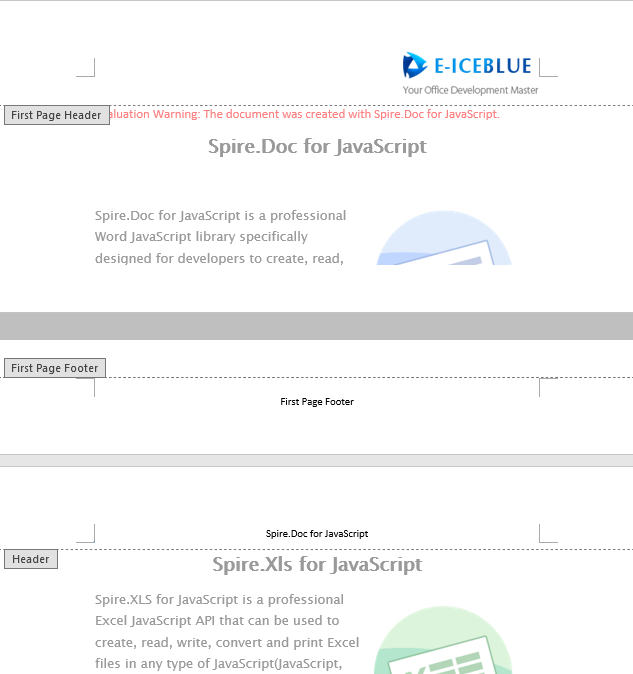
The first page displays separate header and footer content, while the other pages use unified headers and footers.
Set Different Headers and Footers for Odd and Even Pages
For documents intended for duplex printing or book layout, it is common to use different headers and footers for odd and even pages — for example, odd-page headers show the chapter name aligned to the right, while even-page headers show the book title aligned to the left. Spire.Doc enables this by setting PageSetup.DifferentOddAndEvenPagesHeaderFooter = true, then configuring content via OddHeader / OddFooter and EvenHeader / EvenFooter respectively.
function App() {
  const OddAndEvenHeaderFooter = async () => {
    // Get the Spire.Doc WASM module
    const wasmModule = window.wasmModule?.spiredoc;

    // Check if the module is ready
    if (!wasmModule) {
      alert('Spire.Doc is not ready yet');
      return;
    }

      // Load the sample file into VFS
    let inputFileName = "MultiplePages.docx";
    await window.spire.FetchFileToVFS(inputFileName, "", `${process.env.PUBLIC_URL}/data/`);

    // Load the document
    let doc = new wasmModule.Document();
    doc.LoadFromFile(inputFileName);

    // Get the first section
    let section = doc.Sections.get_Item(0);

    // Enable different odd and even page headers/footers
    section.PageSetup.DifferentOddAndEvenPagesHeaderFooter = true;

    // Add odd page header
    let P3 = section.HeadersFooters.OddHeader.AddParagraph();
    let OH = P3.AppendText("Odd Header");
    P3.Format.HorizontalAlignment = wasmModule.HorizontalAlignment.Center;
    OH.CharacterFormat.FontName = "Arial";
    OH.CharacterFormat.FontSize = 10;

    // Add even page header
    let P4 = section.HeadersFooters.EvenHeader.AddParagraph();
    let EH = P4.AppendText("Even Header from E-iceblue Using Spire.Doc");
    P4.Format.HorizontalAlignment = wasmModule.HorizontalAlignment.Center;
    EH.CharacterFormat.FontName = "Arial";
    EH.CharacterFormat.FontSize = 10;

    // Add odd page footer
    let P2 = section.HeadersFooters.OddFooter.AddParagraph();
    let OF = P2.AppendText("Odd Footer");
    P2.Format.HorizontalAlignment = wasmModule.HorizontalAlignment.Center;
    OF.CharacterFormat.FontName = "Arial";
    OF.CharacterFormat.FontSize = 10;

    // Add even page footer
    let P1 = section.HeadersFooters.EvenFooter.AddParagraph();
    let EF = P1.AppendText("Even Footer from E-iceblue Using Spire.Doc");
    EF.CharacterFormat.FontName = "Arial";
    EF.CharacterFormat.FontSize = 10;
    P1.Format.HorizontalAlignment = wasmModule.HorizontalAlignment.Center;

    // Define the output file name
    const outputFileName = "OddAndEvenHeaderFooter_output.docx";

    // Save the document
    doc.SaveToFile({ fileName: outputFileName, fileFormat: wasmModule.FileFormat.Docx2013 });

    // Release resources
    doc.Close();
    doc.Dispose();

    // Read the generated file from VFS and trigger download
    const modifiedFileArray = window.dotnetRuntime.Module.FS.readFile(outputFileName);
    const blob = new Blob([modifiedFileArray], { type: 'application/vnd.openxmlformats-officedocument.wordprocessingml.document'});
    const url = URL.createObjectURL(blob);
    const a = document.createElement('a');
    a.href = url;
    a.download = outputFileName;
    a.click();
    URL.revokeObjectURL(url);
  };

  return (
    <div style={{ textAlign: 'center', height: '300px' }}>
      <h1>Set Odd And Even Page Headers And Footers</h1>
      <button onClick={OddAndEvenHeaderFooter}>
        Generate
      </button>
    </div>
  );
}

export default App;
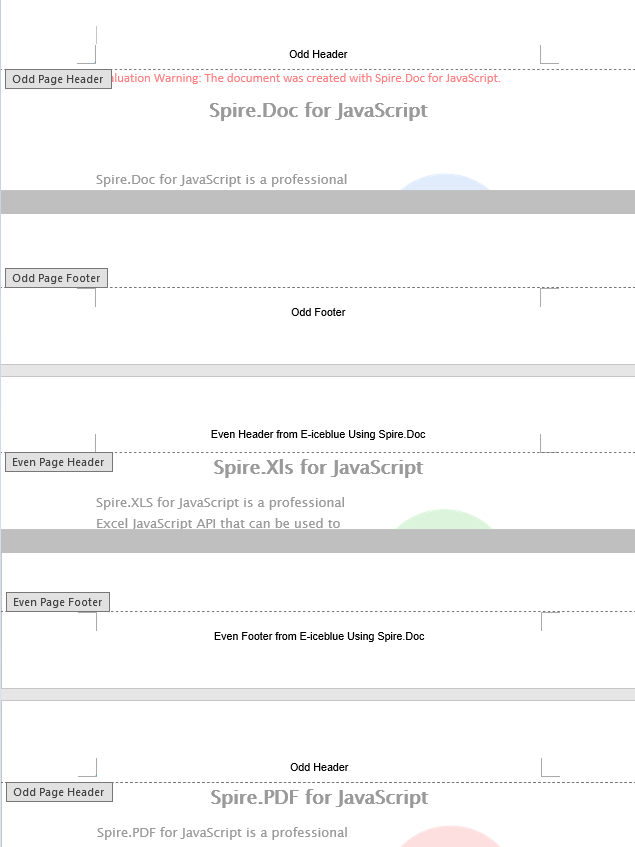
Different header and footer text is applied to odd and even pages.
FAQ
First-page header/footer does not display as expected
Cause: The DifferentFirstPageHeaderFooter property defaults to false. Editing FirstPageHeader or FirstPageFooter directly without enabling it has no effect.
Solution: Set the property to true before editing the first-page header/footer:
section.PageSetup.DifferentFirstPageHeaderFooter = true;
// Then edit FirstPageHeader / FirstPageFooter
Odd/even page settings do not take effect
Cause: The DifferentOddAndEvenPagesHeaderFooter property defaults to false. Editing OddHeader / EvenHeader directly without enabling it has no effect.
Solution: Enable the property before editing odd/even page content:
section.PageSetup.DifferentOddAndEvenPagesHeaderFooter = true;
// Then edit OddHeader / EvenHeader / OddFooter / EvenFooter
Get a Free License
If you wish to remove the evaluation message from the resulting document, or to eliminate functional limitations, please contact our sales team to request a 30-day temporary license.
Merging and splitting table cells is one of the most common table editing operations in Word document development — whether creating report headers with cross-column titles or grouping products across rows, cell merging makes table structures clearer and more organized. Spire.Doc for JavaScript runs entirely in the browser via WebAssembly, using a virtual file system (VFS) to manage fonts and file resources — no backend server required.
This article covers three core features:
For installation and project setup, refer to Integrating Spire.Doc for JavaScript in a React Project. The examples below assume Spire.Doc is installed and the WebAssembly module is initialized.
Merge and Split Cells
A common task in real-world development is adjusting the structure of an existing table: merging adjacent cells into one, or splitting a single cell into multiple rows and columns. Spire.Doc provides ApplyHorizontalMerge, ApplyVerticalMerge, and SplitCell methods for horizontal merging, vertical merging, and splitting respectively. The workflow involves three steps: first, load font files and the target Word file into the WASM virtual file system via FetchFileToVFS; then instantiate a Document, load the file, retrieve the target table, and call the merge or split methods; finally, save the document, read the generated file from VFS, wrap it as a Blob, and trigger a browser download.
function App() {
  const MergeAndSplitTableCell = async () => {
    // Get the Spire.Doc WASM module
    const wasmModule = window.wasmModule?.spiredoc;

    // Check if the module is ready
    if (!wasmModule) {
      alert('Spire.Doc is not ready yet');
      return;
    }

    // Load the sample Word file into VFS
    let inputFileName = "TableSample.docx";
    await window.spire.FetchFileToVFS(inputFileName, "", `${process.env.PUBLIC_URL}/data/`);

    // Load the document
    let doc = new wasmModule.Document();
    doc.LoadFromFile(inputFileName);
    let section = doc.Sections.get_Item(0);
    let table = section.Tables.get_Item(0);

    // Horizontal merge: merge columns 2 and 3 in row 6
    table.ApplyHorizontalMerge(6, 2, 3);
    // Vertical merge: merge rows 4 and 5 in column 2
    table.ApplyVerticalMerge(2, 4, 5);
    // Split cell: split the cell at row 8, column 3 into 2 rows and 2 columns
    table.Rows.get_Item(8).Cells.get_Item(3).SplitCell(2, 2);

    // Define the output file name
    const outputFileName = "MergeAndSplitTableCell_output.docx";

    // Save the document
    doc.SaveToFile({ fileName: outputFileName, fileFormat: wasmModule.FileFormat.Docx2013 });

    // Release resources
    doc.Dispose();

    // Read the generated file from VFS and trigger download
    const modifiedFileArray = window.dotnetRuntime.Module.FS.readFile(outputFileName);
    const blob = new Blob([modifiedFileArray], { type: 'application/vnd.openxmlformats-officedocument.wordprocessingml.document' });
    const url = URL.createObjectURL(blob);
    const a = document.createElement('a');
    a.href = url;
    a.download = outputFileName;
    a.click();
    URL.revokeObjectURL(url);
  };

  return (
    <div style={{ textAlign: 'center', height: '300px' }}>
      <h1>Merge and Split Table Cells</h1>
      <button onClick={MergeAndSplitTableCell}>
        Generate
      </button>
    </div>
  );
}

export default App;
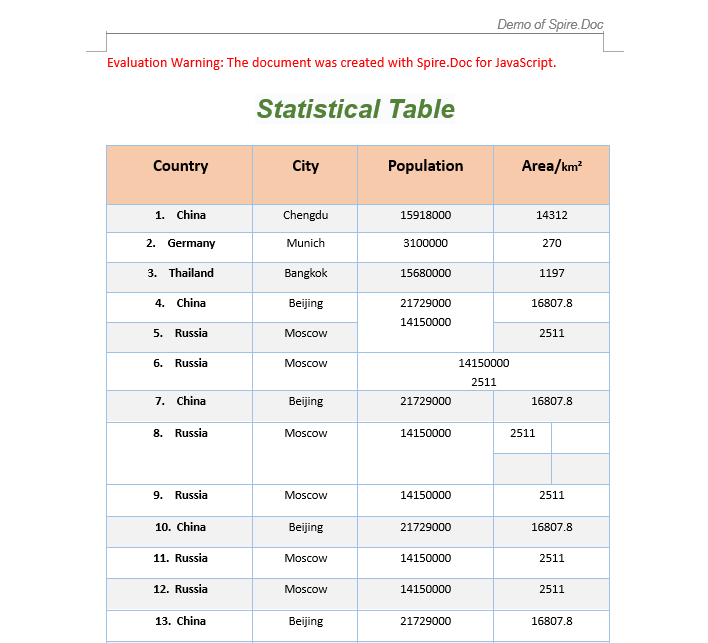
Format Merged Cells
After merging cells, you typically need to format the merged area — setting font styles, alignment, and background colors — to improve table readability and visual appeal. The following example demonstrates how to create a product price table, merge the "Product" header cell and the version category cells on the left, and apply custom styling.
function AddTable(section) {
  let wasmModule = window.wasmModule.spiredoc;
  let table = section.AddTable({ showBorder: true });
  table.ResetCells(4, 3);
  // Table data
  let dt = [["Product", "", "Inventory(kg)"],
  ["Fruit", "Apples", "150"],
  ["", "Grapes", "200"],
  ["", "Lemons", "100"]];

  for (let r = 0; r < dt.length; r++) {
    let dataRow = table.Rows.get_Item(r);
    dataRow.Height = 20;
    dataRow.HeightType = wasmModule.TableRowHeightType.Exactly;
    for (let i = 0; i < dataRow.Cells.Count; i++) {
      dataRow.Cells.get_Item(i).CellFormat.Shading.BackgroundPatternColor = wasmModule.Color.Empty;
    }
    for (let c = 0; c < dataRow.Cells.Count; c++) {
      if (dt[r][c] !== "") {
        let range = dataRow.Cells.get_Item(c).AddParagraph().AppendText(dt[r][c]);
        range.CharacterFormat.FontName = "Arial";
      }
    }
  }
  return table;
}

function App() {
  const FormatMergedCells = async () => {
    // Get the Spire.Doc WASM module
    const wasmModule = window.wasmModule?.spiredoc;

    // Check if the module is ready
    if (!wasmModule) {
      alert('Spire.Doc is not ready yet');
      return;
    }

    // Create a Word document
    let doc = new wasmModule.Document();
    let section = doc.AddSection();

    // Add a table
    let table = AddTable(section);

    // Create a custom style
    let style = new wasmModule.ParagraphStyle(doc);
    style.Name = "Style";
    style.CharacterFormat.TextColor = wasmModule.Color.get_DeepSkyBlue();
    style.CharacterFormat.Italic = true;
    style.CharacterFormat.Bold = true;
    style.CharacterFormat.FontSize = 13;
    doc.Styles.Add(style);

    // Horizontal merge: merge columns 0 and 1 in row 0
    table.ApplyHorizontalMerge(0, 0, 1);
    // Apply the style
    table.Rows.get_Item(0).Cells.get_Item(0).Paragraphs.get_Item(0).ApplyStyle(style.Name);
    // Set vertical and horizontal alignment
    table.Rows.get_Item(0).Cells.get_Item(0).CellFormat.VerticalAlignment = wasmModule.VerticalAlignment.Middle;
    table.Rows.get_Item(0).Cells.get_Item(0).Paragraphs.get_Item(0).Format.HorizontalAlignment = wasmModule.HorizontalAlignment.Center;

    // Vertical merge: merge rows 1, 2, and 3 in column 0
    table.ApplyVerticalMerge(0, 1, 3);
    // Apply the style
    table.Rows.get_Item(1).Cells.get_Item(0).Paragraphs.get_Item(0).ApplyStyle(style.Name);
    // Set vertical and horizontal alignment
    table.Rows.get_Item(1).Cells.get_Item(0).CellFormat.VerticalAlignment = wasmModule.VerticalAlignment.Middle;
    table.Rows.get_Item(1).Cells.get_Item(0).Paragraphs.get_Item(0).Format.HorizontalAlignment = wasmModule.HorizontalAlignment.Left;
    // Set column width
    table.Rows.get_Item(1).Cells.get_Item(0).SetCellWidth(20, wasmModule.CellWidthType.Percentage);

    // Define the output file name
    const outputFileName = "FormatMergedCells_output.docx";

    // Save the document
    doc.SaveToFile({ fileName: outputFileName, fileFormat: wasmModule.FileFormat.Docx2013 });

    // Release resources
    doc.Dispose();

    // Read the generated file from VFS and trigger download
    const modifiedFileArray = window.dotnetRuntime.Module.FS.readFile(outputFileName);
    const blob = new Blob([modifiedFileArray], { type: 'application/vnd.openxmlformats-officedocument.wordprocessingml.document' });
    const url = URL.createObjectURL(blob);
    const a = document.createElement('a');
    a.href = url;
    a.download = outputFileName;
    a.click();
    URL.revokeObjectURL(url);
  };

  return (
    <div style={{ textAlign: 'center', height: '300px' }}>
      <h1>Format Merged Cells</h1>
      <button onClick={FormatMergedCells}>
        Generate
      </button>
    </div>
  );
}

export default App;
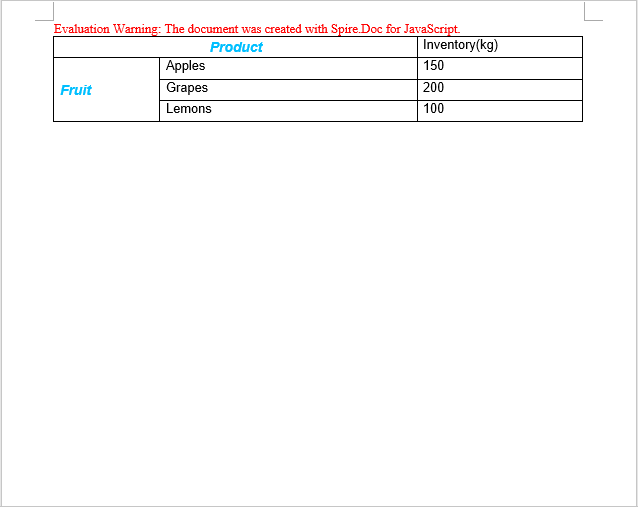
Check Cell Merge Status
When working with tables created by others or generated by automated processes, you often need to identify which cells have been merged to avoid index-out-of-bounds errors. Spire.Doc provides two properties — CellFormat.VerticalMerge and Cell.GridSpan — to detect cell merge status: VerticalMerge indicates vertical merging, and GridSpan indicates the number of columns a cell spans horizontally.
function App() {
  const CellMergeStatus = async () => {
    // Get the Spire.Doc WASM module
    const wasmModule = window.wasmModule?.spiredoc;

    // Check if the module is ready
    if (!wasmModule) {
      alert('Spire.Doc is not ready yet');
      return;
    }

    // Load the sample file into VFS
    let inputFileName = "CellMergeStatus.docx";
    await window.spire.FetchFileToVFS(inputFileName, "", `${process.env.PUBLIC_URL}/data/`);

    // Load the document
    let doc = new wasmModule.Document();
    doc.LoadFromFile(inputFileName);

    // Get the first section and first table
    let section = doc.Sections.get_Item(0);
    let table = section.Tables.get_Item(0);

    // Iterate through all cells to detect merge status
    let stringBuidler = [];
    for (let i = 0; i < table.Rows.Count; i++) {
      let tableRow = table.Rows.get_Item(i);
      for (let j = 0; j < tableRow.Cells.Count; j++) {
    let tableCell = tableRow.Cells.get_Item(j);
    let verticalMerge = tableCell.CellFormat.VerticalMerge;
    let horizontalMerge = tableCell.GridSpan;
    if (verticalMerge === wasmModule.CellMerge.None && horizontalMerge === 1) {
      stringBuidler.push("Row " + i + ", cell " + j + ": ");
      stringBuidler.push("This cell isn't merged.\n");
    } else {
      stringBuidler.push("Row " + i + ", cell " + j + ": ");
      stringBuidler.push("This cell is merged.\n");
    }
      }
      stringBuidler.push("\n");
    }

    // Define the output file name
    const outputFileName = "CellMergeStatus_output.txt";

    // Write the detection result to a text file
    window.dotnetRuntime.Module.FS.writeFile(outputFileName, stringBuidler.join('\n'));

    // Read the generated file from VFS and trigger download
    const modifiedFileArray = window.dotnetRuntime.Module.FS.readFile(outputFileName);
    const blob = new Blob([modifiedFileArray], { type: "text/plain" });
    const url = URL.createObjectURL(blob);
    const a = document.createElement('a');
    a.href = url;
    a.download = outputFileName;
    a.click();
    URL.revokeObjectURL(url);
  };

  return (
    <div style={{ textAlign: 'center', height: '300px' }}>
      <h1>Check Cell Merge Status</h1>
      <button onClick={CellMergeStatus}>
        Generate
      </button>
    </div>
  );
}

export default App;
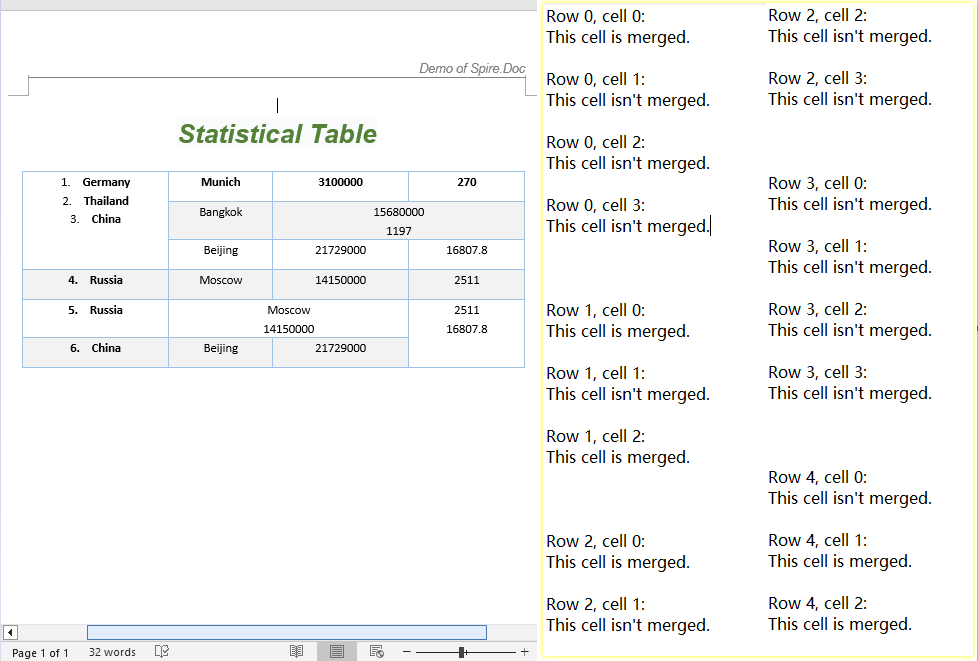
FAQ
How to verify if a cell merge was successful
Cause: Merge operations do not return a status value — you need to read cell properties to confirm.
Solution: Use CellFormat.VerticalMerge to check the vertical merge type (CellMerge.None means not merged), and Cell.GridSpan to check the number of columns spanned horizontally (a value of 1 means not merged):
let verticalMerge = tableCell.CellFormat.VerticalMerge;
let horizontalMerge = tableCell.GridSpan;
if (verticalMerge === wasmModule.CellMerge.None && horizontalMerge === 1) {
  // Not merged
} else {
  // Merged
}
Content lost after splitting a cell
Cause: When SplitCell splits a cell into multiple sub-cells, the original content remains in the first sub-cell by default.
Solution: Manually iterate through the sub-cells to redistribute content after splitting, or back up the cell text via the Paragraphs collection beforehand:
// Back up the content
let cell = table.Rows.get_Item(row).Cells.get_Item(col);
let text = cell.Paragraphs.get_Item(0).Text;

// Split into 2 rows and 2 columns
cell.SplitCell(2, 2);

// Write the content to the new cell
table.Rows.get_Item(row).Cells.get_Item(col).Paragraphs.get_Item(0).AppendText(text);
Index out of range when merging cells
Cause: ApplyHorizontalMerge(row, startCol, endCol) and ApplyVerticalMerge(col, startRow, endRow) use zero-based indexing. Passing indices that exceed the table's actual row or column count will throw an error.
Solution: Check the table dimensions before merging to ensure the end index does not exceed Rows.Count - 1 and Cells.Count - 1:
if (endCol < table.Rows.get_Item(row).Cells.Count && endRow < table.Rows.Count) {
  table.ApplyHorizontalMerge(row, startCol, endCol);
}
Get a Free License
Spire.Doc for JavaScript offers a 30-day full-featured free trial license with no functional limitations. Apply here to evaluate before purchasing.
Copy, Remove, and Lock Headers and Footers in Word with JavaScript in React
2026-07-06 08:33:20 Written by Amy ZhaoIn real-world document development workflows, maintaining headers and footers is just as important as adding them — copying headers and footers from a template document for quick reuse, removing old headers and footers for document cleanup, and locking headers to prevent content tampering are all common daily requirements. Spire.Doc for JavaScript leverages WebAssembly to process Word documents directly in the browser, managing fonts and file resources through a virtual file system (VFS) with no backend server required.
This article covers three core features:
For installation and project setup, refer to Integrating Spire.Doc for JavaScript in a React Project. The examples below assume Spire.Doc is installed and the WebAssembly module is initialized.
Copy Headers and Footers
In enterprise document production, a standard template document typically defines unified headers (company logo + document title) and footers (page number + copyright notice). When creating new documents, the headers and footers from the template need to be copied over to maintain consistent corporate document styling. Spire.Doc uses the ChildObjects collection and the Clone method to copy header objects across documents. The core workflow has three phases: first, load font files and two Word files (source and destination documents) into the WASM virtual file system via FetchFileToVFS; then instantiate two Document objects, retrieve the header's child objects from the source document, iterate and clone them into each section's header of the destination document; finally, save the destination document, read the generated file from VFS, wrap it as a Blob, and trigger a browser download.
function App() {
  const CopyHeaderAndFooter = async () => {
    // Get the Spire.Doc WASM module
    const wasmModule = window.wasmModule?.spiredoc;

    // Check if the module is ready
    if (!wasmModule) {
      alert('Spire.Doc is not ready yet');
      return;
    }

    // Load fonts and the document files into VFS
    await window.spire.FetchFileToVFS('ARIALUNI.TTF', '/Library/Fonts/', `${process.env.PUBLIC_URL}/font/`);

    // Load the source and destination files into VFS
    let inputFileName = "HeaderAndFooter.docx";
    await window.spire.FetchFileToVFS(inputFileName, "", `${process.env.PUBLIC_URL}/data/`);
    const inputFileName_1 = "Template.docx";
    await window.spire.FetchFileToVFS(inputFileName_1, "", `${process.env.PUBLIC_URL}/data/`);

    // Load the source document
    let doc1 = new wasmModule.Document();
    doc1.LoadFromFile(inputFileName);

    // Get the header from the source document
    let header = doc1.Sections.get_Item(0).HeadersFooters.Header;

    // Load the destination document
    let doc2 = new wasmModule.Document();
    doc2.LoadFromFile(inputFileName_1);

    // Clone each child object from the source header into all sections of the destination document
    for (let i = 0; i < doc2.Sections.Count; i++) {
      let section = doc2.Sections.get_Item(i);
      for (let j = 0; j < header.ChildObjects.Count; j++) {
        let obj = header.ChildObjects.get_Item(j);
        section.HeadersFooters.Header.ChildObjects.Add(obj.Clone());
      }
    }

    // Define the output file name
    const outputFileName = "CopyHeaderAndFooter_output.docx";

    // Save the document
    doc2.SaveToFile({ fileName: outputFileName, fileFormat: wasmModule.FileFormat.Docx2013 });

    // Release resources
    doc1.Close();
    doc2.Close();
    doc1.Dispose();
    doc2.Dispose();

    // Read the generated file from VFS and trigger download
    const modifiedFileArray = window.dotnetRuntime.Module.FS.readFile(outputFileName);
    const blob = new Blob([modifiedFileArray], { type: 'application/vnd.openxmlformats-officedocument.wordprocessingml.document'});
    const url = URL.createObjectURL(blob);
    const a = document.createElement('a');
    a.href = url;
    a.download = outputFileName;
    a.click();
    URL.revokeObjectURL(url);
  };

  return (
    <div style={{ textAlign: 'center', height: '300px' }}>
      <h1>Copy Headers And Footers To Another Word Document</h1>
      <button onClick={CopyHeaderAndFooter}>
        Generate
      </button>
    </div>
  );
}

export default App;
The code above clones the header content from the source document into all sections of the destination document.
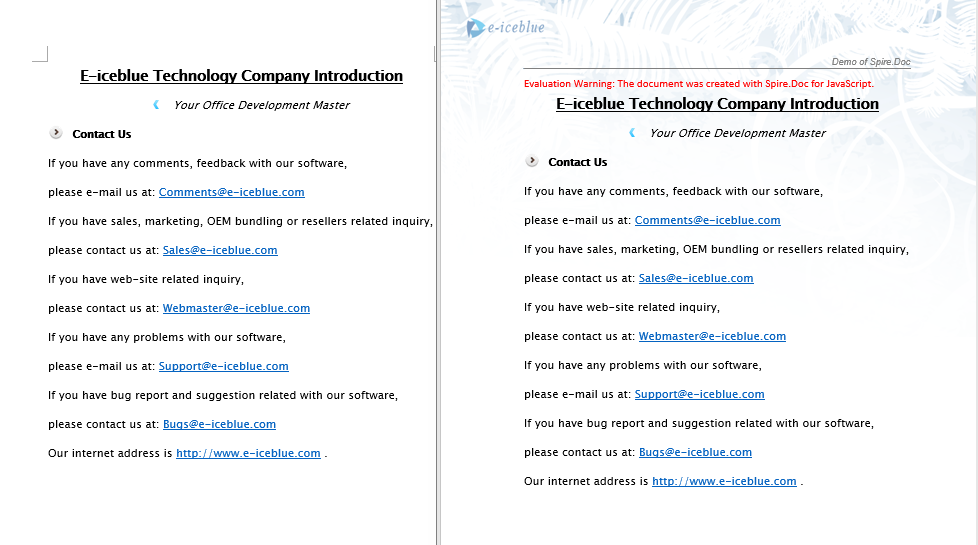
Remove Headers and Footers
In document cleanup or template replacement scenarios, it is often necessary to remove existing headers or footers from a document. For example, when taking over someone else's document and needing to redesign the headers and footers, clearing the original content first; or when documents exported from a customer system contain default headers that need to be removed before replacing with corporate templates. Spire.Doc uses HeadersFooters.get_Item to retrieve header or footer objects by type (first page, odd page, even page), and then calls ChildObjects.Clear() to remove all their content.
function App() {
  const RemoveHeaderFooter = async () => {
    // Get the Spire.Doc WASM module
    const wasmModule = window.wasmModule?.spiredoc;

    // Check if the module is ready
    if (!wasmModule) {
      alert('Spire.Doc is not ready yet');
      return;
    }

    // Load fonts and the document file into VFS
    await window.spire.FetchFileToVFS('ARIALUNI.TTF', '/Library/Fonts/', `${process.env.PUBLIC_URL}/font/`);

    // Load the sample file into VFS
    let inputFileName = "HeaderAndFooter.docx";
    await window.spire.FetchFileToVFS(inputFileName, "", `${process.env.PUBLIC_URL}/data/`);

    // Load the document
    let doc = new wasmModule.Document();
    doc.LoadFromFile(inputFileName);

    // Get the first section
    let section = doc.Sections.get_Item(0);

    // Clear all types of header content (first page, odd page, even page)
    let header;
    header = section.HeadersFooters.get_Item({ hfType: wasmModule.HeaderFooterType.HeaderFirstPage });
    if (header != null)
      header.ChildObjects.Clear();

    header = section.HeadersFooters.get_Item({ hfType: wasmModule.HeaderFooterType.HeaderOdd });
    if (header != null)
      header.ChildObjects.Clear();

    header = section.HeadersFooters.get_Item({ hfType: wasmModule.HeaderFooterType.HeaderEven });
    if (header != null)
      header.ChildObjects.Clear();

    // Clear all types of footer content (first page, odd page, even page)
    let footer;
    footer = section.HeadersFooters.get_Item({ hfType: wasmModule.HeaderFooterType.FooterFirstPage });
    if (footer != null)
      footer.ChildObjects.Clear();

    footer = section.HeadersFooters.get_Item({ hfType: wasmModule.HeaderFooterType.FooterOdd });
    if (footer != null)
      footer.ChildObjects.Clear();

    footer = section.HeadersFooters.get_Item({ hfType: wasmModule.HeaderFooterType.FooterEven });
    if (footer != null)
      footer.ChildObjects.Clear();

    // Define the output file name
    const outputFileName = "RemoveHeaderFooter_output.docx";

    // Save the document
    doc.SaveToFile({ fileName: outputFileName, fileFormat: wasmModule.FileFormat.Docx2013 });

    // Release resources
    doc.Close();
    doc.Dispose();

    // Read the generated file from VFS and trigger download
    const modifiedFileArray = window.dotnetRuntime.Module.FS.readFile(outputFileName);
    const blob = new Blob([modifiedFileArray], { type: 'application/vnd.openxmlformats-officedocument.wordprocessingml.document'});
    const url = URL.createObjectURL(blob);
    const a = document.createElement('a');
    a.href = url;
    a.download = outputFileName;
    a.click();
    URL.revokeObjectURL(url);
  };

  return (
    <div style={{ textAlign: 'center', height: '300px' }}>
      <h1>Remove Headers And Footers From Word Document</h1>
      <button onClick={RemoveHeaderFooter}>
        Generate
      </button>
    </div>
  );
}

export default App;
The document after removing the header.

Lock Headers to Prevent Editing
When distributing documents to clients or team members, it is often desirable to prevent fixed information such as the company logo and document number in the header from being modified, while allowing the body text to remain editable. Spire.Doc achieves this through document protection: set the protection type to AllowOnlyFormFields, then set the section's ProtectForm property to false, so the body area stays editable while the header area is protected from modification.
function App() {
  const LockHeader = async () => {
    // Get the Spire.Doc WASM module
    const wasmModule = window.wasmModule?.spiredoc;

    // Check if the module is ready
    if (!wasmModule) {
      alert('Spire.Doc is not ready yet');
      return;
    }

    // Load fonts and the document file into VFS
    await window.spire.FetchFileToVFS('ARIALUNI.TTF', '/Library/Fonts/', `${process.env.PUBLIC_URL}/font/`);

    // Load the sample file into VFS
    let inputFileName = "HeaderAndFooter.docx";
    await window.spire.FetchFileToVFS(inputFileName, "", `${process.env.PUBLIC_URL}/data/`);

      // Load the document
    let doc = new wasmModule.Document();
    doc.LoadFromFile(inputFileName);

    // Get the first section
    let section = doc.Sections.get_Item(0);

    // Protect the document with AllowOnlyFormFields type
    doc.Protect({ type: wasmModule.ProtectionType.AllowOnlyFormFields, password: "123" });

    // Set the section as editable, so the body area is not locked
    section.ProtectForm = false;

    // Define the output file name
    const outputFileName = "LockHeader_output.docx";

    // Save the document
    doc.SaveToFile({ fileName: outputFileName, fileFormat: wasmModule.FileFormat.Docx2013 });

    // Release resources
    doc.Close();
    doc.Dispose();

    // Read the generated file from VFS and trigger download
    const modifiedFileArray = window.dotnetRuntime.Module.FS.readFile(outputFileName);
    const blob = new Blob([modifiedFileArray], { type: 'application/vnd.openxmlformats-officedocument.wordprocessingml.document'});
    const url = URL.createObjectURL(blob);
    const a = document.createElement('a');
    a.href = url;
    a.download = outputFileName;
    a.click();
    URL.revokeObjectURL(url);
  };

  return (
    <div style={{ textAlign: 'center', height: '300px' }}>
      <h1>Lock Header In Word Document</h1>
      <button onClick={LockHeader}>
        Generate
      </button>
    </div>
  );
}

export default App;
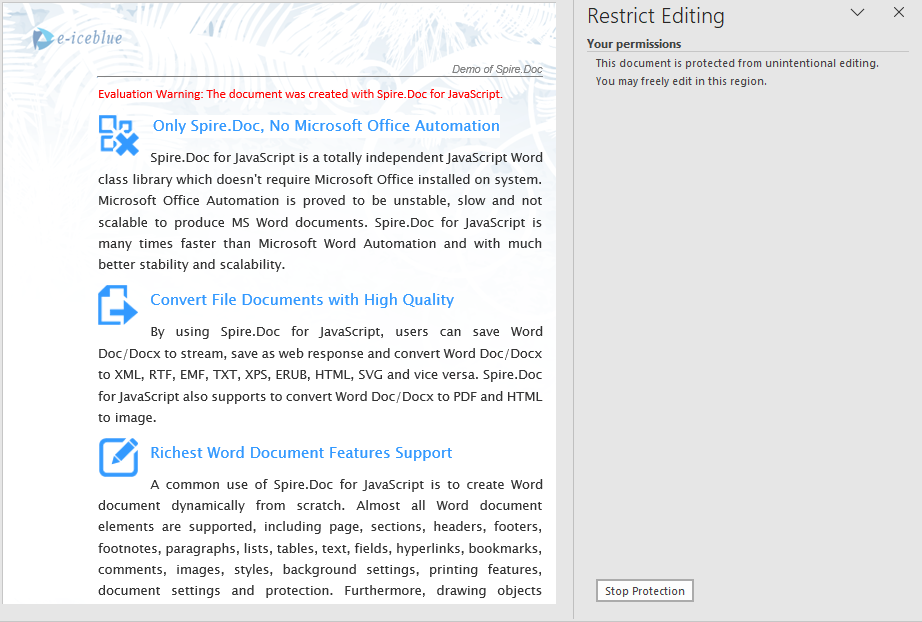
When the header is locked, the header area cannot be edited when opening the document in Word, while the body area remains modifiable.
FAQ
Copied header content does not display in the destination document
Cause: The destination document contains multiple sections, but the copy operation only processes the first section's header, leaving headers in other sections unchanged.
Solution: Iterate through all sections of the destination document and copy the source header content to each section:
for (let i = 0; i < doc2.Sections.Count; i++) {
  let section = doc2.Sections.get_Item(i);
  for (let j = 0; j < header.ChildObjects.Count; j++) {
    let obj = header.ChildObjects.get_Item(j);
    section.HeadersFooters.Header.ChildObjects.Add(obj.Clone());
  }
}
The entire document becomes uneditable after locking the header
Cause: doc.Protect({ type: AllowOnlyFormFields }) locks the entire document by default, including the body area.
Solution: After applying protection, set the section's ProtectForm property to false to keep the body area editable:
doc.Protect({ type: wasmModule.ProtectionType.AllowOnlyFormFields, password: "123" });
section.ProtectForm = false;
Footer content is also cleared when removing headers
Cause: The header removal logic is mistakenly applied to the footer, or the same ChildObjects.Clear() operation is used on the wrong object.
Solution: Use different HeaderFooterType parameters for removing headers versus removing footers, ensuring the correct object is targeted:
// Use Header type when removing headers
section.HeadersFooters.get_Item({ hfType: wasmModule.HeaderFooterType.HeaderFirstPage });
// Use Footer type when removing footers
section.HeadersFooters.get_Item({ hfType: wasmModule.HeaderFooterType.FooterFirstPage });
Get a Free License
If you wish to remove the evaluation message from the resulting document, or to eliminate functional limitations, please contact our sales team to request a 30-day temporary license.
Add or Delete Rows and Columns in Word Table with JavaScript in React
2026-07-06 08:30:30 Written by Amy ZhaoIn real-world document development, table structures often need to be adjusted dynamically — adding rows when report data counts are uncertain, inserting or removing columns when fields change, or deleting redundant data rows with a single click. Spire.Doc for JavaScript leverages WebAssembly to edit Word documents directly in the browser, managing fonts and file resources through a virtual file system (VFS) with no backend server required.
This article covers two core features:
For installation and project setup, refer to Integrating Spire.Doc for JavaScript in a React Project. The examples below assume Spire.Doc is installed and the WebAssembly module is initialized.
Add and Delete Rows
In report generation and data display scenarios, the number of table rows is often dynamic. Spire.Doc provides the Rows.RemoveAt method to delete a specific row, the Rows.Insert method to insert a new row at a specified position, and the AddRow method to append a row at the end of the table. The core workflow has three phases: first, load font files and the target Word document into the WASM virtual file system via FetchFileToVFS; then instantiate a Document, load the file, retrieve the target table, and call row/column manipulation methods; finally, save the document, read the generated file from VFS, wrap it as a Blob, and trigger a browser download.
function App() {
  const AddOrDeleteRow = async () => {
    // Get the Spire.Doc WASM module
    const wasmModule = window.wasmModule?.spiredoc;

    // Check if the module is ready
    if (!wasmModule) {
      alert('Spire.Doc is not ready yet');
      return;
    }

    // Load fonts and the document file into VFS
    await window.spire.FetchFileToVFS('ARIALUNI.TTF', '/Library/Fonts/', `${process.env.PUBLIC_URL}/font/`);

    // Load the sample Word file into VFS
    let inputFileName = "TableSample.docx";
    await window.spire.FetchFileToVFS(inputFileName, "", `${process.env.PUBLIC_URL}/data/`);

    // Load the document
    let doc = new wasmModule.Document();
    doc.LoadFromFile(inputFileName);
    let section = doc.Sections.get_Item(0);
    let table = section.Tables.get_Item(0);

    // Delete row 8
    table.Rows.RemoveAt(7);

    // Create a new row and insert it at a specified position (after row 2)
    let row = new wasmModule.TableRow(doc);
    for (let i = 0; i < table.Rows.get_Item(0).Cells.Count; i++) {
      let tc = row.AddCell();
      let paragraph = tc.AddParagraph();
      paragraph.Format.HorizontalAlignment = wasmModule.HorizontalAlignment.Center;
      paragraph.AppendText("Added");
    }
    table.Rows.Insert(2, row);

    // Append a row at the end of the table
    table.AddRow();

    // Define the output file name
    const outputFileName = "AddOrDeleteRow_output.docx";

    // Save the document
    doc.SaveToFile({ fileName: outputFileName, fileFormat: wasmModule.FileFormat.Docx2013 });

    // Release resources
    doc.Close();
    doc.Dispose();

    // Read the generated file from VFS and trigger download
    const modifiedFileArray = window.dotnetRuntime.Module.FS.readFile(outputFileName);
    const blob = new Blob([modifiedFileArray], { type: 'application/vnd.openxmlformats-officedocument.wordprocessingml.document'});
    const url = URL.createObjectURL(blob);
    const a = document.createElement('a');
    a.href = url;
    a.download = outputFileName;
    a.click();
    URL.revokeObjectURL(url);
  };

  return (
    <div style={{ textAlign: 'center', height: '300px' }}>
      <h1>Add And Delete Rows In Word Table</h1>
      <button onClick={AddOrDeleteRow}>
        Generate
      </button>
    </div>
  );
}

export default App;
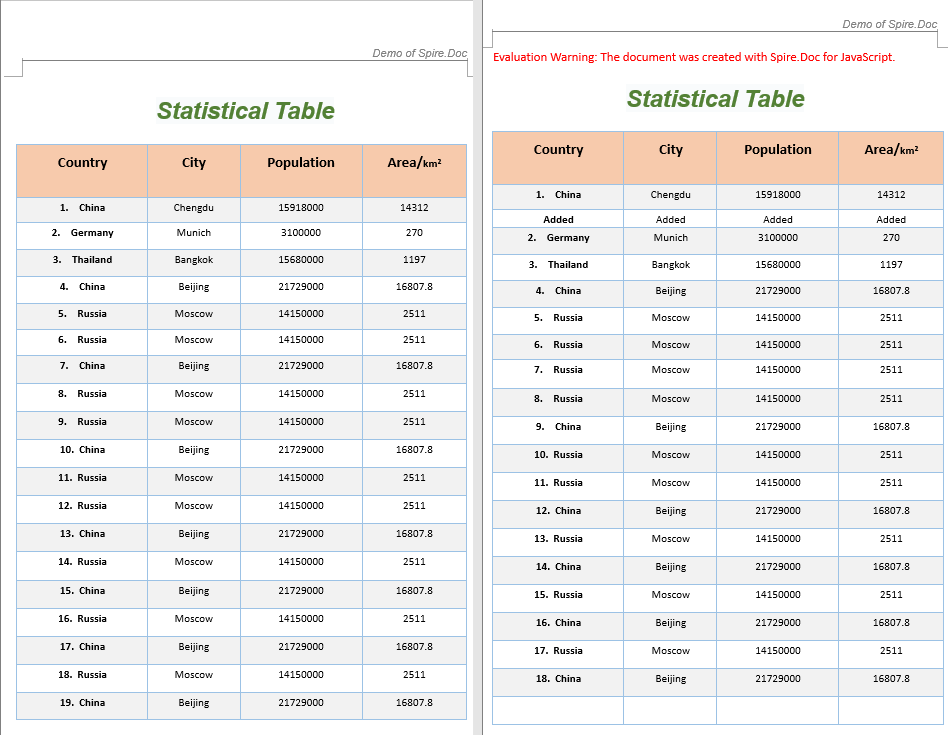
The code above performs three row operations on an existing table: deleting row 8, inserting a new row containing "Added" text after row 2, and appending an empty row at the end of the table.
Add and Remove Columns
In table structure adjustment scenarios, it is often necessary to add new field columns or remove redundant ones. Since Spire.Doc's table column operations are implemented by manipulating cells row by row, custom AddColumn and RemoveColumn helper functions are needed: to add a column, iterate through each row and insert a new blank cell at the specified index; to remove a column, iterate through each row and delete the cell at the specified index.
function AddColumn(table, columnIndex) {
  let wasmModule = window.wasmModule.spiredoc;
  for (let r = 0; r < table.Rows.Count; r++) {
    let addCell = new wasmModule.TableCell(table.Document);
    table.Rows.get_Item(r).Cells.Insert(columnIndex, addCell);
  }
}

function RemoveColumn(table, columnIndex) {
  for (let r = 0; r < table.Rows.Count; r++) {
    table.Rows.get_Item(r).Cells.RemoveAt(columnIndex);
  }
}

function App() {
  const AddOrRemoveColumn = async () => {
    // Get the Spire.Doc WASM module
    const wasmModule = window.wasmModule?.spiredoc;

    // Check if the module is ready
    if (!wasmModule) {
      alert('Spire.Doc is not ready yet');
      return;
    }

    // Load fonts and the document file into VFS
    await window.spire.FetchFileToVFS('ARIALUNI.TTF', '/Library/Fonts/', `${process.env.PUBLIC_URL}/font/`);

    // Load the sample file into VFS
    let inputFileName = "TableSample.docx";
    await window.spire.FetchFileToVFS(inputFileName, "", `${process.env.PUBLIC_URL}/data/`);

    // Load the document
    let doc = new wasmModule.Document();
    doc.LoadFromFile(inputFileName);

    // Get the first section and first table
    let section = doc.Sections.get_Item(0);
    let table = section.Tables.get_Item(0);

    // Insert a blank column before column 0
    let columnIndex1 = 0;
    AddColumn(table, columnIndex1);

    // Delete column 2
    let columnIndex2 = 2;
    RemoveColumn(table, columnIndex2);

    // Define the output file name
    const outputFileName = "AddOrRemoveColumn_output.docx";

    // Save the document
    doc.SaveToFile({ fileName: outputFileName, fileFormat: wasmModule.FileFormat.Docx2013 });

    // Release resources
    doc.Close();
    doc.Dispose();

    // Read the generated file from VFS and trigger download
    const modifiedFileArray = window.dotnetRuntime.Module.FS.readFile(outputFileName);
    const blob = new Blob([modifiedFileArray], { type: 'application/vnd.openxmlformats-officedocument.wordprocessingml.document'});
    const url = URL.createObjectURL(blob);
    const a = document.createElement('a');
    a.href = url;
    a.download = outputFileName;
    a.click();
    URL.revokeObjectURL(url);
  };

  return (
    <div style={{ textAlign: 'center', height: '300px' }}>
      <h1>Add And Remove Columns In Word Table</h1>
      <button onClick={AddOrRemoveColumn}>
        Generate
      </button>
    </div>
  );
}

export default App;
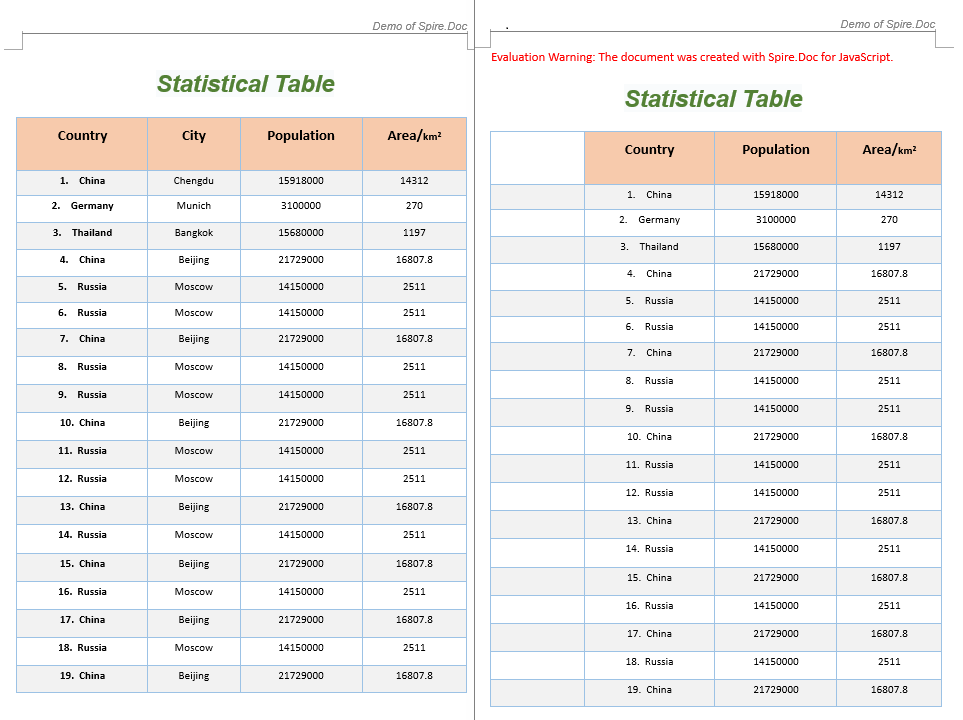
The code above inserts a blank column at column index 0 and removes column 2.
FAQ
Table data is garbled after deleting a row
Cause: When the table contains merged cells, deleting a row by index can cause subsequent row indices to shift, breaking the merged cell structure.
Solution: Before deleting, check whether the target row participates in a merge. If the row contains merged cells, unmerge them first before performing the deletion:
// Check the cell's merge state before deleting
let cell = table.Rows.get_Item(rowIndex).Cells.get_Item(0);
let verticalMerge = cell.CellFormat.VerticalMerge;
if (verticalMerge === wasmModule.CellMerge.None) {
  table.Rows.RemoveAt(rowIndex);
} else {
  console.warn("This row contains merged cells; consider handling the merge state first");
}
Newly added column appears blank in the document
Cause: The AddColumn function only inserts blank TableCell objects without adding paragraphs and text content to the new cells.
Solution: After inserting cells, iterate through the new column and add paragraphs with text:
function AddColumn(table, columnIndex) {
  let wasmModule = window.wasmModule.spiredoc;
  for (let r = 0; r < table.Rows.Count; r++) {
    let addCell = new wasmModule.TableCell(table.Document);
    let paragraph = addCell.AddParagraph();
    paragraph.AppendText("New Column");
    table.Rows.get_Item(r).Cells.Insert(columnIndex, addCell);
  }
}
Index out of bounds when deleting a column
Cause: The column index passed exceeds the maximum column count of the current table, or the row column counts are inconsistent.
Solution: Before deleting, get the column count from the first row as a reference and ensure the index is within range:
let maxColIndex = table.Rows.get_Item(0).Cells.Count - 1;
if (columnIndex <= maxColIndex) {
  RemoveColumn(table, columnIndex);
}
Get a Free License
If you wish to remove the evaluation message from the resulting document, or to eliminate functional limitations, please contact our sales team to request a 30-day temporary license.
Merging Word documents is a common requirement in web applications — combining multiple contract attachments into a single document, appending supplementary content at the end of a report, or merging multi-chapter documents for output. Spire.Doc for JavaScript handles document merging entirely in the browser via WebAssembly, using a virtual file system (VFS) to manage input and output files — no backend server required.
This article covers two core features:
For installation and project setup, refer to Integrating Spire.Doc for JavaScript in a React Project. The examples below assume Spire.Doc is installed and the WebAssembly module is initialized.
Merge by Section
Merging by section follows a three-stage process: first, load font files and both Word documents into the WASM virtual file system via FetchFileToVFS; then instantiate Document to load the target and source documents, iterate through all sections of the source document, and clone each section to the target document using Sections.Add(section.Clone()); finally, read the merged file from VFS, wrap it as a Blob, and trigger a browser download. This approach preserves each section's independent structure — every section starts on a new page in the merged document.
function App() {
  const mergeBySection = async () => {
    // Get the Spire.Doc WASM module
    const docModule = window.wasmModule?.spiredoc;

    // Check if the module is ready
    if (!docModule) {
      alert('Spire.Doc is not ready yet');
      return;
    }

    const inputFileName1 = 'Template_Docx_1.docx';
    await window.spire.FetchFileToVFS(inputFileName1, '', `${process.env.PUBLIC_URL}data/`);
    const inputFileName2 = 'Template_Docx_2.docx';
    await window.spire.FetchFileToVFS(inputFileName2, '', `${process.env.PUBLIC_URL}data/`);

    // Load the target document
    const TarDoc = new docModule.Document();
    TarDoc.LoadFromFile(inputFileName1);

    // Load the source document
    const SouDoc = new docModule.Document();
    SouDoc.LoadFromFile(inputFileName2);

    // Clone all sections from the source document and append them to the target
    for (let i = 0; i < SouDoc.Sections.Count; i++) {
      let section = SouDoc.Sections.get_Item(i);
      TarDoc.Sections.Add(section.Clone());
    }

    // Define the output file name
    const outputFileName = 'MergeBySection_out.docx';

    // Save the merged document
    TarDoc.SaveToFile({ fileName: outputFileName, fileFormat: docModule.FileFormat.Docx2013 });

    // Read the merged file from VFS and trigger download
    const modifiedFileArray = window.dotnetRuntime.Module.FS.readFile(outputFileName);
    const blob = new Blob([modifiedFileArray], { type: 'application/vnd.openxmlformats-officedocument.wordprocessingml.document' });
    const url = URL.createObjectURL(blob);
    const a = document.createElement('a');
    a.href = url;
    a.download = outputFileName;
    a.click();
    URL.revokeObjectURL(url);

    // Release resources
    TarDoc.Dispose();
    SouDoc.Dispose();
  };

  return (
    <div style={{ textAlign: 'center', height: '300px' }}>
      <h1>Merge Word By Section</h1>
      <button onClick={mergeBySection}>
        Generate
      </button>
    </div>
  );
}

export default App;
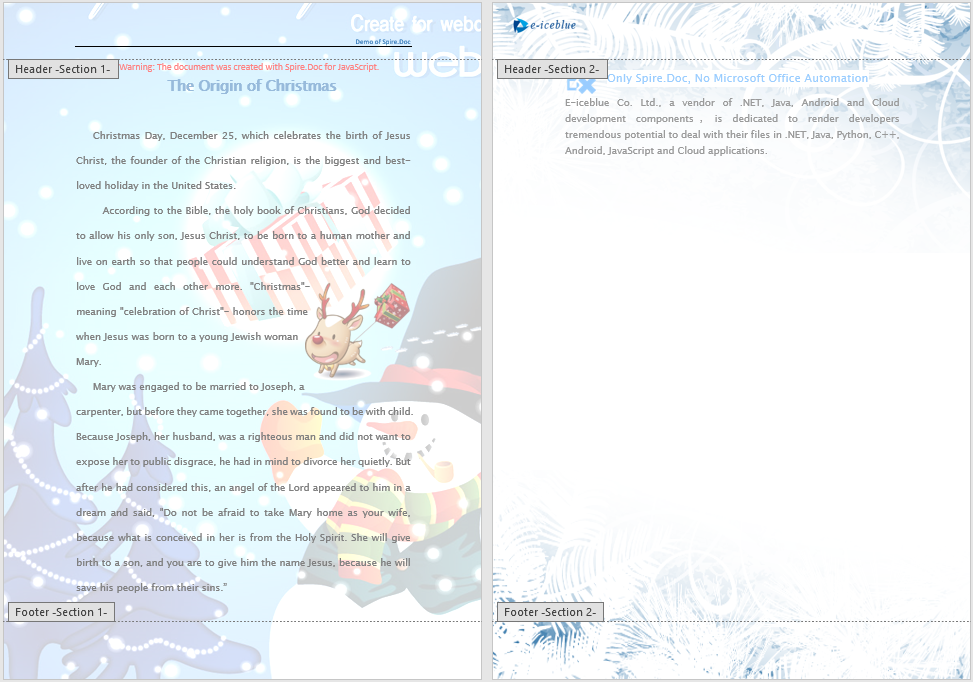
Each section from the source document appears as an independent page in the merged document after section-by-section merging
Merge on Same Page
Unlike section-by-section merging, same-page merging does not create new sections from the source document. Instead, it clones individual document elements — paragraphs, tables, images, and other content — from the source and appends them to the same section of the target document. The process also has three stages: first, load font files and both Word documents into the WASM virtual file system via FetchFileToVFS; then load the target and source documents, iterate through Body.ChildObjects under each section of the source, and append each element to the target document's first section using ChildObjects.Add(obj.Clone()); finally, read the merged file from VFS, wrap it as a Blob, and trigger a browser download. This approach keeps content flowing continuously on the same page without introducing section breaks.
function App() {
  const mergeOnSamePage = async () => {
    // Get the Spire.Doc WASM module
    const docModule = window.wasmModule?.spiredoc;

    // Check if the module is ready
    if (!docModule) {
      alert('Spire.Doc is not ready yet');
      return;
    }

    const inputFileName1 = 'Template_Docx_1.docx';
    await window.spire.FetchFileToVFS(inputFileName1, '', `${process.env.PUBLIC_URL}data/`);
    const inputFileName2 = 'Template_Docx_2.docx';
    await window.spire.FetchFileToVFS(inputFileName2, '', `${process.env.PUBLIC_URL}data/`);

    // Load the target document
    const destinationDocument = new docModule.Document();
    destinationDocument.LoadFromFile(inputFileName1);

    let count = destinationDocument.Sections.Count;

    // Load the source document
    const doc = new docModule.Document();
    doc.LoadFromFile(inputFileName2);

    // Iterate through all content elements in the source document
    // and clone them into the first section of the target document
    for (let i = 0; i < doc.Sections.Count; i++) {
      let section = doc.Sections.get_Item(i);
      for (let j = 0; j < section.Body.ChildObjects.Count; j++) {
        let obj = section.Body.ChildObjects.get_Item(j);
        destinationDocument.Sections.get_Item(count-1).Body.ChildObjects.Add(obj.Clone());
      }
    }

    // Define the output file name
    const outputFileName = 'MergeOnSamePage_out.docx';

    // Save the merged document
    destinationDocument.SaveToFile({ fileName: outputFileName, fileFormat: docModule.FileFormat.Docx2013 });

    // Read the merged file from VFS and trigger download
    const modifiedFileArray = window.dotnetRuntime.Module.FS.readFile(outputFileName);
    const blob = new Blob([modifiedFileArray], { type: 'application/vnd.openxmlformats-officedocument.wordprocessingml.document' });
    const url = URL.createObjectURL(blob);
    const a = document.createElement('a');
    a.href = url;
    a.download = outputFileName;
    a.click();
    URL.revokeObjectURL(url);

    // Release resources
    destinationDocument.Dispose();
    doc.Dispose();
  };

  return (
    <div style={{ textAlign: 'center', height: '300px' }}>
      <h1>Merge On Same Page</h1>
      <button onClick={mergeOnSamePage}>
        Generate
      </button>
    </div>
  );
}

export default App;
Source content is appended continuously to the same section of the target document without page breaks after same-page merging

FAQ
Formatting issues after merging
Cause: Style definitions (fonts, sizes, paragraph styles) differ between the source and target documents, causing style conflicts after merging. When merging by section, each section retains its own style settings, but cross-section style references may be lost.
Solution: Preserve the source document's original formatting by setting KeepSameFormat before merging:
srcDoc.KeepSameFormat = true;
Merged document cannot be opened
Cause: The MIME type or file extension of the output file is incorrect, preventing the browser or Word from properly identifying the file format. Alternatively, resources may not have been released correctly after saving, leaving VFS file handles open.
Solution: Use the correct DOCX MIME type:
const blob = new Blob([data], {
  type: 'application/vnd.openxmlformats-officedocument.wordprocessingml.document'
});
Also ensure that Dispose() is called on each Document object after every merge operation to avoid WASM memory leaks.
Get a Free License
Spire.Doc for JavaScript offers a 30-day full-featured free trial license with no functional limitations. If you would like to remove the evaluation message from the output document, contact sales to apply for a temporary license.
Tables are core elements for organizing and presenting data in Word documents, and proper table layout directly impacts readability and professionalism. Spire.Doc for JavaScript runs entirely in the browser via WebAssembly, enabling you to auto-fit tables directly using a virtual file system (VFS) to manage fonts and files — no backend server required.
This article covers three core features:
For installation and project setup, refer to Integrating Spire.Doc for JavaScript in a React Project. The examples below assume Spire.Doc is installed and the WebAssembly module is initialized.
1. AutoFit to Contents
Auto-fitting a table to its contents involves three steps: first, load the font files and the target document into the WASM virtual file system via FetchFileToVFS; then instantiate a Document, load the file, retrieve the target table, and call AutoFit with the AutoFitToContents parameter; finally, save the document, read the generated file from VFS, wrap it as a Blob, and trigger a browser download.
function App() {
  const autoFitToContents = async () => {
    // Get the Spire.Doc WASM module
    const docModule = window.wasmModule?.spiredoc;

    // Check if the module is ready
    if (!docModule) {
      alert('Spire.Doc is not ready yet');
      return;
    }

    // Load fonts and the document file into VFS
    await window.spire.FetchFileToVFS('ARIALUNI.TTF', '/Library/Fonts/', `${process.env.PUBLIC_URL}/font/`);

    const inputFileName = 'TableSample.docx';
    await window.spire.FetchFileToVFS(inputFileName, '', `${process.env.PUBLIC_URL}/data/`);

    // Load the document
    const doc = new docModule.Document();
    doc.LoadFromFile(inputFileName);

    // Get the first table in the first section
    let section = doc.Sections.get_Item(0);
    let table = section.Tables.get_Item(0);

    // Auto-fit column widths based on cell content
    table.AutoFit(docModule.AutoFitBehaviorType.AutoFitToContents);

    // Define the output file name
    const outputFileName = "AutoFitToContents_output.docx";

    // Save the document
    doc.SaveToFile({ fileName: outputFileName, fileFormat: docModule.FileFormat.Docx2013 });

    // Release resources
    doc.Dispose();

    // Read the generated file from VFS and trigger download
    const modifiedFileArray = window.dotnetRuntime.Module.FS.readFile(outputFileName);
    const blob = new Blob([modifiedFileArray], { type: 'application/vnd.openxmlformats-officedocument.wordprocessingml.document' });
    const url = URL.createObjectURL(blob);
    const a = document.createElement('a');
    a.href = url;
    a.download = outputFileName;
    a.click();
    URL.revokeObjectURL(url);
  };

  return (
    <div style={{ textAlign: 'center', height: '300px' }}>
      <h1>AutoFit to Contents</h1>
      <button onClick={autoFitToContents}>
        Generate
      </button>
    </div>
  );
}

export default App;
After applying the AutoFitToContents mode, each column width shrinks to match the actual length of its cell content, resulting in a compact table with no extra whitespace.
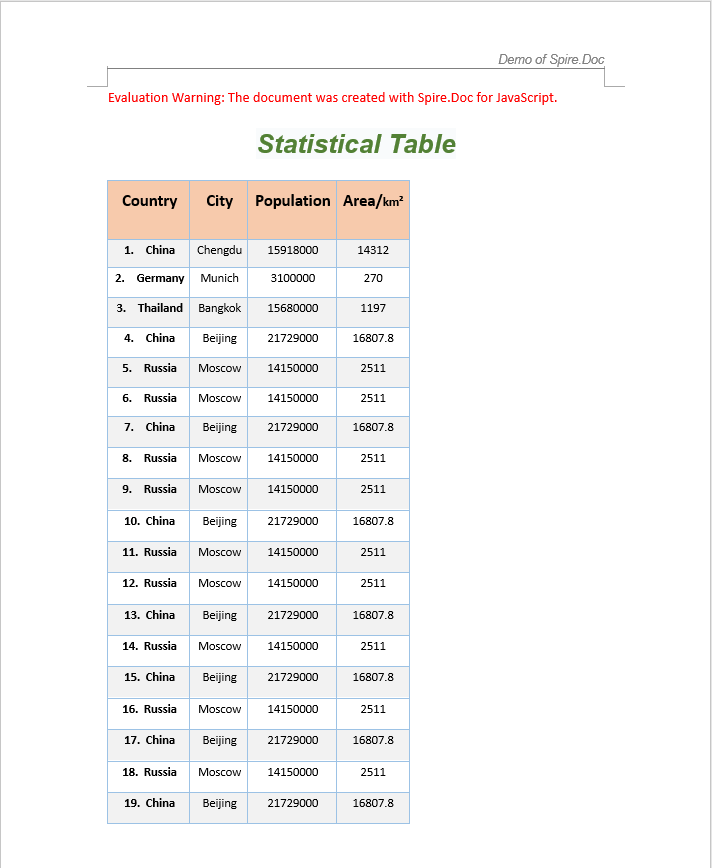
2. AutoFit to Window
Auto-fitting a table to the window allows the table width to adapt to the page width, which is ideal for scenarios where the table should fill the full page width.
function App() {
  const autoFitToWindow = async () => {
    // Get the Spire.Doc WASM module
    const docModule = window.wasmModule?.spiredoc;

    // Check if the module is ready
    if (!docModule) {
      alert('Spire.Doc is not ready yet');
      return;
    }

    // Load fonts and the document file into VFS
    await window.spire.FetchFileToVFS('ARIALUNI.TTF', '/Library/Fonts/', `${process.env.PUBLIC_URL}/font/`);

    const inputFileName = 'TableSample.docx';
    await window.spire.FetchFileToVFS(inputFileName, '', `${process.env.PUBLIC_URL}/data/`);

    // Load the document
    const doc = new docModule.Document();
    doc.LoadFromFile(inputFileName);

    // Get the first table in the first section
    let section = doc.Sections.get_Item(0);
    let table = section.Tables.get_Item(0);

    // Auto-fit the table to the page width
    table.AutoFit(docModule.AutoFitBehaviorType.AutoFitToWindow);

    // Define the output file name
    const outputFileName = "AutoFitToWindow_output.docx";

    // Save the document
    doc.SaveToFile({ fileName: outputFileName, fileFormat: docModule.FileFormat.Docx2013 });

    // Release resources
    doc.Dispose();

    // Read the generated file from VFS and trigger download
    const modifiedFileArray = window.dotnetRuntime.Module.FS.readFile(outputFileName);
    const blob = new Blob([modifiedFileArray], { type: 'application/vnd.openxmlformats-officedocument.wordprocessingml.document' });
    const url = URL.createObjectURL(blob);
    const a = document.createElement('a');
    a.href = url;
    a.download = outputFileName;
    a.click();
    URL.revokeObjectURL(url);
  };

  return (
    <div style={{ textAlign: 'center', height: '300px' }}>
      <h1>AutoFit to Window</h1>
      <button onClick={autoFitToWindow}>
        Generate
      </button>
    </div>
  );
}

export default App;
After applying the AutoFitToWindow mode, the table width expands to match the page width, with columns distributed proportionally.

3. Fixed Column Widths
When a table already has carefully designed column widths that should not change as content is added or removed, you can use the fixed column widths mode to prevent Word from automatically resizing columns.
function App() {
  const fixedColumnWidths = async () => {
    // Get the Spire.Doc WASM module
    const docModule = window.wasmModule?.spiredoc;

    // Check if the module is ready
    if (!docModule) {
      alert('Spire.Doc is not ready yet');
      return;
    }

    // Load fonts and the document file into VFS
    await window.spire.FetchFileToVFS('ARIALUNI.TTF', '/Library/Fonts/', `${process.env.PUBLIC_URL}/font/`);

    const inputFileName = 'TableSample.docx';
    await window.spire.FetchFileToVFS(inputFileName, '', `${process.env.PUBLIC_URL}/data/`);

    // Load the document
    const doc = new docModule.Document();
    doc.LoadFromFile(inputFileName);

    // Get the first table in the first section
    let section = doc.Sections.get_Item(0);
    let table = section.Tables.get_Item(0);

    // Fix column widths to prevent auto-resizing
    table.AutoFit(docModule.AutoFitBehaviorType.FixedColumnWidths);

    // Define the output file name
    const outputFileName = "FixedColumnWidths_output.docx";

    // Save the document
    doc.SaveToFile({ fileName: outputFileName, fileFormat: docModule.FileFormat.Docx2013 });

    // Release resources
    doc.Dispose();

    // Read the generated file from VFS and trigger download
    const modifiedFileArray = window.dotnetRuntime.Module.FS.readFile(outputFileName);
    const blob = new Blob([modifiedFileArray], { type: 'application/vnd.openxmlformats-officedocument.wordprocessingml.document' });
    const url = URL.createObjectURL(blob);
    const a = document.createElement('a');
    a.href = url;
    a.download = outputFileName;
    a.click();
    URL.revokeObjectURL(url);
  };

  return (
    <div style={{ textAlign: 'center', height: '300px' }}>
      <h1>Fixed Column Widths</h1>
      <button onClick={fixedColumnWidths}>
        Generate
      </button>
    </div>
  );
}

export default App;
With fixed column widths enabled, the column sizes remain unchanged regardless of changes to cell content, ensuring consistent layout.

FAQ
AutoFit method does not change the table layout
Cause: The parameter type passed to the AutoFit method is incorrect, or the table is locked and does not allow layout adjustments.
Solution: Ensure you use the correct AutoFitBehaviorType enum value:
// AutoFit to contents
table.AutoFit(docModule.AutoFitBehaviorType.AutoFitToContents);

// AutoFit to window
table.AutoFit(docModule.AutoFitBehaviorType.AutoFitToWindow);

// Fixed column widths
table.AutoFit(docModule.AutoFitBehaviorType.FixedColumnWidths);
Index out of range when accessing a table
Cause: The document does not contain a section or table at the specified index. Indexing starts from 0, but the document may have no corresponding object.
Solution: Check the section and table counts before accessing them:
if (document.Sections.Count > 0 && document.Sections.get_Item(0).Tables.Count > 0) {
  let section = document.Sections.get_Item(0);
  let table = section.Tables.get_Item(0);
  table.AutoFit(docModule.AutoFitBehaviorType.AutoFitToContents);
}
Get a Free License
Spire.Doc for JavaScript offers a 30-day full-featured free trial license with no functional limitations. Apply here to evaluate before purchasing.
Creating tables in Word documents is one of the most common requirements in daily office development — whether for data reports, product catalogs, or statistical analysis, tables present information clearly in a structured format. Spire.Doc for JavaScript runs entirely in the browser via WebAssembly, using a virtual file system (VFS) to manage font and file resources — no backend server required.
This article covers three core features:
For installation and project setup, refer to Integrating Spire.Doc for JavaScript in a React Project. The examples below assume Spire.Doc is installed and the WebAssembly module is initialized.
Create a Formatted Data Table
In real-world development, the most common scenario is writing data returned from a backend into a Word document as a table. The core workflow involves three steps: first, load font files into the WASM virtual file system via FetchFileToVFS; then instantiate a Document to create the document, add a table via AddTable, populate it with data, and configure header rows, alignment, and alternating row colors; finally, save the document, read the generated file from VFS, wrap it as a Blob, and trigger a browser download.
function addTable(section) {
  let docModule = window.wasmModule.spiredoc;
  let header = ["Name", "Capital", "Continent", "Area", "Population"];
  let data =
    [
      ["Argentina", "Buenos Aires", "South America", "2777815", "32300003"],
      ["Bolivia", "La Paz", "South America", "1098575", "7300000"],
      ["Brazil", "Brasilia", "South America", "8511196", "150400000"],
      ["Canada", "Ottawa", "North America", "9976147", "26500000"],
      ["Chile", "Santiago", "South America", "756943", "13200000"],
      ["Colombia", "Bagota", "South America", "1138907", "33000000"],
      ["Cuba", "Havana", "North America", "114524", "10600000"],
      ["Ecuador", "Quito", "South America", "455502", "10600000"],
      ["El Salvador", "San Salvador", "North America", "20865", "5300000"],
      ["Guyana", "Georgetown", "South America", "214969", "800000"],
      ["Jamaica", "Kingston", "North America", "11424", "2500000"],
      ["Mexico", "Mexico City", "North America", "1967180", "88600000"],
      ["Nicaragua", "Managua", "North America", "139000", "3900000"],
      ["Paraguay", "Asuncion", "South America", "406576", "4660000"],
      ["Peru", "Lima", "South America", "1285215", "21600000"],
      ["United States of America", "Washington", "North America", "9363130", "249200000"],
      ["Uruguay", "Montevideo", "South America", "176140", "3002000"],
      ["Venezuela", "Caracas", "South America", "912047", "19700000"]
    ];
  let table = section.AddTable({ showBorder: true });
  table.ResetCells(data.length + 1, header.length);

  // Set up the header row
  let row = table.Rows.get_Item(0);
  row.IsHeader = true;
  row.Height = 20;
  row.HeightType = docModule.TableRowHeightType.Exactly;
  for (let i = 0; i < row.Cells.Count; i++) {
    row.Cells.get_Item(i).CellFormat.Shading.BackgroundPatternColor = docModule.Color.get_Gray();
  }

  for (let i = 0; i < header.length; i++) {
    row.Cells.get_Item(i).CellFormat.VerticalAlignment = docModule.VerticalAlignment.Middle;
    let p = row.Cells.get_Item(i).AddParagraph();
    p.Format.HorizontalAlignment = docModule.HorizontalAlignment.Center;
    let txtRange = p.AppendText(header[i]);
    txtRange.CharacterFormat.Bold = true;
  }

  // Populate data rows with alternating row colors
  for (let r = 0; r < data.length; r++) {
    let dataRow = table.Rows.get_Item(r + 1);
    dataRow.Height = 20;
    dataRow.HeightType = docModule.TableRowHeightType.Exactly;
    for (let i = 0; i < dataRow.Cells.Count; i++) {
      dataRow.Cells.get_Item(i).CellFormat.Shading.BackgroundPatternColor = docModule.Color.Empty();
    }
    for (let c = 0; c < data[r].length; c++) {
      dataRow.Cells.get_Item(c).CellFormat.VerticalAlignment = docModule.VerticalAlignment.Middle;
      dataRow.Cells.get_Item(c).AddParagraph().AppendText(data[r][c]);
    }
  }

  // Apply light blue background to even rows
  for (let j = 1; j < table.Rows.Count; j++) {
    if (j % 2 == 0) {
      let row2 = table.Rows.get_Item(j);
      for (let f = 0; f < row2.Cells.Count; f++) {
        row2.Cells.get_Item(f).CellFormat.Shading.BackgroundPatternColor = docModule.Color.get_LightBlue();
      }
    }
  }
}

function App() {
  const CreateTable = async () => {
    // Get the Spire.Doc WASM module
    const docModule = window.wasmModule?.spiredoc;

    // Check if the module is ready
    if (!docModule) {
      alert('Spire.Doc is not ready yet');
      return;
    }

    // Load font files into VFS
    await window.spire.FetchFileToVFS('ARIALUNI.TTF', '/Library/Fonts/', `${process.env.PUBLIC_URL}/font/`);

    // Create a blank document
    let doc = new docModule.Document();
    let section = doc.AddSection();

    // Add the table
    addTable(section);

    // Define the output file name
    const outputFileName = "CreateTable_output.docx";

    // Save the document
    doc.SaveToFile({ fileName: outputFileName, fileFormat: docModule.FileFormat.Docx2013 });

    // Release resources
    doc.Dispose();

    // Read the generated file from VFS and trigger download
    const modifiedFileArray = window.dotnetRuntime.Module.FS.readFile(outputFileName);
    const blob = new Blob([modifiedFileArray], { type: 'application/vnd.openxmlformats-officedocument.wordprocessingml.document' });
    const url = URL.createObjectURL(blob);
    const a = document.createElement('a');
    a.href = url;
    a.download = outputFileName;
    a.click();
    URL.revokeObjectURL(url);
  };

  return (
    <div style={{ textAlign: 'center', height: '300px' }}>
      <h1>Click the button below to create a table in a Word document.</h1>
      <button onClick={CreateTable}>
        Generate
      </button>
    </div>
  );
}

export default App;
Word output generated from a formatted data table
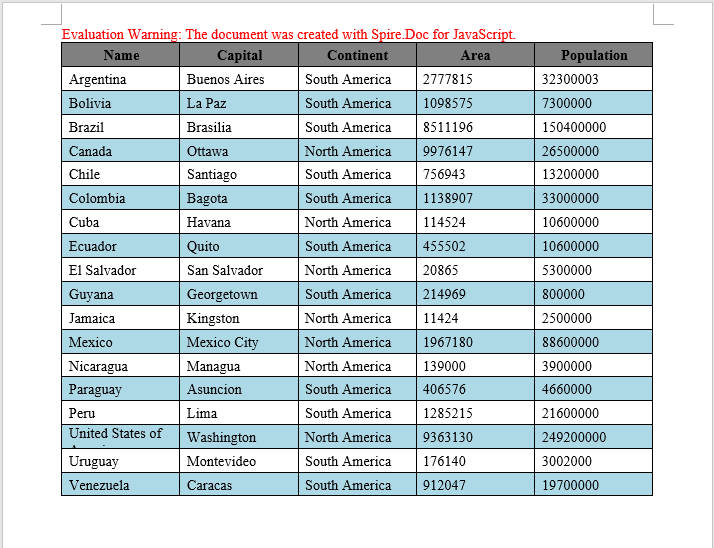
Create a Table from HTML
In web development, HTML tables are a universal format for displaying data. Spire.Doc provides the AppendHTML method, which can parse an HTML string directly into a Word document table, greatly simplifying the conversion from web content to Word documents. This is particularly useful for scenarios where you need to export table data from a web page to a Word document.
function App() {
  const CreateTableFromHTML = async () => {
    // Get the Spire.Doc WASM module
    const docModule = window.wasmModule?.spiredoc;

    // Check if the module is ready
    if (!docModule) {
      alert('Spire.Doc is not ready yet');
      return;
    }

    // Load font files into VFS
    await window.spire.FetchFileToVFS('ARIALUNI.TTF', '/Library/Fonts/', `${process.env.PUBLIC_URL}/font/`);

    // HTML string
    let HTML = "<table border='2px'>" +
      "<tr>" +
      "<td>Row 1, Cell 1</td>" +
      "<td>Row 1, Cell 2</td>" +
      "</tr>" +
      "<tr>" +
      "<td>Row 2, Cell 2</td>" +
      "<td>Row 2, Cell 2</td>" +
      "</tr>" +
      "</table>";

    // Create a Word document
    let doc = new docModule.Document();

    // Add a section
    let section = doc.AddSection();

    // Add a paragraph and append the HTML string
    section.AddParagraph().AppendHTML(HTML);

    // Define the output file name
    const outputFileName = "CreateTableFromHTML_output.docx";

    // Save the document
    doc.SaveToFile({ fileName: outputFileName, fileFormat: docModule.FileFormat.Docx2013 });

    // Release resources
    doc.Dispose();

    // Read the generated file from VFS and trigger download
    const modifiedFileArray = window.dotnetRuntime.Module.FS.readFile(outputFileName);
    const blob = new Blob([modifiedFileArray], { type: 'application/vnd.openxmlformats-officedocument.wordprocessingml.document' });
    const url = URL.createObjectURL(blob);
    const a = document.createElement('a');
    a.href = url;
    a.download = outputFileName;
    a.click();
    URL.revokeObjectURL(url);
  };

  return (
    <div style={{ textAlign: 'center', height: '300px' }}>
      <h1>Click the button below to create a table from HTML in a Word document.</h1>
      <button onClick={CreateTableFromHTML}>
        Generate
      </button>
    </div>
  );
}

export default App;
Word table created from HTML
Create a Nested Table
A nested table is a table inserted within a cell of another table. This is commonly used for complex document layouts — for example, in a product catalog, the main table displays product names and descriptions, while a sub-table containing specification parameters (number, item, price) is embedded inside the description cell. Spire.Doc makes nested table creation easy with the Cell.AddTable method.
function App() {
  const CreateNestedTable = async () => {
    // Get the Spire.Doc WASM module
    const docModule = window.wasmModule?.spiredoc;

    // Check if the module is ready
    if (!docModule) {
      alert('Spire.Doc is not ready yet');
      return;
    }

   // Load font and document files into VFS
    await window.spire.FetchFileToVFS('ARIALUNI.TTF', '/Library/Fonts/', `${process.env.PUBLIC_URL}/font/`);

    // Create a new document
    let doc = new docModule.Document();
    let section = doc.AddSection();

    // Add main table (2 rows, 2 columns)
    let table = section.AddTable({ showBorder: true });
    table.ResetCells(1, 2);

    // Set column widths
    table.Rows.get_Item(0).Cells.get_Item(0).SetCellWidth(70, docModule.CellWidthType.Point);
    table.Rows.get_Item(0).Cells.get_Item(1).SetCellWidth(150, docModule.CellWidthType.Point);
    table.Rows.get_Item(0).Height=200;
    table.AutoFit(docModule.AutoFitBehaviorType.AutoFitToWindow);

    // Insert content into cells
    table.Rows.get_Item(0).Cells.get_Item(0).AddParagraph().AppendText("Spire.Doc for JavaScript");
    let text = "Spire.Doc for JavaScript is a professional Word " +
      "JavaScript library designed for developers to quickly and " +
      "high-quality create, read, write, convert, and print Word " +
      "document files on any JavaScript platform.";
    table.Rows.get_Item(0).Cells.get_Item(1).AddParagraph().AppendText(text);

    table.Rows.get_Item(0).Cells.get_Item(1).AddParagraph();

    // Add a nested table in the cell (first row, second column)
    let nestedTable = table.Rows.get_Item(0).Cells.get_Item(1).AddTable({ showBorder: true });
    nestedTable.ResetCells(5, 2);
    nestedTable.AutoFit(docModule.AutoFitBehaviorType.AutoFitToContents);

    // Fill nested table content
    nestedTable.Rows.get_Item(0).Cells.get_Item(0).AddParagraph().AppendText("Feature Module");
    nestedTable.Rows.get_Item(0).Cells.get_Item(1).AddParagraph().AppendText("Typical Use Cases");

    nestedTable.Rows.get_Item(1).Cells.get_Item(0).AddParagraph().AppendText("Document Generation");
    nestedTable.Rows.get_Item(2).Cells.get_Item(0).AddParagraph().AppendText("Format Conversion");
    nestedTable.Rows.get_Item(3).Cells.get_Item(0).AddParagraph().AppendText("Content Editing");
    nestedTable.Rows.get_Item(4).Cells.get_Item(0).AddParagraph().AppendText("Print Service");

    nestedTable.Rows.get_Item(1).Cells.get_Item(1).AddParagraph().AppendText("Dynamically generate contracts, invoices, data reports, and mail merge");
    nestedTable.Rows.get_Item(2).Cells.get_Item(1).AddParagraph().AppendText("Convert between Word and PDF, HTML, RTF, XML, images, and more");
    nestedTable.Rows.get_Item(3).Cells.get_Item(1).AddParagraph().AppendText("Extract text/images, add watermarks, track revisions, and fill forms");
    nestedTable.Rows.get_Item(4).Cells.get_Item(1).AddParagraph().AppendText("Background silent printing, custom paper size, and page setup");

    // Define the output file name
    const outputFileName = "CreateNestedTable_output-en.docx";

    // Save the document
    doc.SaveToFile({ fileName: outputFileName, fileFormat: docModule.FileFormat.Docx2013 });

    // Release resources
    doc.Dispose();

    // Read the generated file from VFS and trigger download
    const modifiedFileArray = window.dotnetRuntime.Module.FS.readFile(outputFileName);
    const blob = new Blob([modifiedFileArray], { type: 'application/vnd.openxmlformats-officedocument.wordprocessingml.document' });
    const url = URL.createObjectURL(blob);
    const a = document.createElement('a');
    a.href = url;
    a.download = outputFileName;
    a.click();
    URL.revokeObjectURL(url);
  };

  return (
    <div style={{ textAlign: 'center', height: '300px' }}>
      <h1>Click the button below to create a nested table in a Word document.</h1>
      <button onClick={CreateNestedTable}>
        Generate
      </button>
    </div>
  );
}

export default App;
Nested table output in Word
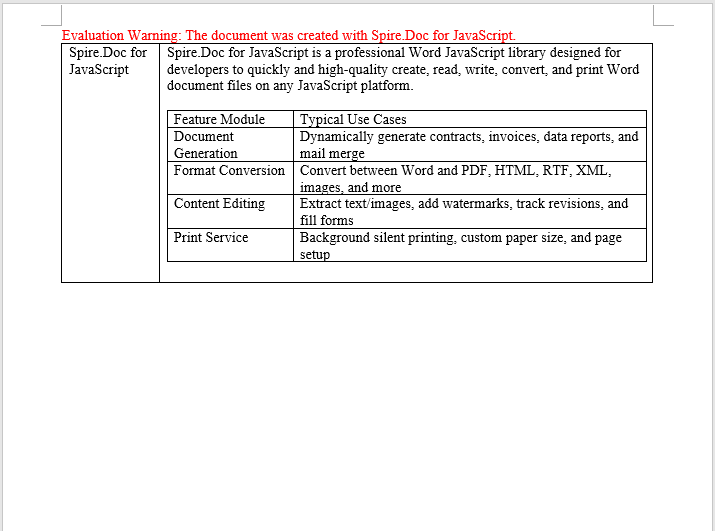
FAQ
The downloaded file cannot be opened or appears corrupted
Cause: The MIME type is incorrect when creating the Blob, so the browser cannot properly identify the file format.
Solution: Use the correct Word document MIME type:
const modifiedFile = new Blob([fileArray], {
  type: "application/vnd.openxmlformats-officedocument.wordprocessingml.document"
});
Table borders are missing or inconsistent
Cause: When adding a table with AddTable({ showBorder: true }), borders are enabled by default, but tables created directly via the Table constructor need borders set manually.
Solution: When creating a table via the constructor, explicitly set the border type:
let table = new wasmModule.Table(doc, false);
table.Format.Borders.BorderType = wasmModule.BorderStyle.Single;
Get a Free License
If you want to remove the evaluation message from the result document, or eliminate functional limitations, contact our sales team to request a 30-day temporary license.
In document management systems, splitting Word documents is a common requirement — separating merged multi-chapter documents into independent files by section breaks, or dividing long documents into shorter ones by page breaks. Spire.Doc for JavaScript performs document splitting directly in the browser via WebAssembly, using a virtual file system (VFS) to manage input and output files — no backend server required.
This article covers two core features:
For installation and project setup, refer to Integrating Spire.Doc for JavaScript in a React Project. The examples below assume Spire.Doc is installed and the WebAssembly module is initialized.
Split by Section Break
Section breaks in a Word document separate different chapters or page layouts. Each section can have its own headers, footers, page numbering, and page setup. Splitting by section breaks is the most common and stable approach, ideal for restoring merged multi-chapter documents back into independent files.
The core workflow consists of three stages: first, load the font files and the target Word file into the WASM virtual file system; then instantiate a Document, load the file, iterate through all sections, and clone each section into a new Document object via Section.Clone(); finally, package the split files into a ZIP archive and trigger a browser download.
function App() {
  const splitBySectionBreak = async () => {
    // Get the Spire.Doc WASM module
    const docModule = window.wasmModule?.spiredoc;

    // Check if the module is ready
    if (!docModule) {
      alert('Spire.Doc is not ready yet');
      return;
    }

    const inputFileName = 'Template_Docx_4.docx';
    await window.spire.FetchFileToVFS(inputFileName, '', `${process.env.PUBLIC_URL}data/`);

    // Create output directory
    let outputDir = 'output/';
    window.dotnetRuntime.Module.FS.mkdirTree(outputDir);

    // Load the document
    const doc = new docModule.Document();
    doc.LoadFromFile(inputFileName);

    // Iterate through each section and clone into independent documents
    for (let i = 0; i < doc.Sections.Count; i++) {
      const newWord = new docModule.Document();
      newWord.Sections.Add(doc.Sections.get_Item(i).Clone());
      newWord.SaveToFile({
        fileName: outputDir + `Section-${i}.docx`,
        fileFormat: docModule.FileFormat.Docx2013
      });
      newWord.Dispose();
    }
    doc.Dispose();

    // Read output files from VFS and package into ZIP for download
    const JSZip = require('jszip');
    const zip = new JSZip();
    let items = window.dotnetRuntime.Module.FS.readdir(outputDir);
    items = items.filter(item => item !== '.' && item !== '..');
    for (const item of items) {
      const fileData = window.dotnetRuntime.Module.FS.readFile(outputDir + item);
      zip.file(item, fileData);
    }
    const zipBlob = await zip.generateAsync({ type: 'blob' });
    const url = URL.createObjectURL(zipBlob);
    const a = document.createElement('a');
    a.href = url;
    a.download = 'SplitBySectionBreak.zip';
    a.click();
    URL.revokeObjectURL(url);
  };

  return (
    <div style={{ textAlign: 'center', height: '300px' }}>
      <h1>Split Word Document By Section Break</h1>
      <button onClick={splitBySectionBreak}>Generate</button>
    </div>
  );
}

export default App;
Independent Word documents generated after splitting by section break
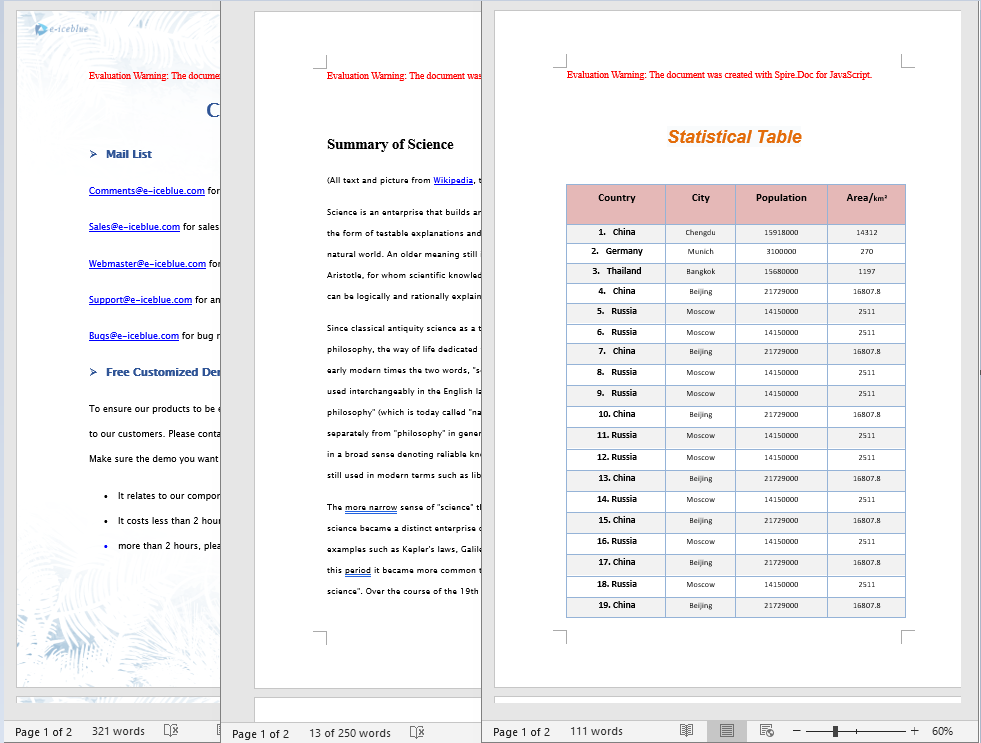
Split by Page Break
Page breaks are manual or automatic pagination markers inserted within a document. Splitting by page breaks is suitable for dividing long documents by page, saving each page's content as an independent document — commonly used for report pagination, contract clause splitting, and similar scenarios.
Unlike splitting by section breaks, page breaks reside at the child-object level within paragraphs. This requires traversing the document's sections, paragraphs, and paragraph child objects layer by layer to detect Break elements with the PageBreak type. When splitting, you also need to clone the original document's styles and themes using methods such as CloneDefaultStyleTo, CloneThemesTo, and CloneCompatibilityTo to ensure the split documents retain full formatting.
function App() {
  const splitByPageBreak = async () => {
    // Get the Spire.Doc WASM module
    const docModule = window.wasmModule?.spiredoc;

    // Check if the module is ready
    if (!docModule) {
      alert('Spire.Doc is not ready yet');
      return;
    }

    const inputFileName = 'SplitWordFileByPageBreak.docx';
    await window.spire.FetchFileToVFS(inputFileName, '', `${process.env.PUBLIC_URL}data/`);

    // Create output directory
    let outputDir = 'output/';
    window.dotnetRuntime.Module.FS.mkdirTree(outputDir);

    // Load the original document
    const original = new docModule.Document();
    original.LoadFromFile(inputFileName);

    // Create a new document and clone styles and themes
    let newWord = new docModule.Document();
    let section = newWord.AddSection();
    original.CloneDefaultStyleTo(newWord);
    original.CloneThemesTo(newWord);
    original.CloneCompatibilityTo(newWord);

    let index = 0;

    // Iterate through all sections
    for (let i = 0; i < original.Sections.Count; i++) {
      let sec = original.Sections.get_Item(i);

      // Iterate through all child objects in the section (paragraphs, tables, etc.)
      for (let j = 0; j < sec.Body.ChildObjects.Count; j++) {
        let obj = sec.Body.ChildObjects.get_Item(j);

        if (obj instanceof docModule.Paragraph) {
          let para = obj;
          sec.CloneSectionPropertiesTo(section);
          section.Body.ChildObjects.Add(para.Clone());

          // Detect page breaks within paragraph child objects
          for (let k = 0; k < para.ChildObjects.Count; k++) {
            let parobj = para.ChildObjects.get_Item(k);
            if (parobj instanceof docModule.Break &&
                parobj.BreakType === docModule.BreakType.PageBreak) {

              let breakIndex = para.ChildObjects.IndexOf(parobj);

              // Remove the page break from the paragraph
              section.Body.LastParagraph.ChildObjects.RemoveAt(breakIndex);

              // Save the current document
              newWord.SaveToFile({
                fileName: outputDir + `Page-${index}.docx`,
                fileFormat: docModule.FileFormat.Docx2013
              });
              index++;

              // Create a new document to continue
              newWord = new docModule.Document();
              section = newWord.AddSection();
              original.CloneDefaultStyleTo(newWord);
              original.CloneThemesTo(newWord);
              original.CloneCompatibilityTo(newWord);
              sec.CloneSectionPropertiesTo(section);

              // Handle remaining content after the page break
              section.Body.ChildObjects.Add(para.Clone());
              if (section.Paragraphs.get_Item(0).ChildObjects.Count === 0) {
                section.Body.ChildObjects.RemoveAt(0);
              } else {
                while (breakIndex >= 0) {
                  section.Paragraphs.get_Item(0).ChildObjects.RemoveAt(breakIndex);
                  breakIndex--;
                }
              }
            }
          }
        }

        if (obj instanceof docModule.Table) {
          section.Body.ChildObjects.Add(obj.Clone());
        }
      }
    }

    // Save the last document
    newWord.SaveToFile({
      fileName: outputDir + `Page-${index}.docx`,
      fileFormat: docModule.FileFormat.Docx2013
    });

    original.Dispose();
    newWord.Dispose();

    // Package into ZIP for download
    const JSZip = require('jszip');
    const zip = new JSZip();
    let items = window.dotnetRuntime.Module.FS.readdir(outputDir);
    items = items.filter(item => item !== '.' && item !== '..');
    for (const item of items) {
      const fileData = window.dotnetRuntime.Module.FS.readFile(outputDir + item);
      zip.file(item, fileData);
    }
    const zipBlob = await zip.generateAsync({ type: 'blob' });
    const url = URL.createObjectURL(zipBlob);
    const a = document.createElement('a');
    a.href = url;
    a.download = 'SplitByPageBreak.zip';
    a.click();
    URL.revokeObjectURL(url);
  };

  return (
    <div style={{ textAlign: 'center', height: '300px' }}>
      <h1>Split Word Document By Page Break</h1>
      <button onClick={splitByPageBreak}>Generate</button>
    </div>
  );
}

export default App;
Word documents generated after splitting by page break
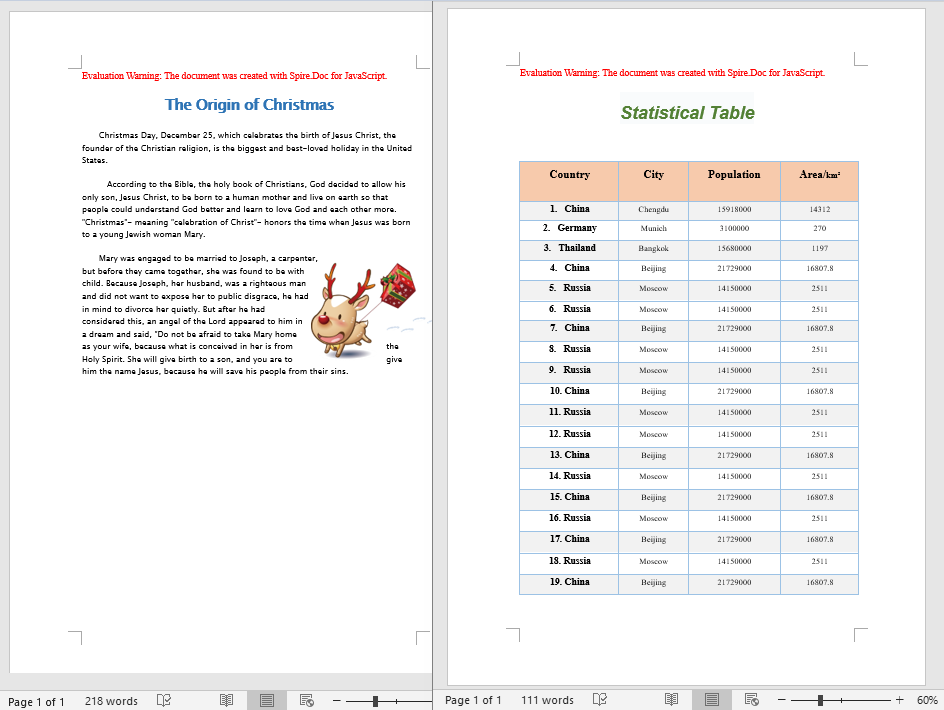
FAQ
Split document formatting differs from the original
Cause: When splitting by page break, only the paragraph content is cloned without also cloning the original document's styles, themes, and section properties. This causes the split documents to lose formatting information such as fonts, colors, and page setup.
Solution: After creating a new document, clone the original document's styles and themes using the following methods:
original.CloneDefaultStyleTo(newWord);
original.CloneThemesTo(newWord);
original.CloneCompatibilityTo(newWord);
sec.CloneSectionPropertiesTo(section);
Page break cannot be detected
Cause: Page breaks reside within paragraph child objects and are identified via the BreakType enumeration. If the traversal hierarchy is incorrect, or the instanceof check is not used to determine the object type, the page break may not be properly recognized.
Solution: Ensure detection follows the order: Paragraph.ChildObjects → instanceof Break → BreakType == BreakType.PageBreak:
for (let k = 0; k < para.ChildObjects.Count; k++) {
  let parobj = para.ChildObjects.get_Item(k);
  if (parobj instanceof docModule.Break &&
      parobj.BreakType === docModule.BreakType.PageBreak) {
    // Page break found
  }
}
Get a Free License
Spire.Doc for JavaScript offers a 30-day full-featured free trial license with no functional limitations. Apply here to evaluate before purchasing.
