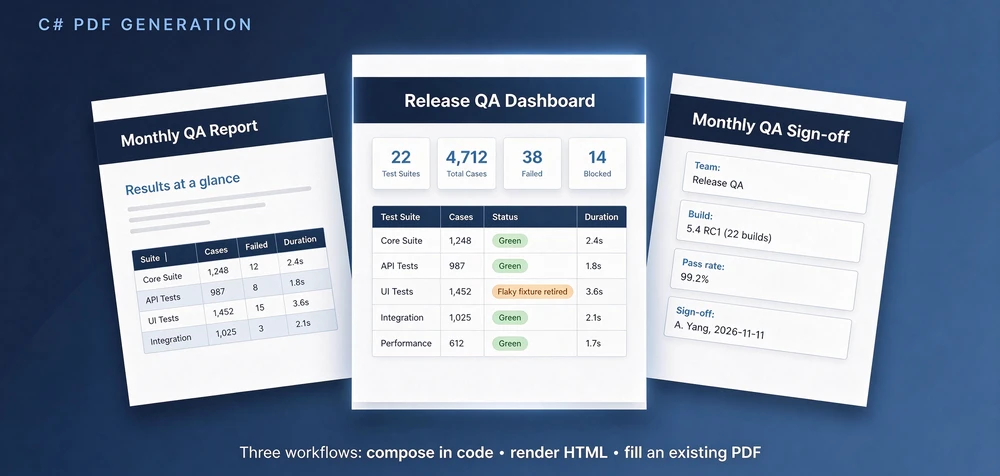
You can generate a PDF document in C# from application data, from an HTML page, or by filling in a PDF that already exists. Each starting point leads to a different workflow, and the choice turns on layout control, pagination when content grows, the rendering dependencies the target machine must carry, and how you verify the output.
The sections below sort the Spire.PDF for .NET workflows by the material you start with and report what each one did in testing, including the parts that went wrong. Tested with Spire.PDF for .NET 12.11.0 (November 2026, Windows 11 Pro, .NET 10 console app).
Quick Navigation
- Start with What You Already Have
- Generate PDFs from Application Data
- Convert HTML and CSS to PDF
- Work with Existing PDF Forms and Templates
- Deployment and Output Validation
- FAQ
- Conclusion
1. Start with What You Already Have
Start from the material your program holds at runtime: records from a query, an HTML page, or a PDF someone else designed. The table maps each input to a workflow.
| Class | Input at runtime | Workflow |
|---|---|---|
| Create new PDF | Application data / structured data | Coordinate-based or native flow layout |
| Create new PDF | HTML/CSS page or template | HTML-to-PDF rendering |
| Existing PDF | Fillable form (AcroForm) | Form field filling |
| Existing PDF | Fillable form (XFA) | XFA field processing |
| Existing PDF | Fixed layout with placeholder text | Text replacement |
The first two rows create a new PDF, so you own the layout and must decide how pages break. The last three start from an existing PDF, where the file fixes the layout and the job is to get values into the places it provides. A task to generate a PDF report in C# from query results, like the monthly QA report used through this guide, starts in the first row. An HTML invoice template maintained by a front-end team starts in the second, and a form received from a vendor starts in one of the last three.
This guide covers the workflows Spire.PDF supports, not an exhaustive taxonomy of every C# PDF technique.
2. Generate PDFs from Application Data
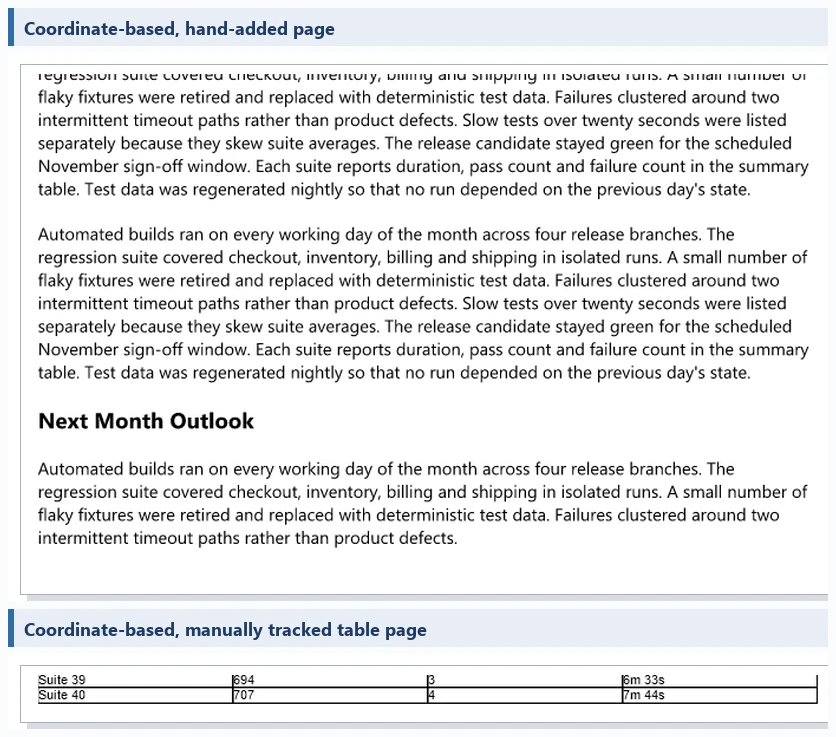
Coordinate-based drawing places each text block, line, and image at positions you specify. It gives exact control over a fixed design and needs no rendering engine beyond the library. The cost appears when content length varies, because pagination becomes your code's job: you track where the last element ended, add pages yourself, and recompute positions when the content changes. A short excerpt shows the pattern.
var font = new PdfTrueTypeFont("Segoe UI", 11f, PdfFontStyle.Regular, true);
var layout = new PdfTextLayout { Layout = PdfLayoutType.Paginate };
PdfPageBase page = doc.Pages.Add();
float y = 40;

foreach (string text in summaryParagraphs)
{
    var r = new PdfTextWidget(text, font, PdfBrushes.Black)
        .Draw(page, new RectangleF(40, y, 500, 0), layout);
    page = r.Page;                  // the text may have flowed onto a new page
    y = r.Bounds.Bottom + 10;
    if (y > 760) { page = doc.Pages.Add(); y = 40; }   // you own the page breaks
}
The step that matters is following the page the layout result returns: keep drawing on the page the widget reports, and add a new page when the frame reaches the bottom. Reports built from a DataTable have their own DataTable to PDF tutorial.
Native flow layout takes pagination out of your code. PdfContentBuilder, available from Spire.PDF for .NET 12.9.18, streams content into sections and paginates as it grows. It offers headings, paragraphs, tables built from a string[][], images, lists, code blocks, six chart types, page breaks, and a table of contents. It creates new documents only, with no entry point for loading an existing file.
The monthly QA report below uses two sections and one table. summaryParagraphs, results (a string[][] with the header in the first row), and closing come from your own code.
using Spire.Pdf;
using Spire.Pdf.Layout;

PdfDocument doc = new PdfDocument();
PdfContentBuilder builder = new PdfContentBuilder(doc);

var s1 = builder.AddSection();
s1.AddHeading1("Monthly QA Report - October");
foreach (var p in summaryParagraphs) s1.AddParagraph(p);
s1.AddTable(results);            // string[][] rows; header row repeats on page breaks

var s2 = builder.AddSection();
s2.AddHeading1("Next Month Outlook");
s2.AddParagraph(closing);

builder.Build();
doc.SaveToFile("QA-Report.pdf");
doc.Dispose();
Content volume separates the two approaches. A small report (two sections, a five-row table) came out as two pages in 676 ms. A larger one with eight long paragraphs and a 40-row table paginated into five pages in 1,369 ms (10.8 KB). The same content drawn with coordinates gave three pages in 510 ms (28.7 KB). These timings come from one Windows machine and serve as a sanity check for this setup. Compare how each file looks before comparing how fast it ran.
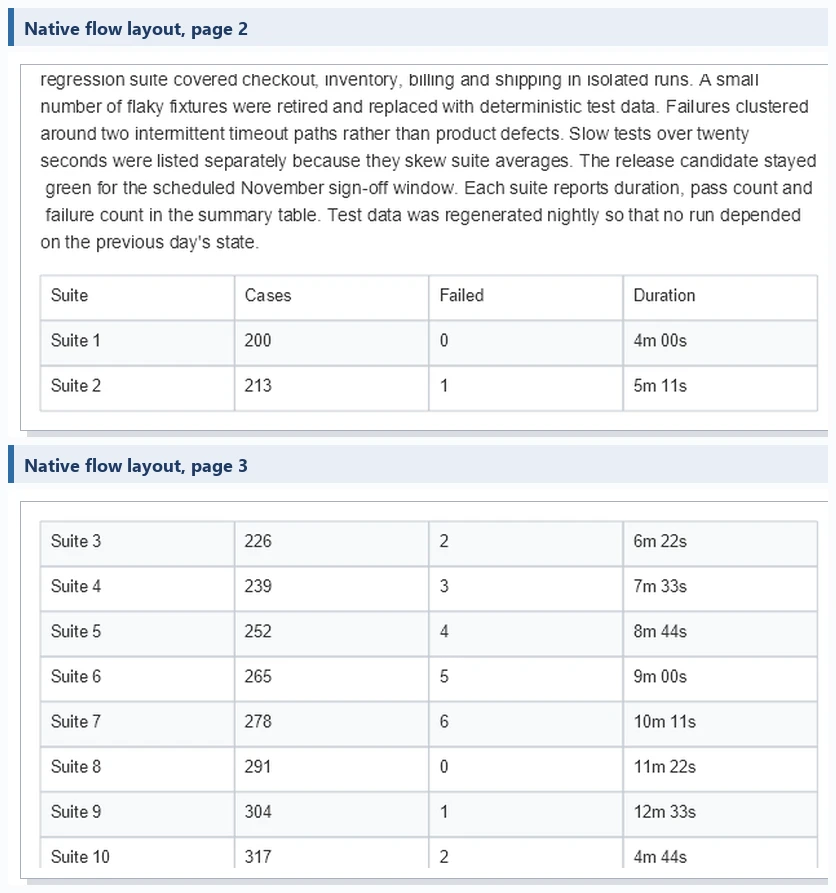
Coordinate-based drawing suits pages whose structure does not depend on data volume. Flow layout suits documents whose length follows the data, such as reports and listings. Developers who want the compose-by-hand route in more detail can start from the C# create PDF document tutorial.
Native flow layout and HTML rendering are separate mechanisms. The builder organizes content through its own API and does not read CSS, while an HTML renderer parses markup and stylesheets, so styling options and runtime requirements differ. The table compares every workflow in this guide.
| Workflow | Layout control | Dynamic content | External runtime requirements | Main limitation |
|---|---|---|---|---|
| Coordinate-based | Explicit coordinates, element by element | You manage layout and paging yourself (PdfTextLayout.Paginate) |
No additional rendering engine | Content-size changes force coordinate rework |
Native flow layout (PdfContentBuilder, 12.9.18+) |
Section, heading, and paragraph streaming | Streaming content; auto-pagination verified in testing | No additional rendering engine | Creation only; element coverage is what the API ships (tables, images, lists, code blocks, charts, TOC) |
| HTML-to-PDF | CSS plus a rendering engine | Suits HTML-driven content | Chromium (Chrome or Edge path) or Qt rendering plugin | Depends on the rendering environment; CSS backgrounds differ per engine |
| AcroForm filling | Original form field layout | Fill by field name | No additional rendering engine | Bound by the field definitions in the file |
| Static text replacement | Original page layout | Fixed-text replacement | No additional rendering engine | No general dynamic re-layout |
3. Convert HTML and CSS to PDF
To generate a PDF from HTML in C#, Spire.PDF passes the page to a rendering engine and saves the printed result. Two engines are available. ChromeHtmlConverter drives Chromium and takes the path to a Chrome or Edge executable. The Qt option, Spire.Additions.Qt.HtmlConverter, depends on the official plugins package, which holds HTMLConverter.dll, the Qt5 runtime, and Html2Pdf.exe. The plugins folder goes next to the application executable. When it is missing, the call fails with Fail to load ...\plugins\HTMLConverter.dll : error 126.
Testing sent the same HTML through both engines. Both produced two pages and honored CSS page-break-before. The Qt run took 4,398 ms and wrote a 60.6 KB file with the dark blue table header background intact. The Chromium run used Edge 157.0.4341.42, A4 paper, and 0.4 inch margins, reusing the browser already on the machine.
The two routes trade differently. Qt asks for a separate plugin installation, while Chromium reuses a Chrome or Edge installation. Each engine has its own rules for printing CSS backgrounds, and the stylesheet decides what to request, for example with print-color-adjust: exact. In a web application, run the conversion as a background job rather than inside the request.

Several things were not covered: pages that depend on JavaScript to render, external resources, custom fonts, concurrent load on a server, and Linux or Docker. A converter that runs on a development machine has not shown that it runs in a production container, and this guide has not verified Linux. For template-driven pages with a full walkthrough, see generate a PDF from an HTML template in C#.
4. Work with Existing PDF Forms and Templates
Creating a PDF from a template in C# means two different things when the template is already a PDF. A fillable form carries named AcroForm field objects. A designed page may carry only placeholder text that reads like a blank. They look alike on screen and behave differently in code.
| Property | AcroForm field | Static placeholder text |
|---|---|---|
| Exists in the file as | A field object with its own name | Ordinary page text |
| Located by | Field name | The text itself |
| Interactivity | Kept until you flatten | Never interactive |
| After flattening | Value becomes page text | Not applicable |

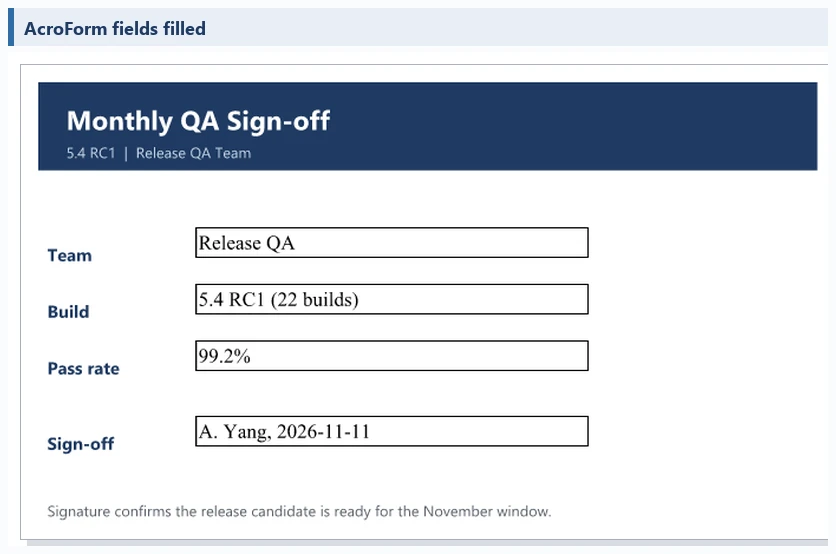
A real field is located by name, filled, and optionally flattened. The AcroForm API in the Spire.Pdf.Interactive.Forms namespace arrived in 12.10.7 and was tested on 12.11.0.
using Spire.Pdf.Interactive.Forms;

PdfDocument doc = new PdfDocument();
doc.LoadFromFile("existing-form.pdf");
PdfForm form = PdfForm.Create(doc);
var field = form.GetField("team") as PdfTextField;
field.Text = "Release QA";
field.RefreshAppearances();     // without this the value is stored but renders invisible
form.Flatten();                 // after this the value sits in the page text layer
doc.SaveToFile("final.pdf");
Three behaviors came up in testing:
- Call
RefreshAppearances()after settingText, so the value is drawn into the field's appearance and shows at once. - Values in fields that are still interactive live in the form layer; after flattening, the field count went from 4 to 0 and the values joined the page text, where
PdfTextExtractorreads them. -
AddWidgettakes page-level coordinates whilepage.Canvaspositions are margin-relative; keep the two systems apart when placing widgets.
Form data can also leave the file as XFDF through form.ExportData(path, DataFormat.XFDF, ...), which produced standard XFDF in testing. The import and export PDF form data tutorial goes deeper.
Fixed placeholder text works on a finished page when the values you insert are close in size to the markers they replace. Replacement keeps the original layout, so verify that each new value fits the space the original left.
XFA forms are a separate form type. The documented capability is reading and modifying supported fields through the XFA form object; validate the workflow with your own samples as part of the evaluation.
5. Deployment and Output Validation
Everything in this guide ran on a Windows development machine. Linux, Docker, and server hosting were not verified in this guide. The HTML engines need the most attention elsewhere: the Chromium path needs a browser executable on the target machine, and the Qt path needs its plugins folder beside the application. Spire.PDF publishes official plugin packages for Linux and macOS. Test them in your own deployment image before relying on them, and measure conversion time on the target host, since the timings above come from a development machine.
Generation problems rarely raise exceptions: the file is produced, and anything that went wrong shows up only in the output itself. That is why the checks below inspect the file rather than relying on the code having run without error.
| Check | What it catches | How |
|---|---|---|
| Page count | Pagination that ran long, stopped early, or never advanced | check.Pages.Count |
| Text extraction | Missing titles or data, leftover placeholder markers |
PdfTextExtractor on each page |
| Form validation | Values that never reached a field | Read field values through the API before flattening; after flattening, reopen the file and check the visible content |
| Visual inspection | Text overflow, wrong page breaks, substituted fonts, missing images | Open the PDF and look at every page |
PdfDocument check = new PdfDocument();
check.LoadFromFile("QA-Report.pdf");
Console.WriteLine(check.Pages.Count);                        // expected page count

string text = new PdfTextExtractor(check.Pages[0])
    .ExtractText(new PdfTextExtractOptions());               // titles, data, leftovers
Console.WriteLine(text.Contains("#"));                       // a stray placeholder marker
Text extraction does not replace looking at the pages. It confirms that characters exist in the file, and it says nothing about overflow, clipping, or a header background that failed to print. Match the checks to the workflow: page count and a visual pass for coordinate and flow output, a visual pass for backgrounds in HTML output, and an API read-back before flattening for forms. For report jobs, run the first three checks in your test pipeline and repeat the visual pass whenever the template or layout changes. Keep one known-good output per workflow and compare it after library upgrades, because every result here is tied to 12.11.0.
6. FAQ
What is the difference between creating and generating a PDF in C#?
At the API level there is none. Both phrases describe producing a PDF file from code. What matters is the input: application data, an HTML page, or an existing PDF with fields or placeholder text. Choose the workflow from that input, as the decision table in this guide shows.
Can I generate a PDF in C# without a library?
Technically yes, because PDF is a documented file format that code can write directly. In practice the cost lands on font embedding, stream compression, text extraction support, and rendering consistency across viewers. Each of those needs its own code and testing, and a library absorbs that work.
How do I choose between code-based creation and HTML rendering?
Decide by who owns the layout. If developers own it and the data shapes the structure, create the PDF in code. If designers already maintain the HTML and CSS, render that page and accept the rendering-engine dependency. Pick code when data defines the page and HTML when a page defines the output.
7. Conclusion
Application data points to coordinate-based drawing or native flow layout, and flow layout paginated itself in testing. An HTML page points to a rendering engine, which in testing changed conversion time, background printing, and what the target machine needed. An existing PDF points to form fields where they exist and to text replacement where the layout is fixed. Check the page count, extracted text, and rendered pages before any of these files ships.
If you need to test Spire.PDF for .NET in a real business environment, you can apply for a temporary license.