Completed PDF forms often contain information that needs to be used elsewhere: contact details from registration forms, responses from questionnaires, or addresses from application forms. Opening each PDF to look up those details works occasionally, but exporting the data makes it easier to review, organize, and process.
There are two practical approaches. A PDF editor can export form data through its interface, while a C# program can read individual fields and write a text file in a format you control. This guide covers Adobe Acrobat, Foxit PDF Editor, and an automated approach using Spire.PDF for .NET.
The examples focus on TXT output and use the same completed sample form to make the results comparable.
Before You Start: Form Fields Are Different from Page Text
A PDF form field is an interactive object that stores a value. Examples include a name entered in a text box, a country selected from a drop-down list, and the checked state of a language checkbox.
A document that looks like a form does not necessarily contain these objects. A scanned application form may be only an image, and a flattened PDF may show completed answers as static page content. Neither provides the original interactive fields for the methods demonstrated here to read.
This article focuses on interactive AcroForm fields. Extracting answers from scans requires a different workflow, such as OCR followed by identifying the relevant answers. Extracting ordinary PDF tables is also a separate task.
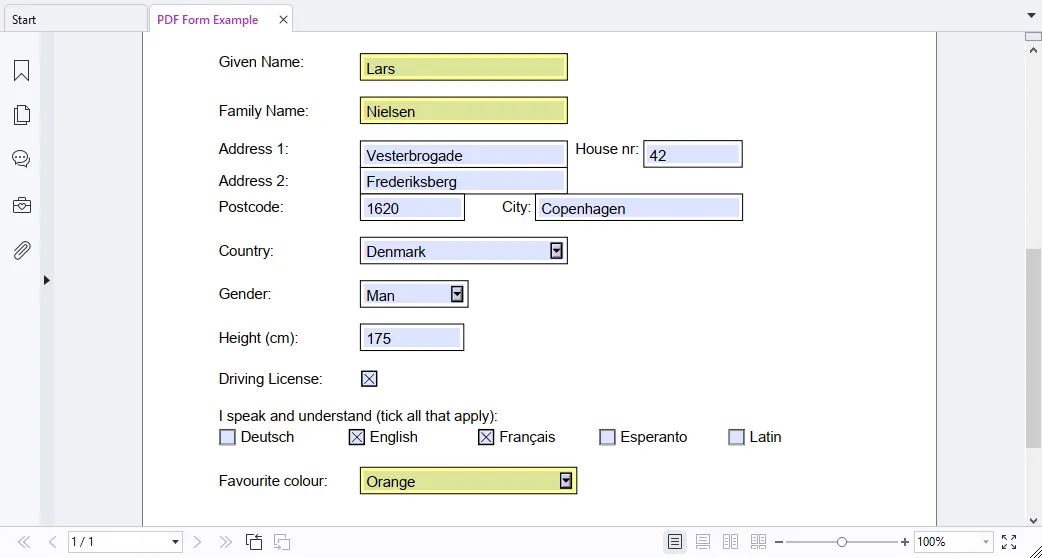
The sample form contains personal information, an address, language checkboxes, and a colour selection. Some internal names include control descriptions, such as Given Name Text Box and Country Combo Box. Those names will be visible in the raw exports.
Method 1: Export PDF Form Field Data with Adobe Acrobat
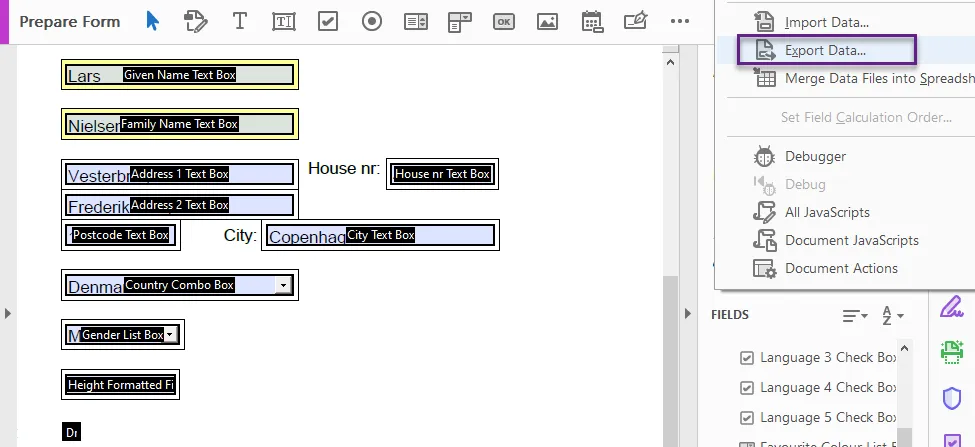
Acrobat provides a form-data export command that can save a completed form's values without copying them individually. Use the desktop application with access to the Prepare a form tool; the instructions below are not for the browser PDF viewer.
Export the form to TXT
- Open the completed PDF in Adobe Acrobat.
- Select All tools → Prepare a form.
- In the form panel, open More → Export data.
- Select TXT in the Save As dialog.
- Choose a filename and destination, then click Save.
Acrobat also lists FDF, XFDF, and XML for this export workflow. Available formats can depend on how the form was created. Menu placement may differ between interface versions.
Understand the exported text
In the tested sample, Acrobat produced tab-separated text: the field names appeared on one long line, and their values appeared on the following line. A simplified illustration is:
Given Name Text Box<TAB>Family Name Text Box<TAB>City Text Box
Lars<TAB>Nielsen<TAB>Copenhagen
Here, <TAB> represents a tab character, rather than literal text in the file.
When opened in Notepad with Word Wrap enabled, these long lines wrap at the window edge. That makes the relationship between names and values difficult to follow. Turning off Format → Word Wrap keeps the logical lines intact, although horizontal scrolling is still necessary.
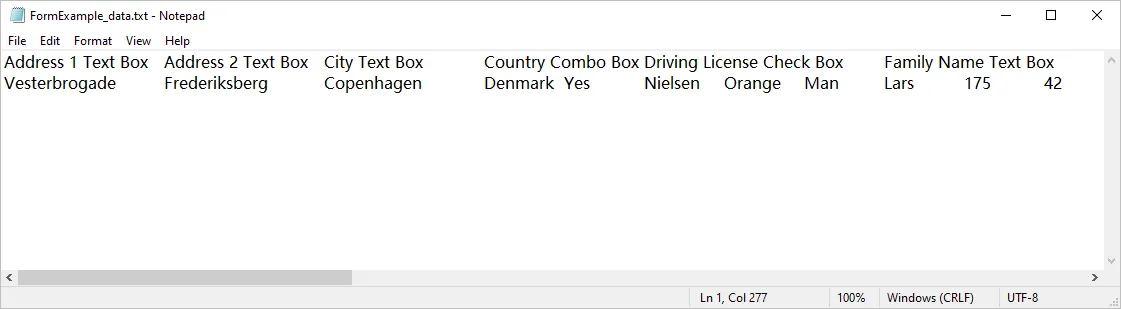
The export contains useful data, but it is not a vertically arranged text report. For a clearer tabular view, import the TXT into a spreadsheet application and select a tab delimiter. If the goal is a readable Field: Value list, an additional formatting step is needed.
Acrobat separately offers Options → Merge data files into spreadsheet for compiling data from multiple forms. Interface-based extraction therefore does not have to be limited to one document at a time.
Method 2: Export PDF Form Field Data with Foxit PDF Editor
Foxit PDF Editor provides a similar export workflow:
- Open the completed PDF form.
- Select Form → Export → To File.
- Choose TXT as the output format.
- Set the filename and destination, then click Save.
The Windows guide also lists CSV, XML, FDF, and XFDF as supported export formats. The form export commands apply to interactive forms rather than ordinary static PDFs.
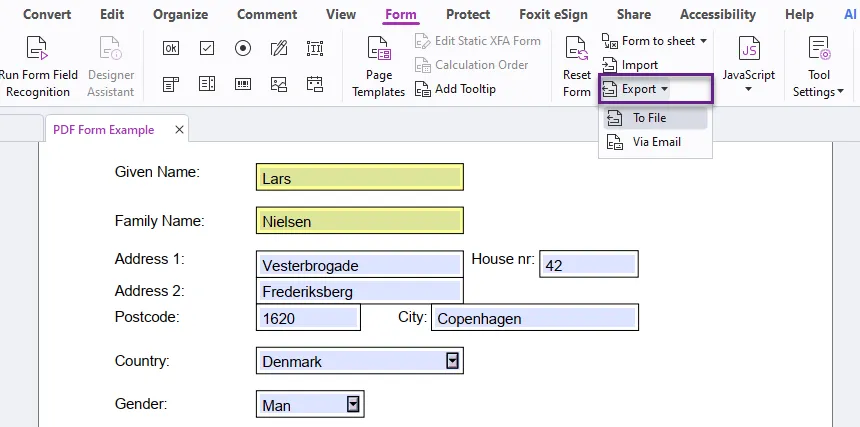
How does the result compare with Acrobat?
For the same sample PDF, Foxit's TXT output was almost identical to Acrobat's: internal field names on the first line, corresponding values on the next line, and tabs between entries. Disabling Word Wrap made the structure easier to inspect, but did not change the file's layout.
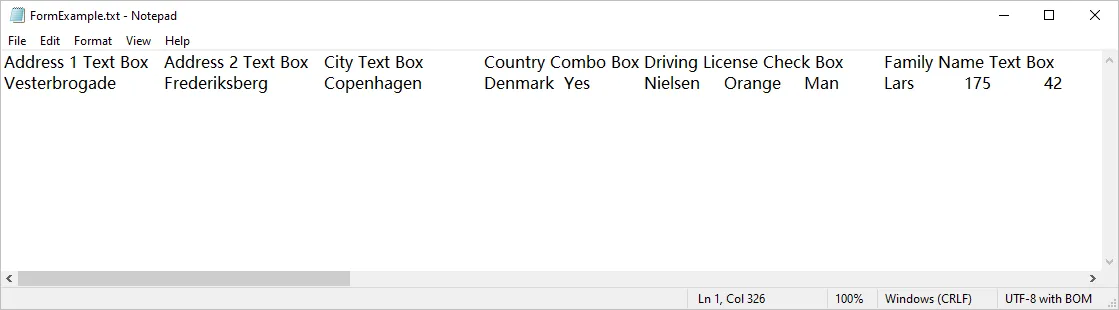
This observation applies to the tested sample. It should not be taken to mean that every form, version, or export setting produces identical files in both applications.
Foxit is a practical alternative if it is already part of your workflow. For this TXT use case, however, switching editors did not produce a more readable field-by-field report.
Method 3: Extract PDF Form Field Data with C#
Reading the fields in code gives you control over the final text. Instead of keeping the tabular export layout, the following example writes one field per line, removes common control suffixes from names, and explicitly identifies checked and unchecked boxes.
It uses Spire.PDF for .NET and its Spire.Pdf.Interactive.Forms namespace. This namespace was introduced in version 12.10.7, so use that release or a newer compatible version. Older samples based on other form APIs may use different classes.
Install the library
Create a C# console project and install the NuGet package:
dotnet add package Spire.PDF
Place the sample PDF at the input path used below, or change inputPath to your own file. The example writes GetAllValues.txt to the application's current working directory and prints its full path when complete.
Complete C# example
The code follows the supplied extraction logic, with explicit namespace imports, UTF-8 output, and support for writing all selected values in a multi-select list box.
using System;
using System.Collections.Generic;
using System.IO;
using System.Text;
using System.Text.RegularExpressions;
using Spire.Pdf;
using Spire.Pdf.Interactive.Forms;

namespace ExtractFormFieldValues
{
    internal class Program
    {
        static readonly Regex SuffixRegex = new Regex(
            @"\s*(Text\s*Box|Combo\s*Box|Check\s*Box|Formatted\s*Field|List\s*Box)\s*$",
            RegexOptions.IgnoreCase);

        // Labels for the language checkboxes in this specific sample form.
        static readonly Dictionary<string, string> LanguageMap = new()
        {
            ["Language 1"] = "Deutsch",
            ["Language 2"] = "English",
            ["Language 3"] = "Français",
            ["Language 4"] = "Esperanto",
            ["Language 5"] = "Latin",
        };

        static string CleanName(string name)
        {
            if (string.IsNullOrWhiteSpace(name)) return "";
            return SuffixRegex.Replace(name, "").Trim();
        }

        static string GetCheckBoxValue(PdfCheckBoxField chk, string cleanName)
        {
            if (!chk.IsChecked) return "Unchecked";

            // For this template, replace a generic "Yes" export value
            // with the known language label when a mapping exists.
            if (chk.OnValue == "Yes" &&
                LanguageMap.TryGetValue(cleanName, out var language))
            {
                return $"{language} (Checked)";
            }

            return $"{chk.OnValue} (Checked)";
        }

        static void Main(string[] args)
        {
            string inputPath = "FormExample.pdf";
            string outputPath = Path.GetFullPath("GetAllValues.txt");

            using var doc = new PdfDocument();
            doc.LoadFromFile(inputPath);

            var form = PdfForm.Create(doc);
            if (form == null || form.Fields.Count == 0)
            {
                Console.WriteLine("No form fields were detected.");
                return;
            }

            var sb = new StringBuilder();

            foreach (PdfField field in form.Fields)
            {
                string name = CleanName(field.Name);
                string value = field switch
                {
                    PdfTextField tb => tb.Text,
                    PdfComboBoxField cb => cb.SelectedValue,
                    PdfListBoxField lb => string.Join(", ", lb.SelectedValues),
                    PdfRadioButtonField rb => rb.SelectedValue,
                    PdfCheckBoxField chk => GetCheckBoxValue(chk, name),
                    _ => ""
                };

                sb.AppendLine($"{name}: {value}");
            }

            File.WriteAllText(outputPath, sb.ToString(), new UTF8Encoding(false));
            Console.WriteLine($"Extraction complete: {outputPath}");
        }
    }
}
How the extraction works
The program loads the PDF, obtains its form container, and iterates through the available fields. The switch expression chooses the value to read based on the field's type. Text boxes supply text; choice controls supply their selected export values; checkboxes supply a checked state and an on-state export value.
CleanName removes recognized suffixes at the end of a name. For example, Given Name Text Box becomes Given Name. This is a naming convention used in the sample, not a general method for recovering the visible label printed next to any PDF field.
Checkboxes need a little more interpretation. An export value such as Yes may be perfectly valid, but it does not explain whether Language 2 means English or another language. The dictionary supplies that knowledge for this particular template. A different form requires a corresponding mapping, unless its own export values already provide meaningful labels.
Importantly, an OnValue of Yes does not prove that the form author omitted a custom value. The code simply treats it as a generic value for the mapped language fields.
Example output
For the completed sample, the resulting text can be read directly:
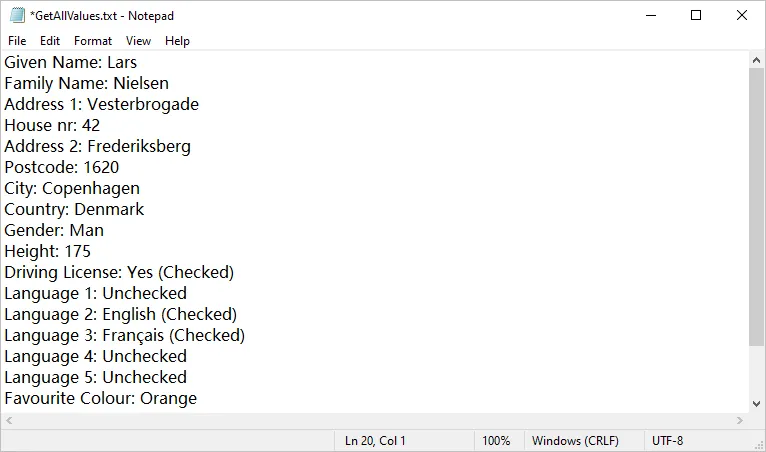
This example keeps the order returned by form.Fields. It does not sort fields into page reading order. Other PDFs may return a different sequence; use an explicit field-order configuration if a consistent report order is required.
Limits and adjustments for other forms
This example demonstrates extraction from common AcroForm value fields. It does not implement XFAfield extraction or signature-detail processing. Spire.PDF provides separate APIs for accessing XFA fields, which require a different extraction workflow.
Choice controls may store export values that differ from their visible option labels. If a human-readable label is required, inspect the option definitions and add the appropriate conversion. Multiline text fields can also contain line breaks, so a single field may occupy more than one physical line in the output.
For multiple PDFs, the same extraction logic can be called from a file loop. Decide whether to create a separate TXT for each document or combine them with clear filename headings. Batch processing is an extension of this example, rather than something the single-file program already performs.
You May Also Like: Create, Fill, or Remove Fillable Forms in PDF in C#
Which Method Should You Choose?
| Requirement | Acrobat | Foxit PDF Editor | C# example |
|---|---|---|---|
| Export through a graphical interface | Yes | Yes | Requires a program |
| Tested TXT layout | Tab-separated names and values | Similar to Acrobat | Field-and-value entries |
| Simplify internal names | Additional processing needed | Additional processing needed | Included for recognized suffixes |
| Add template-specific language labels | Additional processing needed | Additional processing needed | Included through a mapping |
| Customize output rules | Limited by export workflow | Limited by export workflow | Controlled in code |
| Repeat within a larger workflow | Depends on available application tools | Depends on available application tools | Can be extended for batch runs and integration |
Use Acrobat or Foxit when you need a quick export and can work with the resulting tabular data. Use the C# approach when the TXT itself is the deliverable, or when field naming, checkbox interpretation, and repeatable formatting matter.
Frequently Asked Questions
Why does exported TXT look disorganized in Notepad?
In the tested Acrobat and Foxit exports, names and values occupy separate long lines with tab delimiters. Word Wrap breaks those lines visually, making their correspondence hard to follow. Turning it off helps inspection; importing the file with a tab delimiter gives a clearer table.
Can these methods extract answers from a scanned form?
Not through its original form fields if the PDF contains only a scanned image. That requires OCR and a separate process for associating recognized answers with labels.
Why does a checked box return Yes instead of its visible label?
The stored on-state export value may simply be Yes, while the option label is separate page text. A template-specific mapping can associate that field with a meaningful label, as demonstrated for the language checkboxes.
Does the C# code change the original PDF?
It does not save changes to the PDF. It loads the file, reads the fields, and writes a separate TXT file.
Can the same data be written to CSV or JSON?
Yes. Keep the field-reading logic and replace the TXT-writing step with a suitable serializer. For CSV, use proper escaping for commas, quotes, and line breaks. For JSON, use a serializer rather than assembling JSON strings manually.