Extract Image from PDF and Save it to New PDF File in C#
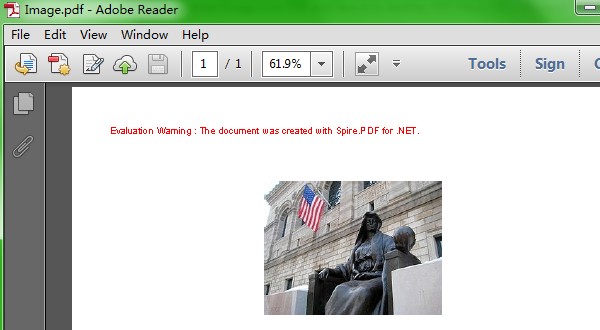
Extracting image from PDF is not a complex operation, but sometimes we need to save the image to new PDF file. So the article describes the simple c# code to extract image from PDF and save it to new PDF file through a professional PDF .NET library Spire.PDF.
First we need to complete the preparatory work before the procedure:
- Download the Spire.PDF and install it on your machine.
- Add the Spire.PDF.dll files as reference.
- Open bin folder and select the three dll files under .NET 4.0.
- Right click property and select properties in its menu.
- Set the target framework as .NET 4.
- Add Spire.PDF as namespace.
Here is the whole code:
static void Main(string[] args)
        {
            PdfDocument doc = new PdfDocument();
            doc.LoadFromFile(@"..\..\Sample.pdf");
            // Get the first page of the document
            PdfPageBase page = doc.Pages[0];

            // Create an instance of PdfImageHelper to work with images
            PdfImageHelper imageHelper = new PdfImageHelper();

            // Get information about the images on the page
            PdfImageInfo[] imageInfos = imageHelper.GetImagesInfo(page);

            // Extract images from the page
            int index = 0;
            foreach (PdfImageInfo info in imageInfos)
            {
                // Save each image as a PNG file with a unique name
                info.Image.Save(string.Format("Image-{0}.png", index));
                index++;
            }
            PdfImage image2 = PdfImage.FromFile(@"image-0.png");
            PdfDocument doc2 = new PdfDocument();
            PdfPageBase page2 = doc2.Pages.Add();
            float width = image2.Width * 0.75f;
            float height = image2.Height * 0.75f;
            float x = (page.Canvas.ClientSize.Width - width) / 2;
            page.Canvas.DrawImage(image2, x, 60, width, height);
            doc2.SaveToFile(@"..\..\Image.pdf");
        }
Here comes to the preview of the effect picture:

Tutorials

Here you will get a collection of tutorials of our ASP.NET applications created with E-iceblue products. It helps you have brief and clear information of how to use our E-iceblue libraries easily and conveniently.
Feel free to have a trial from E-iceblue Download Centre.
Recently Updated
Most Viewed
Any technical question related to our product, contact us at [email protected].
Any question related to the purchase of product, contact us at [email protected].
If you don't find the demo you want, please contact [email protected] for the free customized demo just for you.
Fill Form Fields in Word Document in C#
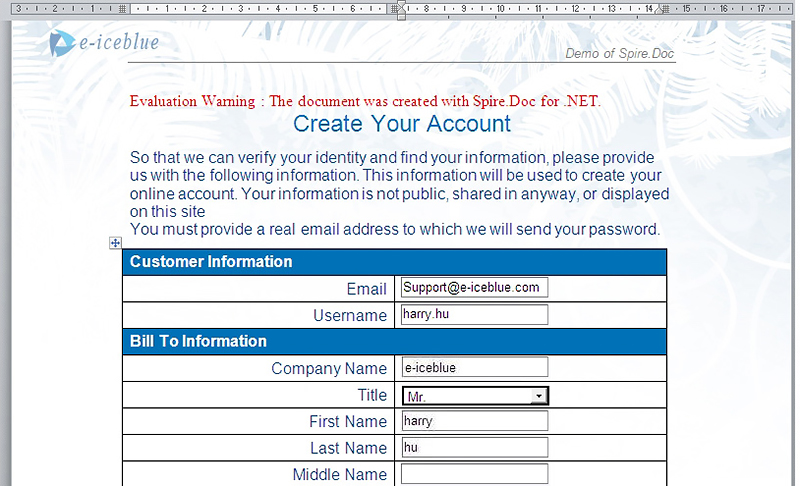
We have already demonstrated how to create form field. This article mainly shows you how developers fill form field in word document in C# only with 4 simple steps by using a standalone .NET Word component Spire.Doc.
Make sure Spire.Doc for .NET has been installed correctly and then add Spire.Doc.dll as reference in the downloaded Bin folder thought the below path: "..\Spire.Doc\Bin\NET4.0\ Spire.Doc.dll". Here comes to the details of how developers Fill Form Field by using Spire.Doc:
Step 1: Open the form that needs to fill the data.
//Create word document
Document document = new Document(@"..\..\..\Data\UserForm.doc");
Step 2: Load data that will fill the form.
//Fill data from XML file
using (Stream stream = File.OpenRead(@"..\..\..\Data\User.xml"))
{
    XPathDocument xpathDoc = new XPathDocument(stream);
    XPathNavigator user = xpathDoc.CreateNavigator().SelectSingleNode("/user");
Step 3: Use the loaded data to fill the form.
//fill data
  foreach (FormField field in document.Sections[0].Body.FormFields)
  {
     String path = String.Format("{0}/text()", field.Name);
     XPathNavigator propertyNode = user.SelectSingleNode(path);
     if (propertyNode != null)
     {
         switch (field.Type)
         {
             case FieldType.FieldFormTextInput:
                  field.Text = propertyNode.Value;
                  break;

             case FieldType.FieldFormDropDown:
                  DropDownFormField combox = field as DropDownFormField;
                  for(int i = 0; i < combox.DropDownItems.Count; i++)
                  {
                      if (combox.DropDownItems[i].Text == propertyNode.Value)
                      {
                         combox.DropDownSelectedIndex = i;
                         break;
                      }
                      if (field.Name == "country" && combox.DropDownItems[i].Text == "Others")
                      {
                         combox.DropDownSelectedIndex = i;
                      }
                  }
                  break;

             case FieldType.FieldFormCheckBox:
                  if (Convert.ToBoolean(propertyNode.Value))
                  {
                      CheckBoxFormField checkBox = field as CheckBoxFormField;
                      checkBox.Checked = true;
                  }
                  break;
            }
       }
   }
 }
Step 4: Save the document to file in XML or Microsoft Word format.
//Save doc file
document.SaveToFile("Sample.doc",FileFormat.Doc);
Effective Screenshot:
Full Source Code for Fill FormField:
namespace FillFormField
{
    public partial class Form1 : Form
    {
        public Form1()
        {
            InitializeComponent();
        }

        private void button1_Click(object sender, EventArgs e)
        {
            //open form
            Document document = new Document(@"..\..\..\..\..\..\Data\UserForm.doc");

            //load data
            using (Stream stream = File.OpenRead(@"..\..\..\..\..\..\Data\User.xml"))
            {
                XPathDocument xpathDoc = new XPathDocument(stream);
                XPathNavigator user = xpathDoc.CreateNavigator().SelectSingleNode("/user");

                //fill data
                foreach (FormField field in document.Sections[0].Body.FormFields)
                {
                    String path = String.Format("{0}/text()", field.Name);
                    XPathNavigator propertyNode = user.SelectSingleNode(path);
                    if (propertyNode != null)
                    {
                        switch (field.Type)
                        {
                            case FieldType.FieldFormTextInput:
                                field.Text = propertyNode.Value;
                                break;

                            case FieldType.FieldFormDropDown:
                                DropDownFormField combox = field as DropDownFormField;
                                for(int i = 0; i < combox.DropDownItems.Count; i++)
                                {
                                    if (combox.DropDownItems[i].Text == propertyNode.Value)
                                    {
                                        combox.DropDownSelectedIndex = i;
                                        break;
                                    }
                                    if (field.Name == "country" && combox.DropDownItems[i].Text == "Others")
                                    {
                                        combox.DropDownSelectedIndex = i;
                                    }
                                }
                                break;

                            case FieldType.FieldFormCheckBox:
                                if (Convert.ToBoolean(propertyNode.Value))
                                {
                                    CheckBoxFormField checkBox = field as CheckBoxFormField;
                                    checkBox.Checked = true;
                                }
                                break;
                        }
                    }
                }
            }

            //Save doc file.
            document.SaveToFile("Sample.doc",FileFormat.Doc);

            //Launching the MS Word file.
            WordDocViewer("Sample.doc");
        }

        private void WordDocViewer(string fileName)
        {
            try
            {
                System.Diagnostics.Process.Start(fileName);
            }
            catch { }
        }

    }
}
C#/VB.NET: Create, Edit, or Delete Named Ranges in Excel
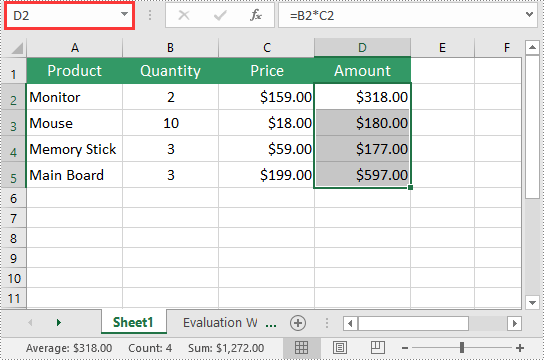
A named range in Excel is a user-defined name given to a specific cell or range of cells. It allows you to assign a meaningful and descriptive name to a set of data, making it easier to refer to that data in formulas, functions, and other parts of the spreadsheet. In this article, you will learn how to create, edit or delete named ranges in Excel in C# and VB.NET using Spire.XLS for .NET.
- Create a Named Range in Excel in C# and VB.NET
- Edit an Existing Named Range in Excel in C# and VB.NET
- Delete a Named Range from Excel in C# and VB.NET
Install Spire.XLS for .NET
To begin with, you need to add the DLL files included in the Spire.XLS for .NET package as references in your .NET project. The DLL files can be either downloaded from this link or installed via NuGet.
PM> Install-Package Spire.XLS
Create a Named Range in Excel in C# and VB.NET
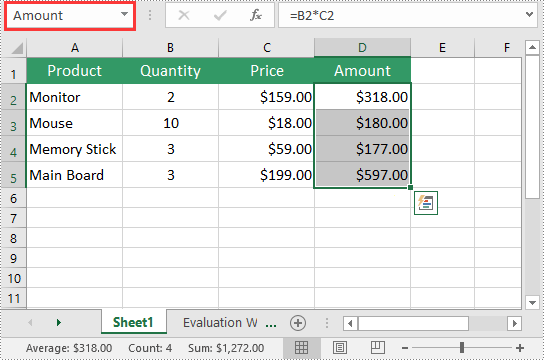
You can use the Workbook.NameRanges.Add(string name) method provided by Spire.XLS for .NET to add a named range to an Excel workbook. Once the named range is added, you can define the cell or range of cells it refers to using the INamedRange.RefersToRange property.
The following steps explain how to create a named range in Excel using Spire.XLS for .NET:
- Initialize an instance of the Workbook class.
- Load an Excel workbook using the Workbook.LoadFromFile() method.
- Add a named range to the workbook using the Workbook.NameRanges.Add(string name) method.
- Get a specific worksheet in the workbook using the Workbook.Worksheets[int index] property.
- Set the cell range that the named range refers to using the INamedRange.RefersToRange property.
- Save the result file using the Workbook.SaveToFile() method.
- C#
- VB.NET
using Spire.Xls;
using Spire.Xls.Core;

namespace CreateNamedRanges
{
    internal class Program
    {
        static void Main(string[] args)
        {
            //Initialize an instance of the Workbook class
            Workbook workbook = new Workbook();
            //Load an Excel workbook
            workbook.LoadFromFile(@"Sample.xlsx");

            //Add a named range to the workbook
            INamedRange namedRange = workbook.NameRanges.Add("Amount");

            //Get a specific worksheet in the workbook
            Worksheet sheet = workbook.Worksheets[0];

            //Set the cell range that the named range references
            namedRange.RefersToRange = sheet.Range["D2:D5"];

            //Save the result file to a specific location
            string result = "CreateNamedRange.xlsx";
            workbook.SaveToFile(result, ExcelVersion.Version2013);
            workbook.Dispose();
        }
    }
}
Edit an Existing Named Range in Excel in C# and VB.NET
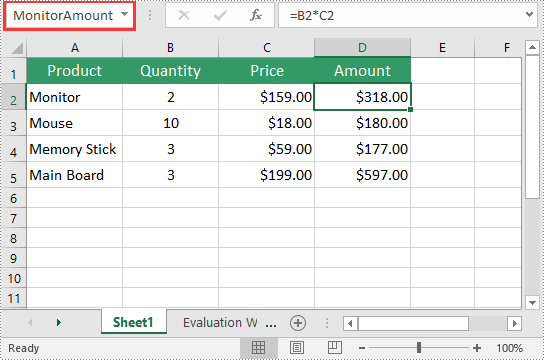
After you've created a named range, you may want to modify its name or adjust the cells it refers to.
The following steps explain how to modify the name and cell references of an existing named range in Excel using Spire.XLS for .NET:
- Initialize an instance of the Workbook class.
- Load an Excel workbook using the Workbook.LoadFromFile() method.
- Get a specific named range in the workbook using the Workbook.NameRanges[int index] property.
- Modify the name of the named range using the INamedRange.Name property.
- Modify the cells that the named range refers to using the INamedRange.RefersToRange property.
- Save the result file using the Workbook.SaveToFile() method.
- C#
- VB.NET
using Spire.Xls;
using Spire.Xls.Core;

namespace ModifyNamedRanges
{
    internal class Program
    {
        static void Main(string[] args)
        {
            //Initialize an instance of the Workbook class
            Workbook workbook = new Workbook();
            //Load an Excel workbook
            workbook.LoadFromFile(@"CreateNamedRange.xlsx");

            //Get a specific named range in the workbook
            INamedRange namedRange = workbook.NameRanges[0];

            //Change the name of the named range
            namedRange.Name = "MonitorAmount";

            //Set the cell range that the named range references
            namedRange.RefersToRange = workbook.Worksheets[0].Range["D2"];

            //Save the result file to a specific location
            string result = "ModifyNamedRange.xlsx";
            workbook.SaveToFile(result, ExcelVersion.Version2013);
            workbook.Dispose();
        }
    }
}
Delete a Named Range from Excel in C# and VB.NET
If you have made significant changes to the structure or layout of your spreadsheet, it might be necessary to delete a named range that is no longer relevant or accurate.
The following steps explain how to delete a named range from Excel using Spire.XLS for .NET:
- Initialize an instance of the Workbook class.
- Load an Excel workbook using the Workbook.LoadFromFile() method.
- Remove a specific named range by its index or name using the Workbook.NameRanges.RemoveAt(int index) or Workbook.NameRanges.Remove(string name) method.
- Save the result file using the Workbook.SaveToFile() method.
- C#
- VB.NET
using Spire.Xls;
using Spire.Xls.Core;

namespace RemoveNamedRanges
{
    internal class Program
    {
        static void Main(string[] args)
        {
            //Initialize an instance of the Workbook class
            Workbook workbook = new Workbook();
            //Load an Excel workbook
            workbook.LoadFromFile(@"CreateNamedRange.xlsx");

            //Remove a specific named range by its index
            workbook.NameRanges.RemoveAt(0);

            //Remove a specific named range by its name
            //workbook.NameRanges.Remove("Amount");

            //Save the result file to a specific location
            string result = "RemoveNamedRange.xlsx";
            workbook.SaveToFile(result, ExcelVersion.Version2013);
            workbook.Dispose();
        }
    }
}
Apply for a Temporary License
If you'd like to remove the evaluation message from the generated documents, or to get rid of the function limitations, please request a 30-day trial license for yourself.
C#/VB.NET: Create a Fillable Form in Word
A form allows you to create placeholders for different types of information, such as text, dates, images and yes-no questions. This makes it easier for readers to know what type of information to include, and it also helps ensure all of the information is formatted the same way. In order to create a fillable form in Word, you will need to use the following tools.
- Content Controls: The areas where users input information in a form.
- Tables: Tables are used in forms to align text and form fields, and to create borders and boxes.
- Protection: Allows users to populate fields but not to make changes to the rest of the document.
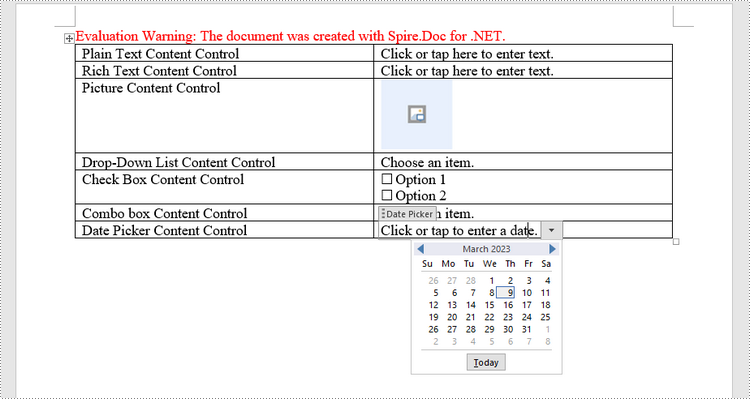
Content controls in Word are containers for content that let users build structured documents. A structured document controls where content appears within the document. There are basically ten types of content controls available in Word 2013. This article focuses on how to create a fillable form in Word consisting of the following seven common content controls using Spire.Doc for .NET.
| Content Control | Description |
| Plain Text | A text field limited to plain text, so no formatting can be included. |
| Rich Text | A text field that can contain formatted text or other items, such as tables, pictures, or other content controls. |
| Picture | Accepts a single picture. |
| Drop-Down List | A drop-down list displays a predefined list of items for the user to choose from. |
| Combo Box | A combo box enables users to select a predefined value in a list or type their own value in the text box of the control. |
| Check Box | A check box provides a graphical widget that allows the user to make a binary choice: yes (checked) or no (not checked). |
| Date Picker | Contains a calendar control from which the user can select a date. |
Install Spire.Doc for .NET
To begin with, you need to add the DLL files included in the Spire.Doc for .NET package as references in your .NET project. The DLL files can be either downloaded from this link or installed via NuGet.
PM> Install-Package Spire.Doc
Create a Fillable Form in Word in C# and VB.NET
The StructureDocumentTagInline class provided by Spire.Doc for .NET is used to create structured document tags for inline-level structures (DrawingML object, fields, etc.) in a paragraph. The SDTProperties property and the SDTContent property under this class shall be used to specify the properties and content of the current structured document tag. The following are the detailed steps to create a fillable form with content controls in Word.
- Create a Document object.
- Add a section using Document.AddSection() method.
- Add a table using Section.AddTable() method.
- Add a paragraph to a specific table cell using TableCell.AddParagraph() method.
- Create an instance of StructureDocumentTagInline class, and add it to the paragraph as a child object using Paragraph.ChildObjects.Add() method.
- Specify the properties and content of the structured document tag though the SDTProperties property and the SDTContent property of the StructureDocumentTagInline object. The type of the structured document tag is set through SDTProperties.SDTType property.
- Prevent users from editing content outside form fields using Document.Protect() method.
- Save the document using Document.SaveToFile() method.
- C#
- VB.NET
using Spire.Doc;
using Spire.Doc.Documents;
using Spire.Doc.Fields;
using System.Drawing;

namespace CreateFormInWord
{
    class Program
    {
        static void Main(string[] args)
        {
            //Create a Document object
            Document doc = new Document();

            //Add a section
            Section section = doc.AddSection();

            //add a table
            Table table = section.AddTable(true);
            table.ResetCells(7, 2);

            //Add text to the cells of the first column
            Paragraph paragraph = table.Rows[0].Cells[0].AddParagraph();
            paragraph.AppendText("Plain Text Content Control");
            paragraph = table.Rows[1].Cells[0].AddParagraph();
            paragraph.AppendText("Rich Text Content Control");
            paragraph = table.Rows[2].Cells[0].AddParagraph();
            paragraph.AppendText("Picture Content Control");
            paragraph = table.Rows[3].Cells[0].AddParagraph();
            paragraph.AppendText("Drop-Down List Content Control");
            paragraph = table.Rows[4].Cells[0].AddParagraph();
            paragraph.AppendText("Check Box Content Control");
            paragraph = table.Rows[5].Cells[0].AddParagraph();
            paragraph.AppendText("Combo box Content Control");
            paragraph = table.Rows[6].Cells[0].AddParagraph();
            paragraph.AppendText("Date Picker Content Control");

            //Add a plain text content control to the cell (0,1)
            paragraph = table.Rows[0].Cells[1].AddParagraph();
            StructureDocumentTagInline sdt = new StructureDocumentTagInline(doc);
            paragraph.ChildObjects.Add(sdt);
            sdt.SDTProperties.SDTType = SdtType.Text;
            sdt.SDTProperties.Alias = "Plain Text";
            sdt.SDTProperties.Tag = "Plain Text";
            sdt.SDTProperties.IsShowingPlaceHolder = true;
            SdtText text = new SdtText(true);
            text.IsMultiline = false;
            sdt.SDTProperties.ControlProperties = text;
            TextRange tr = new TextRange(doc);
            tr.Text = "Click or tap here to enter text.";
            sdt.SDTContent.ChildObjects.Add(tr);

            //Add a rich text content control to the cell (1,1)
            paragraph = table.Rows[1].Cells[1].AddParagraph();
            sdt = new StructureDocumentTagInline(doc);
            paragraph.ChildObjects.Add(sdt);
            sdt.SDTProperties.SDTType = SdtType.RichText;
            sdt.SDTProperties.Alias = "Rich Text";
            sdt.SDTProperties.Tag = "Rich Text";
            sdt.SDTProperties.IsShowingPlaceHolder = true;
            text = new SdtText(true);
            text.IsMultiline = false;
            sdt.SDTProperties.ControlProperties = text;
            tr = new TextRange(doc);
            tr.Text = "Click or tap here to enter text.";
            sdt.SDTContent.ChildObjects.Add(tr);

            //Add a picture content control to the cell (2,1)
            paragraph = table.Rows[2].Cells[1].AddParagraph();
            sdt = new StructureDocumentTagInline(doc);
            paragraph.ChildObjects.Add(sdt);
            sdt.SDTProperties.SDTType = SdtType.Picture;
            sdt.SDTProperties.Alias = "Picture";
            sdt.SDTProperties.Tag = "Picture";
            SdtPicture sdtPicture = new SdtPicture();
            sdt.SDTProperties.ControlProperties = sdtPicture;
            DocPicture pic = new DocPicture(doc);
            pic.LoadImage(Image.FromFile("C:\\Users\\Administrator\\Desktop\\ChooseImage.png"));
            sdt.SDTContent.ChildObjects.Add(pic);

            //Add a dropdown list content control to the cell(3,1)
            paragraph = table.Rows[3].Cells[1].AddParagraph();
            sdt = new StructureDocumentTagInline(doc);
            sdt.SDTProperties.SDTType = SdtType.DropDownList;
            sdt.SDTProperties.Alias = "Dropdown List";
            sdt.SDTProperties.Tag = "Dropdown List";
            paragraph.ChildObjects.Add(sdt);
            SdtDropDownList sddl = new SdtDropDownList();
            sddl.ListItems.Add(new SdtListItem("Choose an item.", "1"));
            sddl.ListItems.Add(new SdtListItem("Item 2", "2"));
            sddl.ListItems.Add(new SdtListItem("Item 3", "3"));
            sddl.ListItems.Add(new SdtListItem("Item 4", "4"));
            sdt.SDTProperties.ControlProperties = sddl;
            tr = new TextRange(doc);
            tr.Text = sddl.ListItems[0].DisplayText;
            sdt.SDTContent.ChildObjects.Add(tr);

            //Add two check box content controls to the cell (4,1)
            paragraph = table.Rows[4].Cells[1].AddParagraph();
            sdt = new StructureDocumentTagInline(doc);
            paragraph.ChildObjects.Add(sdt);
            sdt.SDTProperties.SDTType = SdtType.CheckBox;
            SdtCheckBox scb = new SdtCheckBox();
            sdt.SDTProperties.ControlProperties = scb;
            tr = new TextRange(doc);
            sdt.ChildObjects.Add(tr);
            scb.Checked = false;
            paragraph.AppendText(" Option 1");

            paragraph = table.Rows[4].Cells[1].AddParagraph();
            sdt = new StructureDocumentTagInline(doc);
            paragraph.ChildObjects.Add(sdt);
            sdt.SDTProperties.SDTType = SdtType.CheckBox;
            scb = new SdtCheckBox();
            sdt.SDTProperties.ControlProperties = scb;
            tr = new TextRange(doc);
            sdt.ChildObjects.Add(tr);
            scb.Checked = false;
            paragraph.AppendText(" Option 2");

            //Add a combo box content control to the cell (5,1)
            paragraph = table.Rows[5].Cells[1].AddParagraph();
            sdt = new StructureDocumentTagInline(doc);
            paragraph.ChildObjects.Add(sdt);
            sdt.SDTProperties.SDTType = SdtType.ComboBox;
            sdt.SDTProperties.Alias = "Combo Box";
            sdt.SDTProperties.Tag = "Combo Box";
            SdtComboBox cb = new SdtComboBox();
            cb.ListItems.Add(new SdtListItem("Choose an item."));
            cb.ListItems.Add(new SdtListItem("Item 2"));
            cb.ListItems.Add(new SdtListItem("Item 3"));
            sdt.SDTProperties.ControlProperties = cb;
            tr = new TextRange(doc);
            tr.Text = cb.ListItems[0].DisplayText;
            sdt.SDTContent.ChildObjects.Add(tr);

            //Add a date picker content control to the cell (6,1)
            paragraph = table.Rows[6].Cells[1].AddParagraph();
            sdt = new StructureDocumentTagInline(doc);
            paragraph.ChildObjects.Add(sdt);
            sdt.SDTProperties.SDTType = SdtType.DatePicker;
            sdt.SDTProperties.Alias = "Date Picker";
            sdt.SDTProperties.Tag = "Date Picker";
            SdtDate date = new SdtDate();
            date.CalendarType = CalendarType.Default;
            date.DateFormat = "yyyy.MM.dd";
            date.FullDate = DateTime.Now;
            sdt.SDTProperties.ControlProperties = date;
            tr = new TextRange(doc);
            tr.Text = "Click or tap to enter a date.";
            sdt.SDTContent.ChildObjects.Add(tr);

            //Allow users to edit the form fields only
            doc.Protect(ProtectionType.AllowOnlyFormFields, "permission-psd");

            //Save to file
            doc.SaveToFile("WordForm.docx", FileFormat.Docx2013);
        }
    }
}
Apply for a Temporary License
If you'd like to remove the evaluation message from the generated documents, or to get rid of the function limitations, please request a 30-day trial license for yourself.
How to Unmerge Excel Cells in C#
Unmerging and merging Excel cells are indispensable for handling Excel worksheet. This article aims at introducing the solution to unmerge Excel cells in c# through several lines of code. We need an Excel .NET component called Spire.XLS to help us complete the process.
First we need to complete the preparatory work before unmerge Excel cells in C#:
- Download the Spire.XLS and install it on your machine.
- Add the Spire.XLS.dll files as reference.
- Open bin folder and select the three dll files under .NET 4.0.
- Right click property and select properties in its menu.
- Set the target framework as .NET 4.
- Add Spire.XLS as namespace.
Here comes to the explanation of the code:
Step 1: Create an instance of Spire.XLS.Workbook.
Workbook book = new Workbook();
Step 2: Load the file base on a specified file path.
book.LoadFromFile(@"..\..\abc.xlsx");
Step 3: Get the first worksheet.
Worksheet sheet = book.Worksheets[0];
Step 4: Unmerge the cells.
sheet.Range["A2"].UnMerge();
Step5: Save as the generated file.
book.SaveToFile(@"..\..\result.xlsx", ExcelVersion.Version2010);
Here is the whole code:
using Spire.Xls;
namespace UnmergeExcelCell
{
    class Program
    {

        static void Main(string[] args)
        {
            Workbook book = new Workbook();
            book.LoadFromFile(@"..\..\abc.xlsx");
            Worksheet sheet = book.Worksheets[0];
            sheet.Range["A2"].UnMerge();
            book.SaveToFile(@"..\..\result.xlsx", ExcelVersion.Version2010);
        }

    }
}
Please preview the original effect screenshot:

And the generated effect screenshot:

C#/VB.NET: Alternate Row Colors in Excel Using Conditional Formatting
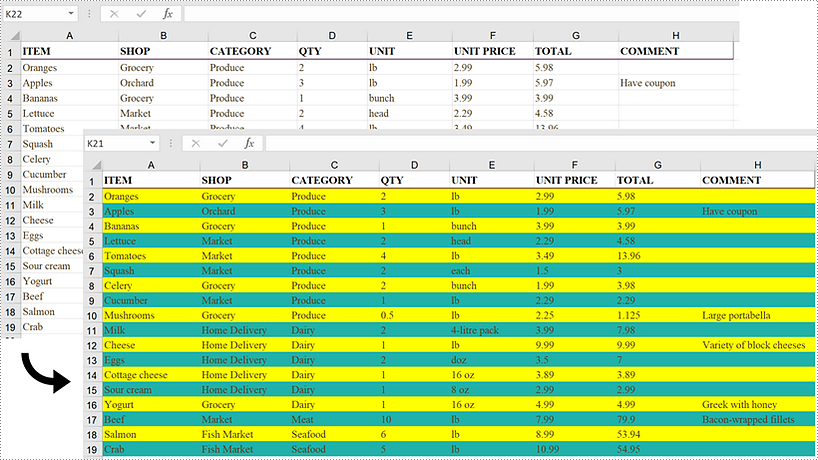
A large worksheet can be made easier to scan and read by adding color to alternative rows or columns. Applying a built-in table style or using conditional formatting are two quick ways to alternate row colors. This article focuses on how to highlight alternative rows using conditional formatting in C# and VB.NET using Spire.XLS for .NET.
Install Spire.XLS for .NET
To begin with, you need to add the DLL files included in the Spire.XLS for .NET package as references in your .NET project. The DLL files can be either downloaded from this link or installed via NuGet.
PM> Install-Package Spire.XLS
Alternate Row Colors in Excel Using Conditional Formatting
The following are the steps to add color to alternative rows in Excel using Spire.XLS for .NET.
- Create a Workbook object.
- Load an Excel file using Workbook.LoadFromFile() method.
- Get a specific worksheet from the workbook through Workbook.Worsheets[index] property.
- Add a conditional formatting to the worksheet using Worksheet.ConditionalFormats.Add() method and return an object of XlsConditionalFormats class.
- Set the cell range where the conditional formatting will be applied using XlsConditionalFormats.AddRange() method.
- Add a condition using XlsConditionalFormats.AddCondition() method, then set the conditional formula and the cell color of even rows.
- Add another condition to change the format of the cells of odd rows.
- Save the workbook to an Excel file using Workbook.SaveToFile() method.
- C#
- VB.NET
using Spire.Xls;
using Spire.Xls.Core;
using Spire.Xls.Core.Spreadsheet.Collections;
using System.Drawing;

namespace AlternateRowColors
{
    class Program
    {
        static void Main(string[] args)
        {
            //Create a Workbook object
            Workbook workbook = new Workbook();

            //Load an Excel file
            workbook.LoadFromFile(@"C:\Users\Administrator\Desktop\sample.xlsx");

            //Get the first worksheet
            Worksheet sheet = workbook.Worksheets[0];

            //Add a conditional format to the worksheet
            XlsConditionalFormats format = sheet.ConditionalFormats.Add();

            //Set the range where the conditional format will be applied
            format.AddRange(sheet.Range[2, 1, sheet.LastRow, sheet.LastColumn]);

            //Add a condition to change the format of the cells based on formula
            IConditionalFormat condition1 = format.AddCondition();
            condition1.FirstFormula = "=MOD(ROW(),2)=0";
            condition1.FormatType = ConditionalFormatType.Formula;
            condition1.BackColor = Color.Yellow;

            //Add another condition to change the format of the cells based on formula
            IConditionalFormat condition2 = format.AddCondition();
            condition2.FirstFormula = "=MOD(ROW(),2)=1";
            condition2.FormatType = ConditionalFormatType.Formula;
            condition2.BackColor = Color.LightSeaGreen;

            //Save the workbook to an Excel file
            workbook.SaveToFile("AlternateRowColors.xlsx", ExcelVersion.Version2016);
        }
    }
}
Apply for a Temporary License
If you'd like to remove the evaluation message from the generated documents, or to get rid of the function limitations, please request a 30-day trial license for yourself.
How to Set Excel Print Options in C#
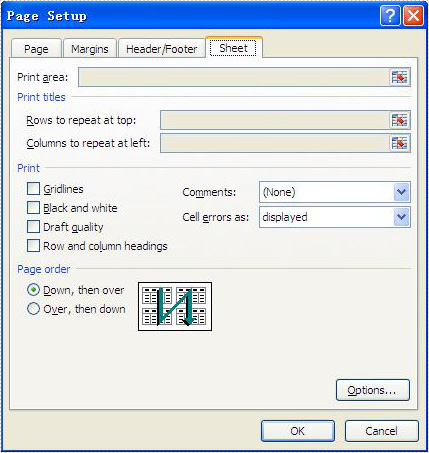
Excel print options (also called as sheet options) allow users to control how worksheet pages are printed, such as set print paper size, print area, print titles, page order and so on. This article mainly discusses how developers set print options in C# by using Spire.XLS.
Here comes to the details of how developers configure print options in C#:
- Download Spire.XLS for .NET (or Spire.Office for .NET) and install it on your system.
- Add Spire.XLS.dll as reference in the downloaded Bin folder thought the below path: "..\Spire.XLS\Bin\NET4.0\ Spire.XLS.dll".
- You can use the class PageSetup to set the print options.
Set print paper size:
By default, the paper size is A4; you can set the PaperSize property of the worksheet to set the print paper size you desired.
//set print paper size as A3
sheet.PageSetup.PaperSize = PaperSizeType.PaperA3;
Set Print Area:
By default, the print area means all areas of the worksheet that contain data. You can set the PrintArea property of the worksheet to set the print area you want.
//set print area from cell "B2" to cell "F8"
sheet.PageSetup.PrintArea = "B2:F8";
Set Print Titles:
Spire.XLS allows you to designate row and column headers to repeat on all pages of a printed worksheet. To do so, use the PageSetup class' PrintTitleColumns and PrintTitleRows properties.
//Set column numbers A & B as title columns
sheet.PageSetup.PrintTitleColumns = "$A:$B";

//Set row numbers 1 & 2 as title rows
sheet.PageSetup.PrintTitleRows = "$1:$2";
Set Page Order:
The PageSetup class provides the Order property that is used to order multiple pages of your worksheet to be printed. There are two possibilities to order the pages as follows:
//set page order from down then over
sheet.PageSetup.Order = OrderType.DownThenOver;

//set page order from over then down
sheet.PageSetup.Order = OrderType.OverThenDown;
Below picture shows the Microsoft Excel's page print options:
Merge PDF Files in C# .NET: A Developer's Guide
In document-centric workflows, combining multiple PDF files into a single document is a critical functionality in many .NET applications, ranging from enterprise document management systems to customer-facing invoicing platforms. While many tools exist for this PDF merging task, Spire.PDF for .NET stands out with its balance of simplicity, performance, and cost-effectiveness.
This guide explores how to merge PDF in C# using Spire.PDF, covering basic merging to advanced techniques with practical code examples.
- Why Programmatic PDF Merging Matters
- How to Merge PDFs in C#: Step-by-Step Guide
- Practical Example: Merge Selected Pages from Different PDFs
- Memory Efficient Solution: Merge PDF Files using Streams
- Conclusion
- FAQs
Why Programmatic PDF Merging Matters
In enterprise applications, PDF merging is crucial for:
- Consolidating financial reports
- Combining scanned document batches
- Assembling legal documentation packages
- Automated archiving systems
Spire.PDF for .NET stands out with:
- ✅ Pure .NET solution (no Acrobat dependencies)
- ✅ Cross-platform support (.NET framework, .NET Core, .NET 5+)
- ✅ Flexible page manipulation capabilities
How to Merge PDFs in C#: Step-by-Step Guide
Step 1. Install Spire.PDF
Before diving into the C# code to combine PDF files, it’s necessary to install the .NET PDF library via NuGet Package Manager.
- In Visual Studio, right-click your project in Solution Explorer
- Select Manage NuGet Packages
- Search for Spire.PDF and install
Or in Package Manager Console, run the following:
PM> Install-Package Spire.PDF
Step 2: Basic PDF Merging - C# / ASP.NET Sample
Spire.PDF provides a direct method PdfDocument.MergeFiles() method to merge multiple PDFs into a single file. The below C# code example defines three PDF file paths, merges them, and saves the result as a new PDF.
using Spire.Pdf;

namespace MergePDFs
{
    class Program
    {
        static void Main(string[] args)
        {
            // Specify the PDF files to be merged
            string[] files = new string[] {"sample0.pdf", "sample1.pdf", "sample2.pdf"};

            // Merge PDF files
            PdfDocumentBase pdf = PdfDocument.MergeFiles(files);

            // Save the result file
            pdf.Save("MergePDF.pdf", FileFormat.PDF);
        }
    }
}
Result: Combine three PDF files (total of 7 pages) into one PDF file.

Practical Example: Merge Selected Pages from Different PDFs
Merging selected pages involves combining specific pages from multiple PDFs into a new PDF document. Here’s how to achieve the task:
- Define the PDF files to be merged.
- Load PDFs into an array:
- Create an array of PdfDocument objects.
- Loops through to load each PDF into the array.
- Create a new PDF: Initializes a new PDF document to hold the merged pages.
- Insert specific pages into the new PDF:
- InsertPage(): Insert a specified page to the new PDF (Page index starts at 0).
- InsertPageRange(): Insert a range of pages to the new PDF.
- Save the merged PDF: Save the new document to a PDF file.
Code Example:
using Spire.Pdf;

namespace MergePDFs
{
    class Program
    {
        static void Main(string[] args)
        {
            // Specify the PDF files to be merged
            string[] files = new string[] {"sample0.pdf", "sample1.pdf", "sample2.pdf"};

            // Create an array of PdfDocument
            PdfDocument[] pdfs = new PdfDocument[files.Length];

            // Loop through each PDF file
            for (int i = 0; i < files.Length; i++)
            {
                pdfs[i] = new PdfDocument(files[i]);
            }

            // Create a new PdfDocument object
            PdfDocument newPDF = new PdfDocument();

            // Insert the selected pages from different PDFs to the new PDF file
            newPDF.InsertPageRange(pdfs[0], 1, 2);
            newPDF.InsertPage(pdfs[1], 0);
            newPDF.InsertPage(pdfs[2], 1);

            // Save the new PDF file
            newPDF.SaveToFile("SelectivePageMerging.pdf");
        }
    }
}
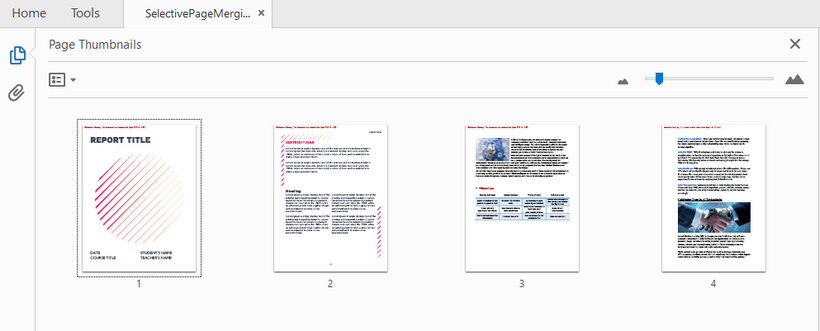
Result: Combine selected pages from three separate PDF files into a new PDF.
Memory Efficient Solution: Merge PDF Files using Streams
For stream-based merging, refer to the C# code below:
using System.IO;
using Spire.Pdf;

namespace MergePDFsByStream
{
    class Program
    {
        static void Main(string[] args)
        {
            // Specify the PDF files to be merged
            string[] pdfFiles = {
                "MergePdfsTemplate_1.pdf",
                "MergePdfsTemplate_2.pdf",
                "MergePdfsTemplate_3.pdf"
            };

            // Initialize a MemoryStream array
            MemoryStream[] ms = new MemoryStream[pdfFiles.Length];

            // Read all PDF files to the MemoryStream
            for (int i = 0; i < pdfFiles.Length; i++)
            {
                byte[] fileBytes = File.ReadAllBytes(pdfFiles[i]);
                ms[i] = new MemoryStream(fileBytes);
            }

            // Merge PDF files using streams
            PdfDocumentBase pdf = PdfDocument.MergeFiles(ms);

            // Save the merged PDF file
            pdf.Save("MergePDFByStream.pdf", FileFormat.PDF);
        }
    }
}
Pro Tip: Learn more stream-based PDF handling techniques via the article: Load and Save PDF Files in Streams Using C#
Conclusion
Spire.PDF simplifies PDF merging in C# with its intuitive API and robust feature set. Whether you need to combine entire documents or specific pages, this library provides a reliable solution. By following the steps outlined in this guide, you can efficiently merge PDFs in your .NET applications while maintaining high quality and performance.
FAQs
Q1: Is Spire.PDF free to use?
A: Spire.PDF offers a free Community Edition with limitations (max 10 pages per document). To evaluate the commercial version without any limitations, request a free trial license here.
Q2: Can I merge PDFs from different sources?
A: Yes. Spire.PDF supports merging PDFs from various sources:
- Local Files: Use LoadFromFile() method.
- Streams: Use LoadFromStream() method.
- Base64: Convert Base64 to a byte array first, then use LoadFromBytes() method.
- URLs: Download the PDF to a stream or file first, then load it.
Q3: Can I add page numbers during merging?
A: After merging, you can add page numbers by following this guide: Add Page Numbers to a PDF in C#.
Q4. Where can I get support for Spire.PDF?
A: Check below resources:
C#/VB.NET: Convert Excel to Text (TXT)
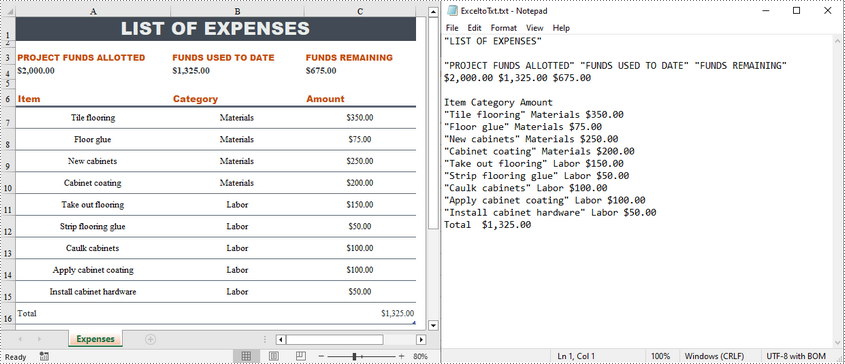
Compared with Excel files, text files are easier to read and take up less memory as they contain only plain text data without any formatting or complex structure. Therefore, in certain situations where simplicity and efficiency are required, converting Excel files to text files can be beneficial. This article will demonstrate how to programmatically convert Excel to TXT format using Spire.XLS for .NET.
Install Spire.XLS for .NET
To begin with, you need to add the DLL files included in the Spire.XLS for .NET package as references in your .NET project. The DLL files can be either downloaded from this link or installed via NuGet.
PM> Install-Package Spire.XLS
Convert Excel to TXT in C# and VB.NET
Spire.XLS for .NET offers the Worksheet.SaveToFile(string fileName, string separator, Encoding encoding) method to convert a specified worksheet to a txt file. The following are the detailed steps.
- Create a Workbook instance.
- Load a sample Excel file using Workbook.LoadFromFile() method.
- Get a specified worksheet by its index using Workbook.Worksheets[sheetIndex] property.
- Convert the Excel worksheet to a TXT file using Worksheet.SaveToFile() method.
- C#
- VB.NET
using Spire.Xls;
using System.Text;

namespace ExcelToTXT
{
    class Program
    {
        static void Main(string[] args)
        {

            //Create a Workbook instance
            Workbook workbook = new Workbook();

            //Load a sample Excel file
            workbook.LoadFromFile("sample.xlsx");

            //Get the first worksheet
            Worksheet sheet = workbook.Worksheets[0];

            //Save the worksheet as a txt file
            sheet.SaveToFile("ExceltoTxt.txt", " ", Encoding.UTF8);

        }
    }
}
Apply for a Temporary License
If you'd like to remove the evaluation message from the generated documents, or to get rid of the function limitations, please request a 30-day trial license for yourself.