Tables in a slide deck usually have to look consistent from page to page: a filled header row, alternating detail rows, a clear line between every pair of cells. Setting the fills and borders cell by cell takes time as soon as a table grows, and keeping the pages consistent is harder still; switching to another color scheme means redoing the whole table.
This article uses Spire.Presentation for JavaScript to style PowerPoint tables in the browser. The whole process runs locally on the user's device through WebAssembly, requires no Office installation and no back-end service, and keeps the presentation from leaving the browser.
This article covers three features:
- Apply a built-in table style to a PowerPoint table
- Set borders for a PowerPoint table
- Fill the cells of a PowerPoint table
For installation and project configuration, see Integrating Spire.Presentation for JavaScript in a React Project. The examples below assume that Spire.Presentation for JavaScript is installed and the WebAssembly module has been initialized.
Apply a built-in table style to a PowerPoint table
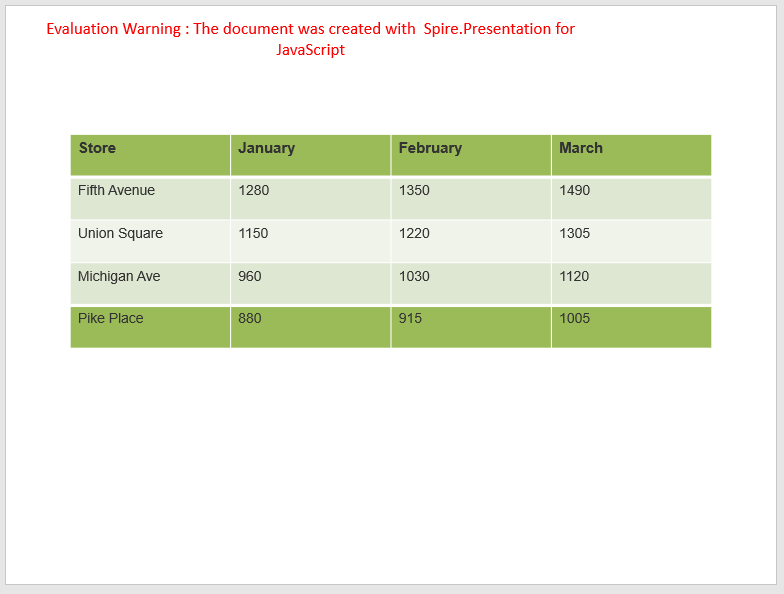
Styling a table from scratch means handling the header row, the total row and the detail rows one at a time; with many rows, the alternating shading easily drifts out of step. A built-in table style packs a complete color scheme into a single preset. Once it is assigned, the fills and text colors of the header row, the total row and the detail rows follow the same set of rules, and the header, total and banding switches decide which rows take part; the rest stay plain.
| What you write | What you get |
|---|---|
shape instanceof pptModule.ITable |
Tells whether a shape is a table |
table.StylePreset = pptModule.TableStylePreset.MediumStyle2Accent3 |
Applies the chosen built-in style to the table |
table.FirstRow = true |
Shows the first row as an emphasized header |
table.LastRow = true |
Shows the last row as an emphasized total row |
table.HorizontalBanding = true |
Shades the detail rows alternately |
The steps are:
- Get the Spire.Presentation WASM module and check that it is ready, load the font file and the presentation into the VFS, create a
Presentationobject and load the file withLoadFromFile(), then take the first slide withSlides.get_Item(0). - Walk the shape collection up to
Shapes.Countand find the table withshape instanceof pptModule.ITable. - Set
table.StylePresetto the built-in style you need, then setFirstRow,LastRowandHorizontalBandingtotrueto decide whether the header row, the total row and the alternating shading take effect. - Save the result with
Presentation.SaveToFile(), release the presentation withDispose(), then read the file from the VFS and start the download.
The code that applies a built-in table style to a PowerPoint table is as follows:
function App() {
  // apply a built-in style to a PowerPoint table
  const applyTableStyle = async () => {
    // get the Spire.Presentation WASM module
    const pptModule = window.wasmModule?.spirepresentation;

    // check that the module is ready
    if (!pptModule) {
      alert('Spire.Presentation is not ready yet');
      return;
    }

    // load the font and the presentation into the VFS
    await window.spire.FetchFileToVFS('simsun.ttc', '/Library/Fonts/', `${process.env.PUBLIC_URL}/font/`);
    const inputFileName = 'en_TableStyle.pptx';
    await window.spire.FetchFileToVFS(inputFileName, '', `${process.env.PUBLIC_URL}/data/`);

    // load the presentation and take its first slide
    const ppt = new pptModule.Presentation();
    ppt.LoadFromFile(inputFileName);
    const slide = ppt.Slides.get_Item(0);

    // walk the shape collection and find the table by type
    let table = null;
    for (let i = 0; i < slide.Shapes.Count; i++) {
      const shape = slide.Shapes.get_Item(i);
      if (shape instanceof pptModule.ITable) {
        table = shape;
        break;
      }
    }

    // apply a built-in style and turn on the header row, the total row and horizontal banding
    table.StylePreset = pptModule.TableStylePreset.MediumStyle2Accent3;
    table.FirstRow = true;
    table.LastRow = true;
    table.HorizontalBanding = true;

    // save the result file
    const outputFileName = 'ApplyTableStyle_result.pptx';
    ppt.SaveToFile({ file: outputFileName, fileFormat: pptModule.FileFormat.Pptx2013 });
    ppt.Dispose();

    // read the generated file from the VFS and start the download
    downloadFile(outputFileName);
  };

  // read the generated file from the VFS and start the download
  const downloadFile = (outputFileName) => {
    const fileArray = window.dotnetRuntime.Module.FS.readFile(outputFileName);
    const blob = new Blob([fileArray], { type: 'application/vnd.openxmlformats-officedocument.presentationml.presentation' });
    const url = URL.createObjectURL(blob);
    const a = document.createElement('a');
    a.href = url;
    a.download = outputFileName;
    a.click();
    URL.revokeObjectURL(url);
  };

  return (
    <div style={{ textAlign: 'center', height: '300px' }}>
      <h1>Table Styles and Borders in PowerPoint</h1>
      <button onClick={applyTableStyle}>Apply a table style</button>
    </div>
  );
}

export default App;
Presentation after applying a built-in table style:
Set borders for a PowerPoint table
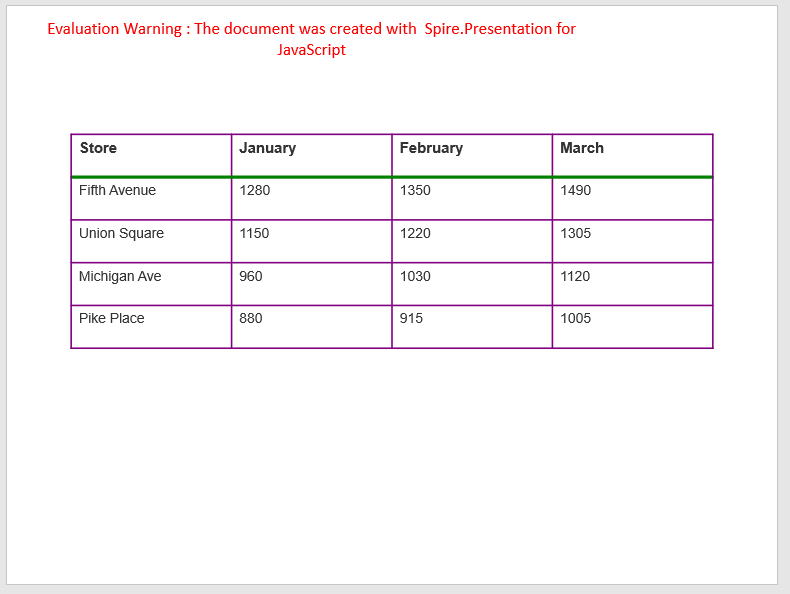
Borders decide where one cell ends and the next begins. Drawing them cell by cell means handling the inner lines as well as the outer edge, and with many rows and columns it is easy to miss one; the divider between the header and the detail rows, on the other hand, often has to stand out from the rest. Borders therefore work at two levels: one call draws every edge of the whole table, and a single edge of a cell can then be set on its own.
| What you write | What you get |
|---|---|
table.SetTableBorder(pptModule.TableBorderType.All, 1.5, pptModule.Color.get_Purple()) |
Sets every edge of the table to the given width and color |
pptModule.TableBorderType.Outside |
Keeps only the outer edge of the table |
pptModule.TableBorderType.Inside |
Keeps only the borders between cells |
pptModule.TableBorderType.None |
Removes the borders of the table |
cell.BorderBottom |
Gets the bottom border of a cell; BorderTop, BorderLeft and BorderRight do the same for the other edges |
cell.BorderBottom.FillType = pptModule.FillFormatType.Solid |
Makes this border a solid line |
cell.BorderBottom.SolidFillColor.Color = pptModule.Color.get_Green() |
Sets the color of this border |
cell.BorderBottom.Width = 3 |
Sets the width of this border, in points |
The steps are:
- Get the Spire.Presentation WASM module and check that it is ready, load the font file and the presentation into the VFS, create a
Presentationobject and load the file withLoadFromFile(), then take the first slide withSlides.get_Item(0). - Walk the shape collection up to
Shapes.Countand find the table withshape instanceof pptModule.ITable. - Call
table.SetTableBorder()with the border type, the width in points and the color to draw every edge of the table at once; the color can be taken from the presets ofpptModule.Color. - Walk the columns up to
ColumnsList.Countfor the header row, take each cell withtable.get_Item(col, 0), setcell.BorderBottom.FillTypetoFillFormatType.Solidand giveSolidFillColor.ColorandWidth; this bottom edge then overrides the line drawn at the same place by the table-wide call. - Save the result with
Presentation.SaveToFile(), release the presentation withDispose(), then read the file from the VFS and start the download.
The code that sets borders for a PowerPoint table is as follows:
function App() {
  // set borders for a PowerPoint table
  const setTableBorders = async () => {
    // get the Spire.Presentation WASM module
    const pptModule = window.wasmModule?.spirepresentation;

    // check that the module is ready
    if (!pptModule) {
      alert('Spire.Presentation is not ready yet');
      return;
    }

    // load the font and the presentation into the VFS
    await window.spire.FetchFileToVFS('simsun.ttc', '/Library/Fonts/', `${process.env.PUBLIC_URL}/font/`);
    const inputFileName = 'en_TableStyle.pptx';
    await window.spire.FetchFileToVFS(inputFileName, '', `${process.env.PUBLIC_URL}/data/`);

    // load the presentation and take its first slide
    const ppt = new pptModule.Presentation();
    ppt.LoadFromFile(inputFileName);
    const slide = ppt.Slides.get_Item(0);

    // walk the shape collection and find the table by type
    let table = null;
    for (let i = 0; i < slide.Shapes.Count; i++) {
      const shape = slide.Shapes.get_Item(i);
      if (shape instanceof pptModule.ITable) {
        table = shape;
        break;
      }
    }

    // set a 1.5-point purple border on the whole table
    table.SetTableBorder(pptModule.TableBorderType.All, 1.5, pptModule.Color.get_Purple());

    // add a 3-point green bottom border to every header cell
    for (let col = 0; col < table.ColumnsList.Count; col++) {
      const cell = table.get_Item(col, 0);
      cell.BorderBottom.FillType = pptModule.FillFormatType.Solid;
      cell.BorderBottom.SolidFillColor.Color = pptModule.Color.get_Green();
      cell.BorderBottom.Width = 3;
    }

    // save the result file
    const outputFileName = 'SetTableBorders_result.pptx';
    ppt.SaveToFile({ file: outputFileName, fileFormat: pptModule.FileFormat.Pptx2013 });
    ppt.Dispose();

    // read the generated file from the VFS and start the download
    downloadFile(outputFileName);
  };

  // read the generated file from the VFS and start the download
  const downloadFile = (outputFileName) => {
    const fileArray = window.dotnetRuntime.Module.FS.readFile(outputFileName);
    const blob = new Blob([fileArray], { type: 'application/vnd.openxmlformats-officedocument.presentationml.presentation' });
    const url = URL.createObjectURL(blob);
    const a = document.createElement('a');
    a.href = url;
    a.download = outputFileName;
    a.click();
    URL.revokeObjectURL(url);
  };

  return (
    <div style={{ textAlign: 'center', height: '300px' }}>
      <h1>Table Styles and Borders in PowerPoint</h1>
      <button onClick={setTableBorders}>Set table borders</button>
    </div>
  );
}

export default App;
Presentation after setting table and cell borders:
Fill the cells of a PowerPoint table
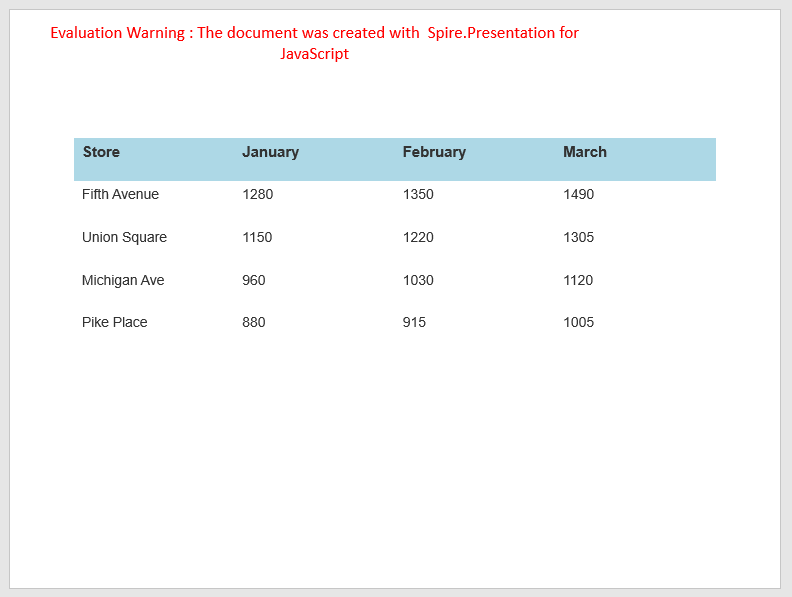
A background color separates the header from the data area, or marks the rows that need attention in a long table. The fill of a cell is managed apart from its borders: set the fill to a solid color, give the color, and the cell stands out from its neighbors. Apply it cell by cell along a row or a few columns and the result is one continuous band, with no gaps in between.
| What you write | What you get |
|---|---|
cell.FillFormat.FillType = pptModule.FillFormatType.Solid |
Makes the fill of the cell a solid color |
cell.FillFormat.SolidColor.Color = pptModule.Color.get_LightBlue() |
Sets the fill color of the cell |
cell.FillFormat.FillType = pptModule.FillFormatType.None |
Removes the fill of the cell |
The steps are:
- Get the Spire.Presentation WASM module and check that it is ready, load the font file and the presentation into the VFS, create a
Presentationobject and load the file withLoadFromFile(), then take the first slide withSlides.get_Item(0). - Walk the shape collection up to
Shapes.Countand find the table withshape instanceof pptModule.ITable. - Walk the columns up to
ColumnsList.Countfor the header row and take each cell withtable.get_Item(col, 0). - Set
cell.FillFormat.FillTypetoFillFormatType.Solid, then give the color withcell.FillFormat.SolidColor.Color. - Save the result with
Presentation.SaveToFile(), release the presentation withDispose(), then read the file from the VFS and start the download.
The code that fills the cells of a PowerPoint table with color is as follows:
function App() {
  // fill the cells of a PowerPoint table with color
  const fillTableCells = async () => {
    // get the Spire.Presentation WASM module
    const pptModule = window.wasmModule?.spirepresentation;

    // check that the module is ready
    if (!pptModule) {
      alert('Spire.Presentation is not ready yet');
      return;
    }

    // load the font and the presentation into the VFS
    await window.spire.FetchFileToVFS('simsun.ttc', '/Library/Fonts/', `${process.env.PUBLIC_URL}/font/`);
    const inputFileName = 'en_TableStyle.pptx';
    await window.spire.FetchFileToVFS(inputFileName, '', `${process.env.PUBLIC_URL}/data/`);

    // load the presentation and take its first slide
    const ppt = new pptModule.Presentation();
    ppt.LoadFromFile(inputFileName);
    const slide = ppt.Slides.get_Item(0);

    // walk the shape collection and find the table by type
    let table = null;
    for (let i = 0; i < slide.Shapes.Count; i++) {
      const shape = slide.Shapes.get_Item(i);
      if (shape instanceof pptModule.ITable) {
        table = shape;
        break;
      }
    }

    // fill every header cell with light blue
    for (let col = 0; col < table.ColumnsList.Count; col++) {
      const cell = table.get_Item(col, 0);
      cell.FillFormat.FillType = pptModule.FillFormatType.Solid;
      cell.FillFormat.SolidColor.Color = pptModule.Color.get_LightBlue();
    }

    // save the result file
    const outputFileName = 'FillCells_result.pptx';
    ppt.SaveToFile({ file: outputFileName, fileFormat: pptModule.FileFormat.Pptx2013 });
    ppt.Dispose();

    // read the generated file from the VFS and start the download
    downloadFile(outputFileName);
  };

  // read the generated file from the VFS and start the download
  const downloadFile = (outputFileName) => {
    const fileArray = window.dotnetRuntime.Module.FS.readFile(outputFileName);
    const blob = new Blob([fileArray], { type: 'application/vnd.openxmlformats-officedocument.presentationml.presentation' });
    const url = URL.createObjectURL(blob);
    const a = document.createElement('a');
    a.href = url;
    a.download = outputFileName;
    a.click();
    URL.revokeObjectURL(url);
  };

  return (
    <div style={{ textAlign: 'center', height: '300px' }}>
      <h1>Table Styles and Borders in PowerPoint</h1>
      <button onClick={fillTableCells}>Fill cells</button>
    </div>
  );
}

export default App;
Presentation after filling the header cells:
FAQ
How can I add only the outer border to a table
Cause: SetTableBorder() handles the whole table according to the border type it receives, and All sets the inner lines together with the outer edge; keeping just the outer edge takes a different border type.
Solution: Pass TableBorderType.Outside instead, with the width and color as usual:
table.SetTableBorder(pptModule.TableBorderType.Outside, 2, pptModule.Color.get_Red());
To keep only the lines between cells, use TableBorderType.Inside.
How do I remove the borders of a table
Cause: Existing borders may come from an earlier version of the template and have to be removed separately.
Solution: Call the method once more with TableBorderType.None and the borders of the whole table are gone:
table.SetTableBorder(pptModule.TableBorderType.None, 1, pptModule.Color.get_Black());
How do I add a diagonal border to a cell
Cause: A diagonal is not one of the four edges of a cell, so members such as BorderTop do not cover it.
Solution: Take it with BorderDiagonalDown or BorderDiagonalUp and set the color and width as for a solid border:
cell.BorderDiagonalDown.FillType = pptModule.FillFormatType.Solid;
cell.BorderDiagonalDown.SolidFillColor.Color = pptModule.Color.get_Red();
cell.BorderDiagonalDown.Width = 2;
Get a Free License
If you wish to delete the evaluation message from the resulting documents, or to get rid of function limitations, please contact sales to obtain a valid 30-day temporary license.
