When several rows share one label, or a line of explanation has to stretch across a few columns, merging cells makes the structure easier to read; after the header or the content changes, an oversized cell has to be divided back into smaller ones. Merging and splitting cells by hand, dragging the mouse across the grid again and again, takes time and easily drags neighbouring cells along, and keeping several presentations consistent is even harder.
This article uses Spire.Presentation for JavaScript to merge and split PowerPoint table cells in the browser. The whole process runs locally on the user's device through WebAssembly, requires no Office installation and no back-end service, and keeps the presentation from leaving the browser.
This article covers two features:
For installation and project configuration, see Integrating Spire.Presentation for JavaScript in a React Project. The examples below assume that Spire.Presentation for JavaScript is installed and the WebAssembly module has been initialized.
Merge cells in a PowerPoint table
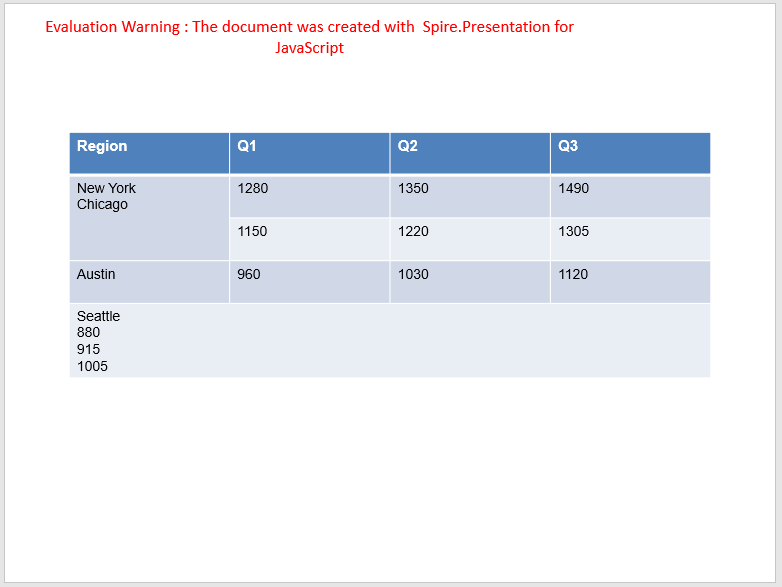
Merging joins every cell inside a rectangle into one cell: a vertical merge lets a single label cover several rows, and a horizontal merge lets one line of text run across a whole row. MergeCells takes the two opposite corner cells of the region, so one call fixes the whole range; the number of rows and columns the merged cell now covers can be read back from RowSpan and ColSpan to confirm the result.
| Call | Result |
|---|---|
slide.Shapes.get_Item(index) |
Take a shape on the slide by index |
shape instanceof pptModule.ITable |
Tell whether a shape is a table |
table.get_Item(columnIndex, rowIndex) |
Take a cell by column and row index |
table.MergeCells(cell1, cell2, allowSplitting) |
Merge the region defined by two cells |
cell.RowSpan / cell.ColSpan |
Number of rows and columns the merged cell spans |
cell.FirstRowIndex / cell.FirstColumnIndex |
Row and column index of the top-left cell of the merged region |
The steps are:
- Get the Spire.Presentation WASM module and check that it is ready, load the presentation into the VFS, create a
Presentationobject and load the file withLoadFromFile(), then take the first slide withSlides.get_Item(0). - Walk the shape collection and find the table on the slide with
shape instanceof pptModule.ITable. - For a vertical merge, pass the first and the last cell of the column to
table.MergeCells(); the example merges the second and third rows of the first column. - For a horizontal merge, pass the first and the last cell of the row to
table.MergeCells(); the example merges every cell of the last row. - Call
Presentation.SaveToFile()to save the result file andDispose()to release the presentation, then read the file back from the VFS and start the download.
The code that merges cells in a PowerPoint table:
function App() {
  const mergeCells = async () => {
    // get the Spire.Presentation WASM module
    const pptModule = window.wasmModule?.spirepresentation;

    // check that the module is ready
    if (!pptModule) {
      alert('Spire.Presentation is not ready yet');
      return;
    }

    // load the presentation into the VFS
    const inputFileName = 'en_TableCells.pptx';
    await window.spire.FetchFileToVFS(inputFileName, '', `${process.env.PUBLIC_URL}/data/`);

    // load the presentation and take its first slide
    const ppt = new pptModule.Presentation();
    ppt.LoadFromFile(inputFileName);
    const slide = ppt.Slides.get_Item(0);

    // find the table on the slide
    let table = null;
    for (let i = 0; i < slide.Shapes.Count; i++) {
      const shape = slide.Shapes.get_Item(i);
      if (shape instanceof pptModule.ITable) {
        table = shape;
      }
    }

    // merge vertically: the second and third rows of the first column
    table.MergeCells(table.get_Item(0, 1), table.get_Item(0, 2), false);

    // merge horizontally: every cell of the last row
    table.MergeCells(table.get_Item(0, 4), table.get_Item(3, 4), true);

    // save the result file
    const outputFileName = 'MergeCells_result.pptx';
    ppt.SaveToFile({ file: outputFileName, fileFormat: pptModule.FileFormat.Pptx2013 });
    ppt.Dispose();

    // read the generated file from the VFS and start the download
    const fileArray = window.dotnetRuntime.Module.FS.readFile(outputFileName);
    const blob = new Blob([fileArray], { type: 'application/vnd.openxmlformats-officedocument.presentationml.presentation' });
    const url = URL.createObjectURL(blob);
    const a = document.createElement('a');
    a.href = url;
    a.download = outputFileName;
    a.click();
    URL.revokeObjectURL(url);
  };

  return (
    <div style={{ textAlign: 'center', height: '300px' }}>
      <h1>Merge and Split Table Cells in PowerPoint</h1>
      <button onClick={mergeCells}>Merge cells</button>
    </div>
  );
}

export default App;
The presentation after merging cells:
Split a cell in a PowerPoint table
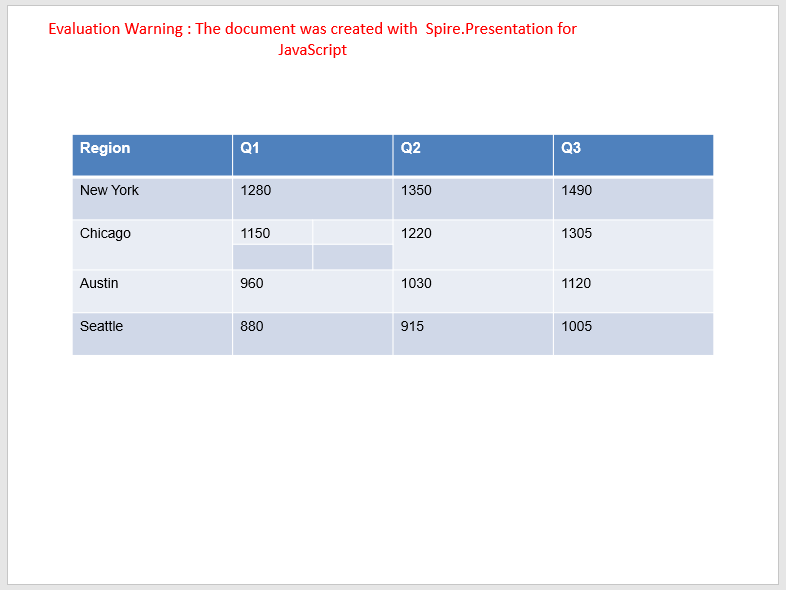
Splitting divides the area of one cell into the given number of rows and columns, turning a single cell into several smaller ones. The table gains the matching rows and columns, and the cells next to the split area stretch across the new dividing lines while keeping their content; the newly created cells are empty and ready for new text. That makes it possible to break an oversized cell into finer columns, or to open up extra places to fill in a fixed layout.
| Call | Result |
|---|---|
table.get_Item(columnIndex, rowIndex) |
Take the cell to split by column and row index |
cell.Split(rowCount, columnCount) |
Split the cell into the given number of rows and columns |
cell.RowSpan / cell.ColSpan |
Span of each cell after the split |
The steps are:
- Get the Spire.Presentation WASM module and check that it is ready, load the presentation into the VFS, create a
Presentationobject and load the presentation, then take the first slide. - Walk the shape collection and find the table with
shape instanceof pptModule.ITable. - Take the cell to split with
table.get_Item()and callSplit()with the row and column counts; the example splits it into 2 rows and 2 columns. - Call
Presentation.SaveToFile()to save the result file andDispose()to release the presentation, then read the file back from the VFS and start the download.
The code that splits a cell in a PowerPoint table:
function App() {
  const splitCell = async () => {
    // get the Spire.Presentation WASM module
    const pptModule = window.wasmModule?.spirepresentation;

    // check that the module is ready
    if (!pptModule) {
      alert('Spire.Presentation is not ready yet');
      return;
    }

    // load the presentation into the VFS
    const inputFileName = 'en_TableCells.pptx';
    await window.spire.FetchFileToVFS(inputFileName, '', `${process.env.PUBLIC_URL}/data/`);

    // load the presentation and take its first slide
    const ppt = new pptModule.Presentation();
    ppt.LoadFromFile(inputFileName);
    const slide = ppt.Slides.get_Item(0);

    // find the table on the slide
    let table = null;
    for (let i = 0; i < slide.Shapes.Count; i++) {
      const shape = slide.Shapes.get_Item(i);
      if (shape instanceof pptModule.ITable) {
        table = shape;
      }
    }

    // split the cell in the third row and second column into 2 rows and 2 columns
    table.get_Item(1, 2).Split(2, 2);

    // save the result file
    const outputFileName = 'SplitCell_result.pptx';
    ppt.SaveToFile({ file: outputFileName, fileFormat: pptModule.FileFormat.Pptx2013 });
    ppt.Dispose();

    // read the generated file from the VFS and start the download
    const fileArray = window.dotnetRuntime.Module.FS.readFile(outputFileName);
    const blob = new Blob([fileArray], { type: 'application/vnd.openxmlformats-officedocument.presentationml.presentation' });
    const url = URL.createObjectURL(blob);
    const a = document.createElement('a');
    a.href = url;
    a.download = outputFileName;
    a.click();
    URL.revokeObjectURL(url);
  };

  return (
    <div style={{ textAlign: 'center', height: '300px' }}>
      <h1>Merge and Split Table Cells in PowerPoint</h1>
      <button onClick={splitCell}>Split the cell</button>
    </div>
  );
}

export default App;
The presentation after splitting a cell:
FAQ
How do I restore a merged cell to separate cells
Cause: Merging only changes the span of the cell; the content of the original cells stays in the merged one, so the span has to be reset to a single cell.
Solution: Call SplitBySpan() on the merged cell; it restores the region to independent cells according to the current span, without changing the row and column counts of the table:
table.get_Item(0, 1).SplitBySpan();
Are the texts of every cell kept after merging
Cause: A merged cell holds one block of text, so the texts already in the region have to be reorganized.
Solution: When cells are merged, the texts of the region are joined into the merged cell as separate paragraphs, and empty cells do not affect the result. If only one label should remain, clear the texts that are no longer needed before merging:
table.get_Item(0, 2).TextFrame.Text = '';
table.MergeCells(table.get_Item(0, 1), table.get_Item(0, 2), false);
How do I tell whether a cell belongs to a merged region
Cause: Every position inside a merged region reads back the same cell object, so the text alone cannot tell whether it spans several rows or columns.
Solution: Read RowSpan and ColSpan; a value greater than 1 means the cell is merged, and FirstRowIndex together with FirstColumnIndex gives the top-left corner of the region:
const cell = table.get_Item(col, row);
if (cell.RowSpan > 1 || cell.ColSpan > 1) {
  console.log(cell.FirstRowIndex, cell.FirstColumnIndex);
}
Get a Free License
If you wish to delete the evaluation message from the resulting documents, or to get rid of function limitations, please contact sales to obtain a valid 30-day temporary license.
