A reference such as "see Chapter 3" or "see Figure 1" becomes unreliable when the chapter and figure numbers are typed by hand: once the order is changed or a chapter is added or removed, every reference in the document has to be checked one by one. A cross-reference registers the target as a bookmark and stores only the bookmark name at the reference site; when the fields are updated, the latest content is read again, so a change of order or a new chapter rarely introduces an error.
This article uses Spire.Doc for JavaScript to create cross-references directly in the browser. The whole process runs on WebAssembly on the client side, requires no Office installation and depends on no backend service; the file always stays on the user's device.
This article covers four features:
- Create Cross-References to Headings
- Create Cross-References to Figure Captions
- Reference the Page of a Bookmark
- Update Fields and Check Broken References
For installation and project setup, refer to Integrating Spire.Doc for JavaScript in a React Project. The examples below assume that Spire.Doc is installed and the WebAssembly module is initialized.
The examples use a YunStack WMS technical whitepaper in which the chapter headings, the figure and table captions and the reading guide are already written; only the reference positions are still empty:
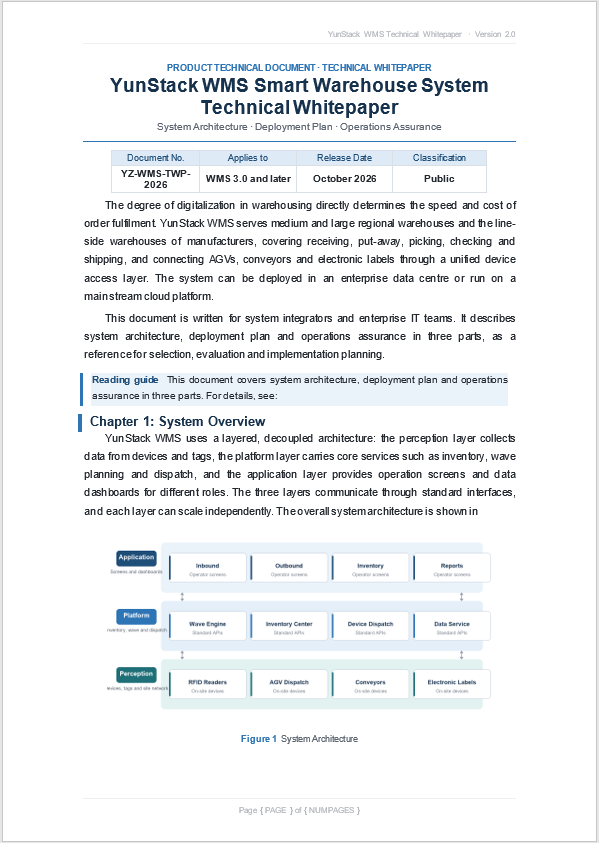
Create Cross-References to Headings
The stability of a reference comes from the bookmark. First wrap the heading text in a bookmark, then insert a REF field at the reference site and write the bookmark name in the field code; after the heading text changes, the reference stays in sync as long as the bookmark remains and the field is updated. Creating a cross-reference to a heading uses the following members:
| Member | Purpose |
|---|---|
paragraph.AppendBookmarkStart(name) |
Inserts the bookmark start marker into the paragraph |
paragraph.AppendBookmarkEnd(name) |
Inserts the bookmark end marker into the paragraph |
paragraph.AppendField(name, FieldType.FieldRef) |
Inserts a REF field at the end of the paragraph |
field.Code |
Sets the bookmark name and switches of the reference |
document.Bookmarks.FindByName(name) |
Checks whether a bookmark exists |
The steps are:
- Get the Spire.Doc WebAssembly module and confirm that it is ready.
- Load the font and the sample document, and take the paragraph collection of the first section.
- Locate the three chapter headings by their exact paragraph text, and wrap the heading text with the bookmark start and end markers.
- Append a
REFfield at the end of the reading-guide paragraph, with the bookmark name and the\hswitch in the field code. - Save the result file, read it from the VFS and trigger a browser download.
The code for creating cross-references to headings is:
// Locate a paragraph by text: with exact = true the whole paragraph must match
const findParagraph = (paragraphs, text, exact = false) => {
  for (let i = 0; i < paragraphs.Count; i++) {
    const paragraph = paragraphs.get_Item(i);
    const value = String(paragraph.Text).trim();
    if (exact ? value === text : value.includes(text)) {
      return paragraph;
    }
  }
  return null;
};

// Wrap the existing text of a paragraph in a bookmark: append the markers, then move them
const wrapBookmark = (paragraph, name, endIndex) => {
  const start = paragraph.AppendBookmarkStart(name);
  const end = paragraph.AppendBookmarkEnd(name);

  paragraph.ChildObjects.Remove(start);
  paragraph.ChildObjects.Insert(0, start);

  paragraph.ChildObjects.Remove(end);
  paragraph.ChildObjects.Insert(
    endIndex === undefined ? paragraph.ChildObjects.Count : endIndex,
    end
  );
};

function App() {
  const addHeadingReferences = async () => {
    // Get the Spire.Doc WebAssembly module
    const docModule = window.wasmModule?.spiredoc;
    if (!docModule) {
      alert('Spire.Doc is not ready yet');
      return;
    }

    // Load the font and the sample document
    await window.spire.FetchFileToVFS('ARIALUNI.TTF', '/Library/Fonts/', `${process.env.PUBLIC_URL}/font/`);
    await window.spire.FetchFileToVFS('Whitepaper.docx', '', `${process.env.PUBLIC_URL}/data/`);

    const doc = new docModule.Document();
    doc.LoadFromFile('Whitepaper.docx');
    const paragraphs = doc.Sections.get_Item(0).Body.Paragraphs;

    // Bookmark each chapter heading; the bookmark covers the whole heading line
    ['Chapter 1: System Overview', 'Chapter 2: Deployment Plan', 'Chapter 3: Operations Assurance'].forEach((title, index) => {
      const heading = findParagraph(paragraphs, title, true);
      if (heading) {
        wrapBookmark(heading, `BM_Chapter${index + 1}`);
      }
    });

    // Write three REF fields at the end of the reading-guide paragraph
    const guide = findParagraph(paragraphs, 'For details, see');
    for (let i = 1; i <= 3; i++) {
      if (i > 1) guide.AppendText(', ');
      const ref = guide.AppendField('Ref', docModule.FieldType.FieldRef);
      ref.Code = `REF BM_Chapter${i} \\h`;
      ref.Update();
    }
    guide.AppendText('.');

    // Save the result file
    const outputFileName = 'WhitepaperWithChapterRefs.docx';
    doc.SaveToFile({ fileName: outputFileName, fileFormat: docModule.FileFormat.Docx2013 });
    doc.Dispose();

    // Read the result from the VFS and trigger the download
    const fileArray = window.dotnetRuntime.Module.FS.readFile(outputFileName);
    const blob = new Blob([fileArray], { type: 'application/vnd.openxmlformats-officedocument.wordprocessingml.document' });
    const url = URL.createObjectURL(blob);
    const a = document.createElement('a');
    a.href = url;
    a.download = outputFileName;
    a.click();
    URL.revokeObjectURL(url);
  };

  return (
    <div style={{ textAlign: 'center', height: '300px' }}>
      <h1>Heading Cross-References</h1>
      <button onClick={addHeadingReferences}>
        Insert Chapter References
      </button>
    </div>
  );
}

export default App;
The reading guide after the three chapter references are inserted:
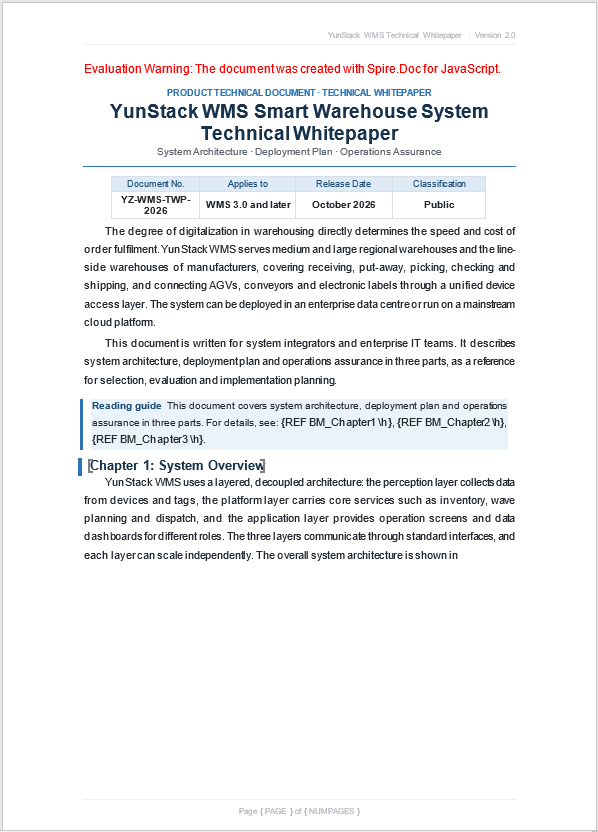
The \h switch makes the reference clickable
\h turns the reference result into a hyperlink to the bookmark, so a click moves the cursor to the target. Without the switch, the reference shows text only and does not respond to clicks. For documents distributed outside the team, keep the switch; it makes reading more convenient.
The bookmark range decides what the reference displays
A REF field takes the text inside the bookmark range. If the bookmark covers the whole heading line, the reference displays the whole heading; if it covers only the words "Chapter 3", the reference displays only "Chapter 3". Decide the reference granularity before creating the bookmark rather than wrapping the whole paragraph for convenience. In the figure above the reference result keeps the font and colour of the heading, which is normal behaviour for a field result that follows the formatting of the bookmarked text. If the reference site should not follow the heading style, narrow the bookmark range or select the reference result in Word and format it separately.
Create Cross-References to Figure Captions
Creating a cross-reference to a figure caption works in much the same way as a heading, with one difference in the bookmark range: a caption paragraph consists of the number "Figure 1" and a description, and usually only the number is wrapped in the bookmark, so the reference displays only "Figure 1", and a later change to the description does not affect the reference.
The steps are:
- Locate the caption paragraph "Figure 1 System Architecture" by its exact text.
- Insert the bookmark start marker at the beginning of the paragraph and the end marker after the number "Figure 1", so that the bookmark covers only the number.
- Locate the body sentence that ends with "architecture is shown in" and append a
REFfield after it. - Append a full stop after the field, update the field, then save and download.
The code below reuses the findParagraph and wrapBookmark helpers defined above and keeps only the caption-reference part:
function App() {
  const addCaptionReference = async () => {
    // Get the Spire.Doc WebAssembly module
    const docModule = window.wasmModule?.spiredoc;
    if (!docModule) {
      alert('Spire.Doc is not ready yet');
      return;
    }

    // Load the font and the sample document
    await window.spire.FetchFileToVFS('ARIALUNI.TTF', '/Library/Fonts/', `${process.env.PUBLIC_URL}/font/`);
    await window.spire.FetchFileToVFS('Whitepaper.docx', '', `${process.env.PUBLIC_URL}/data/`);

    const doc = new docModule.Document();
    doc.LoadFromFile('Whitepaper.docx');
    const paragraphs = doc.Sections.get_Item(0).Body.Paragraphs;

    // The caption has "Figure 1" and the description as two runs; endIndex 2 keeps only the number
    const caption = findParagraph(paragraphs, 'Figure 1  System Architecture', true);
    wrapBookmark(caption, 'BM_Figure1', 2);

    // Append a REF field after "…architecture is shown in" in the body
    const body = findParagraph(paragraphs, 'architecture is shown in');
    const figureRef = body.AppendField('FigRef', docModule.FieldType.FieldRef);
    figureRef.Code = 'REF BM_Figure1 \\h';
    figureRef.Update();
    body.AppendText('.');

    // Save the result file
    const outputFileName = 'WhitepaperWithFigureRef.docx';
    doc.SaveToFile({ fileName: outputFileName, fileFormat: docModule.FileFormat.Docx2013 });
    doc.Dispose();

    // Read the result from the VFS and trigger the download
    const fileArray = window.dotnetRuntime.Module.FS.readFile(outputFileName);
    const blob = new Blob([fileArray], { type: 'application/vnd.openxmlformats-officedocument.wordprocessingml.document' });
    const url = URL.createObjectURL(blob);
    const a = document.createElement('a');
    a.href = url;
    a.download = outputFileName;
    a.click();
    URL.revokeObjectURL(url);
  };

  return (
    <div style={{ textAlign: 'center', height: '300px' }}>
      <h1>Caption Cross-References</h1>
      <button onClick={addCaptionReference}>
        Insert Caption Reference
      </button>
    </div>
  );
}

export default App;
The body text references the number of Figure 1 through a REF field:
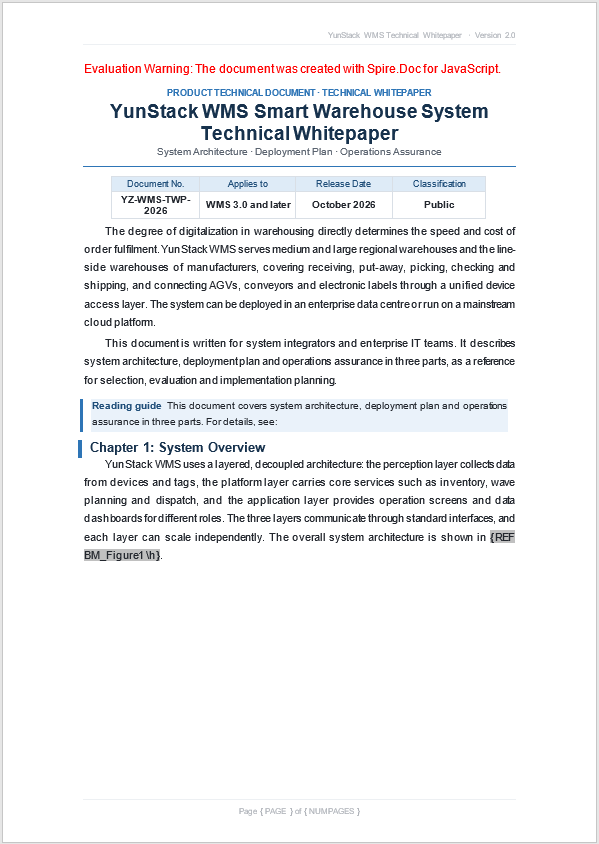
Why not use the bookmark that AddCaption creates
Word desktop builds a hidden bookmark when a caption is inserted, but AddCaption in Spire.Doc for JavaScript writes only the SEQ number field, so the document gains no bookmark that a REF field can hit directly and the field code has no ready-made name to use. Rather than guessing the bookmark name after generation, add a bookmark with a fixed name to the number in the caption, as shown in this article.
Table captions are referenced in the same way
The table caption "Table 1 Deployment Environment Requirements" follows the same pattern: the bookmark covers only the number, and the body adds a REF field after "configurations are listed in".
// A table caption also keeps only the number inside the bookmark
const tableCaption = findParagraph(paragraphs, 'Table 1  Deployment Environment Requirements', true);
wrapBookmark(tableCaption, 'BM_Table1', 2);

const tableBody = findParagraph(paragraphs, 'configurations are listed in');
const tableRef = tableBody.AppendField('TabRef', docModule.FieldType.FieldRef);
tableRef.Code = 'REF BM_Table1 \\h';
tableRef.Update();
tableBody.AppendText('.');
Reference the Page of a Bookmark
Referencing the page on which a bookmark sits uses a PAGEREF field. Like a REF field it points to a bookmark, but the content it takes is the page number of the page that contains the bookmark, which suits a sentence such as "the complete environment preparation checklist is on page 2".
The steps are:
- Add a bookmark to the target chapter heading, for example with the name
BM_Chapter2. - Locate the paragraph in the body that contains "checklist is on page".
- Append a
PAGEREFfield with the field codePAGEREF BM_Chapter2 \h. - Add a space before the field and a full stop after it, update the field, then save and download.
The code below reuses the findParagraph and wrapBookmark helpers defined above and keeps only the page-reference part:
function App() {
  const addPageReference = async () => {
    // Get the Spire.Doc WebAssembly module
    const docModule = window.wasmModule?.spiredoc;
    if (!docModule) {
      alert('Spire.Doc is not ready yet');
      return;
    }

    // Load the font and the sample document
    await window.spire.FetchFileToVFS('ARIALUNI.TTF', '/Library/Fonts/', `${process.env.PUBLIC_URL}/font/`);
    await window.spire.FetchFileToVFS('Whitepaper.docx', '', `${process.env.PUBLIC_URL}/data/`);

    const doc = new docModule.Document();
    doc.LoadFromFile('Whitepaper.docx');
    const paragraphs = doc.Sections.get_Item(0).Body.Paragraphs;

    // Bookmark the target chapter heading
    const chapter = findParagraph(paragraphs, 'Chapter 2: Deployment Plan', true);
    wrapBookmark(chapter, 'BM_Chapter2');

    // Write the PAGEREF field after "…on page" in the body
    const deploy = findParagraph(paragraphs, 'checklist is on page');
    deploy.AppendText(' ');
    const pageRef = deploy.AppendField('PageRef', docModule.FieldType.FieldPageRef);
    pageRef.Code = 'PAGEREF BM_Chapter2 \\h';
    pageRef.Update();
    deploy.AppendText('.');

    // Save the result file
    const outputFileName = 'WhitepaperWithPageRef.docx';
    doc.SaveToFile({ fileName: outputFileName, fileFormat: docModule.FileFormat.Docx2013 });
    doc.Dispose();

    // Read the result from the VFS and trigger the download
    const fileArray = window.dotnetRuntime.Module.FS.readFile(outputFileName);
    const blob = new Blob([fileArray], { type: 'application/vnd.openxmlformats-officedocument.wordprocessingml.document' });
    const url = URL.createObjectURL(blob);
    const a = document.createElement('a');
    a.href = url;
    a.download = outputFileName;
    a.click();
    URL.revokeObjectURL(url);
  };

  return (
    <div style={{ textAlign: 'center', height: '300px' }}>
      <h1>Page Cross-References</h1>
      <button onClick={addPageReference}>
        Insert Page Reference
      </button>
    </div>
  );
}

export default App;
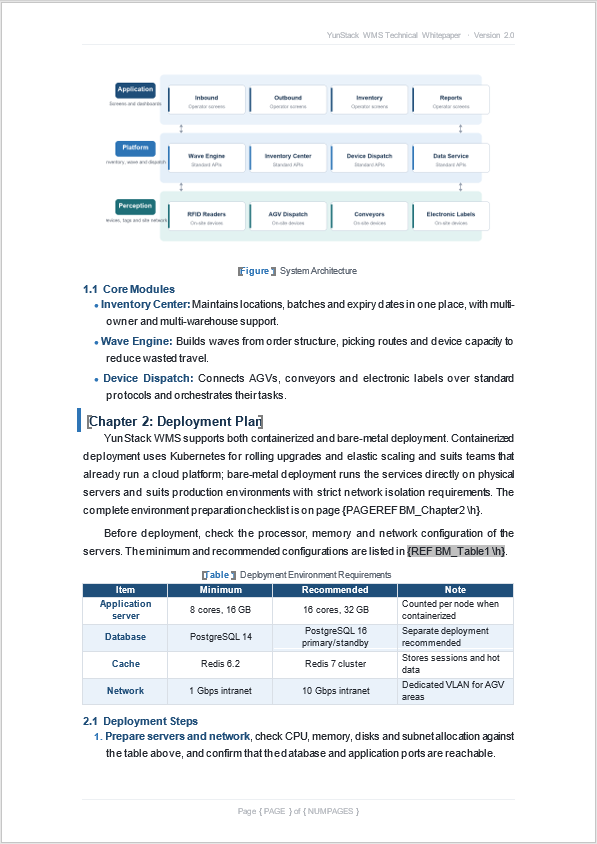
The result appears as "on page 2" in the figure below, where the table reference on the same page has also taken effect:
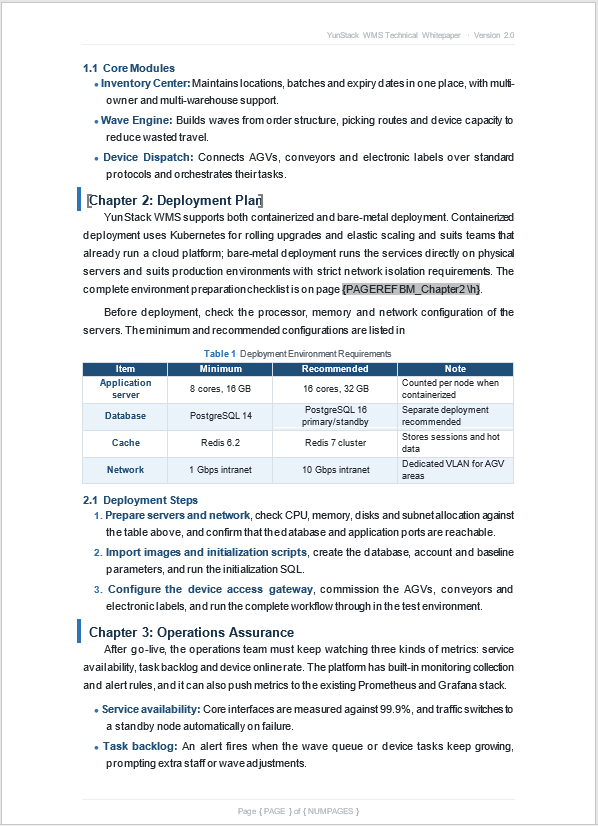
What is the difference between PAGEREF and REF
Both fields point to a bookmark but take different content: REF takes the text inside the bookmark range, while PAGEREF takes the page number of the page that contains the bookmark. The page number depends on pagination, and adding or removing content or changing the font size can change it; after the document structure changes, update the fields again to obtain an accurate page number.
Update Fields and Check Broken References
Updating fields and checking for broken references is the last step before delivery: cross-references do not refresh themselves when the target changes, and when a bookmark is deleted or renamed the reference site keeps an error message. The safe approach is to update every field before saving and to check whether the bookmark names in the field codes still exist.
The steps are:
- Load the document and create bookmarks for the chapter headings, the figure caption and the table caption.
- Write
REFandPAGEREFfields in the reading guide, the body and the caption sentence. - Collect the names of all bookmarks currently in the document.
- Walk
doc.Fields, callUpdate()on each field, and parse the bookmark name out of every field code for comparison. - Record the missing targets, confirm the result, then save and download.
The complete code for updating fields and checking broken references is below; the helper functions are the ones defined above:
function App() {
  const updateAndVerify = async () => {
    // Get the Spire.Doc WebAssembly module
    const docModule = window.wasmModule?.spiredoc;
    if (!docModule) {
      alert('Spire.Doc is not ready yet');
      return;
    }

    // Load the font and the sample document
    await window.spire.FetchFileToVFS('ARIALUNI.TTF', '/Library/Fonts/', `${process.env.PUBLIC_URL}/font/`);
    await window.spire.FetchFileToVFS('Whitepaper.docx', '', `${process.env.PUBLIC_URL}/data/`);

    const doc = new docModule.Document();
    doc.LoadFromFile('Whitepaper.docx');
    const paragraphs = doc.Sections.get_Item(0).Body.Paragraphs;

    // 1. Heading bookmarks and chapter references
    ['Chapter 1: System Overview', 'Chapter 2: Deployment Plan', 'Chapter 3: Operations Assurance'].forEach((title, index) => {
      const heading = findParagraph(paragraphs, title, true);
      if (heading) {
        wrapBookmark(heading, `BM_Chapter${index + 1}`);
      }
    });

    const guide = findParagraph(paragraphs, 'For details, see');
    for (let i = 1; i <= 3; i++) {
      if (i > 1) guide.AppendText(', ');
      const ref = guide.AppendField('Ref', docModule.FieldType.FieldRef);
      ref.Code = `REF BM_Chapter${i} \\h`;
      ref.Update();
    }
    guide.AppendText('.');

    // 2. Figure caption and reference
    const caption = findParagraph(paragraphs, 'Figure 1  System Architecture', true);
    wrapBookmark(caption, 'BM_Figure1', 2);

    const figBody = findParagraph(paragraphs, 'architecture is shown in');
    const figRef = figBody.AppendField('FigRef', docModule.FieldType.FieldRef);
    figRef.Code = 'REF BM_Figure1 \\h';
    figRef.Update();
    figBody.AppendText('.');

    // 3. Table caption and reference
    const tableCaption = findParagraph(paragraphs, 'Table 1  Deployment Environment Requirements', true);
    wrapBookmark(tableCaption, 'BM_Table1', 2);

    const tableBody = findParagraph(paragraphs, 'configurations are listed in');
    const tableRef = tableBody.AppendField('TabRef', docModule.FieldType.FieldRef);
    tableRef.Code = 'REF BM_Table1 \\h';
    tableRef.Update();
    tableBody.AppendText('.');

    // 4. Chapter page reference
    const pageBody = findParagraph(paragraphs, 'checklist is on page');
    pageBody.AppendText(' ');
    const pageRef = pageBody.AppendField('PageRef', docModule.FieldType.FieldPageRef);
    pageRef.Code = 'PAGEREF BM_Chapter2 \\h';
    pageRef.Update();
    pageBody.AppendText('.');

    // 5. Collect the existing bookmark names
    const bookmarkNames = new Set();
    for (let i = 0; i < doc.Bookmarks.Count; i++) {
      bookmarkNames.add(String(doc.Bookmarks.get_Item(i).Name));
    }

    // 6. Update each field and check the bookmark name in its field code
    const missing = [];
    for (let i = 0; i < doc.Fields.Count; i++) {
      const field = doc.Fields.get_Item(i);
      field.Update();

      const match = String(field.Code).match(/^(?:REF|PAGEREF)\s+(\S+)/i);
      if (match && !bookmarkNames.has(match[1])) {
        missing.push(match[1]);
      }
    }

    if (missing.length > 0) {
      console.warn('The following reference targets do not exist:', [...new Set(missing)]);
    }

    // Save the result file
    const outputFileName = 'WhitepaperWithReferences.docx';
    doc.SaveToFile({ fileName: outputFileName, fileFormat: docModule.FileFormat.Docx2013 });
    doc.Dispose();

    // Read the result from the VFS and trigger the download
    const fileArray = window.dotnetRuntime.Module.FS.readFile(outputFileName);
    const blob = new Blob([fileArray], { type: 'application/vnd.openxmlformats-officedocument.wordprocessingml.document' });
    const url = URL.createObjectURL(blob);
    const a = document.createElement('a');
    a.href = url;
    a.download = outputFileName;
    a.click();
    URL.revokeObjectURL(url);
  };

  return (
    <div style={{ textAlign: 'center', height: '300px' }}>
      <h1>Update Cross-References</h1>
      <button onClick={updateAndVerify}>
        Update and Check References
      </button>
    </div>
  );
}

export default App;
The whitepaper after every field is updated:
What a field displays when a reference is broken
When the bookmark name does not exist or is spelled differently, a REF field displays Error! Reference source not found.; a PAGEREF field may return an invalid page number such as -1 when it cannot find the target. Neither interrupts the program, so both are easy to miss during generation; parsing the field codes once before saving and comparing them with the bookmark list saves more effort than checking page by page after delivery.
FAQ
After updating fields, the result still shows Error! Reference source not found. How do I troubleshoot
Compare the names first: bookmark names are case-sensitive, and spaces, full-width and half-width punctuation and underscores cannot be mixed; the name in the field code must match a name that actually exists in doc.Bookmarks character for character. Then confirm that the bookmark really covers the text, with the start marker at the beginning of the paragraph and the end marker after the text. When the position is hard to find, print all names in doc.Bookmarks and compare them side by side with each field code.
I set IsUpdateFields, so why did the fields not update when the document was opened in Word
IsUpdateFields is no substitute for updating fields before saving, and it does not guarantee that Word recalculates every field when the document is opened. The more controllable approach is the one used in this article: walk doc.Fields and call Update() on each field before saving. If the page numbers or numbers are still old after the document is opened, select all in Word and press F9 to update them manually.
Can a caption added by AddCaption be referenced directly through a _Ref bookmark
Usually not. AddCaption in Spire.Doc for JavaScript writes the SEQ number field, but the document gains no _Ref bookmark that a REF field can hit directly, so the field code has no ready-made name to use. Add a bookmark with a fixed name to the number in the caption as shown in this article; the reference relationship is clearer.
Why is the referenced content as bold and as large as the heading
A REF field takes the text inside the bookmark range, and the result follows the font, size and colour of that text, so referencing a heading carries the heading's style. If a short reference such as "Figure 1" is all that is needed, narrow the bookmark range to the number; if the reference site should use the body style, select the reference result in Word and format it separately.
Does generating a Word file with cross-references in the browser require Office or a file upload
No Office installation is required. Spire.Doc for JavaScript reads and writes documents in the browser on WebAssembly, and the example loads and saves locally through the virtual file system (VFS); the library itself does not send the file to a server. Whether the file leaves the device in the end depends on other code you add to the page.
Get a Free License
Spire.Doc for JavaScript offers a 30-day full-featured free trial license with no functional limitations. Apply here to evaluate before purchasing.
