Fields such as evaluation conclusions, department names and product line ownership usually take only a limited set of values. If the person filling in the form is allowed to type freely, it is easy to end up with "R&D Department", "R&D Center" and "R&D" used side by side, and the records have to be cleaned up one by one before they can be summarized. Word's drop-down list and combo box content controls write the allowed values into the document in advance, so the person filling in the form can only pick from them, and the data format is unified at the source.
The difference between the two lies in whether values outside the preset range are allowed: a drop-down list accepts only the options in the list, while a combo box also allows the user to enter something outside it. Which one to choose depends on whether the business needs to keep exceptions.
This article uses Spire.Doc for JavaScript to create both kinds of controls in the browser, and demonstrates how to update the list items and selected value of an existing combo box. All processing is performed in WebAssembly; documents never pass through a server.
This article covers the following topics:
- Add a Drop-Down List Content Control
- Add a Combo Box Content Control
- Update Combo Box List Items and Selected Value
Both kinds of controls mount their list data through SDTProperties.ControlProperties, and SdtListItem is a single item in the list:
| Control type | SDTType value |
Control property class | Allows custom input |
|---|---|---|---|
| Drop-down list content control | SdtType.DropDownList |
SdtDropDownList |
No |
| Combo box content control | SdtType.ComboBox |
SdtComboBox |
Yes |
For installation and project setup, refer to Integrating Spire.Doc for JavaScript in a React Project. The examples below assume that Spire.Doc is installed and the WebAssembly module is initialized.
Add a Drop-Down List Content Control
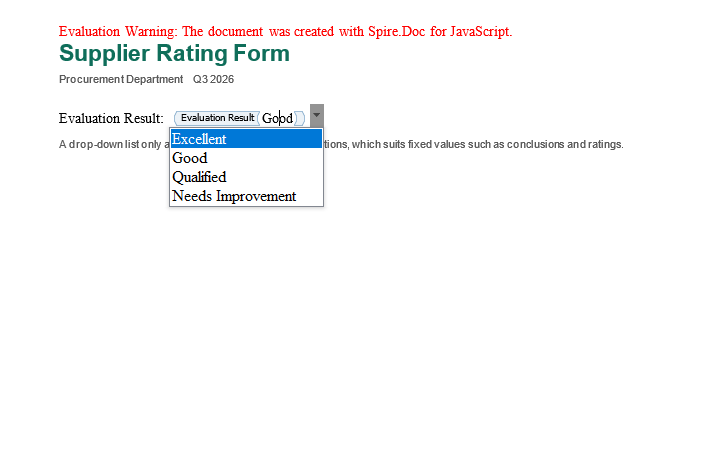
A drop-down list suits fields whose values are completely fixed, such as rating levels, approval conclusions and expense categories. When creating one, first set SDTType to SdtType.DropDownList, then construct an SdtDropDownList and add each option to ListItems as an SdtListItem.
The following members are involved in adding a drop-down list content control:
| Member | Purpose |
|---|---|
SdtType.DropDownList |
Sets the control type to drop-down list |
SdtDropDownList |
Control properties object of the drop-down list |
ListItems.Add(item) |
Appends an option to the list |
SdtListItem(displayText) |
Creates an option whose display text and value are the same |
SdtListItem(displayText, value) |
Creates an option with separate display text and value |
ListItems.get_Item(index) |
Gets an option by index, starting at 0 |
The specific steps are as follows:
- Get the Spire.Doc WASM module and confirm that it is ready.
- Load the font, create a document with the
Documentclass and add a section, then write the title and description. - Create a
StructureDocumentTagInlinecontrol in the paragraph and setSDTTypetoSdtType.DropDownList. - Create an
SdtDropDownList, add theSdtListItemoptions one by one, and assign it toControlProperties. - Write the text of the currently selected option into
SDTContent, save the file and read it from the VFS for download.
The code for adding a drop-down list content control is as follows:
function App() {
  const addDropDownList = async () => {
    // Get the Spire.Doc WASM module
    const wasmModule = window.wasmModule?.spiredoc;

    if (!wasmModule) {
      alert('Spire.Doc is not ready yet');
      return;
    }

    // Load the font
    await window.spire.FetchFileToVFS('arial.ttf', '/Library/Fonts/', `${process.env.PUBLIC_URL}/font/`);
    await window.spire.FetchFileToVFS('arialbd.ttf', '/Library/Fonts/', `${process.env.PUBLIC_URL}/font/`);

    // Create a document and add a section
    const doc = new wasmModule.Document();
    const section = doc.AddSection();

    // Add the title and subtitle
    const titleParagraph = section.AddParagraph();
    const titleRange = titleParagraph.AppendText('Supplier Rating Form');
    titleRange.CharacterFormat.FontName = 'Arial';
    titleRange.CharacterFormat.FontSize = 19;
    titleRange.CharacterFormat.Bold = true;
    titleRange.CharacterFormat.TextColor = wasmModule.Color.FromArgb(255, 15, 110, 90);
    titleParagraph.Format.AfterSpacing = 6;

    const subtitleParagraph = section.AddParagraph();
    const subtitleRange = subtitleParagraph.AppendText('Procurement Department    Q3 2026');
    subtitleRange.CharacterFormat.FontName = 'Arial';
    subtitleRange.CharacterFormat.FontSize = 9;
    subtitleRange.CharacterFormat.TextColor = wasmModule.Color.FromArgb(255, 89, 89, 89);
    subtitleParagraph.Format.AfterSpacing = 16;

    // Add the explanatory text before the control
    const paragraph = section.AddParagraph();
    paragraph.AppendText('Evaluation Result:  ');

    // Create an inline content control and add it to the paragraph
    const sdt = new wasmModule.StructureDocumentTagInline(doc);
    paragraph.ChildObjects.Add(sdt);

    // Set the control type to drop-down list
    sdt.SDTProperties.SDTType = wasmModule.SdtType.DropDownList;
    sdt.SDTProperties.Alias = 'Evaluation Result';
    sdt.SDTProperties.Tag = 'evaluation-result';
    sdt.SDTProperties.Appearance = wasmModule.SdtAppearance.Tags;

    // Build the drop-down list and add the options
    const list = new wasmModule.SdtDropDownList();
    list.ListItems.Add(new wasmModule.SdtListItem('Excellent'));
    list.ListItems.Add(new wasmModule.SdtListItem('Good'));
    list.ListItems.Add(new wasmModule.SdtListItem('Qualified'));
    list.ListItems.Add(new wasmModule.SdtListItem('Needs Improvement'));
    sdt.SDTProperties.ControlProperties = list;

    // Write the text of the currently selected option
    const content = new wasmModule.TextRange(doc);
    content.Text = list.ListItems.get_Item(1).DisplayText;
    sdt.SDTContent.ChildObjects.Add(content);

    // Add the closing note
    const noteParagraph = section.AddParagraph();
    noteParagraph.Format.BeforeSpacing = 10;
    const noteRange = noteParagraph.AppendText('A drop-down list only allows choices from the preset options, which suits fixed values such as conclusions and ratings.');
    noteRange.CharacterFormat.FontName = 'Arial';
    noteRange.CharacterFormat.FontSize = 9;
    noteRange.CharacterFormat.TextColor = wasmModule.Color.FromArgb(255, 89, 89, 89);

    // Save the result file
    const outputFileName = 'AddDropDownListContentControl.docx';
    doc.SaveToFile({ fileName: outputFileName, fileFormat: wasmModule.FileFormat.Docx2013 });
    doc.Dispose();

    // Read the generated file from the VFS and trigger the download
    const fileArray = window.dotnetRuntime.Module.FS.readFile(outputFileName);
    const blob = new Blob([fileArray], { type: 'application/vnd.openxmlformats-officedocument.wordprocessingml.document' });
    const url = URL.createObjectURL(blob);
    const a = document.createElement('a');
    a.href = url;
    a.download = outputFileName;
    a.click();
    URL.revokeObjectURL(url);
  };

  return (
    <div style={{ textAlign: 'center', height: '300px' }}>
      <h1>Add Drop-Down List Content Control</h1>
      <button onClick={addDropDownList}>Generate Document</button>
    </div>
  );
}

export default App;
Document after adding a drop-down list content control:
Display Text and Value of an Option
SdtListItem has two constructors:
| Form | Display text | Internal value |
|---|---|---|
new SdtListItem('Good') |
Good | Good |
new SdtListItem('Good', 'good') |
Good | good |
When only one argument is passed, the display text and the internal value are the same, which suits options that are themselves business terms. When two arguments are passed, the document displays the first one, while a program can read and compare the second one; setting the internal value to a stable English identifier keeps the meaning of the data unchanged even after the interface wording is adjusted.
Add a Combo Box Content Control
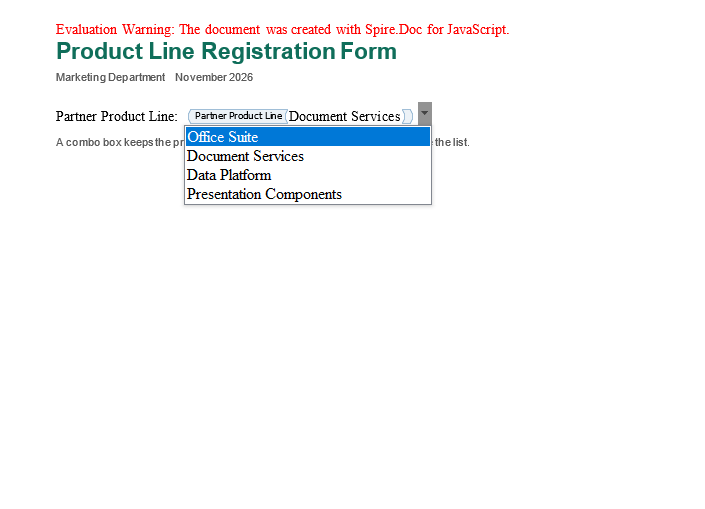
A combo box provides a list of candidates while allowing the person filling in the form to enter content outside the list. It suits fields such as product lines and supplier names that are "usually fixed, occasionally exceptional". The code structure is almost identical to that of the drop-down list; only the type changes to SdtType.ComboBox and the control property class to SdtComboBox.
The specific steps are as follows:
- Get the Spire.Doc WASM module and confirm that it is ready.
- Load the font, create a document with the
Documentclass and add a section, then write the title and description. - Create a
StructureDocumentTagInlinecontrol in the paragraph and setSDTTypetoSdtType.ComboBox. - Create an
SdtComboBox, add the candidate options, assign it toControlProperties, and write the text of the selected option. - Save the result file with
SaveToFile(), read it from the VFS and trigger a browser download.
The code for adding a combo box content control is as follows:
function App() {
  const addComboBox = async () => {
    // Get the Spire.Doc WASM module
    const wasmModule = window.wasmModule?.spiredoc;

    if (!wasmModule) {
      alert('Spire.Doc is not ready yet');
      return;
    }

    // Load the font
    await window.spire.FetchFileToVFS('arial.ttf', '/Library/Fonts/', `${process.env.PUBLIC_URL}/font/`);
    await window.spire.FetchFileToVFS('arialbd.ttf', '/Library/Fonts/', `${process.env.PUBLIC_URL}/font/`);

    // Create a document and add a section
    const doc = new wasmModule.Document();
    const section = doc.AddSection();

    // Add the title and subtitle
    const titleParagraph = section.AddParagraph();
    const titleRange = titleParagraph.AppendText('Product Line Registration Form');
    titleRange.CharacterFormat.FontName = 'Arial';
    titleRange.CharacterFormat.FontSize = 19;
    titleRange.CharacterFormat.Bold = true;
    titleRange.CharacterFormat.TextColor = wasmModule.Color.FromArgb(255, 15, 110, 90);
    titleParagraph.Format.AfterSpacing = 6;

    const subtitleParagraph = section.AddParagraph();
    const subtitleRange = subtitleParagraph.AppendText('Marketing Department    November 2026');
    subtitleRange.CharacterFormat.FontName = 'Arial';
    subtitleRange.CharacterFormat.FontSize = 9;
    subtitleRange.CharacterFormat.TextColor = wasmModule.Color.FromArgb(255, 89, 89, 89);
    subtitleParagraph.Format.AfterSpacing = 16;

    // Add the explanatory text before the control
    const paragraph = section.AddParagraph();
    paragraph.AppendText('Partner Product Line:  ');

    // Create an inline content control and add it to the paragraph
    const sdt = new wasmModule.StructureDocumentTagInline(doc);
    paragraph.ChildObjects.Add(sdt);

    // Set the control type to combo box
    sdt.SDTProperties.SDTType = wasmModule.SdtType.ComboBox;
    sdt.SDTProperties.Alias = 'Partner Product Line';
    sdt.SDTProperties.Tag = 'product-line';
    sdt.SDTProperties.Appearance = wasmModule.SdtAppearance.Tags;

    // Build the combo box and add the candidates
    const combo = new wasmModule.SdtComboBox();
    combo.ListItems.Add(new wasmModule.SdtListItem('Office Suite'));
    combo.ListItems.Add(new wasmModule.SdtListItem('Document Services'));
    combo.ListItems.Add(new wasmModule.SdtListItem('Data Platform'));
    combo.ListItems.Add(new wasmModule.SdtListItem('Presentation Components'));
    sdt.SDTProperties.ControlProperties = combo;

    // Write the text of the currently selected option
    const content = new wasmModule.TextRange(doc);
    content.Text = combo.ListItems.get_Item(1).DisplayText;
    sdt.SDTContent.ChildObjects.Add(content);

    // Add the closing note
    const noteParagraph = section.AddParagraph();
    noteParagraph.Format.BeforeSpacing = 10;
    const noteRange = noteParagraph.AppendText('A combo box keeps the preset options available while allowing content outside the list.');
    noteRange.CharacterFormat.FontName = 'Arial';
    noteRange.CharacterFormat.FontSize = 9;
    noteRange.CharacterFormat.TextColor = wasmModule.Color.FromArgb(255, 89, 89, 89);

    // Save the result file
    const outputFileName = 'AddComboBoxContentControl.docx';
    doc.SaveToFile({ fileName: outputFileName, fileFormat: wasmModule.FileFormat.Docx2013 });
    doc.Dispose();

    // Read the generated file from the VFS and trigger the download
    const fileArray = window.dotnetRuntime.Module.FS.readFile(outputFileName);
    const blob = new Blob([fileArray], { type: 'application/vnd.openxmlformats-officedocument.wordprocessingml.document' });
    const url = URL.createObjectURL(blob);
    const a = document.createElement('a');
    a.href = url;
    a.download = outputFileName;
    a.click();
    URL.revokeObjectURL(url);
  };

  return (
    <div style={{ textAlign: 'center', height: '300px' }}>
      <h1>Add Combo Box Content Control</h1>
      <button onClick={addComboBox}>Generate Document</button>
    </div>
  );
}

export default App;
Document after adding a combo box content control:
Update Combo Box List Items and Selected Value
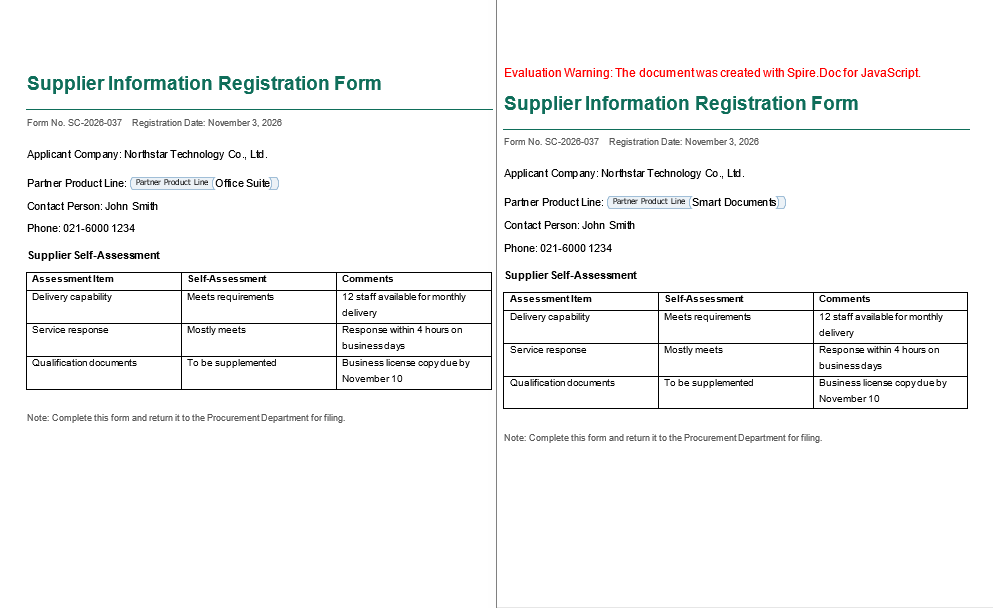
In practice, options change over time: a product line is retired and has to be removed from the list; a new product line has to be added; and for some forms a recommended value has to be selected in advance. All of these operations can be performed on a loaded document without regenerating the whole file.
To update the control, first iterate over the paragraphs and tables in the body, find the control whose DocumentObjectType is StructureDocumentTagInline and whose type is ComboBox, then call the add and remove methods of ListItems on its ControlProperties. The example reads ComboBox.docx from public/data, so put that file in the project's public/data directory before running it.
| Member | Purpose |
|---|---|
ListItems.RemoveAt(index) |
Removes the option at the specified index |
ListItems.Add(item) |
Appends a new option |
ListItems.Count |
Current number of options |
ListItems.SelectedValue |
Selected value; must be assigned an SdtListItem object |
The specific steps are as follows:
- Get the Spire.Doc WASM module and confirm that it is ready.
- Load the font, read
ComboBox.docxinto the VFS and load it as aDocument. - Iterate over the body objects of each section and the child objects of each paragraph, and filter out the combo box content controls.
- Remove the old option with
RemoveAt, append a new one withAdd, then compare byValueand setSelectedValue. - Save the result file with
SaveToFile(), read it from the VFS and trigger a browser download.
The code for updating the combo box list items and selected value is as follows:
function App() {
  const updateComboBoxItems = async () => {
    // Get the Spire.Doc WASM module
    const wasmModule = window.wasmModule?.spiredoc;

    if (!wasmModule) {
      alert('Spire.Doc is not ready yet');
      return;
    }

    // Load the document to be processed
    await window.spire.FetchFileToVFS('ComboBox.docx', '', `${process.env.PUBLIC_URL}/data/`);

    const doc = new wasmModule.Document();
    doc.LoadFromFile('ComboBox.docx');

    // Iterate over the sections and find combo box content controls
    for (let s = 0; s < doc.Sections.Count; s++) {
      const section = doc.Sections.get_Item(s);
      for (let i = 0; i < section.Body.ChildObjects.Count; i++) {
        const obj = section.Body.ChildObjects.get_Item(i);
        if (obj.DocumentObjectType !== wasmModule.DocumentObjectType.Paragraph) continue;

        for (let j = 0; j < obj.ChildObjects.Count; j++) {
          const child = obj.ChildObjects.get_Item(j);
          if (child.DocumentObjectType !== wasmModule.DocumentObjectType.StructureDocumentTagInline) continue;
          if (child.SDTProperties.SDTType !== wasmModule.SdtType.ComboBox) continue;

          const combo = child.SDTProperties.ControlProperties;

          // Remove the old option at index 1 and append a new one
          combo.ListItems.RemoveAt(1);
          combo.ListItems.Add(new wasmModule.SdtListItem('Smart Documents', 'Smart Documents'));

          // Find the new option by Value and set it as the selected value
          for (let k = 0; k < combo.ListItems.Count; k++) {
            const item = combo.ListItems.get_Item(k);
            if (item.Value === 'Smart Documents') {
              combo.ListItems.SelectedValue = item;
            }
          }
        }
      }
    }

    // Save the result file
    const outputFileName = 'UpdateComboBoxItems.docx';
    doc.SaveToFile({ fileName: outputFileName, fileFormat: wasmModule.FileFormat.Docx2013 });
    doc.Dispose();

    // Read the generated file from the VFS and trigger the download
    const fileArray = window.dotnetRuntime.Module.FS.readFile(outputFileName);
    const blob = new Blob([fileArray], { type: 'application/vnd.openxmlformats-officedocument.wordprocessingml.document' });
    const url = URL.createObjectURL(blob);
    const a = document.createElement('a');
    a.href = url;
    a.download = outputFileName;
    a.click();
    URL.revokeObjectURL(url);
  };

  return (
    <div style={{ textAlign: 'center', height: '300px' }}>
      <h1>Update Combo Box List Items and Selected Value</h1>
      <button onClick={updateComboBoxItems}>Generate Document</button>
    </div>
  );
}

export default App;
The comparison before and after processing is shown below; the left image is the original document and the right image is the document after updating:
Traversal Order When Locating the Control
The example scans only the inline controls in paragraphs directly under the body, which is the most common location. If a control is inside a table cell, first check whether the object is a Table, then walk row by row and cell by cell into Cell.ChildObjects to find it; if the control is a block-level StructureDocumentTag, compare it directly at the Body.ChildObjects level. When traversing, check DocumentObjectType before reading properties so that ordinary paragraphs are not treated as controls by mistake.
FAQ
How to Choose Between a Drop-Down List and a Combo Box
Cause: The two controls differ mainly in whether values outside the preset options are allowed, and this has to be decided together with the business rules for the field.
Solution: If the field's values must be strictly limited to the preset range, use a drop-down list; if the list only provides common candidates and the business allows content outside it, use a combo box. A drop-down list is better for fields such as ratings, statuses and categories that need a consistent vocabulary, while a combo box is better for fields such as names and product lines that may expand with the business.
Why the Text Displayed by the Control Does Not Change After Setting SelectedValue
Cause: SelectedValue must be assigned an SdtListItem object; assigning a string directly has no effect.
Solution: In the example, iterate over ListItems, compare Value to find the target item, then assign that item object to SelectedValue. After the change, save the file and Word displays the selected item.
Why the Wrong Item Is Selected After RemoveAt
Cause: After RemoveAt deletes an element, the indexes of the remaining options shift forward. If you delete first and then access by the original index, you may get a different option.
Solution: After deleting, iterate over ListItems again and find the target item by Value or DisplayText, rather than reusing the index from before the deletion.
How to Select an Option by the Text the User Sees
Cause: Value and DisplayText can be different, so which one to compare against depends on what the business treats as authoritative.
Solution: If the interface text is authoritative, change the comparison condition to item.DisplayText === 'Smart Documents'; if a stable internal identifier is authoritative, keep comparing Value. Do not mix the two, or selection may fail after the wording is adjusted.
Get a Free License
Spire.Doc for JavaScript offers a 30-day full-featured free trial license with no functional limitations. Apply here to evaluate before purchasing.
