
Conversion (14)

PowerPoint presentations are widely used for training materials, product demos, online courses, and business reporting. However, sharing raw PPT or PPTX files can be problematic—recipients may not have PowerPoint installed, animations may not play correctly, and manual exporting becomes inefficient for bulk processing.
Converting PowerPoint to video formats like MP4 or WMV solves these challenges by creating universally playable content that preserves formatting and animations. With Spire.Presentation from e-iceblue, developers can automate PowerPoint-to-video conversion programmatically without requiring Microsoft PowerPoint installation.
This article demonstrates how to convert PowerPoint presentations to MP4 and WMV video in C# using Spire.Presentation for .NET, including configuration options for frame rate, slide duration, and transition preservation.
1. Why Convert PowerPoint to Video Programmatically?
Developers often need to convert PowerPoint presentations to video as part of larger business workflows. Compared with manually exporting files in Microsoft PowerPoint, programmatic conversion offers more flexibility and scalability.
Common scenarios include:
- Automatically converting uploaded PPT/PPTX files into MP4 videos in web applications
- Batch-processing training presentations for LMS platforms
- Generating product demo videos from presentation templates
- Converting presentations on servers where Microsoft PowerPoint is not installed
- Standardizing presentation delivery across different devices
Programmatic conversion is especially useful when you need repeatable workflows, server-side processing, or integration with existing document automation systems.
2. Set Up the Environment
Before converting PowerPoint presentations to video, you need to prepare two components:
- Spire.Presentation for .NET – used to load and process PPT/PPTX files
- FFmpeg – used to encode slide frames into MP4 or WMV video files
Spire handles presentation rendering, while FFmpeg generates the final video output. Both are required for successful conversion.
Install Spire.Presentation for .NET
Install the library from NuGet:
Install-Package Spire.Presentation
You can also download Spire.Presentation for .NET package and install it manually.
This package allows your C# application to open PowerPoint presentations, access slides, and export them programmatically.
Install FFmpeg
Spire.Presentation relies on FFmpeg to combine rendered slide frames into a playable video file. If FFmpeg is not installed or the path is configured incorrectly, the export process will fail.
- On Windows
Follow these steps to install FFmpeg:
-
Download the FFmpeg essentials build
-
Extract the package to your local machine
-
Locate the bin folder path
Example:
D:\tools\ffmpeg\bin
This path will be used later when configuring SaveToVideoOption.
- On Linux (CentOS)
Install FFmpeg using the following commands:
sudo yum install epel-release
sudo yum localinstall --nogpgcheck https://download1.rpmfusion.org/free/el/rpmfusion-free-release-7.noarch.rpm
sudo yum install ffmpeg ffmpeg-devel
After installation, you can run the following command to locate the FFmpeg path:
which ffmpeg
Note: Older FFmpeg versions may not fully support certain slide transition effects.
3. Convert PowerPoint to MP4 in C#
Once the environment is configured, you can convert PowerPoint presentations to MP4 using just a few lines of code.
The basic workflow includes:
- Load the PowerPoint file
- Configure video export settings
- Export the presentation as MP4
Basic Conversion Example
The following example converts a PPTX file into an MP4 video:
using Spire.Presentation;

namespace PowerPointToVideo
{
    class Program
    {
        static void Main(string[] args)
        {
            string inputFile = "ProductDemo.pptx";
            string outputFile = "ProductDemo.mp4";

            Presentation presentation = new Presentation();
            presentation.LoadFromFile(inputFile);

            presentation.SaveToVideoOption = new SaveToVideoOption(
                @"D:\tools\ffmpeg\bin"
            );

            presentation.SaveToVideoOption.Fps = 30;
            presentation.SaveToVideoOption.DurationForEachSlide = 2;

            presentation.SaveToFile(outputFile, FileFormat.MP4);

            presentation.Dispose();
        }
    }
}
After running the code:
- The PPTX file is loaded into memory
- Each slide is rendered as individual video frames
- FFmpeg combines the frames into a final MP4 file
- Supported animations, transitions, and embedded videos are preserved during export
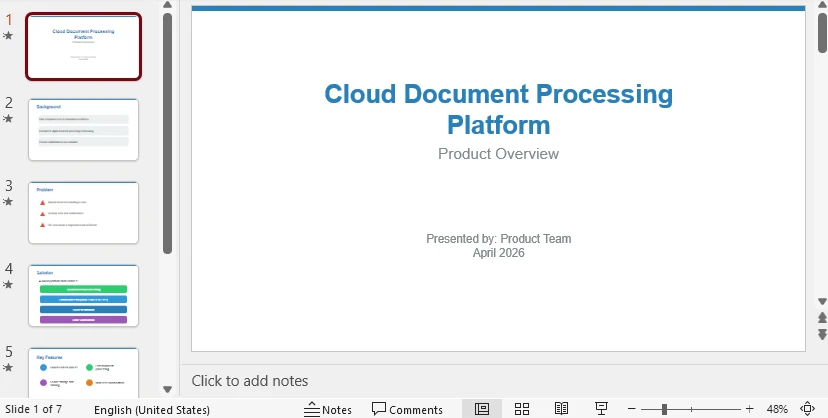
Below is a sample PowerPoint presentation along with its converted video output.
Input: PowerPoint Presentation
Output: Converted MP4 Video
Click the preview above to watch how PowerPoint slides are converted into an MP4 video while preserving transitions and animations.
How the Core API Works
This example uses several key API methods:
- LoadFromFile() loads the PowerPoint presentation into memory
- SaveToVideoOption configures the FFmpeg path and playback settings
- Fps controls video smoothness
- DurationForEachSlide controls how long each slide appears
- SaveToFile() exports the final video file
- Dispose() releases system resources after conversion
This basic workflow is enough for most standard PowerPoint-to-video conversion tasks. If you need additional formats or customization options, continue to the advanced scenarios below.
If you need a static sharing format, you can also convert PowerPoint presentations to images (JPG/PNG) in C# for easier distribution and web display.
4. More PowerPoint to Video Options in C#
The basic example works for most scenarios, but some applications may require different output formats, custom playback settings, or bulk conversion workflows.
Convert PowerPoint to WMV
While MP4 is the most widely used video format, some legacy enterprise systems and Windows-based environments may still require WMV output.
To export a PowerPoint file as WMV, simply change the output file extension:
using Spire.Presentation;

Presentation presentation = new Presentation();
presentation.LoadFromFile("TrainingSlides.pptx");

presentation.SaveToVideoOption = new SaveToVideoOption(
    @"D:\tools\ffmpeg\bin"
);

presentation.SaveToFile("TrainingVideo.wmv", FileFormat.WMV);

presentation.Dispose();
Customize Video Settings
If your presentation contains complex animations or requires specific playback timing, you can adjust frame rate and slide duration settings.
using Spire.Presentation;

Presentation presentation = new Presentation();
presentation.LoadFromFile("MarketingPitch.pptx");

presentation.SaveToVideoOption = new SaveToVideoOption(
    @"D:\tools\ffmpeg\bin"
);

// Higher FPS for smoother playback
presentation.SaveToVideoOption.Fps = 60;

// Longer display time per slide
presentation.SaveToVideoOption.DurationForEachSlide = 10;

presentation.SaveToFile("MarketingPitch_HD.mp4", FileFormat.MP4);

presentation.Dispose();
Video Settings Reference
| Setting | Default | Maximum | Purpose |
|---|---|---|---|
| Fps | 30 | 60 | Controls playback smoothness |
| DurationForEachSlide | 5 seconds | 5 minutes | Controls slide display duration |
Higher values may increase processing time and temporary storage usage.
Batch Convert Multiple PPTX Files
Batch conversion is useful for LMS platforms, enterprise reporting systems, and document automation workflows that need to process multiple presentations automatically.
using Spire.Presentation;
using System.IO;

string ffmpegPath = @"D:\tools\ffmpeg\bin";
string inputFolder = @"C:\Presentations\";
string outputFolder = @"C:\Videos\";

string[] pptxFiles = Directory.GetFiles(inputFolder, "*.pptx");

foreach (string inputFile in pptxFiles)
{
    string fileName = Path.GetFileNameWithoutExtension(inputFile);
    string outputFile = Path.Combine(outputFolder, fileName + ".mp4");

    Presentation presentation = new Presentation();
    presentation.LoadFromFile(inputFile);

    presentation.SaveToVideoOption = new SaveToVideoOption(ffmpegPath);
    presentation.SaveToVideoOption.Fps = 30;
    presentation.SaveToVideoOption.DurationForEachSlide = 3;

    presentation.SaveToFile(outputFile, FileFormat.MP4);
    presentation.Dispose();
}
This approach helps automate large-scale PowerPoint-to-video conversion workflows without requiring manual exports in Microsoft PowerPoint.
You can edit the PowerPoint presentation in C# before conversion to ensure the resulting video has better layout and animation effects.
5. Supported Transitions and Animations
During PowerPoint-to-video conversion, Spire.Presentation preserves key visual effects to ensure the output video closely matches the original presentation experience.
Slide Transitions
PowerPoint slide transitions are rendered during video generation to maintain smooth visual flow between slides.
The following transitions are supported:
- Fade
- Push
- Wipe (up, down, left, right)
- Reveal
- Cover
- Split
- Dissolve
- Clockwise Clock
These transitions are applied during frame rendering to simulate natural slide progression in the final video.
Animation Effects
Animations are processed and rendered during video generation to simulate PowerPoint playback behavior.
Entrance Animations:
- Fly In
- Float In
- Appear
- Fade
- Split
- Wipe
Exit Animations:
- Fly Out
- Float Out
- Disappear
- Fade
- Split
- Wipe
Animation sequences are processed as a single playback unit to ensure consistent rendering in the final video.
Additional Features
- Embedded Videos
Embedded media inside PowerPoint slides is included in the exported video, making it suitable for presentations with multimedia content.
- Automatic Duration Handling
Slide timing and animation durations are automatically interpreted during conversion to ensure accurate playback in the final video output.
- Cross-Platform Support
The conversion process can run on both Windows and Linux environments, making it suitable for server-side automation and enterprise workflows.
For more information on supported features, refer to the Spire.Presentation for .NET API documentation.
6. Common Pitfalls
When converting PowerPoint presentations to video, there are a few common issues that may affect output quality or runtime execution. Being aware of these helps ensure a smoother conversion process in production environments.
FFmpeg Path Not Found
The video export process depends on FFmpeg for encoding the final MP4 or WMV file.
Ensure that the FFmpeg path is correctly configured and points to the bin directory containing the FFmpeg executable.
On Windows, this typically looks like:
D:\tools\ffmpeg\bin
If the FFmpeg path is incorrect or not accessible, the video export process will fail at runtime.
Insufficient Disk Space
PowerPoint-to-video conversion involves rendering slides into intermediate frames before encoding them into a final video file.
As a result, disk usage may increase significantly depending on:
- Number of slides
- Slide duration
- Frame rate (FPS)
- Presentation resolution and content complexity
For high-quality or long-duration presentations, temporary disk usage can become substantial. It is recommended to ensure sufficient free disk space before processing large batch conversions.
Unsupported or Inconsistent Transitions
Most common PowerPoint transitions are supported during conversion. However, some complex or advanced transition effects may not be rendered exactly the same as in Microsoft PowerPoint.
In such cases, the final video will still preserve slide flow, but the visual effect may appear simplified compared to the original presentation.
It is recommended to test presentations with advanced transitions before using them in production workflows.
Font Rendering Differences
PowerPoint presentations rely on system-installed fonts. If a required font is missing on the environment where conversion is executed, the layout or text appearance in the final video may change.
To ensure consistent rendering:
- Install required fonts on the system
- Use widely available standard fonts when possible
- Verify output on target deployment environments
This is especially important for multilingual presentations or server-side conversion scenarios.
Conclusion
In this article, we demonstrated how to convert PowerPoint presentations to MP4 and WMV video in C# using Spire.Presentation. By leveraging the Spire API, developers can automate video generation with customizable frame rates, slide durations, and transition preservation.
Beyond video conversion, Spire.Presentation can also be used for tasks such as slide editing, media extraction, and presentation generation, making it useful for broader document automation workflows.
If you would like to evaluate the full functionality without limitations, you can apply for a temporary license.
FAQ
Can I convert PowerPoint to MP4 without Microsoft PowerPoint?
Yes. Spire.Presentation performs conversion independently and does not require Microsoft PowerPoint installation.
Are animations preserved in the video?
Yes, many common slide transitions and entrance/exit animations are preserved during conversion.
What video formats are supported?
Currently, MP4 and WMV formats are supported for video export.
Is Spire.Presentation suitable for server-side applications?
Yes. Spire.Presentation supports server environments and is widely used in automated document processing workflows.
How much disk space does video conversion require?
Video generation creates temporary image frames. A presentation with 5 slides at 60 FPS and 5-minute duration may require approximately 25GB of temporary storage.
PowerPoint presentations are widely used tools for visual communication, enabling users to effectively present information in an organized and visually engaging manner. They are ideal for business meetings, educational purposes, and project presentations. However, in some cases, converting PowerPoint presentations into a lightweight, text-based format such as Markdown is more practical.
Markdown is a popular markup language that is widely supported across documentation tools, version control systems, and static site generators. It offers a simple way to format text that is easier to read and write. By converting PowerPoint presentations to Markdown, users can integrate their content into text-based workflows more efficiently. This is especially helpful when collaborating on documents, tracking changes, or publishing content online.
In this article, we will walk you through the steps of converting PowerPoint presentations to Markdown format using C# and the Spire.Presentation for .NET library.
Install Spire.Presentation for .NET
To begin with, you need to add the DLL files included in the Spire.Presentation for.NET package as references in your .NET project. The DLL files can be either downloaded from this link or installed via NuGet.
PM> Install-Package Spire.Presentation
Convert a PowerPoint Presentation to Markdown
Spire.Presentation for .NET provides the Presentation.SaveToFile(string, FileFormat) method, allowing you to convert PowerPoint presentations into various file formats, including PDF, HTML, and Markdown. Below are the steps to convert a PowerPoint presentation to Markdown using Spire.Presentation for .NET:
- Initialize an instance of the Presentation class.
- Load a PowerPoint presentation using Presentation.LoadFromFile(string) method.
- Save the PowerPoint presentation to Markdown format using Presentation.SaveToFile(string, FileFormat) method.
- C#
using Spire.Presentation;

namespace PPTToMarkdown
{
    internal class Program
    {
        static void Main(string[] args)
        {
            //Initialize an instance of the Presentation class
            Presentation ppt = new Presentation();
            //Load a PowerPoint presentation
            ppt.LoadFromFile(@"E:\Program Files\Sample.pptx");

            //Specify the file path for the output Markdown file
            string result = @"E:\Program Files\PowerPointToMarkdown.md";

            //Save the PowerPoint presentation to Markdown format
            ppt.SaveToFile(result, FileFormat.Markdown);
        }
    }
}

Convert a Specific PowerPoint Slide to Markdown
In some cases, you may need to convert a specific slide instead of the whole presentation to Markdown. Spire.Presentation offers the ISlide.SaveToFile(string, FileFormat) method to convert a PowerPoint slide to Markdown. The following are the detailed steps:
- Initialize an instance of the Presentation class.
- Load a PowerPoint presentation using Presentation.LoadFromFile(string) method.
- Get a specific slide in the PowerPoint presentation by its index through Presentation.Slides[int] property.
- Save the PowerPoint slide to Markdown format using ISlide.SaveToFile(string, FileFormat) method.
- C#
using Spire.Presentation;

namespace SlideToMarkdown
{
    internal class Program
    {
        static void Main(string[] args)
        {
            //Initialize an instance of the Presentation class
            Presentation ppt = new Presentation();
            //Load a PowerPoint presentation
            ppt.LoadFromFile(@"E:\Program Files\Sample.pptx");

            //Get the second slide
            ISlide slide = ppt.Slides[1];

            //Specify the file path for the output Markdown file
            string result = @"E:\Program Files\SlideToMarkdown.md";

            //Save the slide to a Markdown file
            slide.SaveToFile(result, FileFormat.Markdown);
            ppt.Dispose();
        }
    }
}
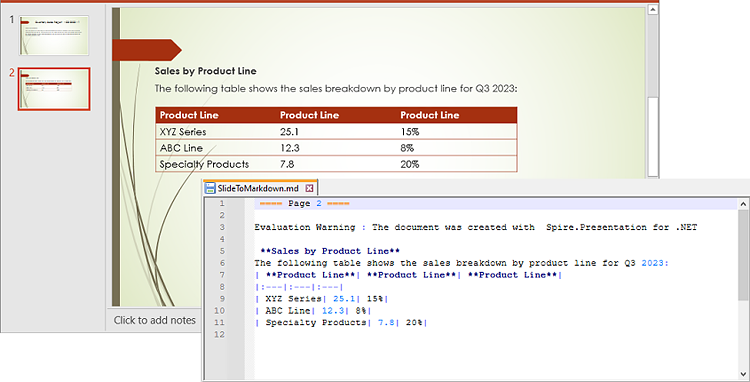
Apply for a Temporary License
If you'd like to remove the evaluation message from the generated documents, or to get rid of the function limitations, please request a 30-day trial license for yourself.
C#/VB.NET: Convert Images (PNG, JPG, BMP, etc.) to PowerPoint
2022-11-14 01:40:53 Written by AdministratorThere are times when you need to create a PowerPoint document from a group of pre-created image files. As an example, you have been provided with some beautiful flyers by your company, and you need to combine them into a single PowerPoint document in order to display each picture in an orderly manner. In this article, you will learn how to convert image files (in any popular image format) to a PowerPoint document in C# and VB.NET using Spire.Presentation for .NET.
- Convert Image to Background in PowerPoint in C# and VB.NET
- Convert Image to Shape in PowerPoint in C# and VB.NET
- Convert Image to PowerPoint with Customized Slide Size in C# and VB.NET
Install Spire.Presentation for .NET
To begin with, you need to add the DLL files included in the Spire.Presentation for.NET package as references in your .NET project. The DLL files can be either downloaded from this link or installed via NuGet.
PM> Install-Package Spire.Presentation
Convert Image to Background in PowerPoint in C# and VB.NET
When images are converted as background of each slide in a PowerPoint document, they cannot be moved or scaled. The following are the steps to convert a set of images to a PowerPoint file as background images using Spire.Presentation for .NET.
- Create a Presentation object.
- Set the slide size type to Sreen16x9.
- Get the image paths from a folder and save in a string array.
- Traverse through the images.
- Get a specific image and append it to the image collection of the document using Presentation.Images.Append() method.
- Add a slide to the document using Presentation.Slides.Append() method.
- Set the image as the background of the slide through the properties under ISlide.SlideBackground object.
- Save the document to a PowerPoint file using Presentation.SaveToFile() method.
- C#
- VB.NET
using Spire.Presentation;
using Spire.Presentation.Drawing;
using System.Drawing;
using System.IO;

namespace ConvertImageToBackground
{
    class Program
    {
        static void Main(string[] args)
        {
            //Create a Presentation object
            Presentation presentation = new Presentation();

            //Set slide size type
            presentation.SlideSize.Type = SlideSizeType.Screen16x9;

            //Remove the default slide
            presentation.Slides.RemoveAt(0);

            //Get file paths in a string array
            string[] picFiles = Directory.GetFiles(@"C:\Users\Administrator\Desktop\Images");

            //Loop through the images
            for (int i = 0; i < picFiles.Length; i++)
            {
                //Add a slide
                ISlide slide = presentation.Slides.Append();

                //Get a specific image
                string imageFile = picFiles[i];
                Image image = Image.FromFile(imageFile);

                //Append it to the image collection
                IImageData imageData = presentation.Images.Append(image);

                //Set the image as the background image of the slide
                slide.SlideBackground.Type = BackgroundType.Custom;
                slide.SlideBackground.Fill.FillType = FillFormatType.Picture;
                slide.SlideBackground.Fill.PictureFill.FillType = PictureFillType.Stretch;
                slide.SlideBackground.Fill.PictureFill.Picture.EmbedImage = imageData;
            }

            //Save to file
            presentation.SaveToFile("ImagesToBackground.pptx", FileFormat.Pptx2013);
        }
    }
}
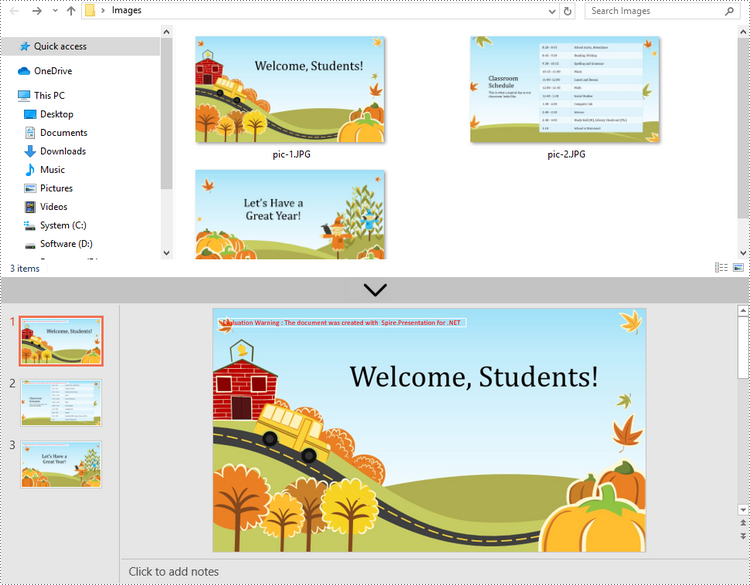
Convert Image to Shape in PowerPoint in C# and VB.NET
If you would like the images are moveable and resizable in the PowerPoint file, you can convert them as shapes. Below are the steps to convert images to shapes in a PowerPoint document using Spire.Presentation for .NET.
- Create a Presentation object.
- Set the slide size type to Sreen16x9.
- Get the image paths from a folder and save in a string array.
- Traverse through the images.
- Get a specific image and append it to the image collection of the document using Presentation.Images.Append() method.
- Add a slide to the document using Presentation.Slides.Append() method.
- Add a shape with the size equal to the slide using ISlide.Shapes.AppendShape() method.
- Fill the shape with the image through the properties under IAutoShape.Fill object.
- Save the document to a PowerPoint file using Presentation.SaveToFile() method.
- C#
- VB.NET
using Spire.Presentation;
using Spire.Presentation.Drawing;
using System.Drawing;
using System.IO;

namespace ConvertImageToShape
{
    class Program
    {
        static void Main(string[] args)
        {
            //Create a Presentation object
            Presentation presentation = new Presentation();

            //Set slide size type
            presentation.SlideSize.Type = SlideSizeType.Screen16x9;

            //Remove the default slide
            presentation.Slides.RemoveAt(0);

            //Get file paths in a string array
            string[] picFiles = Directory.GetFiles(@"C:\Users\Administrator\Desktop\Images");

            //Loop through the images
            for (int i = 0; i < picFiles.Length; i++)
            {
                //Add a slide
                ISlide slide = presentation.Slides.Append();

                //Get a specific image
                string imageFile = picFiles[i];
                Image image = Image.FromFile(imageFile);

                //Append it to the image collection
                IImageData imageData = presentation.Images.Append(image);

                //Add a shape with a size equal to the slide
                IAutoShape shape = slide.Shapes.AppendShape(ShapeType.Rectangle, new RectangleF(new PointF(0, 0), presentation.SlideSize.Size));

                //Fill the shape with image
                shape.Line.FillType = FillFormatType.None;
                shape.Fill.FillType = FillFormatType.Picture;
                shape.Fill.PictureFill.FillType = PictureFillType.Stretch;
                shape.Fill.PictureFill.Picture.EmbedImage = imageData;
            }

            //Save to file
            presentation.SaveToFile("ImageToShape.pptx", FileFormat.Pptx2013);
        }
    }
}
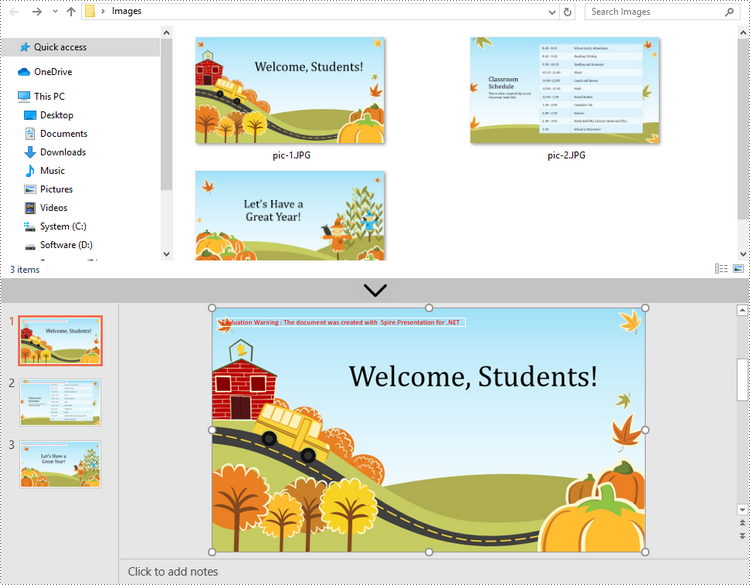
Convert Image to PowerPoint with Customized Slide Size in C# and VB.NET
If the aspect ratio of your images is not 16:9, or they are not in a standard slide size, you can create slides based on the actual size of the pictures. This will prevent the image from being over stretched or compressed. The following are the steps to convert images to a PowerPoint document with customized slide size using Spire.Presentation for .NET.
- Create a Presentation object.
- Create a PdfUnitConvertor object, which is used to convert pixel to point.
- Get the image paths from a folder and save in a string array.
- Traverse through the images.
- Get a specific image and append it to the image collection of the document using Presentation.Images.Append() method.
- Get the image width and height, and convert them to point.
- Set the slide size of the presentation based on the image size through Presentation.SlideSize.Size property.
- Add a slide to the document using Presentation.Slides.Append() method.
- Set the image as the background image of the slide through the properties under ISlide.SlideBackground object.
- Save the document to a PowerPoint file using Presentation.SaveToFile() method.
- C#
- VB.NET
using Spire.Pdf.Graphics;
using Spire.Presentation;
using Spire.Presentation.Drawing;
using System.Drawing;
using System.IO;

namespace CustomSlideSize
{
    class Program
    {
        static void Main(string[] args)
        {
            //Create a Presentation object
            Presentation presentation = new Presentation();

            //Remove the default slide
            presentation.Slides.RemoveAt(0);

            //Get file paths in a string array
            string[] picFiles = Directory.GetFiles(@""C:\Users\Administrator\Desktop\Images"");

            TextBox picBox = new TextBox();

            Graphics g = picBox.CreateGraphics();

            float dpiY = g.DpiY;

            //Loop through the images
            for (int i = 0; i < picFiles.Length; i++)
            {
                //Get a specific image
                string imageFile = picFiles[i];
                Image image = Image.FromFile(imageFile);

                //Append it to the image collection
                IImageData imageData = presentation.Images.Append(image);

                //Get image height and width in pixel
                int heightpixels = imageData.Height;
                int widthpixels = imageData.Width;

                //Convert pixel to point
                float widthPoint = widthpixels * 72.0f / dpiY;

                float heightPoint = heightpixels * 72.0f / dpiY;

                //Set slide size
                presentation.SlideSize.Size = new SizeF(widthPoint, heightPoint);

                //Add a slide
                ISlide slide = presentation.Slides.Append();

                //Set the image as the background image of the slide
                slide.SlideBackground.Type = BackgroundType.Custom;
                slide.SlideBackground.Fill.FillType = FillFormatType.Picture;
                slide.SlideBackground.Fill.PictureFill.FillType = PictureFillType.Stretch;
                slide.SlideBackground.Fill.PictureFill.Picture.EmbedImage = imageData;
            }

            //Save to file
            presentation.SaveToFile(""CustomizeSlideSize.pptx"", FileFormat.Pptx2013);
        }
    }
}
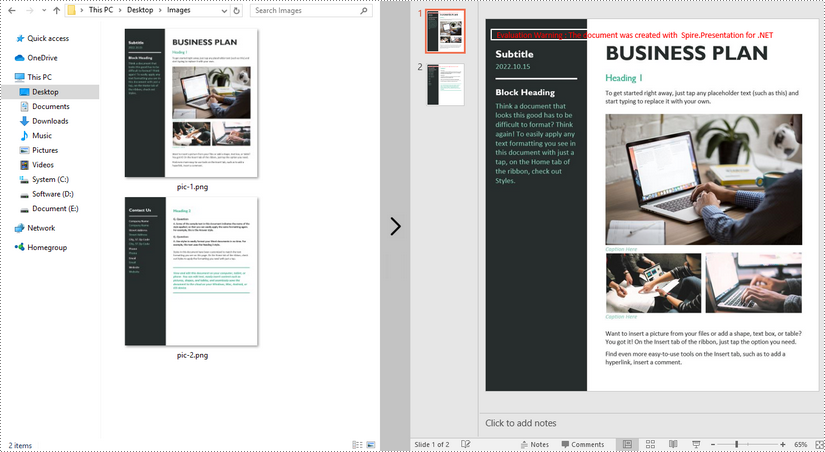
Apply for a Temporary License
If you'd like to remove the evaluation message from the generated documents, or to get rid of the function limitations, please request a 30-day trial license for yourself.
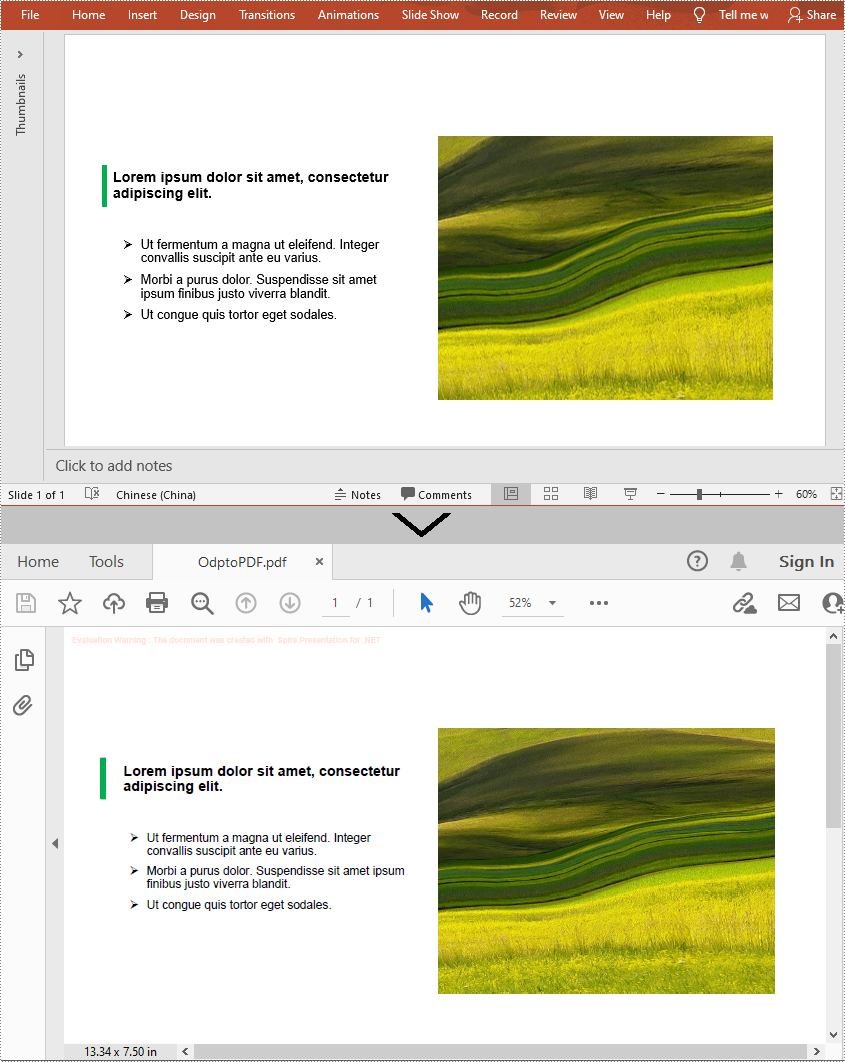
An ODP file is an OpenDocument Presentation file consisting of slides containing images, text, media, and transition effects. Since ODP files can only be opened by specified programs such as OpenOffice Impress, LibreOffice Impress, and Microsoft PowerPoint, if you want your ODP files to be viewable on more devices, you can convert them to PDF. In this article, you will learn how to programmatically convert a ODP file to PDF using Spire.Presentation for .NET.
Install Spire.Presentation for .NET
To begin with, you need to add the DLL files included in the Spire.Presentation for.NET package as references in your .NET project. The DLL files can be either downloaded from this link or installed via NuGet.
PM> Install-Package Spire.Presentation
Convert OpenDocument Presentation to PDF
The detailed steps are as follows:
- Create a Presentation instance.
- Load an ODP file using Presentation.LoadFromFile() method.
- Save the ODP file to PDF using Presentation.SaveToFile(String, FileFormat) method.
- C#
- VB.NET
using Spire.Presentation;

namespace ODPtoPDF
{
    class Program
    {
        static void Main(string[] args)
        {
            //Create a Presentation instance
            Presentation presentation = new Presentation();

            //Load an ODP file
            presentation.LoadFromFile("Sample.odp", FileFormat.ODP);

            //Convert the ODP file to PDF
            presentation.SaveToFile("OdptoPDF.pdf", FileFormat.PDF);

        }
    }
}
Apply for a Temporary License
If you'd like to remove the evaluation message from the generated documents, or to get rid of the function limitations, please request a 30-day trial license for yourself.
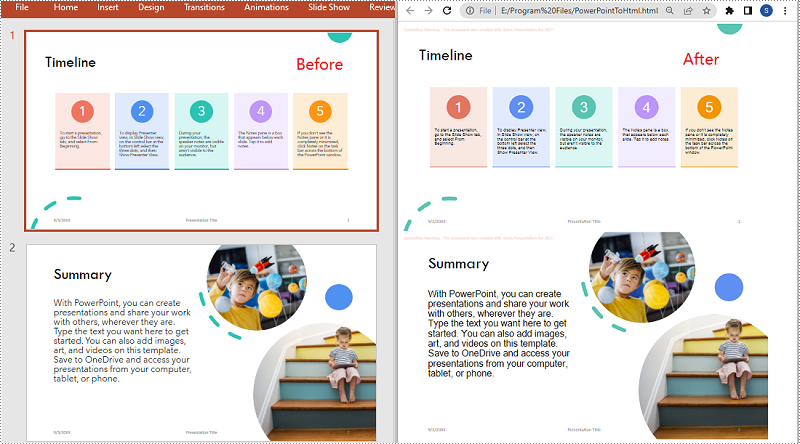
When you share a PowerPoint presentation online, people have to download it to their computers before they can view it. Sometimes the downloading process can be quite annoying and time-consuming, especially when the file is very large. A good solution to this problem is to convert your presentation to HTML so that people can view it directly online. In this article, we will demonstrate how to programmatically convert PowerPoint presentations to HTML format in C# and VB.NET using Spire.Presentation for .NET.
Install Spire.Presentation for .NET
To begin with, you need to add the DLL files included in the Spire.Presentation for.NET package as references in your .NET project. The DLL files can be either downloaded from this link or installed via NuGet.
PM> Install-Package Spire.Presentation
Convert a PowerPoint Presentation to HTML in C# and VB.NET
In Spire.Presentation for .NET, the Presentation.SaveToFile(String, FileFormat) method is used to convert a PowerPoint presentation to other file formats such as PDF, XPS, and HTML. In the following steps, we will show you how to convert a PowerPoint presentation to HTML using Spire.Presentation for .NET:
- Initialize an instance of the Presentation class.
- Load a PowerPoint presentation using Presentation.LoadFromFile(String) method.
- Save the PowerPoint presentation to HTML format using Presentation.SaveToFile(String, FileFormat) method.
- C#
- VB.NET
using Spire.Presentation;

namespace ConvertPowerPointToHtml
{
    class Program
    {
        static void Main(string[] args)
        {
            //Initialize an instance of the Presentation class
            Presentation ppt = new Presentation();
            //Load a PowerPoint presentation
            ppt.LoadFromFile(@"E:\Program Files\Sample.pptx");

            //Specify the file path of the output HTML file
            String result = @"E:\Program Files\PowerPointToHtml.html";

            //Save the PowerPoint presentation to HTML format
            ppt.SaveToFile(result, FileFormat.Html);
        }
    }
}
Convert a Specific PowerPoint Slide to HTML in C# and VB.NET
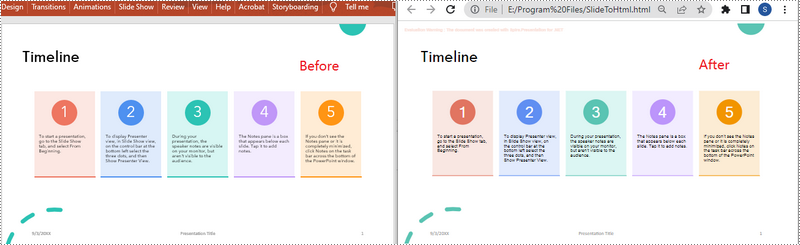
In some cases, you may need to convert a specific slide instead of the whole presentation to HTML. Spire.Presentation offers the ISlide.SaveToFile(String, FileFormat) method to convert a PowerPoint slide to HTML. The following are the detailed steps:
- Initialize an instance of the Presentation class.
- Load a PowerPoint presentation using Presentation.LoadFromFile() method.
- Get a specific slide in the PowerPoint presentation by its index through Presentation.Slides[int] property.
- Save the PowerPoint slide to HTML format using ISlide.SaveToFile(String, FileFormat) method.
- C#
- VB.NET
using Spire.Presentation;
using System;

namespace ConvertPowerPointSlideToHtml
{
    class Program
    {
        static void Main(string[] args)
        {
            //Initialize an instance of the Presentation class
            Presentation presentation = new Presentation();
            //Load the PowerPoint presentation
            presentation.LoadFromFile(@"E:\Program Files\Sample.pptx");

            //Get the first slide
            ISlide slide = presentation.Slides[0];

            //Specify the file path of the output HTML file
            String result = @"E:\Program Files\SlideToHtml.html";

            //Save the first slide to HTML format
            slide.SaveToFile(result, FileFormat.Html);
        }
    }
}
Apply for a Temporary License
If you'd like to remove the evaluation message from the generated documents, or to get rid of the function limitations, please request a 30-day trial license for yourself.
How to Convert PowerPoint Document to SVG Images in C#, VB.NET
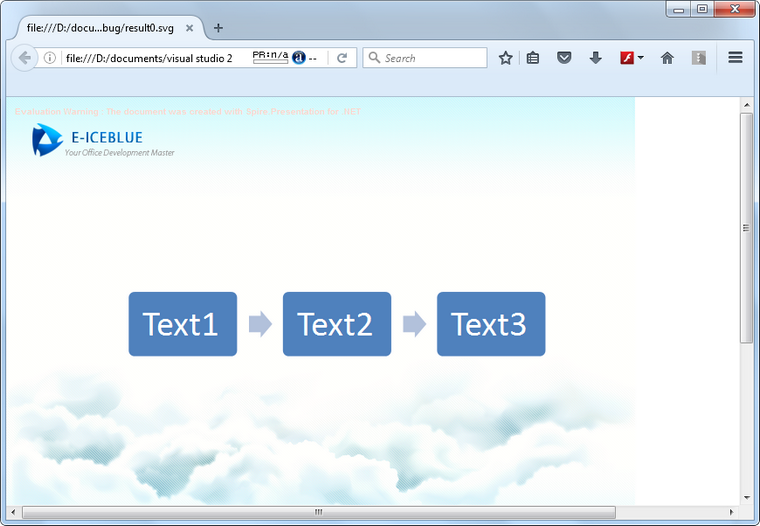
2016-10-24 08:38:01 Written by KoohjiSVG, short for scalable vector graphics, is a XML-based file format used to depict two-dimensional vector graphics. As SVG images are defined in XML text lines, they can be easily searched, indexed, scripted, and supported by most of the up to date web browsers. Therefore, office documents are often converted to SGV images for high fidelity viewing. Following sections will introduce how to convert PowerPoint documents to SVG images using Spire.Presentation in C# and VB.NET.
Code Snippet:
Step 1: Initialize an instance of Presentation class and load a sample PowerPoint document to it.
Presentation ppt = new Presentation();
ppt.LoadFromFile(@"C:\Users\Administrator\Desktop\sample.pptx");
Step 2: Convert PowerPoint document to byte array and store in a Queue object.
Queue<Byte[]> svgBytes = ppt.SaveToSVG();
Step 3: Initialize an instance of the FileStream class with the specified file path and creation mode. Dequeue the data in the Queue object and write to the stream.
int len = svgBytes.Count;
for (int i = 0; i < len; i++)
{
    FileStream fs = new FileStream(string.Format("result" + "{0}.svg", i), FileMode.Create);
    byte[] bytes = svgBytes.Dequeue();
    fs.Write(bytes, 0, bytes.Length);
}
Output:
Full Code:
using Spire.Presentation;
using System;
using System.Collections.Generic;
using System.IO;
namespace PPTtoSVG
{
    class Program
    {
        static void Main(string[] args)
        {
            Presentation ppt = new Presentation();
            ppt.LoadFromFile(@"C:\Users\Administrator\Desktop\sample.pptx");
            Queue<byte[]> svgBytes = ppt.SaveToSVG();
            int len = svgBytes.Count;
            for (int i = 0; i < len; i++)
            {
                FileStream fs = new FileStream(string.Format("result" + "{0}.svg", i), FileMode.Create);
                byte[] bytes = svgBytes.Dequeue();
                fs.Write(bytes, 0, bytes.Length);
                ppt.Dispose();
            }
        }
    }
}
Imports Spire.Presentation
Imports System.Collections.Generic
Imports System.IO
Namespace PPTtoSVG
	Class Program
		Private Shared Sub Main(args As String())
			Dim ppt As New Presentation()
			ppt.LoadFromFile("C:\Users\Administrator\Desktop\sample.pptx")
			Dim svgBytes As Queue(Of [Byte]()) = ppt.SaveToSVG()
			Dim len As Integer = svgBytes.Count
			For i As Integer = 0 To len - 1
				Dim fs As New FileStream(String.Format("result" + "{0}.svg", i), FileMode.Create)
				Dim bytes As Byte() = svgBytes.Dequeue()
				fs.Write(bytes, 0, bytes.Length)
				ppt.Dispose()
			Next
		End Sub
	End Class
End Namespace
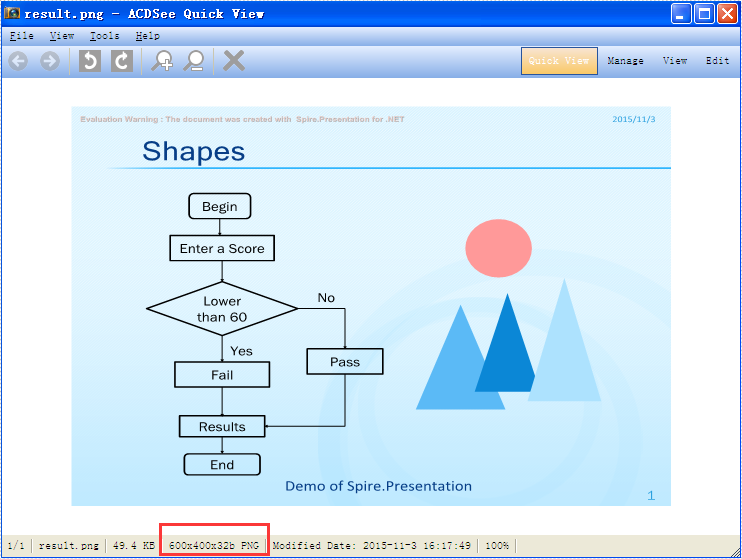
With the help of Spire.Presentation for .NET, we can easily save PowerPoint slides as image in C# and VB.NET. Sometimes, we need to use the resulted images for other purpose and the image size becomes very important. To ensure the image is easy and beautiful to use, we need to set the image with specified size beforehand. This example will demonstrate how to save a particular presentation slide as image with specified size by using Spire.Presentation for your .NET applications.
Note: Before Start, please download the latest version of Spire.Presentation and add Spire.Presentation.dll in the bin folder as the reference of Visual Studio.
Step 1: Create a presentation document and load the document from file.
Presentation presentation = new Presentation();
presentation.LoadFromFile("sample.pptx");
Step 2: Save the first slide to Image and set the image size to 600*400.
Image img = presentation.Slides[0].SaveAsImage(600, 400);
Step 3: Save image to file.
img.Save("result.png",System.Drawing.Imaging.ImageFormat.Png);
Effective screenshot of the resulted image with specified size:
Full codes:
using Spire.Presentation;
using System.Drawing;
namespace SavePowerPointSlideasImage
{
    class Program
    {
        static void Main(string[] args)
        {
            Presentation presentation = new Presentation();
            presentation.LoadFromFile("sample.pptx");

            Image img = presentation.Slides[0].SaveAsImage(600, 400);
            img.Save("result.png", System.Drawing.Imaging.ImageFormat.Png);
        }
    }
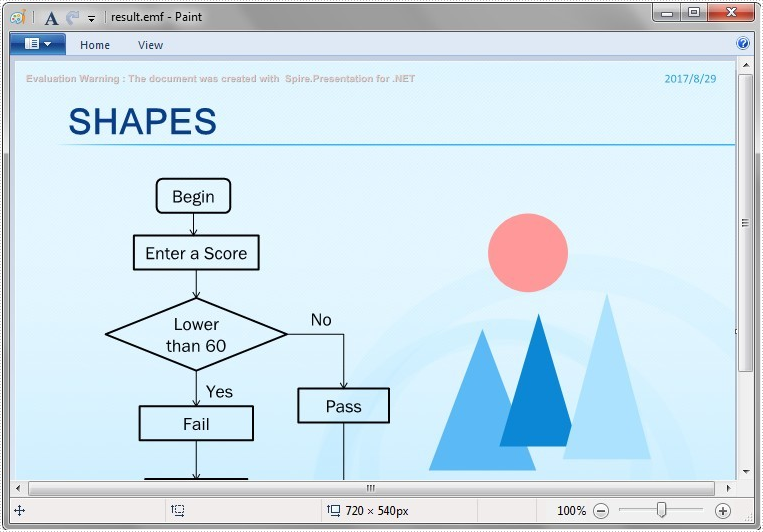
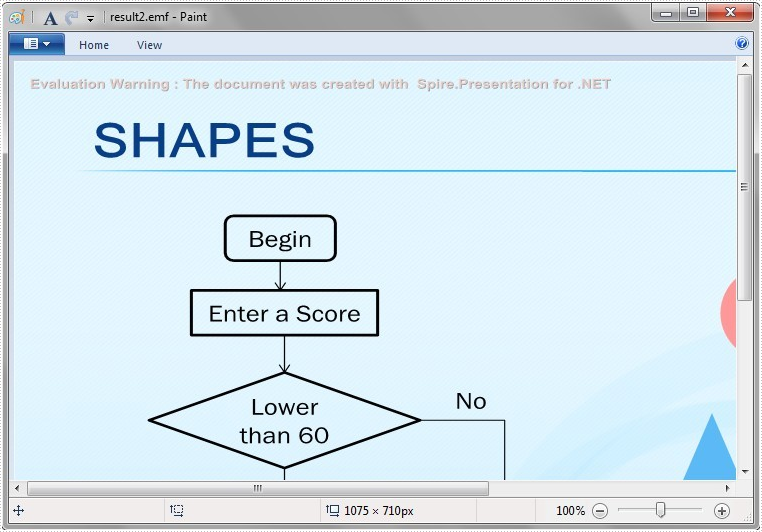
Spire.Presentation has powerful functions to export PowerPoint documents into different image file formats. In the previous articles, we have already shown you how to convert PowerPoint documents into TIFF, PNG and JPG. This article will demonstrate how to convert PowerPoint documents into EMF image. With Spire.Presentation for .NET, we can save presentation slides as an EMF image with the same size with the original slide's size and we can also set a specific size for the resulted EMF image.
Convert Presentation slides to EMF with the default size:
Step 1: Create a presentation document.
Presentation presentation = new Presentation();
Step 2: Load the PPTX file from disk.
presentation.LoadFromFile("Sample.pptx", FileFormat.Pptx2010);
Step 3: Save the presentation slide to EMF image by the method of SaveAsEMF().
presentation.Slides[2].SaveAsEMF("Result.emf");
Effective screenshot:
Convert Presentation slides to EMF with a specific size of 1075*710:
Step 1: Create a presentation document.
Presentation presentation = new Presentation();
Step 2: Load the PPTX file from disk.
presentation.LoadFromFile("sample.pptx");
Step 3: Save the presentation slide to EMF image with a specific size of 1075*710 by the method of SaveAsEMF(string filePath, int width, int height).
presentation.Slides[2].SaveAsEMF("Result2.emf", 1075, 710);
Effective screenshot:
Full codes:
using Spire.Presentation;
namespace PPStoEMF
{
    class Program
    {
        static void Main(string[] args)
        {
            Presentation presentation = new Presentation();
            presentation.LoadFromFile("Sample.pptx", FileFormat.Pptx2010);

            //presentation.Slides[2].SaveAsEMF("Result.emf");
            presentation.Slides[2].SaveAsEMF("Result2.emf", 1075, 710);
        }
    }
}
To use different versions of PowerPoint document easier, Spire.Presentation enables to convert PowerPoint Presentation 97 – 2003 to PowerPoint Presentation 2007, 2010. Spire.Presentation supports to convert PPT to PPTX, from version 2.2.17, now it starts to load .pps format document and save to .ppsx format document in C#. This article will show you how to convert PPS to PPTX in C#.
Step 1: Create a presentation document.
Presentation presentation = new Presentation();
Step 2: Load the PPS file from disk.
presentation.LoadFromFile("sample.pps");
Step 3: Save the PPS document to PPTX file format.
presentation.SaveToFile("ToPPTX.pptx", FileFormat.Pptx2010);
Step 4: Launch and view the resulted PPTX file.
System.Diagnostics.Process.Start("ToPPTX.pptx");
Full codes:
using Spire.Presentation;
namespace PPStoPPTX
{
    class Program
    {
        static void Main(string[] args)
        {
            Presentation presentation = new Presentation();

            //load the PPS file from disk
            presentation.LoadFromFile("sample.pps");

            //save the PPS document to PPTX file format
            presentation.SaveToFile("ToPPTX.pptx", FileFormat.Pptx2010);
            System.Diagnostics.Process.Start("ToPPTX.pptx");
        }
    }
}
Imports Spire.Presentation
Namespace PPStoPPTX
	Class Program
		Private Shared Sub Main(args As String())
			Dim presentation As New Presentation()

			'load the PPS file from disk
			presentation.LoadFromFile("sample.pps")

			'save the PPS document to PPTX file format
			presentation.SaveToFile("ToPPTX.pptx", FileFormat.Pptx2010)
			System.Diagnostics.Process.Start("ToPPTX.pptx")
		End Sub
	End Class
End Namespace
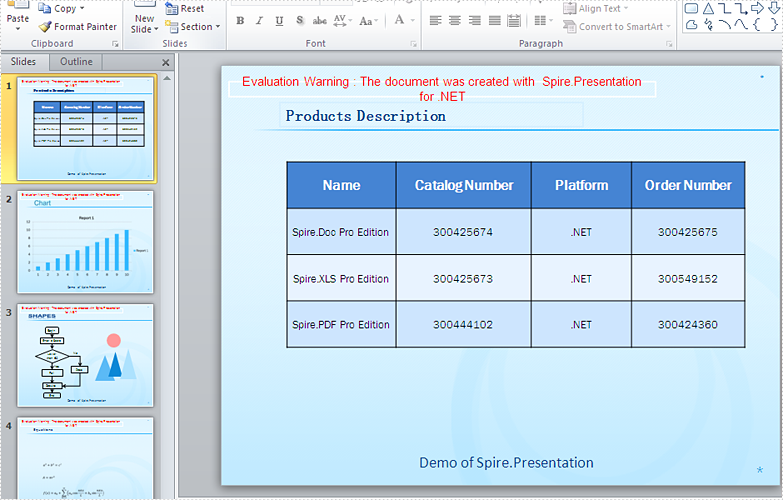
The result PPTX document:
The XML Paper Specification (XPS) format is an electronic representation of digital documents based on XML. It is a paginated, fixed-layout format that enables the content and design details of a document to be maintained intact across computers. Sometimes you may need to convert a PowerPoint document to XPS for better printing or sharing, and this article will demonstrate how to accomplish this task programmatically using Spire.Presentation for .NET.
Install Spire.Presentation for .NET
To begin with, you need to add the DLL files included in the Spire.Presentation for.NET package as references in your .NET project. The DLL files can be either downloaded from this link or installed via NuGet.
PM> Install-Package Spire.Presentation
Convert PowerPoint to XPS
The detailed steps are as follows:
- Create a Presentation instance.
- Load a sample PowerPoint document using Presentation.LoadFromFile() method.
- Save the PowerPoint document to XPS using Presentation.SaveToFile(String, FileFormat) method.
- C#
- VB.NET
using Spire.Presentation;

namespace PowerPointtoXPS
{
    class Program
    {
        static void Main(string[] args)
        {
            //Create a Presentation instance
            Presentation presentation = new Presentation();

            //Load a sample PowerPoint document
            presentation.LoadFromFile("test.pptx");

            //Save to XPS file
            presentation.SaveToFile("toXPS.xps", FileFormat.XPS);
        }
    }
}

Apply for a Temporary License
If you'd like to remove the evaluation message from the generated documents, or to get rid of the function limitations, please request a 30-day trial license for yourself.
