
Presentation (4)
Generate PPT Speaker Notes and Script with Spire.Agent.Office
2026-09-24 01:11:54 Written by liu taliaWhen you build a presentation, the part that really costs time is rarely the layout — it is deciding what to say. A slide only has room for the essentials: a few short lines, a set of numbers, one chart. The words that actually need to be spoken live in the author's head. The night before the talk, the author reads the whole deck again, slide by slide, trying to remember what each page was meant to say, and then writes it up.
It gets worse when a team is involved. For a product launch, one person writes the content, another builds the slides, and a third delivers the talk. Whoever steps on stage inherits a deck of bullet points with no idea which numbers matter most — so they improvise. Speaker notes exist precisely for this: they never appear on the projector, only in Presenter View, as the author's message to the speaker. In practice, almost nobody has the patience to fill them in page by page.
The PowerPoint AI capability in Spire.Agent.Office lets you describe in plain language what the notes should say and what tone the script should take. The AI agent reads the title and bullet points of every slide and then handles two jobs: writing speaker notes for each slide, and expanding the whole deck into a Word script that can be read aloud directly.
Compared with the Traditional SDK API
| Traditional Spire.Office for .NET API | Spire.Agent.Office | |
|---|---|---|
| Driving model | Loop over slides, pull text out of each shape, assemble the copy yourself, then write it back to the notes page — every step is code | Describe the writing requirements in natural language and let the AI plan the execution path |
| Code size | 150-300 lines of C# (slide iteration, shape traversal, text extraction, notes-page writing, font and paragraph settings) | About 10 lines of calling code plus one natural-language instruction |
| Content generation | You must wire up a model yourself or hand-write templates, and it is hard to keep each slide in context | The AI understands each slide's points and writes copy that reads coherently page to page |
| Layout handling | Writing notes easily damages the original layout and placeholder structure | The AI preserves the original layout, fonts and colours, appending only to the notes pane |
| Changing requirements | Adjust tone, length or script format → edit code → rebuild → redeploy | Edit the wording of the instruction and it takes effect immediately |
This article shows how to use Spire.Agent.Office to generate speaker notes and a script for a PowerPoint deck. Two cases cover the two common patterns — adding notes to an existing deck and turning a report into a Word script:
- Case 1: Generate per-slide speaker notes for a deck
- Case 2: Turn a business review into a ready-to-read Word script
For product installation and SpireToken configuration, please refer to Integrating Spire.Agent.Office in a .NET Project. The examples below assume Spire.Agent.Office is installed and SpireToken is configured.
Case 1: Generate per-slide speaker notes for a deck
The most common situation is a deck that is already final: layout and content stay exactly as they are, and the only thing missing is the prompt for whoever has to speak. A projected slide is built to be read at a glance, so it carries a title and a few bullet points — where the emphasis falls, what is behind each number, and how to move from one page to the next all stay in the author's head. Speaker notes are what carry that across. They are the author's handover to the presenter: what this page is really getting at, what to stress, and how to lead naturally into the next one. This product launch deck has 8 slides, each with a title and a few bullet points, and an empty notes pane from start to finish. The presenter needs one short paragraph per slide — not an essay, but enough to present the deck rather than read it out. Writing those notes by hand is expensive because every slide needs its own thought. Read the page, rebuild the sentence, and calibrate length — too short and it is no help, too long and it turns into reading from a script. Eight slides is tolerable; a fifty-page annual review rarely gets the treatment it deserves.
The example below uses the Spire.Agent.Office agent to read every slide and write speaker notes into the notes pane, ready to be read aloud:
using Spire.Agent.Office.AI;
using Spire.Agent.Office.Extensions;
using Spire.Presentation;

// PowerPoint processing configuration
string inputPath = @"E:\product-launch.pptx";  // Deck to add speaker notes to
string savePath = @"E:\product_result.pptx";  // Result document path

string key = "**************************";  // SpireToken key
string instruction = "Generate speaker notes for each slide of the input PPT file and write them into the notes pane of that slide: " +
"1. Read each slide's title and bullet points and understand what the page is meant to convey; " +
"2. Write one paragraph of speaker notes per slide, in the presenter's voice, ready to be read aloud; " +
"3. Each note should make clear what this page emphasises and lead naturally into the next slide; keep the notes varied in depth — explain the important content in detail and keep transition slides brief; " +
"4. Keep the original slide layout, fonts, colours and page order completely unchanged, and do not add or remove any slides; " +
"Finally, save the output as a PowerPoint file";

// Call the PowerPoint processing function
AIResult result = ExecuteDemoPpt(instruction, inputPath, savePath, key);

// Run the PowerPoint AI processing
static AIResult ExecuteDemoPpt(string instruction, string inputPath, string savePath, string key)
{
    // Create the AIOptions configuration object
    AIOptions options = new AIOptions();
    options.SpireToken = key;  // Set the SpireToken key

    // Process the PowerPoint document with a Presentation object
    using (Presentation ppt = new Presentation())
    {
        // Load the PowerPoint document from file
        if (!string.IsNullOrEmpty(inputPath) && File.Exists(inputPath))
        {
            ppt.LoadFromFile(inputPath);
        }
        // Create the AI document processor
        AIDocumentProcessor processor = ppt.AI(options);

        // Execute the AI instruction
        return processor.ExecuteInstruction(ppt, instruction, savePath);
    }
}
The original deck with an empty notes pane
 The deck after speaker notes were written slide by slide
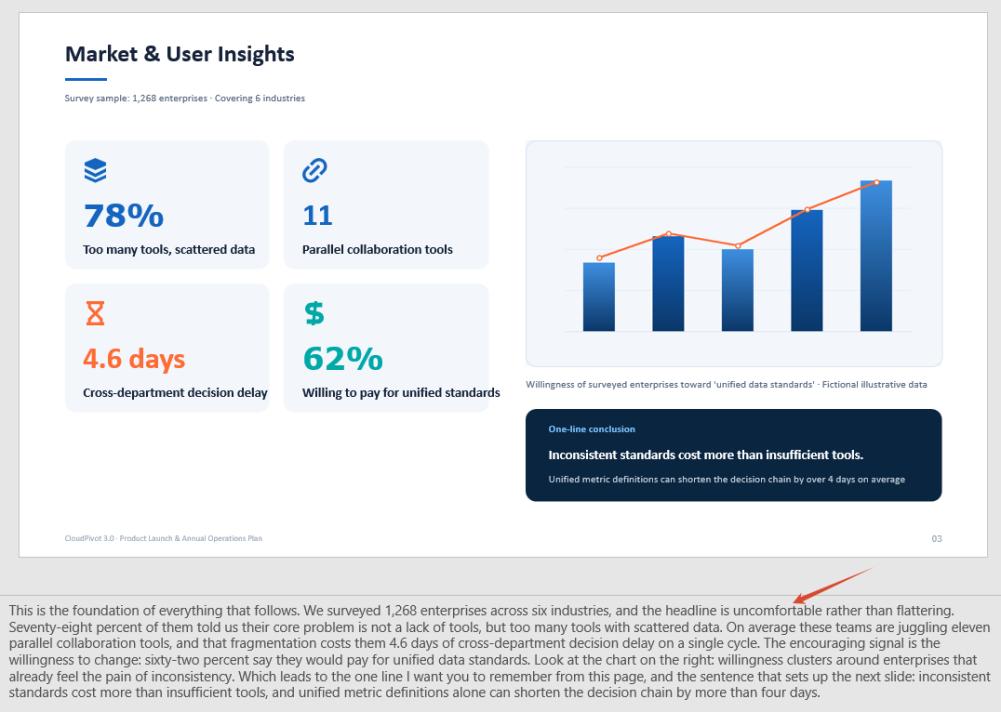
The generated deck looks identical to the original on the projector; the notes appear only in Presenter View. The speaker opens Presenter View and sees the prompt for each slide below it, ready to deliver a complete product launch in order.
Case 2: Turn a business review into a ready-to-read Word script
The notes pane is good for prompting, but not for reading aloud. Notes are short fragments in a small font at the edge of the screen; looking down at them on stage hurts delivery and invites missed lines. When the occasion is more formal — reporting quarterly results to management, for instance, where every figure has to be explained — the speaker needs a complete, spoken-word script. The medium for that script deserves a word of its own. A presentation is made to be looked at; a script is made to be read. A script needs control over font size, line spacing and sectioning, and it is usually printed and carried into the room. Packing several hundred words of body text onto each slide reads badly — and projecting it hands the audience every line. So this case takes a PPT as input and produces a Word script document as output.
Handling that format change is exactly what Spire.Agent.Office does: the deck is still loaded with Presentation, the AI reads each slide, and it writes the script as a Word file following the instruction. So this case has the AI read the figures page by page and then write the script as sections in the original order: each slide of the original becomes one section of the script document, keeping the original title, with the body holding the full script text.
The example below uses the Spire.Agent.Office agent to interpret the figures page by page and write the script, producing a Word document:
using Spire.Agent.Office.AI;
using Spire.Agent.Office.Extensions;
using Spire.Presentation;

// PowerPoint processing configuration
string inputPath = @"E:\quarterly-review.pptx";  // Input presentation path
string savePath = null;  // Result document path (null here, the output folder below is used instead)
string OutDir = @"E:\output-script";  // Output directory
string key = "**************************";  // SpireToken key
string instruction =
    "Read the input PPT file and write a complete presentation script for the speaker, outputting it as a Word script document: " +
    "1. Read the figures and bullet points on each slide and understand the core conclusion of that page; " +
    "2. Write a complete, conversational script per slide that can be read aloud directly; keep it varied in depth, quote the specific figures on that page and explain what they mean for the business; " +
    "3. Lay the script out as sections in the original slide order, each headed 'Slide N + the original title', with the full script for that page as the body; " +
    "4. Format the body for reading aloud: a clear typeface, no smaller than 14 pt, 1.5 line spacing, comfortable paragraph spacing;";

// Call the PowerPoint processing function
AIResult result = ExecuteDemoPpt(instruction, inputPath, savePath, key, OutDir);

// Run the PowerPoint AI processing
static AIResult ExecuteDemoPpt(string instruction, string inputPath, string savePath, string key, string output)
{
    // Create the AIOptions configuration object
    AIOptions options = new AIOptions();
    options.WorkDir = output;  // Set the working directory to the output directory
    options.SpireToken = key;  // Set the SpireToken key

    // Process the PowerPoint document with a Presentation object
    using (Presentation ppt = new Presentation())
    {
        // Load the PowerPoint document from file
        if (!string.IsNullOrEmpty(inputPath) && File.Exists(inputPath))
        {
            ppt.LoadFromFile(inputPath);
        }
        // Create the AI document processor
        AIDocumentProcessor processor = ppt.AI(options);

        // Execute the AI instruction
        return processor.ExecuteInstruction(ppt, instruction, savePath);
    }
}
The generated Word script document
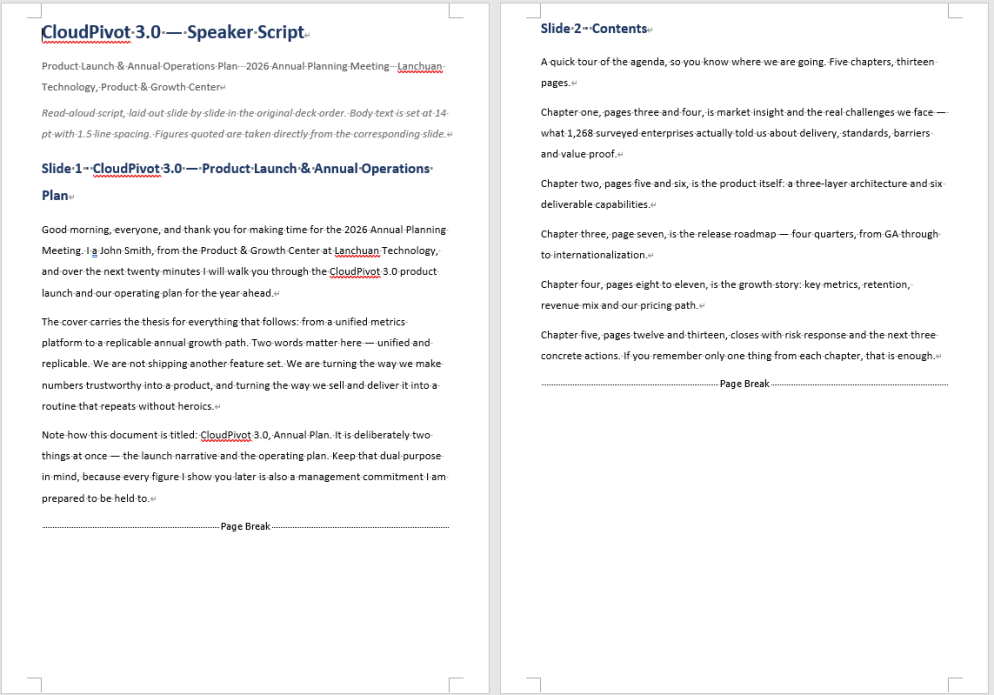
FAQ
Can I use my own model or a private deployment?
Note: By default the AI requests go to Spire's model service. AIOptions also exposes Model, BaseUrl and ApiKey for the model name, the service address and the access key — set these three to route the requests to your own or a third-party inference service.
AIOptions options = new AIOptions();
options.BaseUrl = "baseUrl";
options.Model = "modelName";
options.SpireToken = "*************";
options.ApiKey = "*************";
A long deck is slow to process — and may time out
Cause: Notes and scripts are generated page by page, so the AI reads and writes the document repeatedly and sends the existing content back to the model each time. The more slides there are, and the denser the text on each, the faster token consumption grows and the longer the whole run takes — the default timeout is often not enough.
Solution: Set TimeoutMs explicitly on the AIOptions instance (the unit is milliseconds) so a long deck has enough time. For a 50-slide PPT file, TimeoutMs can be set to 10 minutes (600000).
Getting a SpireToken Key
- Contact [email protected] or visit https://www.e-iceblue.com/TemLicense.html for a trial or commercial API key
Configure it in code:
AIOptions options = new AIOptions();
options.SpireToken = key;
Turn Files into Explainer Videos with Spire.Agent.Office in C#
2026-09-17 03:06:22 Written by Lisa LiIn corporate training, online courses and academic sharing, turning a course document into an "illustrated, voice-narrated" explainer video normally requires a whole toolchain of presentation, image processing, audio synthesis and video encoding. With the AI capability of Spire.Agent.Office, you only need to upload course documents in Word, PDF, Excel, Markdown or other formats and describe the goal in plain language to get a complete narrated video.
Compared with the traditional SDK API
| Traditional Spire.Office for .NET API | Spire.Agent.Office | |
|---|---|---|
| Driving model | Parse the course document, lay out slides page by page to build a Presentation, then use the API and ffmpeg to convert the Presentation to MP4 | Describe the goal in natural language and the AI understands and orchestrates the execution path |
| Amount of code | A large amount of code is required, and speech narration cannot be added | A simple natural-language instruction |
| Multi-format parsing | Separate parsing logic must be written for each format (Word/PDF/Excel/Markdown) | The AI detects the document format and reads the content automatically |
| Changing requirements | Adjust theme, page count, language or narration style → change code → compile → redeploy | Change the instruction and it takes effect immediately |
From course document to narrated video:
For product installation and SpireToken configuration, please refer to Integrating Spire.Agent.Office in a .NET Project. The examples below assume Spire.Agent.Office is installed and SpireToken is configured.
Step 1: From a course document to a Presentation
Use Spire.Agent.Office to distill the core points and generate a well-designed Presentation automatically.
using Spire.Agent.Office.AI;
using Spire.Agent.Office.Extensions;
using Spire.Presentation;

// Load course documents in Word, PDF, Excel and Markdown (4 formats)
List<string> inputPaths = new List<string>
{
    @"AI-application-course.docx",
    @"research-paper.pdf",
    @"financial-analysis.xlsx",
    @"health-policy.md"
};

string outputDirectory = @"E:\output\";
string key = "**************************";
// Distill the key points of the course document and generate a teaching Presentation.
string instruction =
    "Treat the attached tutorial documents as the processing target : distill the core points of the AI-application tutorial, covering the basics, typical application areas, implementation steps, real cases, and outlook. Theme: use a calm professional gray-blue as the theme color (clean, minimalist, modern AI-tech feel). 1. ensure high-quality layout and typography 2. include appropriate illustrative charts/figures 3. keep a clean, minimalist style 4. generate 12 slides; ";

// Generate a Presentation from each of the Word, PDF, Excel and Markdown course documents in turn
foreach (string inputPath in inputPaths)
{
    if (!System.IO.File.Exists(inputPath)) continue;

    string savePath = System.IO.Path.Combine(outputDirectory,
        $"{System.IO.Path.GetFileNameWithoutExtension(inputPath)}.pptx");

    GeneratePPT(inputPath, instruction, savePath, key);
}

// AI-powered PPT generation
static PPTGenerationResult GeneratePPT(string input, string instruction, string savePath, string key)
{
    //AIOptions options
    AIOptions options = new AIOptions();
    //Set the SpireToken
    options.SpireToken = key;
    //Set the timeout
    options.TimeoutMs = 1000000;
    //If the document content is long, you can customize the token circuit breaker; the default fuse is 3,000,000
    options.TokenCircuitBreakerLimit = 5000000;
    using (Presentation ppt = new Presentation())
    {
        AIDocumentProcessor processor = ppt.AI(options);
        return processor.GeneratePresentation(input, instruction, savePath);
    }
}
Step 2: From a Presentation to a video
Based on the Presentation generated in step 1, a single instruction that asks for "voice narration" automatically produces an MP4 explainer video with spoken commentary.
using Spire.Agent.Office.AI;
using Spire.Agent.Office.Extensions;
using Spire.Presentation;

// Define the paths of the 4 PPT source files generated in the previous step
List<string> inputPaths = new List<string>
{
    @"AI-application-course.pptx",
    @"research-paper.pptx",
    @"financial-analysis.pptx",
    @"health-policy.pptx"
};

string outputDirectory = @"E:\output\";
string key = "**************************";
string instruction = "Create an MP4 explainer video of this presentation with synchronized voice narration in English.";

// Loop over each PPT to generate a video
foreach (string inputPath in inputPaths)
{
    if (!File.Exists(inputPath)) continue;

    string savePath = Path.Combine(outputDirectory,
        $"{Path.GetFileNameWithoutExtension(inputPath)}.mp4");

    ExecuteDemoPPT(instruction, inputPath, savePath, key, null);
}

// Execute the PPT document AI processing (generate a video with voice narration)
static AIResult ExecuteDemoPPT(string instruction, string inputPath, string savePath, string key, string[] attachmentPaths)
{
    //AIOptions options
    AIOptions options = new AIOptions();
    //Set the SpireToken
    options.SpireToken = key;
    //Set the timeout
    options.TimeoutMs = 1000000;
    //Set the token circuit breaker
    options.TokenCircuitBreakerLimit = 5000000;
    using (Presentation ppt = new Presentation())
    {
        if (!string.IsNullOrEmpty(inputPath) && File.Exists(inputPath))
        {
            ppt.LoadFromFile(inputPath);
        }
        AIDocumentProcessor processor = ppt.AI(options);
        return processor.ExecuteInstruction(ppt, instruction, savePath, attachmentPaths);
    }
}
Word document ----> Presentation ----> narrated .mp4 video
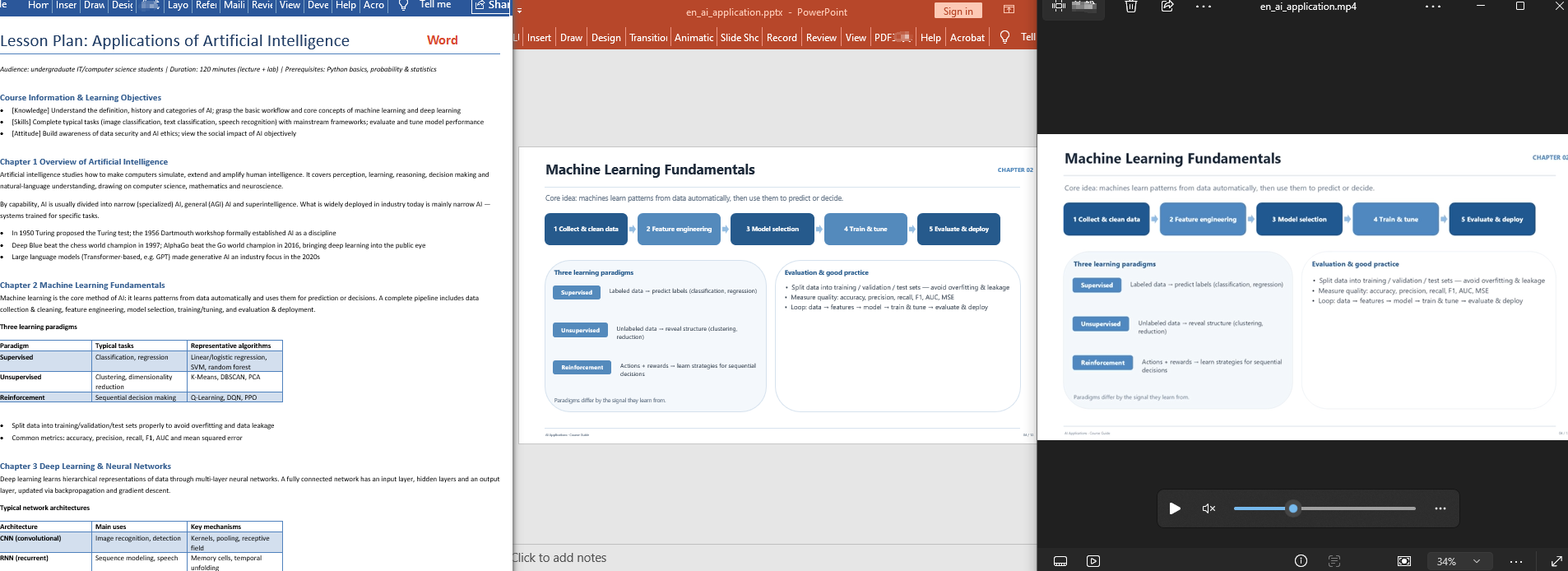 Pdf document ----> Presentation ----> narrated .mp4 video
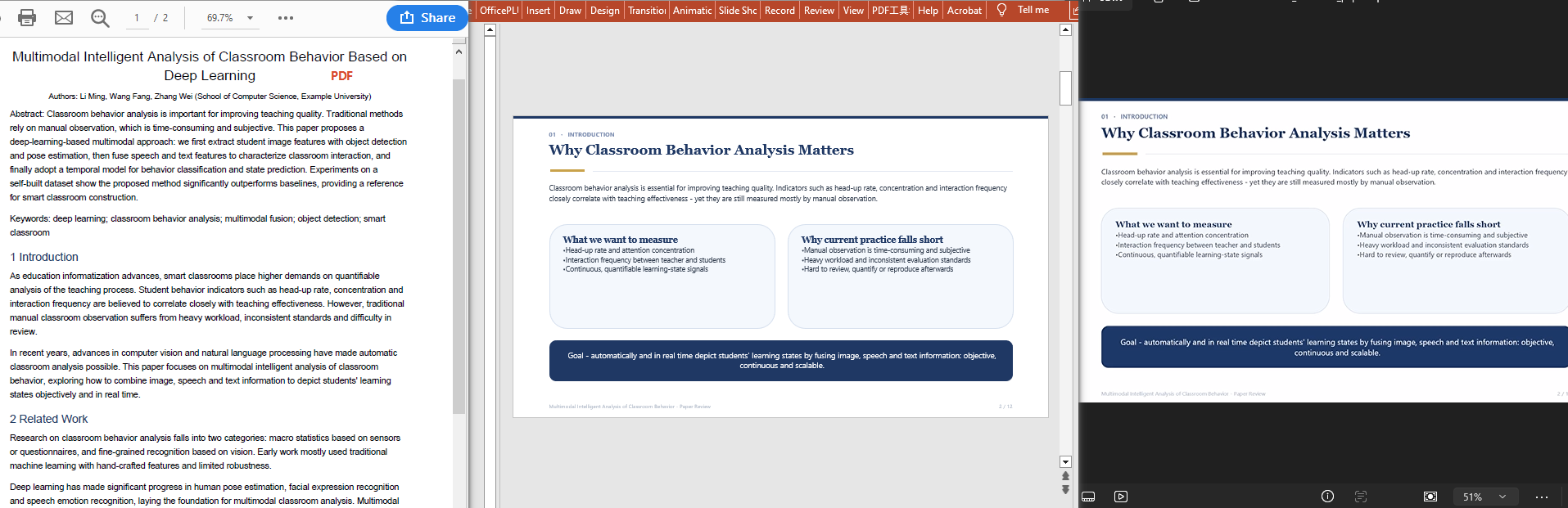 Excel document ----> Presentation ----> narrated .mp4 video
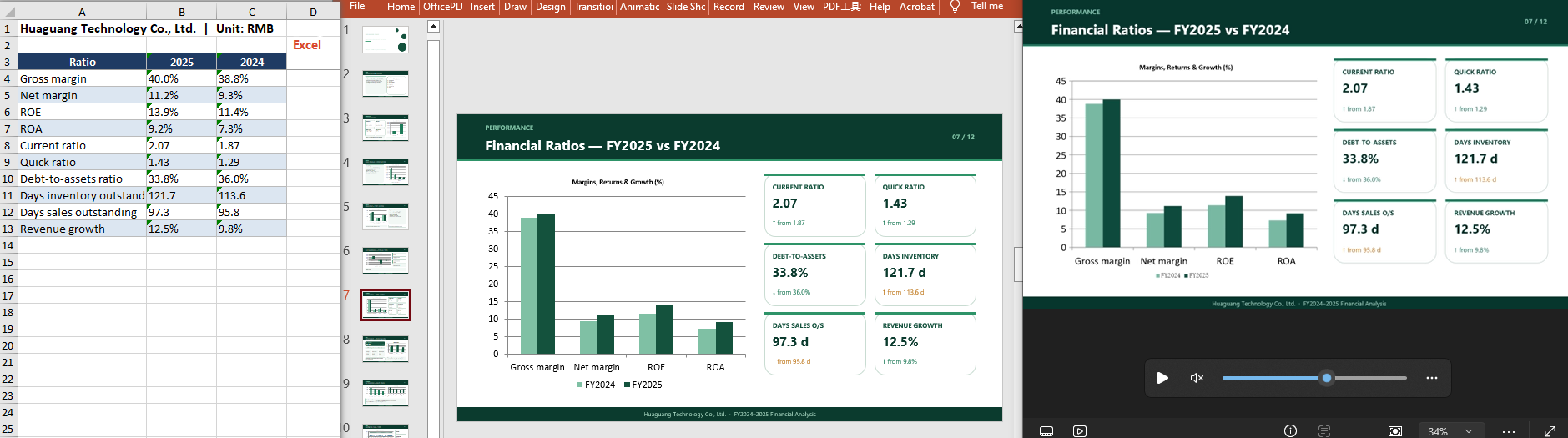 Markdown document ----> Presentation ----> narrated .mp4 video
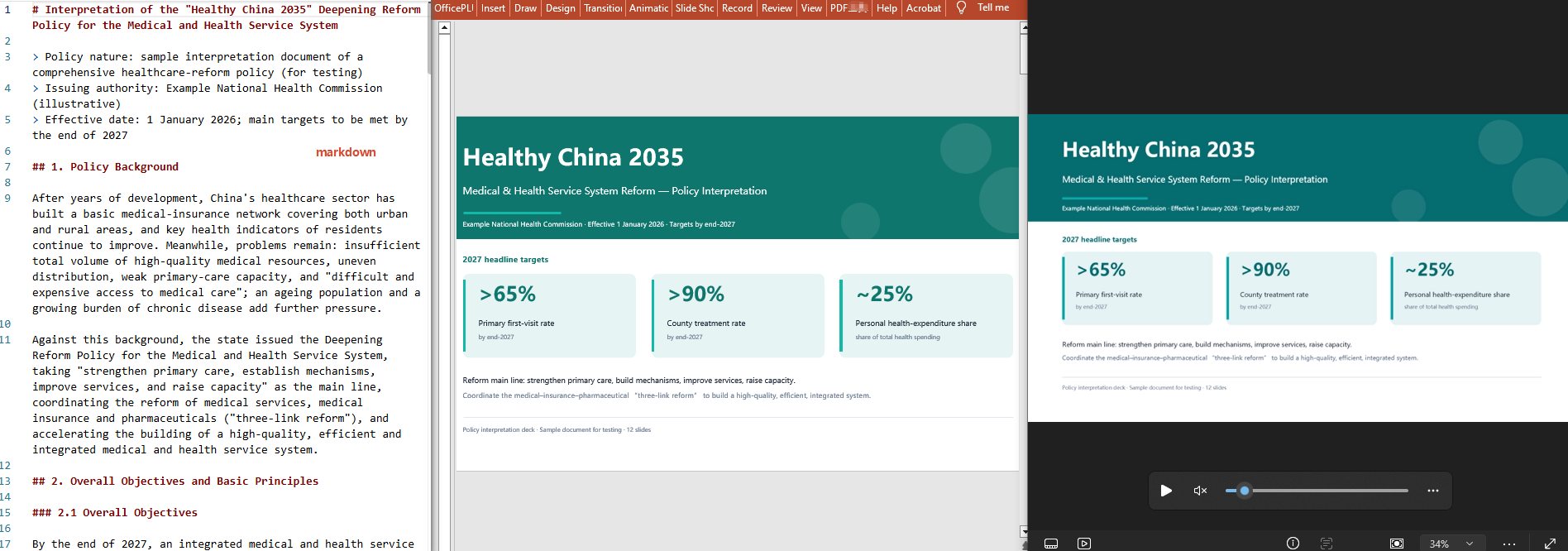
FAQ
The generated PPT's page count does not match the course content
Cause: when the course document is large, the AI's choices when distilling and paginating can differ from expectations.
Solution: state the page count explicitly in the instruction, for example "generate 9 slides, one teaching segment per slide".
The result failed to generate
Cause: the source document contains a lot of data, so the analysis consumes a large number of tokens and exceeds the default token fuse limit.
Solution: configure TokenCircuitBreakerLimit yourself, as shown below:
AIOptions options = new AIOptions();
options.TokenCircuitBreakerLimit = 5000000;
Can multi-format course documents (Word/PDF/Excel/Markdown) all be converted?
Cause: each format is parsed differently, so users are not sure what works.
Solution: Spire.Agent.Office detects the format of the attached document and reads its content automatically; simply pass in the file of the corresponding format and state its origin in the instruction.
Get your SpireToken Key
- Contact [email protected] or visit https://www.e-iceblue.com/TemLicense.html to obtain a trial/commercial API key
Configure it in code:
AIOptions options = new AIOptions();
options.SpireToken = key;
Bidirectional PPT Aspect Ratio Conversion with Spire.Agent.Office
2026-08-20 06:48:40 Written by Lisa LiBefore a presentation, the aspect ratio of a PPT often needs to be unified — some meeting screens are 4:3 standard while some projectors are 16:9 widescreen. This requires bidirectional layout conversion, and during the conversion the font sizes and image positions must be adjusted automatically so the content displays correctly with no text overflow or misplaced images. This article shows how to use the Spire.Agent.Office PowerPoint AI capability to batch-convert PowerPoint presentations between the 4:3 standard ratio and the 16:9 widescreen ratio.
Comparison with the Traditional SDK API
| Traditional Spire.Office for .NET API | Spire.Agent.Office Processing | |
|---|---|---|
| Driving approach | Hard-coded API calls | 1 natural-language instruction |
| Requirement changes | Requirement changes require modifying the code and redeploying | When requirements change, just modify the instruction text without recompiling the code |
For product installation and SpireToken configuration, please refer to Integrating Spire.Agent.Office in a .NET Project. The examples below assume Spire.Agent.Office is already installed and SpireToken is configured.
Convert 4:3 Standard to 16:9 Widescreen
The content structure, theme, and color scheme of every slide remain unchanged; font sizes and image positions are automatically adapted to the widescreen canvas, and multi-page PPTs are converted in one pass.
using Spire.Agent.Office.AI;
using Spire.Agent.Office.Extensions;
using Spire.Presentation;

// PowerPoint AI processing configuration
string inputPath = @"ratio_43.pptx";
string savePath = @"output.pptx";
// SpireToken Key
string key = "**************************";
string instruction = "Read the input PowerPoint presentation and batch-convert it from 4:3 standard aspect ratio to 16:9 widescreen";
AIResult result = ExecuteDemoPpt(instruction, inputPath, savePath, key);

// Execute PowerPoint document AI processing
static AIResult ExecuteDemoPpt(string instruction, string inputPath, string savePath, string key)
{
    // Create an AIOptions configuration object
    AIOptions options = new AIOptions();
    options.SpireToken = key;

    // Use the Presentation object to process the PowerPoint document
    using (Presentation ppt = new Presentation())
    {
        // Load the PPT from the file
        if (!string.IsNullOrEmpty(inputPath) && File.Exists(inputPath))
        {
            ppt.LoadFromFile(inputPath);
        }
        // Create an AI document processor
        AIDocumentProcessor processor = ppt.AI(options);

        // Execute the AI instruction
        return processor.ExecuteInstruction(ppt, instruction, savePath);
    }
}
Original 4:3 standard PPT 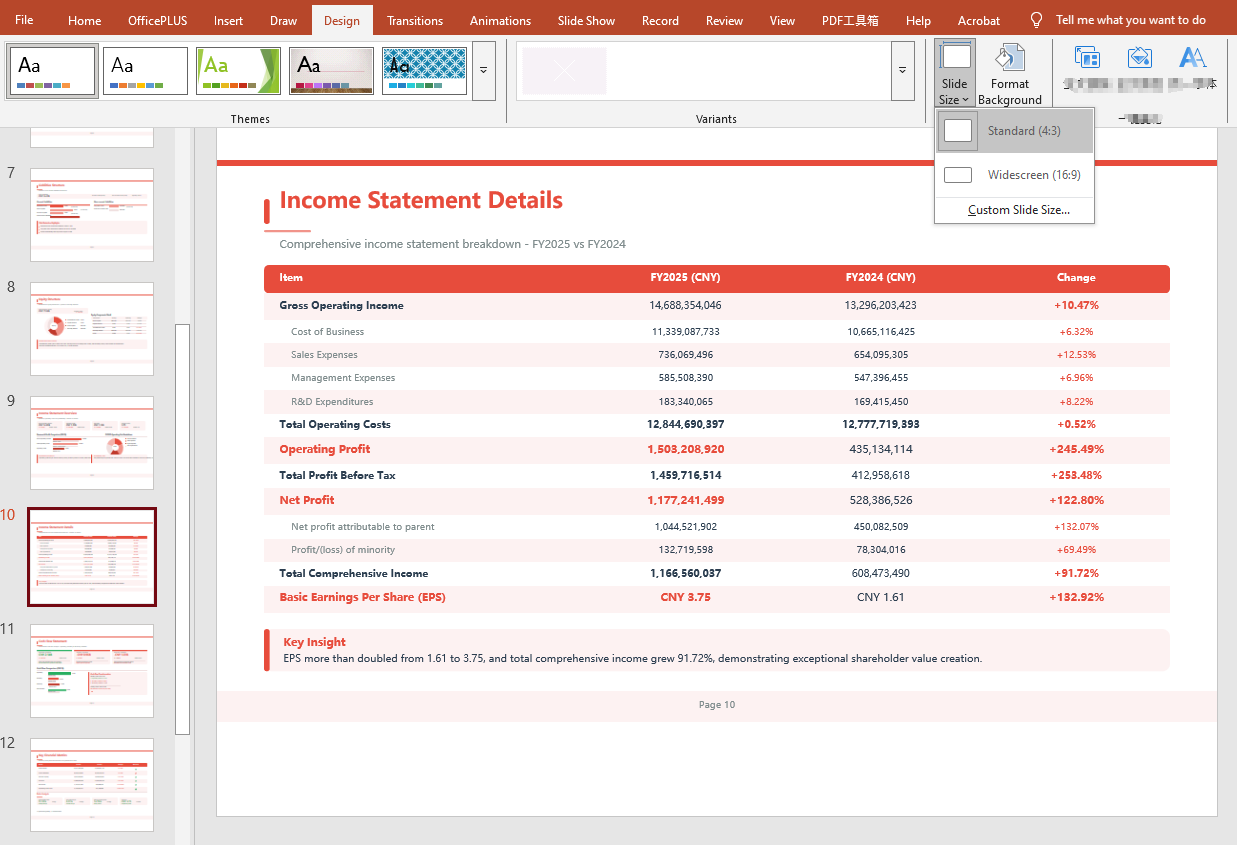 Converted 16:9 widescreen PPT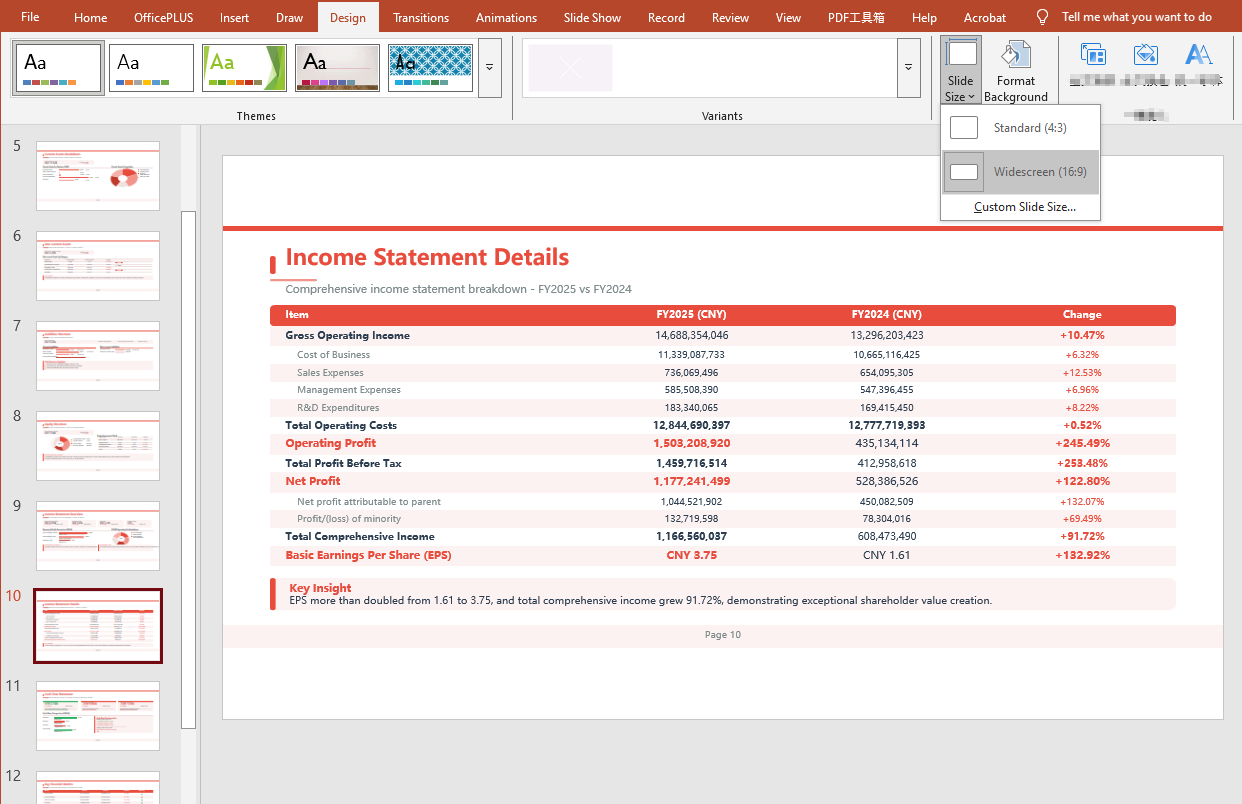
Convert 16:9 Widescreen to 4:3 Standard
using Spire.Agent.Office.AI;
using Spire.Agent.Office.Extensions;
using Spire.Presentation;

// PowerPoint AI processing configuration
string inputPath = @"ratio_169.pptx";
string savePath = @"output.pptx";
// SpireToken Key
string key = "**************************";
string instruction ="Read the input PowerPoint presentation and batch-convert it from 16:9 widescreen aspect ratio to 4:3 standard";

// Call the PowerPoint document processing function
AIResult result = ExecuteDemoPpt(instruction, inputPath, savePath, key);

// Execute PowerPoint document AI processing (the same helper function as above)
static AIResult ExecuteDemoPpt(string instruction, string inputPath, string savePath, string key)
{
    AIOptions options = new AIOptions();
    options.SpireToken = key;

    using (Presentation ppt = new Presentation())
    {
        if (!string.IsNullOrEmpty(inputPath) && File.Exists(inputPath))
        {
            ppt.LoadFromFile(inputPath);
        }
        AIDocumentProcessor processor = ppt.AI(options);
        return processor.ExecuteInstruction(ppt, instruction, savePath);
    }
}
Original 16:9 widescreen PPT 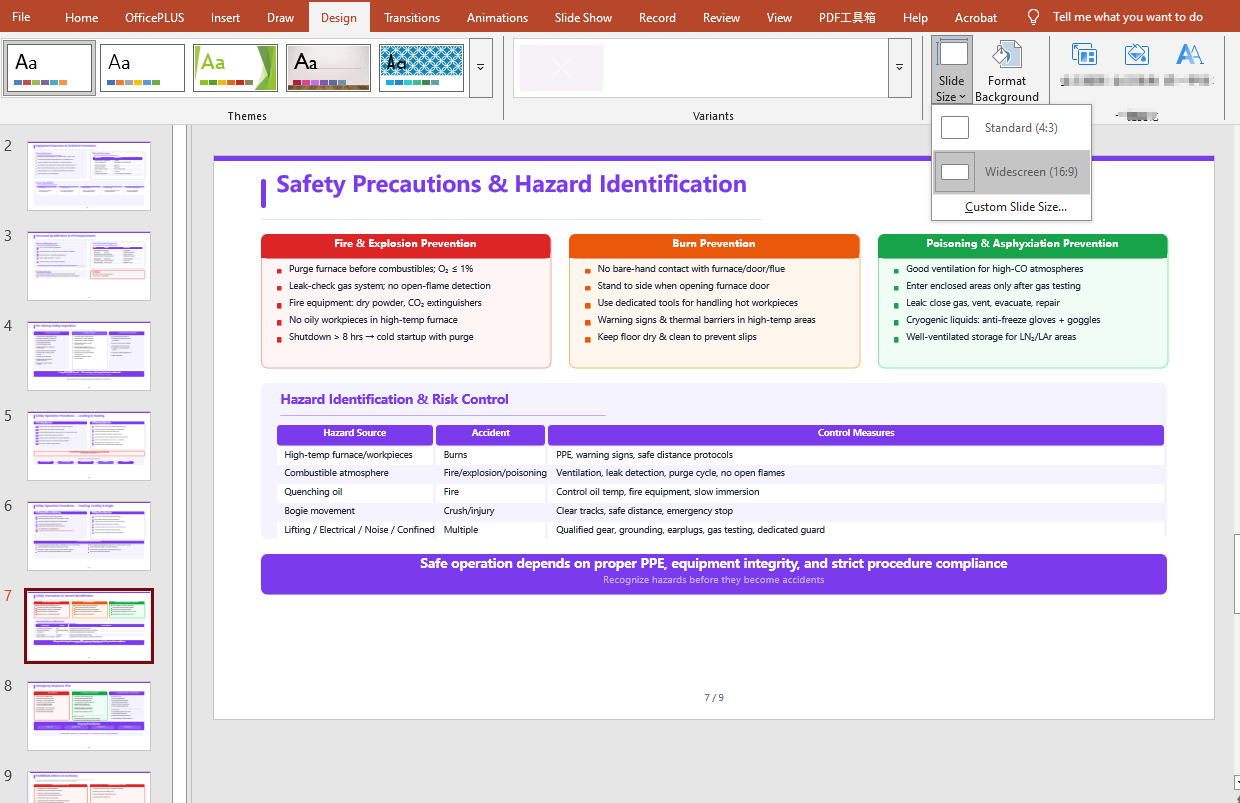 Converted 4:3 standard PPT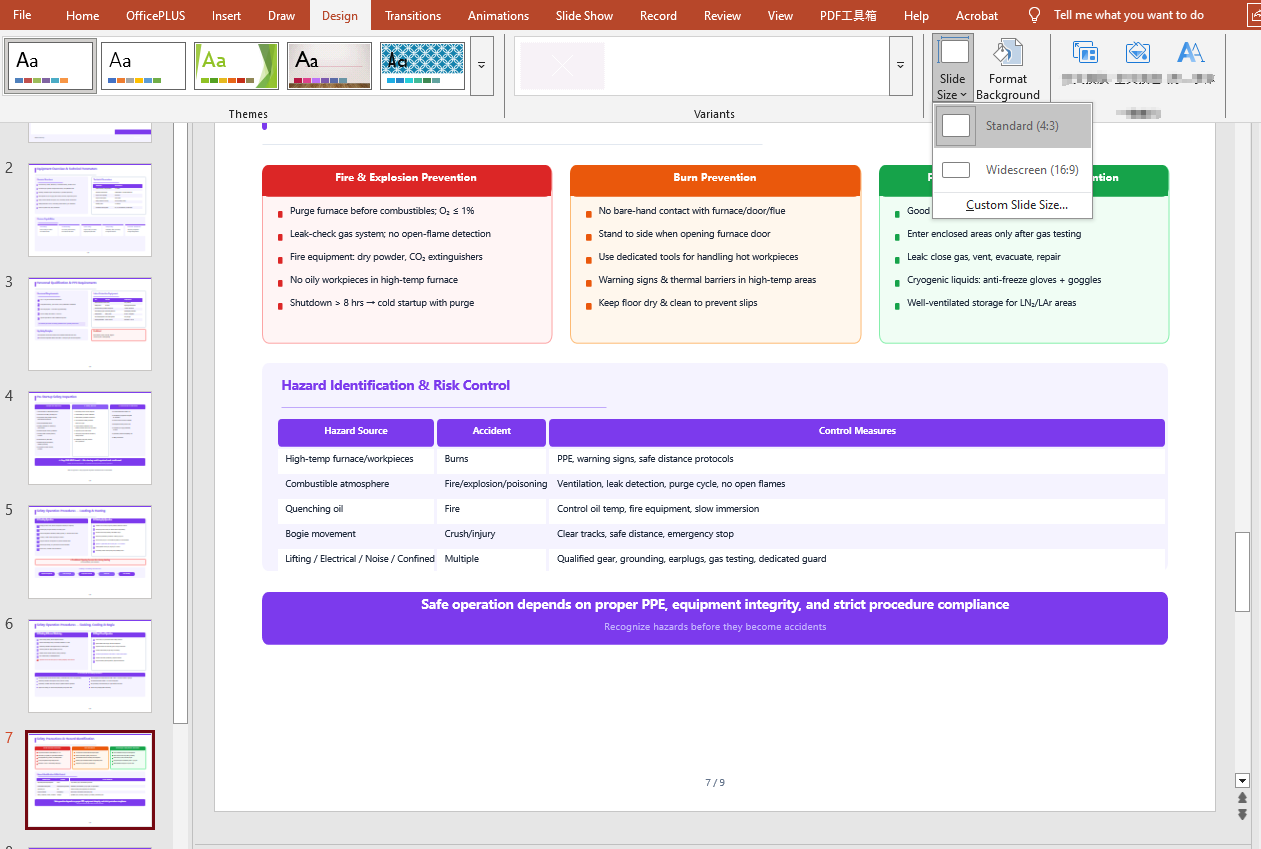
FAQ
Result document pages are missing
Cause: If the original document has many pages, the AI analysis can take a relatively long time. The default timeout setting of AIOptions.TimeoutMs is 5 minutes; if it is exceeded, the AI analysis is interrupted.
Solution: Set a sufficiently large AIOptions.TimeoutMs, for example:
 AIOptions options = new AIOptions();
    options.TimeoutMs = 1000000;
Get a SpireToken Key
- Contact [email protected] or visit https://www.e-iceblue.com/TemLicense.html to get a trial/commercial API key
Configure it in code:
AIOptions options = new AIOptions();
options.SpireToken = key;
Generate PPT from Multi-Format Documents with Spire.Agent.Office
2026-08-03 03:09:15 Written by Lisa LiEfficiently transferring technical knowledge is a core challenge for every enterprise in day-to-day business. A large number of technical specification documents — such as operation manuals, safety and maintenance guides, and supply chain standard documents — are often dozens or even hundreds of pages long. How to quickly turn the core knowledge in these dense technical specifications into easy-to-understand PPT material is a key pain point in enterprise knowledge management.
This article demonstrates how to use the Spire.Agent.Office Presentation AI capability to analyze and summarize data sources in various formats, extract the core points, and generate professional PPT presentations.
- Generate PPT from a Word Document
- Generate PPT from a PDF Document
- Generate PPT from a Markdown Document
- Generate PPT from an Excel Document
Comparing with Traditional SDK/API Processing
| Traditional Spire.Office for .NET API | Spire.Agent.Office | |
|---|---|---|
| Driving approach | Requires calling the APIs of four products — Word, Excel, PDF, PowerPoint — extracting content from each document type via code, then calling the PowerPoint API to create slides page by page, add elements, and manually calculate layouts | Directly describe the requirement in natural language, and the AI understands and generates the PPT automatically |
| Development complexity | You need to be familiar with 4 different API sets, write separate parsing code for each format (.docx/.xlsx/.pdf), and then piece together the PowerPoint generation logic — large amount of code with high coupling | One natural-language instruction completes the entire workflow |
| Document parsing | You must manually specify which data to extract from each type of document; the parsing logic is hard-coded, and any document structure change requires synchronized code modification | AI automatically analyzes the document structure in depth and accurately extracts the key information |
| Versatility & maintainability | Each document format requires its own parsing logic; format changes or new document types require extensive code changes, with poor reusability | The same set of natural-language instructions adapts to different documents |
| Processing cycle | Several days (large documents require senior engineers to spend full time writing/debugging code) | Minutes (upload document + template + one instruction) |
Regarding product installation and SpireToken configuration, please refer to Integrating Spire.Agent.Office in a .NET Project. The examples below assume that Spire.Agent.Office is installed and SpireToken is configured.
Generate PPT from a Word Document
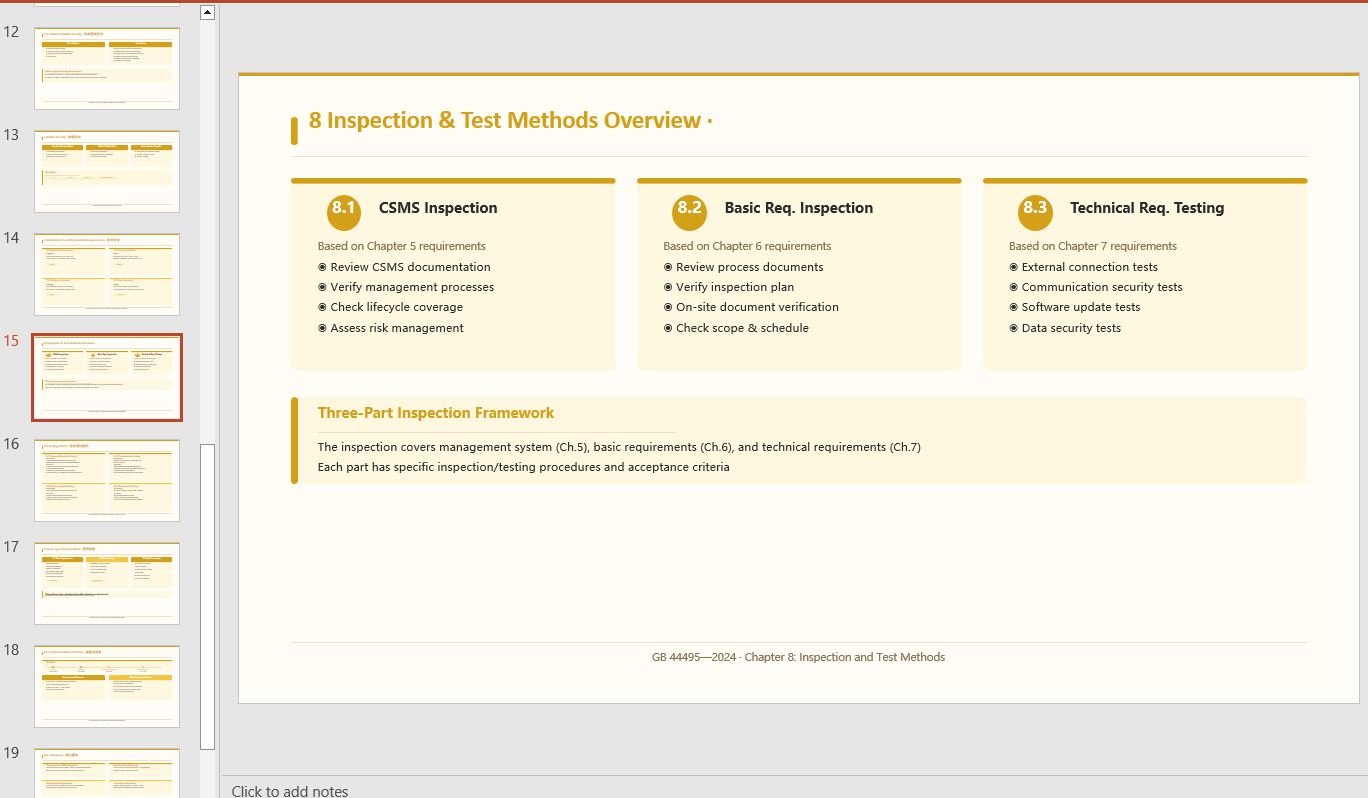
Generate a minimalist-style PPT presentation based on the content of a Word document according to a natural-language instruction.
using Spire.Agent.Office.AI;
using Spire.Agent.Office.Extensions;
using Spire.Presentation;

// Source data document
string inputPath = @"technical_requirements.docx";
// Result document path
string savePath = @"SafetyTechnicalRequirements.pptx";
// SpireToken Key
string key = "sk-TF***************************r";
// Natural language instruction
string instruction = "Extract the core points from 'technical_requirements.docx' to generate a PPT. 1. Ensure proper layout and formatting 2. Use a minimalist style with a light yellow theme 3. Generate 20 slides";
// AI generation
PPTGenerationResult result = GeneratePPT(inputPath, instruction, savePath, key);

// AI-assisted PPT generation
static PPTGenerationResult GeneratePPT(string input, string instruction, string savePath, string key)
{
    AIOptions options = new AIOptions();
    options.SpireToken = key;
    options.TimeoutMs = 1000000;
    using (Presentation ppt = new Presentation())
    {
        AIDocumentProcessor processor = ppt.AI(options);
        return processor.GeneratePresentation(input, instruction, savePath);
    }
}
Generate PPT from a PDF Document
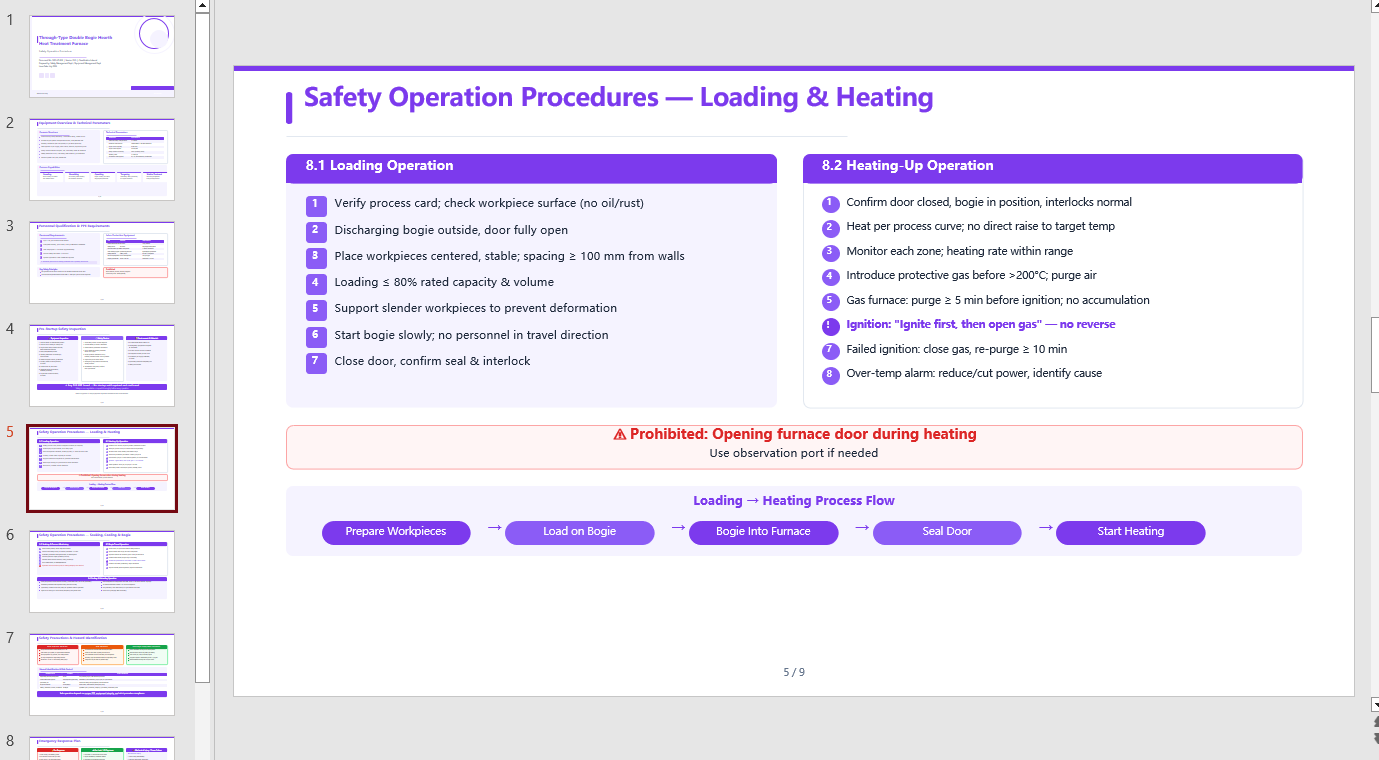
Automatically analyze the internal hierarchy of a PDF document, accurately extract the key information, and generate a retro-green themed PPT presentation according to the instruction.
using Spire.Agent.Office.AI;
using Spire.Agent.Office.Extensions;
using Spire.Presentation;

// Source data document
string inputPath = @"procedures.pdf";
// Result document path
string savePath = @"SafetyOperationProcedures.pptx";
// SpireToken Key
string key = "sk-TF***************************r";
// Natural language instruction
string instruction = "Extract the key points from 'procedures.pdf' and generate a PPT. " +
                     "1. Ensure a well-structured layout and visual appeal; " +
                     "2. Include relevant diagrams and charts; " +
                     "3. Use a simple purple style as the theme; "+
                     "4. 9 pages";
// AI generation
PPTGenerationResult result = GeneratePPT(inputPath, instruction, savePath, key);


// AI-assisted PPT generation
static PPTGenerationResult GeneratePPT(string input, string instruction, string savePath, string key)
{
    AIOptions options = new AIOptions();
    options.SpireToken = key;
    options.TimeoutMs = 1000000;
    using (Presentation ppt = new Presentation())
    {
        AIDocumentProcessor processor = ppt.AI(options);
        return processor.GeneratePresentation(input, instruction, savePath);
    }
}
Generate PPT from a Markdown Document
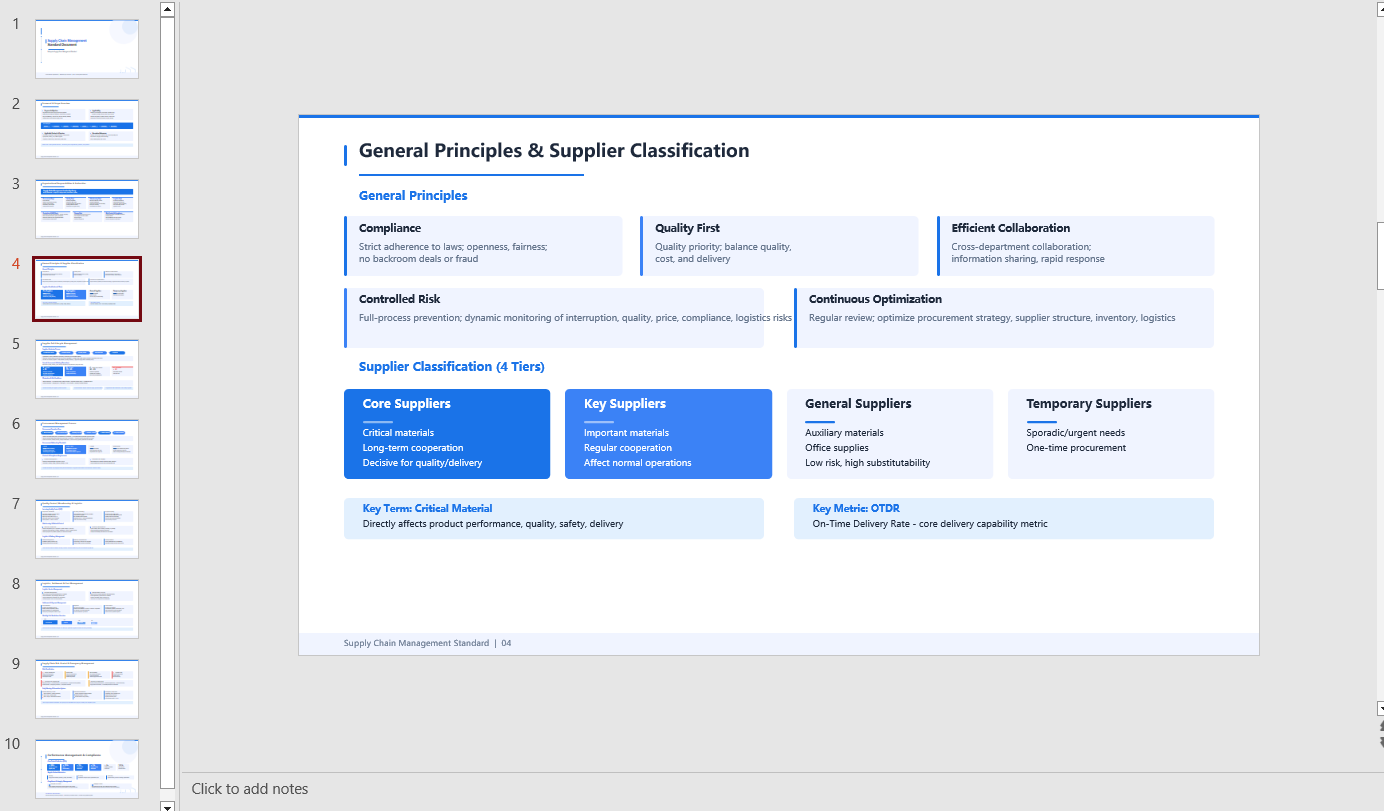
Automatically summarize the content of a Markdown-format data source and generate a tech-style PPT.
using Spire.Agent.Office.AI;
using Spire.Agent.Office.Extensions;
using Spire.Presentation;

// Source data document
string inputPath = @"Management.md";
// Result document path
string savePath = @"SupplyChainManagement.pptx";
// SpireToken Key
string key = "sk-TF***************************r";
// Natural language instruction
string instruction = "Generate a PPT based on 'Management.md'. Requirements: 1. Adopt a tech/style; 2. Use light blue as the primary color scheme; 3. Ensure the core content is complete, with clear hierarchy and neat layout. Key data should be presented visually through charts and graphs.";
// AI generation
PPTGenerationResult result = GeneratePPT(inputPath, instruction, savePath, key);


// AI-assisted PPT generation
static PPTGenerationResult GeneratePPT(string input, string instruction, string savePath, string key)
{
    AIOptions options = new AIOptions();
    options.SpireToken = key;
    options.TimeoutMs = 1000000;
    using (Presentation ppt = new Presentation())
    {
        AIDocumentProcessor processor = ppt.AI(options);
        return processor.GeneratePresentation(input, instruction, savePath);
    }
}
Generate PPT from an Excel Document
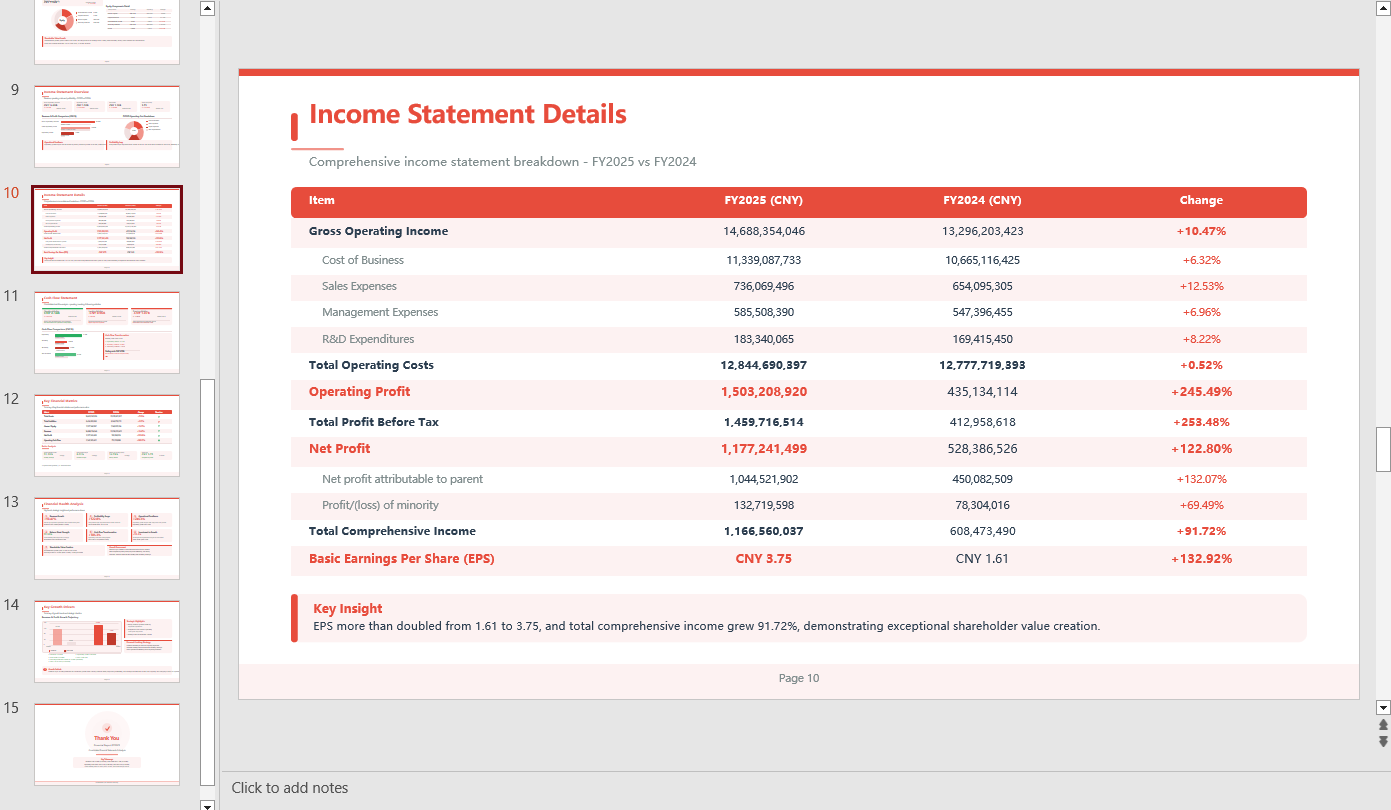
Automatically summarize the content of an Excel-format data source and generate a tech-style PPT.
using Spire.Agent.Office.AI;
using Spire.Agent.Office.Extensions;
using Spire.Presentation;

// Source data document
string inputPath = @"data.xlsx";
// Result document path
string savePath = @"out.pptx";
// SpireToken Key
string key = "sk-TF***************************r";
// Natural language instruction
string instruction = "Generate a PPT based on data
.xlsx, 1. Ensure proper layout and formatting 2. Use a minimalist style with a light red theme 3. Ensure chart visual effects 4.Generate 15 pages";
// AI generation
PPTGenerationResult result = GeneratePPT(inputPath, instruction, savePath, key);


// AI-assisted PPT generation
static PPTGenerationResult GeneratePPT(string input, string instruction, string savePath, string key)
{
    AIOptions options = new AIOptions();
    options.SpireToken = key;
    options.TimeoutMs = 1000000;
    using (Presentation ppt = new Presentation())
    {
        AIDocumentProcessor processor = ppt.AI(options);
        return processor.GeneratePresentation(input, instruction, savePath);
    }
}
FAQ
The number of generated PPT pages does not match the expectation
Cause: If the data source contains a large amount of content, the AI analysis will take more time. The default timeout of AIOptions.TimeoutMs is 5 minutes; if the analysis exceeds it, the AI analysis is interrupted.
Solution: Set AIOptions.TimeoutMs to a sufficiently large value, and also specify a page range in the instruction, e.g. "Keep the final PPT to 8-12 pages".
The key content extracted by AI is not accurate enough
Cause: The source document has a complex structure, and the AI may not have fully understood the hierarchy.
Solution: Explicitly specify the type of content to extract in the instruction, e.g. "Focus on extracting the data from the table in Chapter 2".
Get Your SpireToken Key
- Contact [email protected] or visit https://www.e-iceblue.com/TemLicense.html to obtain a trial/commercial API key
Configure it in code:
AIProcessorOptions options = new AIProcessorOptions();
options.SpireToken = key;
