
Hyperlink (2)
Modify and Delete Hyperlinks in PDF with JavaScript in React
2026-10-14 06:20:44 Written by Nina TangPDF hyperlinks are supposed to be the easiest part of a document — one click and you are there, with no copying and no typing. But once they have to be maintained in bulk, the situation flips: a product document changes domain and every URL has to be fixed one by one; an old manual is about to be published and its external links have to be cleared first. In desktop software these jobs mean clicking through by hand, or cannot be done in bulk at all.
This article shows how to modify and delete hyperlinks with Spire.PDF for JavaScript. It is built on WebAssembly and loads, modifies and saves PDF documents directly in the browser; the whole process runs locally through a virtual file system (VFS), with no backend required.
This article covers two key operations:
For installation and project setup, refer to How to Integrate Spire.PDF for JavaScript in a React Project. The examples below assume Spire.PDF is installed and the WebAssembly module has been initialized.
Modify Hyperlinks
When a document's URLs change domain, resetting them one by one is tedious. An existing link annotation can be read and written through PdfUriAnnotationWidget, whose Uri property is the link's target address. Walking the annotation collection page by page and rewriting the matches changes links in bulk.
function App() {
  const updateHyperlinks = async () => {
    // Get the Spire.PDF WASM module
    const pdfModule = window.wasmModule?.spirepdf;

    // Check whether the module is ready
    if (!pdfModule) {
      alert('Spire.PDF is not ready yet');
      return;
    }

    // Load the PDF to be processed into the VFS
    const inputFileName = 'ProductManual.pdf';
    await window.spire.FetchFileToVFS(inputFileName, "", `${process.env.PUBLIC_URL}/data/`);

    // Create a PdfDocument object and load the PDF document
    let doc = new pdfModule.PdfDocument();
    doc.LoadFromFile(inputFileName);

    // The new link address
    const newUrl = 'https://www.e-iceblue.com/Introduce/pdf-for-javascript.html';

    // Walk the annotations page by page and rewrite the URI links
    for (let i = 0; i < doc.Pages.Count; i++) {
      const page = doc.Pages.get_Item(i);
      for (let j = 0; j < page.Annotations.Count; j++) {
        const annotation = page.Annotations.get_Item(j);
        // Handle only link annotations; leave other annotation types as they are
        if (annotation instanceof pdfModule.PdfUriAnnotationWidget) {
          annotation.Uri = newUrl;
        }
      }
    }

    // Save the resulting document
    const outputFileName = 'HyperlinksUpdated.pdf';
    doc.SaveToFile(outputFileName);
    doc.Close();

    // Read the generated file from the VFS and trigger a download
    const fileArray = window.dotnetRuntime.Module.FS.readFile(outputFileName);
    const blob = new Blob([fileArray], { type: 'application/pdf' });
    const downloadUrl = URL.createObjectURL(blob);
    const a = document.createElement('a');
    a.href = downloadUrl;
    a.download = outputFileName;
    a.click();
    URL.revokeObjectURL(downloadUrl);
  };

  return (
    <div style={{ textAlign: 'center', height: '300px' }}>
      <h1>Modify Hyperlinks</h1>
      <button onClick={updateHyperlinks}>
        Update Hyperlinks
      </button>
    </div>
  );
}

export default App;
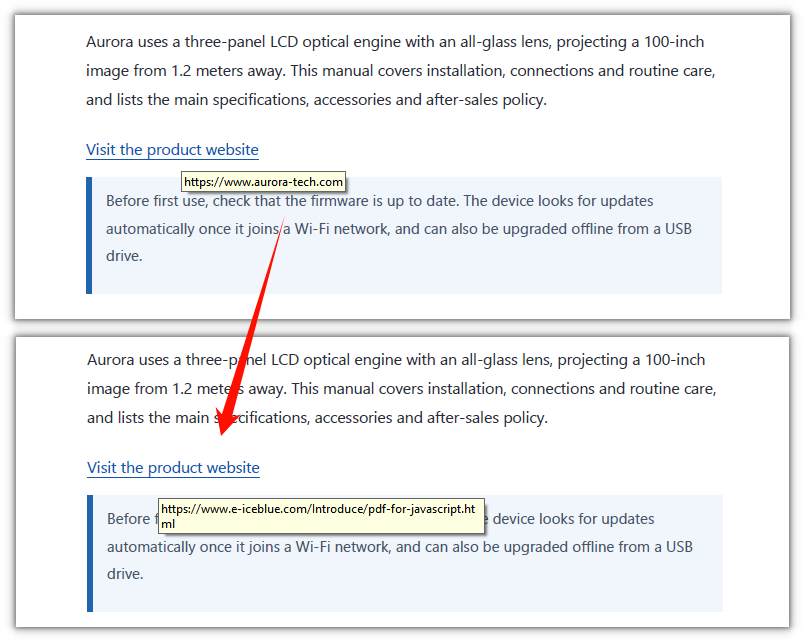
The three hyperlinks already in the document now point to the new address:
Delete Hyperlinks
Deleting hyperlinks is likewise a walk over the annotation collection, calling Remove on the matches. The difference is collecting first and deleting after: removing during the walk shifts the collection forward, and the loop then skips the entry right after the removed one.
function App() {
  const deleteHyperlinks = async () => {
    // Get the Spire.PDF WASM module
    const pdfModule = window.wasmModule?.spirepdf;

    // Check whether the module is ready
    if (!pdfModule) {
      alert('Spire.PDF is not ready yet');
      return;
    }

    // Load the PDF to be processed into the VFS
    const inputFileName = 'ProductManual.pdf';
    await window.spire.FetchFileToVFS(inputFileName, "", `${process.env.PUBLIC_URL}/data/`);

    // Create a PdfDocument object and load the PDF document
    let doc = new pdfModule.PdfDocument();
    doc.LoadFromFile(inputFileName);

    // Collect all link annotations first
    const links = [];
    for (let i = 0; i < doc.Pages.Count; i++) {
      const page = doc.Pages.get_Item(i);
      for (let j = 0; j < page.Annotations.Count; j++) {
        const annotation = page.Annotations.get_Item(j);
        if (annotation instanceof pdfModule.PdfUriAnnotationWidget) {
          links.push({ page, annotation });
        }
      }
    }

    // Remove them all after the collection is complete
    for (const link of links) {
      link.page.Annotations.Remove(link.annotation);
    }

    // Save the resulting document
    const outputFileName = 'HyperlinksRemoved.pdf';
    doc.SaveToFile(outputFileName);
    doc.Close();

    // Read the generated file from the VFS and trigger a download
    const fileArray = window.dotnetRuntime.Module.FS.readFile(outputFileName);
    const blob = new Blob([fileArray], { type: 'application/pdf' });
    const downloadUrl = URL.createObjectURL(blob);
    const a = document.createElement('a');
    a.href = downloadUrl;
    a.download = outputFileName;
    a.click();
    URL.revokeObjectURL(downloadUrl);
  };

  return (
    <div style={{ textAlign: 'center', height: '300px' }}>
      <h1>Delete Hyperlinks</h1>
      <button onClick={deleteHyperlinks}>
        Delete Hyperlinks
      </button>
    </div>
  );
}

export default App;
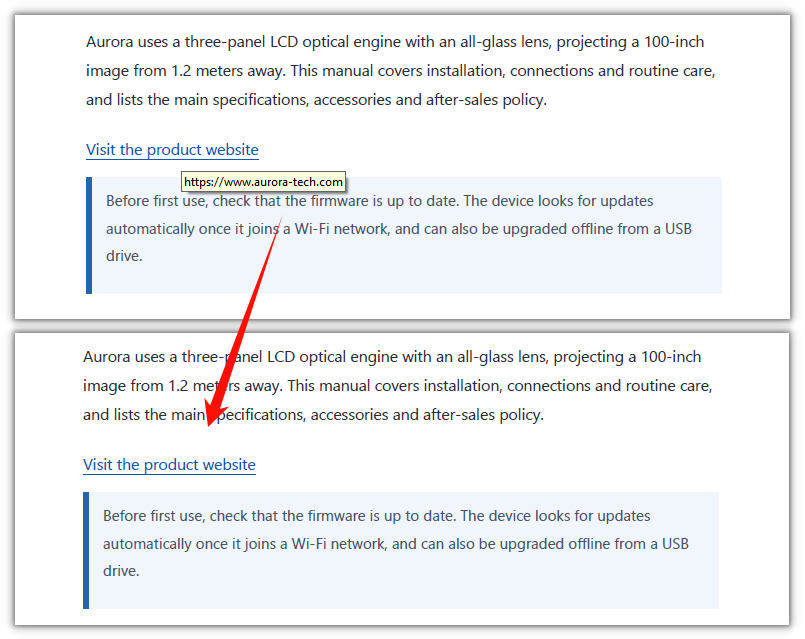
All hyperlinks in the document have been removed:
FAQ
I changed Uri, but the address is unchanged after saving
Cause: link annotations are not a single class. The Uri property exists only on PdfUriAnnotationWidget. A hyperlink exported from Word, or produced by Spire's PdfTextWebLink, is another class, PdfTextWebLinkAnnotationWidget, whose address property is called Url. Code that tests only one class skips the other entirely.
Solution: test both classes and set the matching property:
if (annotation instanceof pdfModule.PdfUriAnnotationWidget) {
  annotation.Uri = newUrl;
} else if (annotation instanceof pdfModule.PdfTextWebLinkAnnotationWidget) {
  annotation.Url = newUrl;
}
Why does deleting while iterating remove only some of the links?
Cause: page.Annotations is a mutable annotation collection. After item i is removed, the annotations behind it shift up by one, while the loop's i still increments as usual, so the entry immediately after the removed one is skipped. With several links on a page, several are missed.
Solution: collect the annotations to delete into an array first, then remove them all after the loop:
const links = [];
// ...collect while iterating...

// remove after the collection is complete
for (const link of links) {
  link.page.Annotations.Remove(link.annotation);
}
Does deleting hyperlinks also delete comments?
Cause: page.Annotations holds more than links — text box annotations, popups, form fields and so on all live in the same collection. Calling Clear(), or deleting everything without checking, wipes those out too.
Solution: delete only link annotations and leave the rest untouched:
if (annotation instanceof pdfModule.PdfUriAnnotationWidget) {
  page.Annotations.Remove(annotation);
}
Get a Free License
To remove the evaluation message from the generated documents, or to get rid of the function limitations, please contact sales for a temporary license valid for 30 days.
Hyperlinks in a PDF are meant to save work: one click and you are there, no copying an address, no retyping it. The catch is that they are rarely there when you need them. A brand-new document should come with its download page, a contact address and a product link already in place. An older, already laid-out document should send the product name recurring in its body to the same introduction page. Doing it by hand means dragging a selection and pasting an address at every spot — and on a long document that never ends.
Moving the job into the browser is what Spire.PDF for JavaScript is for: it loads, modifies and saves PDF documents directly on WebAssembly, with PdfTextWebLink drawing visible link text in one step and PdfFileLinkAnnotation attaching a document link. Everything runs locally, reading and writing files through a virtual file system (VFS) with no backend involved.
This article covers two core tasks:
For installation and project setup, see Integrate Spire.PDF for JavaScript in a React project. The example below assumes Spire.PDF is installed and the WebAssembly module is initialized.
Add Hyperlinks to a PDF
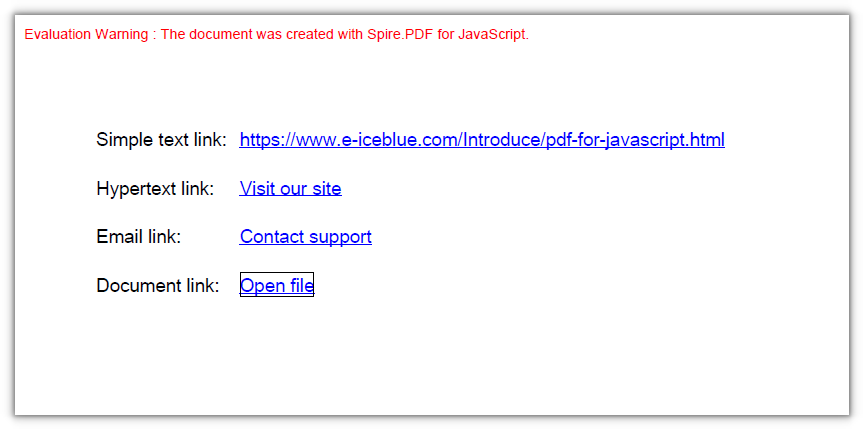
When you build a document from scratch, everything on the page is decided by code, and links fall into a few kinds:
- Simple text link: the URL drawn as ordinary text, with no annotation attached; whether it is clickable is up to the viewer — Chrome and others auto-detect the URL and make it clickable — so it is here only for contrast with the explicitly linked ones.
- Hypertext link:
PdfTextWebLinkwithText,Url,FontandBrushset;DrawTextWebLink()draws the underlined link text in one step. - Document link:
PdfFileLinkAnnotation(hotspot rectangle, target file), with the rectangle defined by you.
function App() {
  const addLinksToNewPdf = async () => {
    // Get the Spire.PDF WASM module
    const pdfModule = window.wasmModule?.spirepdf;

    // Check that the module is ready
    if (!pdfModule) {
      alert('Spire.PDF is not ready yet');
      return;
    }

    // Drawing text needs a font; load it into the VFS first
    const fontVfs = '/Library/Fonts/ARIAL UNICODE MS.TTF';
    await window.spire.FetchFileToVFS('ARIAL UNICODE MS.TTF', '/Library/Fonts/', `${process.env.PUBLIC_URL}/font/`);

    // Create a blank document
    const doc = new pdfModule.PdfDocument();

    // Add a section and set its margins to 0: coordinates then equal page coordinates
    const section = doc.Sections.Add();
    section.PageSettings.Size = pdfModule.PdfPageSize.A4();
    const margins = new pdfModule.PdfMargins();
    margins.Top = 0;
    margins.Bottom = 0;
    margins.Left = 0;
    margins.Right = 0;
    section.PageSettings.Margins = margins;

    const page = section.Pages.Add();

    const font = new pdfModule.PdfTrueTypeFont({ fontFile: fontVfs, size: 13 });
    const linkFont = new pdfModule.PdfTrueTypeFont({ fontFile: fontVfs, size: 13, style: pdfModule.PdfFontStyle.Underline });
    const format = new pdfModule.PdfStringFormat({ alignment: pdfModule.PdfTextAlignment.Left });

    // Draw a plain line of text as a label
    const drawLabel = (text, y) => {
      page.Canvas.DrawString({
        s: text, font: font, brush: pdfModule.PdfBrushes.get_Black(), x: 60, y: y, format: format,
      });
    };

    // Draw a line of underlined text and hand back its rectangle as the hotspot
    const drawLinkText = (text, y) => {
      const size = linkFont.MeasureString({ text: text });
      page.Canvas.DrawString({
        s: text, font: linkFont, brush: pdfModule.PdfBrushes.get_Blue(), x: 160, y: y, format: format,
      });
      return new pdfModule.RectangleF({ x: 160, y: y, width: size.Width, height: size.Height });
    };

    const url = 'https://www.e-iceblue.com/Introduce/pdf-for-javascript.html';

    // 1) Simple text link: just the URL drawn as ordinary text, with no annotation attached (clickability depends on the viewer)
    let y = 80;
    drawLabel('Simple text link:', y);
    drawLinkText(url, y);

    // 2) Hypertext link: DrawTextWebLink draws the text and attaches the link in one step
    y += 34;
    drawLabel('Hypertext link:', y);
    const webLink = new pdfModule.PdfTextWebLink();
    webLink.Text = 'Visit our site';
    webLink.Url = url;
    webLink.Font = linkFont;
    webLink.Brush = pdfModule.PdfBrushes.get_Blue();
    webLink.DrawTextWebLink({ graphics: page.Canvas, location: new pdfModule.PointF(160, y) });

    // 3) Email link: same class, with a mailto: URL
    y += 34;
    drawLabel('Email link:', y);
    const mailLink = new pdfModule.PdfTextWebLink();
    mailLink.Text = 'Contact support';
    mailLink.Url = 'mailto:[email protected]';
    mailLink.Font = linkFont;
    mailLink.Brush = pdfModule.PdfBrushes.get_Blue();
    mailLink.DrawTextWebLink({ graphics: page.Canvas, location: new pdfModule.PointF(160, y) });

    // 4) Document link: hotspot rectangle + target file
    y += 34;
    drawLabel('Document link:', y);
    const fileName = 'Report.xlsx';
    const fileBounds = drawLinkText('Open file', y);
    page.Annotations.Add(new pdfModule.PdfFileLinkAnnotation(fileBounds, fileName));

    // Save the result document
    const outputFileName = 'HyperlinkSample.pdf';
    doc.SaveToFile(outputFileName);
    doc.Close();

    // Read the generated file from the VFS and trigger the download
    const fileArray = window.dotnetRuntime.Module.FS.readFile(outputFileName);
    const blob = new Blob([fileArray], { type: 'application/pdf' });
    const downloadUrl = URL.createObjectURL(blob);
    const a = document.createElement('a');
    a.href = downloadUrl;
    a.download = outputFileName;
    a.click();
    URL.revokeObjectURL(downloadUrl);
  };

  return (
    <div style={{ textAlign: 'center', height: '300px' }}>
      <h1>Add Hyperlinks</h1>
      <button onClick={addLinksToNewPdf}>
        Start Creating
      </button>
    </div>
  );
}

export default App;
All four links — simple text, hypertext, email and document — are in place in the new document:
Add Hyperlinks to Text
To add links to an existing document, work the other way round: find the position in the document first, then lay the link over it. PdfTextFinder searches the text of a given page by keyword, and each match carries a bounding rectangle. Build a PdfUriAnnotation from it and add it to the page annotation collection, and the link lands exactly on the original text instead of you doing the measuring.
function App() {
  const addHyperlinksToText = async () => {
    // Get the Spire.PDF WASM module
    const pdfModule = window.wasmModule?.spirepdf;

    // Check that the module is ready
    if (!pdfModule) {
      alert('Spire.PDF is not ready yet');
      return;
    }

    // Load the PDF to be processed into the VFS
    const inputFileName = 'ProductManual.pdf';
    await window.spire.FetchFileToVFS(inputFileName, "", `${process.env.PUBLIC_URL}/data/`);

    // Create a PdfDocument object and load the PDF
    let doc = new pdfModule.PdfDocument();
    doc.LoadFromFile(inputFileName);

    // Take the first page
    const page = doc.Pages.get_Item(0);

    // Search the page for the keyword; Parameter is case-sensitive by default, so switch to IgnoreCase
    const finder = new pdfModule.PdfTextFinder(page);
    finder.Options.Parameter = pdfModule.TextFindParameter.IgnoreCase;
    const finds = finder.Find('Aurora');

    // Create one link annotation for each match
    const linkUrl = 'https://www.e-iceblue.com/Introduce/pdf-for-javascript.html';
    for (let i = 0; i < finds.length; i++) {
      // The bounding rectangle of a match is the link hotspot
      const annotation = new pdfModule.PdfUriAnnotation({ rectangle: finds.get(i).Bounds[0] });
      annotation.Uri = linkUrl;

      // Attach the annotation to the page annotation collection
      page.Annotations.Add(annotation);
    }

    // Save the result document
    const outputFileName = 'HyperlinksAdded.pdf';
    doc.SaveToFile(outputFileName);
    doc.Close();

    // Read the generated file from the VFS and trigger the download
    const fileArray = window.dotnetRuntime.Module.FS.readFile(outputFileName);
    const blob = new Blob([fileArray], { type: 'application/pdf' });
    const downloadUrl = URL.createObjectURL(blob);
    const a = document.createElement('a');
    a.href = downloadUrl;
    a.download = outputFileName;
    a.click();
    URL.revokeObjectURL(downloadUrl);
  };

  return (
    <div style={{ textAlign: 'center', height: '300px' }}>
      <h1>Add Hyperlinks to Text</h1>
      <button onClick={addHyperlinksToText}>
        Start Adding
      </button>
    </div>
  );
}

export default App;
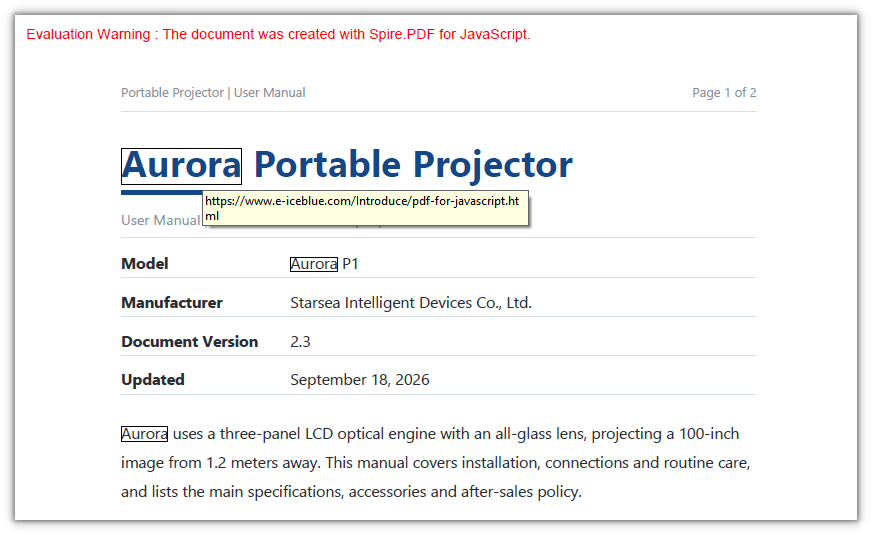
All three occurrences of Aurora now carry a hyperlink:
FAQ
Find() returns nothing even though the word is right there in the text
Cause: Options.Parameter defaults to TextFindParameter.None, which is case-sensitive, so searching for aurora will not match the capitalised Aurora; and the finder searches only the single page it was constructed with.
Fix: set it to IgnoreCase; to search the whole document, build one finder per page:
finder.Options.Parameter = pdfModule.TextFindParameter.IgnoreCase;
Measured: Aurora appears three times on page 1, and a case-sensitive search returns 0.
The link is there, but nothing shows up when the file is opened
Cause: this kind of link annotation is only a click hotspot — Spire generates no appearance stream (/AP) for it, and neither Chrome (PDFium) nor PyMuPDF (mupdf) draws a border for it; setting Border/Color only writes into the annotation dictionary (/Border [0 0 1], /C [0 0 1]) and stays invisible on the page.
Fix: the link is still clickable. In task 1 the hypertext, email, simple-text and document links all have their text drawn by the code, so they are visible to begin with; for a hotspot laid over existing text in task 2, do not rely on the annotation border — draw an underline at the link position with page.Canvas.DrawString().
Get a Free License
If you want to remove the evaluation message from the result document, or get past the feature limits, contact our sales team for a temporary 30-day license.
