
Once a contract, quote, or trial document goes out as a PDF, the content is essentially in the recipient's hands, and when it stops being valid is left to their discretion. To make a document announce its expiry automatically after a set date, desktop software means opening each file and setting it by hand, which is hard to fit into a batch Web workflow; doing it server-side means uploading the files first, taking them off the user's device.
This article shows how to set an expiry date for a PDF document with Spire.PDF for JavaScript. Built on WebAssembly, it loads, modifies, and saves PDF documents directly in the browser. Everything runs locally, reading and writing files through a virtual file system (VFS), with no backend involved.
For installation and project setup, see How to Integrate Spire.PDF for JavaScript in a React Project. The examples below assume Spire.PDF is installed and the WebAssembly module is initialized.
Set an Expiry Date for a PDF Document
Spire.PDF for JavaScript provides the PdfJavaScriptAction class, which wraps a JavaScript snippet as a PDF action. Assign it to PdfDocument.AfterOpenAction and the reader runs the snippet every time the document is opened — the snippet compares the current time with the configured date and, once past it, shows an alert and closes the document.
Step 1: Load the PDF to Process
First get the Spire.PDF WASM module and confirm it is ready, then read the PDF into the virtual file system (VFS) and hand it to PdfDocument to load.
// Get the Spire.PDF WASM module
const pdfModule = window.wasmModule?.spirepdf;

// Check whether the module is ready
if (!pdfModule) {
  alert('Spire.PDF is not ready yet');
  return;
}

// Load the PDF into the VFS
const inputFileName = 'ContractTemplate.pdf';
await window.spire.FetchFileToVFS(inputFileName, "", `${process.env.PUBLIC_URL}/data/`);

// Create a PdfDocument object and load the document
const doc = new pdfModule.PdfDocument();
doc.LoadFromFile(inputFileName);
Step 2: Write the Expiry Check Script
The expiry date lives in the script itself: new Date() captures the system time at the moment of opening and compares it with the configured deadline; if it is later, the two actions — alert and close — run. Both the alert text and the deadline are strings in this snippet, so changing the date or the wording happens here.
// Expiry check: alert and close the document once the current time is past the set date
const script =
  "var rightNow = new Date();" +
  "var endDate = new Date('January 1, 2026 23:59:59');" +
  "if (rightNow.getTime() > endDate.getTime()) {" +
  "app.alert('This document has expired, please contact us for a new one.', 1);" +
  "this.closeDoc();" +
  "}";
Step 3: Attach It to the Document's After-Open Action
The script does not run on its own; wrap it in a PdfJavaScriptAction and assign it to PdfDocument.AfterOpenAction. This is a document-level action that the reader runs when the document is opened, and it is written to disk along with the document on save.
// Wrap the script as a JavaScript action and attach it to the document's after-open action
doc.AfterOpenAction = new pdfModule.PdfJavaScriptAction(script);

// Save the document
const outputFileName = 'SetExpiryDate.pdf';
doc.SaveToFile(outputFileName);
doc.Close();
Step 4: Read the Result and Trigger the Download
The saved file is still in the VFS; read its bytes out, wrap them in a Blob, and hand a temporary link to the browser to download.
// Read the generated file from the VFS and trigger a download
const fileArray = window.dotnetRuntime.Module.FS.readFile(outputFileName);
const blob = new Blob([fileArray], { type: 'application/pdf' });
const url = URL.createObjectURL(blob);
const a = document.createElement('a');
a.href = url;
a.download = outputFileName;
a.click();
URL.revokeObjectURL(url);
Complete Code
Put the four steps back into a single App component and you have a complete, runnable example.
function App() {
  const setExpiryDate = async () => {
    // Get the Spire.PDF WASM module
    const pdfModule = window.wasmModule?.spirepdf;

    // Check whether the module is ready
    if (!pdfModule) {
      alert('Spire.PDF is not ready yet');
      return;
    }

    // Load the PDF into the VFS
    const inputFileName = 'ContractTemplate.pdf';
    await window.spire.FetchFileToVFS(inputFileName, "", `${process.env.PUBLIC_URL}/data/`);

    // Create a PdfDocument object and load the document
    const doc = new pdfModule.PdfDocument();
    doc.LoadFromFile(inputFileName);

    // Expiry check: alert and close the document once the current time is past the set date
    const script =
      "var rightNow = new Date();" +
      "var endDate = new Date('January 1, 2026 23:59:59');" +
      "if (rightNow.getTime() > endDate.getTime()) {" +
      "app.alert('This document has expired, please contact us for a new one.', 1);" +
      "this.closeDoc();" +
      "}";

    // Wrap the script as a JavaScript action and attach it to the document's after-open action
    doc.AfterOpenAction = new pdfModule.PdfJavaScriptAction(script);

    // Save the document
    const outputFileName = 'SetExpiryDate.pdf';
    doc.SaveToFile(outputFileName);
    doc.Close();

    // Read the generated file from the VFS and trigger a download
    const fileArray = window.dotnetRuntime.Module.FS.readFile(outputFileName);
    const blob = new Blob([fileArray], { type: 'application/pdf' });
    const url = URL.createObjectURL(blob);
    const a = document.createElement('a');
    a.href = url;
    a.download = outputFileName;
    a.click();
    URL.revokeObjectURL(url);
  };

  return (
    <div style={{ textAlign: 'center', height: '300px' }}>
      <h1>Set an Expiry Date for a PDF Document</h1>
      <button onClick={setExpiryDate}>
        Set Expiry Date
      </button>
    </div>
  );
}

export default App;
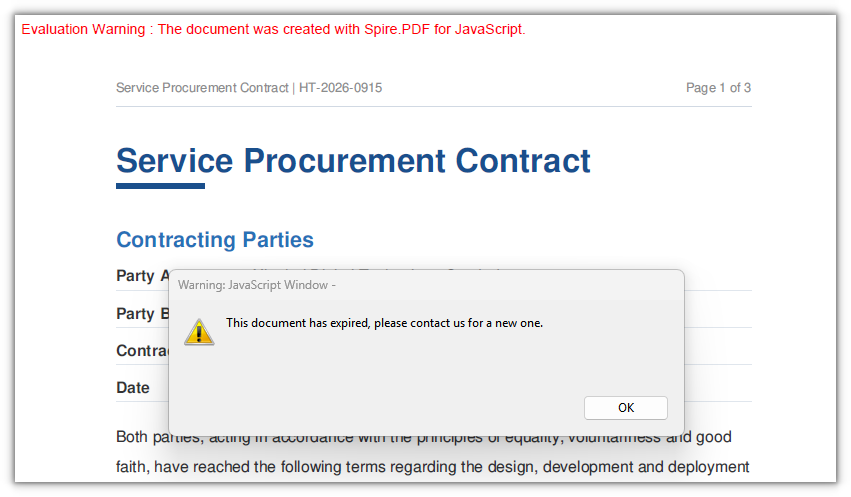
After setting an expiry date on the contract template, opening it in a JavaScript-capable reader shows an alert and then closes the expired document:
FAQ
Why doesn't the alert appear when I open the document after setting the date
Cause: The expiry check depends on the reader running the JavaScript action embedded in the document. Built-in browser PDF viewers and most system preview tools do not execute embedded scripts; only JavaScript-capable readers such as Adobe Acrobat or Acrobat Reader run it when the document opens.
Fix: Open the generated PDF in a JavaScript-capable reader. The script is already written into the document, so switching readers is enough to see it — there is no need to regenerate the file.
Does the content become completely inaccessible once the document expires
Cause: The script shows an alert and closes the current reading session; it does not alter the document's content or encrypt it. The file is still an ordinary PDF and can be opened and text-extracted by any tool that does not run scripts.
Fix: To actually block access, encrypt the document and set an open password or permission restrictions. The expiry script is a reminder and a deterrent, not access control.
How do I change the expiry date or the alert text
Cause: The date and the alert are string literals in the script — the date inside new Date('…') and the text inside app.alert('…'). They are written into the document's open action together with the script, so changing document properties afterward does not affect them.
Fix: Edit these two strings in the script and generate the document again:
const script =
  "var rightNow = new Date();" +
  "var endDate = new Date('December 31, 2026 23:59:59');" +   // new expiry moment
  "if (rightNow.getTime() > endDate.getTime()) {" +
  "app.alert('Your trial has expired. Please purchase the full version.', 1);" +   // new alert text
  "this.closeDoc();" +
  "}";
How do I make the document expire 30 days after it is opened
Cause: The script runs every time the document is opened, and new Date() returns the system time at that moment. If the date is also derived from the opening time — for example new Date() plus 30 days — the computed deadline keeps moving forward on every open and the document never actually expires.
Fix: Write the expiry date as a fixed value: work out the moment 30 days out at generation time and put that in, leaving the script to only compare the current time against it:
// Compute a fixed moment at generation time and put it in the script; do not leave it to be calculated at open time
"var endDate = new Date('October 15, 2026 23:59:59');" +
Get a Free License
If you want to remove the evaluation message from the result document or lift the feature limits, contact sales for a temporary license valid for 30 days.

