
The paragraph is the basic unit of layout in Word, and every paragraph in a document carries two formatting objects. Paragraph.Format controls how the paragraph itself is laid out — its border, alignment, shading, indentation, spacing before and after, and line spacing — while Paragraph.ListFormat controls the numbering or bullet it shows as a list item. The two are independent, so a single paragraph can be centred and indented and still be the third level of a numbered list. Spire.Doc for JavaScript reads and writes both objects directly in the browser via WebAssembly, with no backend server required.
This article covers two core features:
For installation and project setup, refer to Integrating Spire.Doc for JavaScript in a React Project. The examples below assume Spire.Doc is installed and the WebAssembly module is initialized.
Set Paragraph Formatting
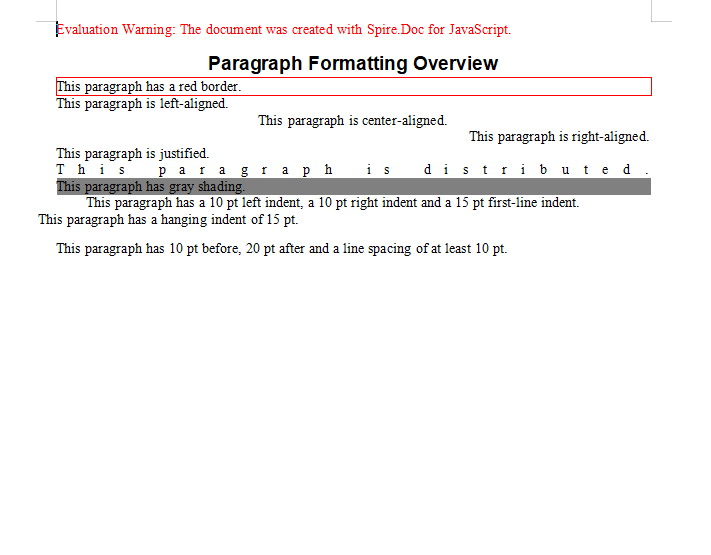
Paragraph formatting is set through paragraph.Format. The sample below walks through a paragraph border, the five horizontal alignments, shading, three kinds of indentation and the spacing rules, one at a time:
function App() {
  const ParagraphFormatting = async () => {
    const docModule = window.wasmModule?.spiredoc;
    if (!docModule) {
      alert('Spire.Doc is not ready yet');
      return;
    }

    // Create the document and the section
    let doc = new docModule.Document();
    let sec = doc.AddSection();

    // Title
    let para = sec.AddParagraph();
    para.AppendText("Paragraph Formatting Overview");
    para.ApplyStyle({ builtinStyle: docModule.BuiltinStyle.Title });

    // Paragraph border
    para = sec.AddParagraph();
    para.AppendText("This paragraph has a red border.");
    para.Format.Borders.BorderType = docModule.BorderStyle.Single;
    para.Format.Borders.Color = docModule.Color.get_Red();

    // The five horizontal alignments: left, center, right, justify, distribute
    para = sec.AddParagraph();
    para.AppendText("This paragraph is left-aligned.");
    para.Format.HorizontalAlignment = docModule.HorizontalAlignment.Left;

    para = sec.AddParagraph();
    para.AppendText("This paragraph is center-aligned.");
    para.Format.HorizontalAlignment = docModule.HorizontalAlignment.Center;

    para = sec.AddParagraph();
    para.AppendText("This paragraph is right-aligned.");
    para.Format.HorizontalAlignment = docModule.HorizontalAlignment.Right;

    para = sec.AddParagraph();
    para.AppendText("This paragraph is justified.");
    para.Format.HorizontalAlignment = docModule.HorizontalAlignment.Justify;

    para = sec.AddParagraph();
    para.AppendText("This paragraph is distributed.");
    para.Format.HorizontalAlignment = docModule.HorizontalAlignment.Distribute;

    // Paragraph shading
    para = sec.AddParagraph();
    para.AppendText("This paragraph has gray shading.");
    para.Format.BackColor = docModule.Color.get_Gray();

    // 10 pt left indent, 10 pt right indent, 15 pt first-line indent
    para = sec.AddParagraph();
    para.AppendText("This paragraph has a 10 pt left indent, a 10 pt right indent and a 15 pt first-line indent.");
    para.Format.SetLeftIndent(10);
    para.Format.SetRightIndent(10);
    para.Format.SetFirstLineIndent(15);

    // A negative value passed to the first-line indent is a hanging indent
    para = sec.AddParagraph();
    para.AppendText("This paragraph has a hanging indent of 15 pt.");
    para.Format.SetFirstLineIndent(-15);

    // 10 pt before, 20 pt after, line spacing of at least 10 pt
    para = sec.AddParagraph();
    para.AppendText("This paragraph has 10 pt before, 20 pt after and a line spacing of at least 10 pt.");
    para.Format.AfterSpacing = 20;
    para.Format.BeforeSpacing = 10;
    para.Format.LineSpacingRule = docModule.LineSpacingRule.AtLeast;
    para.Format.LineSpacing = 10;

    // Define the output file name
    const outputFileName = "ParagraphFormatting-result.docx";

    // Save the document to the given path
    doc.SaveToFile({ fileName: outputFileName, fileFormat: docModule.FileFormat.Docx2013 });
    // Release resources
    doc.Dispose();

    // Read the saved file back and wrap it as a Blob
    const modifiedFileArray = window.dotnetRuntime.Module.FS.readFile(outputFileName);
    const blob = new Blob([modifiedFileArray], {type: "application/vnd.openxmlformats-officedocument.wordprocessingml.document"});
    const url = URL.createObjectURL(blob);
    const a = document.createElement('a');
    a.href = url;
    a.download = outputFileName;
    a.click();
    URL.revokeObjectURL(url);
  };

  return (
    <div style={{ textAlign: 'center', height: '300px' }}>
      <h1>Set Various Paragraph Formats</h1>
      <button onClick={ParagraphFormatting}>Generate</button>
    </div>
  );
}
export default App;
Each paragraph in the generated document shows its border, alignment, indentation and spacing in turn
Create and Apply List Styles
A list style is one kind of document style, created with document.Styles.Add({ listType, name }). listType is ListType.Numbered or ListType.Bulleted, and name is the custom style name you choose.
A new style also needs the numbering rule for each level. Those settings live in ListRef.Levels and are indexed from 0:
NumberPrefix— the prefix template for the number, where%1stands for the first level's counter,%2for the second, and so on;PatternType— how the number is rendered, e.g.ListPatternType.Arabicfor Arabic numerals;- on the paragraph side,
ListFormat.ApplyStyle(styleName)attaches the list style, andListFormat.ListLevelNumbersets which level the paragraph sits at (0 is the first level).
function App() {
  const Lists = async () => {
    const docModule = window.wasmModule?.spiredoc;
    if (!docModule) {
      alert('Spire.Doc is not ready yet');
      return;
    }

    // Create the document and the section
    const doc = new docModule.Document();
    let sec = doc.AddSection();

    // The title and the group headings
    let paragraph = sec.AddParagraph();
    paragraph.AppendText("List Styles Overview");
    paragraph.ApplyStyle({ builtinStyle: docModule.BuiltinStyle.Title });

    paragraph = sec.AddParagraph();
    paragraph.AppendText("Numbered list:").CharacterFormat.Bold = true;

    // Create the numbered list style and configure the numbering for levels 1 and 2
    let numberList = doc.Styles.Add({ listType: docModule.ListType.Numbered, name: "numberList" });
    numberList.ListRef.Levels.get_Item(1).NumberPrefix = "%1.";
    numberList.ListRef.Levels.get_Item(1).PatternType = docModule.ListPatternType.Arabic;
    numberList.ListRef.Levels.get_Item(2).NumberPrefix = "%1.%2.";
    numberList.ListRef.Levels.get_Item(2).PatternType = docModule.ListPatternType.Arabic;

    // Create the bulleted list style
    let bulletList = doc.Styles.Add({ listType: docModule.ListType.Bulleted, name: "bulletList" });

    // Add both list styles to the document's style collection
    doc.Styles.Add(numberList);
    doc.Styles.Add(bulletList);

    // Apply the numbered list style paragraph by paragraph, setting the level with ListLevelNumber
    paragraph = sec.AddParagraph();
    paragraph.AppendText("Overview");
    paragraph.ListFormat.ApplyStyle(numberList.Name);

    paragraph = sec.AddParagraph();
    paragraph.AppendText("Delivery Scope");
    paragraph.ListFormat.ApplyStyle(numberList.Name);

    paragraph = sec.AddParagraph();
    paragraph.AppendText("Three Business Areas");
    paragraph.ListFormat.ApplyStyle(numberList.Name);
    paragraph.ListFormat.ListLevelNumber = 1;

    paragraph = sec.AddParagraph();
    paragraph.AppendText("Data Ingestion");
    paragraph.ListFormat.ApplyStyle(numberList.Name);
    paragraph.ListFormat.ListLevelNumber = 1;

    paragraph = sec.AddParagraph();
    paragraph.AppendText("API Integration");
    paragraph.ListFormat.ApplyStyle(numberList.Name);
    paragraph.ListFormat.ListLevelNumber = 2;

    paragraph = sec.AddParagraph();
    paragraph.AppendText("Field Verification");
    paragraph.ListFormat.ApplyStyle(numberList.Name);
    paragraph.ListFormat.ListLevelNumber = 2;

    paragraph = sec.AddParagraph();
    paragraph.AppendText("Canary Release");
    paragraph.ListFormat.ApplyStyle(numberList.Name);
    paragraph.ListFormat.ListLevelNumber = 2;

    paragraph = sec.AddParagraph();
    paragraph.AppendText("Acceptance Criteria");
    paragraph.ListFormat.ApplyStyle(numberList.Name);
    paragraph.ListFormat.ListLevelNumber = 1;

    paragraph = sec.AddParagraph();
    paragraph.AppendText("Follow-up Plan");
    paragraph.ListFormat.ApplyStyle(numberList.Name);

    // The bulleted list
    paragraph = sec.AddParagraph();
    paragraph.AppendText("Bulleted list:").CharacterFormat.Bold = true;

    paragraph = sec.AddParagraph();
    paragraph.AppendText("Clause One");
    paragraph.ListFormat.ApplyStyle(bulletList.Name);

    paragraph = sec.AddParagraph();
    paragraph.AppendText("Clause Two");
    paragraph.ListFormat.ApplyStyle(bulletList.Name);

    paragraph = sec.AddParagraph();
    paragraph.AppendText("Supplementary Notes");
    paragraph.ListFormat.ApplyStyle(bulletList.Name);
    paragraph.ListFormat.ListLevelNumber = 1;

    paragraph = sec.AddParagraph();
    paragraph.AppendText("Exceptions");
    paragraph.ListFormat.ApplyStyle(bulletList.Name);
    paragraph.ListFormat.ListLevelNumber = 1;

    paragraph = sec.AddParagraph();
    paragraph.AppendText("Clause Three");
    paragraph.ListFormat.ApplyStyle(bulletList.Name);

    // Define the output file name
    const outputFileName = "Lists-result.docx";

    // Save the document to the given path
    doc.SaveToFile({ fileName: outputFileName, fileFormat: docModule.FileFormat.Docx2013 });
    doc.Dispose();

    // Read the saved file back and wrap it as a Blob
    const modifiedFileArray = window.dotnetRuntime.Module.FS.readFile(outputFileName);
    const blob = new Blob([modifiedFileArray], {type: "application/vnd.openxmlformats-officedocument.wordprocessingml.document"});
    const url = URL.createObjectURL(blob);
    const a = document.createElement('a');
    a.href = url;
    a.download = outputFileName;
    a.click();
    URL.revokeObjectURL(url);
  };

  return (
    <div style={{ textAlign: 'center', height: '300px' }}>
      <h1>Create and Apply List Styles</h1>
      <button onClick={Lists}>Generate</button>
    </div>
  );
}
export default App;
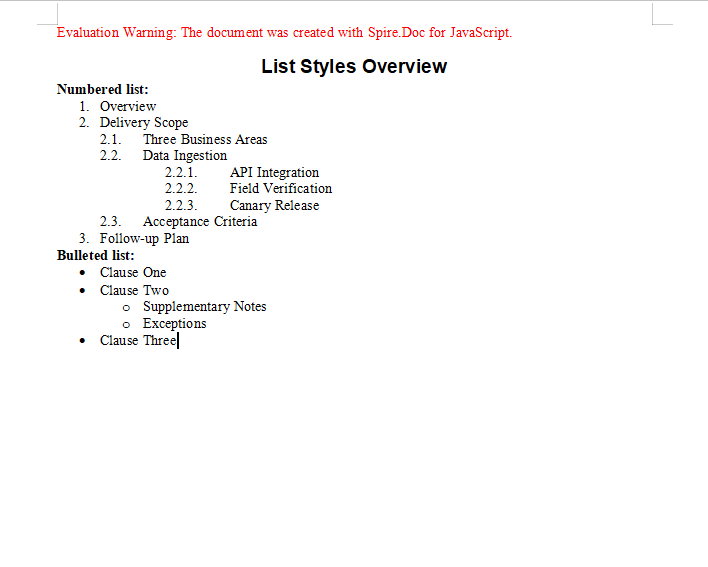
The numbered list generates 1. / 1.1. style counters automatically, while the bulleted list indents by level
FAQ
The hanging indent does not take effect
Cause: A negative value passed to SetFirstLineIndent means a hanging indent, but if the paragraph has no left indent of its own there is no room for the hanging part to pull back into, so the effect is almost invisible.
Solution: Give the paragraph a left indent first, then use a negative first-line indent for the hanging effect:
para.Format.SetLeftIndent(20);
para.Format.SetFirstLineIndent(-15);
The list numbers do not appear at the expected level
Cause: ListLevelNumber defaults to 0 (the first level) when it is not set, so a child paragraph that does not set its level explicitly is numbered alongside its parent.
Solution: Set the level explicitly on every paragraph that needs one, keeping in mind that it is also counted from 0:
paragraph.ListFormat.ApplyStyle(numberList.Name);
paragraph.ListFormat.ListLevelNumber = 1;   // Second level, numbered 1.1.
A paragraph has both shading and a border, but only one of them shows
Cause: Format.BackColor is paragraph shading and Format.Borders is the paragraph border. Both are written under the same paragraph property node, so a misspelled property name is silently ignored.
Solution: Check which property belongs where — shading goes on BackColor, the border on Borders.BorderType:
para.Format.BackColor = docModule.Color.get_Gray();
para.Format.Borders.BorderType = docModule.BorderStyle.Single;
para.Format.Borders.Color = docModule.Color.get_Red();
Get a Free License
Spire.Doc for JavaScript offers a 30-day full-featured free trial license with no functional limitations. Apply here to evaluate before purchasing.

