
Character formatting decides what text looks like on the page — which font it uses, how large it is, what color it is, and whether it is bold, slanted, underlined or struck through. In Word's Open XML structure these properties hang off the run, not the paragraph: every run in a sentence can carry a set of its own. Spire.Doc for JavaScript maps that structure onto the TextRange.CharacterFormat object and reads and writes it directly in the browser via WebAssembly, with no backend server required.
This article covers two core features:
For installation and project setup, refer to Integrating Spire.Doc for JavaScript in a React Project. The examples below assume Spire.Doc is installed and the WebAssembly module is initialized.
Set Character Formatting
After Document.AddSection() creates a section, section.AddParagraph() gives you a paragraph and paragraph.AppendText() appends text to it — the return value of AppendText is a TextRange object, and once you hold it you can set CharacterFormat on it directly. To break the line without starting a new paragraph, call paragraph.AppendBreak(wasmModule.BreakType.LineBreak).
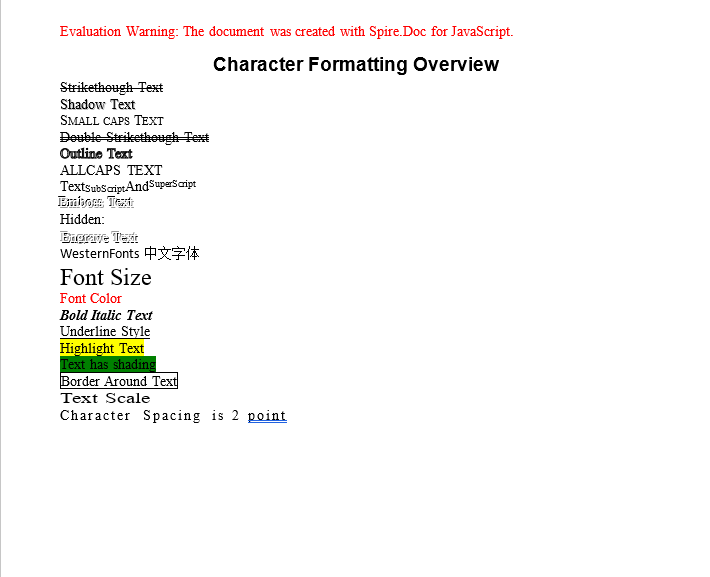
The sample below walks through the common character formats one by one. Each line of text changes exactly one property, so the effect can be read straight off the result. One line is the exception: the font-name example deliberately mixes a Chinese word into its text, because only East Asian characters are read from the Far-East font slot that the line sets.
function App() {
  const CharacterFormatting = async () => {
    const docModule = window.wasmModule?.spiredoc;
    if (!docModule) {
      alert('Spire.Doc is not ready yet');
      return;
    }

    // Create the document and the section
    let doc = new docModule.Document();
    let sec = doc.AddSection();

    // The title paragraph takes the built-in "Title" style
    let titleParagraph = sec.AddParagraph();
    titleParagraph.AppendText("Character Formatting Overview");
    titleParagraph.ApplyStyle({ builtinStyle: docModule.BuiltinStyle.Title });

    let paragraph = sec.AddParagraph();

    // Strikeout
    let tr = paragraph.AppendText("Strikethough Text");
    tr.CharacterFormat.IsStrikeout = true;

    // Shadow
    paragraph.AppendBreak(docModule.BreakType.LineBreak);
    tr = paragraph.AppendText("Shadow Text");
    tr.CharacterFormat.IsShadow = true;

    // Small caps
    paragraph.AppendBreak(docModule.BreakType.LineBreak);
    tr = paragraph.AppendText("Small caps Text");
    tr.CharacterFormat.IsSmallCaps = true;

    // Double strikeout
    paragraph.AppendBreak(docModule.BreakType.LineBreak);
    tr = paragraph.AppendText("Double Strikethough Text");
    tr.CharacterFormat.DoubleStrike = true;

    // Outline
    paragraph.AppendBreak(docModule.BreakType.LineBreak);
    tr = paragraph.AppendText("Outline Text");
    tr.CharacterFormat.IsOutLine = true;

    // All caps
    paragraph.AppendBreak(docModule.BreakType.LineBreak);
    tr = paragraph.AppendText("AllCaps Text");
    tr.CharacterFormat.AllCaps = true;

    // Subscript and superscript
    paragraph.AppendBreak(docModule.BreakType.LineBreak);
    tr = paragraph.AppendText("Text");
    tr = paragraph.AppendText("SubScript");
    tr.CharacterFormat.SubSuperScript = docModule.SubSuperScript.SubScript;
    tr = paragraph.AppendText("And");
    tr = paragraph.AppendText("SuperScript");
    tr.CharacterFormat.SubSuperScript = docModule.SubSuperScript.SuperScript;

    // Emboss, with a white text color so the effect shows up better
    paragraph.AppendBreak(docModule.BreakType.LineBreak);
    tr = paragraph.AppendText("Emboss Text");
    tr.CharacterFormat.Emboss = true;
    tr.CharacterFormat.TextColor = docModule.Color.get_White();

    // Hidden text
    paragraph.AppendBreak(docModule.BreakType.LineBreak);
    tr = paragraph.AppendText("Hidden:");
    tr = paragraph.AppendText("Hidden Text");
    tr.CharacterFormat.Hidden = true;

    // Engrave
    paragraph.AppendBreak(docModule.BreakType.LineBreak);
    tr = paragraph.AppendText("Engrave Text");
    tr.CharacterFormat.Engrave = true;
    tr.CharacterFormat.TextColor = docModule.Color.get_White();

    // The Western, non-Far-East and Far-East font names are set separately
    paragraph.AppendBreak(docModule.BreakType.LineBreak);
    tr = paragraph.AppendText("WesternFonts中文字体");
    tr.CharacterFormat.FontNameAscii = "Calibri";
    tr.CharacterFormat.FontNameNonFarEast = "Calibri";
    tr.CharacterFormat.FontNameFarEast = "Simsun";

    // Font size
    paragraph.AppendBreak(docModule.BreakType.LineBreak);
    tr = paragraph.AppendText("Font Size");
    tr.CharacterFormat.FontSize = 20;

    // Font color
    paragraph.AppendBreak(docModule.BreakType.LineBreak);
    tr = paragraph.AppendText("Font Color");
    tr.CharacterFormat.TextColor = docModule.Color.get_Red();

    // Bold + italic
    paragraph.AppendBreak(docModule.BreakType.LineBreak);
    tr = paragraph.AppendText("Bold Italic Text");
    tr.CharacterFormat.Bold = true;
    tr.CharacterFormat.Italic = true;

    // Underline
    paragraph.AppendBreak(docModule.BreakType.LineBreak);
    tr = paragraph.AppendText("Underline Style");
    tr.CharacterFormat.UnderlineStyle = docModule.UnderlineStyle.Single;

    // Highlight (background)
    paragraph.AppendBreak(docModule.BreakType.LineBreak);
    tr = paragraph.AppendText("Highlight Text");
    tr.CharacterFormat.HighlightColor = docModule.Color.get_Yellow();

    // Character shading
    paragraph.AppendBreak(docModule.BreakType.LineBreak);
    tr = paragraph.AppendText("Text has shading");
    tr.CharacterFormat.TextBackgroundColor = docModule.Color.get_Green();

    // Border around the characters
    paragraph.AppendBreak(docModule.BreakType.LineBreak);
    tr = paragraph.AppendText("Border Around Text");
    tr.CharacterFormat.Border.BorderType = docModule.BorderStyle.Single;

    // Character scaling at 150%
    paragraph.AppendBreak(docModule.BreakType.LineBreak);
    tr = paragraph.AppendText("Text Scale");
    tr.CharacterFormat.TextScale = 150;

    // Character spacing of 2 points
    paragraph.AppendBreak(docModule.BreakType.LineBreak);
    tr = paragraph.AppendText("Character Spacing is 2 point");
    tr.CharacterFormat.CharacterSpacing = 2;

    // Define the output file name
    const outputFileName = "CharacterFormatting-result.docx";

    // Save the document to the given path
    doc.SaveToFile({ fileName: outputFileName, fileFormat: docModule.FileFormat.Docx2013 });
    // Release resources
    doc.Dispose();

    // Read the saved file back and wrap it as a Blob
    const modifiedFileArray = window.dotnetRuntime.Module.FS.readFile(outputFileName);
    const blob = new Blob([modifiedFileArray], {type: "application/vnd.openxmlformats-officedocument.wordprocessingml.document"});
    const url = URL.createObjectURL(blob);
    const a = document.createElement('a');
    a.href = url;
    a.download = outputFileName;
    a.click();
    URL.revokeObjectURL(url);
  };

  return (
    <div style={{ textAlign: 'center', height: '300px' }}>
      <h1>Set Various Character Formats</h1>
      <button onClick={CharacterFormatting}>Generate</button>
    </div>
  );
}
export default App;
Every line of the generated document shows the matching character effect, and can be compared with the code line by line
Apply Several Character Formats in One Paragraph
One paragraph can hold several TextRange objects, and each of them has its own CharacterFormat. That means layouts such as "the first half in bold blue, the second half back at a regular size" do not need to be split into two paragraphs — just call AppendText again; the format only applies to the text appended by that one call.
function App() {
  const MultiStylesInAParagraph = async () => {
    const docModule = window.wasmModule?.spiredoc;
    if (!docModule) {
      alert('Spire.Doc is not ready yet');
      return;
    }

    // Create the document and the section
    let doc = new docModule.Document();
    let section = doc.AddSection();

    // Add a new paragraph
    let para = section.AddParagraph();

    // The first TextRange: Calibri 16 pt, blue, bold, single underline
    let range = para.AppendText("Quarterly Delivery Note ");
    range.CharacterFormat.FontName = "Calibri";
    range.CharacterFormat.FontSize = 16;
    range.CharacterFormat.TextColor = docModule.Color.get_Blue();
    range.CharacterFormat.Bold = true;
    range.CharacterFormat.UnderlineStyle = docModule.UnderlineStyle.Single;

    // The second TextRange: still the same paragraph, now Calibri 15 pt regular
    range = para.AppendText("This delivery covers three business areas, and acceptance is based on the result of the online trial run");
    range.CharacterFormat.FontName = "Calibri";
    range.CharacterFormat.FontSize = 15;

    // Define the output file name
    const outputFileName = "MultiStylesInAParagraph-result.docx";

    // Save the document to the given path
    doc.SaveToFile({ fileName: outputFileName, fileFormat: docModule.FileFormat.Docx2013 });
    // Release resources
    doc.Dispose();

    // Read the saved file back and wrap it as a Blob
    const modifiedFileArray = window.dotnetRuntime.Module.FS.readFile(outputFileName);
    const blob = new Blob([modifiedFileArray], {type: "application/vnd.openxmlformats-officedocument.wordprocessingml.document"});
    const url = URL.createObjectURL(blob);
    const a = document.createElement('a');
    a.href = url;
    a.download = outputFileName;
    a.click();
    URL.revokeObjectURL(url);
  };

  return (
    <div style={{ textAlign: 'center', height: '300px' }}>
      <h1>Apply Multiple Character Formats in One Paragraph</h1>
      <button onClick={MultiStylesInAParagraph}>Generate</button>
    </div>
  );
}
export default App;
The first half of the paragraph is bold, blue and underlined; the second half is back to a regular weight

FAQ
FontName is set, but the Chinese text does not change
Cause: CharacterFormat.FontName only writes to the Western (ascii/hAnsi) font slots, while Chinese characters are taken from the separate "East Asian" slot. The two are stored independently, so setting one leaves the other exactly as it was.
Solution: Set the font used by each script separately — FontNameAscii / FontNameNonFarEast for the Western text, FontNameFarEast for the Chinese:
tr.CharacterFormat.FontNameAscii = "Calibri";
tr.CharacterFormat.FontNameNonFarEast = "Calibri";
tr.CharacterFormat.FontNameFarEast = "Simsun";
Emboss and Engrave show no visible effect
Cause: Both effects rely on a light-and-shadow contrast, and the default black text on a white background has almost no visual difference to work with.
Solution: Set the text color to white, so that the characters are shaped by their highlight and shadow alone:
tr.CharacterFormat.Emboss = true;
tr.CharacterFormat.TextColor = wasmModule.Color.get_White();
The downloaded Word document cannot be opened, or is reported as corrupted
Cause: The MIME type was wrong when the Blob was created, so the browser cannot identify the file format correctly.
Solution: Make sure the exact docx MIME type is used:
const modifiedFile = new Blob([modifiedFileArray], {
  type: "application/vnd.openxmlformats-officedocument.wordprocessingml.document"
});
Get a Free License
Spire.Doc for JavaScript offers a 30-day full-featured free trial license with no functional limitations. Apply here to evaluate before purchasing.

