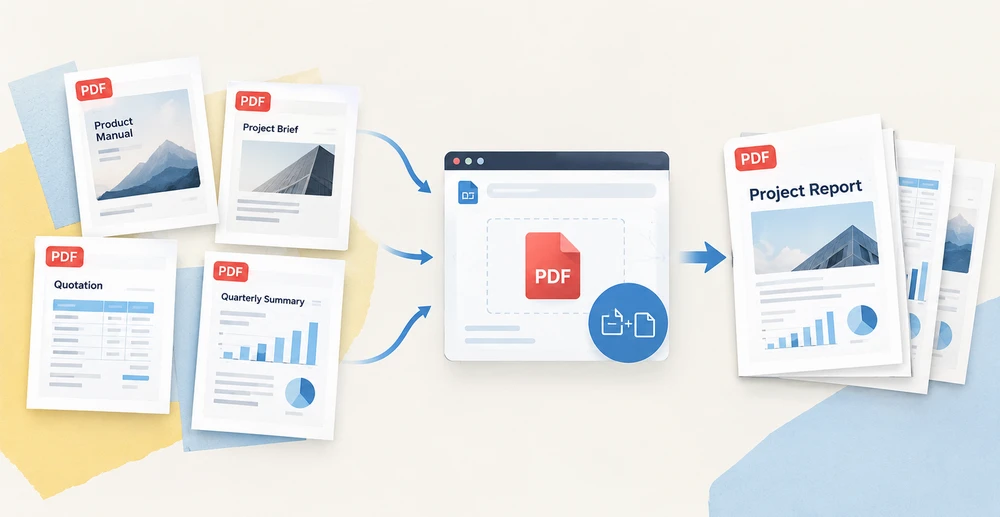
흩어진 원본 파일에서 완성도 높은 PDF를 조립하는 일은 일상적이지만 까다로운 작업입니다. 표지 페이지는 프로젝트 개요서 맨 앞에 있어야 하고, 가격 페이지는 계약서 안에 들어가야 하며, 분기 요약본은 수십 개 보고서의 차트를 하나로 엮어야 합니다. 이 작업을 수작업으로 하면 여러 PDF 리더를 오가며 페이지 순서가 제대로 나오기를 바라야 하고, 페이지 크기가 서로 맞지 않으면 문제가 더 커집니다.
Spire.PDF for JavaScript는 이 모든 작업을 브라우저 안으로 옮깁니다. WebAssembly를 기반으로 하며, 가상 파일 시스템(VFS)을 통해 전적으로 클라이언트 측에서 PDF 문서를 로드하고 조작하고 저장하므로 파일이 백엔드 서버로 업로드되는 일이 전혀 없습니다. 이 글에서는 문서 간에 PDF 페이지를 복사하는 네 가지 기법을 살펴봅니다. 세 가지는 전체 페이지를 이동하는 방법이고, 하나는 페이지 콘텐츠를 재사용 가능한 템플릿으로 추출하는 방법입니다. 각 방법에는 완전한 React 코드 예제가 포함되어 있습니다.
프로젝트 설정 및 설치 지침은 React 프로젝트에서 Spire.PDF for JavaScript 통합하기를 참조하세요. 아래 예제는 Spire.PDF가 설치되어 있고 WebAssembly 모듈이 초기화되었다고 가정합니다.
한눈에 보는 PDF 페이지 복사 네 가지 방법
각 방법을 개별적으로 살펴보기 전에, 아래 표에서 빠르게 비교해 보겠습니다. 처음 세 가지 기법은 페이지를 그대로 이동하며 원본 페이지의 크기, 회전, 여백을 자동으로 이어받습니다. 네 번째는 콘텐츠를 페이지 지오메트리에서 분리하여 대상 페이지 크기와 그리기 위치를 완전히 제어할 수 있게 해줍니다.
| 방법 | API 호출 | 복사되는 내용 | 페이지 크기 | 일반적인 사용 사례 |
|---|---|---|---|---|
| 단일 페이지 삽입 | InsertPage |
선택한 위치에 한 페이지 | 원본에서 상속 | 앞에 표지나 제목 페이지 추가 |
| 페이지 범위 삽입 | InsertPageRange |
연속된 페이지 블록 | 원본에서 상속 | 가격표 같은 특정 섹션 추가 |
| 전체 문서 추가 | AppendPage |
원본 문서의 모든 페이지 | 원본에서 상속 | 전체 문서를 처음부터 끝까지 연결 |
| 페이지 콘텐츠를 템플릿으로 그리기 |
CreateTemplate + DrawTemplate
|
페이지 콘텐츠만, 모든 페이지에 그려짐 | 대상 크기를 직접 결정 | 다른 페이지 크기에서 콘텐츠를 재사용하거나 여러 번 반복 |
처음 세 가지 방법은 간단한 페이지 이동입니다. 원본을 선택하고 대상을 선택하면 나머지는 라이브러리가 처리합니다. 템플릿 접근 방식은 더 고급이며, 콘텐츠를 다른 페이지 크기에 맞게 조정하거나 동일한 콘텐츠를 여러 페이지에 찍어내는 등 단순 페이지 복사로는 할 수 없는 가능성을 열어줍니다. 먼저 세 가지 페이지 이동 방법을 다룬 다음, 템플릿 기법을 깊이 살펴보겠습니다.
단일 페이지를 특정 위치에 복사
네 가지 방법 중 가장 정밀한 PdfDocument.InsertPage는 원본 문서에서 한 페이지를 복사하여 대상의 정확한 인덱스에 배치합니다. resultPageIndex 매개변수는 복사본이 들어갈 위치를 제어합니다. 0을 전달하면 맨 앞에 추가되고, 대상의 현재 페이지 수를 전달하면 맨 뒤에 추가되며, 그 사이의 임의 인덱스를 전달하면 해당 위치에 삽입됩니다. resultPageIndex를 완전히 생략하면 페이지는 기본적으로 맨 끝에 추가됩니다.
function App() {
  const copyPageAtPosition = async () => {
    // Get the Spire.PDF WASM module
    const pdfModule = window.wasmModule?.spirepdf;

    // Check whether the module is ready
    if (!pdfModule) {
      alert('Spire.PDF is not ready yet');
      return;
    }

    // Load both the source and the target document into the VFS
    const sourceFileName = 'SourceDocument.pdf';
    const targetFileName = 'TargetDocument.pdf';
    await window.spire.FetchFileToVFS(sourceFileName, "", `${process.env.PUBLIC_URL}/data/`);
    await window.spire.FetchFileToVFS(targetFileName, "", `${process.env.PUBLIC_URL}/data/`);

    // Load the two documents
    const sourceDoc = new pdfModule.PdfDocument();
    sourceDoc.LoadFromFile(sourceFileName);
    const targetDoc = new pdfModule.PdfDocument();
    targetDoc.LoadFromFile(targetFileName);

    // Copy page 1 of the source document to the front of the target document
    // pageIndex comes from the source document, resultPageIndex is where the copy lands
    targetDoc.InsertPage({ ldDoc: sourceDoc, pageIndex: 0, resultPageIndex: 0 });

    // Save the result document
    const outputFileName = 'CopyPageAtPosition.pdf';
    targetDoc.SaveToFile(outputFileName);
    sourceDoc.Close();
    targetDoc.Close();

    // Read the generated file from the VFS and trigger the download
    const fileArray = window.dotnetRuntime.Module.FS.readFile(outputFileName);
    const blob = new Blob([fileArray], { type: 'application/pdf' });
    const url = URL.createObjectURL(blob);
    const a = document.createElement('a');
    a.href = url;
    a.download = outputFileName;
    a.click();
    URL.revokeObjectURL(url);
  };

  return (
    <div style={{ textAlign: 'center', height: '300px' }}>
      <h1>Copy Page at Position</h1>
      <button onClick={copyPageAtPosition}>
        Start
      </button>
    </div>
  );
}

export default App;
네 가지 복사 방법 중
resultPageIndex는 삽입 지점을 선택할 수 있는 유일한 매개변수입니다. 0으로 설정하면 페이지가 맨 앞에, 1로 설정하면 두 번째에 위치하며, 대상 문서의 현재 페이지 수를 전달하면 추가하는 것과 같은 효과가 납니다.
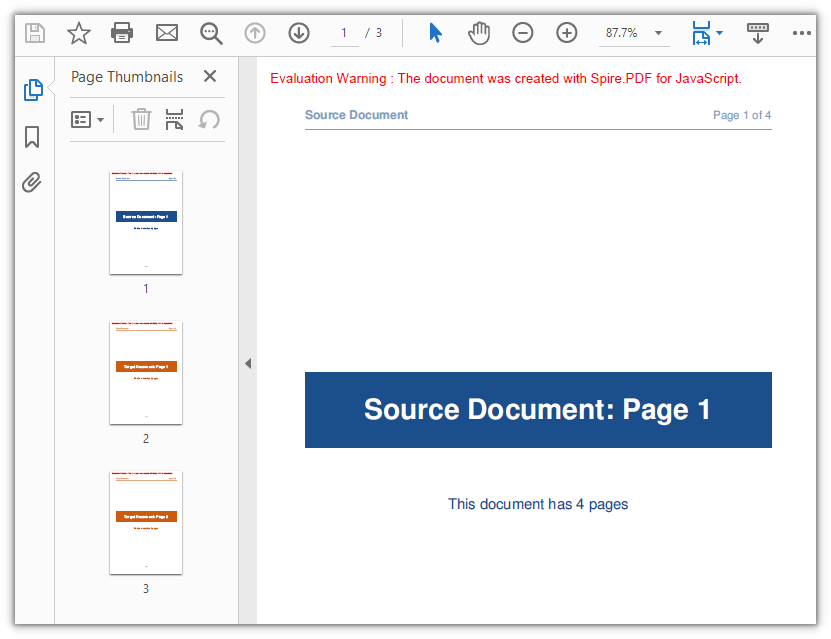
대상 문서는 2페이지에서 3페이지로 늘어나고, 원본 문서의 첫 페이지가 맨 앞자리를 차지합니다.
페이지 범위를 끝에 복사
한 페이지보다 많지만 전체 문서보다는 적은 페이지가 필요할 때, PdfDocument.InsertPageRange는 시작 및 끝 인덱스로 정의된 연속된 페이지 블록을 복사합니다. InsertPage와 달리 이 메서드는 옵션 객체가 아니라 위치 인수를 받으며, 복사한 페이지를 항상 대상의 끝에 추가합니다. 삽입 위치를 선택하는 매개변수는 없습니다. 끝 인덱스는 포함되므로 (sourceDoc, 1, 2)를 전달하면 2페이지와 3페이지(0부터 시작)를 복사합니다.
function App() {
  const appendPageRange = async () => {
    // Get the Spire.PDF WASM module
    const pdfModule = window.wasmModule?.spirepdf;

    // Check whether the module is ready
    if (!pdfModule) {
      alert('Spire.PDF is not ready yet');
      return;
    }

    // Load both the source and the target document into the VFS
    const sourceFileName = 'SourceDocument.pdf';
    const targetFileName = 'TargetDocument.pdf';
    await window.spire.FetchFileToVFS(sourceFileName, "", `${process.env.PUBLIC_URL}/data/`);
    await window.spire.FetchFileToVFS(targetFileName, "", `${process.env.PUBLIC_URL}/data/`);

    // Load the two documents
    const sourceDoc = new pdfModule.PdfDocument();
    sourceDoc.LoadFromFile(sourceFileName);
    const targetDoc = new pdfModule.PdfDocument();
    targetDoc.LoadFromFile(targetFileName);

    // Append pages 2 to 3 of the source document to the end of the target document
    // Note: these are positional arguments, not an object; endIndex is inclusive
    targetDoc.InsertPageRange(sourceDoc, 1, 2);

    // Save the result document
    const outputFileName = 'CopyPageRange.pdf';
    targetDoc.SaveToFile(outputFileName);
    sourceDoc.Close();
    targetDoc.Close();

    // Read the generated file from the VFS and trigger the download
    const fileArray = window.dotnetRuntime.Module.FS.readFile(outputFileName);
    const blob = new Blob([fileArray], { type: 'application/pdf' });
    const url = URL.createObjectURL(blob);
    const a = document.createElement('a');
    a.href = url;
    a.download = outputFileName;
    a.click();
    URL.revokeObjectURL(url);
  };

  return (
    <div style={{ textAlign: 'center', height: '300px' }}>
      <h1>Copy Page Range</h1>
      <button onClick={appendPageRange}>
        Copy pages 2-3
      </button>
    </div>
  );
}

export default App;
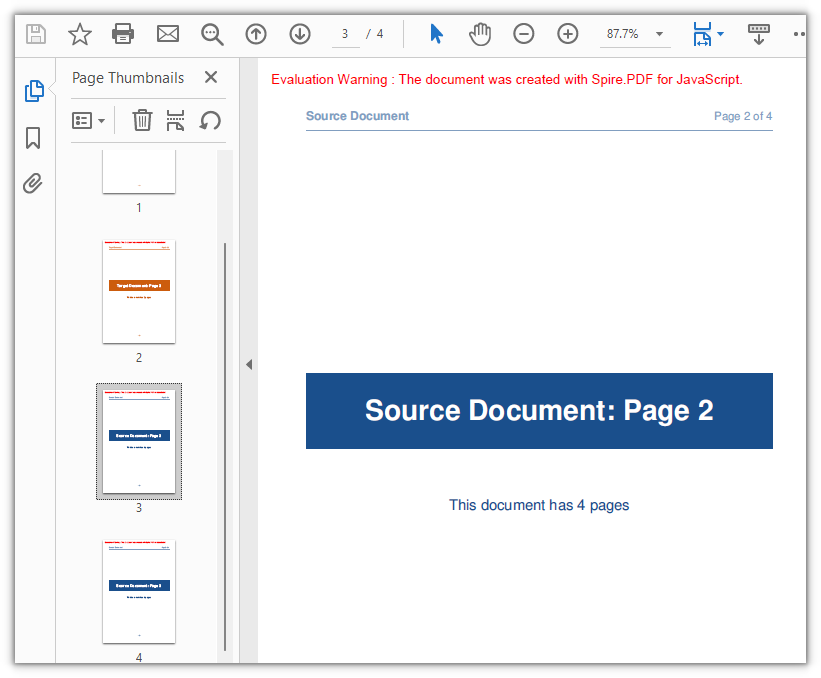
대상 문서에 두 페이지가 추가되어 총 2페이지에서 4페이지로 늘어납니다.
전체 문서 추가
가장 간단한 경우, 즉 한 문서의 모든 페이지를 다른 문서로 옮기는 작업에는 PdfDocument.AppendPage를 사용하면 인덱스를 계산할 필요가 전혀 없습니다. 원본 문서 객체를 전달하면 모든 페이지가 원래 순서대로 대상에 추가됩니다. 여러 문서를 하나로 연결하려면 각 원본 문서를 차례로 AppendPage에 전달하여 반복 호출하면 됩니다.
function App() {
  const appendWholeDocument = async () => {
    // Get the Spire.PDF WASM module
    const pdfModule = window.wasmModule?.spirepdf;

    // Check whether the module is ready
    if (!pdfModule) {
      alert('Spire.PDF is not ready yet');
      return;
    }

    // Load both the source and the target document into the VFS
    const sourceFileName = 'SourceDocument.pdf';
    const targetFileName = 'TargetDocument.pdf';
    await window.spire.FetchFileToVFS(sourceFileName, "", `${process.env.PUBLIC_URL}/data/`);
    await window.spire.FetchFileToVFS(targetFileName, "", `${process.env.PUBLIC_URL}/data/`);

    // Load the two documents
    const sourceDoc = new pdfModule.PdfDocument();
    sourceDoc.LoadFromFile(sourceFileName);
    const targetDoc = new pdfModule.PdfDocument();
    targetDoc.LoadFromFile(targetFileName);

    // Use AppendPage when the whole document has to be copied; all pages are appended in order
    targetDoc.AppendPage({ doc: sourceDoc });

    // Save the result document
    const outputFileName = 'CopyAllPages.pdf';
    targetDoc.SaveToFile(outputFileName);
    sourceDoc.Close();
    targetDoc.Close();

    // Read the generated file from the VFS and trigger the download
    const fileArray = window.dotnetRuntime.Module.FS.readFile(outputFileName);
    const blob = new Blob([fileArray], { type: 'application/pdf' });
    const url = URL.createObjectURL(blob);
    const a = document.createElement('a');
    a.href = url;
    a.download = outputFileName;
    a.click();
    URL.revokeObjectURL(url);
  };

  return (
    <div style={{ textAlign: 'center', height: '300px' }}>
      <h1>Copy Whole Document</h1>
      <button onClick={appendWholeDocument}>
        Start
      </button>
    </div>
  );
}

export default App;
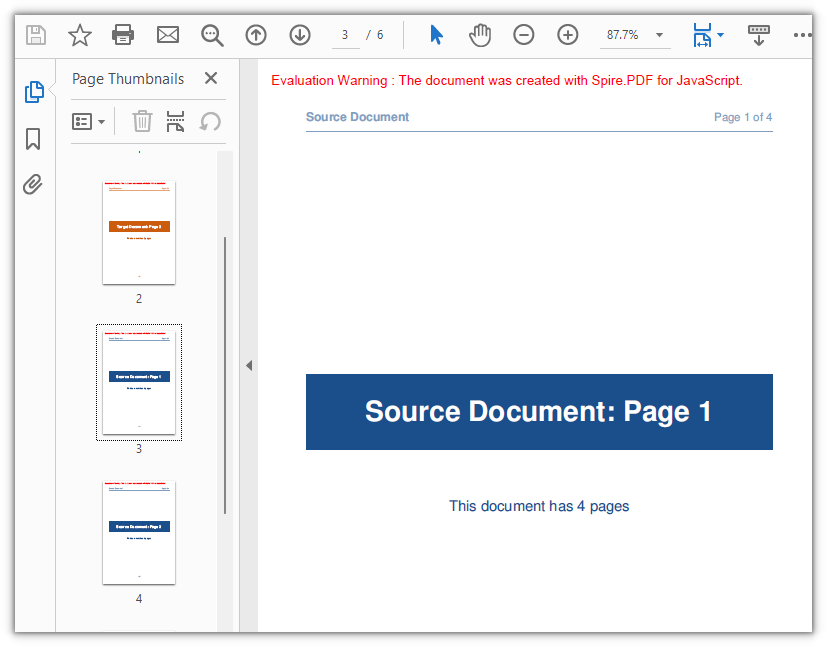
원본 문서의 네 페이지가 모두 대상에 합쳐져 2페이지에서 6페이지로 늘어납니다.
템플릿으로 페이지 콘텐츠 복사
위의 세 가지 방법은 페이지를 분할할 수 없는 단위로 취급합니다. 페이지는 크기, 회전, 여백이 유지된 채로 이동합니다. 하지만 실제 문서 조립에서는 더 세밀한 제어가 필요한 경우가 많습니다. 페이지 콘텐츠를 다른 크기의 페이지에 배치하거나, 확대/축소하거나, 동일한 콘텐츠를 여러 페이지에 찍어내는 경우가 그렇습니다. 바로 이때 PdfPageBase.CreateTemplate이 등장합니다.
CreateTemplate은 페이지의 시각적 콘텐츠를 PdfTemplate 객체로 추출합니다. 그런 다음 Canvas.DrawTemplate을 사용하여 해당 템플릿을 원하는 페이지에 그리면서 그리기 영역의 위치와 크기를 지정할 수 있습니다. 템플릿은 원본 페이지의 지오메트리에서 분리되므로 어떤 크기로든, 어떤 위치에든, 어떤 페이지 크기에서든 렌더링할 수 있으며, 동일한 템플릿을 필요한 만큼 여러 번 그릴 수 있습니다.
이 덕분에 템플릿은 다음과 같은 시나리오에서 특히 유용합니다.
- 흰색 테두리 없이 A4 페이지에 A5 표지의 콘텐츠를 중앙에 배치
- 기존 페이지에서 워터마크나 배경 패턴 만들기
- 양식 레이아웃을 여러 새 페이지에 다양한 크기로 복제
function App() {
  const copyPageWithTemplate = async () => {
    // Get the Spire.PDF WASM module
    const pdfModule = window.wasmModule?.spirepdf;

    // Check whether the module is ready
    if (!pdfModule) {
      alert('Spire.PDF is not ready yet');
      return;
    }

    // Load the PDF file to work on into the VFS
    const inputFileName = 'SourceDocument.pdf';
    await window.spire.FetchFileToVFS(inputFileName, "", `${process.env.PUBLIC_URL}/data/`);

    // Load the document
    const doc = new pdfModule.PdfDocument();
    doc.LoadFromFile(inputFileName);

    // Take the page to be reused and turn it into a template: read the content once, draw it many times
    const sourcePage = doc.Pages.get_Item(0);
    const template = sourcePage.CreateTemplate();

    // First placement: insert an A4 page at position 2, a different size from the source,
    // and draw the content scaled to 297.6 x 421.6 at (80, 80)
    const page1 = doc.Pages.Insert(1, new pdfModule.SizeF(595.0, 842.0), new pdfModule.PdfMargins({ margin: 0.0 }));
    page1.Canvas.DrawTemplate(template, new pdfModule.PointF(80.0, 80.0), new pdfModule.SizeF(297.6, 421.6));

    // Second placement: insert another A4 page, drawing the same template smaller in the lower right
    const page2 = doc.Pages.Insert(2, new pdfModule.SizeF(595.0, 842.0), new pdfModule.PdfMargins({ margin: 0.0 }));
    page2.Canvas.DrawTemplate(template, new pdfModule.PointF(320.0, 460.0), new pdfModule.SizeF(200.0, 283.3));

    // Save the result document
    const outputFileName = 'CopyPageWithTemplate.pdf';
    doc.SaveToFile(outputFileName);
    doc.Close();

    // Read the generated file from the VFS and trigger the download
    const fileArray = window.dotnetRuntime.Module.FS.readFile(outputFileName);
    const blob = new Blob([fileArray], { type: 'application/pdf' });
    const url = URL.createObjectURL(blob);
    const a = document.createElement('a');
    a.href = url;
    a.download = outputFileName;
    a.click();
    URL.revokeObjectURL(url);
  };

  return (
    <div style={{ textAlign: 'center', height: '300px' }}>
      <h1>Copy Page with Template</h1>
      <button onClick={copyPageWithTemplate}>
        Start
      </button>
    </div>
  );
}

export default App;
DrawTemplate에 대해 주목할 만한 몇 가지 세부 사항은 다음과 같습니다.
- 크기 인수: 세 번째 인수(대상 크기)를 생략하면 템플릿은 크기 조정 없이 원래 크기로 렌더링됩니다. 더 큰 대상 페이지에서는 콘텐츠가 사용 가능한 공간의 일부만 차지합니다.
-
페이지 생성: 대상 페이지의 크기와 여백은 템플릿이 아니라
Pages.Insert에서 가져옵니다. 예제에서는 사방 여백이 0이므로 그리기 원점이 페이지의 왼쪽 위 모서리와 일치합니다. -
여러 번 그리기: 동일한
template객체를 서로 다른 위치와 크기로 두 개의 별도 페이지에 두 번 그려서 재사용 기능을 보여줍니다.
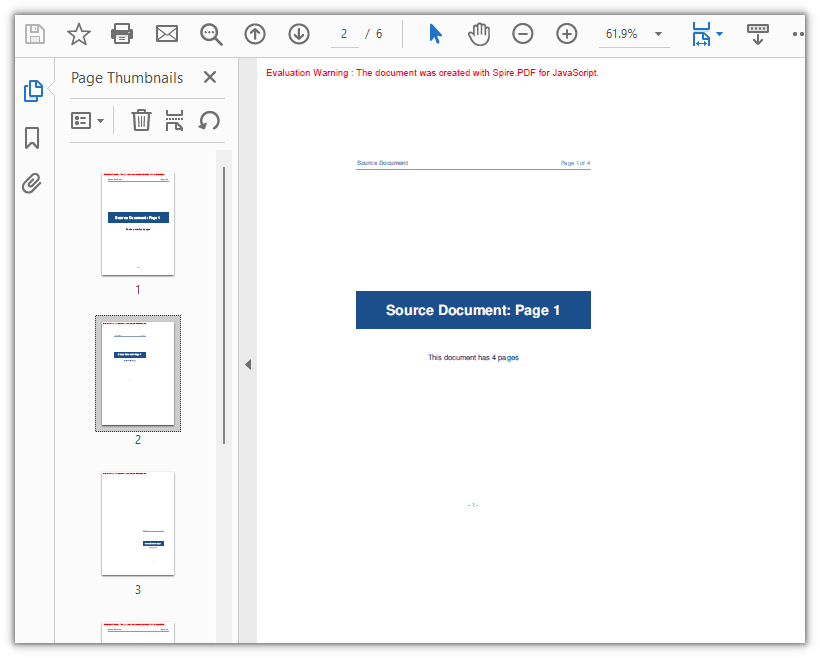
1페이지의 콘텐츠가 이제 서로 다른 크기와 위치로 새로 삽입된 두 개의 A4 페이지에 나타나며, 문서는 4페이지에서 6페이지로 늘어납니다.
자주 묻는 질문
new PdfMargins(0.0)으로 페이지를 만들면 Arg_NullReferenceException이 발생합니다
원인: PdfMargins 생성자는 단순 숫자 인수를 여백 값이 아니라 내부 핸들로 해석합니다. 따라서 new pdfModule.PdfMargins(0.0)을 호출하면 유효한 여백을 나타내지 않는 객체가 생성됩니다. 이 객체의 Left 또는 Top 속성에 접근하면 Arg_NullReferenceException이 발생하고, 페이지 생성에 전달하면 예기치 않은 결과가 나옵니다.
해결 방법: 여백은 항상 구성 객체로 전달하세요. 모든 면을 0으로 균일하게 설정하려면 { margin: 0.0 }을 사용하고, 각 면의 값을 개별적으로 지정하려면 각 면을 명시적으로 설정하세요.
// Zero margins on all four sides
const margins = new pdfModule.PdfMargins({ margin: 0.0 });

// Or set each side separately
const custom = new pdfModule.PdfMargins({ left: 20.0, top: 20.0, right: 20.0, bottom: 20.0 });
페이지를 복사할 때 범위를 벗어나거나 역전된 범위 오류가 발생합니다
원인: 페이지 인덱스는 0부터 시작하며, InsertPageRange의 endIndex는 포함됩니다. 따라서 유효한 범위는 0부터 Pages.Count - 1까지입니다. 이 범위를 벗어난 인덱스를 전달하면 Index out of range가 발생하고, startIndex를 endIndex보다 크게 설정하면 The start index is greater then the end index.가 발생합니다.
해결 방법: 메서드를 호출하기 전에 상한을 Pages.Count에 맞춰 제한하여 보호하세요.
// To copy pages 2 to 4: start = 1, end = 3, with the page count as the upper bound
const start = 1;
const end = Math.min(3, sourceDoc.Pages.Count - 1);
targetDoc.InsertPageRange(sourceDoc, start, end);
회전된 페이지를 복사한 후 방향이 잘못 나옵니다
원인: CreateTemplate()은 페이지의 그려진 콘텐츠는 캡처하지만 회전 각도(/Rotate 항목)는 캡처하지 않습니다. 원본 페이지에 회전이 있으면 템플릿의 좌표계가 대상 페이지와 어긋나서, 템플릿을 그대로 그리면 콘텐츠가 보이는 영역 밖에 배치되고 결과 복사본의 Rotation은 0이 됩니다.
해결 방법: 회전된 원본 페이지에는 회전 각도가 콘텐츠와 함께 이동하도록 전체 페이지 복사를 사용하는 것이 좋습니다.
// Whole-page copy: the rotation angle comes with the page
targetDoc.InsertPage({ ldDoc: sourceDoc, pageIndex: 0, resultPageIndex: 1 });
템플릿 접근 방식을 피할 수 없다면, 템플릿을 추출하기 전에 원본 페이지의 회전을 일시적으로 지우고, 그런 다음 원본과 새 페이지 모두에 원래 각도를 복원하세요.
const rotation = sourcePage.Rotation.value;

// Zero it temporarily so the template exports at the page's real coordinates
sourcePage.Rotation = 0;
const newPage = doc.Pages.Insert(1, sourcePage.Size, new pdfModule.PdfMargins({ margin: 0.0 }));
newPage.Canvas.DrawTemplate(sourcePage.CreateTemplate(), new pdfModule.PointF(0.0, 0.0));

// Restore the source page and give the copy the same angle
sourcePage.Rotation = rotation;
newPage.Rotation = rotation;
출력 문서에서 평가판 워터마크를 제거하거나 전체 기능 액세스를 잠금 해제하려면 영업팀에 문의하여 30일 임시 라이선스를 받으세요.