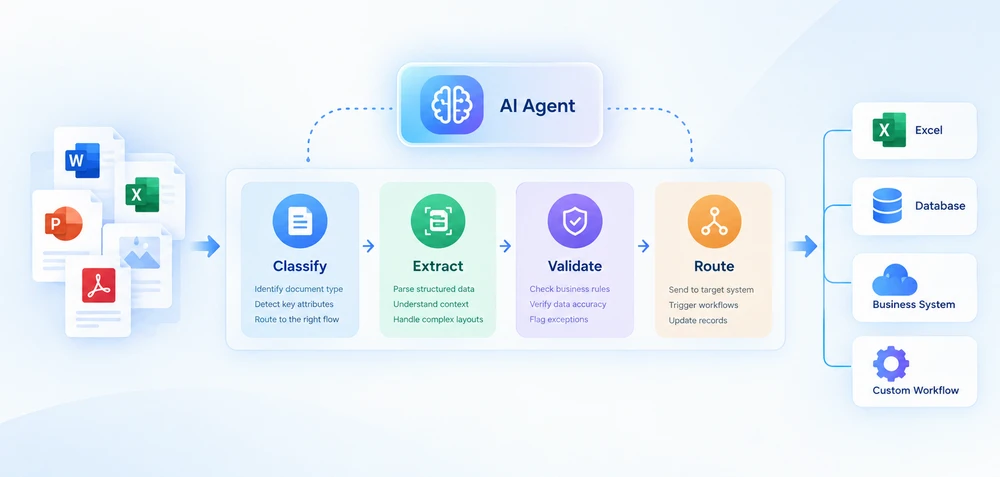
지능형 문서 처리(IDP)는 AI 기반 문서 이해와 자동 추출, 검증, 다운스트림 처리를 결합합니다. .NET 개발자에게 IDP를 구현한다는 것은 일반적으로 AI 기반 문서 이해를 파일, 비즈니스 규칙, 시스템 통합을 처리하는 결정적 코드와 연결하는 것을 의미합니다.
이 가이드는 .NET에서 Office 및 PDF 문서를 위한 IDP 워크플로에 초점을 맞춥니다. 4단계 파이프라인 아키텍처를 다루고, C# 구현 패턴을 보여주며, 사내 구축과 공급업체 플랫폼 도입 중에서 선택하기 위한 의사 결정 프레임워크를 제공합니다.
빠른 탐색
1. 지능형 문서 처리란 무엇인가?
지능형 문서 처리는 AI를 사용하여 문서를 분류하고, 구조화된 데이터를 추출하며, 결과를 비즈니스 규칙에 따라 검증하고, 출력을 다운스트림 시스템으로 라우팅하는 자동화 접근 방식입니다. 주로 시각적 콘텐츠를 기계 판독 가능한 텍스트로 변환하는 기존 OCR과 달리, IDP는 문서 분류, 의미 기반 추출, 검증, 워크플로 자동화를 추가합니다. 고정된 템플릿에 전적으로 의존하지 않고 다양한 문서 레이아웃을 처리할 수 있습니다.
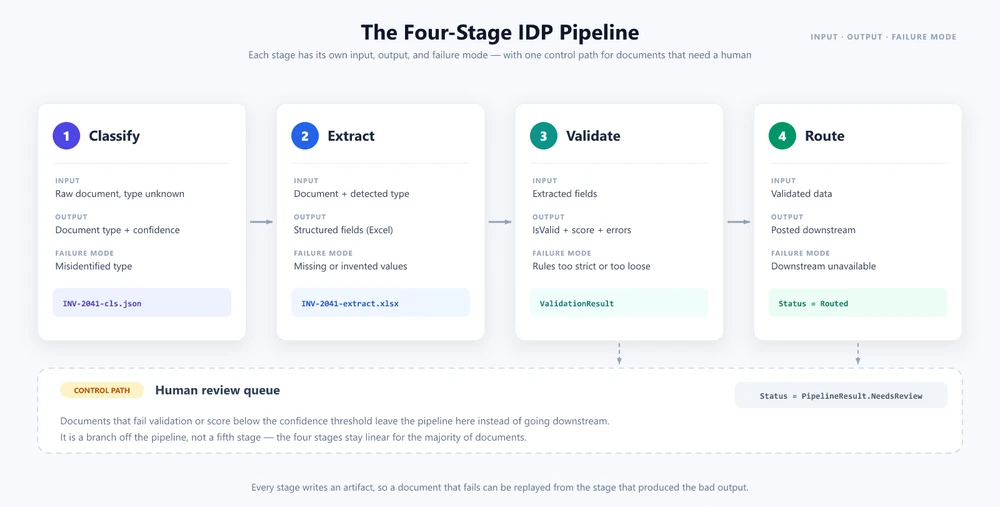
실용적인 IDP 파이프라인은 분류, 추출, 검증, 라우팅의 네 단계로 구성할 수 있습니다. 각 단계는 서로 다른 입력, 출력, 실패 모드를 가집니다. AI 에이전트는 자연어 이해를 통해 분류와 추출을 처리하고, 검증과 라우팅은 비즈니스 규칙을 적용하고 다운스트림 시스템과 통합하는 결정적 코드로 남습니다.
IDP vs. OCR, 문서 처리, 문서 인텔리전스
이 용어들은 종종 혼용되지만 서로 다른 기능을 설명합니다:
| 기술 | 주요 역할 |
|---|---|
| OCR | 시각적 콘텐츠를 텍스트로 변환 |
| 문서 처리 | 파일 읽기, 조작, 변환 또는 생성 |
| 문서 인텔리전스 | 문서 콘텐츠를 이해하고 의미 추출 |
| IDP | 문서 이해와 자동화된 워크플로 결합 |
실제로 이러한 기능은 종종 겹칩니다. IDP 파이프라인은 스캔 문서에 OCR을, 의미 이해에 AI를, 결정적 파일 작업에 문서 처리 API를 사용할 수 있습니다. 아키텍처에서는 이 구분이 중요합니다. 어떤 계층이 어떤 책임을 처리하는지 아는 것이 시스템을 구축하고 유지 관리하는 방법을 결정합니다.
IDP가 전체 워크플로를 AI로 대체한다는 의미는 아닙니다. AI는 이해와 추출을 처리하고, 결정적 코드는 검증, 라우팅, 파일 조작, 시스템 통합을 처리합니다. 이러한 분리가 바로 프로덕션에서 IDP를 유지 관리 가능하게 만듭니다. 비즈니스 규칙은 문서 형식보다 더 자주 바뀌며, 그러한 규칙은 모델 프롬프트가 아니라 여러분이 제어하는 코드에 있어야 합니다.
2. 4단계 IDP 파이프라인
IDP 파이프라인은 단일 API 호출이 아닙니다. 각 단계가 서로 다른 입력, 출력, 실패 모드를 가지는 일련의 단계입니다. 이 아키텍처를 이해하는 것은 실제 문서 다양성을 처리하는 파이프라인을 구축하는 것과 예상치 못한 첫 입력에서 깨지는 스크립트를 작성하는 것의 차이입니다.
실용적인 IDP 파이프라인은 네 단계로 구성할 수 있습니다:
1단계 — 분류
파이프라인은 알 수 없는 유형의 문서를 받습니다. 분류는 문서가 무엇인지—청구서, 계약서, 구매 주문서, 영수증, 은행 명세서—결정하고 다운스트림 동작을 주도하는 메타데이터를 첨부합니다. 전통적인 시스템에서 분류는 파일 이름 규칙, 폴더 경로 또는 템플릿 일치에 의존합니다. AI 기반 파이프라인에서 분류는 자연어 분석을 사용합니다. 에이전트가 문서 콘텐츠를 읽고 의미 이해를 기반으로 유형을 결정합니다.
2단계 — 추출
문서 유형을 알게 되면 추출은 문서에서 구조화된 데이터를 가져옵니다. 청구서의 경우 공급업체 이름, 청구서 번호, 품목, 합계, 세액, 지불 조건을 의미합니다. 계약서의 경우 당사자, 발효일, 해지 조항, 재정적 의무를 의미합니다. 추출 단계는 비구조적 또는 반구조적 문서 콘텐츠를 다운스트림 시스템에서 사용할 수 있는 구조화된 형식(JSON, XML, 데이터베이스 레코드)으로 변환합니다.
3단계 — 검증
추출된 데이터를 비즈니스 규칙과 대조하여 확인합니다. 청구서 합계가 품목 합계와 일치합니까? 공급업체가 승인된 공급업체 목록에 있습니까? 계약서가 권한 있는 서명자에 의해 서명되었습니까? 검증은 추출 오류를 잡아내고, 이상 징후를 표시하며, 문서를 자동 라우팅할 수 있는지 또는 사람의 검토가 필요한지 결정하는 신뢰도 점수를 생성합니다.
4단계 — 라우팅
검증된 데이터는 적절한 다운스트림 시스템—청구서 데이터용 ERP, 계약 데이터용 계약 관리 플랫폼, 그 외 모든 것을 위한 문서 아카이브—으로 전송됩니다. 라우팅은 승인 체인, 결제 처리, 규정 준수 확인과 같은 다운스트림 워크플로를 트리거할 수도 있습니다.
사람의 검토는 필수 단계가 아니라 제어 경로입니다: 검증에 실패하거나 신뢰도 임계값 아래로 떨어지는 문서는 수동 검토로 라우팅될 수 있습니다. 이렇게 하면 대부분의 문서에 대해 4단계 파이프라인을 선형으로 유지하면서 엣지 케이스에 대한 제어된 대체 경로를 제공합니다.
IDP에 AI API 호출 이상의 것이 필요한 이유
각 단계에는 독립적인 실패 모드가 있습니다. 분류가 문서 유형을 잘못 식별할 수 있습니다. 추출이 필드를 놓치거나 값을 환각할 수 있습니다. 검증이 지나치게 엄격한 규칙으로 인해 유효한 데이터를 거부할 수 있습니다. 라우팅이 다운스트림 시스템 사용 불가로 인해 실패할 수 있습니다. 견고한 IDP 파이프라인은 각 실패 모드를 독립적으로 처리하며, 모든 단계에서 재시도 로직, 대체 동작, 감사 로깅을 갖춥니다.
3. .NET에서 IDP 파이프라인 구축하기
.NET에서 이 아키텍처를 구현하는 한 가지 방법은 자연어 지침을 통해 Word, Excel, PowerPoint, PDF 문서를 처리하는 AI 에이전트 SDK인 Spire.Agent.Office를 사용하는 것입니다. 이 SDK는 문서 객체(Document, PdfDocument, Workbook, Presentation)에 AI() 확장 메서드를 제공하며, 이 메서드는 AIOptions 구성을 받아 AIDocumentProcessor를 반환합니다. 프로세서에서 ExecuteInstruction을 호출하면 지침이 실행되고 출력이 파일에 기록되며, Success 및 ErrorMessage 속성을 가진 AIResult가 반환됩니다.
필수 구성 요소
<!-- NuGet package -->
<PackageReference Include="Spire.Agent.Office" Version="11.8.3" />
아래 예제는 파이프라인 아키텍처와 Spire.Agent.Office 통합에 초점을 맞춥니다. 결과 구문 분석 및 다운스트림 라우팅과 같은 도우미 메서드는 간결함을 위해 생략합니다.
3.1 파이프라인 모델 정의
파이프라인은 단계 간에 결과를 전달할 데이터 구조와 AI 에이전트를 위한 공유 구성을 필요로 합니다.
using Spire.Agent.Office.AI;
using Spire.Agent.Office.Extensions;
using Spire.Doc;
using Spire.Pdf;
using Spire.Xls;
using Spire.Presentation;
using System.Collections.Concurrent;

public class ClassificationResult
{
    public string DocumentType { get; set; } = "Unknown";
    public double Confidence { get; set; }
    public string SourceFile { get; set; } = string.Empty;
}

public class ExtractionResult
{
    public Dictionary<string, string> Fields { get; set; } = new();
    public List<Dictionary<string, string>> LineItems { get; set; } = new();
    public string OutputPath { get; set; } = string.Empty;
}

public class ValidationResult
{
    public bool IsValid { get; set; }
    public List<string> Errors { get; set; } = new();
    public List<string> Warnings { get; set; } = new();
    public double ValidationScore { get; set; }
}

public class PipelineResult
{
    // Stage 4 outcomes. RunPipelineAsync records one of them on every
    // path, and ProcessBatchAsync counts by them, so the batch report
    // always adds up: Successful + Flagged + Errored == Total.
    public const string Routed = "Routed";
    public const string NeedsReview = "Flagged for review";
    public const string Failed = "Failed";

    // Non-null defaults keep a failed result object complete, so the
    // batch aggregator never has to null-check stage outputs.
    public ClassificationResult Classification { get; set; } = new();
    public ExtractionResult Extraction { get; set; } = new();
    public ValidationResult Validation { get; set; } = new();
    public List<string> AuditLog { get; set; } = new();
    public string Status { get; set; } = string.Empty;
}

public class BatchResult
{
    public int Total { get; set; }
    public int Successful { get; set; }
    public int Flagged { get; set; }
    public int Errored { get; set; }
    public List<PipelineResult> Results { get; set; } = new();
}

// Routing policy shared by validation (§3.3) and orchestration (§3.4)
static class RoutingPolicy
{
    // Minimum validation score required for automatic routing.
    public const double AutoRouteThreshold = 0.7;

    // Confidence budget shared across all optional-field warnings.
    // Spending the whole budget must be able to push a valid document
    // below AutoRouteThreshold — otherwise the routing check in §3.4
    // is dead code. Allocating a fixed budget instead of a flat
    // per-field penalty keeps that true when optional fields change.
    public const double OptionalFieldBudget = 0.4;
}

// Shared agent configuration
static AIOptions CreateAgentOptions(string workDir)
{
    string spireToken = Environment.GetEnvironmentVariable("SPIRE_TOKEN")
        ?? throw new InvalidOperationException("SPIRE_TOKEN not set.");

    AIOptions options = new AIOptions();
    options.SpireToken = spireToken;
    options.WorkDir = workDir;
    options.TimeoutMs = 300000;
    return options;
}
SpireToken은 Spire.Agent.Office를 인증하는 데 사용됩니다. SDK는 AIOptions를 통해 AI 서비스 연결을 관리하므로 애플리케이션에서 기본 모델 API 통합을 직접 구현할 필요가 없습니다. WorkDir은 에이전트가 처리 중 중간 파일을 저장하는 위치를 지정합니다.
3.2 AI 에이전트로 문서 분류 및 추출
분류는 문서를 로드하고, 에이전트에게 유형을 식별하도록 요청하며, 결과를 JSON 파일에 기록합니다. 동일한 LoadFromFile → AI(options) → ExecuteInstruction 패턴이 모든 문서 형식에 적용됩니다. 문서 클래스만 바뀌며, 그 디스패치는 직접 작성해야 합니다. AI()는 구체적인 문서 유형에 바인딩됩니다. PDF는 PdfDocument로, 통합 문서는 Workbook으로, 프레젠테이션은 Presentation으로, Word 파일은 Document로 로드해야 합니다. 파일을 잘못된 클래스에 전달하면 일반 판독기로 대체되지 않고 예외가 발생하므로 AI()를 호출하기 전에 파일 확장자에서 클래스를 선택하십시오.
public ClassificationResult Classify(
    string filePath, string outputDir)
{
    AIOptions agentOptions = CreateAgentOptions(outputDir);
    string classifyPath = Path.Combine(outputDir,
        Path.GetFileNameWithoutExtension(filePath) + "-cls.json");

    string instruction =
        "Analyze this document and determine its type. " +
        "Return one of: Invoice, Contract, PurchaseOrder, " +
        "Receipt, BankStatement, Unknown. Include a confidence " +
        "score between 0 and 1. Save the result as JSON.";

    string ext = Path.GetExtension(filePath).ToLowerInvariant();
    AIResult? result = null;

    if (ext == ".pdf")
    {
        using (PdfDocument doc = new PdfDocument())
        {
            doc.LoadFromFile(filePath);
            result = doc.AI(agentOptions).ExecuteInstruction(
                doc, instruction, classifyPath, new string[] { });
        }
    }
    else if (ext == ".xlsx" || ext == ".xls")
    {
        using (Workbook doc = new Workbook())
        {
            doc.LoadFromFile(filePath);
            result = doc.AI(agentOptions).ExecuteInstruction(
                doc, instruction, classifyPath, new string[] { });
        }
    }
    else if (ext == ".pptx" || ext == ".ppt")
    {
        using (Presentation doc = new Presentation())
        {
            doc.LoadFromFile(filePath);
            result = doc.AI(agentOptions).ExecuteInstruction(
                doc, instruction, classifyPath, new string[] { });
        }
    }
    else
    {
        using (Document doc = new Document())
        {
            doc.LoadFromFile(filePath);
            result = doc.AI(agentOptions).ExecuteInstruction(
                doc, instruction, classifyPath, new string[] { });
        }
    }

    if (result != null && result.Success && File.Exists(classifyPath))
    {
        return ParseClassification(
            File.ReadAllText(classifyPath), filePath);
    }

    return new ClassificationResult
    {
        DocumentType = "Unknown",
        Confidence = 0,
        SourceFile = filePath
    };
}
추출은 유형별 지침을 사용하여 문서에서 구조화된 필드를 가져옵니다:
public ExtractionResult Extract(
    string filePath, string documentType, string outputDir)
{
    AIOptions agentOptions = CreateAgentOptions(outputDir);
    string extractPath = Path.Combine(outputDir,
        Path.GetFileNameWithoutExtension(filePath) + "-extract.xlsx");

    string instruction = documentType switch
    {
        "Invoice" =>
            "Extract all invoice fields and write them as key-value " +
            "pairs in a sheet named 'Fields' with columns 'Field' and " +
            "'Value'. Use these exact field names: VendorName, " +
            "InvoiceNumber, IssueDate, DueDate, Subtotal, Tax, Total, " +
            "PONumber. Extract line items into a sheet named 'LineItems' " +
            "with columns: Description, Quantity, UnitPrice, Amount. " +
            "Write the extracted data to a structured Excel workbook.",

        "Contract" =>
            "Extract all contract fields and write them as key-value " +
            "pairs in a sheet named 'Fields' with columns 'Field' and " +
            "'Value'. Use these exact field names: Party1, Party2, " +
            "EffectiveDate, TerminationDate, ContractValue, " +
            "PaymentTerms, Signatory1, Signatory2. Extract key " +
            "obligations into a sheet named 'Obligations' with " +
            "columns: Description, Party, Deadline. Write the " +
            "extracted data to a structured Excel workbook.",

        "PurchaseOrder" =>
            "Extract all purchase order fields and write them as " +
            "key-value pairs in a sheet named 'Fields' with columns " +
            "'Field' and 'Value'. Use these exact field names: " +
            "PONumber, VendorName, IssueDate, ExpectedDeliveryDate, " +
            "ShippingAddress, Total. Extract requested items into a " +
            "sheet named 'LineItems' with columns: Description, " +
            "Quantity, UnitPrice, Amount. Write the extracted data " +
            "to a structured Excel workbook.",

        _ => "Extract all key fields and values from this document. " +
             "Write the extracted data to a structured Excel workbook."
    };

    string ext = Path.GetExtension(filePath).ToLowerInvariant();
    AIResult? result = null;

    if (ext == ".pdf")
    {
        using (PdfDocument doc = new PdfDocument())
        {
            doc.LoadFromFile(filePath);
            result = doc.AI(agentOptions).ExecuteInstruction(
                doc, instruction, extractPath, new string[] { });
        }
    }
    else if (ext == ".xlsx" || ext == ".xls")
    {
        using (Workbook doc = new Workbook())
        {
            doc.LoadFromFile(filePath);
            result = doc.AI(agentOptions).ExecuteInstruction(
                doc, instruction, extractPath, new string[] { });
        }
    }
    else if (ext == ".pptx" || ext == ".ppt")
    {
        using (Presentation doc = new Presentation())
        {
            doc.LoadFromFile(filePath);
            result = doc.AI(agentOptions).ExecuteInstruction(
                doc, instruction, extractPath, new string[] { });
        }
    }
    else
    {
        using (Document doc = new Document())
        {
            doc.LoadFromFile(filePath);
            result = doc.AI(agentOptions).ExecuteInstruction(
                doc, instruction, extractPath, new string[] { });
        }
    }

    if (result == null || !result.Success)
        throw new InvalidOperationException(
            $"Extraction failed: {result?.ErrorMessage}");

    return ReadExtractionResult(extractPath);
}
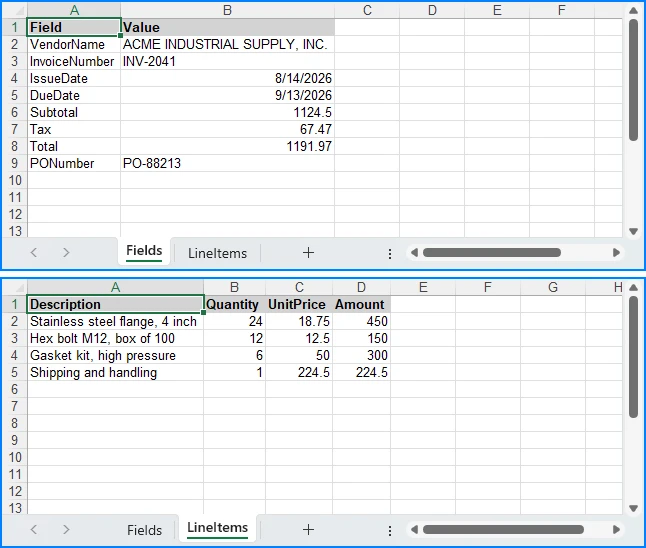
각 문서 유형에는 에이전트가 찾아야 할 필드와 생성해야 할 출력 형식을 알려주는 전용 지침이 있습니다. 에이전트는 원본 문서를 읽고 구조화된 Excel 통합 문서를 extractPath에 기록합니다. 지침이 해당 통합 문서의 형태를 결정합니다. 시트, 헤더, 정확한 필드 이름을 지정하는 것이 출력을 다운스트림에서 구문 분석 가능하게 만듭니다. "청구서 필드를 추출하라"라고만 말하는 지침은 매 실행마다 다른 시트 이름, 다른 헤더 행, 또는 동일 필드에 대해 다른 철자를 반환할 수 있습니다. 에이전트가 레이아웃을 스스로 결정하기 때문입니다. 다음 섹션의 GetField는 그래도 빠져나가는 변형을 처리합니다.
에이전트의 판단과 결정적 코드 사이의 이러한 분리는 문서 처리를 위한 AI 에이전트에서 더 자세히 다룹니다.
3.3 C#으로 추출된 데이터 검증
검증은 순수한 C# 로직이며 AI 호출이 필요하지 않습니다. 에이전트가 이미 구조화된 데이터를 생성했고, 검증은 해당 데이터를 비즈니스 규칙에 따라 확인합니다.
// Normalized field lookup: handles key variations like
// "VendorName" vs "Vendor Name" vs "vendor_name", and strips
// trailing qualifier words (e.g., "Total Amount Due" → "Total")
static string? GetField(
    Dictionary<string, string> fields, string key)
{
    string normalized = key.Replace(" ", "").ToLowerInvariant();
    foreach (var kvp in fields)
    {
        if (kvp.Key.Replace(" ", "").ToLowerInvariant() == normalized)
            return kvp.Value;
    }

    // Fallback: strip trailing qualifier words, one at a time, so
    // multi-word labels collapse all the way down to the field name
    // we asked for ("Total Amount Due" → "Total", "Invoice No"
    // → "Invoice"). Stripping is restarted after every match so the
    // result does not depend on the order of the suffix list.
    string[] suffixes = { "due", "amount", "no" };
    foreach (var kvp in fields)
    {
        string candidate = kvp.Key.Replace(" ", "")
            .ToLowerInvariant();

        bool stripped = true;
        while (stripped)
        {
            stripped = false;
            foreach (var suffix in suffixes)
            {
                if (candidate.Length > suffix.Length &&
                    candidate.EndsWith(suffix))
                {
                    candidate = candidate[..^suffix.Length];
                    stripped = true;
                    break;
                }
            }
        }

        if (candidate == normalized)
            return kvp.Value;
    }

    return null;
}

public ValidationResult Validate(
    ExtractionResult extracted, string documentType)
{
    var errors = new List<string>();
    var warnings = new List<string>();
    double confidence = 1.0;

    switch (documentType)
    {
        case "Invoice":
            // Rule 1a: Total must equal Subtotal + Tax. Runs only when
            // all three amounts were extracted — a missing Tax is
            // reported once, as a warning, instead of being turned
            // into a fabricated arithmetic error.
            var totalStr = GetField(extracted.Fields, "Total");
            var subtotalStr = GetField(extracted.Fields, "Subtotal");
            var taxStr = GetField(extracted.Fields, "Tax");

            if (decimal.TryParse(totalStr, out var total) &&
                decimal.TryParse(subtotalStr, out var subtotal) &&
                decimal.TryParse(taxStr, out var tax))
            {
                if (Math.Abs(total - (subtotal + tax)) > 0.01m)
                {
                    errors.Add(
                        $"Total mismatch: stated {total}, " +
                        $"calculated {subtotal + tax}");
                    confidence -= 0.3;
                }
            }

            // Rule 1b: Subtotal must equal the sum of the line items.
            // Line items are pre-tax, so they are checked against
            // Subtotal. Comparing them against the tax-inclusive Total
            // would reject every correctly extracted taxed invoice.
            if (decimal.TryParse(subtotalStr, out var subtotalBase) &&
                extracted.LineItems.Count > 0)
            {
                decimal lineItemSum = 0;
                foreach (var item in extracted.LineItems)
                {
                    var amtStr = GetField(item, "Amount");
                    if (decimal.TryParse(amtStr, out var amt))
                        lineItemSum += amt;
                }

                if (lineItemSum > 0 &&
                    Math.Abs(subtotalBase - lineItemSum) > 0.01m)
                {
                    errors.Add(
                        $"Line item mismatch: subtotal " +
                        $"{subtotalBase}, line items {lineItemSum}");
                    confidence -= 0.3;
                }
            }

            // Rule 2: Required fields must be present
            string[] required = { "VendorName", "InvoiceNumber",
                "IssueDate", "Total" };
            foreach (var field in required)
            {
                var value = GetField(extracted.Fields, field);
                if (string.IsNullOrEmpty(value))
                {
                    errors.Add($"Missing required field: {field}");
                    confidence -= 0.15;
                }
            }

            // Warnings: optional fields reduce confidence
            // but do not invalidate the document
            string[] optional = { "PONumber", "DueDate", "Tax" };
            double optionalPenalty =
                RoutingPolicy.OptionalFieldBudget / optional.Length;
            foreach (var field in optional)
            {
                var value = GetField(extracted.Fields, field);
                if (string.IsNullOrEmpty(value))
                {
                    warnings.Add(
                        $"Optional field missing: {field}");
                    confidence -= optionalPenalty;
                }
            }
            break;

        case "Contract":
            var party1 = GetField(extracted.Fields, "Party1");
            var party2 = GetField(extracted.Fields, "Party2");
            if (string.IsNullOrEmpty(party1) ||
                string.IsNullOrEmpty(party2))
            {
                errors.Add(
                    "Contract must identify at least two parties");
                confidence -= 0.25;
            }

            // Warnings: missing optional contract metadata
            string[] optionalContract =
                { "EffectiveDate", "ContractValue", "PaymentTerms" };
            double contractPenalty =
                RoutingPolicy.OptionalFieldBudget / optionalContract.Length;
            foreach (var field in optionalContract)
            {
                var value = GetField(extracted.Fields, field);
                if (string.IsNullOrEmpty(value))
                {
                    warnings.Add(
                        $"Optional field missing: {field}");
                    confidence -= contractPenalty;
                }
            }
            break;

        default:
            // Uncovered document types require human review
            errors.Add(
                $"No validation rules for type '{documentType}'");
            confidence -= 0.5;
            break;
    }

    // Hard guard: zero extracted fields is always invalid
    if (extracted.Fields.Count == 0)
    {
        errors.Add("No fields were extracted from the document");
        confidence -= 0.5;
    }

    return new ValidationResult
    {
        IsValid = errors.Count == 0,
        Errors = errors,
        Warnings = warnings,
        ValidationScore = Math.Max(0, confidence)
    };
}
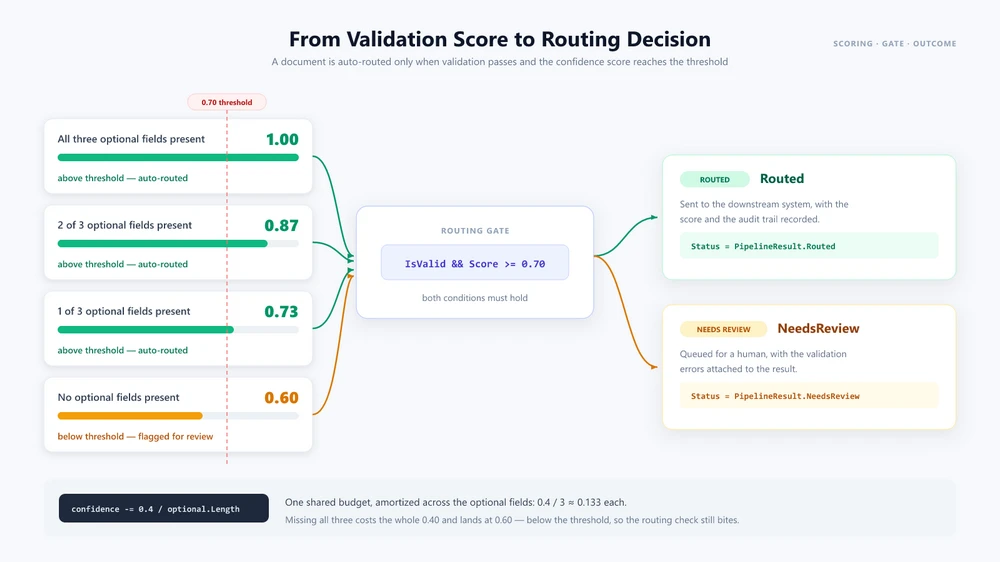
검증은 하드 실패와 품질 경고를 구분합니다. 필수 필드 누락, 품목과 대사되지 않는 합계, 또는 규칙이 없는 문서 유형은 Errors에 항목을 생성하고 문서는 유효하지 않은 것으로 처리됩니다. 추출할 수 없었던 선택 필드는 ValidationScore만 낮추므로, 그 외에는 문제가 없는 문서가 여전히 라우팅됩니다. 공제는 필드당 일률적인 패널티가 아니라 선택 필드 전체에 공유되는 고정 예산입니다. 위 코드에서 세 개의 선택 필드와 0.4 예산을 사용하면, 필드 하나가 누락될 때 점수는 0.87로 남고 두 개가 누락되면 0.73으로 남아—여전히 0.7 자동 라우팅 임계값 위입니다—따라서 세 개 모두 잃을 때만 0.60으로 떨어져 문서가 검토로 보내집니다. 이 두 신호를 분리해 유지하는 것이 실제로 사람의 검토가 필요한 문서에만 검토를 배정하는 방법입니다.
3.4 파이프라인 오케스트레이션
오케스트레이션 메서드는 단계를 함께 연결하고 검증 신뢰도를 기반으로 라우팅 결정을 내립니다:
public async Task<PipelineResult> RunPipelineAsync(
    string filePath, string outputDir)
{
    var auditLog = new List<string>();
    string status;

    // Stage 1: Classify
    auditLog.Add($"[{DateTime.Now}] Classifying: {filePath}");
    var classification = Classify(filePath, outputDir);
    auditLog.Add($"  Type: {classification.DocumentType} " +
        $"(confidence: {classification.Confidence:P0})");

    // Stage 2: Extract
    auditLog.Add($"[{DateTime.Now}] Extracting fields...");
    var extraction = Extract(
        filePath, classification.DocumentType, outputDir);
    auditLog.Add($"  Extracted {extraction.Fields.Count} fields, " +
        $"{extraction.LineItems.Count} line items");

    // Stage 3: Validate
    auditLog.Add($"[{DateTime.Now}] Validating...");
    var validation = Validate(
        extraction, classification.DocumentType);
    auditLog.Add($"  Valid: {validation.IsValid}, " +
        $"Confidence: {validation.ValidationScore:P0}");

    if (!validation.IsValid)
    {
        foreach (var error in validation.Errors)
            auditLog.Add($"  ERROR: {error}");
    }

    // Stage 4: Route
    if (validation.IsValid &&
        validation.ValidationScore >= RoutingPolicy.AutoRouteThreshold)
    {
        auditLog.Add(
            $"[{DateTime.Now}] Routing to downstream system...");
        await RouteToDownstreamAsync(
            classification.DocumentType, extraction);
        auditLog.Add($"  Routed successfully");
        status = PipelineResult.Routed;
    }
    else
    {
        auditLog.Add(
            $"[{DateTime.Now}] Flagged for human review " +
            $"(confidence: {validation.ValidationScore:P0})");
        await FlagForReviewAsync(filePath, validation.Errors);
        status = PipelineResult.NeedsReview;
    }

    // Status is the stage-4 outcome the batch report counts by, so it
    // has to be set on every path out of this method.
    return new PipelineResult
    {
        Classification = classification,
        Extraction = extraction,
        Validation = validation,
        AuditLog = auditLog,
        Status = status
    };
}
각 단계는 독립적으로 테스트 가능하고, 자체 오류 처리를 가지며, 감사 출력을 생성합니다. 반환된 PipelineResult는 또한 Status에 4단계 결과를 기록합니다. 이를 통해 다음 섹션의 일괄 보고서가 검증 페이로드에서 다시 도출하는 대신 결과별로 문서를 집계할 수 있습니다. 이 예제에서 AI 에이전트는 자연어 지침을 통해 분류와 추출을 처리하고, 검증과 라우팅은 결정적 C# 로직으로 남습니다.
4. 일괄 및 다중 문서 처리
단일 문서 파이프라인은 시작점입니다. 프로덕션 IDP 시스템은 다양한 유형, 우선순위, 다운스트림 대상을 가진 수백 또는 수천 개의 문서를 매일 처리합니다.
병렬 일괄 처리
public async Task<BatchResult> ProcessBatchAsync(
    string inputDirectory, string outputDir,
    int maxConcurrency = 5)
{
    var files = Directory.GetFiles(inputDirectory);
    var semaphore = new SemaphoreSlim(maxConcurrency);
    var results = new ConcurrentBag<PipelineResult>();

    var tasks = files.Select(async file =>
    {
        await semaphore.WaitAsync();
        try
        {
            var result = await RunPipelineAsync(file, outputDir);
            results.Add(result);
        }
        catch (Exception ex)
        {
            results.Add(new PipelineResult
            {
                Status = $"{PipelineResult.Failed}: {ex.Message}",
                Validation = new ValidationResult
                {
                    IsValid = false,
                    Errors = new List<string> { ex.Message }
                },
                AuditLog = new List<string>
                    { $"Error processing {file}: {ex}" }
            });
        }
        finally
        {
            semaphore.Release();
        }
    });

    await Task.WhenAll(tasks);

    int successful = results.Count(
        r => r.Status == PipelineResult.Routed);
    int errored = results.Count(r => r.Status.StartsWith(
        PipelineResult.Failed));

    // Flagged is the remainder, so the report stays conserved by
    // construction: Successful + Flagged + Errored == Total. A result
    // that never reached stage 4 is counted as needing review instead
    // of being silently dropped from all three counters.
    return new BatchResult
    {
        Total = files.Length,
        Successful = successful,
        Flagged = results.Count - successful - errored,
        Errored = errored,
        Results = results.ToList()
    };
}
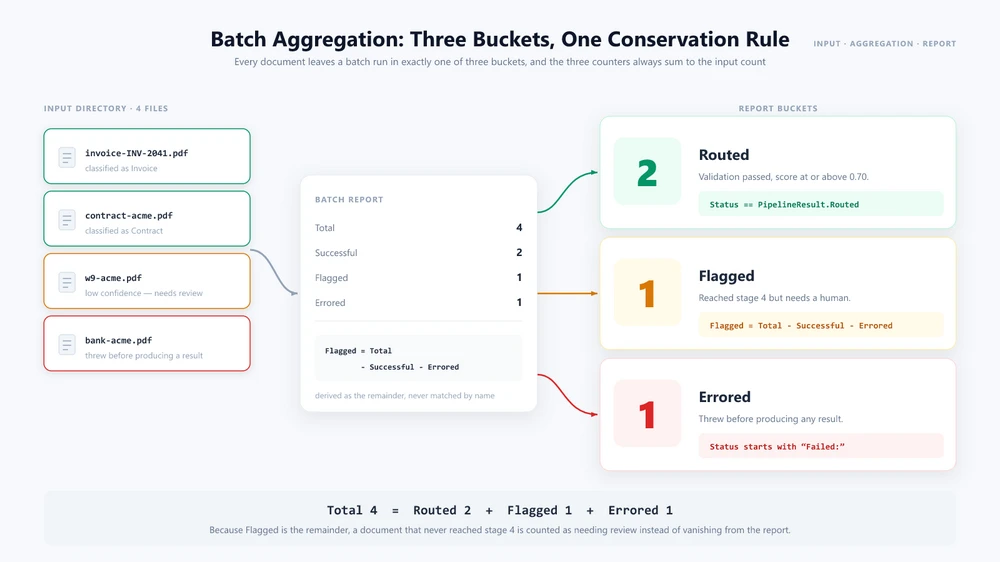
SemaphoreSlim은 AI 서비스나 다운스트림 시스템에 과부하가 걸리지 않도록 동시성을 제한합니다. 각 문서는 네 단계를 모두 거쳐 독립적으로 처리됩니다. 일괄 보고서는 문서가 파이프라인을 떠날 수 있는 세 가지 방식으로 결과를 분류합니다: Routed(검증되어 다운스트림으로 전송됨), Flagged(4단계에 도달했지만 검토 필요), Errored(결과를 생성하기 전에 예외 발생). Flagged는 상태 문자열을 일치시키는 대신 나머지로 계산되므로 세 카운터의 합은 항상 Total이 됩니다. 예기치 않게 실패한 문서는 보고서에서 사라지는 대신 검토 필요로 보고됩니다. 적절한 동시성 제한은 AI 서비스의 속도 제한, 문서 크기, 애플리케이션 리소스에 따라 달라집니다.
문서 간 워크플로
일부 비즈니스 프로세스는 여러 문서를 함께 처리해야 합니다. 예를 들어 미국 공급업체 온보딩 워크플로는 세금 양식, 계약서, 은행 명세서를 단일 단위로 처리하여 각각에서 데이터를 추출하고, 상호 검증하며, 결합된 출력을 생성할 수 있습니다.
public async Task<OnboardingResult> ProcessVendorOnboardingAsync(
    string w9Path, string contractPath,
    string bankStatementPath, string outputDir)
{
    AIOptions agentOptions = CreateAgentOptions(outputDir);

    // Process all three documents in parallel
    var w9Task = RunPipelineAsync(w9Path, outputDir);
    var contractTask = RunPipelineAsync(contractPath, outputDir);
    var bankTask = RunPipelineAsync(bankStatementPath, outputDir);

    try
    {
        await Task.WhenAll(w9Task, contractTask, bankTask);
    }
    catch (Exception ex)
    {
        return new OnboardingResult
        {
            Status = "Failed",
            Issue = $"Document processing failed: {ex.Message}"
        };
    }

    var w9 = w9Task.Result;
    var contract = contractTask.Result;
    var bank = bankTask.Result;

    // Cross-validate: names must match across all documents
    var w9Name = GetField(w9.Extraction.Fields, "VendorName");
    var contractName = GetField(contract.Extraction.Fields, "Party2");
    var bankName = GetField(bank.Extraction.Fields, "AccountHolder");

    if (w9Name == null || contractName == null || bankName == null)
    {
        return new OnboardingResult
        {
            Status = "Flagged",
            Issue = "Could not extract vendor name from one or more documents"
        };
    }

    if (w9Name != contractName || contractName != bankName)
    {
        return new OnboardingResult
        {
            Status = "Flagged",
            Issue = $"Name mismatch: W-9='{w9Name}', " +
                $"Contract='{contractName}', Bank='{bankName}'"
        };
    }

    // Generate combined onboarding summary using the agent
    string summaryPath = Path.Combine(outputDir,
        $"onboarding-{w9Name}.docx");
    string[] attachments = { w9Path, contractPath, bankStatementPath };

    string summaryInstruction =
        $"Create a vendor onboarding summary for {w9Name}. " +
        "Read the attached W-9, contract, and bank statement. " +
        "Compile the vendor's legal name, tax ID, contract terms, " +
        "and banking details into a formatted Word document. " +
        "Save the summary to the output path.";

    using (Document summary = new Document())
    {
        summary.LoadFromFile(
            Path.Combine(AppContext.BaseDirectory,
                "templates", "onboarding-summary.docx"));

        AIResult result = summary.AI(agentOptions).ExecuteInstruction(
            summary, summaryInstruction, summaryPath, attachments);

        return new OnboardingResult
        {
            Status = result != null && result.Success
                ? "Complete" : "Failed",
            SummaryPath = result != null && result.Success
                ? summaryPath : null,
            Error = result?.ErrorMessage
        };
    }
}
attachments 매개변수는 여러 문서 경로를 단일 호출로 에이전트에 전달합니다. 에이전트는 첨부된 모든 파일을 읽고, 이들에 걸쳐 추론하며, 결합된 출력을 생성합니다. 이는 AI 모델이 여러 문서 입력에 걸쳐 추론할 수 있게 함으로써 전통적인 OCR의 텍스트 인식 역할을 넘어섭니다.
재시도 및 사람 검토
public async Task<PipelineResult> RunPipelineWithRetryAsync(
    string filePath, string outputDir, int maxRetries = 3)
{
    string lastError = "unknown";

    for (int attempt = 1; attempt <= maxRetries; attempt++)
    {
        try
        {
            var result = await RunPipelineAsync(filePath, outputDir);

            if (result.Validation.IsValid)
                return result;

            // Borderline confidence: retry in case the next pass
            // classifies or extracts the document differently
            if (result.Validation.ValidationScore >= 0.5 &&
                attempt < maxRetries)
            {
                continue;
            }

            return result;
        }
        catch (Exception ex)
        {
            lastError = ex.Message;

            if (attempt < maxRetries)
            {
                await Task.Delay(
                    TimeSpan.FromSeconds(Math.Pow(2, attempt)));
            }
        }
    }

    // Every attempt threw, so the loop ran out instead of returning.
    return new PipelineResult
    {
        Status = $"{PipelineResult.Failed} after {maxRetries} retries: " +
            lastError
    };
}
검증에 실패하거나 신뢰도 임계값 아래로 떨어지는 문서는 조용히 실패하는 대신 사람의 검토를 위해 플래그 지정됩니다. 재시도 전략은 일시적 오류에 지수 백오프를 사용하고, 두 번째 시도에서 문서를 다르게 분류하거나 추출할 가능성을 고려하여 경계선 사례를 다시 시도합니다.
5. 실무에서의 IDP
이 섹션은 파이프라인이 단일 워크플로에서 여러 문서 유형을 포함하는 실제 비즈니스 시나리오를 처리하는 방법을 보여줍니다.
매입 채무 자동화
AP 부서는 PDF, Excel, Word, 스캔 이미지 등 혼합 형식의 청구서를 받습니다. 각 청구서는 분류, 추출, 구매 주문과의 대조 검증, ERP 시스템으로의 라우팅이 필요합니다.
public async Task<APResult> ProcessInvoiceAsync(
    string invoicePath, string outputDir)
{
    // Stages 1-3: Standard pipeline
    var pipeline = await RunPipelineAsync(invoicePath, outputDir);

    if (!pipeline.Validation.IsValid)
        return new APResult
        {
            Status = "Requires review",
            Errors = pipeline.Validation.Errors
        };

    // Cross-reference with purchase order
    var poNumber = GetField(pipeline.Extraction.Fields, "PONumber");
    if (string.IsNullOrEmpty(poNumber))
        return new APResult { Status = "No PO reference" };

    var poData = await _erpService.GetPurchaseOrderAsync(poNumber);
    if (poData == null)
        return new APResult { Status = "PO not found in ERP" };

    // Three-way match: invoice vs PO vs goods receipt
    var grData = await _erpService.GetGoodsReceiptAsync(poNumber);
    var matchResult = ThreeWayMatch(
        pipeline.Extraction, poData, grData);

    if (matchResult.IsMatch)
    {
        await _erpService.PostInvoiceForPaymentAsync(
            pipeline.Extraction);
        return new APResult { Status = "Posted for payment" };
    }

    return new APResult
    {
        Status = "Three-way match failed",
        Discrepancies = matchResult.Discrepancies
    };
}
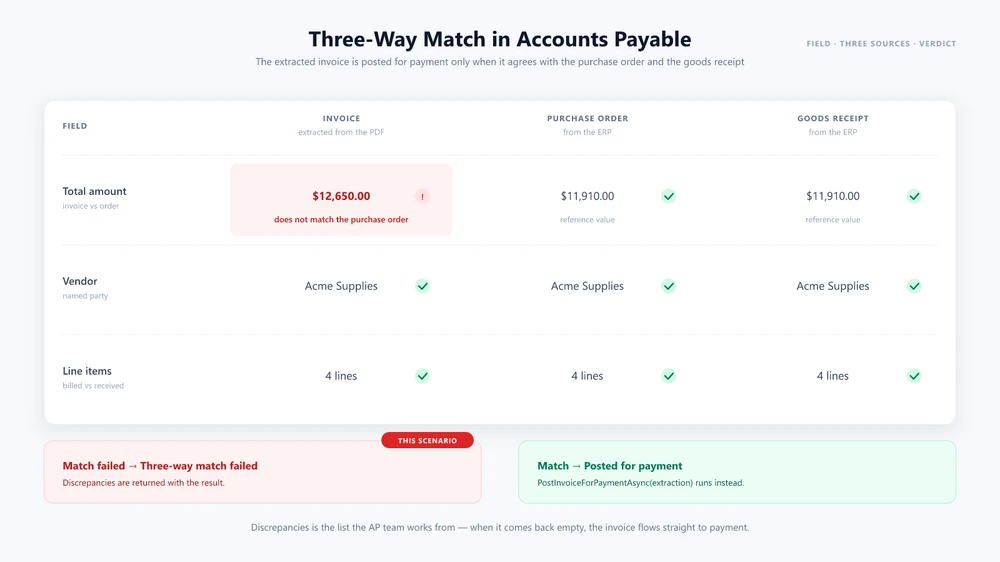
청구서 처리 튜토리얼은 이 시나리오를 처음부터 끝까지 다룹니다: 추출 지침, 구매 주문 비교, 재무 시스템이 소비하는 보고서를 포함합니다.
계약 분석
법무 팀은 외부 당사자로부터 계약서를 받습니다. 각 계약서는 분석되고, 주요 조건이 추출되고, 회사의 표준 템플릿과 비교되며, 비표준 조항이 발견되면 검토를 위해 라우팅되어야 합니다. 에이전트는 표준 템플릿을 참조 문서로 첨부하여 수신 계약서를 처리합니다.
public async Task<ContractAnalysisResult> AnalyzeContractAsync(
    string contractPath, string outputDir)
{
    AIOptions agentOptions = CreateAgentOptions(outputDir);

    string analysisPath = Path.Combine(outputDir,
        $"contract-analysis-{DateTime.Now:yyyyMMdd}.docx");

    string[] attachments =
        { Path.Combine(AppContext.BaseDirectory,
            "templates", "standard-contract.docx") };

    string instruction =
        "Analyze this contract and compare it to the attached " +
        "standard template. Identify non-standard clauses, unusual " +
        "risk terms, or missing provisions. Generate a redline " +
        "summary document highlighting the differences and save " +
        "it to the output path.";

    string ext = Path.GetExtension(contractPath).ToLowerInvariant();
    AIResult? result = null;

    if (ext == ".pdf")
    {
        using (PdfDocument contract = new PdfDocument())
        {
            contract.LoadFromFile(contractPath);
            result = contract.AI(agentOptions).ExecuteInstruction(
                contract, instruction, analysisPath, attachments);
        }
    }
    else if (ext == ".pptx" || ext == ".ppt")
    {
        using (Presentation contract = new Presentation())
        {
            contract.LoadFromFile(contractPath);
            result = contract.AI(agentOptions).ExecuteInstruction(
                contract, instruction, analysisPath, attachments);
        }
    }
    else
    {
        using (Document contract = new Document())
        {
            contract.LoadFromFile(contractPath);
            result = contract.AI(agentOptions).ExecuteInstruction(
                contract, instruction, analysisPath, attachments);
        }
    }

    return new ContractAnalysisResult
    {
        Success = result != null && result.Success,
        AnalysisPath = result != null && result.Success
            ? analysisPath : null,
        Error = result?.ErrorMessage
    };
}
이 워크플로는 추출, 문서 간 비교, 문서 생성을 하나의 프로세스로 결합하여 AI 에이전트가 전통적인 IDP 파이프라인을 구조화된 필드 추출 이상으로 확장할 수 있는 방법을 보여줍니다. 템플릿에서의 검토, 추출, 생성 등 계약 관련 패턴은 AI 계약 검토 가이드에서 다룹니다.
6. 구축 vs 구매: IDP 접근 방식 선택하기
IDP 시장은 SaaS 플랫폼이 지배하고 있습니다. 이 섹션은 .NET에서 파이프라인을 구축하는 것이 올바른 선택인 경우와 공급업체 플랫폼을 채택하는 것이 더 실용적인 경우를 개발자가 결정하도록 돕습니다.
다음과 같은 경우 구축하십시오: 기존 .NET 애플리케이션과의 긴밀한 통합, 사용자 지정 검증 규칙, 또는 추출과 함께 문서 생성 및 변환이 필요할 때입니다. .NET에서 오케스트레이션 계층을 구축하면 문서가 저장되는 위치와 처리되는 방식을 더 잘 제어할 수 있습니다. 실제 데이터 상주 위치는 AI 모델 및 서비스 구성에 따라 달라집니다.
다음과 같은 경우 구매하십시오: OCR 중심 워크로드, 사전 구축된 추출 모델, 관리형 인프라, 또는 빠른 배포가 우선순위일 때입니다. 팀에 .NET 전문 지식이 없거나 다른 우선순위에 집중하고 있다면 관리형 플랫폼이 구현 부담을 덜어줍니다.
의사 결정 프레임워크:
| 요인 | 구축(.NET + AI 에이전트) | 구매(SaaS IDP) |
|---|---|---|
| 통합 | 인프로세스, .NET 네이티브 | 외부 API 호출 |
| 데이터 상주 | 모델 구성에 따라 다름 | 공급업체 클라우드 |
| 문서 작업 | 추출 + 생성 + 변환 + 변환 | 플랫폼에 따라 다름 |
| 사용자 지정 검증 | 완전한 코드 제어 | 플랫폼 구성 |
| 사용자 지정 워크플로 | 완전한 코드 제어 | 플랫폼 의존적 |
| 프로덕션까지의 시간 | 몇 주에서 몇 달 | 며칠에서 몇 주 |
| 비용 모델 | 고정 API 비용 + SDK 라이선스 | 문서당 가격 책정 |
올바른 선택은 애플리케이션의 요구 사항, 팀 역량, 처리하는 문서 유형에 따라 달라집니다. 많은 팀이 하이브리드 접근 방식을 사용합니다: 표준화된 양식의 대량 추출에는 공급업체 플랫폼을, 문서 생성, 문서 간 추론, 또는 긴밀한 시스템 통합이 필요한 복잡한 워크플로에는 사용자 지정 .NET 파이프라인을 사용합니다.
7. 자주 묻는 질문
지능형 문서 처리(IDP)란 무엇인가요?
지능형 문서 처리는 AI와 머신 러닝을 사용하여 문서를 분류하고, 구조화된 데이터를 추출하며, 결과를 비즈니스 규칙에 따라 검증하고, 출력을 다운스트림 시스템으로 라우팅하는 자동화 접근 방식입니다. 주로 시각적 콘텐츠를 기계 판독 가능한 텍스트로 변환하는 기존 OCR과 달리, IDP는 문서 분류, 의미 기반 추출, 검증, 워크플로 자동화를 추가합니다. 고정된 템플릿에 전적으로 의존하지 않고 다양한 문서 레이아웃을 처리할 수 있습니다.
IDP 파이프라인은 단일 LLM API 호출과 어떻게 다른가요?
단일 LLM 호출은 텍스트를 처리하지만 파일 형식을 처리하거나, 문서 작업을 실행하거나, 파이프라인 상태를 관리하지 않습니다. IDP 파이프라인은 분류, 추출, 검증, 라우팅 등 여러 단계를 오케스트레이션하며, 각 단계는 독립적인 오류 처리, 재시도 로직, 감사 로깅을 가집니다. 또한 파이프라인은 AI 추론과 결정적 파일 조작을 연결하여 출력이 올바른 형식을 유지하도록 보장합니다.
공급업체 플랫폼 없이 IDP 파이프라인을 구축할 수 있나요?
예. Spire.Agent.Office와 같은 .NET AI 에이전트 SDK를 사용하면 C#으로 네 가지 파이프라인 단계를 모두 구현할 수 있습니다. 이 SDK는 Word, Excel, PowerPoint, PDF 파일에 대한 자연어 문서 처리를 결정적 파일 출력과 함께 제공합니다. 이 접근 방식은 검증 로직과 라우팅 규칙을 완전히 제어할 수 있게 합니다.
IDP 파이프라인은 어떤 문서 형식을 처리하나요?
Spire.Agent.Office를 사용하면 파이프라인은 Word(.docx, .doc), Excel(.xlsx, .xls), PowerPoint(.pptx, .ppt), PDF 파일을 처리합니다. 스캔 문서는 문서 및 처리 워크플로에 따라 AI 기반 추출 전에 OCR 단계가 필요할 수 있습니다. 또한 파이프라인은 라우팅 단계의 일부로 형식 간 변환을 수행할 수 있습니다.
AI 에이전트는 언어 모델에 어떻게 연결되나요?
Spire.Agent.Office는 AIOptions의 SpireToken 속성을 사용하여 AI 서비스에 인증합니다. SDK는 AIOptions를 통해 AI 서비스 연결을 관리하므로 애플리케이션에서 기본 모델 API 통합을 직접 구현할 필요가 없습니다. 이 설계는 문서 처리를 모델 구성과 분리하므로 에이전트를 구동하는 모델에 관계없이 파이프라인 코드가 동일하게 유지됩니다.
AI 기반 문서 추출은 얼마나 정확한가요?
추출 정확도는 문서 품질, 레이아웃 변동성, OCR 품질, 모델 동작, 추출 지침에 크게 좌우됩니다. 프로덕션 시스템은 추출된 값을 결정적 비즈니스 규칙에 따라 검증하고 불확실한 사례를 사람의 검토로 라우팅해야 합니다. 검증 단계는 추출된 값을 결정적 규칙과 대조하고 불확실한 결과를 검토로 라우팅함으로써 AI 기반 추출을 프로덕션에서 더 안정적으로 만드는 데 도움이 됩니다.
IDP와 OCR의 차이점은 무엇인가요?
OCR(광학 문자 인식)은 시각적 문서 콘텐츠를 기계 판독 가능한 텍스트로 변환합니다. IDP는 이 기능을 기반으로 하지만 AI 기반 이해, 검증, 워크플로 자동화를 추가합니다. IDP 파이프라인은 스캔 문서에 내부적으로 OCR을 사용할 수 있지만, OCR만으로는 문서를 분류하거나 추출된 데이터를 검증하거나 결과를 다운스트림 시스템으로 라우팅하지 않습니다.
IDP 파이프라인에서 일괄 처리는 어떻게 작동하나요?
일괄 처리는 리소스 사용량을 관리하기 위해 구성 가능한 동시성 제한을 두고 여러 문서에 걸쳐 파이프라인을 동시에 실행합니다. 각 문서는 네 단계를 모두 거쳐 독립적으로 처리되며, 결과는 일괄 보고서로 집계됩니다. 실패한 문서는 나머지 일괄 처리를 막지 않고 검토용으로 플래그 지정됩니다.
IDP 파이프라인을 구축할 준비가 되셨나요?
.NET 애플리케이션에서 지능형 문서 처리를 구축 중이라면 Spire.Agent.Office의 시작 가이드부터 시작하세요. 이 가이드는 SDK 설치와 .NET에서 첫 지침 실행을 다룹니다.
추가 읽을거리
- AI 에이전트 vs. 원시 LLM API: .NET의 문서 계층 — 원시 LLM API 호출에 비해 문서 계층이 추가하는 것, 그리고 각 접근 방식이 적합한 경우
- C#에서 AI로 문서를 PowerPoint 프레젠테이션으로 변환하기 — 슬라이드 출력에 적용된 동일한 지침 기반 패턴