Everybody knows the classic Ctrl+C and Ctrl+V method to duplicate Excel files. It works, but it’s not always the smartest or fastest way to duplicate an Excel file efficiently. What if you want to create a backup without cluttering your folder with endless “filename - Copy” versions? What if you need to open a safe duplicate Excel file without risking changes to the original? Or what if you need to duplicate Excel files in bulk while automatically adding timestamps or custom names?
This blog post goes beyond basic shortcuts to explore practical manual tricks and powerful automation techniques for duplicating Excel files—methods that many everyday users and even experienced professionals never discover.
On this page:
1. Manual Ways to Duplicate an Excel File
1.1 Method 1: Save As - Create a Versioned Backup
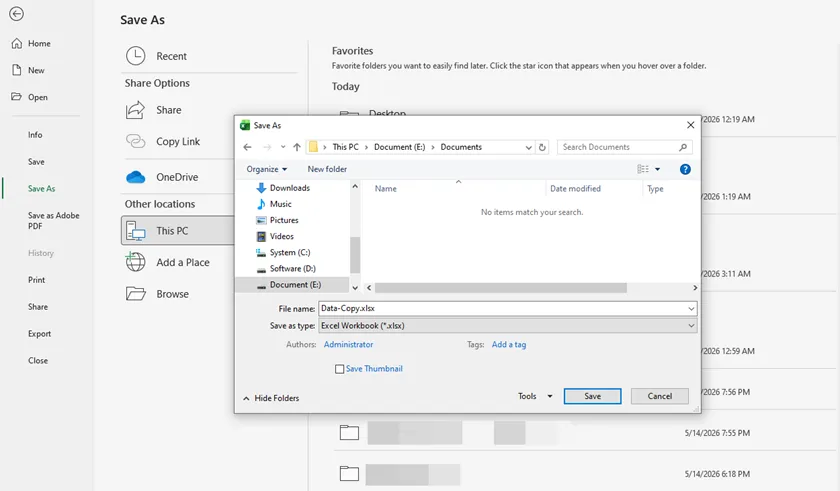
Most users think "Save As" is only for saving changes, but it is actually the safest way to duplicate a file you currently have open. Instead of creating a messy copy in your folder, this method allows you to rename the file and choose its exact location during the save process.
Steps:
- With the Excel file open, click File > Save As.
- Choose a location (OneDrive, This PC, or a specific folder).
- Enter a new name for the duplicate (e.g., "Q1_Report_Backup" instead of "Q1_Report").
- Click Save. The original file remains untouched, and you are now working on the new copy.
Best for: Use this method when you are about to make heavy edits to a critical report. It creates an archived version of the original state without ever leaving Excel.
Limitation: This only works when the file is already open. You cannot use "Save As" on a closed file from File Explorer.
1.2 Method 2: Drag-and-Drop – Duplicate One or Multiple Files
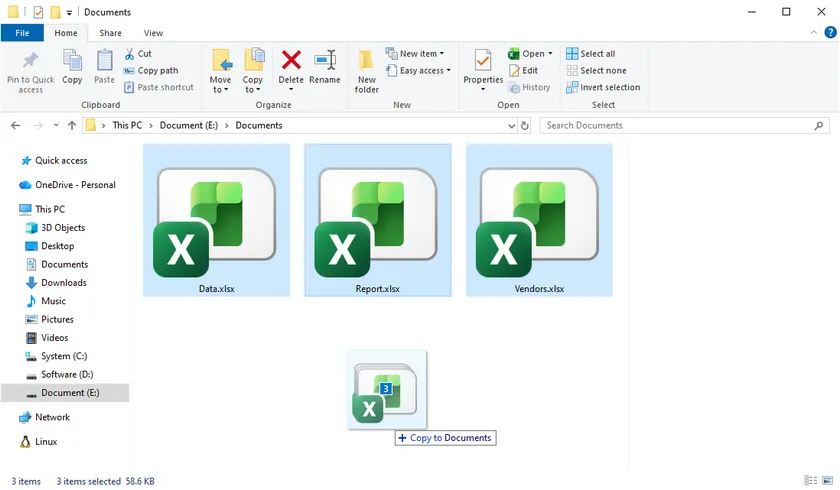
If you need to duplicate several Excel files at once, this is the fastest built-in method in Windows File Explorer or macOS Finder. Instead of opening menus or using copy-paste repeatedly, you can create multiple file duplicates in a single drag action using a modifier key.
Steps (Windows):
- Open File Explorer and locate the Excel file(s) you want to duplicate.
- Select one file or multiple files (hold Ctrl to multi-select).
- Hold down the Ctrl key on your keyboard.
- While holding Ctrl, drag the selected file(s) to an empty space in the same folder.
- Release the mouse button first, then release Ctrl.
- Copies will appear instantly with names like “filename - Copy.xlsx”.
Steps (Mac):
- Open Finder and locate the Excel file(s).
- Select one or more files.
- Hold down the Option key.
- Drag the file(s) within the same folder.
- Release the mouse button first, then release Option.
- Duplicates will be created immediately.
Best for: Quickly duplicating multiple Excel files in bulk, such as creating backups for reports, datasets, or templates.
Limitation: This method does not allow renaming during the drag-and-drop process. All duplicates will use default names like “filename - Copy”, so you may need to rename them afterward if naming consistency is required.
1.3 Method 3: Open as Copy - Avoid Accidental Edits
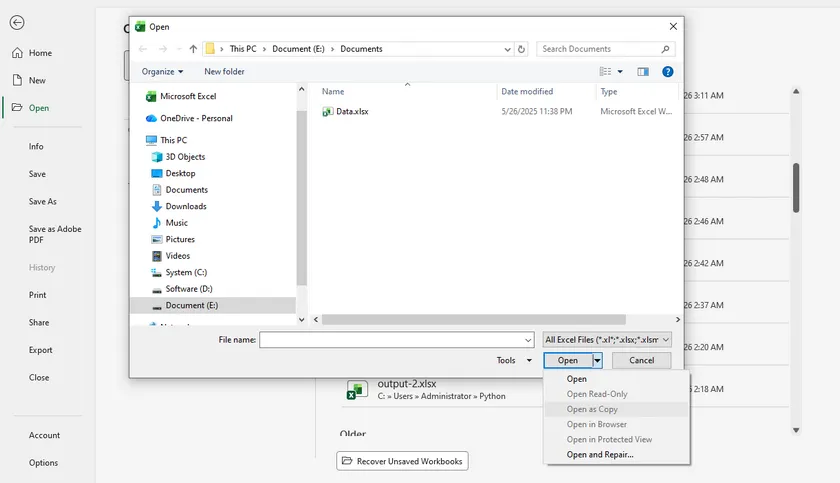
Hidden inside Excel's Open dialog is a feature that prevents you from ever accidentally editing an original file. When you select "Open as Copy", Excel opens a temporary clone of your workbook. If you close without saving, the copy vanishes entirely—leaving the original untouched.
Steps:
- Open Microsoft Excel (not the file directly).
- Click File > Open > Browse.
- Navigate to the Excel file you want to duplicate.
- Click the file once to select it, then click the arrow next to the Open button (not the button itself).
- Select Open as Copy from the dropdown menu.
Excel will open a duplicate with the name "Copy of [original filename].xlsx". The original file remains closed and completely untouched.
Best for: This is perfect for reviewing a sensitive file, testing complex formulas, or sharing your screen during a meeting—because even if you make changes and accidentally hit Ctrl+S, you are saving to the temporary copy, not the original.
Limitation: If you intentionally want to keep the changes, you must use File > Save As to save the copy to a permanent location. Simply clicking "Save" will not overwrite the original, but the copy will disappear when you close Excel unless you save it elsewhere.
1.4 Quick Reference Table: Which Manual Method to Use When
| Situation | Best Method (Beyond Ctrl+V) |
|---|---|
| You have the file open and need a clean versioned backup | Save As |
| You want a copy in the same folder without using menus | Ctrl/Option + Drag |
| You want to duplicate multiple files at once (e.g., 10 backups in one motion) | Ctrl/Option + Drag (with multiple files selected) |
| You want to open a file for review without altering the original | Open as Copy |
2. Why Automate?
Manual tricks work well for one-off tasks. But if you find yourself duplicating 50 files every day — or if you wish you could automatically add a timestamp to each copy — automation is the answer. The following section is written for C# developers, but anyone curious about automating Excel copies is welcome to follow along.
3. Automation for Developers
3.1 Method 1: Pure File Copy Using .NET File.Copy
For developers, the .NET framework offers a native way to duplicate Excel files without any external library. This method treats the Excel file as raw binary data, making it incredibly fast for batch operations like nightly backups or archiving.
using System.IO;

File.Copy("source.xlsx", "destination.xlsx", overwrite: true);
Best for: Batch exact duplicates, automated archiving, integration into backend services.
Limitation: You cannot modify any content inside the file—no cell values, no timestamps, no formatting changes. It is a pure "shell" copy.
3.2 Method 2: Copy & Modify Using Spire.XLS
Spire.XLS for .NET is a professional library that allows you to "open" the file during duplication. This means you can copy the template and simultaneously write dynamic data, such as the current timestamp or a new customer name.
using Spire.Xls;

Workbook workbook = new Workbook();
workbook.LoadFromFile("Template.xlsx");

// Modify content during the copy process
Worksheet sheet = workbook.Worksheets[0];
sheet.Range["A1"].Text = DateTime.Now.ToString(); // Add date
sheet.Range["B2"].Text = "Customer Name";             // Update text
sheet.DeleteColumn(5);                                                  // Delete column

workbook.SaveToFile("ModifiedCopy.xlsx");
Best for: Template filling, adding metadata (date, author name), cleaning sensitive data during duplication.
Limitation: Slower than File.Copy because it parses the file's XML structure. Also requires installing the Spire.XLS NuGet package.
You May Also Like: C# Write to Excel Guide
3.3 Comparison at a Glance
| Aspect | File.Copy | Spire.XLS |
|---|---|---|
| Modify cell content? | No | Yes |
| Add timestamp? | No | Yes |
| External library needed? | No (built-in) | Yes (NuGet) |
| Speed | Very fast | Slower |
| Best for | Batch exact duplicates | Copy + intelligent modification |
3.4 Simple Decision Guide for Developers
- Just need many exact copies? → Use File.Copy
- Need to add date, name, or clean data while copying? → Use Spire.XLS
4. Conclusion
Duplicating an Excel file is more than just hitting Ctrl+C and Ctrl+V. For everyday users, mastering "Open as Copy" or the Ctrl + Drag trick saves time and prevents accidental data loss. For developers, the choice is technical: use .NET File.Copy for raw speed and bulk operations, or switch to Spire.XLS when your workflow requires adding data during the duplication process. Look beyond the basic shortcut and pick the method that actually fits your task.
5. FAQs
Q1: What is the difference between "Open as Copy" and simply double-clicking the file?
Double-clicking opens the original file directly. Any change you make saves to the original unless you manually do a "Save As". "Open as Copy" opens a temporary duplicate; if you close without hitting save, the original remains 100% unchanged.
Q2: Will my charts, pivot tables, and formulas break when I duplicate using these methods?
No. All manual methods (Save As, Drag, Open as Copy) preserve every element perfectly. For automation, File.Copy preserves everything because it is a bit-for-bit copy. Spire.XLS also preserves them as long as you use LoadFromFile and SaveToFile without manually removing elements.
Q3: Why would I use C# automation over manual methods?
Manual methods are great for 1-5 files. But if you need to generate 500 customized invoices from a template (adding a new date and invoice number to each copy), manual work is impossible. Automation handles the repetition and precision.
Q4: Is there a risk of corruption when duplicating an open Excel file?
Yes for manual methods – never copy or drag an Excel file while it is actively open and has unsaved changes. For automation, libraries like Spire.XLS can read open files safely, but File.Copy may throw an "access denied" error if the file is locked by another process. Always close the file first for best results.