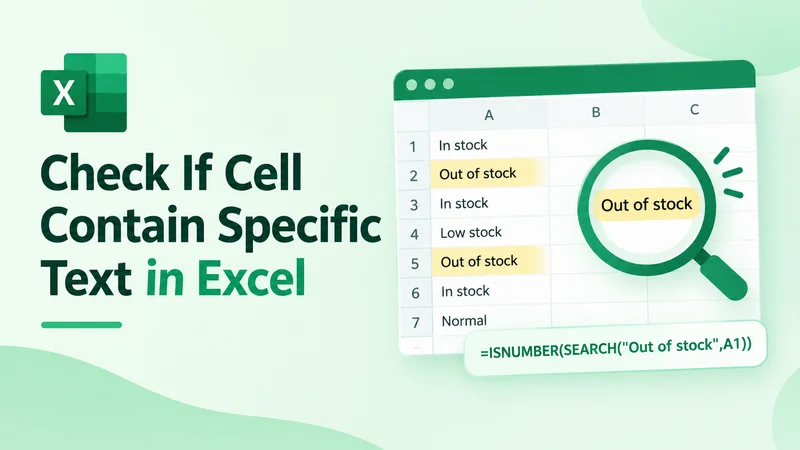
When working with Excel data, you may need to check if a cell contains specific text to find keywords, filter records, or categorize information. For example, you can identify products marked as out of stock or highlight cells containing specific terms.
This guide explains how to check whether a cell contains specific text in Excel using SEARCH, FIND, COUNTIF, conditional formatting, and Python automation with Free Spire.XLS for Python.
Check If Cells Contain Specific Text with SEARCH and ISNUMBER
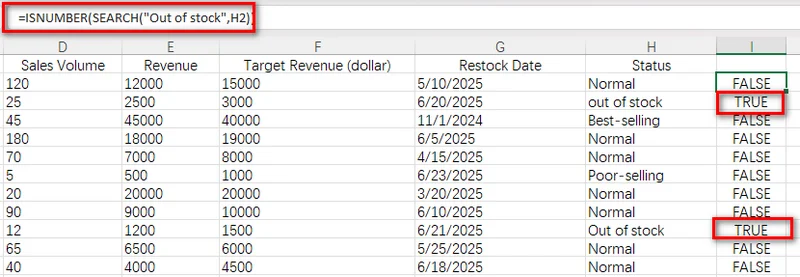
In Excel, the combination of SEARCH and ISNUMBER is a common way to check whether a cell contains specific text. This formula evaluates one cell at a time, so you need to apply it to a helper column and filling the formula down.
For example, if product descriptions are stored in column H, enter the formula in I2:
=ISNUMBER(SEARCH("Out of stock",H2))
Then copy the formula down to apply the same check to the remaining rows in the range.
The formula returns TRUE for rows where the corresponding cell contains out of stock and FALSE for rows without the keyword.
Why Use SEARCH with ISNUMBER?
The SEARCH function finds the position of specific text inside a cell. When it finds a match, it returns the starting position of the text. For example, =SEARCH("stock","Out of stock") returns 9 because stock starts at the ninth character.
If the target text does not exist, SEARCH returns a #VALUE! error. By combining it with ISNUMBER, you can convert this result into a simple TRUE/FALSE value:
- When SEARCH returns a number, ISNUMBER returns TRUE.
- When SEARCH returns an error, ISNUMBER returns FALSE.
This method works well when you need a clear matching result for each row, such as creating filters, adding conditional formatting, or marking records for further processing.
Case-Sensitive Search with FIND and ISNUMBER
In some situations, uppercase and lowercase letters are important. This is common when working with product codes, internal identifiers, or categories where different capitalization represents different values.
The FIND function works similarly to SEARCH, but it performs a case-sensitive search. By combining FIND with ISNUMBER, you can check whether a cell contains specific text while preserving capitalization differences.
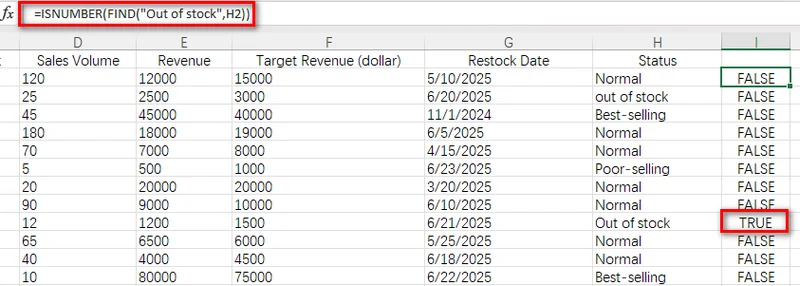
For example, suppose a product status column contains values such as "out of stock" and "Out of stock". If you only want to identify cells that use the exact capitalization Out of stock, you can use the following formula in a helper column and apply it to the entire data range:
=ISNUMBER(FIND("Out of stock",H2))
This formula returns TRUE when the corresponding cell contains "Out of stock" and FALSE when it contains "out of stock" or other text. Unlike SEARCH, FIND distinguishes uppercase and lowercase letters, making it suitable for case-sensitive text checks.
SEARCH vs FIND
| Method | Case-Sensitive | Supports Wildcards | Best Used For |
|---|---|---|---|
| ISNUMBER(SEARCH(...)) | No | Yes | General keyword searches |
| ISNUMBER(FIND(...)) | Yes | No | Case-sensitive searches |
Check If Cell Contains Certain Text with COUNTIF and Wildcards in Excel
If you prefer a shorter formula, COUNTIF provides a simple way to check whether a cell contains specific text. This method is useful when you are already familiar with Excel criteria formulas and want to avoid combining multiple functions.
Unlike SEARCH, COUNTIF can use wildcard characters such as * to match text patterns. This makes it convenient for basic keyword checks.
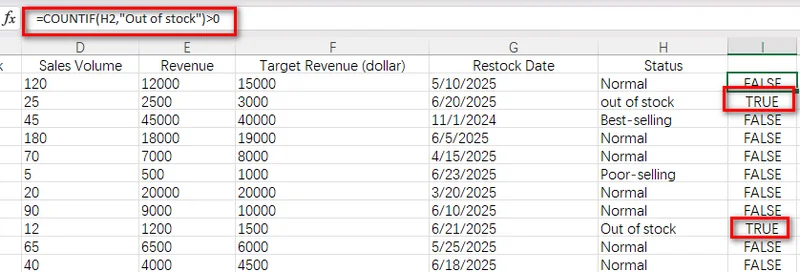
Enter the following formula into a cell in the helper column:
=COUNTIF(H2,"Out of stock")>0
The formula returns TRUE when the cell contains "out of stock" and FALSE when the specified text is not found.
How the Asterisk (*) Works
In COUNTIF, the asterisk (*) is a wildcard that represents any number of characters. By placing an asterisk before and after the target text, you allow Excel to match the keyword wherever it appears inside a cell.
For example, using stock as the search pattern will match cells containing only stock as well as longer phrases such as "out of stock" or "low stock warning". This is because the wildcard characters allow any text to appear before or after the keyword.
Tip: If you need to count cells containing text rather than simply check for a match, see our guide on counting cells with text in Excel.
Check Multiple Keywords with OR Logic in Excel
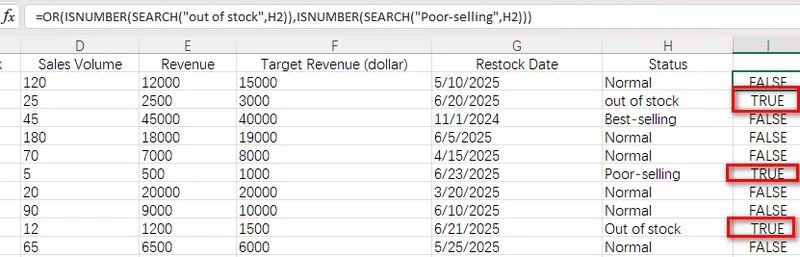
In some cases, you may need to check whether a cell contains one of several keywords. For example, when analyzing product statuses, you may want to identify items that are either out of stock or have poor sales performance. The OR function allows you to combine multiple text checks in one formula. Similar to the previous methods.
Enter the following formula in a cell of a helper column:
=OR(ISNUMBER(SEARCH("out of stock",H2)),ISNUMBER(SEARCH("Poor-selling",H2)))
The formula returns TRUE when the corresponding status contains either "out of stock" or "Poor-selling". It returns FALSE for normal statuses or other values.
Highlight Cells That Contain Specific Text with Conditional Formatting
Using a helper column is a practical way to check whether cells contain specific text, but it requires an additional column to display the results. If you want to make matching records more visible without changing your data structure, Conditional Formatting is a better option.
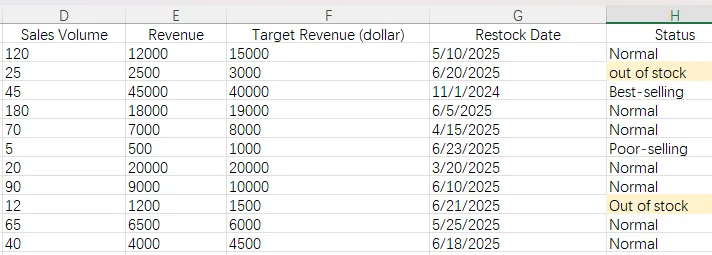
With conditional formatting, Excel can automatically highlight cells that meet a specific rule. By using a formula based on SEARCH, you can highlight matching cells whenever the data changes.
Follow these steps to apply conditional formatting:
- Step 1: Select the target range, such as H2:H15.
- Step 2: Go to Home > Conditional Formatting > New Rule.
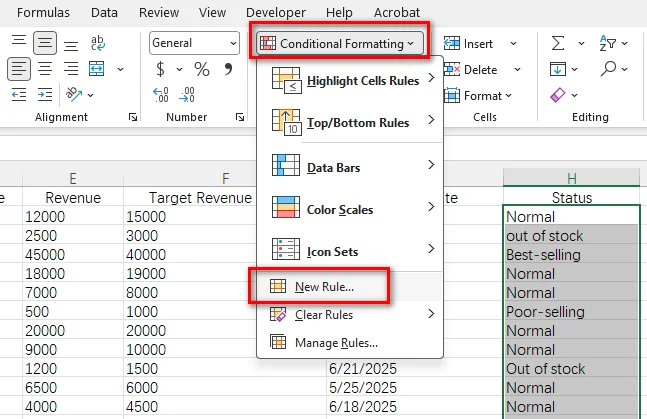
- Step 3: Select Use a formula to determine which cells to format.
- Step 4: Enter the formula =ISNUMBER(SEARCH("Out of stock",H2)).
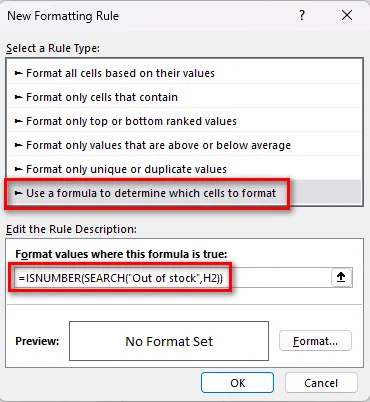
- Step 5: Click Format..., choose a formatting style, and then click OK to apply the rule.
Automatically Checking if a Cell Contains Certain Text with Python
Formula-based methods work well when processing individual spreadsheets, but manually adding formulas or formatting rules can become inefficient when handling recurring reports or large numbers of Excel files.
In automated workflows, developers can use Python to apply the same text-checking logic programmatically. With Free Spire.XLS for Python, you can create, edit, and format Excel workbooks without relying on Microsoft Excel.
What Is Free Spire.XLS for Python?
Free Spire.XLS for Python is a Python library for working with Excel workbooks. It supports common spreadsheet operations such as creating files, reading and editing worksheets, applying formulas, adding conditional formatting, and converting Excel documents.
Using this library, developers can automate repetitive spreadsheet tasks, such as applying text-based formatting rules across multiple reports.
Step-by-Step Python Implementation
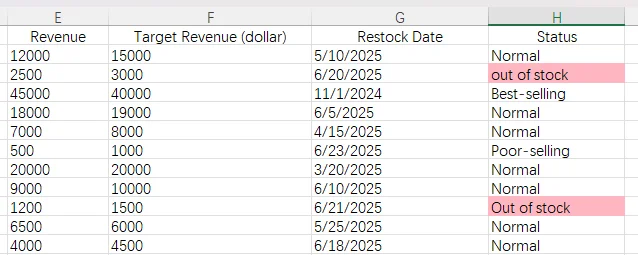
The following example shows how to load an Excel workbook and automatically apply a conditional formatting rule based on whether cells contain a specific phrase.
Step 1: Install the Library
Install the package using pip:
pip install Spire.Xls.Free
Step 2: Apply Conditional Formatting with Python
The following script loads an Excel file and highlights cells containing out of stock.
from spire.xls import Workbook, Color

file_path = "input/sales report.xlsx"
output_path = "output/Highlighted.xlsx"

# Load the Excel workbook
workbook = Workbook()
workbook.LoadFromFile(file_path)
sheet = workbook.Worksheets[0]

# Target the desired cell range
range_data = sheet.Range["H2:H15"]

# Add an expression-based conditional formatting rule
rule = range_data.ConditionalFormats.AddCondition()
rule.FormatType = ConditionalFormatType.Formula
rule.FirstFormula = '=ISNUMBER(SEARCH("Out of stock", H2))'

# Apply background color for matching cells
rule.BackColor = Color.get_LightPink()

# Save output and release resources
workbook.SaveToFile(output_path)
workbook.Dispose()
Common Pitfalls & FAQ
Q1: Why Does My Formula Return a #VALUE! Error?
If you use SEARCH or FIND by itself and the specified text does not exist in the cell, Excel returns a #VALUE! error. If you need to determine whether the text exists, use ISNUMBER to convert the search result into TRUE or FALSE.
Q2: What Is the Difference Between Checking Specific Text and ISTEXT()?
The ISTEXT function checks whether a cell contains text data, so it can help distinguish text values from numbers, dates, and other data types. For example, =ISTEXT(A1) returns TRUE when the cell contains text and FALSE when it contains a number or another data type.
However, ISTEXT cannot check whether a cell contains specific text. If you need to search for a particular word or phrase, use SEARCH, FIND, or COUNTIF instead.
Q3: How Can I Check If a Cell Contains Partial Text?
To check whether a cell contains part of a longer text string, use SEARCH with ISNUMBER or COUNTIF with wildcards. For example, =ISNUMBER(SEARCH("stock",A1)) returns TRUE when the cell contains stock anywhere in its text, including phrases such as "out of stock" or "low stock". You can also use =COUNTIF(A1,"stock")>0 for a shorter wildcard-based formula.
To Wrap Up
Checking whether a cell contains specific text is a common task in Excel data processing. For most cases, ISNUMBER(SEARCH()) provides a flexible solution, while FIND() is useful when uppercase and lowercase letters need to be distinguished. If you prefer a shorter formula, COUNTIF() provides a simple wildcard-based approach.
For recurring spreadsheet workflows, Python automation with Free Spire.XLS for Python can help apply the same text-checking and formatting rules programmatically, reducing repetitive manual work.