
PowerPoint presentations often become accidental media archives. A training deck may contain a recorded demo, a lecture may include an embedded clip, or an old project file may hold the only copy of a video you now need for editing, backup, or reuse. In those moments, extracting videos from PowerPoint can save you from re-recording, re-downloading, or rebuilding content from scratch.
This guide covers 4 practical approaches to extract video from PPT, from the native PowerPoint export to a fully automated C# extraction for developers, so you can choose the one that best fits your workflow.
- Understanding Embedded vs Linked PowerPoint Videos
- Extract Media Using PowerPoint’s “Save Media As”
- Extract All Videos by Renaming PPTX to ZIP
- Automatically Extract Embedded Videos in C#
- Extract Videos Using an Online Extractor
- Conclusion: Pick The Right Extraction Method
- Frequently Asked Questions (FAQs)
Understanding Embedded vs Linked PowerPoint Videos
PowerPoint handles video in two fundamentally different ways, and this distinction determines whether extraction is even possible:
✅ Embedded Videos (Extractable)
The full video file is saved inside your .pptx package. When you copy your PPTX file to another computer without internet, the video still plays normally. These videos can be fully extracted with zero quality loss.
❌ Linked Videos (NOT Extractable)
PowerPoint only stores a URL or external file path, not the actual video data. Common sources: YouTube embedded clips, Vimeo, or local files linked with the “Link to file” option. If you open the PPT offline and the video fails to load, it is linked media.
The methods below work for embedded videos. If your video is a linked online clip, you can download the original video from its source website or file location instead of extracting from PowerPoint.
Pro tip: Before you start, create a copy of your presentation and work on that copy. This preserves your original file and ensures you can always go back if something goes wrong.
1. Extract Media Using PowerPoint’s “Save Media As”
This is the simplest and most direct method when you only need one or two clips. It uses PowerPoint’s built-in media export function, so you do not need to unpack the presentation or install additional software.
Steps:
- Open your presentation in PowerPoint.
- Navigate to the slide containing the embedded video.
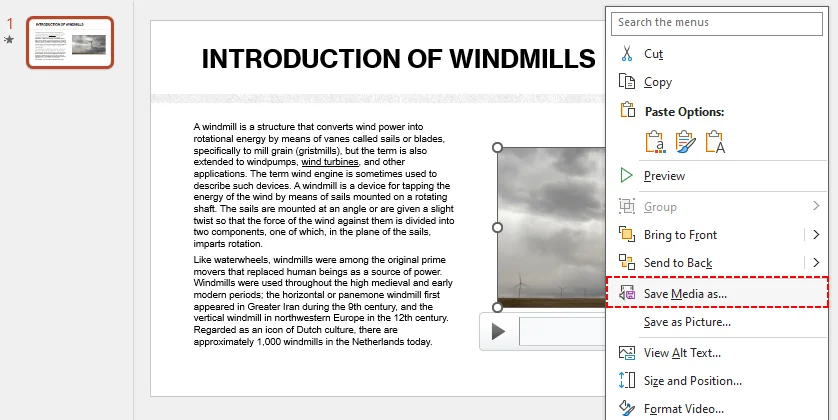
- Right-click directly on the video object on the slide.
- From the context menu, select "Save Media As…"
- Choose your output folder, rename the file, and click Save.
PowerPoint will export the clip as an MP4 (or the original embedded format, depending on the source). This method preserves the original resolution, bitrate, and full audio track with zero re‑encoding and zero quality loss.
If you need to export your full slideshow, including animations, transitions, narrations, and timings, you can export the entire PowerPoint as a video.
2. Extract All Videos by Renaming PPTX to ZIP
Every modern PowerPoint file (.pptx) is secretly a ZIP archive in disguise. The .pptx format is based on Open XML, which packages slides, images, audio, and video into a compressed container. If your presentation has dozens of embedded videos, audio clips, and images, the ZIP trick is the fastest bulk extraction method.
steps:
- Make a copy of your PowerPoint file first, so you do not damage the original.
- Right-click the copy, choose Rename, and change the extension from
.pptxto.zip. Confirm the change when prompted. - Double-click the ZIP archive to open it in Explorer.
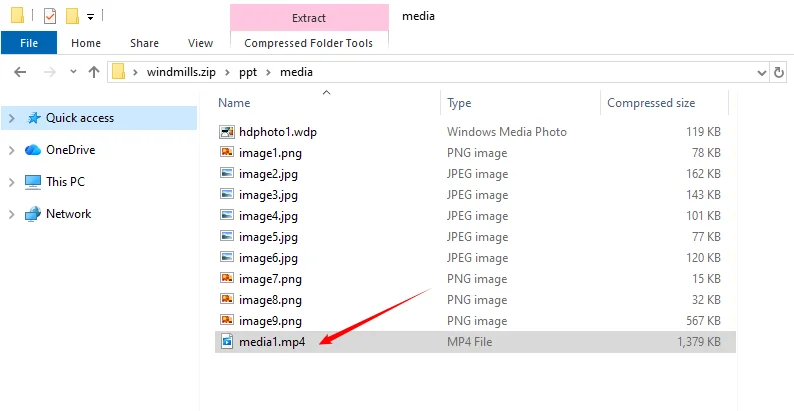
- Open the folder: ppt > media.
- Inside the media folder, you will find every embedded video, image, and audio file.
- Identify your video files (usually .mp4, .mov, or .avi), copy them, and paste them into a separate folder of your choice.
This bulk method is perfect when you want to pull all media assets at once instead of saving videos one by one.
⚠️ Key Limitations
- Original filenames are lost. Extracted files are auto‑named generic labels such as media1.mp4, media2.mov. Preview each file to identify your desired clip.
- This method does NOT work for legacy binary .ppt files (PowerPoint 97‑2007). Convert PPT to PPTX format first before using the ZIP extraction workflow.
3. Automatically Extract Embedded Videos in C#
If you regularly process PowerPoint files in batches or build an internal document tool, manual extraction is slow. With Free Spire.Presentation, you can write a lightweight C# code to scan every slide and save all embedded videos to your local disk. This approach keeps the workflow fully automated and works without launching the PowerPoint desktop app.
Prerequisite
Install the Free Spire.Presentation NuGet package into your .NET project.
Install-Package FreeSpire.Presentation
C# Code Example:
using System;
using System.IO;
using Spire.Presentation;

namespace ExtractVideosInPPT
{
    internal static class Program
    {
        private static void Main(string[] args)
        {
            string inputFile = @"F:\Files\windmills.pptx";
            string outputDir = "Videos";

            Directory.CreateDirectory(outputDir);

            using (Presentation presentation = new Presentation())
            {
                presentation.LoadFromFile(inputFile);

                int i = 1;

                foreach (ISlide slide in presentation.Slides)
                {
                    foreach (IShape shape in slide.Shapes)
                    {
                        if (shape is IVideo video && video.EmbeddedVideoData != null)
                        {
                            string fileName = Path.Combine(outputDir, $"ExtractVideo_{i}.mp4");
                            video.EmbeddedVideoData.SaveToFile(fileName);
                            i++;
                        }
                    }
                }

                Console.WriteLine($"Saved {i - 1} video(s) to '{Path.GetFullPath(outputDir)}'.");
            }
        }
    }
}
How this code works
- Loads the target PPTX file using
LoadFromFile(). - Loops through every slide and every shape on each slide.
- Checks whether a shape is an embedded video and validates that raw video data exists.
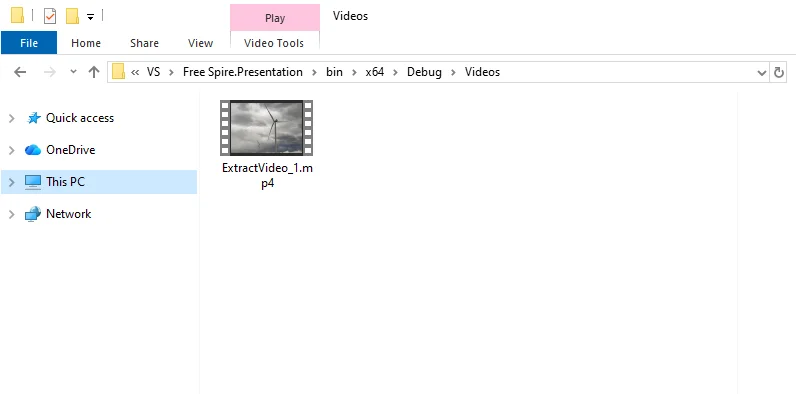
- Writes the embedded video stream directly to an MP4 file on disk. If you need
.mov/.wmvfiles, adjust output file extensions accordingly.
Result:
Bonus Tip: When processing presentation assets programmatically, you may also need to extract slide text, comment content, and speaker notes alongside media for documentation or translation workflows.
4. Extract Videos Using an Online Extractor
If you cannot install desktop software or do not own Microsoft PowerPoint, reputable browser‑based online PPTX media extractors unpack your presentation file on remote servers and let you download embedded videos.
General steps to extract video from PPT online:
- Search and open a trusted free online PPT video extractor tool.
- Upload your .pptx file.
- Wait for the tool to process the presentation.
- Download the extracted video files individually or as a ZIP bundle.
Online extractors are best for quick, non-sensitive jobs when you cannot install software. They typically preserve the original embedded media, but upload and download times depend on file size and your connection.
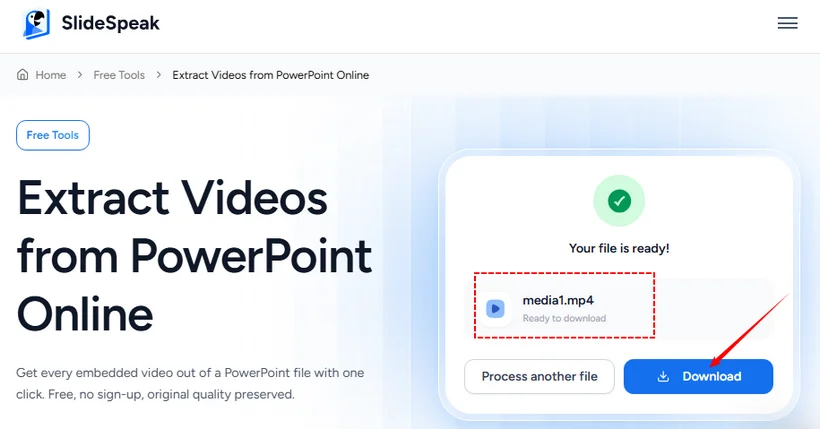
Example of using SlideSpeak PowerPoint Video Extractor:
⚠️ Considerations: Uploading files to a third-party server raises privacy concerns—avoid using online tools for confidential or sensitive presentations. Also, online extractors cannot retrieve linked online videos for the same reason local methods can't: the actual video file isn't in the presentation.
Conclusion: Pick The Right Extraction Method
Extracting video from PowerPoint does not have to be complicated. The key is to first confirm whether your video is truly embedded or merely linked. Once you know that, the next step is simply matching the method to the size of the job, your comfort level with file structures or code, and whether the presentation contains sensitive material.
The comparison below is a practical starting point:
| Method | Best For | PowerPoint Required | Skill Level | Notes |
|---|---|---|---|---|
| Save Media As | One or two videos | Yes | Beginner | Fastest for single clips; preserves original quality |
| Unzip (.pptx → .zip) | Multiple videos, reliable bulk extraction | No | Intermediate | Direct access to all embedded media in ppt/media |
| C# with Free Spire.Presentation | .NET developers, batch automation | No | Intermediate | Repeatable and scriptable; requires coding |
| Online extractor | No software access, quick jobs | No | Beginner | Convenient, but avoid confidential files |
No single technique is universally superior, but understanding these tradeoffs lets you pick the most reliable route for your use case, whether you are archiving presentation assets, reusing lecture footage, or building an automated document-processing workflow.
Frequently Asked Questions (FAQs)
Q: Will extracting video reduce the presentation quality?
A: If you use the built-in save media feature, ZIP extraction, or the Free Spire.Presentation code sample, you get the original media file that was inserted. There is no re-encoding and no quality loss.
Q: Can I extract audio from PowerPoint the same way?
A: Yes. Audio clips are also stored inside the ppt/media folder when you unpack the ZIP archive. With Spire.Presentation you can also extend the C# sample to detect and export embedded audio files.
Q: Is there a free tool to extract PowerPoint media?
A: You can use online PPTX media extractors, but uploading confidential business or training files to third-party websites carries privacy risks. Native PowerPoint workflows, the ZIP trick, and the Free Spire.Presentation .NET library are safer and completely free.
Q: Can I recover a video from a corrupt PowerPoint file?
A: Sometimes. If the .pptx package is still partially readable as a ZIP archive, you may be able to open it and copy files from ppt/media. If the archive is damaged, try repairing the presentation in PowerPoint first. Recovery is not guaranteed, so always work on a copy and keep backups.