
A PDF you produced last quarter still circulates internally, but its logo was rebranded last month and one chart shows numbers that are no longer true. You don't want to rebuild the document from scratch — you just need to swap the outdated image for the new one, or strip out an obsolete stamp or watermark entirely.
Spire.PDF for JavaScript handles both jobs in the browser through its PdfImageHelper class. The core idea is the same for either operation: first locate the image on the page, then act on it. GetImagesInfo reads the image metadata, ReplaceImage swaps in new content while preserving the original spot, and DeleteImage removes the object and leaves the space blank. No server, no upload, no Adobe Acrobat.
In this article you will learn how to:
- Locate every image on a page with
GetImagesInfo - Replace an image while keeping its original position and size
- Delete an image and leave a clean blank space
- Pick the right image by its position when you don't know its index
- Clean up images across every page in a document
Prerequisites
This walkthrough assumes you have a React project with Spire.PDF for JavaScript installed and the WASM module initialized. If you haven't set that up yet, follow Integrating Spire.PDF for JavaScript in a React Project.
You'll need:
- A PDF that already contains at least one image, loaded into the VFS
- (For replacement) a new image file to swap in
- The WASM module reachable via
window.wasmModule.spirepdf
How Spire.PDF locates images
Both replace and delete start from the same step: figuring out what images are on the page and where they sit. The PdfImageHelper.GetImagesInfo(page) method returns an array of image-information objects. Each object exposes:
-
Image— the image data itself (used when replacing, or when extracting images from the PDF) -
Bounds— aRectangleFdescribing the image's position and size on the page
// Create a PdfImageHelper and inspect the first page
let helper = new pdfModule.PdfImageHelper();
let images = helper.GetImagesInfo(page);

console.log(`Found ${images.length} image(s) on this page`);
for (let i = 0; i < images.length; i++) {
  console.log(`Image ${i}: position=(${images[i].Bounds.X}, ${images[i].Bounds.Y}), size=${images[i].Bounds.Width}x${images[i].Bounds.Height}`);
}
The array index follows the order the images appear on the page, so images[0] is the first one, images[1] the second, and so on. Once you have this array, replacing or deleting is a single method call — covered in the next two sections.
Replace an image
Replacing keeps the document layout intact: the new image inherits the original's position and placeholder size, so nothing around it shifts. The steps are: load the PDF and the replacement image into the VFS, open the PDF, call GetImagesInfo, then call ReplaceImage with the target info object and the new image.
function App() {
  const replaceImageInPdf = async () => {
    // Get the Spire.PDF WASM module
    const pdfModule = window.wasmModule?.spirepdf;

    // Check if the WASM module is ready
    if (!pdfModule) {
      alert('Spire.PDF is not ready yet');
      return;
    }

    // Load the PDF file into VFS
    const inputFileName = 'Business_Data_Overview.pdf';
    await window.spire.FetchFileToVFS(inputFileName, "", `${process.env.PUBLIC_URL}/data/`);

    // Load the new image used for replacement into VFS
    const newImageName = 'ChartImage.png';
    await window.spire.FetchFileToVFS(newImageName, "", `${process.env.PUBLIC_URL}/data/`);

    // Create a PdfDocument object and load the PDF document
    let doc = new pdfModule.PdfDocument();
    doc.LoadFromFile(inputFileName);

    // Get the first page
    let page = doc.Pages.get_Item(0);

    // Create a PdfImageHelper object and get the image information on the page
    let helper = new pdfModule.PdfImageHelper();
    let images = helper.GetImagesInfo(page);

    // Load the new image and replace the first image on the page
    let newImage = pdfModule.PdfImage.FromFile(newImageName);
    helper.ReplaceImage(images[0], newImage);

    // Define the output file name in PDF format
    const outputFileName = 'ReplaceImage.pdf';

    // Save as PDF format
    doc.SaveToFile({ fileName: outputFileName });
    doc.Close();

    // Read the generated PDF file from VFS and trigger download
    const fileArray = window.dotnetRuntime.Module.FS.readFile(outputFileName);
    const blob = new Blob([fileArray], { type: 'application/pdf' });
    const url = URL.createObjectURL(blob);
    const a = document.createElement('a');
    a.href = url;
    a.download = outputFileName;
    a.click();
    URL.revokeObjectURL(url);
  };

  return (
    <div style={{ textAlign: 'center', height: '300px' }}>
      <h1>Replace Image In PDF</h1>
      <button onClick={replaceImageInPdf}>
        Generate
      </button>
    </div>
  );
}

export default App;
PDF document generated after replacing an image
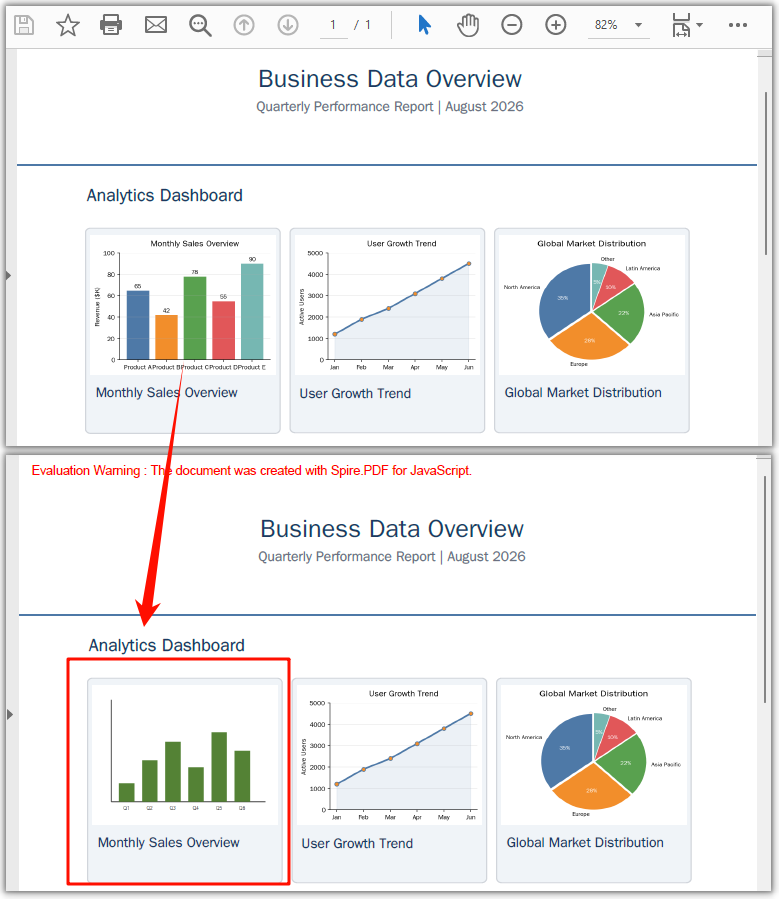
helper.ReplaceImage(images[0], newImage) swaps the content of the image at index 0 for newImage. The swap happens at the same position and with the same dimensions as the original. If the replacement has a different aspect ratio, it is stretched to fit the original placeholder.
Delete an image
Deleting shares the exact same setup as replacing — load the PDF, get the page, call GetImagesInfo. The only difference is the final call: instead of ReplaceImage, you call DeleteImage with the target info object, and the image is removed entirely, leaving its space blank.
// Everything above is identical to the replace example:
// load the PDF, get page 0, create the helper, call GetImagesInfo(page)

// Delete the first image on the page
helper.DeleteImage({ imageInfo: images[0] });
PDF document generated after deleting an image
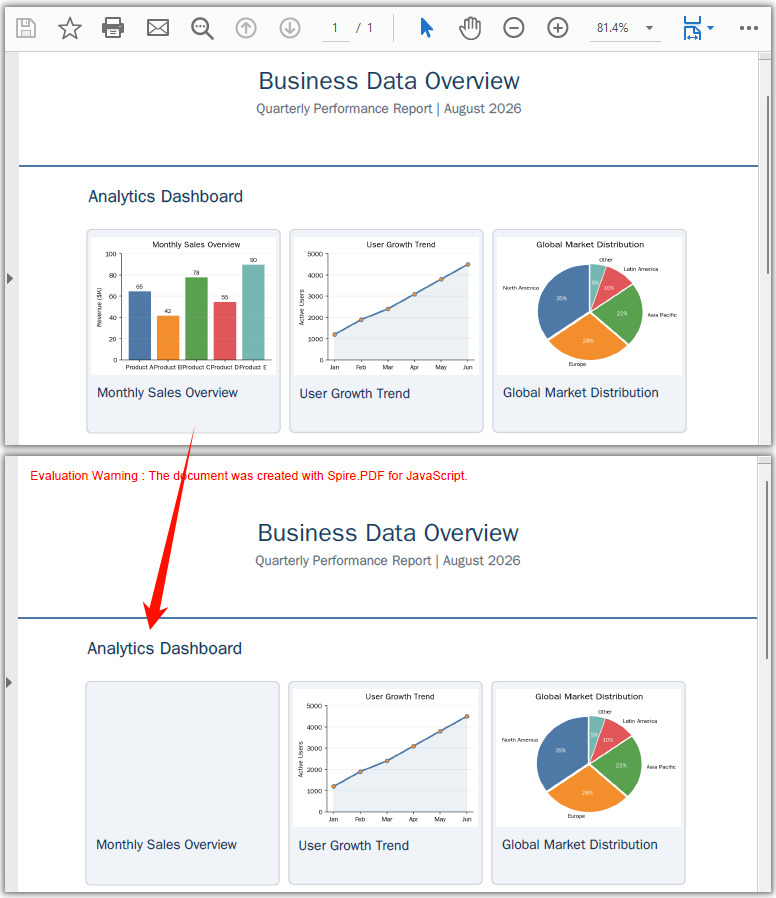
helper.DeleteImage({ imageInfo: images[0] }) removes the image at index 0. The surrounding text, graphics, and layout are untouched — the space it occupied is simply left empty, with no reflow.
Target images by position
When a page holds several images, you may not know which array index is the one you want. The Bounds property tells you where each image sits, and IntersectsWith lets you act on images inside a specific region — handy for clearing a header stamp or swapping a chart that always lands in the same spot.
// Get the image information on the page
let helper = new pdfModule.PdfImageHelper();
let images = helper.GetImagesInfo(page);

// Define the target region (e.g., a stamp area in the bottom-right)
let targetRect = new pdfModule.RectangleF({ x: 400, y: 700, width: 100, height: 80 });

// Iterate through the images and delete those within the target region
for (let i = 0; i < images.length; i++) {
  if (images[i].Bounds.IntersectsWith({ rect: targetRect })) {
    helper.DeleteImage({ imageInfo: images[i] });
    console.log(`Deleted image at position (${images[i].Bounds.X}, ${images[i].Bounds.Y})`);
  }
}
Bounds is a RectangleF with X, Y, Width, and Height, all in points (1 point = 1/72 inch). The origin (0, 0) is the top-left corner of the page.
Batch across all pages
To act on images throughout a multi-page document, loop the Pages collection and run the same logic per page. The example below deletes every image; swap DeleteImage for ReplaceImage to batch-replace instead (load the new image once before the loop).
const batchDeleteAllImages = async () => {
  const pdfModule = window.wasmModule?.spirepdf;
  if (!pdfModule) return;

  await window.spire.FetchFileToVFS('Business_Data_Overview.pdf', "", `${process.env.PUBLIC_URL}/data/`);

  let doc = new pdfModule.PdfDocument();
  doc.LoadFromFile('Business_Data_Overview.pdf');

  let helper = new pdfModule.PdfImageHelper();

  // Loop through all pages
  for (let pageIndex = 0; pageIndex < doc.Pages.Count; pageIndex++) {
    let page = doc.Pages.get_Item(pageIndex);
    let images = helper.GetImagesInfo(page);

    // Delete all images on this page
    for (let i = 0; i < images.length; i++) {
      helper.DeleteImage({ imageInfo: images[i] });
    }
    console.log(`Page ${pageIndex + 1}: deleted ${images.length} image(s)`);
  }

  const outputFileName = 'AllImagesDeleted.pdf';
  doc.SaveToFile({ fileName: outputFileName });
  doc.Close();

  const fileArray = window.dotnetRuntime.Module.FS.readFile(outputFileName);
  const blob = new Blob([fileArray], { type: 'application/pdf' });
  const url = URL.createObjectURL(blob);
  const a = document.createElement('a');
  a.href = url;
  a.download = outputFileName;
  a.click();
  URL.revokeObjectURL(url);
};
FAQ
How do I find the specific image I want to change?
GetImagesInfo returns the images in page order, so images[0], images[1], … give you the first, second, etc. When the order isn't obvious, read each object's Bounds property to see where it sits, and use Bounds.IntersectsWith to match images inside a known region. See Target images by position above.
Does replacing or deleting disturb the rest of the page?
No. Both operations touch only the image object itself. A replacement keeps the original position and placeholder size; a deletion leaves a blank gap. Text, graphics, and layout are unaffected, and the document is never reflowed.
Can I replace an image with one that has a different aspect ratio?
Yes — ReplaceImage stretches the new image to fill the original placeholder. If you need to preserve the new image's proportions, delete the old one and add the replacement with DrawImage at the exact size you want. See How to Add Images to a PDF in JavaScript (React).
How do I strip every image from a document?
Loop doc.Pages.Count, call GetImagesInfo per page, and DeleteImage on each entry — the Batch across all pages example shows the full code.