You received a 40-page report and need the eight charts inside it for a slide deck, or you want to pull product photos out of a supplier's catalog. The catch: a PDF stores images in an internal stream format that the browser's built-in APIs can't read, so there is no "right-click, save image" path.
Spire.PDF for JavaScript reads those streams for you through its PdfImageHelper class. GetImagesInfo retrieves every image object on a page, and each one's Image.Save method writes it out as a standalone file. Everything runs in the browser via WebAssembly — the PDF never leaves the device and there's no server or external tool involved.
In this article you will learn how to:
- Retrieve image objects from a PDF page with
GetImagesInfo - Save each one to the VFS and trigger a download
- Walk every page in a multi-page document
- Apply a consistent naming scheme to the extracted files
- Use the extracted images directly inside your React UI
Prerequisites
This walkthrough assumes you have a React project with Spire.PDF for JavaScript installed and the WASM module initialized. For setup instructions, see Integrating Spire.PDF for JavaScript in a React Project.
You will need:
- A PDF that contains images, loaded into the VFS
- The WASM module reachable via
window.wasmModule.spirepdf
Extract images from a single page
The basic extraction workflow retrieves all images from one page, saves each to the VFS, and triggers a download:
-
Load the PDF into the VFS and open it with
PdfDocument - Get the target page from the document
-
Call
GetImagesInfoto retrieve an array of image info objects -
Loop through the array, calling
images[i].Image.Save()to write each image to the VFS - Read from VFS and trigger a browser download for each extracted image
function App() {
  const extractImagesFromPdf = async () => {
    // Get the Spire.PDF WASM module
    const pdfModule = window.wasmModule?.spirepdf;

    // Check if the WASM module is ready
    if (!pdfModule) {
      alert('Spire.PDF is not ready yet');
      return;
    }

    // Load the PDF file into VFS
    const inputFileName = 'Business_Data_Overview.pdf';
    await window.spire.FetchFileToVFS(inputFileName, "", `${process.env.PUBLIC_URL}/data/`);

    // Create a PdfDocument object and load the PDF document
    let doc = new pdfModule.PdfDocument();
    doc.LoadFromFile(inputFileName);

    // Get the first page
    let page = doc.Pages.get_Item(0);

    // Create a PdfImageHelper object and get the image information on the first page
    let helper = new pdfModule.PdfImageHelper();
    let images = helper.GetImagesInfo(page);

    // Iterate through the images on the page, save each as a separate image file, and trigger download
    for (let i = 0; i < images.length; i++) {
      const outputFileName = `ExtractedImage_${i + 1}.png`;
      images[i].Image.Save({ fileName: outputFileName });

      // Read the extracted image file from VFS and trigger download
      const fileArray = window.dotnetRuntime.Module.FS.readFile(outputFileName);
      const blob = new Blob([fileArray], { type: 'image/png' });
      const url = URL.createObjectURL(blob);
      const a = document.createElement('a');
      a.href = url;
      a.download = outputFileName;
      a.click();
      URL.revokeObjectURL(url);
    }

    doc.Close();
  };

  return (
    <div style={{ textAlign: 'center', height: '300px' }}>
      <h1>Extract Images From PDF</h1>
      <button onClick={extractImagesFromPdf}>
        Generate
      </button>
    </div>
  );
}

export default App;
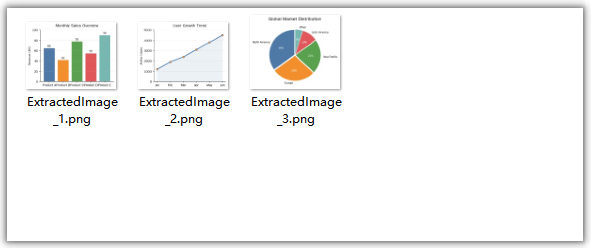
Image files extracted from the PDF
What the code does:
-
helper.GetImagesInfo(page)returns an array of image info objects for the specified page. Each object has anImageproperty that provides access to the image data. -
images[i].Image.Save({ fileName: outputFileName })writes the image to the VFS as a PNG file. - The VFS read + Blob + download pattern is the same used for PDF output, but with
type: 'image/png'instead oftype: 'application/pdf'. - Extraction is a read-only operation — the original PDF document is not modified. If you want to change or remove an image in place instead of just reading it out, see Replacing and Removing Images from PDFs in JavaScript (React).
Extract images from all pages
The example above only extracts from the first page. For a multi-page document like a product catalog or annual report, you typically want all images from every page. Simply add an outer loop through the document's pages:
const extractAllImages = async () => {
  const pdfModule = window.wasmModule?.spirepdf;
  if (!pdfModule) return;

  await window.spire.FetchFileToVFS('Business_Data_Overview.pdf', "", `${process.env.PUBLIC_URL}/data/`);

  let doc = new pdfModule.PdfDocument();
  doc.LoadFromFile('Business_Data_Overview.pdf');

  let helper = new pdfModule.PdfImageHelper();
  let imageCount = 0;

  // Loop through all pages in the document
  for (let pageIndex = 0; pageIndex < doc.Pages.Count; pageIndex++) {
    let page = doc.Pages.get_Item(pageIndex);
    let images = helper.GetImagesInfo(page);

    // Extract each image on this page
    for (let i = 0; i < images.length; i++) {
      imageCount++;
      const outputFileName = `Page${pageIndex + 1}_Image${i + 1}.png`;
      images[i].Image.Save({ fileName: outputFileName });

      const fileArray = window.dotnetRuntime.Module.FS.readFile(outputFileName);
      const blob = new Blob([fileArray], { type: 'image/png' });
      const url = URL.createObjectURL(blob);
      const a = document.createElement('a');
      a.href = url;
      a.download = outputFileName;
      a.click();
      URL.revokeObjectURL(url);
    }
  }

  console.log(`Total images extracted: ${imageCount}`);
  doc.Close();
};
Key difference from the single-page example: the outer for loop iterates through doc.Pages.Count, and the filename includes both the page number and image index (Page1_Image1.png, Page1_Image2.png, Page2_Image1.png, etc.) to keep extracted files organized.
Naming extracted files
A consistent naming strategy helps you track which image came from which page and position. Here are common patterns:
Sequential numbering — simplest, good for single-page extraction:
const outputFileName = `ExtractedImage_${i + 1}.png`;
// ExtractedImage_1.png, ExtractedImage_2.png, ...
Page and index — best for multi-page extraction, preserves source location:
const outputFileName = `Page${pageIndex + 1}_Image${i + 1}.png`;
// Page1_Image1.png, Page1_Image2.png, Page2_Image1.png, ...
Timestamped — useful when extracting from multiple documents in a session:
const timestamp = Date.now();
const outputFileName = `Extracted_${timestamp}_Page${pageIndex + 1}_${i + 1}.png`;
Based on source document name — helps track the origin:
const sourceName = 'Business_Data_Overview';
const outputFileName = `${sourceName}_p${pageIndex + 1}_img${i + 1}.png`;
// Business_Data_Overview_p1_img1.png, ...
Working with extracted images
Instead of (or in addition to) triggering downloads, you can use the extracted image data directly in your React application. For example, display the extracted images in a gallery:
const extractAndDisplay = async () => {
  const pdfModule = window.wasmModule?.spirepdf;
  if (!pdfModule) return;

  await window.spire.FetchFileToVFS('Business_Data_Overview.pdf', "", `${process.env.PUBLIC_URL}/data/`);

  let doc = new pdfModule.PdfDocument();
  doc.LoadFromFile('Business_Data_Overview.pdf');

  let helper = new pdfModule.PdfImageHelper();
  let extractedImageUrls = [];

  for (let pageIndex = 0; pageIndex < doc.Pages.Count; pageIndex++) {
    let page = doc.Pages.get_Item(pageIndex);
    let images = helper.GetImagesInfo(page);

    for (let i = 0; i < images.length; i++) {
      const tempName = `temp_p${pageIndex + 1}_${i + 1}.png`;
      images[i].Image.Save({ fileName: tempName });

      const fileArray = window.dotnetRuntime.Module.FS.readFile(tempName);
      const blob = new Blob([fileArray], { type: 'image/png' });
      const url = URL.createObjectURL(blob);
      extractedImageUrls.push(url);
    }
  }

  doc.Close();

  // Now you have an array of object URLs you can use in <img> tags
  // setExtractedImages(extractedImageUrls); // if using state
  console.log(`Extracted ${extractedImageUrls.length} images ready for display`);
};
This approach gives you object URLs that can be used directly in <img src={url} /> elements, making it easy to build a preview gallery, let users select specific images, or pass the images to other parts of your application. Once you have the image data, the drawing logic for adding it to a PDF is a natural next step.
Note: Remember to call
URL.revokeObjectURL(url)for each object URL when you're done with it to free memory. If you're displaying images in a gallery, revoke the URLs when the gallery component unmounts.
FAQ
Will extracting images modify the original PDF?
No. Image extraction is a read-only operation. GetImagesInfo reads the image data from the PDF without modifying the document, and Image.Save writes a copy to the VFS. The original PDF remains unchanged.
What format are extracted images saved in?
The examples in this article save extracted images as PNG files (.png). The file extension you pass to Image.Save determines the output format, so you can choose a different one if your use case calls for it.
How do I extract images from a specific page range?
Instead of looping through all pages with doc.Pages.Count, loop through your desired range. For example, to extract from pages 3 through 5 (0-indexed: 2 through 4):
for (let pageIndex = 2; pageIndex <= 4 && pageIndex < doc.Pages.Count; pageIndex++) {
  let page = doc.Pages.get_Item(pageIndex);
  let images = helper.GetImagesInfo(page);
  // ... save and download each image
}
Can I extract images and display them in my React app without downloading?
Yes. Instead of creating a download link, create an object URL with URL.createObjectURL(blob) and use it as the src of an <img> element. See the Working with extracted images section above for a code example.
What if a page has no images?
GetImagesInfo returns an empty array for pages with no images. The for loop simply doesn't execute, so no files are generated and no errors are thrown. This is safe to run on any page.