Cómo agregar un cuadro de texto a un PDF: 3 métodos fáciles
Tabla de contenido
Agregar un cuadro de texto a un PDF es útil cuando necesitas colocar texto adicional, notas o áreas de entrada en una página. Aunque la tarea es sencilla, no todos saben cómo agregar un cuadro de texto a un PDF. Esta guía cubre tres formas de hacerlo: Adobe Acrobat para edición de escritorio, Google Docs como solución gratuita y Free Spire.PDF for Python para la creación de formularios PDF por lotes.
- Agregar un cuadro de texto a un PDF con Adobe Acrobat
- Agregar un cuadro de texto a un PDF con Google Docs
- Agregar un cuadro de texto interactivo a un PDF con Python
- ¿Qué método deberías elegir?
- Preguntas frecuentes
Agregar un cuadro de texto a un PDF con Adobe Acrobat
Adobe Acrobat ofrece varias formas de agregar texto a un PDF. Puedes usar la herramienta Editar para colocar texto nuevo directamente en la página, o usar las herramientas de Comentario para agregar una anotación de cuadro de texto sin cambiar el contenido original del PDF. Elige la opción que se adapte a cómo quieres que funcione el cuadro de texto.
Agregar texto directamente a un PDF
Si quieres que el texto forme parte del contenido del PDF, usa la herramienta Editar:
- Paso 1: Abre tu archivo PDF en Adobe Acrobat.
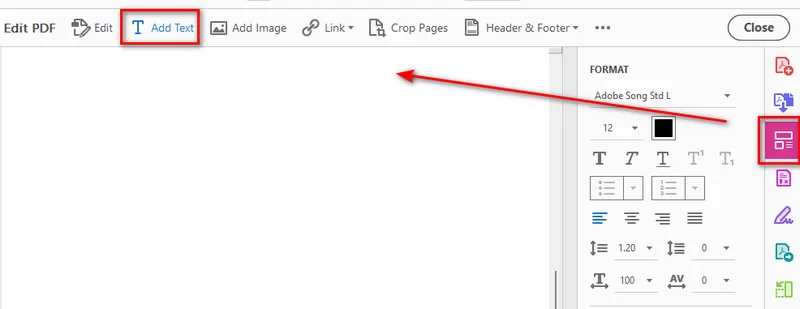
- Paso 2: Haz clic en Editar PDF en el panel lateral para mostrar la barra de herramientas de edición superior.
- Paso 3: Selecciona Agregar texto en la barra de herramientas, luego haz clic y arrastra en la página para dibujar un cuadro de texto.
- Paso 4: Escribe el contenido que quieres agregar dentro del cuadro.
- Paso 5: Usa el panel derecho para ajustar la fuente, el tamaño, la alineación y otras propiedades según sea necesario.
Agregar un cuadro de texto como comentario
Si quieres agregar un cuadro de texto sin cambiar el contenido original del PDF, puedes usar las herramientas de Comentario de Acrobat. Esto agrega el cuadro de texto como una anotación que se puede editar o eliminar por separado del contenido del documento.
- Paso 1: Abre tu archivo PDF en Adobe Acrobat.
- Paso 2: Selecciona Comentario en la barra de herramientas.
- Paso 3: Elige Agregar cuadro de texto en la herramienta Comentario.
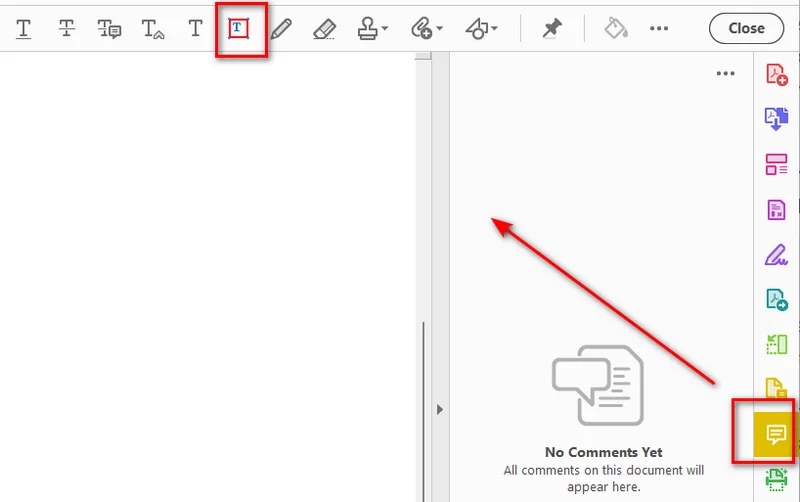
- Paso 4: Haz clic en la página para insertar el cuadro de texto.
- Paso 5: Ingresa tu texto y ajusta las propiedades del cuadro de texto según sea necesario.
Nota: Ten en cuenta que las anotaciones de cuadro de texto flotan sobre la capa del documento, lo que podría bloquear el texto circundante.
Consejo: Si necesitas agregar texto normal a archivos PDF de forma programática, puedes usar Python para agregar texto a archivos PDF en lugar de editarlos manualmente.
Agregar un cuadro de texto a un PDF con Google Docs
Si prefieres una solución en línea rápida, puedes usar Google Docs para hacer el trabajo directamente en tu navegador web. Este enfoque implica dos partes simples: primero, subir tu PDF a Google Drive y convertirlo a Google Docs, y segundo, usar la herramienta Dibujo integrada para insertar tu cuadro de texto antes de exportar el archivo de nuevo a PDF. Aquí están los pasos detallados.
Convertir el PDF a Google Docs
- Paso 1: Abre Google Drive en tu navegador web y sube un archivo PDF a tu unidad.
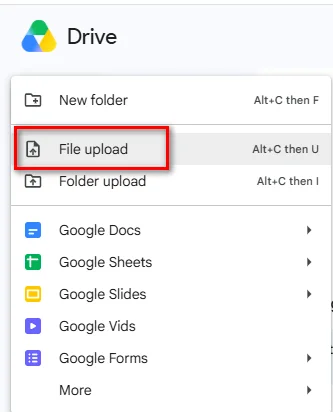
- Paso 2: Haz clic derecho en el PDF subido, selecciona Abrir con y elige Google Docs.
Crear y exportar el cuadro de texto
Una vez que el contenido del PDF se haya convertido a Google Docs, puedes crear un cuadro de texto a través de la herramienta Dibujo:
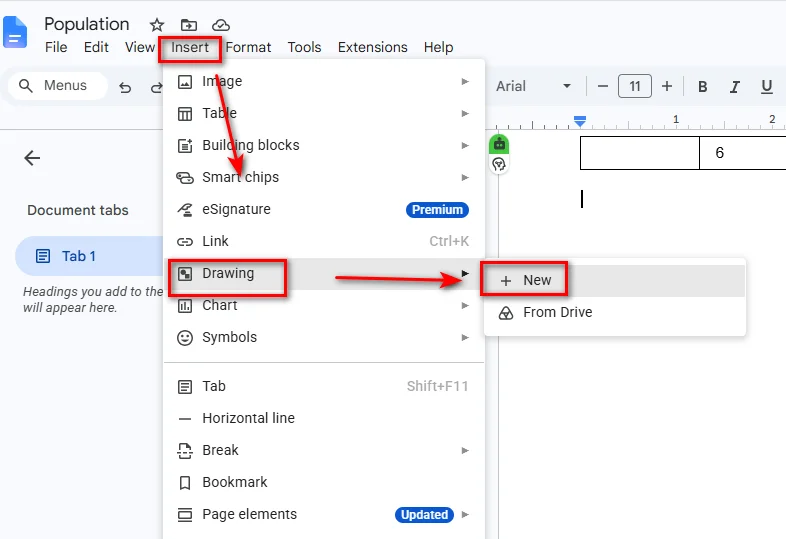
- Paso 1: Coloca el cursor donde quieres que aparezca el cuadro de texto, luego selecciona Insertar > Dibujo > + Nuevo.
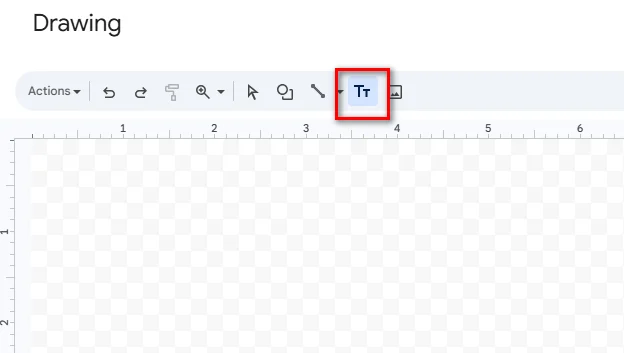
- Paso 2: Haz clic en el icono Cuadro de texto en la barra de herramientas superior de la ventana de Dibujo.
- Paso 3: Haz clic y arrastra en el lienzo para dibujar el cuadro, luego ingresa tu texto dentro.
- Paso 4: Haz clic en Guardar y cerrar en la esquina superior derecha para insertar el cuadro de texto en tu documento de Google Docs.
- Paso 5: Selecciona Archivo > Descargar > Documento PDF (.pdf) para guardar el documento editado de nuevo en tu computadora.
Consejo: Google Docs es una opción práctica para PDF simples con mucho texto. Si el archivo original contiene diseños complejos, tablas de varias columnas o gráficos posicionados con precisión, revisa el documento convertido con cuidado antes de exportarlo de nuevo a PDF.
Agregar un cuadro de texto interactivo a un PDF con Python
Si necesitas agregar campos de texto de forma programática o incorporar la creación de formularios PDF en un flujo de trabajo automatizado, una biblioteca PDF puede eliminar la edición manual repetitiva. Con Python, puedes crear un cuadro de texto interactivo que los usuarios pueden hacer clic y completar con un lector de PDF.
Instalar Free Spire.PDF for Python
Free Spire.PDF for Python es una biblioteca PDF que permite a los desarrolladores crear, leer, editar y convertir documentos PDF de forma programática. También proporciona soporte para campos de formulario PDF, incluidos campos de texto interactivos a través de la clase PdfTextBoxField.
Instala el paquete con:
pip install Spire.Pdf.Free
Crear un campo de cuadro de texto interactivo
El siguiente ejemplo crea un nuevo documento PDF, agrega un campo de cuadro de texto interactivo a su primera página, configura su apariencia y guarda el archivo.
import spire.pdf as pdf

# Create a new PDF document
doc = pdf.PdfDocument()

# Add a new blank page
page = doc.Pages.Add()

# Allow form fields to be created in the PDF
doc.AllowCreateForm = True

# Create an interactive text box field
text_box = pdf.PdfTextBoxField(page, "user_input_field")

# Set the location and dimensions
text_box.Bounds = pdf.RectangleF(50.0, 50.0, 300.0, 40.0)

# Set default text
text_box.Text = "Click here to enter your text..."

# Configure the font and border
font = pdf.PdfTrueTypeFont(
    "Arial",
    12.0,
    pdf.PdfFontStyle.Regular,
    True
)
text_box.Font = font
text_box.BorderWidth = 1.0
text_box.BorderStyle = pdf.PdfBorderStyle.Solid

# Allow multiple lines of text
text_box.Multiline = True

# Add the text field to the PDF form
doc.Form.Fields.Add(text_box)

# Save the generated PDF
doc.SaveToFile("/output/output_textbox.pdf", pdf.FileFormat.PDF)
doc.Close()
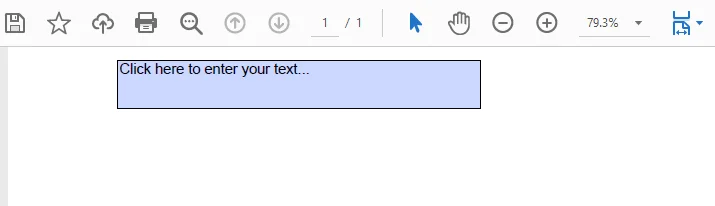
PdfTextBoxField crea un campo de formulario interactivo, lo que permite a los usuarios abrir el PDF resultante en un visor de PDF y hacer clic directamente para ingresar o editar contenido dentro del cuadro.
El enfoque programático es particularmente útil cuando se construyen flujos de trabajo automatizados de generación de documentos que requieren crear formularios dinámicos, facturas o plantillas de solicitud desde cero.
¿Qué método deberías elegir?
El método adecuado depende de cómo quieras agregar y usar el cuadro de texto.
| Solución | Ideal para | Ventajas | Desventajas |
|---|---|---|---|
| Adobe Acrobat | Edición de escritorio y anotaciones en PDF | Controles precisos de posicionamiento y formato | Algunas funciones de edición y formularios requieren un plan de pago |
| Google Docs | Soluciones gratuitas y simples para editar PDF | Gratuito y no requiere un editor de PDF de escritorio | El diseño del PDF puede cambiar durante la conversión |
| Free Spire.PDF for Python | Desarrolladores y flujos de trabajo automatizados | Control programático y soporte de formularios PDF interactivos | Requiere conocimientos básicos de programación en Python |
Elige Adobe Acrobat cuando necesites agregar un cuadro de texto manualmente y quieras un control preciso sobre su posición y apariencia. Usa Google Docs cuando necesites una solución gratuita para un documento relativamente simple y puedas aceptar posibles cambios de diseño. Para aplicaciones que necesiten crear o modificar campos PDF interactivos de forma programática, Free Spire.PDF for Python proporciona un enfoque basado en código.
Te puede gustar: Cómo crear un PDF rellenable – 3 formas de hacer un PDF editable
Preguntas frecuentes
P1: ¿Puedo agregar un cuadro de texto a un PDF gratis usando Google Docs?
Sí. Puedes subir un PDF a Google Drive, abrirlo con Google Docs y usar Insertar > Dibujo > Cuadro de texto para agregar texto. Luego puedes descargar el documento editado como PDF.
P2: ¿Por qué no puedo editar el texto en un cuadro de texto de PDF después de guardar?
Un cuadro de texto se puede agregar como contenido normal del PDF, una anotación o un campo de formulario interactivo. Si el texto se agregó como contenido normal o se acopló durante la exportación, ya no es un campo de formulario editable. Para permitir que los lectores de PDF ingresen o cambien el texto, necesitas crear un campo de texto de formulario interactivo.
P3: ¿Necesito tener Adobe Acrobat instalado para ejecutar scripts de Free Spire.PDF for Python?
No. Free Spire.PDF funciona independientemente de Adobe Acrobat. Puedes usar la biblioteca de Python para crear y modificar documentos PDF sin instalar Adobe Acrobat.
Conclusión
Agregar un cuadro de texto a un PDF es sencillo una vez que eliges el método adecuado. Adobe Acrobat es adecuado para agregar cuadros de texto manualmente, mientras que Google Docs proporciona una solución en línea para documentos más simples. Si necesitas campos de texto interactivos en un flujo de trabajo PDF automatizado, Free Spire.PDF for Python te permite crearlos de forma programática.
Leer también:
So fügen Sie ein Textfeld zu einem PDF hinzu: 3 einfache Methoden
Inhaltsverzeichnis
Das Hinzufügen eines Textfelds zu einem PDF ist nützlich, wenn Sie zusätzlichen Text, Notizen oder Eingabebereiche auf einer Seite platzieren müssen. Die Aufgabe ist zwar unkompliziert, aber nicht jeder weiß, wie man ein Textfeld zu einem PDF hinzufügt. Dieser Leitfaden behandelt drei Möglichkeiten: Adobe Acrobat für die Bearbeitung am Desktop, Google Docs als kostenlose Alternative und Free Spire.PDF für Python zur Batch-Erstellung von PDF-Formularen.
- Ein Textfeld zu einem PDF mit Adobe Acrobat hinzufügen
- Ein Textfeld zu einem PDF mit Google Docs hinzufügen
- Ein interaktives Textfeld zu einem PDF mit Python hinzufügen
- Welche Methode sollten Sie wählen?
- Häufig gestellte Fragen
Ein Textfeld zu einem PDF mit Adobe Acrobat hinzufügen
Adobe Acrobat bietet mehrere Möglichkeiten, Text zu einem PDF hinzuzufügen. Sie können das Werkzeug Bearbeiten verwenden, um neuen Text direkt auf der Seite zu platzieren, oder die Kommentar-Werkzeuge nutzen, um eine Textfeld-Anmerkung hinzuzufügen, ohne den ursprünglichen PDF-Inhalt zu verändern. Wählen Sie die Option, die zu der gewünschten Funktionsweise des Textfelds passt.
Text direkt zu einem PDF hinzufügen
Wenn der Text Teil des PDF-Inhalts werden soll, verwenden Sie das Werkzeug Bearbeiten:
- Schritt 1: Öffnen Sie Ihre PDF-Datei in Adobe Acrobat.
- Schritt 2: Klicken Sie im Seitenbereich auf PDF bearbeiten, um die obere Bearbeitungssymbolleiste einzublenden.
- Schritt 3: Wählen Sie Text hinzufügen in der Symbolleiste aus, klicken Sie dann auf die Seite und ziehen Sie, um ein Textfeld zu zeichnen.
- Schritt 4: Geben Sie den Inhalt ein, den Sie im Feld hinzufügen möchten.
- Schritt 5: Passen Sie im rechten Bereich bei Bedarf Schriftart, Größe, Ausrichtung und andere Eigenschaften an.
Ein Textfeld als Kommentar hinzufügen
Wenn Sie ein Textfeld hinzufügen möchten, ohne den ursprünglichen PDF-Inhalt zu verändern, können Sie die Kommentar-Werkzeuge von Acrobat verwenden. Dadurch wird das Textfeld als Anmerkung hinzugefügt, die unabhängig vom Dokumentinhalt bearbeitet oder entfernt werden kann.
- Schritt 1: Öffnen Sie Ihre PDF-Datei in Adobe Acrobat.
- Schritt 2: Wählen Sie Kommentar in der Symbolleiste aus.
- Schritt 3: Wählen Sie Textfeld hinzufügen im Kommentar-Werkzeug.
- Schritt 4: Klicken Sie auf die Seite, um das Textfeld einzufügen.
- Schritt 5: Geben Sie Ihren Text ein und passen Sie die Eigenschaften des Textfelds nach Bedarf an.
Hinweis: Beachten Sie, dass Textfeld-Anmerkungen über der Dokumentebene schweben und umgebenden Text verdecken können.
Tipp: Wenn Sie regelmäßig Text programmgesteuert zu PDF-Dateien hinzufügen müssen, können Sie mit Python Text zu PDF-Dateien hinzufügen, anstatt sie manuell zu bearbeiten.
Ein Textfeld zu einem PDF mit Google Docs hinzufügen
Wenn Sie eine schnelle Online-Lösung bevorzugen, können Sie Google Docs verwenden, um die Aufgabe direkt in Ihrem Webbrowser zu erledigen. Dieser Ansatz umfasst zwei einfache Teile: Erstens das Hochladen Ihres PDFs in Google Drive und die Konvertierung in Google Docs, und zweitens die Verwendung des integrierten Werkzeugs Zeichnung, um Ihr Textfeld einzufügen, bevor die Datei wieder als PDF exportiert wird. Hier sind die detaillierten Schritte.
Das PDF in Google Docs konvertieren
- Schritt 1: Öffnen Sie Google Drive in Ihrem Webbrowser und laden Sie eine PDF-Datei in Ihr Laufwerk hoch.
- Schritt 2: Klicken Sie mit der rechten Maustaste auf das hochgeladene PDF, wählen Sie Öffnen mit und dann Google Docs.
Das Textfeld erstellen und exportieren
Sobald der PDF-Inhalt in Google Docs konvertiert wurde, können Sie über das Zeichnungs-Werkzeug ein Textfeld erstellen:
- Schritt 1: Platzieren Sie den Cursor an der Stelle, an der das Textfeld erscheinen soll, und wählen Sie dann Einfügen > Zeichnung > + Neu.
- Schritt 2: Klicken Sie auf das Symbol Textfeld in der oberen Symbolleiste des Zeichnungsfensters.
- Schritt 3: Klicken Sie auf die Arbeitsfläche und ziehen Sie, um das Feld zu zeichnen, und geben Sie dann Ihren Text darin ein.
- Schritt 4: Klicken Sie oben rechts auf Speichern und schließen, um das Textfeld in Ihr Google Docs-Dokument einzufügen.
- Schritt 5: Wählen Sie Datei > Herunterladen > PDF-Dokument (.pdf), um das bearbeitete Dokument wieder auf Ihrem Computer zu speichern.
Tipp: Google Docs ist eine praktische Option für einfache, textlastige PDFs. Wenn die Originaldatei komplexe Layouts, mehrspaltige Tabellen oder präzise positionierte Grafiken enthält, prüfen Sie das konvertierte Dokument sorgfältig, bevor Sie es wieder als PDF exportieren.
Ein interaktives Textfeld zu einem PDF mit Python hinzufügen
Wenn Sie Textfelder programmgesteuert hinzufügen oder die Erstellung von PDF-Formularen in einen automatisierten Arbeitsablauf integrieren müssen, kann eine PDF-Bibliothek wiederholte manuelle Bearbeitung überflüssig machen. Mit Python können Sie ein interaktives Textfeld erstellen, das Benutzer mit einem PDF-Reader anklicken und ausfüllen können.
Free Spire.PDF für Python installieren
Free Spire.PDF für Python ist eine PDF-Bibliothek, mit der Entwickler PDF-Dokumente programmgesteuert erstellen, lesen, bearbeiten und konvertieren können. Sie bietet außerdem Unterstützung für PDF-Formularfelder, einschließlich interaktiver Textfelder über die Klasse PdfTextBoxField.
Installieren Sie das Paket mit:
pip install Spire.Pdf.Free
Ein interaktives Textfeld erstellen
Das folgende Beispiel erstellt ein neues PDF-Dokument, fügt ein interaktives Textfeld zu dessen erster Seite hinzu, konfiguriert dessen Erscheinungsbild und speichert die Datei.
import spire.pdf as pdf

# Create a new PDF document
doc = pdf.PdfDocument()

# Add a new blank page
page = doc.Pages.Add()

# Allow form fields to be created in the PDF
doc.AllowCreateForm = True

# Create an interactive text box field
text_box = pdf.PdfTextBoxField(page, "user_input_field")

# Set the location and dimensions
text_box.Bounds = pdf.RectangleF(50.0, 50.0, 300.0, 40.0)

# Set default text
text_box.Text = "Click here to enter your text..."

# Configure the font and border
font = pdf.PdfTrueTypeFont(
    "Arial",
    12.0,
    pdf.PdfFontStyle.Regular,
    True
)
text_box.Font = font
text_box.BorderWidth = 1.0
text_box.BorderStyle = pdf.PdfBorderStyle.Solid

# Allow multiple lines of text
text_box.Multiline = True

# Add the text field to the PDF form
doc.Form.Fields.Add(text_box)

# Save the generated PDF
doc.SaveToFile("/output/output_textbox.pdf", pdf.FileFormat.PDF)
doc.Close()
PdfTextBoxField erstellt ein interaktives Formularfeld, sodass Benutzer das resultierende PDF in einem PDF-Viewer öffnen und direkt klicken können, um Inhalte im Feld einzugeben oder zu bearbeiten.
Der programmgesteuerte Ansatz ist besonders nützlich beim Aufbau automatisierter Dokumentgenerierungs-Workflows, die das Erstellen dynamischer Formulare, Rechnungen oder Antragsvorlagen von Grund auf erfordern.
Welche Methode sollten Sie wählen?
Die richtige Methode hängt davon ab, wie Sie das Textfeld hinzufügen und verwenden möchten.
| Lösung | Am besten geeignet für | Vorteile | Nachteile |
|---|---|---|---|
| Adobe Acrobat | Bearbeitung am Desktop und PDF-Anmerkungen | Präzise Positionierung und Formatierungskontrolle | Einige Bearbeitungs- und Formularfunktionen erfordern einen kostenpflichtigen Plan |
| Google Docs | Einfache, kostenlose PDF-Bearbeitungs-Workarounds | Kostenlos und kein Desktop-PDF-Editor erforderlich | Das PDF-Layout kann sich während der Konvertierung ändern |
| Free Spire.PDF für Python | Entwickler und automatisierte Workflows | Programmgesteuerte Kontrolle und Unterstützung für interaktive PDF-Formulare | Erfordert grundlegende Python-Programmierkenntnisse |
Wählen Sie Adobe Acrobat, wenn Sie ein Textfeld manuell hinzufügen und präzise Kontrolle über dessen Position und Erscheinungsbild wünschen. Verwenden Sie Google Docs, wenn Sie eine kostenlose Lösung für ein relativ einfaches Dokument benötigen und mögliche Layoutänderungen akzeptieren können. Für Anwendungen, die interaktive PDF-Felder programmgesteuert erstellen oder ändern müssen, bietet Free Spire.PDF für Python einen codebasierten Ansatz.
Das könnte Ihnen gefallen: How to Create a Fillable PDF – 3 Ways to Make PDF Editable
Häufig gestellte Fragen
F1: Kann ich mit Google Docs kostenlos ein Textfeld zu einem PDF hinzufügen?
Ja. Sie können ein PDF in Google Drive hochladen, es mit Google Docs öffnen und Einfügen > Zeichnung > Textfeld verwenden, um Text hinzuzufügen. Anschließend können Sie das bearbeitete Dokument als PDF herunterladen.
F2: Warum kann ich den Text in einem PDF-Textfeld nach dem Speichern nicht mehr bearbeiten?
Ein Textfeld kann als regulärer PDF-Inhalt, als Anmerkung oder als interaktives Formularfeld hinzugefügt werden. Wenn Text als regulärer Inhalt hinzugefügt oder beim Export reduziert wurde, ist er kein bearbeitbares Formularfeld mehr. Damit PDF-Reader den Text eingeben oder ändern können, müssen Sie ein interaktives Formulartextfeld erstellen.
F3: Muss Adobe Acrobat installiert sein, um Free Spire.PDF für Python-Skripte auszuführen?
Nein. Free Spire.PDF funktioniert unabhängig von Adobe Acrobat. Sie können die Python-Bibliothek verwenden, um PDF-Dokumente zu erstellen und zu ändern, ohne Adobe Acrobat zu installieren.
Fazit
Das Hinzufügen eines Textfelds zu einem PDF ist unkompliziert, sobald Sie die richtige Methode gewählt haben. Adobe Acrobat eignet sich zum manuellen Hinzufügen von Textfeldern, während Google Docs einen Online-Workaround für einfachere Dokumente bietet. Wenn Sie interaktive Textfelder in einem automatisierten PDF-Workflow benötigen, können Sie diese mit Free Spire.PDF für Python programmgesteuert erstellen.
Auch lesen:
Как добавить текстовое поле в PDF: 3 простых способа
Добавление текстового поля в PDF полезно, когда вам нужно разместить на странице дополнительный текст, заметки или области для ввода. Хотя задача несложная, не все знают, как добавить текстовое поле в PDF. В этом руководстве описаны три способа сделать это: Adobe Acrobat для редактирования на компьютере, Google Docs как бесплатное обходное решение и Free Spire.PDF для Python для пакетного создания PDF-форм.
- Добавление текстового поля в PDF с помощью Adobe Acrobat
- Добавление текстового поля в PDF с помощью Google Docs
- Добавление интерактивного текстового поля в PDF с помощью Python
- Какой метод выбрать?
- Часто задаваемые вопросы
Добавление текстового поля в PDF с помощью Adobe Acrobat
Adobe Acrobat предлагает несколько способов добавления текста в PDF. Вы можете использовать инструмент Редактировать, чтобы разместить новый текст непосредственно на странице, или инструменты Комментарий, чтобы добавить аннотацию текстового поля, не изменяя исходное содержимое PDF. Выберите вариант, соответствующий вашим целям.
Добавление текста непосредственно в PDF
Если вы хотите, чтобы текст стал частью содержимого PDF, используйте инструмент «Редактировать»:
- Шаг 1: Откройте файл PDF в Adobe Acrobat.
- Шаг 2: Нажмите Редактировать PDF на боковой панели, чтобы открыть верхнюю панель инструментов редактирования.
- Шаг 3: Выберите Добавить текст на панели инструментов, затем щёлкните и перетащите на странице, чтобы нарисовать текстовое поле.
- Шаг 4: Введите содержимое, которое хотите добавить, внутри поля.
- Шаг 5: Используйте панель справа, чтобы настроить шрифт, размер, выравнивание и другие свойства по мере необходимости.
Добавление текстового поля в качестве комментария
Если вы хотите добавить текстовое поле, не изменяя исходное содержимое PDF, можно использовать инструменты комментирования Acrobat. Это добавляет текстовое поле в качестве аннотации, которую можно редактировать или удалять отдельно от содержимого документа.
- Шаг 1: Откройте файл PDF в Adobe Acrobat.
- Шаг 2: Выберите Комментарий на панели инструментов.
- Шаг 3: Выберите Добавить текстовое поле в инструменте комментариев.
- Шаг 4: Щёлкните на странице, чтобы вставить текстовое поле.
- Шаг 5: Введите текст и настройте свойства текстового поля по мере необходимости.
Примечание: Имейте в виду, что аннотации текстовых полей плавают над слоем документа, что может блокировать окружающий текст.
Совет: Если вам нужно программно добавить обычный текст в PDF-файлы, вы можете использовать Python, чтобы добавить текст в PDF-файлы вместо их ручного редактирования.
Добавление текстового поля в PDF с помощью Google Docs
Если вы предпочитаете быстрое онлайн-решение, вы можете использовать Google Docs, чтобы выполнить задачу прямо в веб-браузере. Этот подход включает две простые части: во-первых, загрузку PDF на Google Диск и преобразование его в Google Docs, и во-вторых, использование встроенного инструмента Рисование для вставки текстового поля перед экспортом файла обратно в PDF. Вот подробные шаги.
Преобразование PDF в Google Docs
- Шаг 1: Откройте Google Диск в веб-браузере и загрузите PDF-файл на свой диск.
- Шаг 2: Щёлкните правой кнопкой мыши на загруженном PDF, выберите Открыть с помощью и выберите Google Docs.
Создание и экспорт текстового поля
После того как содержимое PDF преобразовано в Google Docs, вы можете создать текстовое поле с помощью инструмента «Рисование»:
- Шаг 1: Установите курсор там, где хотите разместить текстовое поле, затем выберите Вставка > Рисунок > + Новый.
- Шаг 2: Нажмите значок Текстовое поле на верхней панели инструментов окна «Рисование».
- Шаг 3: Щёлкните и перетащите на холсте, чтобы нарисовать поле, затем введите текст внутри.
- Шаг 4: Нажмите Сохранить и закрыть в правом верхнем углу, чтобы вставить текстовое поле в документ Google Docs.
- Шаг 5: Выберите Файл > Скачать > Документ PDF (.pdf), чтобы сохранить отредактированный документ на компьютер.
Совет: Google Docs — практичный вариант для простых PDF с большим объёмом текста. Если исходный файл содержит сложные макеты, многоколоночные таблицы или точно позиционированную графику, внимательно проверьте преобразованный документ перед экспортом обратно в PDF.
Добавление интерактивного текстового поля в PDF с помощью Python
Если вам нужно программно добавить текстовые поля или включить создание PDF-форм в автоматизированный рабочий процесс, библиотека PDF может избавить от повторяющегося ручного редактирования. С помощью Python вы можете создать интерактивное текстовое поле, которое пользователи смогут заполнить в программе просмотра PDF.
Установка Free Spire.PDF для Python
Free Spire.PDF для Python — это библиотека PDF, позволяющая разработчикам создавать, читать, редактировать и преобразовывать PDF-документы программно. Она также поддерживает поля PDF-форм, включая интерактивные текстовые поля через класс PdfTextBoxField.
Установите пакет с помощью:
pip install Spire.Pdf.Free
Создание интерактивного поля текстового поля
Следующий пример создаёт новый PDF-документ, добавляет интерактивное поле текстового поля на первую страницу, настраивает его внешний вид и сохраняет файл.
import spire.pdf as pdf

# Create a new PDF document
doc = pdf.PdfDocument()

# Add a new blank page
page = doc.Pages.Add()

# Allow form fields to be created in the PDF
doc.AllowCreateForm = True

# Create an interactive text box field
text_box = pdf.PdfTextBoxField(page, "user_input_field")

# Set the location and dimensions
text_box.Bounds = pdf.RectangleF(50.0, 50.0, 300.0, 40.0)

# Set default text
text_box.Text = "Click here to enter your text..."

# Configure the font and border
font = pdf.PdfTrueTypeFont(
    "Arial",
    12.0,
    pdf.PdfFontStyle.Regular,
    True
)
text_box.Font = font
text_box.BorderWidth = 1.0
text_box.BorderStyle = pdf.PdfBorderStyle.Solid

# Allow multiple lines of text
text_box.Multiline = True

# Add the text field to the PDF form
doc.Form.Fields.Add(text_box)

# Save the generated PDF
doc.SaveToFile("/output/output_textbox.pdf", pdf.FileFormat.PDF)
doc.Close()
PdfTextBoxField создаёт интерактивное поле формы, позволяя пользователям открыть полученный PDF в программе просмотра PDF и непосредственно щёлкнуть, чтобы ввести или отредактировать содержимое внутри поля.
Программный подход особенно полезен при построении автоматизированных рабочих процессов создания документов, требующих создания динамических форм, счетов или шаблонов заявлений с нуля.
Какой метод выбрать?
Правильный метод зависит от того, как вы хотите добавить и использовать текстовое поле.
| Решение | Лучше всего подходит для | Плюсы | Минусы |
|---|---|---|---|
| Adobe Acrobat | Редактирование на компьютере и аннотации PDF | Точное позиционирование и управление форматированием | Некоторые функции редактирования и форм требуют платного плана |
| Google Docs | Простые бесплатные обходные решения для редактирования PDF | Бесплатно и не требует настольного редактора PDF | Макет PDF может измениться во время преобразования |
| Free Spire.PDF для Python | Разработчики и автоматизированные рабочие процессы | Программное управление и поддержка интерактивных PDF-форм | Требуются базовые знания программирования на Python |
Выбирайте Adobe Acrobat, когда вам нужно добавить текстовое поле вручную и требуется точный контроль над его положением и внешним видом. Используйте Google Docs, когда вам нужно бесплатное решение для относительно простого документа и вы можете принять возможные изменения макета. Для приложений, которым нужно программно создавать или изменять интерактивные поля PDF, Free Spire.PDF для Python предлагает подход на основе кода.
Вам может понравиться: Как создать заполняемый PDF – 3 способа сделать PDF редактируемым
Часто задаваемые вопросы
Вопрос 1: Могу ли я добавить текстовое поле в PDF бесплатно с помощью Google Docs?
Да. Вы можете загрузить PDF на Google Диск, открыть его с помощью Google Docs и использовать Вставка > Рисунок > Текстовое поле, чтобы добавить текст. Затем вы можете скачать отредактированный документ в формате PDF.
Вопрос 2: Почему я не могу редактировать текст в текстовом поле PDF после сохранения?
Текстовое поле может быть добавлено как обычное содержимое PDF, аннотация или интерактивное поле формы. Если текст был добавлен как обычное содержимое или сплющен во время экспорта, он больше не является редактируемым полем формы. Чтобы позволить программам просмотра PDF вводить или изменять текст, вам нужно создать интерактивное текстовое поле формы.
Вопрос 3: Нужно ли устанавливать Adobe Acrobat для запуска скриптов Free Spire.PDF для Python?
Нет. Free Spire.PDF работает независимо от Adobe Acrobat. Вы можете использовать библиотеку Python для создания и изменения PDF-документов без установки Adobe Acrobat.
Заключение
Добавление текстового поля в PDF становится простым, как только вы выберете правильный метод. Adobe Acrobat подходит для добавления текстовых полей вручную, а Google Docs предлагает онлайн-обходной путь для более простых документов. Если вам нужны интерактивные текстовые поля в автоматизированном рабочем процессе PDF, Free Spire.PDF для Python позволяет создавать их программно.
Читайте также:
How to Add a Text Box to a PDF: 3 Easy Methods
Adding a text box to a PDF is useful when you need to place additional text, notes, or input areas on a page. While the task is straightforward, not everyone knows how to add a text box to a PDF. This guide covers three ways to do it: Adobe Acrobat for desktop editing, Google Docs as a free workaround, and Free Spire.PDF for Python for batch PDF form creation.
- Add a Text Box to a PDF with Adobe Acrobat
- Add a Text Box to a PDF with Google Docs
- Add an Interactive Text Box to a PDF with Python
- Which Method Should You Choose?
- FAQs
Add a Text Box to a PDF with Adobe Acrobat
Adobe Acrobat provides several ways to add text to a PDF. You can use the Edit tool to place new text directly on the page, or use the Comment tools to add a text box annotation without changing the original PDF content. Choose the option that matches how you want the text box to work.
Add Text Directly to a PDF
If you want the text to become part of the PDF content, use the Edit tool:
- Step 1: Open your PDF file in Adobe Acrobat.
- Step 2: Click Edit PDF in the side panel to reveal the top editing toolbar.
- Step 3: Select Add Text from the toolbar, then click and drag on the page to draw a text box.
- Step 4: Type the content you want to add inside the box.
- Step 5: Use the right-hand panel to adjust font, size, alignment, and other properties as needed.
Add a Text Box as a Comment
If you want to add a text box without changing the original PDF content, you can use Acrobat’s Comment tools. This adds the text box as an annotation that can be edited or removed separately from the document content.
- Step 1: Open your PDF file in Adobe Acrobat.
- Step 2: Select Comment from the toolbar.
- Step 3: Choose Add text box from the Comment tool.
- Step 4: Click on the page to insert the text box.
- Step 5: Enter your text and adjust the text box properties as needed.
Note: Keep in mind that text box annotations float above the document layer, which might block surrounding text.
Tip: If you need to add regular text to PDF files programmatically, you can use Python to add text to PDF files instead of editing them manually.
Add a Text Box to a PDF with Google Docs
If you prefer a quick online solution, you can use Google Docs to get the job done directly in your web browser. This approach involves two simple parts: first, uploading your PDF to Google Drive and converting it to Google Docs, and second, using the built-in Drawing tool to insert your text box before exporting the file back to PDF. Here are the detailed steps.
Convert the PDF to Google Docs
- Step 1: Open Google Drive in your web browser and upload a PDF file into your drive.
- Step 2: Right-click the uploaded PDF, select Open with, and choose Google Docs.
Create and Export the Text Box
Once the PDF content has been converted to Google Docs, you can create a text box through the Drawing tool:
- Step 1: Place your cursor where you want the text box to appear, then select Insert > Drawing > + New.
- Step 2: Click the Text Box icon in the top toolbar of the Drawing window.
- Step 3: Click and drag on the canvas to draw the box, then enter your text inside.
- Step 4: Click Save and Close in the top right corner to insert the text box into your Google Docs document.
- Step 5: Select File > Download > PDF Document (.pdf) to save the edited document back to your computer.
Tip: Google Docs is a practical option for simple, text-heavy PDFs. If the original file contains complex layouts, multi-column tables, or precisely positioned graphics, check the converted document carefully before exporting it back to PDF.
Add an Interactive Text Box to a PDF with Python
If you need to add text fields programmatically or incorporate PDF form creation into an automated workflow, a PDF library can eliminate repetitive manual editing. With Python, you can create an interactive text box that users can click and fill in with a PDF reader.
Install Free Spire.PDF for Python
Free Spire.PDF for Python is a PDF library that allows developers to create, read, edit, and convert PDF documents programmatically. It also provides support for PDF form fields, including interactive text fields through the PdfTextBoxField class.
Install the package with:
pip install Spire.Pdf.Free
Create an Interactive Text Box Field
The following example creates a new PDF document, adds an interactive text box field to its first page, configures its appearance, and saves the file.
import spire.pdf as pdf

# Create a new PDF document
doc = pdf.PdfDocument()

# Add a new blank page
page = doc.Pages.Add()

# Allow form fields to be created in the PDF
doc.AllowCreateForm = True

# Create an interactive text box field
text_box = pdf.PdfTextBoxField(page, "user_input_field")

# Set the location and dimensions
text_box.Bounds = pdf.RectangleF(50.0, 50.0, 300.0, 40.0)

# Set default text
text_box.Text = "Click here to enter your text..."

# Configure the font and border
font = pdf.PdfTrueTypeFont(
    "Arial",
    12.0,
    pdf.PdfFontStyle.Regular,
    True
)
text_box.Font = font
text_box.BorderWidth = 1.0
text_box.BorderStyle = pdf.PdfBorderStyle.Solid

# Allow multiple lines of text
text_box.Multiline = True

# Add the text field to the PDF form
doc.Form.Fields.Add(text_box)

# Save the generated PDF
doc.SaveToFile("/output/output_textbox.pdf", pdf.FileFormat.PDF)
doc.Close()
PdfTextBoxField creates an interactive form field, allowing users to open the resulting PDF in a PDF viewer and directly click to enter or edit content inside the box.
The programmatic approach is particularly useful when building automated document-generation workflows that require creating dynamic forms, invoices, or application templates from scratch.
Which Method Should You Choose?
The right method depends on how you want to add and use the text box.
| Solution | Best For | Pros | Cons |
|---|---|---|---|
| Adobe Acrobat | Desktop editing and PDF annotations | Precise positioning and formatting controls | Some editing and form features require a paid plan |
| Google Docs | Simple, free PDF editing workarounds | Free and requires no desktop PDF editor | PDF layout may change during conversion |
| Free Spire.PDF for Python | Developers and automated workflows | Programmatic control and interactive PDF form support | Requires basic Python programming knowledge |
Choose Adobe Acrobat when you need to add a text box manually and want precise control over its position and appearance. Use Google Docs when you need a free solution for a relatively simple document and can accept possible layout changes. For applications that need to create or modify interactive PDF fields programmatically, Free Spire.PDF for Python provides a code-based approach.
You may like: How to Create a Fillable PDF – 3 Ways to Make PDF Editable
Frequently Asked Questions
Q1: Can I add a text box to a PDF for free using Google Docs?
Yes. You can upload a PDF to Google Drive, open it with Google Docs, and use Insert > Drawing > Text Box to add text. You can then download the edited document as a PDF.
Q2: Why can't I edit text in a PDF text box after saving?
A text box can be added as regular PDF content, an annotation, or an interactive form field. If text was added as regular content or flattened during export, it is no longer an editable form field. To let PDF readers enter or change the text, you need to create an interactive form text field.
Q3: Do I need Adobe Acrobat installed to run Free Spire.PDF for Python scripts?
No. Free Spire.PDF works independently of Adobe Acrobat. You can use the Python library to create and modify PDF documents without installing Adobe Acrobat.
Conclusion
Adding a text box to a PDF is straightforward once you choose the right method. Adobe Acrobat is suitable for adding text boxes manually, while Google Docs provides an online workaround for simpler documents. If you need interactive text fields in an automated PDF workflow, Free Spire.PDF for Python lets you create them programmatically.
Also Read:
How to Cite a PDF in MLA Format: Step-by-Step Guide
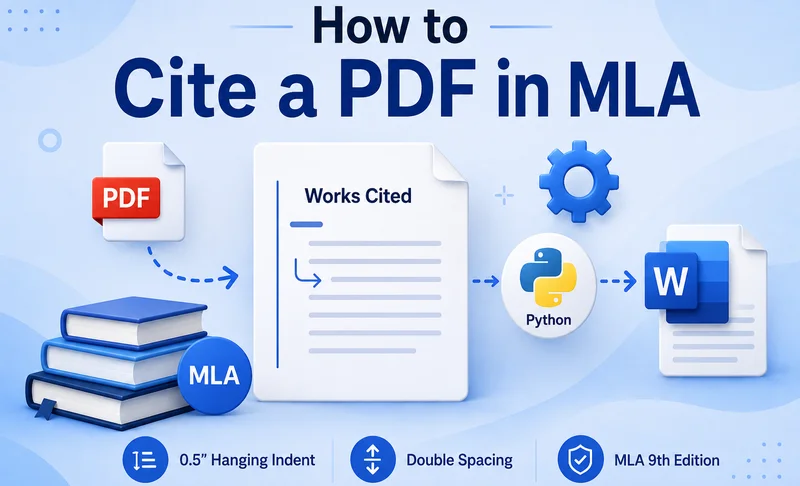
Citing a PDF in MLA requires more than simply adding “PDF” to a reference. The citation format depends on what the PDF contains, such as a book, journal article, or report, and where you accessed it. Once the citation is prepared, it must also be formatted correctly in the Works Cited list.
This guide explains how to cite a PDF in MLA, how to format the citation in Microsoft Word, and how to automate the formatting of multiple entries with Python.
- MLA Citation Requirements for PDF Documents
- Format a PDF Citation in MLA Quickly with Microsoft Word
- Format Multiple MLA PDF Citations with Python
- Get MLA Citation Information with Google Scholar or MyBib
- FAQs
MLA Citation Requirements for PDF Documents
MLA does not use one fixed citation format for every PDF. Instead, cite the work according to its type and include the relevant publication and access information.
Depending on the source, an MLA citation may include:
- Author
- Title
- Container, such as a journal, website, or database
- Publisher
- Publication date
- Page range, when applicable
- DOI or URL, when applicable
The ninth edition of the MLA Handbook, published in 2021, provides the current MLA documentation guidelines.
MLA PDF Citation Examples
- For a standalone book available as a PDF, the citation may follow the standard book format:
Chomsky, Noam. Media Control: The Spectacular Achievements of Propaganda. Seven Stories Press, 1997.
- For a journal article available as a PDF:
Rawls, John. “Kantian Constructivism in Moral Theory.” The Journal of Philosophy, vol. 77, no. 9, 1980, pp. 515–572.
A PDF downloaded from a website may require additional information about the website or the PDF version. MLA allows the description PDF download when it helps clarify the format of the source.
The exact citation should therefore be checked against the original source before formatting the final Works Cited entry.
How to Format a PDF Citation in MLA Quickly with Microsoft Word
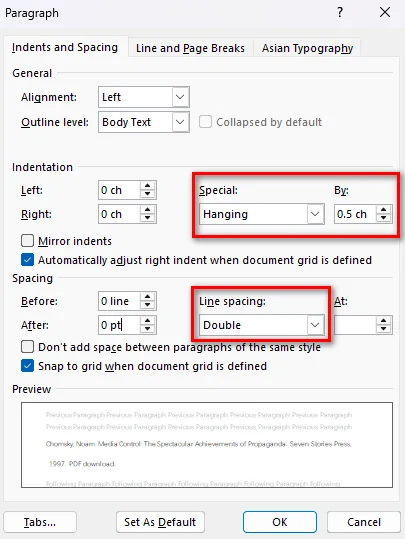
After preparing your citation, you can use Microsoft Word to apply the formatting required for a Works Cited list. MLA recommends a 0.5-inch hanging indent and double spacing.
Follow these steps:
- Step 1: Select the citation entries in your Works Cited list.
- Step 2: Right-click the selection, choose Paragraph.
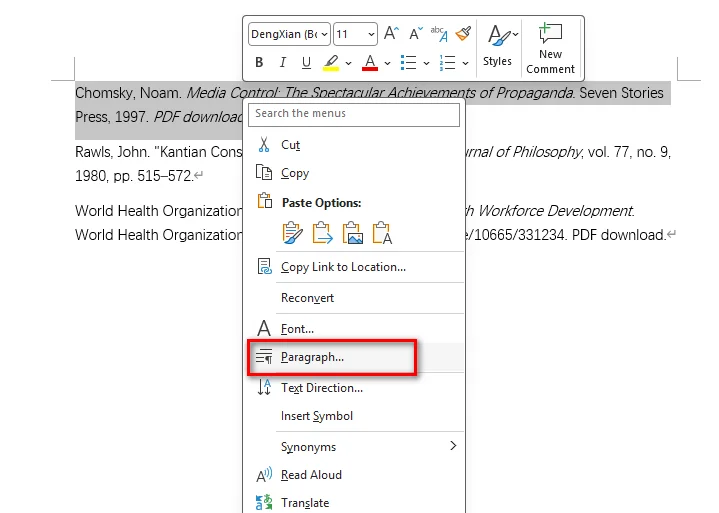
- Step 3: Under Indentation, set Special to Hanging and By to 0.5 inches. And under Spacing, set Before and After to 0 pt, set Line spacing to Double, and click OK.
You can also press Ctrl + T on Windows or Command + T on Mac to apply a hanging indent quickly.
Avoid using spaces, tabs, or manual line breaks to create the indent. Paragraph formatting keeps the entries aligned when you edit the citation text.
Note: If you also need to place the original PDF in a Word document, see How to Insert a PDF into Word for methods to insert PDF content while preserving its layout and editability.
How to Format Multiple MLA PDF Citations with Python
Microsoft Word is convenient when you only need to format a few citations. For applications that generate reports, process user-submitted documents, or create large Works Cited lists, formatting citation entries programmatically can be more efficient.
Free Spire.Doc for Python is a standalone Python library for creating, editing, formatting, and converting Word documents without requiring Microsoft Word. It provides paragraph-formatting properties that can be used to create the hanging indent required for MLA citations.
You can combine LeftIndent with a negative FirstLineIndent. For a 0.5-inch hanging indent, set both values to 36 points in opposite directions.
The following example creates multiple MLA citation entries and applies the required formatting automatically:
from spire.doc import *
from spire.doc.common import *

# Create a document and section
doc = Document()
section = doc.AddSection()

# Sample MLA citation entries
citations = [
    "Chomsky, Noam. Media Control: The Spectacular Achievements of Propaganda. Seven Stories Press, 1997.",
    'Rawls, John. "Kantian Constructivism in Moral Theory." The Journal of Philosophy, vol. 77, no. 9, 1980, pp. 515–572.'
]

# Add and format each citation
for citation in citations:
    paragraph = section.AddParagraph()
    paragraph.AppendText(citation)

    # Apply a 0.5-inch hanging indent
    paragraph.Format.LeftIndent = 36.0
    paragraph.Format.FirstLineIndent = -36.0

    # Apply double spacing and remove paragraph spacing
    paragraph.Format.LineSpacingRule = LineSpacingRule.Multiple
    paragraph.Format.LineSpacing = 24.0
    paragraph.Format.BeforeSpacing = 0.0
    paragraph.Format.AfterSpacing = 0.0

# Save the document
doc.SaveToFile("MLA_PDF_Citations.docx", FileFormat.Docx2013)
doc.Close()

In the example, LeftIndent = 36.0 moves the paragraph content 0.5 inches to the right, while FirstLineIndent = -36.0 moves the first line back to the left margin. Together, they create a hanging indent.
The code also sets BeforeSpacing and AfterSpacing to 0.0 and uses LineSpacingRule.Multiple with LineSpacing = 24.0 to produce double spacing in this Free Spire.Doc configuration.
This approach is useful when you already have citation strings and need to generate a consistently formatted Word document from many entries.
Get MLA Citation Information with Google Scholar or MyBib
If you need help collecting citation information, tools such as Google Scholar and MyBib can provide a useful starting point.
Google Scholar provides a Cite option for many search results, while MyBib can generate MLA-style citations from available source information.
However, generated citations should still be checked against the original source. A citation tool may not always identify the source type, publication details, or PDF access method correctly.
A practical workflow is:
- Identify the type of work contained in the PDF.
- Collect the required publication information.
- Generate or prepare the MLA citation.
- Check the citation against the original source.
- Format the completed entries manually in Word or automatically with Python.
Frequently Asked Questions
Do I need to add “PDF download” to every MLA citation?
No. PDF download is not required for every PDF citation. It can be used as a description when you want to clarify that you consulted a PDF version of the source.
Does MLA use the same format for every PDF?
No. The citation depends on the type of work and how you accessed it. A book, journal article, and report downloaded from a website may require different citation information.
How do I format a PDF citation in an MLA Works Cited list?
Use a 0.5-inch hanging indent and double spacing for the citation entries. In Microsoft Word, you can apply the formatting through the Paragraph settings or use Ctrl + T on Windows.
Can I format multiple MLA PDF citations with Python?
Yes. If the citation text is already prepared, Free Spire.Doc for Python can create Word documents and apply consistent paragraph formatting to multiple citation entries. Properties such as LeftIndent and FirstLineIndent can be combined to create a hanging indent.
Conclusion
Citing a PDF in MLA becomes easier when you separate the process into two parts: preparing the citation based on the source and formatting the finished entry correctly. For a few citations, Microsoft Word provides a quick way to apply the required hanging indent and double spacing. When you need to format many entries consistently, Free Spire.Doc for Python can automate the process and generate a ready-to-use Word document.
Also Read:
How to Convert Table to Text in Word: Step-by-Step Guide
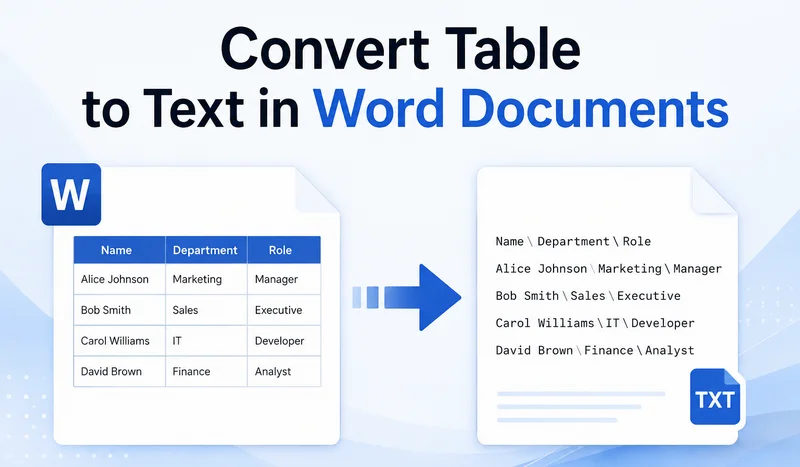
Word tables are useful for organizing data, but they can become inconvenient when you need to edit their contents as regular text. If you no longer need the table structure, you can convert a table to text using Word's built-in tool or automate the process with Python. This guide covers detailed steps for both methods, let's check them out.
- Convert Table to Text in Word with a Built-in Tool
- Convert Word Tables to Text with Python
- Export Table Data to an External TXT File
- FAQs
Convert Table to Text in Word with a Built-in Tool
Microsoft Word provides a built-in tool for converting tables to text. If you only need to convert one or two tables, the built-in tool is usually the quickest option. It removes the table structure and converts the cell contents into regular text.
How to change a table to text in MS Word:
- Step 1: Click anywhere inside the table to reveal the contextual Table Layout tab on the top ribbon.
- Step 2: Go to the Table Layout tab at the top menu, and click the Convert to Text button in the Data group.
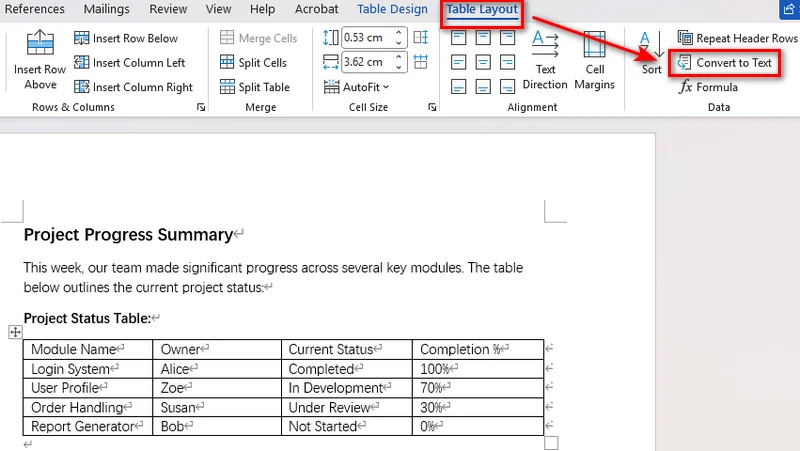
- Step 3: Select your preferred delimiter (tabs, commas, paragraph marks, or a custom character) to separate column values.
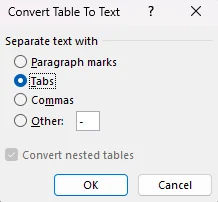
- Step 4: Click OK to transform the table into regular text paragraphs instantly.
Converting to Text vs. Hiding Borders
Hiding table borders only changes how the table looks. The cells, columns, and table structure remain in place, so the content is still constrained by the table layout.
Converting the table to text removes the table structure and turns the cell contents into regular paragraphs. You can then edit and format the content without the table layout.
Convert Word Tables to Text with Python
Word's built-in tool is convenient for converting individual tables, but it becomes less practical when you need to process many documents or tables. For Python developers, Free Spire.Doc for Python provides a way to automate table-to-text conversion without requiring Microsoft Word to be installed.
Converting a Table to Text
The script reads the text from each cell, joins cells in the same row with tab characters, inserts the resulting paragraphs where the table was located, and then removes the original table.
from spire.doc import *
from spire.doc.documents import *

# Initialize Document instance and load the target file
doc = Document()
doc.LoadFromFile("input.docx")

# Get the first section and target table
section = doc.Sections[0]
if section.Tables.Count > 0:
    table = section.Tables[0]

    # Extract text from cells line by line
    text_lines = []
    for j in range(table.Rows.Count):
        row = table.Rows.get_Item(j)
        row_cells_text = []
        for k in range(row.Cells.Count):
            cell = row.Cells.get_Item(k)

            # Extract text from cell paragraphs
            cell_text_pieces = []
            for p in range(cell.Paragraphs.Count):
                para_obj = cell.Paragraphs.get_Item(p)
                if para_obj.Text:
                    cell_text_pieces.append(para_obj.Text.strip())

            row_cells_text.append(" ".join(cell_text_pieces))

        # Join cell text using Tab separators
        text_lines.append("\t".join(row_cells_text))

    # Locate the table inside its parent block
    owner_block = table.OwnerTextBody
    table_index = owner_block.ChildObjects.IndexOf(table)

    # Insert new text paragraphs at the exact table position
    for line in reversed(text_lines):
        temp_para = section.AddParagraph()
        temp_para.Text = line
        section.Paragraphs.Remove(temp_para)
        owner_block.ChildObjects.Insert(table_index, temp_para)

    # Completely remove the table structure from the document structure
    owner_block.ChildObjects.Remove(table)

# Save the updated document
doc.SaveToFile("1st table to text.docx", FileFormat.Docx2016)
doc.Close()
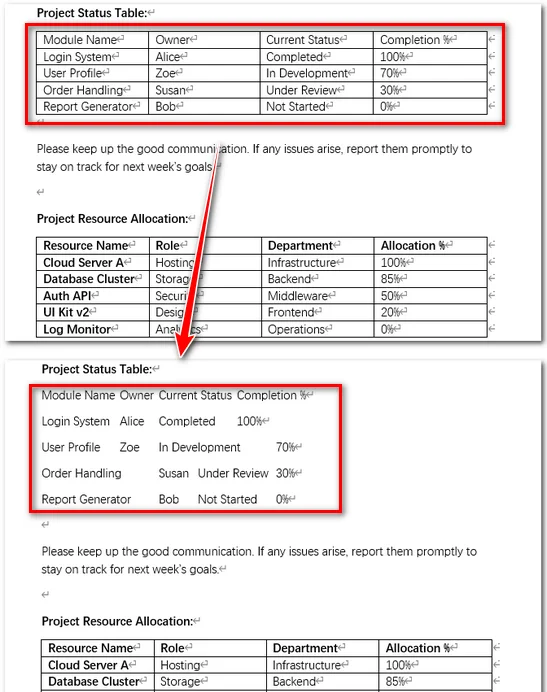
Note: Multiple paragraphs within the same cell are combined into a single line separated by spaces.
Batch Processing All Tables
To convert all tables in a document into text, reuse the conversion logic from the previous example and apply it to every table in every section. Since each table is removed after conversion, tables should be processed in reverse order. Otherwise, deleting a table shifts the indices of the remaining tables, which may cause tables to be skipped or result in index errors.
from spire.doc import *
from spire.doc.documents import *

# Create a Document object and load a Word file
doc = Document()
doc.LoadFromFile("input.docx")

# Iterate through every section in the document
for s_idx in range(doc.Sections.Count):
    section = doc.Sections[s_idx]

    # Iterate backwards through tables to avoid index shifting issues
    table_count = section.Tables.Count
    for t_idx in range(table_count - 1, -1, -1):
        table = section.Tables.get_Item(t_idx)

        # Collect text from all rows and cells
        text_lines = []
        for j in range(table.Rows.Count):
            row = table.Rows.get_Item(j)
            row_cells_text = []
            for k in range(row.Cells.Count):
                cell = row.Cells.get_Item(k)
                cell_text_pieces = []
                for p in range(cell.Paragraphs.Count):
                    para_obj = cell.Paragraphs.get_Item(p)
                    if para_obj.Text:
                        cell_text_pieces.append(para_obj.Text.strip())
                row_cells_text.append(" ".join(cell_text_pieces))
            text_lines.append("\t".join(row_cells_text))

        # Replace the table node with plain paragraphs in-place
        owner_block = table.OwnerTextBody
        table_index = owner_block.ChildObjects.IndexOf(table)

        for line in reversed(text_lines):
            temp_para = section.AddParagraph()
            temp_para.Text = line
            section.Paragraphs.Remove(temp_para)
            owner_block.ChildObjects.Insert(table_index, temp_para)

        # Safely remove the current table
        owner_block.ChildObjects.Remove(table)

# Save the final file
doc.SaveToFile("all tables to text.docx", FileFormat.Docx2016)
doc.Close()
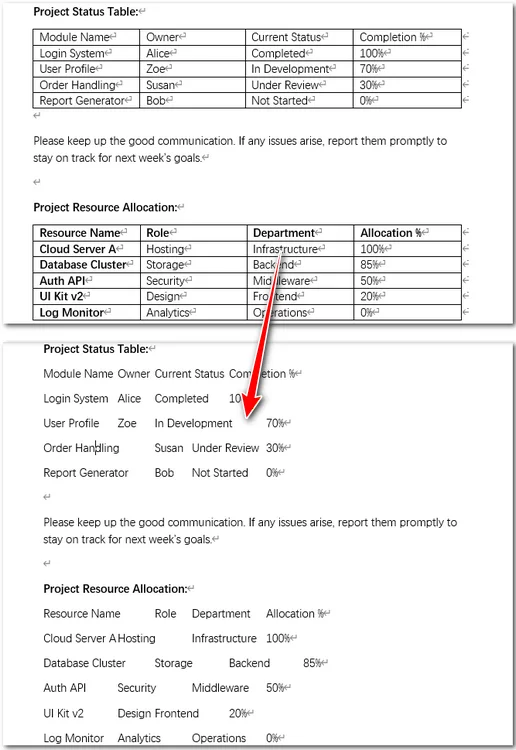
Tip: Export Table Data to an External TXT File
In many data pipeline workflows, the goal is to get information rather than modify original layout files. If you only need tabular text for database ingestion, logging, or plain text archiving, It is even easier. You can quickly extract raw cell contents and write them straight into an external text file with Free Spire.Doc.
Code Example
from spire.doc import *
from spire.doc.common import *

# Create a Document instance
doc = Document()

# Load a Word document
doc.LoadFromFile("input.docx")

# Get the first table
table = doc.Sections[0].Tables[0]

# Extract table text
tableData = ''
for j in range(table.Rows.Count):
    row = table.Rows.get_Item(j)

    for k in range(row.Cells.Count):
        cell = row.Cells.get_Item(k)

        for p in range(cell.Paragraphs.Count):
            tableData += cell.Paragraphs.get_Item(p).Text + ' '

        if k < row.Cells.Count - 1:
            tableData += '\t'

    tableData += '\n'

# Save the extracted text to a TXT file
with open("/table_text.txt", "w", encoding="utf-8") as f:
    f.write(tableData)

doc.Close()
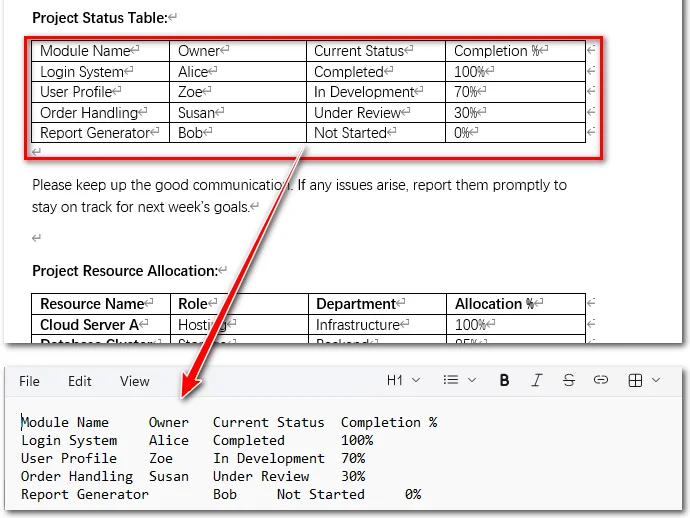
Tip: For structured tabular data, you can also convert Word tables to CSV for use in spreadsheets, databases, and other data-processing workflows.
Frequently Asked Questions
Q1: What should I do if the converted text looks misaligned?
Using tabs (\t) preserves structural spacing best. If column alignment still looks uneven in Word, select the converted paragraphs and adjust the Tab Stops on the horizontal ruler.
Q2: How can I convert text back into a table in Word?
To reverse the process, highlight your text, go to Insert > Table, and click Convert Text to Table. Select the matching delimiter (e.g., tabs or commas) to rebuild your table.
Q3: What is the shortcut key for converting a table to text in Word?
Microsoft Word does not provide a dedicated keyboard shortcut for Convert to Text. You can access the command through the Ribbon or customize a shortcut through Word's keyboard settings.
Summary
This article introduced two ways to convert tables in Word documents to text. Word's built-in tool works well for individual tables or a small number of documents, while Free Spire.Doc for Python is better suited to automated processing of multiple tables. You can also extract table contents to a TXT file for plain-text storage or further processing.
Also Read:
How to Sign a PDF without Adobe: 3 Free Methods
Table of Contents
Adobe Acrobat has long been a popular choice for managing PDF documents, but its subscription cost and desktop software requirements may not be ideal for everyone. Fortunately, you can sign a PDF without Adobe using several simpler alternatives.
This guide walks you through three practical approaches: signing a PDF with an online tool, adding a signature locally with built-in desktop apps, and applying a certificate-based digital signature with Python. Each method includes step-by-step instructions so you can choose the option that best fits your needs.
- Understanding PDF Signatures: Electronic vs. Digital
- How to Sign a PDF without Adobe Using iLovePDF
- How to Sign a PDF Free Using Built-in Desktop Tools
- How to Digitally Sign a PDF without Adobe Using Python (Batch Processing)
- Choosing Your PDF Signing Solution
Understanding PDF Signatures: Electronic vs. Digital
Before choosing a tool, it helps to understand what happens when you sign a PDF file.
- Electronic Signatures (e-Signatures): An electronic signature can be represented by a typed name, drawn signature, uploaded image, or other electronic signing data added to a document.
- Digital Signatures: A PDF digital signature uses a digital certificate and cryptographic algorithms to authenticate the signer and detect changes made to the document after signing.
PDF digital signatures can be invisible, meaning the cryptographic signature is stored in the PDF without a visible signature appearance, or visible, meaning the cryptographic signature is accompanied by a visual signature appearance on the page.
How to Sign a PDF without Adobe Using iLovePDF
For occasional signing tasks, browser-based PDF editors offer a convenient option without requiring additional software. Platforms like iLovePDF allow you to upload a PDF, create a signature by drawing, typing, or uploading an image, and export the signed document directly from your browser. For free or basic use, online signing tools typically focus on electronic signatures, while certificate-based digital signing may require a paid plan.
Here are the steps to sign on PDF using iLovePDF:
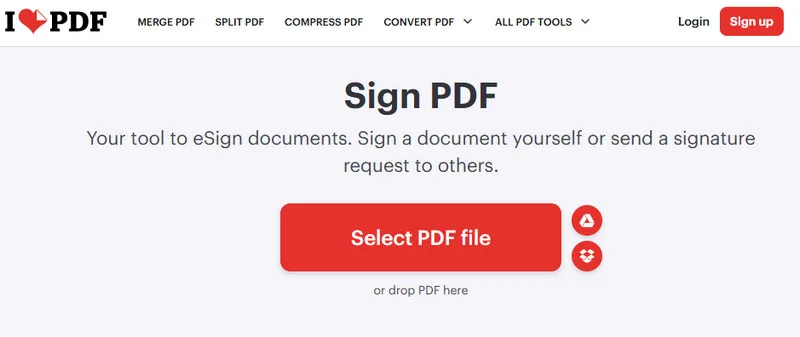
- Step 1: Navigate to iLovePDF's Sign PDF tool in a web browser and click Select PDF file to upload a PDF document.
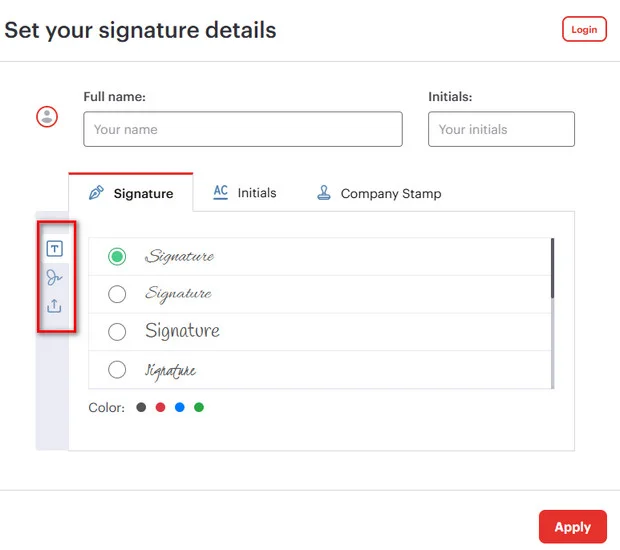
- Step 2: Choose your signer type (e.g., "Only me") and create your signature by drawing it, typing your name, or uploading a PNG image of your physical signature.
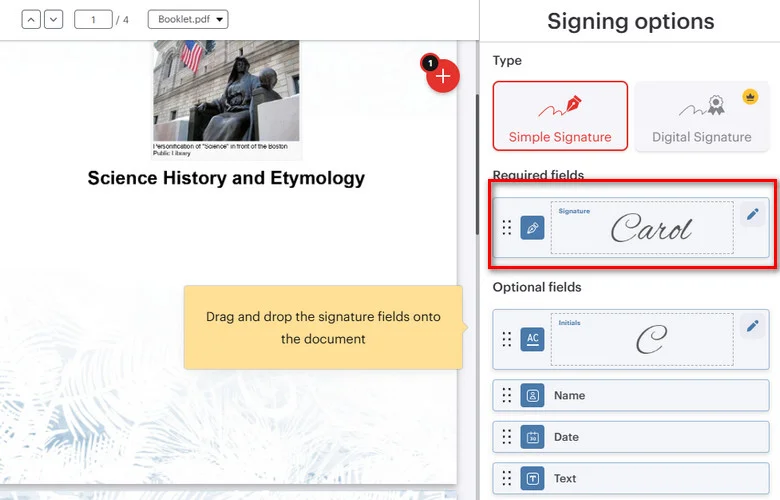
- Step 3: Drag and drop your signature field onto the target location on the PDF page.
- Step 4: Click Sign and download the signed document.
Limitations: Web tools only generate basic visual e-signatures, and uploading files to third-party cloud servers carries data leakage risks.
How to Sign a PDF Free Using Built-in Desktop Tools
If you prefer to keep your files on your computer, built-in desktop tools provide another option. Microsoft Edge on Windows lets you annotate PDFs with a handwritten signature, while macOS Preview provides a built-in Sign tool for adding electronic signatures locally.
Windows Microsoft Edge
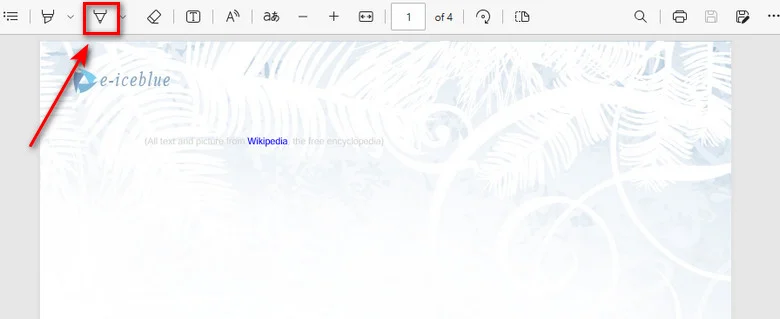
Microsoft Edge includes PDF markup tools that allow you to draw a handwritten signature directly on a PDF. This adds a visual annotation layer rather than a certificate-based digital signature.
- Step 1: Right-click a PDF document and select Open with > Microsoft Edge.
- Step 2: Click the Draw icon (pen symbol) in the top toolbar.
- Step 3: Use your mouse, touchpad, or stylus to draw your signature directly on the document.
- Step 4: Click the Save button to save the annotated PDF.
macOS Preview
macOS Preview provides a built-in Sign tool that lets you create and add a handwritten signature to a PDF locally.
- Step 1: Double-click your PDF file to open it in macOS Preview.
- Step 2: Click the Markup Toolbar button (pen icon) in the top menu, then select the Sign tool.
- Step 3: Create a signature using your trackpad by scanning a paper signature with your Mac camera or by writing on a connected iPhone/iPad.
- Step 4: Click the saved signature to insert it, drag it to the correct line, and save the PDF using File > Save or Cmd + S.
Limitations: These built-in tools do not create certificate-based digital signatures. Microsoft Edge mainly provides PDF markup features, while macOS Preview adds electronic signature elements. Both methods require manual, one-file-at-a-time processing, making them unsuitable for batch signing or automated workflows.
How to Digitally Sign a PDF without Adobe Using Python (Batch Processing)
When building web backends, automated invoicing systems, or enterprise microservices, manual drag-and-drop tools fall short. Developers need a solution that can digitally sign PDFs without Adobe while maintaining data privacy and full backend control.
Free Spire.PDF for Python is a standalone, lightweight library that enables developers to process and sign PDF documents without relying on Adobe Acrobat. It supports digital certificates stored in PKCS#12 (.pfx or .p12) files.
Adding an Invisible Digital Signature to a PDF
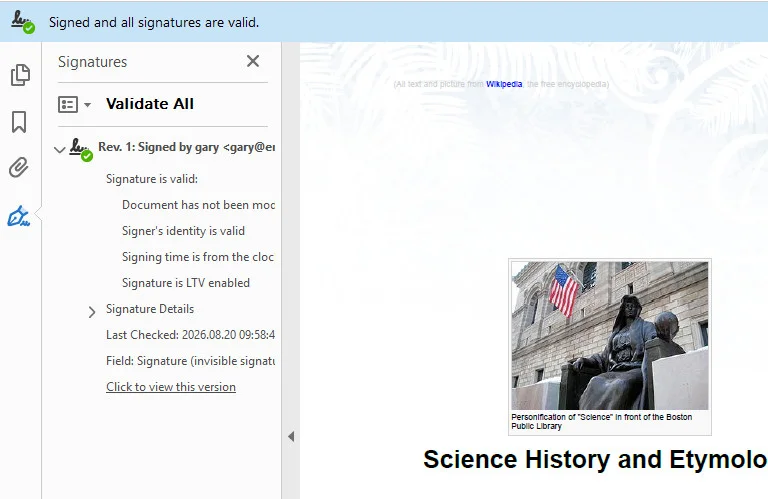
An invisible digital signature applies a cryptographic signature to a PDF without displaying a signature appearance on the page. With Free Spire.PDF for Python, you can use PdfOrdinarySignatureMaker to load a PKCS#12 certificate (.pfx or .p12) and apply the signature to the document.
In the following example, the certificate path and password are passed to PdfOrdinarySignatureMaker, which creates the digital signature without adding a visible signature appearance.
from spire.pdf.common import *
from spire.pdf import *

# Create a new PdfDocument instance
doc = PdfDocument()
# Load a PDF document
doc.LoadFromFile("/input/Booklet.pdf")

# Create a PdfOrdinarySignatureMaker instance
signatureMaker = PdfOrdinarySignatureMaker(doc, "/gary.pfx", "e-iceblue")

# Add an invisible digital signature to the document
signatureMaker.MakeSignature("Signature")

# Save the signed PDF document
doc.SaveToFile("/output/invisible signature.pdf")
doc.Close()
Adding a Visible Digital Signature to a PDF
A visible digital signature combines an on-page graphic stamp (like an official seal or signature image) with a PKI cryptographic seal. The visual appearance is configured with PdfSignatureAppearance, while SignatureImage specifies the signature image and MakeSignature() defines the page and position of the visible signature.
from spire.pdf import *

# Step 1: Load the target PDF document
doc = PdfDocument()
doc.LoadFromFile("/input/Booklet.pdf")

# Step 2: Initialize signature maker with certificate path and password
signatureMaker = PdfOrdinarySignatureMaker(doc, "/gary.pfx", "e-iceblue")

# Step 3: Configure signature metadata
signature = signatureMaker.Signature
signature.Name = "Finance Department"
signature.ContactInfo = "[email protected]"
signature.Reason = "Approved for Payment"

# Step 4: Configure visual appearance and attach stamp image
appearance = PdfSignatureAppearance(signature)
appearance.SignatureImage = PdfImage.FromFile("/gary sign.png")
appearance.GraphicMode = GraphicMode.SignImageOnly

# Step 5: Apply the signature to page 1 at target coordinates (X, Y, Width, Height)
page = doc.Pages[0]
signatureMaker.MakeSignature("SignatureField", page, 100.0, 600.0, 180.0, 60.0, appearance)

# Step 6: Save the signed PDF document
doc.SaveToFile("/output/signed_visible.pdf")
doc.Close()
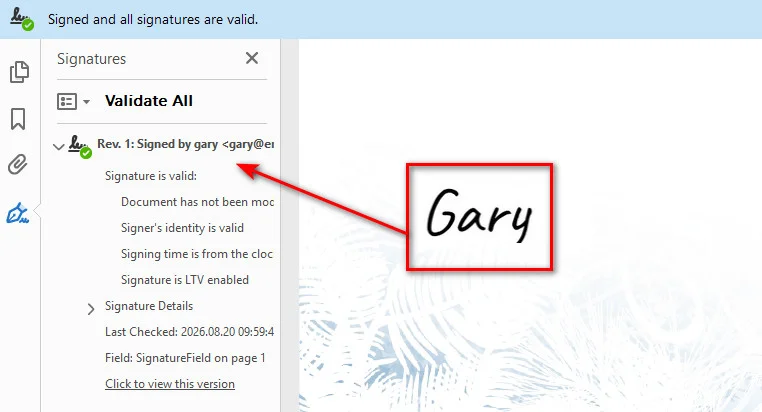
Note: After signing a PDF, you may also need to verify the signature or extract signature information for auditing and document validation. See Python: Verify and Extract Digital Signatures in PDF for a programmatic approach.
Choosing Your PDF Signing Solution
Choosing the right PDF signing method depends on your privacy requirements, technical skills, and workflow scale. Compare the key features below to find the approach that best fits your setup:
| Feature | iLovePDF (Web Tool) | macOS Preview / Edge (OS Native) | Free Spire.PDF for Python (SDK) |
|---|---|---|---|
| Signature Type | Electronic Signature(Basic) | Electronic Signature | Certificate-based Digital Signature |
| Ease of Use | Instant (Browser) | High (Pre-installed) | Medium (Developer skills) |
| Data Privacy | Lower (Cloud upload) | High (Local execution) | High (Local/server execution) |
| Automation | Low (Manual) | Low (Manual) | High (Automated workflows) |
| Security | Depends on signing method | Basic electronic signing | Certificate-based cryptographic signing |
Conclusion
You do not need Adobe Acrobat to add a signature to a PDF. For a quick electronic signature, an online tool or a built-in desktop application is usually sufficient. If you need a certificate-based digital signature or automated processing, a Python PDF library provides greater control over the signing workflow.
The right approach depends on how you plan to use the signed document. Choose a local tool when document privacy is important, an online service when convenience matters most, or a Python-based solution when signing needs to be integrated into an automated application.
Also Read:
How to Insert a Hyperlink in Excel: 3 Easy Methods
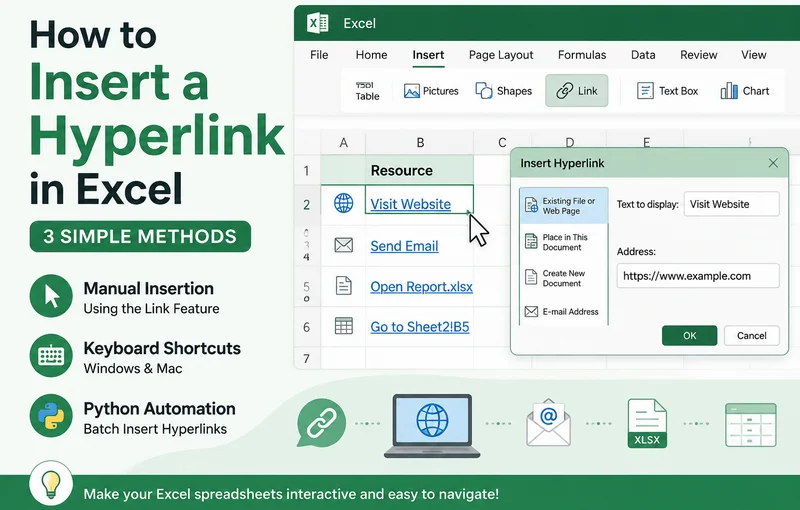
Adding hyperlinks in Excel is simple when you only need to link one or two cells. However, manually managing dozens or hundreds of links can become time-consuming, especially when working with external files, websites, or large workbooks.
This guide explains three ways to add a hyperlink in Excel, including manual insertion, keyboard shortcuts, and Python-based automation for batch processing.
- Insert a Hyperlink with the Link Feature
- Insert a Hyperlink Using the HYPERLINK Function
- Batch Insert Hyperlinks Using Free Spire.XLS for Python
- Tips for Managing Hyperlinks in Excel
- FAQs
Insert a Hyperlink in Excel Manually with the Link Feature
The most direct way to insert a hyperlink in Excel is by using its built-in Link feature. It is suitable for users who only need to add a small number of hyperlinks manually. With this method, you can easily connect cells to external web pages, local files, or specific worksheets in just a few clicks.
Follow these simple steps to insert hyperlinks manually:
- Step 1: Select the target cell where you want the link to appear.
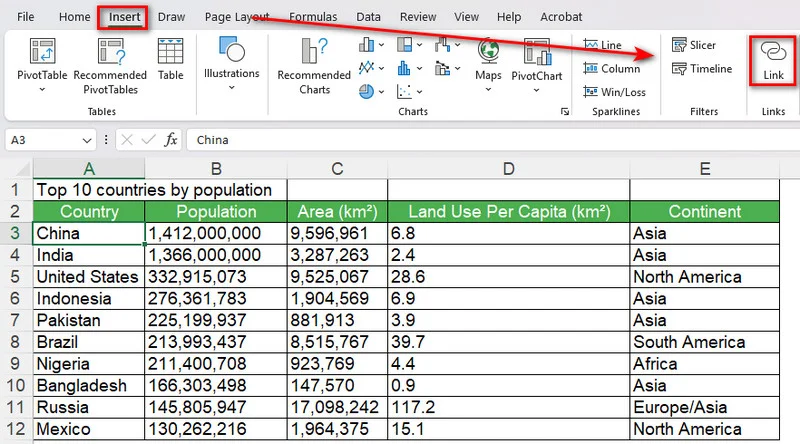
- Step 2: Go to the Insert tab at the top ribbon and click Link. Or right-click the cell and select Link from the context menu.
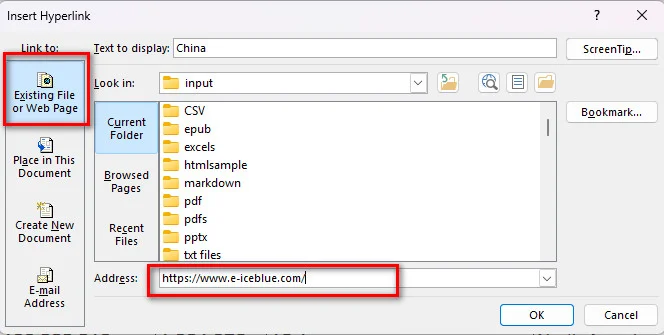
- Step 3: In the popup dialog box, choose your link destination from the left panel (e.g., Existing File or Web Page).
- Step 4: Enter the web URL or file path into the Address bar.
- Step 5: Click OK to apply the link.
Tip: Use a Keyboard Shortcut to Insert a Hyperlink in Excel
If you frequently add hyperlinks, you can open the Link dialog box directly with a keyboard shortcut instead of navigating through the Insert tab.
- On Windows, select the target cell and press Ctrl + K.
- On Mac, select the target cell and press Cmd + K.
The shortcut opens the same Link dialog box, where you can enter a URL, select a local file, or link to another location in the workbook. This provides a quick way to insert a hyperlink in Excel on Mac or Windows without opening the Insert tab each time.
Insert a Hyperlink in Excel Using the HYPERLINK Function
If you need to create hyperlinks from existing data, Excel's HYPERLINK function provides a convenient alternative to inserting links manually. It lets you specify both the link destination and the text displayed in the cell. This is especially useful when you need to generate multiple hyperlinks based on URLs stored in a worksheet.
The basic syntax is
=HYPERLINK(link_location, [friendly_name])
Here, link_location specifies the destination of the hyperlink, while the optional friendly_name determines the text displayed in the cell.
How to Create a Hyperlink with the HYPERLINK Function
- Step 1: Select the cell where you want to display the hyperlink.
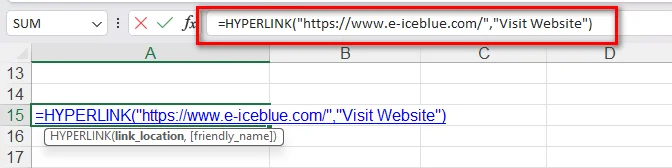
- Step 2: Enter the HYPERLINK formula with the destination URL and display text. For example:
=HYPERLINK("https://www.e-iceblue.com/","Visit Website")
- Step 3: Press Enter. Excel will display Visit Website as a clickable hyperlink.
- Step 4: If the URL and display text are stored in separate cells, reference those cells in the formula. For example, if the URL is in "A2" and the display text is in "B2", enter:
=HYPERLINK(A2,B2)
- Step 5: Drag the formula down to apply it to other rows and create multiple hyperlinks automatically.
This approach is useful for creating link lists, navigation tables, resource directories, and other Excel reports containing many URLs.
How to Batch Insert Hyperlinks in Excel Using Free Spire.XLS for Python
While the manual and shortcut methods covered above are simple and convenient, they are only suitable for adding a few hyperlinks at a time. If you need to process hundreds of links or insert a mix of different types, such as web URLs, local files, email addresses, and internal sheet references, manual entry quickly becomes inefficient and error-prone.
In such cases, programmatic automation can be a more efficient approach. By utilizing Free Spire.XLS for Python, you can dynamically generate and format hyperlinked Excel files with a few lines of code. What's more, this library can automate hyperlink generation without requiring Microsoft Excel to be installed on the machine or server.
Step 1: Install the Library
Open your terminal or command prompt and run:
pip install Spire.Xls.Free
Step 2: Run the Python Script
The following Python script demonstrates how to batch insert hyperlinks in Excel, including web links, email addresses, external file links, and internal sheet references:
from spire.xls import *
from spire.xls.common import *

# Initialize a new workbook object
workbook = Workbook()

# Get the first worksheet
sheet = workbook.Worksheets[0]

# Add a hyperlink to a Website
cell_web = sheet.Range["B3"]
url_link = sheet.HyperLinks.Add(cell_web)
url_link.Type = HyperLinkType.Url
url_link.TextToDisplay = "Visit Website"
url_link.Address = "https://www.e-iceblue.com/"

# Add an Email hyperlink
cell_email = sheet.Range["E3"]
mail_link = sheet.HyperLinks.Add(cell_email)
mail_link.Type = HyperLinkType.Url
mail_link.TextToDisplay = "Send Email Support"
mail_link.Address = "mailto:[email protected]"

# Add a link to an External Local File
cell_file = sheet.Range["B7"]
file_link = sheet.HyperLinks.Add(cell_file)
file_link.Type = HyperLinkType.File
file_link.TextToDisplay = "Open a local file"
file_link.Address = "/sales report.xlsx"

# Add an internal link to another Sheet
cell_sheet = sheet.Range["E7"]
sheet_link = sheet.HyperLinks.Add(cell_sheet)
sheet_link.Type = HyperLinkType.Workbook
sheet_link.TextToDisplay = "Jump to Sheet2 Cell B5"
sheet_link.Address = "Sheet2!B5"

# Auto-fit columns for better presentation
sheet.AutoFitColumn(2)
sheet.AutoFitColumn(5)

# Save the workbook to an Excel file
workbook.SaveToFile("/output/AddHyperlinks.xlsx", ExcelVersion.Version2016)
workbook.Dispose()
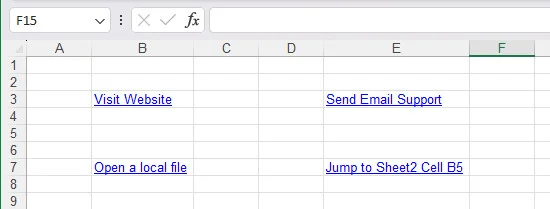
Below is a preview of the generated Excel file with hyperlinks:
Why use Python for Excel hyperlinks?
- Batch processing: Add multiple hyperlinks in Excel files automatically.
- Dynamic reporting: Generate financial statements or data exports with interactive links dynamically.
Tip: If you need to embed files directly into an Excel workbook instead of creating clickable links, see our guide on How to Insert Objects in Excel: Embedding and Linking Files.
Tips for Managing Hyperlinks in Excel
Adding hyperlinks in Excel is straightforward, but managing them when worksheets grow requires a few extra tricks.
How to Edit or Remove a Hyperlink
- To Edit: Right-click the hyperlinked cell and choose Edit Hyperlink to change the destination address.
- To Remove: Right-click the cell and click Remove Hyperlink. The text will remain, but the clickable link will be deleted.
How to Link to Another Sheet in the Same Workbook
To navigate within the same spreadsheet:
- Step 1: Press Ctrl + K.
- Step 2: Click Place in This Document on the left menu.
- Step 3: Select your target worksheet from the list. You can also specify a cell reference like
B5at the top. - Step 4: Click OK.
FAQs
What is the shortcut to insert a hyperlink in Excel for Windows and Mac?
The default shortcut on Windows is Ctrl + K. On macOS, use Cmd + K.
How do I remove multiple hyperlinks in Excel at once?
Highlight all the cells containing hyperlinks, right-click anywhere inside the selected area, and click Remove Hyperlinks.
Can I add hyperlinks to Excel files without Microsoft Office?
Yes. Python libraries like Free Spire.XLS for Python allow you to insert and modify hyperlinks programmatically without having Microsoft Office or Excel installed on your machine.
Conclusion
Mastering how to insert hyperlinks in Excel helps you create more interactive and organized spreadsheets. For occasional edits, manual insertion or keyboard shortcuts are usually enough. When working with large numbers of links, Python automation provides a more efficient approach. Choose the method that best matches your workflow and project requirements.
Also Read:
How to Insert a Video in Word Documents (3 Easy Ways)
Adding videos to Microsoft Word can make reports, manuals, and technical guides more interactive by combining text instructions with visual content. However, Word supports several ways to add videos, including online videos, hyperlinks, and embedded files. Choosing the right method depends on how you plan to share the document. Whether you want to embed a video in a Word document for interactive online playback or link a local file cleanly, here are three practical ways to insert a video in Microsoft Word while keeping the formatting clean and file size under control.
- Insert an Online Video in Word for Direct Playback
- Insert a Video in a Word Document with Hyperlinks
- Embed a Video in Word Documents as an Object
- Which Method Should You Choose
- FAQs
How to Insert an Online Video in Word for Direct Playback
Inserting an online video is one of the simplest ways to add video content to a Word document. Instead of redirecting readers to an external web browser, Microsoft Word renders an interactive player component directly on the page. This allows readers to access supported online videos directly from the document interface without manually opening a separate browser window.
Here are the steps to embed a YouTube video in a Word document:
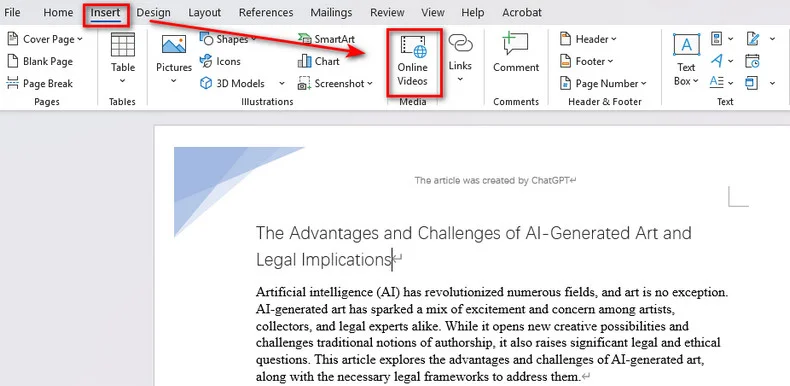
- Step 1: Open a Word document and place the cursor where you want the video player to appear.
- Step 2: Go to the Insert tab on the top ribbon menu.
- Step 3: In the Media group, click the Online Video option.
- Step 4: Paste the web link of a YouTube video.
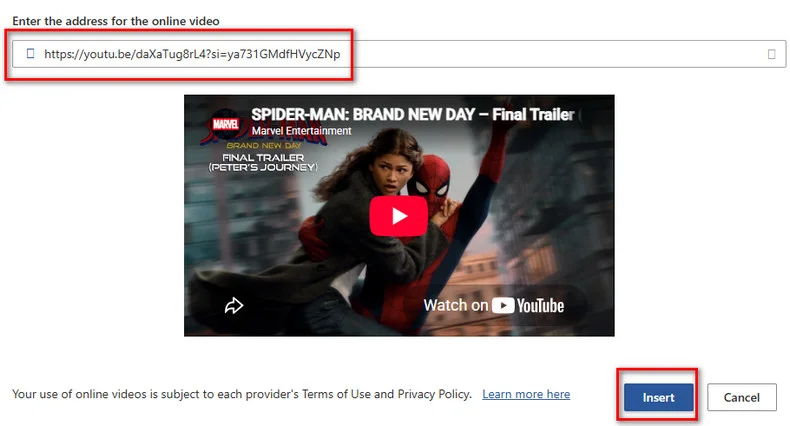
- Step 5: Click Insert. Word will immediately generate a responsive video thumbnail with a play icon on your page.
Troubleshooting: Why is the "Online Video" button grayed out?
If the button is disabled, you have likely opened a DOC document in **compatibility mode. Click File > Info > Convert to upgrade it to the DOCX format. Also, ensure Protected View is turned off and your privacy settings allow connected experiences.
How to Insert a Video in a Word Document with Hyperlinks
If you need to reference local MP4 files or customize the appearance of a video link, inserting a hyperlink is usually a more flexible option. Unlike the native online video tool, this technique attaches a web URL or local file path to a text string or a custom image cover. When readers click the link, it seamlessly opens the video in their default web browser or local media player.
1. Manually Insert a Video Link in Word
Setting up a video hyperlink manually takes only a few seconds and works seamlessly for any web or local file.
- Step 1: Select the text or image (such as a video cover thumbnail) in your Word document where you want to add the link.
- Step 2: Right-click the selected object and select Link, or go to the top ribbon and click Insert > Link.
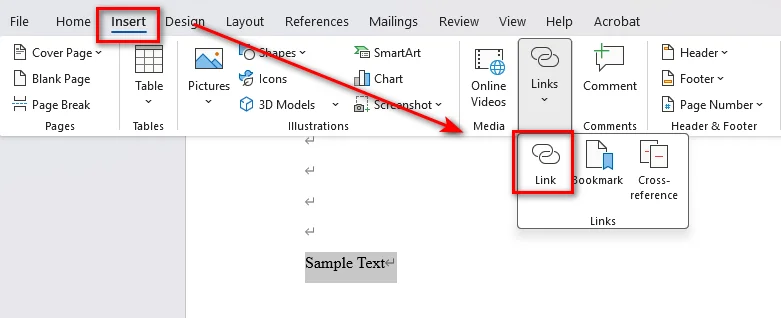
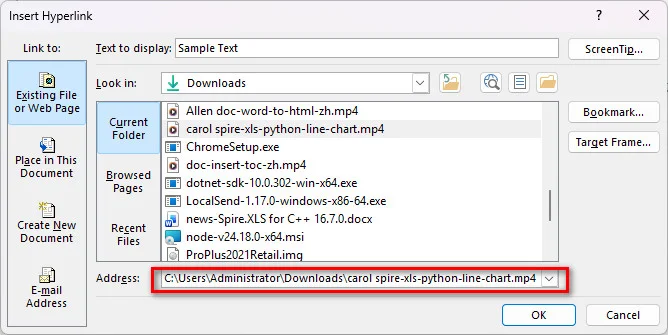
- Step 3: In the pop-up window, paste your online video URL or click Existing File or Web Page to select a local video file path, then click OK.
2. Insert Video Hyperlinks Automatically with Python
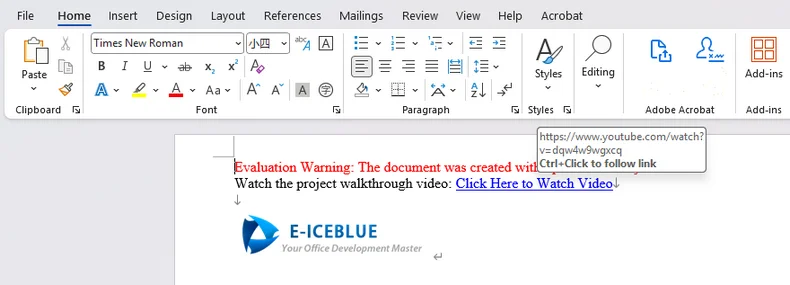
For developers generating automated reports, batch-processing documentation, or building docx generation pipelines, you can insert a video link in Word programmatically using Free Spire.Doc for Python. It is a standalone Python library that enables developers to create, edit, and convert Word documents without Microsoft Office. It also provides hyperlink-related APIs that can be used to add video URLs or local file links to text and image elements in Word documents.
from spire.doc import *
from spire.doc.common import *

# Initialize a new Word document
doc = Document()

# Add a section and a paragraph
section = doc.AddSection()
paragraph = section.AddParagraph()

# Insert a text hyperlink pointing to an online video
video_url = "https://www.youtube.com/watch?v=dQw4w9WgXcQ"
paragraph.AppendText("Watch the project walkthrough video: ")
paragraph.AppendHyperlink(video_url, "Click Here to Watch Video", HyperlinkType.WebLink)

# Add line breaks
paragraph.AppendBreak(BreakType.LineBreak)
paragraph.AppendBreak(BreakType.LineBreak)

# Insert an image hyperlink (thumbnail + video link)
thumbnail_path = "/Logo1.png"
picture = paragraph.AppendPicture(thumbnail_path)

# Attach the video URL to the thumbnail image
paragraph.AppendHyperlink(video_url, picture, HyperlinkType.WebLink)

# Save the generated document
doc.SaveToFile("/output/VideoLinksDocument.docx", FileFormat.Docx2019)
doc.Dispose()
Embed a Video in Word Documents as an Object
If you are delivering files to clients in an offline environment, you can choose to embed a video in Word as an embedded binary object. This approach forces Word to package the raw video file directly inside the file container. It is best suited for scenarios where external links are forbidden and recipient devices lack internet access, but it will increase the document's size.
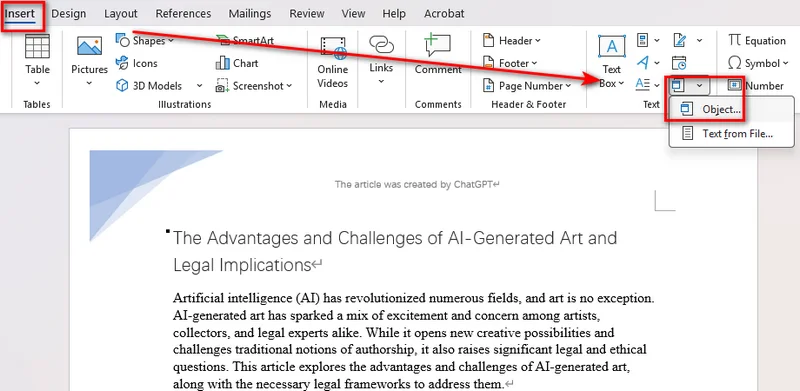
- Step 1: Navigate to the Insert tab on the top ribbon.
- Step 2: Locate the Text section, click the Object dropdown, and choose Object....
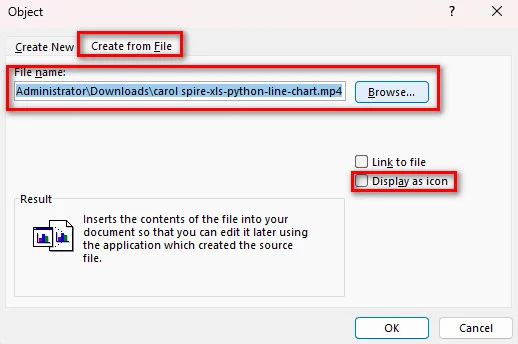
- Step 3: In the pop-up dialog, switch to the Create from File tab.
- Step 4: Click Browse to locate your local video file (MP4, AVI, MOV).
- Step 5: Check the Display as Icon box to ensure it appears as a clean file attachment, then click OK.
Unlike PowerPoint, Word does not render native video preview frames for embedded local video files. It displays a system icon or a plain square. Double-clicking launches your default local media player.
You may like: How to Attach Files to a Word Document (5 Effective Ways)
Which Method Should You Choose?
Use this quick comparison table to pick the right method for your document needs:
| Method | Playback Experience | File Size Impact | Internet Required? | Supports Automation? |
|---|---|---|---|---|
| Online Video | Direct popup player inside Word | Negligible (bytes) | Yes | Limited |
| Video Hyperlink | Opens default browser / player | Negligible (bytes) | Optional | Yes (Python) |
| Embedded Object | Double-click to open player | Extremely Large | No | Yes |
FAQs about Inserting Video in Word
1. Can I embed a video directly into Word like in PowerPoint?
Yes, but playback behavior depends on the video source:
- Online Videos (YouTube, Vimeo, etc.): Plays directly inside Word via an inline popup window with a native play button.
- Local Video Files (MP4, MOV, etc.): Cannot play inline. They insert as file icons (or hyperlinked images) that launch your default media player when clicked.
2. How do I insert a video into Word without increasing file size?
To keep your document lightweight, use Method 1 (Online Video) or Method 2 (Image Cover Hyperlink). Both methods link to external resources and won't enlarge the Word document.
3. Why won't my embedded video play in Microsoft Word?
If your video fails to play, check if your document is saved in the **compatibility mode. Also, ensure your network connection is active for online videos, or verify that your local media player supports the video format.
Conclusion
Adding videos correctly helps you create Word documents that are easier to understand and more interactive for readers. Whether you choose to embed a video in a Word document using Microsoft Word's native Online Video feature, link custom image thumbnails manually or via Python automation, or attach offline video objects, selecting the right method depends on your audience's technical constraints. Choose online videos for seamless web playback, hyperlinks for flexible local storage, and embedded objects strictly for offline sharing.
Also Read:
How to Insert Hyperlinks in PowerPoint [Detailed Guide]

Hyperlinks can make PowerPoint presentations easier to navigate and more engaging for audiences. Instead of creating text-heavy slides, adding hyperlinks helps keep your layout clean while allowing viewers to access external resources instantly. In this guide, you’ll learn how to insert hyperlinks in PowerPoint, covering both manual operations in Microsoft PowerPoint and automation using Python for text, images, and other visual elements.
- How to Insert Hyperlinks in PowerPoint
- Practical Scenarios: Linking Pictures and Online Videos
- Insert a Hyperlink in PowerPoint Presentations with Python
- FAQs
How to Insert Hyperlinks in PowerPoint
In PowerPoint, hyperlinks typically point to external files, web pages, or specific slides within the presentation. Fortunately, the core steps are the same regardless of the target type. With Microsoft PowerPoint, you can add a hyperlink into text or images in just three simple steps.
Follow these steps to insert hyperlinks in PowerPoint:
- Step 1: Select the object by clicking to highlight the text word, picture, shape, or icon you want to make clickable.
- Step 2: Go to the top ribbon and click Insert > Links > Link.
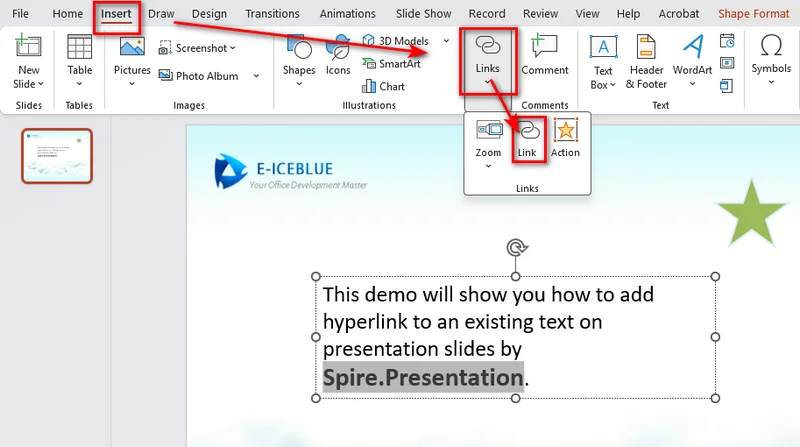
- Step 3: In the pop-up dialog box, set your target destination:
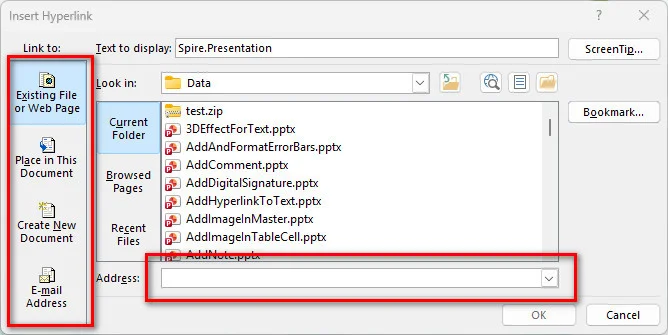
- Existing File or Web Page: Paste an external URL (e.g., https://example.com) or select a local file on your computer.
- Place in This Document: Choose a specific slide number or title inside your current presentation.
- Email Address: Configure an automatic mailto: link for quick email responses.
Practical Scenarios: Linking Pictures and Online Videos
Beyond basic links, hyperlinks are also useful for creating interactive logos, navigation buttons, and lightweight video presentations.
1: Interactive Logos and Navigation Icons
Adding hyperlinks to logos and graphics transforms them from visuals into functional navigation tools, enhancing brand identity while keeping the PowerPoint presentation interactive.
- Brand Authority: Link your company logo directly to the official website, product landing page, or online store so viewers can explore your brand instantly.
- Custom Navigation: Link home, menu, or back-to-top icons to Slide 1 or an index page for fast, flexible jumping during live Q&A sessions.
2: Lightweight Online Video Sharing
Inserting video files directly into PowerPoint often inflates file sizes, making presentations difficult to email or run smoothly on older hardware.
To keep your presentation lightweight:
- Insert a play-button image or text callout (e.g., "Watch Full Demo").
- Apply a hyperlink pointing to your video URL on YouTube, Vimeo, or cloud storage.
Tip: Hyperlinked vs. Embedded Videos
When sharing video in PowerPoint, you can either link to an external video or embed the video file directly. Choosing the right method depends on your file size limits and presentation setup:
- Hyperlinked Video: Links directly to a web URL (e.g., YouTube) or local file path. It opens in a web browser, keeping the presentation's size minimal and easy to email.
- Embedded Video: Integrates the actual video file into the presentation. It plays directly inside the slide frame without internet dependency but significantly increases file size.
Insert a Hyperlink in PowerPoint Presentations Effortlessly with Python
Manual hyperlink insertion works well for small presentations. However, when processing hundreds of slides or generating presentations dynamically, automation becomes more efficient. To streamline workflows, developers can use Free Spire.Presentation for Python to add hyperlinks automatically. Free Spire.Presentation provides APIs for adding hyperlinks to text, images, and shapes programmatically, making it easier to automate large-scale presentation processing.
Adding Hyperlinks to Text
Text hyperlinks are applied at the TextRange level within a shape's text frame. By iterating through paragraphs and text ranges, you can locate specific keywords and set their target URL via ClickAction.Address.
Adding Hyperlinks to Pictures or Shapes
For visual elements like shapes or embedded images, hyperlinks are applied at the shape object level. You can instantiate a ClickHyperlink object with your destination URL and directly assign it to the image's .Click property.
Complete Python Code Example
This code example shows how to insert hyperlinks for text and an image in a PowerPoint presentation:
from spire.presentation import *
from spire.presentation.common import *

# Create a new Presentation object and load a PowerPoint file
presentation = Presentation()
presentation.LoadFromFile("/sample.pptx")

# Get the first slide
slide = presentation.Slides[0]

# Insert hyperlink to text
for shape in slide.Shapes:
    if isinstance(shape, IAutoShape):
        for para in shape.TextFrame.Paragraphs:
            for tr in para.TextRanges:
                # Find the specified text keyword
                if "Spire.Presentation" in tr.Text:
                    # Add hyperlink to the text
                    tr.ClickAction.Address = "https://www.e-iceblue.com"

# Create a rectangle shape and define image position and size
rect = RectangleF.FromLTRB(400, 380, 660, 450)

# Append an image to the slide and set its position and size
image = slide.Shapes.AppendEmbedImageByPath(ShapeType.Rectangle, "/Logo1.png", rect)

# Insert a hyperlink to the image
hyperlink = ClickHyperlink("https://www.e-iceblue.com")
image.Click = hyperlink

# Save the modified presentation
presentation.SaveToFile("/output/AddHyperlinks_Output.pptx", FileFormat.Pptx2013)
presentation.Dispose()
The following image shows the resulting PowerPoint file with inserted hyperlinks:
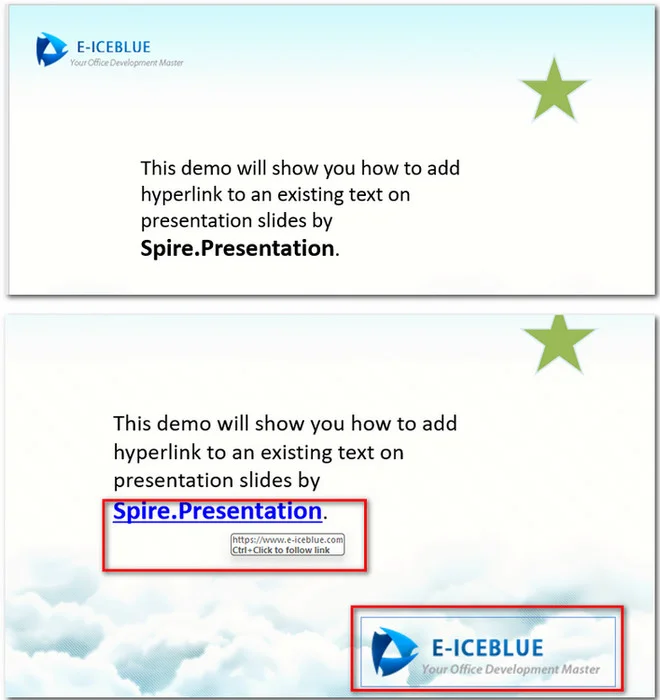
FAQs about Inserting Hyperlinks in PowerPoint
How do I edit or remove a hyperlink in PowerPoint?
Right-click the linked text, picture, or shape. Select Edit Link to change the target URL, or click Remove Link to convert the element back into static content.
Will hyperlinks still work after converting PowerPoint to PDF?
Most web hyperlinks are preserved during PowerPoint-to-PDF conversion. Internal slide navigation links depend on the conversion tool and PDF viewer compatibility.
Why does PowerPoint show a security warning when clicking a video link?
PowerPoint triggers default security alerts whenever an element attempts to launch external web browsers or local executables. You can safely click Yes to proceed, or adjust your settings under File > Options > Trust Center > Trust Center Settings to customize link warnings.
To Wrap Up
Adding hyperlinks in PowerPoint helps create more interactive and user-friendly presentations. For simple tasks, you can use PowerPoint’s built-in tools to link text, images, videos, or slides. When working with large presentations, Free Spire.Presentation provides a programmatic way to automate hyperlink creation. Before sharing your presentation, remember to test all links in slideshow mode to ensure they work as expected.