Come aggiungere un commento in Excel: dal manuale all'automazione
I commenti sono utili quando devi spiegare un valore, lasciare un feedback o discutere di una cella con altri. In Excel, puoi aggiungere un commento direttamente dal foglio di lavoro, automatizzare il processo con VBA oppure usare Python per gestire i commenti nei file Excel a livello di programmazione. Questa guida illustra diversi modi per aggiungere commenti in Excel, dal metodo manuale rapido all'elaborazione automatizzata con Free Spire.XLS per Python.
- Come aggiungere un commento in Excel direttamente
- Come aggiungere commenti a Excel con VBA
- Come aggiungere commenti a Excel con Python
- Domande frequenti
Come aggiungere un commento in Excel direttamente
Se devi aggiungere solo pochi commenti, Excel stesso offre un modo rapido per farlo. Puoi aggiungere un commento direttamente dal menu contestuale di una cella oppure utilizzare la scheda Revisione. Questi metodi sono adatti quando lavori su una cartella di lavoro manualmente e non devi elaborare un gran numero di celle.
1. Aggiungere un commento dal menu del clic destro
- Passaggio 1: Seleziona la cella in cui desideri aggiungere un commento.
- Passaggio 2: Fai clic destro sulla cella.
- Passaggio 3: Seleziona Inserisci commento.
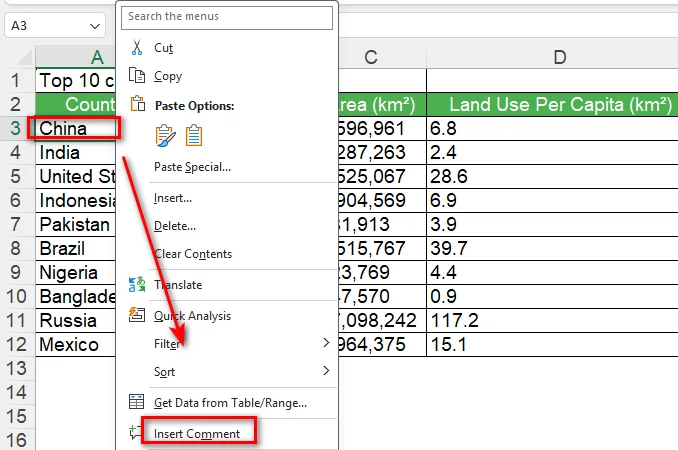
- Passaggio 4: Digita il tuo commento nella casella del commento.
- Passaggio 5: Fai clic in un punto qualsiasi all'esterno della casella del commento per terminare.
Excel aggiunge il commento alla cella selezionata. Se stai lavorando con altre persone, possono rispondere al commento e continuare la discussione nello stesso thread.
2. Inserire un commento dalla scheda Revisione
Puoi anche inserire un commento dalla barra multifunzione di Excel. Questo è utile quando stai già lavorando con gli strumenti presenti nella scheda Revisione.
- Passaggio 1: Seleziona la cella che vuoi commentare.
- Passaggio 2: Apri la scheda Revisione.
- Passaggio 3: Seleziona Nuovo commento.
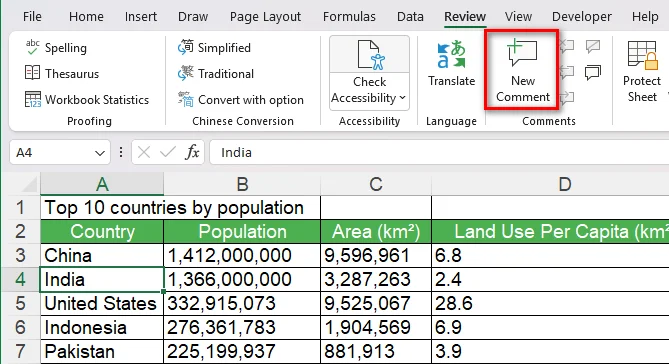
- Passaggio 4: Digita i commenti nella casella del commento.
- Passaggio 5: Fai clic in un punto qualsiasi all'esterno della casella del commento per terminare.
Questo approccio fornisce lo stesso risultato di base dell'utilizzo del menu del clic destro, quindi puoi usare il flusso di lavoro che ti risulta più comodo.
Suggerimento: se desideri anche migliorare l'aspetto generale del tuo foglio di lavoro, puoi utilizzare le funzionalità di formattazione integrate di Excel per regolare rapidamente celle, tabelle e altri elementi. Consulta la nostra guida sulla Formattazione automatica in Excel per maggiori dettagli.
Come aggiungere commenti a Excel con VBA
I commenti manuali funzionano bene per fogli di lavoro di piccole dimensioni, ma possono diventare ripetitivi quando devi aggiungere commenti simili a diverse celle. VBA ti consente di automatizzare questo lavoro direttamente all'interno di Excel.
Prima di scrivere la macro, devi aprire l'editor VBA di Excel e creare un modulo. Una volta che il modulo è pronto, puoi incollare il codice ed eseguirlo da Excel.
1. Aprire l'editor VBA
- Passaggio 1: Apri la cartella di lavoro di Excel che vuoi modificare.
- Passaggio 2: Premi Alt + F11 per aprire l'editor Microsoft Visual Basic for Applications.
- Passaggio 3: Nell'editor VBA, seleziona Inserisci > Modulo.
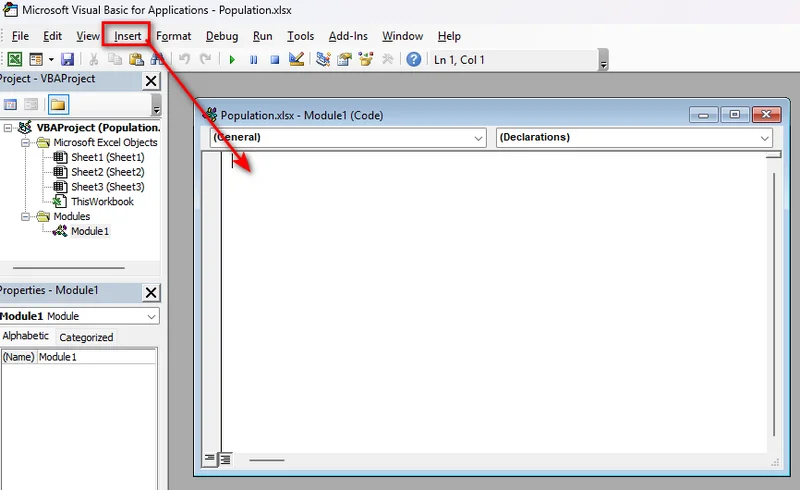
- Passaggio 4: Incolla il codice VBA nel nuovo modulo.
2. Aggiungere un commento a una cella
Puoi usare VBA per aggiungere un commento a una cella specifica in Excel:
Sub AddComment()

    Range("B4").AddComment "Please review this value."

End Sub
Esegui la macro e Excel aggiunge il commento specificato alla cella B4.
3. Aggiungere commenti a più celle
Se diverse celle necessitano di commenti, puoi usare un ciclo:
Sub AddComments()

    Dim cell As Range

    For Each cell In Range("B4:B8")
        cell.AddComment "Please review this value."
    Next cell

End Sub
Questo approccio è utile quando lo stesso tipo di commento deve essere aggiunto in un intervallo.
Nota: Il metodo VBA AddComment è associato al modello di commenti più vecchio di Excel. Nelle versioni attuali di Microsoft 365, il comando più recente Nuovo commento crea commenti con thread, mentre i commenti più vecchi sono indicati come note.
Come aggiungere commenti a Excel con Python
Python è più adatto quando la creazione di commenti fa parte di un flusso di lavoro più ampio di elaborazione di Excel. Ad esempio, potresti dover aggiungere commenti a file generati da un altro sistema o elaborare automaticamente cartelle di lavoro di Excel.
Free Spire.XLS per Python fornisce API per lavorare con file Excel senza installare Microsoft Excel. Puoi caricare una cartella di lavoro, accedere a una cella, aggiungere un commento, personalizzarne l'aspetto e salvare il risultato.
1. Installare Free Spire.XLS per Python
Installa la libreria con pip:
pip install Spire.Xls.Free
Una volta installata, puoi usarla per leggere e modificare cartelle di lavoro di Excel da Python.
2. Aggiungere un commento a una cella
L'esempio seguente carica una cartella di lavoro esistente e aggiunge un commento alla cella B4.
from spire.xls import *
from spire.xls.common import *

inputFile = "sample.xlsx"
outputFile = "CommentWithAuthor.xlsx"

# Create a Workbook object
workbook = Workbook()

# Load the Excel workbook
workbook.LoadFromFile(inputFile)

# Get the first worksheet
sheet = workbook.Worksheets[0]

# Get the cell where the comment will be added
cell = sheet.Range["B4"]

# Set the comment author and content
author = "Lucy"
text = "Test comment with author"

# Add a comment to the cell
comment = cell.AddComment()
comment.Text = author + ":\n" + text

# Save the result
workbook.SaveToFile(outputFile, ExcelVersion.Version2013)
workbook.Dispose()
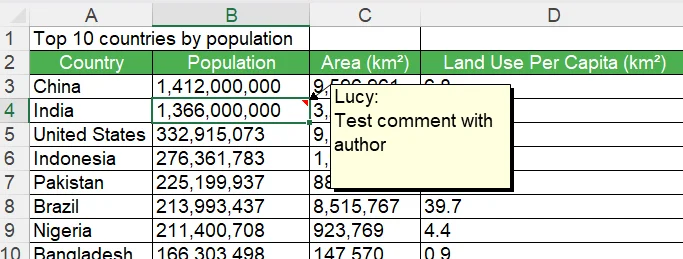
Il codice crea prima un oggetto Workbook e carica il file Excel di origine con LoadFromFile(). Poi ottiene il primo foglio di lavoro tramite workbook.Worksheets[0] e usa sheet.Range["B4"] per accedere alla cella di destinazione. Infine, AddComment() crea un commento per quella cella, mentre comment.Text ne imposta il contenuto prima che la cartella di lavoro modificata venga salvata.
3. Personalizzare il commento
Oltre ad aggiungere testo semplice nella casella del commento, puoi anche controllarne l'aspetto. Ad esempio, puoi modificarne la larghezza e la visibilità e applicare la formattazione a una parte del testo del commento.
# Set the comment size and visibility
comment.Width = 200
comment.Visible = True

# Create a font for the author name
font = workbook.CreateFont()
font.FontName = "Segoe Script"
font.KnownColor = ExcelColors.Blue
font.IsBold = True

# Apply the font to the author name
comment.RichText.SetFont(0, len(author), font)
L'immagine sottostante mostra il commento aggiunto con questo codice. Come puoi vedere, la casella del commento utilizza un carattere e un colore del testo diversi dal formato predefinito mostrato nel passaggio precedente:
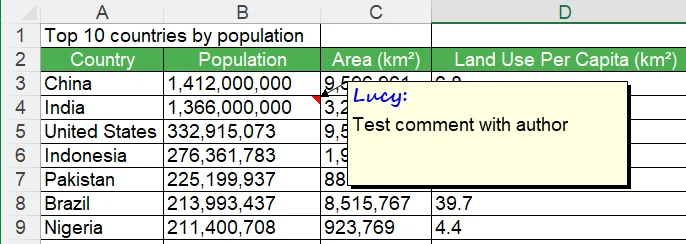
In questo breve script, Width controlla la larghezza della casella del commento, mentre Visible determina se il commento viene visualizzato. L'oggetto RichText ti consente di formattare parte del testo del commento, ad esempio rendendo in grassetto il nome dell'autore.
Suggerimento: una volta che sai come aggiungere e personalizzare i commenti con Python, potresti anche aver bisogno di aggiornare o rimuovere i commenti esistenti. Consulta la nostra guida su Modificare o rimuovere commenti in Excel per maggiori dettagli.
Conclusione
Aggiungere un commento in Excel può essere semplice come selezionare una cella e scegliere Nuovo commento. Se devi automatizzare attività ripetitive sui commenti all'interno di Excel, anche VBA può aiutarti. Quando hai bisogno di un modo più efficiente per aggiungere commenti a livello di programmazione, Free Spire.XLS per Python è una scelta pratica. Ti consente di aggiungere commenti a più celle e personalizzarne l'aspetto con poche righe di codice. Scegli il metodo più adatto alle tue esigenze!
Domande frequenti
Posso aggiungere un commento a una cella specifica in Excel?
Sì. Seleziona la cella, fai clic destro su di essa e scegli Nuovo commento. Puoi anche aggiungere un commento tramite la scheda Revisione.
Posso aggiungere commenti a più celle contemporaneamente?
Sì. Si consiglia di utilizzare VBA o Python per automatizzare il processo quando diverse celle necessitano di commenti simili.
Posso personalizzare l'aspetto di un commento di Excel?
Sì. Con Free Spire.XLS per Python, puoi regolare proprietà come la larghezza e la visibilità del commento e applicare la formattazione rich text al testo del commento.
Qual è la differenza tra un commento di Excel e una nota?
Nell'Excel attuale, i commenti con thread sono progettati per discussioni e risposte, mentre le note sono usate per semplici annotazioni. Le note erano chiamate commenti nelle versioni precedenti di Excel.
Leggi anche:
Comment ajouter un commentaire dans Excel : du manuel à l'automatisation
Les commentaires sont utiles lorsque vous devez expliquer une valeur, laisser un retour ou discuter d'une cellule avec d'autres personnes. Dans Excel, vous pouvez ajouter un commentaire directement depuis la feuille de calcul, automatiser le processus avec VBA ou utiliser Python pour travailler avec les commentaires dans les fichiers Excel par programmation. Ce guide présente plusieurs façons d'ajouter des commentaires dans Excel, d'une méthode manuelle rapide au traitement automatisé avec Free Spire.XLS for Python.
- Comment ajouter un commentaire dans Excel directement
- Comment ajouter des commentaires à Excel avec VBA
- Comment ajouter des commentaires à Excel avec Python
- FAQ
Comment ajouter un commentaire dans Excel directement
Si vous avez seulement besoin d'ajouter quelques commentaires, Excel propose lui-même un moyen rapide de le faire. Vous pouvez ajouter un commentaire directement depuis le menu contextuel d'une cellule ou utiliser l'onglet Révision. Ces méthodes conviennent lorsque vous travaillez sur un classeur manuellement et que vous n'avez pas besoin de traiter un grand nombre de cellules.
1. Ajouter un commentaire depuis le menu contextuel
- Étape 1 : Sélectionnez la cellule à laquelle vous souhaitez ajouter un commentaire.
- Étape 2 : Cliquez avec le bouton droit sur la cellule.
- Étape 3 : Sélectionnez Insérer un commentaire.
- Étape 4 : Saisissez votre commentaire dans la zone de commentaire.
- Étape 5 : Cliquez n'importe où en dehors de la zone de commentaire pour terminer.
Excel ajoute le commentaire à la cellule sélectionnée. Si vous travaillez avec d'autres personnes, elles peuvent répondre au commentaire et poursuivre la discussion dans le même fil.
2. Insérer un commentaire depuis l'onglet Révision
Vous pouvez également insérer un commentaire depuis le ruban Excel. Cela est utile lorsque vous travaillez déjà avec les outils de l'onglet Révision.
- Étape 1 : Sélectionnez la cellule que vous souhaitez commenter.
- Étape 2 : Ouvrez l'onglet Révision.
- Étape 3 : Sélectionnez Nouveau commentaire.
- Étape 4 : Saisissez vos commentaires dans la zone de commentaire.
- Étape 5 : Cliquez n'importe où en dehors de la zone de commentaire pour terminer.
Cette approche produit le même résultat de base que l'utilisation du menu contextuel, vous pouvez donc utiliser le flux de travail qui vous semble le plus pratique.
Astuce : Si vous souhaitez également améliorer l'apparence globale de votre feuille de calcul, vous pouvez utiliser les fonctionnalités de mise en forme intégrées d'Excel pour ajuster rapidement les cellules, les tableaux et d'autres éléments. Consultez notre guide sur la Mise en forme automatique dans Excel pour plus de détails.
Comment ajouter des commentaires à Excel avec VBA
Les commentaires manuels fonctionnent bien pour les petites feuilles de calcul, mais ils peuvent devenir répétitifs lorsque vous devez ajouter des commentaires similaires à plusieurs cellules. VBA vous permet d'automatiser ce travail directement dans Excel.
Avant d'écrire la macro, vous devez ouvrir l'éditeur VBA d'Excel et créer un module. Une fois le module prêt, vous pouvez coller le code et l'exécuter depuis Excel.
1. Ouvrir l'éditeur VBA
- Étape 1 : Ouvrez le classeur Excel que vous souhaitez modifier.
- Étape 2 : Appuyez sur Alt + F11 pour ouvrir l'éditeur Microsoft Visual Basic for Applications.
- Étape 3 : Dans l'éditeur VBA, sélectionnez Insertion > Module.
- Étape 4 : Collez le code VBA dans le nouveau module.
2. Ajouter un commentaire à une cellule
Vous pouvez utiliser VBA pour ajouter un commentaire à une cellule spécifique dans Excel :
Sub AddComment()

    Range("B4").AddComment "Please review this value."

End Sub
Exécutez la macro et Excel ajoute le commentaire spécifié à la cellule B4.
3. Ajouter des commentaires à plusieurs cellules
Si plusieurs cellules nécessitent des commentaires, vous pouvez utiliser une boucle :
Sub AddComments()

    Dim cell As Range

    For Each cell In Range("B4:B8")
        cell.AddComment "Please review this value."
    Next cell

End Sub
Cette approche est utile lorsqu'un même type de commentaire doit être ajouté sur une plage de cellules.
Remarque : La méthode VBA AddComment est associée à l'ancien modèle de commentaires d'Excel. Dans les versions actuelles de Microsoft 365, la nouvelle commande Nouveau commentaire crée des commentaires en fil de discussion, tandis que les anciens commentaires sont appelés notes.
Comment ajouter des commentaires à Excel avec Python
Python est plus adapté lorsque la création de commentaires fait partie d'un flux de travail plus large de traitement Excel. Par exemple, vous pouvez avoir besoin d'ajouter des commentaires à des fichiers générés par un autre système ou de traiter automatiquement des classeurs Excel.
Free Spire.XLS for Python fournit des API pour travailler avec des fichiers Excel sans installer Microsoft Excel. Vous pouvez charger un classeur, accéder à une cellule, ajouter un commentaire, personnaliser son apparence et enregistrer le résultat.
1. Installer Free Spire.XLS for Python
Installez la bibliothèque avec pip :
pip install Spire.Xls.Free
Une fois installée, vous pouvez l'utiliser pour lire et modifier des classeurs Excel depuis Python.
2. Ajouter un commentaire à une cellule
L'exemple suivant charge un classeur existant et ajoute un commentaire à la cellule B4.
from spire.xls import *
from spire.xls.common import *

inputFile = "sample.xlsx"
outputFile = "CommentWithAuthor.xlsx"

# Create a Workbook object
workbook = Workbook()

# Load the Excel workbook
workbook.LoadFromFile(inputFile)

# Get the first worksheet
sheet = workbook.Worksheets[0]

# Get the cell where the comment will be added
cell = sheet.Range["B4"]

# Set the comment author and content
author = "Lucy"
text = "Test comment with author"

# Add a comment to the cell
comment = cell.AddComment()
comment.Text = author + ":\n" + text

# Save the result
workbook.SaveToFile(outputFile, ExcelVersion.Version2013)
workbook.Dispose()
Le code crée d'abord un objet Workbook et charge le fichier Excel source avec LoadFromFile(). Il récupère ensuite la première feuille de calcul via workbook.Worksheets[0] et utilise sheet.Range["B4"] pour accéder à la cellule cible. Enfin, AddComment() crée un commentaire pour cette cellule, tandis que comment.Text définit son contenu avant l'enregistrement du classeur modifié.
3. Personnaliser le commentaire
Outre l'ajout de texte brut dans la zone de commentaire, vous pouvez également contrôler son apparence. Par exemple, vous pouvez modifier sa largeur et sa visibilité et appliquer une mise en forme à une partie du texte du commentaire.
# Set the comment size and visibility
comment.Width = 200
comment.Visible = True

# Create a font for the author name
font = workbook.CreateFont()
font.FontName = "Segoe Script"
font.KnownColor = ExcelColors.Blue
font.IsBold = True

# Apply the font to the author name
comment.RichText.SetFont(0, len(author), font)
L'image ci-dessous montre le commentaire ajouté avec ce code. Comme vous pouvez le constater, la zone de commentaire utilise une police et une couleur de texte différentes du format par défaut présenté à l'étape précédente :
Dans ce court script, Width contrôle la largeur de la zone de commentaire, tandis que Visible détermine si le commentaire est affiché. L'objet RichText vous permet de mettre en forme une partie du texte du commentaire, par exemple en mettant le nom de l'auteur en gras.
Astuce : Une fois que vous savez comment ajouter et personnaliser des commentaires avec Python, vous pouvez également avoir besoin de mettre à jour ou de supprimer des commentaires existants. Consultez notre guide sur Modifier ou supprimer des commentaires dans Excel pour plus de détails.
Conclusion
Ajouter un commentaire dans Excel peut être aussi simple que de sélectionner une cellule et de choisir Nouveau commentaire. Si vous devez automatiser des tâches de commentaires répétitives dans Excel, VBA peut également vous aider. Lorsque vous avez besoin d'un moyen plus efficace d'ajouter des commentaires par programmation, Free Spire.XLS for Python est un choix pratique. Il vous permet d'ajouter des commentaires à plusieurs cellules et de personnaliser leur apparence en quelques lignes de code seulement. Choisissez la méthode qui correspond le mieux à vos besoins !
FAQ
Puis-je ajouter un commentaire à une cellule spécifique dans Excel ?
Oui. Sélectionnez la cellule, cliquez dessus avec le bouton droit et choisissez Nouveau commentaire. Vous pouvez également ajouter un commentaire via l'onglet Révision.
Puis-je ajouter des commentaires à plusieurs cellules à la fois ?
Oui. Il est recommandé d'utiliser VBA ou Python pour automatiser le processus lorsque plusieurs cellules nécessitent des commentaires similaires.
Puis-je personnaliser l'apparence d'un commentaire Excel ?
Oui. Avec Free Spire.XLS for Python, vous pouvez ajuster des propriétés telles que la largeur et la visibilité du commentaire et appliquer une mise en forme de texte enrichi au texte du commentaire.
Quelle est la différence entre un commentaire Excel et une note ?
Dans Excel actuel, les commentaires en fil de discussion sont conçus pour les discussions et les réponses, tandis que les notes servent à de simples annotations. Les notes étaient appelées commentaires dans les versions antérieures d'Excel.
À lire également :
Cómo agregar un comentario en Excel: de lo manual a la automatización
Tabla de Contenidos
Los comentarios son útiles cuando necesitas explicar un valor, dejar comentarios o discutir una celda con otros. En Excel, puedes añadir un comentario directamente desde la hoja de cálculo, automatizar el proceso con VBA, o usar Python para trabajar con comentarios en archivos de Excel mediante programación. Esta guía cubre varias formas de añadir comentarios en Excel, desde un método manual rápido hasta el procesamiento automatizado con Free Spire.XLS for Python.
- Cómo Añadir un Comentario en Excel Directamente
- Cómo Añadir Comentarios a Excel con VBA
- Cómo Añadir Comentarios a Excel con Python
- Preguntas Frecuentes
Cómo Añadir un Comentario en Excel Directamente
Si solo necesitas añadir unos pocos comentarios, Excel proporciona una forma rápida de hacerlo. Puedes añadir un comentario directamente desde el menú contextual de una celda o usar la pestaña Revisar. Estos métodos son adecuados cuando trabajas con un libro de trabajo manualmente y no necesitas procesar una gran cantidad de celdas.
1. Añadir un Comentario desde el Menú del Clic Derecho
- Paso 1: Selecciona la celda donde quieres añadir un comentario.
- Paso 2: Haz clic derecho en la celda.
- Paso 3: Selecciona Insertar Comentario.
- Paso 4: Escribe tu comentario en el cuadro de comentario.
- Paso 5: Haz clic en cualquier lugar fuera del cuadro de comentario para finalizar.
Excel añade el comentario a la celda seleccionada. Si estás trabajando con otras personas, pueden responder al comentario y continuar la discusión en el mismo hilo.
2. Insertar un Comentario desde la Pestaña Revisar
También puedes insertar un comentario desde la cinta de opciones de Excel. Esto es útil cuando ya estás trabajando con las herramientas de la pestaña Revisar.
- Paso 1: Selecciona la celda sobre la que quieres comentar.
- Paso 2: Abre la pestaña Revisar.
- Paso 3: Selecciona Nuevo Comentario.
- Paso 4: Escribe comentarios en el cuadro de comentario.
- Paso 5: Haz clic en cualquier lugar fuera del cuadro de comentario para finalizar.
Este enfoque proporciona el mismo resultado básico que usar el menú del clic derecho, así que puedes usar el flujo de trabajo que te resulte más conveniente.
Consejo: Si también quieres mejorar la apariencia general de tu hoja de cálculo, puedes usar las funciones de formato integradas de Excel para ajustar rápidamente celdas, tablas y otros elementos. Consulta nuestra guía sobre Formato Automático en Excel para más detalles.
Cómo Añadir Comentarios a Excel con VBA
Los comentarios manuales funcionan bien para hojas de cálculo pequeñas, pero pueden volverse repetitivos cuando necesitas añadir comentarios similares a varias celdas. VBA te permite automatizar este trabajo directamente dentro de Excel.
Antes de escribir la macro, necesitas abrir el editor de VBA de Excel y crear un módulo. Una vez que el módulo esté listo, puedes pegar el código y ejecutarlo desde Excel.
1. Abrir el Editor de VBA
- Paso 1: Abre el libro de Excel que quieres editar.
- Paso 2: Pulsa Alt + F11 para abrir el editor Microsoft Visual Basic for Applications.
- Paso 3: En el editor de VBA, selecciona Insertar > Módulo.
- Paso 4: Pega el código de VBA en el nuevo módulo.
2. Añadir un Comentario a una Celda
Puedes usar VBA para añadir un comentario a una celda específica en Excel:
Sub AddComment()

    Range("B4").AddComment "Please review this value."

End Sub
Ejecuta la macro y Excel añade el comentario especificado a la celda B4.
3. Añadir Comentarios a Varias Celdas
Si varias celdas necesitan comentarios, puedes usar un bucle:
Sub AddComments()

    Dim cell As Range

    For Each cell In Range("B4:B8")
        cell.AddComment "Please review this value."
    Next cell

End Sub
Este enfoque es útil cuando se necesita añadir el mismo tipo de comentario en un rango.
Nota: El método AddComment de VBA está asociado con el modelo de comentarios antiguo de Excel. En las versiones actuales de Microsoft 365, el comando más reciente Nuevo Comentario crea comentarios en hilo, mientras que los comentarios antiguos se denominan notas.
Cómo Añadir Comentarios a Excel con Python
Python es una mejor opción cuando la creación de comentarios forma parte de un flujo de trabajo de procesamiento de Excel más amplio. Por ejemplo, puede que necesites añadir comentarios a archivos generados por otro sistema o procesar libros de Excel automáticamente.
Free Spire.XLS for Python proporciona API para trabajar con archivos de Excel sin instalar Microsoft Excel. Puedes cargar un libro de trabajo, acceder a una celda, añadir un comentario, personalizar su apariencia y guardar el resultado.
1. Instalar Free Spire.XLS for Python
Instala la biblioteca con pip:
pip install Spire.Xls.Free
Una vez instalada, puedes usarla para leer y modificar libros de Excel desde Python.
2. Añadir un Comentario a una Celda
El siguiente ejemplo carga un libro de trabajo existente y añade un comentario a la celda B4.
from spire.xls import *
from spire.xls.common import *

inputFile = "sample.xlsx"
outputFile = "CommentWithAuthor.xlsx"

# Create a Workbook object
workbook = Workbook()

# Load the Excel workbook
workbook.LoadFromFile(inputFile)

# Get the first worksheet
sheet = workbook.Worksheets[0]

# Get the cell where the comment will be added
cell = sheet.Range["B4"]

# Set the comment author and content
author = "Lucy"
text = "Test comment with author"

# Add a comment to the cell
comment = cell.AddComment()
comment.Text = author + ":\n" + text

# Save the result
workbook.SaveToFile(outputFile, ExcelVersion.Version2013)
workbook.Dispose()
El código primero crea un objeto Workbook y carga el archivo de Excel de origen con LoadFromFile(). Luego obtiene la primera hoja de cálculo mediante workbook.Worksheets[0] y usa sheet.Range["B4"] para acceder a la celda objetivo. Finalmente, AddComment() crea un comentario para esa celda, mientras que comment.Text establece su contenido antes de que se guarde el libro de trabajo modificado.
3. Personalizar el Comentario
Además de añadir texto sin formato en el cuadro de comentario, también puedes controlar su apariencia. Por ejemplo, puedes cambiar su ancho y visibilidad y aplicar formato a parte del texto del comentario.
# Set the comment size and visibility
comment.Width = 200
comment.Visible = True

# Create a font for the author name
font = workbook.CreateFont()
font.FontName = "Segoe Script"
font.KnownColor = ExcelColors.Blue
font.IsBold = True

# Apply the font to the author name
comment.RichText.SetFont(0, len(author), font)
La siguiente imagen muestra el comentario añadido con este código. Como puedes ver, el cuadro de comentario usa una fuente y un color de texto diferentes del formato predeterminado mostrado en el paso anterior:
En este breve script, Width controla el ancho del cuadro de comentario, mientras que Visible determina si se muestra el comentario. El objeto RichText te permite dar formato a parte del texto del comentario, como poner en negrita el nombre del autor.
Consejo: Una vez que sepas cómo añadir y personalizar comentarios con Python, es posible que también necesites actualizar o eliminar comentarios existentes. Consulta nuestra guía sobre Editar o Eliminar Comentarios en Excel para más detalles.
Conclusión
Añadir un comentario en Excel puede ser tan sencillo como seleccionar una celda y elegir Nuevo Comentario. Si necesitas automatizar tareas repetitivas de comentarios dentro de Excel, VBA también puede ayudarte. Cuando necesitas una forma más eficiente de añadir comentarios mediante programación, Free Spire.XLS for Python es una opción práctica. Te permite añadir comentarios a varias celdas y personalizar su apariencia con solo unas pocas líneas de código. ¡Elige el método que mejor se adapte a tus necesidades!
Preguntas Frecuentes
¿Puedo Añadir un Comentario a una Celda Específica en Excel?
Sí. Selecciona la celda, haz clic derecho sobre ella y elige Nuevo Comentario. También puedes añadir un comentario a través de la pestaña Revisar.
¿Puedo Añadir Comentarios a Varias Celdas a la Vez?
Sí. Se recomienda usar VBA o Python para automatizar el proceso cuando varias celdas necesitan comentarios similares.
¿Puedo Personalizar la Apariencia de un Comentario de Excel?
Sí. Con Free Spire.XLS for Python, puedes ajustar propiedades como el ancho y la visibilidad del comentario y aplicar formato de texto enriquecido al texto del comentario.
¿Cuál es la Diferencia entre un Comentario de Excel y una Nota?
En el Excel actual, los comentarios en hilo están diseñados para discusiones y respuestas, mientras que las notas se usan para anotaciones simples. Las notas se llamaban comentarios en versiones anteriores de Excel.
También Lee:
So fügen Sie einen Kommentar in Excel hinzu: Von manuell bis automatisiert
Kommentare sind nützlich, wenn Sie einen Wert erklären, Feedback hinterlassen oder eine Zelle mit anderen besprechen möchten. In Excel können Sie einen Kommentar direkt aus dem Arbeitsblatt hinzufügen, den Vorgang mit VBA automatisieren oder Python verwenden, um programmgesteuert mit Kommentaren in Excel-Dateien zu arbeiten. Dieser Leitfaden behandelt mehrere Möglichkeiten, Kommentare in Excel hinzuzufügen, von einer schnellen manuellen Methode bis hin zur automatisierten Verarbeitung mit Free Spire.XLS for Python.
- Wie man einen Kommentar direkt in Excel hinzufügt
- Wie man Kommentare mit VBA zu Excel hinzufügt
- Wie man Kommentare mit Python zu Excel hinzufügt
- Häufig gestellte Fragen
Wie man einen Kommentar direkt in Excel hinzufügt
Wenn Sie nur ein paar Kommentare hinzufügen müssen, bietet Excel selbst eine schnelle Möglichkeit dafür. Sie können einen Kommentar direkt über das Kontextmenü einer Zelle hinzufügen oder die Registerkarte Überprüfen verwenden. Diese Methoden eignen sich, wenn Sie eine Arbeitsmappe manuell bearbeiten und nicht eine große Anzahl von Zellen verarbeiten müssen.
1. Einen Kommentar über das Kontextmenü hinzufügen
- Schritt 1: Wählen Sie die Zelle aus, der Sie einen Kommentar hinzufügen möchten.
- Schritt 2: Klicken Sie mit der rechten Maustaste auf die Zelle.
- Schritt 3: Wählen Sie Kommentar einfügen.
- Schritt 4: Geben Sie Ihren Kommentar in das Kommentarfeld ein.
- Schritt 5: Klicken Sie außerhalb des Kommentarfelds, um den Vorgang abzuschließen.
Excel fügt den Kommentar zur ausgewählten Zelle hinzu. Wenn Sie mit anderen Personen zusammenarbeiten, können diese auf den Kommentar antworten und die Diskussion im selben Thread fortsetzen.
2. Einen Kommentar über die Registerkarte „Überprüfen“ einfügen
Sie können einen Kommentar auch über das Excel-Menüband einfügen. Dies ist nützlich, wenn Sie bereits mit den Werkzeugen auf der Registerkarte Überprüfen arbeiten.
- Schritt 1: Wählen Sie die Zelle aus, die Sie kommentieren möchten.
- Schritt 2: Öffnen Sie die Registerkarte Überprüfen.
- Schritt 3: Wählen Sie Neuer Kommentar.
- Schritt 4: Geben Sie Kommentare in das Kommentarfeld ein.
- Schritt 5: Klicken Sie außerhalb des Kommentarfelds, um den Vorgang abzuschließen.
Diese Vorgehensweise liefert das gleiche grundlegende Ergebnis wie die Verwendung des Kontextmenüs, sodass Sie den Arbeitsablauf wählen können, der Ihnen bequemer erscheint.
Tipp: Wenn Sie auch das allgemeine Erscheinungsbild Ihres Arbeitsblatts verbessern möchten, können Sie die integrierten Formatierungsfunktionen von Excel nutzen, um Zellen, Tabellen und andere Elemente schnell anzupassen. Weitere Einzelheiten finden Sie in unserem Leitfaden zur Autoformatierung in Excel.
Wie man Kommentare mit VBA zu Excel hinzufügt
Manuelle Kommentare funktionieren gut für kleine Arbeitsblätter, können jedoch repetitiv werden, wenn Sie ähnliche Kommentare zu mehreren Zellen hinzufügen müssen. Mit VBA können Sie diese Arbeit direkt in Excel automatisieren.
Bevor Sie das Makro schreiben, müssen Sie den VBA-Editor von Excel öffnen und ein Modul erstellen. Sobald das Modul bereit ist, können Sie den Code einfügen und ihn von Excel aus ausführen.
1. Den VBA-Editor öffnen
- Schritt 1: Öffnen Sie die Excel-Arbeitsmappe, die Sie bearbeiten möchten.
- Schritt 2: Drücken Sie Alt + F11, um den Editor Microsoft Visual Basic for Applications zu öffnen.
- Schritt 3: Wählen Sie im VBA-Editor Einfügen > Modul.
- Schritt 4: Fügen Sie den VBA-Code in das neue Modul ein.
2. Einen Kommentar zu einer Zelle hinzufügen
Sie können VBA verwenden, um einen Kommentar zu einer bestimmten Zelle in Excel hinzuzufügen:
Sub AddComment()

    Range("B4").AddComment "Please review this value."

End Sub
Führen Sie das Makro aus, und Excel fügt den angegebenen Kommentar zur Zelle B4 hinzu.
3. Kommentare zu mehreren Zellen hinzufügen
Wenn mehrere Zellen Kommentare benötigen, können Sie eine Schleife verwenden:
Sub AddComments()

    Dim cell As Range

    For Each cell In Range("B4:B8")
        cell.AddComment "Please review this value."
    Next cell

End Sub
Diese Vorgehensweise ist nützlich, wenn derselbe Kommentartyp über einen Bereich hinweg hinzugefügt werden soll.
Hinweis: Die VBA-Methode AddComment ist mit dem älteren Kommentarmodell von Excel verbunden. In aktuellen Microsoft 365-Versionen erstellt der neuere Befehl Neuer Kommentar Thread-Kommentare, während ältere Kommentare als Notizen bezeichnet werden.
Wie man Kommentare mit Python zu Excel hinzufügt
Python ist besser geeignet, wenn die Erstellung von Kommentaren Teil eines größeren Excel-Verarbeitungsablaufs ist. Beispielsweise müssen Sie möglicherweise Kommentare zu Dateien hinzufügen, die von einem anderen System generiert wurden, oder Excel-Arbeitsmappen automatisch verarbeiten.
Free Spire.XLS for Python bietet APIs für die Arbeit mit Excel-Dateien, ohne Microsoft Excel installieren zu müssen. Sie können eine Arbeitsmappe laden, auf eine Zelle zugreifen, einen Kommentar hinzufügen, dessen Erscheinungsbild anpassen und das Ergebnis speichern.
1. Free Spire.XLS for Python installieren
Installieren Sie die Bibliothek mit pip:
pip install Spire.Xls.Free
Nach der Installation können Sie sie verwenden, um Excel-Arbeitsmappen aus Python zu lesen und zu ändern.
2. Einen Kommentar zu einer Zelle hinzufügen
Das folgende Beispiel lädt eine vorhandene Arbeitsmappe und fügt einen Kommentar zur Zelle B4 hinzu.
from spire.xls import *
from spire.xls.common import *

inputFile = "sample.xlsx"
outputFile = "CommentWithAuthor.xlsx"

# Create a Workbook object
workbook = Workbook()

# Load the Excel workbook
workbook.LoadFromFile(inputFile)

# Get the first worksheet
sheet = workbook.Worksheets[0]

# Get the cell where the comment will be added
cell = sheet.Range["B4"]

# Set the comment author and content
author = "Lucy"
text = "Test comment with author"

# Add a comment to the cell
comment = cell.AddComment()
comment.Text = author + ":\n" + text

# Save the result
workbook.SaveToFile(outputFile, ExcelVersion.Version2013)
workbook.Dispose()
Der Code erstellt zunächst ein Workbook-Objekt und lädt die Excel-Quelldatei mit LoadFromFile(). Danach ruft er das erste Arbeitsblatt über workbook.Worksheets[0] ab und verwendet sheet.Range["B4"], um auf die Zielzelle zuzugreifen. Schließlich erstellt AddComment() einen Kommentar für diese Zelle, während comment.Text dessen Inhalt festlegt, bevor die geänderte Arbeitsmappe gespeichert wird.
3. Den Kommentar anpassen
Neben dem Hinzufügen von reinem Text in das Kommentarfeld können Sie auch dessen Erscheinungsbild steuern. Sie können beispielsweise dessen Breite und Sichtbarkeit ändern und eine Formatierung auf einen Teil des Kommentartexts anwenden.
# Set the comment size and visibility
comment.Width = 200
comment.Visible = True

# Create a font for the author name
font = workbook.CreateFont()
font.FontName = "Segoe Script"
font.KnownColor = ExcelColors.Blue
font.IsBold = True

# Apply the font to the author name
comment.RichText.SetFont(0, len(author), font)
Das folgende Bild zeigt den mit diesem Code hinzugefügten Kommentar. Wie Sie sehen können, verwendet das Kommentarfeld eine andere Schriftart und Textfarbe als das im vorherigen Schritt gezeigte Standardformat:
In diesem kurzen Skript steuert Width die Breite des Kommentarfelds, während Visible bestimmt, ob der Kommentar angezeigt wird. Das RichText-Objekt ermöglicht es Ihnen, einen Teil des Kommentartexts zu formatieren, beispielsweise den Autorennamen fett zu machen.
Tipp: Sobald Sie wissen, wie Sie Kommentare mit Python hinzufügen und anpassen, müssen Sie möglicherweise auch vorhandene Kommentare aktualisieren oder entfernen. Weitere Einzelheiten finden Sie in unserem Leitfaden zum Bearbeiten oder Entfernen von Kommentaren in Excel.
Fazit
Das Hinzufügen eines Kommentars in Excel kann so einfach sein wie das Auswählen einer Zelle und das Anklicken von „Neuer Kommentar“. Wenn Sie repetitive Kommentaraufgaben innerhalb von Excel automatisieren müssen, kann auch VBA helfen. Wenn Sie eine effizientere Möglichkeit benötigen, Kommentare programmgesteuert hinzuzufügen, ist Free Spire.XLS for Python eine praktische Wahl. Es ermöglicht Ihnen, mit nur wenigen Codezeilen Kommentare zu mehreren Zellen hinzuzufügen und deren Erscheinungsbild anzupassen. Wählen Sie die Methode, die am besten zu Ihren Anforderungen passt!
Häufig gestellte Fragen
Kann ich einen Kommentar zu einer bestimmten Zelle in Excel hinzufügen?
Ja. Wählen Sie die Zelle aus, klicken Sie mit der rechten Maustaste darauf und wählen Sie Neuer Kommentar. Sie können einen Kommentar auch über die Registerkarte Überprüfen hinzufügen.
Kann ich Kommentare zu mehreren Zellen gleichzeitig hinzufügen?
Ja. Es wird empfohlen, VBA oder Python zu verwenden, um den Vorgang zu automatisieren, wenn mehrere Zellen ähnliche Kommentare benötigen.
Kann ich das Erscheinungsbild eines Excel-Kommentars anpassen?
Ja. Mit Free Spire.XLS for Python können Sie Eigenschaften wie die Kommentarbreite und -sichtbarkeit anpassen und eine Rich-Text-Formatierung auf den Kommentartext anwenden.
Was ist der Unterschied zwischen einem Excel-Kommentar und einer Notiz?
In der aktuellen Version von Excel sind Thread-Kommentare für Diskussionen und Antworten gedacht, während Notizen für einfache Anmerkungen verwendet werden. Notizen wurden in früheren Excel-Versionen als Kommentare bezeichnet.
Lesen Sie auch:
Как добавить комментарий в Excel: от ручного метода к автоматизации
Комментарии полезны, когда нужно пояснить значение, оставить отзыв или обсудить ячейку с другими. В Excel можно добавить комментарий прямо из рабочего листа, автоматизировать процесс с помощью VBA или использовать Python для программной работы с комментариями в файлах Excel. В этом руководстве описано несколько способов добавления комментариев в Excel — от быстрого ручного метода до автоматизированной обработки с помощью Free Spire.XLS for Python.
- Как добавить комментарий в Excel напрямую
- Как добавить комментарии в Excel с помощью VBA
- Как добавить комментарии в Excel с помощью Python
- Часто задаваемые вопросы
Как добавить комментарий в Excel напрямую
Если вам нужно добавить всего несколько комментариев, сам Excel предоставляет для этого быстрый способ. Вы можете добавить комментарий прямо из контекстного меню ячейки или воспользоваться вкладкой Рецензирование. Эти методы подходят, когда вы работаете с книгой вручную и не нужно обрабатывать большое количество ячеек.
1. Добавление комментария из контекстного меню
- Шаг 1: Выберите ячейку, в которую нужно добавить комментарий.
- Шаг 2: Щёлкните ячейку правой кнопкой мыши.
- Шаг 3: Выберите Вставить комментарий.
- Шаг 4: Введите свой комментарий в поле комментария.
- Шаг 5: Щёлкните в любом месте за пределами поля комментария, чтобы завершить.
Excel добавляет комментарий к выбранной ячейке. Если вы работаете с другими людьми, они могут ответить на комментарий и продолжить обсуждение в той же ветке.
2. Вставка комментария с вкладки «Рецензирование»
Вставить комментарий можно также с ленты Excel. Это удобно, когда вы уже работаете с инструментами на вкладке Рецензирование.
- Шаг 1: Выберите ячейку, которую хотите прокомментировать.
- Шаг 2: Откройте вкладку Рецензирование.
- Шаг 3: Выберите Создать комментарий.
- Шаг 4: Введите комментарий в поле комментария.
- Шаг 5: Щёлкните в любом месте за пределами поля комментария, чтобы завершить.
Этот подход даёт тот же базовый результат, что и использование контекстного меню, поэтому вы можете выбрать тот способ работы, который кажется вам более удобным.
Совет: Если вы также хотите улучшить общий вид рабочего листа, можно использовать встроенные средства форматирования Excel, чтобы быстро настроить ячейки, таблицы и другие элементы. Подробнее см. в нашем руководстве Автоформат в Excel.
Как добавить комментарии в Excel с помощью VBA
Ручные комментарии хорошо подходят для небольших рабочих листов, но они могут стать утомительными, когда нужно добавить однотипные комментарии к нескольким ячейкам. VBA позволяет автоматизировать эту работу прямо в Excel.
Прежде чем писать макрос, нужно открыть редактор VBA в Excel и создать модуль. Когда модуль будет готов, можно вставить код и запустить его из Excel.
1. Откройте редактор VBA
- Шаг 1: Откройте книгу Excel, которую хотите изменить.
- Шаг 2: Нажмите Alt + F11, чтобы открыть редактор Microsoft Visual Basic for Applications.
- Шаг 3: В редакторе VBA выберите Insert > Module.
- Шаг 4: Вставьте код VBA в новый модуль.
2. Добавление комментария к ячейке
С помощью VBA можно добавить комментарий к определённой ячейке в Excel:
Sub AddComment()

    Range("B4").AddComment "Please review this value."

End Sub
Запустите макрос, и Excel добавит указанный комментарий в ячейку B4.
3. Добавление комментариев к нескольким ячейкам
Если комментарии нужны нескольким ячейкам, можно использовать цикл:
Sub AddComments()

    Dim cell As Range

    For Each cell In Range("B4:B8")
        cell.AddComment "Please review this value."
    Next cell

End Sub
Этот подход удобен, когда один и тот же тип комментария нужно добавить к диапазону.
Примечание: Метод VBA AddComment связан со старой моделью комментариев Excel. В текущих версиях Microsoft 365 более новая команда Создать комментарий создаёт цепочки комментариев, тогда как прежние комментарии называются примечаниями.
Как добавить комментарии в Excel с помощью Python
Python лучше подходит, когда создание комментариев является частью более широкого процесса обработки Excel. Например, может потребоваться добавить комментарии к файлам, созданным другой системой, или обрабатывать книги Excel автоматически.
Free Spire.XLS for Python предоставляет API для работы с файлами Excel без установки Microsoft Excel. Вы можете загрузить книгу, получить доступ к ячейке, добавить комментарий, настроить его внешний вид и сохранить результат.
1. Установка Free Spire.XLS for Python
Установите библиотеку с помощью pip:
pip install Spire.Xls.Free
После установки её можно использовать для чтения и изменения книг Excel из Python.
2. Добавление комментария к ячейке
В следующем примере загружается существующая книга и добавляется комментарий в ячейку B4.
from spire.xls import *
from spire.xls.common import *

inputFile = "sample.xlsx"
outputFile = "CommentWithAuthor.xlsx"

# Create a Workbook object
workbook = Workbook()

# Load the Excel workbook
workbook.LoadFromFile(inputFile)

# Get the first worksheet
sheet = workbook.Worksheets[0]

# Get the cell where the comment will be added
cell = sheet.Range["B4"]

# Set the comment author and content
author = "Lucy"
text = "Test comment with author"

# Add a comment to the cell
comment = cell.AddComment()
comment.Text = author + ":\n" + text

# Save the result
workbook.SaveToFile(outputFile, ExcelVersion.Version2013)
workbook.Dispose()
Код сначала создаёт объект Workbook и загружает исходный файл Excel с помощью LoadFromFile(). Затем он получает первый рабочий лист через workbook.Worksheets[0] и использует sheet.Range["B4"] для доступа к целевой ячейке. Наконец, AddComment() создаёт комментарий для этой ячейки, а comment.Text задаёт его содержимое перед сохранением изменённой книги.
3. Настройка комментария
Помимо добавления простого текста в поле комментария, вы также можете управлять его внешним видом. Например, можно изменить его ширину и видимость и применить форматирование к части текста комментария.
# Set the comment size and visibility
comment.Width = 200
comment.Visible = True

# Create a font for the author name
font = workbook.CreateFont()
font.FontName = "Segoe Script"
font.KnownColor = ExcelColors.Blue
font.IsBold = True

# Apply the font to the author name
comment.RichText.SetFont(0, len(author), font)
На изображении ниже показан комментарий, добавленный с помощью этого кода. Как видите, в поле комментария используется другой шрифт и цвет текста по сравнению с форматом по умолчанию, показанным на предыдущем шаге:
В этом коротком скрипте Width управляет шириной поля комментария, а Visible определяет, отображается ли комментарий. Объект RichText позволяет форматировать часть текста комментария, например сделать имя автора полужирным.
Совет: Когда вы узнаете, как добавлять и настраивать комментарии с помощью Python, вам может также потребоваться обновить или удалить существующие комментарии. Подробнее см. в нашем руководстве Редактирование и удаление комментариев в Excel.
Заключение
Добавить комментарий в Excel может быть так же просто, как выбрать ячейку и выбрать «Создать комментарий». Если нужно автоматизировать повторяющиеся задачи с комментариями в Excel, VBA также может помочь. Когда требуется более эффективный способ добавления комментариев программно, Free Spire.XLS for Python — практичный выбор. Он позволяет добавлять комментарии к нескольким ячейкам и настраивать их внешний вид всего несколькими строками кода. Выберите метод, который лучше всего подходит вашим задачам!
Часто задаваемые вопросы
Можно ли добавить комментарий к определённой ячейке в Excel?
Да. Выберите ячейку, щёлкните её правой кнопкой мыши и выберите Создать комментарий. Также можно добавить комментарий через вкладку Рецензирование.
Можно ли добавить комментарии сразу к нескольким ячейкам?
Да. Если комментарии одного типа нужны нескольким ячейкам, рекомендуется автоматизировать процесс с помощью VBA или Python.
Можно ли настроить внешний вид комментария Excel?
Да. С помощью Free Spire.XLS for Python можно изменять такие свойства, как ширина и видимость комментария, а также применять форматирование форматированного текста к тексту комментария.
В чём разница между комментарием Excel и примечанием?
В современном Excel цепочки комментариев предназначены для обсуждений и ответов, тогда как примечания используются для простых аннотаций. В более ранних версиях Excel примечания назывались комментариями.
Читайте также:
How to Add a Comment in Excel: From Manual to Automation
Table of Contents
Comments are useful when you need to explain a value, leave feedback, or discuss a cell with others. In Excel, you can add a comment directly from the worksheet, automate the process with VBA, or use Python to work with comments in Excel files programmatically. This guide covers several ways to add comments in Excel, from a quick manual method to automated processing with Free Spire.XLS for Python.
- How to Add a Comment in Excel Directly
- How to Add Comments to Excel with VBA
- How to Add Comments to Excel with Python
- FAQs
How to Add a Comment in Excel Directly
If you only need to add a few comments, Excel itself provides a quick way to do it. You can add a comment directly from a cell's context menu or use the Review tab. These methods are suitable when you are working with a workbook manually and do not need to process a large number of cells.
1. Add a Comment from the Right-Click Menu
- Step 1: Select the cell where you want to add a comment.
- Step 2: Right-click the cell.
- Step 3: Select Insert Comment.
- Step 4: Type your comment in the comment box.
- Step 5: Click anywhere outside the comment box to finish.
Excel adds the comment to the selected cell. If you are working with other people, they can reply to the comment and continue the discussion in the same thread.
2. Insert a Comment from the Review Tab
You can also insert a comment from the Excel ribbon. This is useful when you are already working with the tools on the Review tab.
- Step 1: Select the cell that you want to comment on.
- Step 2: Open the Review tab.
- Step 3: Select New Comment.
- Step 4: Type comments in the comment box.
- Step 5: Click anywhere outside the comment box to finish.
This approach provides the same basic result as using the right-click menu, so you can use whichever workflow feels more convenient.
Tip: If you also want to improve the overall appearance of your worksheet, you can use Excel’s built-in formatting features to quickly adjust cells, tables, and other elements. See our guide to Auto Format in Excel for more details.
How to Add Comments to Excel with VBA
Manual comments work well for small worksheets, but they can become repetitive when you need to add similar comments to several cells. VBA lets you automate this work directly inside Excel.
Before writing the macro, you need to open Excel's VBA editor and create a module. Once the module is ready, you can paste the code and run it from Excel.
1. Open the VBA Editor
- Step 1: Open the Excel workbook you want to edit.
- Step 2: Press Alt + F11 to open the Microsoft Visual Basic for Applications editor.
- Step 3: In the VBA editor, select Insert > Module.
- Step 4: Paste the VBA code into the new module.
2. Add a Comment to a Cell
You can use VBA to add a comment to a specific cell in Excel:
Sub AddComment()

    Range("B4").AddComment "Please review this value."

End Sub
Run the macro, and Excel adds the specified comment to cell B4.
3. Add Comments to Multiple Cells
If several cells need comments, you can use a loop:
Sub AddComments()

    Dim cell As Range

    For Each cell In Range("B4:B8")
        cell.AddComment "Please review this value."
    Next cell

End Sub
This approach is useful when the same type of comment needs to be added across a range.
Note: The VBA AddComment method is associated with Excel's older comment model. In current Microsoft 365 versions, the newer New Comment command creates threaded comments, while older comments are referred to as notes.
How to Add Comments to Excel with Python
Python is a better fit when comment creation is part of a larger Excel-processing workflow. For example, you may need to add comments to files generated by another system or process Excel workbooks automatically.
Free Spire.XLS for Python provides APIs for working with Excel files without installing Microsoft Excel. You can load a workbook, access a cell, add a comment, customize its appearance, and save the result.
1. Install Free Spire.XLS for Python
Install the library with pip:
pip install Spire.Xls.Free
Once installed, you can use it to read and modify Excel workbooks from Python.
2. Add a Comment to a Cell
The following example loads an existing workbook and adds a comment to cell B4.
from spire.xls import *
from spire.xls.common import *

inputFile = "sample.xlsx"
outputFile = "CommentWithAuthor.xlsx"

# Create a Workbook object
workbook = Workbook()

# Load the Excel workbook
workbook.LoadFromFile(inputFile)

# Get the first worksheet
sheet = workbook.Worksheets[0]

# Get the cell where the comment will be added
cell = sheet.Range["B4"]

# Set the comment author and content
author = "Lucy"
text = "Test comment with author"

# Add a comment to the cell
comment = cell.AddComment()
comment.Text = author + ":\n" + text

# Save the result
workbook.SaveToFile(outputFile, ExcelVersion.Version2013)
workbook.Dispose()
The code first creates a Workbook object and loads the source Excel file with LoadFromFile(). It then gets the first worksheet through workbook.Worksheets[0] and uses sheet.Range["B4"] to access the target cell. Finally, AddComment() creates a comment for that cell, while comment.Text sets its content before the modified workbook is saved.
3. Customize the Comment
Besides adding plain text in comment box, you can also control the appearance of it. For example, you can change its width and visibility and apply formatting to part of the comment text.
# Set the comment size and visibility
comment.Width = 200
comment.Visible = True

# Create a font for the author name
font = workbook.CreateFont()
font.FontName = "Segoe Script"
font.KnownColor = ExcelColors.Blue
font.IsBold = True

# Apply the font to the author name
comment.RichText.SetFont(0, len(author), font)
The image below shows the comment added with this code. As you can see, the comment box uses a different font and text color from the default format shown in the previous step:
In this short script, Width controls the comment box width, while Visible determines whether the comment is displayed. The RichText object lets you format part of the comment text, such as making the author name bold.
Tip: Once you know how to add and customize comments with Python, you may also need to update or remove existing comments. See our guide on Edit or Remove Comments in Excel for more details.
Conclusion
Adding a comment in Excel can be as simple as selecting a cell and choosing New Comment. If you need to automate repetitive comment tasks within Excel, VBA can also help. When you need a more efficient way to add comments programmatically, Free Spire.XLS for Python is a practical choice. It lets you add comments to multiple cells and customize their appearance with just a few lines of code. Choose the method that best fits your needs!
FAQs
Can I Add a Comment to a Specific Cell in Excel?
Yes. Select the cell, right-click it, and choose New Comment. You can also add a comment through the Review tab.
Can I Add Comments to Multiple Cells at Once?
Yes. It is recommended to use VBA or Python to automate the process when several cells need similar comments.
Can I Customize the Appearance of an Excel Comment?
Yes. With Free Spire.XLS for Python, you can adjust properties such as the comment width and visibility and apply rich-text formatting to the comment text.
What Is the Difference Between an Excel Comment and a Note?
In current Excel, threaded comments are designed for discussions and replies, while notes are used for simple annotations. Notes were called comments in earlier versions of Excel.
Also Read:
Como adicionar uma caixa de texto a um PDF: 3 métodos fáceis
Adicionar uma caixa de texto a um PDF é útil quando você precisa colocar texto adicional, notas ou áreas de entrada em uma página. Embora a tarefa seja simples, nem todos sabem como adicionar uma caixa de texto a um PDF. Este guia aborda três maneiras de fazer isso: Adobe Acrobat para edição no desktop, Google Docs como uma alternativa gratuita e Free Spire.PDF for Python para criação em lote de formulários PDF.
- Adicionar uma caixa de texto a um PDF com Adobe Acrobat
- Adicionar uma caixa de texto a um PDF com Google Docs
- Adicionar uma caixa de texto interativa a um PDF com Python
- Qual método você deve escolher?
- Perguntas frequentes
Adicionar uma caixa de texto a um PDF com Adobe Acrobat
O Adobe Acrobat oferece várias maneiras de adicionar texto a um PDF. Você pode usar a ferramenta Editar para colocar novo texto diretamente na página ou usar as ferramentas de Comentário para adicionar uma anotação de caixa de texto sem alterar o conteúdo original do PDF. Escolha a opção que corresponde a como você deseja que a caixa de texto funcione.
Adicionar texto diretamente a um PDF
Se você quiser que o texto se torne parte do conteúdo do PDF, use a ferramenta Editar:
- Etapa 1: Abra seu arquivo PDF no Adobe Acrobat.
- Etapa 2: Clique em Editar PDF no painel lateral para exibir a barra de ferramentas de edição superior.
- Etapa 3: Selecione Adicionar texto na barra de ferramentas e, em seguida, clique e arraste na página para desenhar uma caixa de texto.
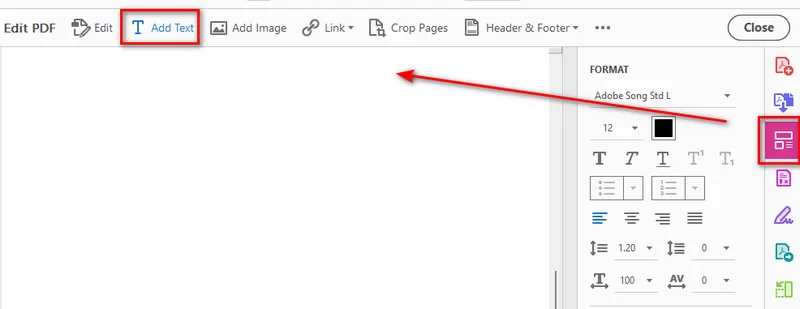
- Etapa 4: Digite o conteúdo que deseja adicionar dentro da caixa.
- Etapa 5: Use o painel à direita para ajustar fonte, tamanho, alinhamento e outras propriedades conforme necessário.
Adicionar uma caixa de texto como comentário
Se você deseja adicionar uma caixa de texto sem alterar o conteúdo original do PDF, pode usar as ferramentas de Comentário do Acrobat. Isso adiciona a caixa de texto como uma anotação que pode ser editada ou removida separadamente do conteúdo do documento.
- Etapa 1: Abra seu arquivo PDF no Adobe Acrobat.
- Etapa 2: Selecione Comentário na barra de ferramentas.
- Etapa 3: Escolha Adicionar caixa de texto na ferramenta Comentário.
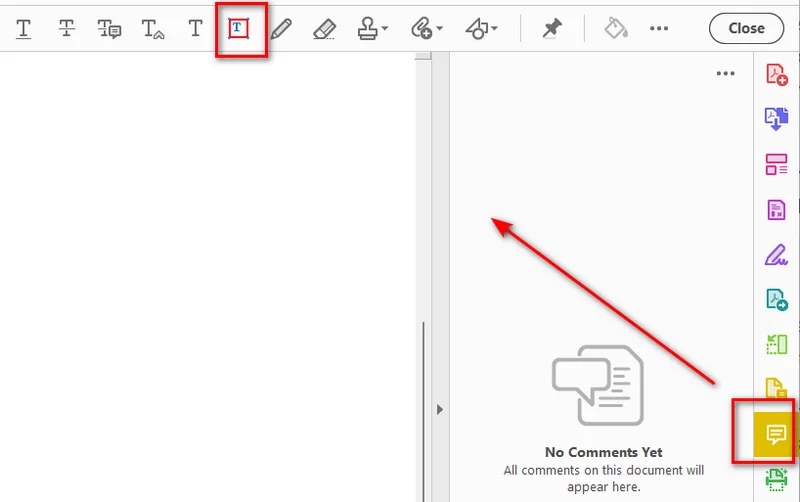
- Etapa 4: Clique na página para inserir a caixa de texto.
- Etapa 5: Insira seu texto e ajuste as propriedades da caixa de texto conforme necessário.
Observação: Lembre-se de que as anotações de caixa de texto flutuam acima da camada do documento, o que pode bloquear o texto ao redor.
Dica: Se você precisa adicionar texto normal a arquivos PDF programaticamente, pode usar Python para adicionar texto a arquivos PDF em vez de editá-los manualmente.
Adicionar uma caixa de texto a um PDF com Google Docs
Se você prefere uma solução online rápida, pode usar o Google Docs para realizar a tarefa diretamente no navegador. Essa abordagem envolve duas partes simples: primeiro, enviar seu PDF para o Google Drive e convertê-lo em Google Docs; segundo, usar a ferramenta Desenho integrada para inserir sua caixa de texto antes de exportar o arquivo de volta para PDF. Aqui estão as etapas detalhadas.
Converter o PDF em Google Docs
- Etapa 1: Abra o Google Drive no seu navegador e envie um arquivo PDF para o seu drive.
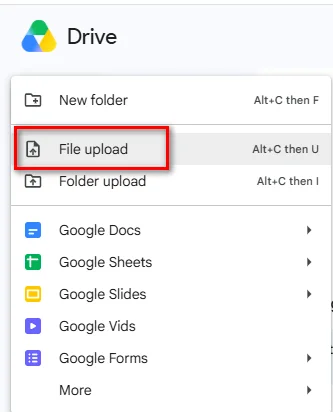
- Etapa 2: Clique com o botão direito no PDF enviado, selecione Abrir com e escolha Google Docs.
Criar e exportar a caixa de texto
Depois que o conteúdo do PDF for convertido para o Google Docs, você pode criar uma caixa de texto por meio da ferramenta Desenho:
- Etapa 1: Coloque o cursor onde deseja que a caixa de texto apareça e selecione Inserir > Desenho > + Novo.
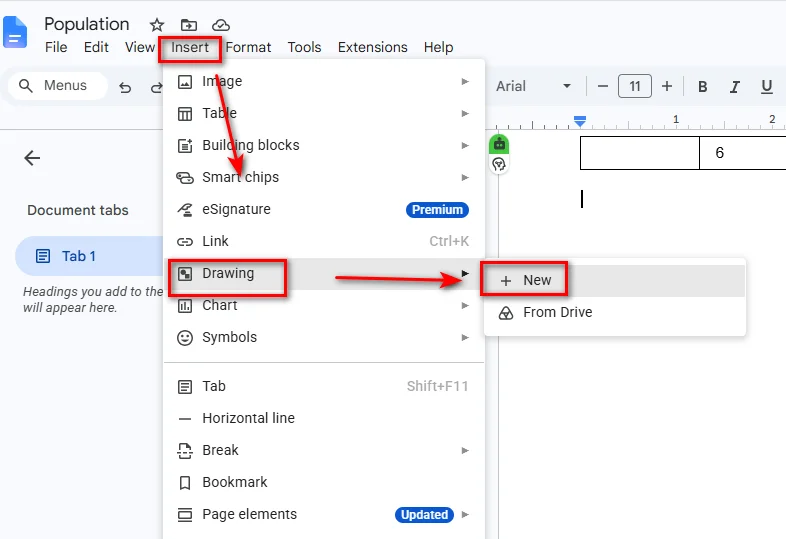
- Etapa 2: Clique no ícone Caixa de texto na barra de ferramentas superior da janela Desenho.
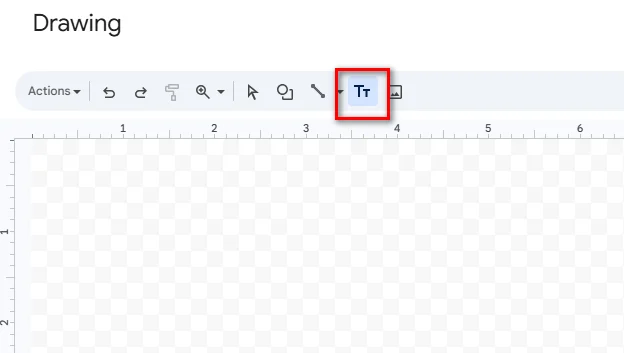
- Etapa 3: Clique e arraste na tela para desenhar a caixa e insira seu texto dentro dela.
- Etapa 4: Clique em Salvar e fechar no canto superior direito para inserir a caixa de texto no seu documento do Google Docs.
- Etapa 5: Selecione Arquivo > Fazer download > Documento PDF (.pdf) para salvar o documento editado de volta no seu computador.
Dica: O Google Docs é uma opção prática para PDFs simples e com muito texto. Se o arquivo original contiver layouts complexos, tabelas de várias colunas ou gráficos posicionados com precisão, verifique cuidadosamente o documento convertido antes de exportá-lo de volta para PDF.
Adicionar uma caixa de texto interativa a um PDF com Python
Se você precisa adicionar campos de texto programaticamente ou incorporar a criação de formulários PDF em um fluxo de trabalho automatizado, uma biblioteca PDF pode eliminar a edição manual repetitiva. Com Python, você pode criar uma caixa de texto interativa que os usuários podem clicar e preencher com um leitor de PDF.
Instalar o Free Spire.PDF for Python
Free Spire.PDF for Python é uma biblioteca PDF que permite aos desenvolvedores criar, ler, editar e converter documentos PDF programaticamente. Ela também oferece suporte a campos de formulário PDF, incluindo campos de texto interativos por meio da classe PdfTextBoxField.
Instale o pacote com:
pip install Spire.Pdf.Free
Criar um campo de caixa de texto interativo
O exemplo a seguir cria um novo documento PDF, adiciona um campo de caixa de texto interativo à sua primeira página, configura sua aparência e salva o arquivo.
import spire.pdf as pdf

# Create a new PDF document
doc = pdf.PdfDocument()

# Add a new blank page
page = doc.Pages.Add()

# Allow form fields to be created in the PDF
doc.AllowCreateForm = True

# Create an interactive text box field
text_box = pdf.PdfTextBoxField(page, "user_input_field")

# Set the location and dimensions
text_box.Bounds = pdf.RectangleF(50.0, 50.0, 300.0, 40.0)

# Set default text
text_box.Text = "Click here to enter your text..."

# Configure the font and border
font = pdf.PdfTrueTypeFont(
    "Arial",
    12.0,
    pdf.PdfFontStyle.Regular,
    True
)
text_box.Font = font
text_box.BorderWidth = 1.0
text_box.BorderStyle = pdf.PdfBorderStyle.Solid

# Allow multiple lines of text
text_box.Multiline = True

# Add the text field to the PDF form
doc.Form.Fields.Add(text_box)

# Save the generated PDF
doc.SaveToFile("/output/output_textbox.pdf", pdf.FileFormat.PDF)
doc.Close()
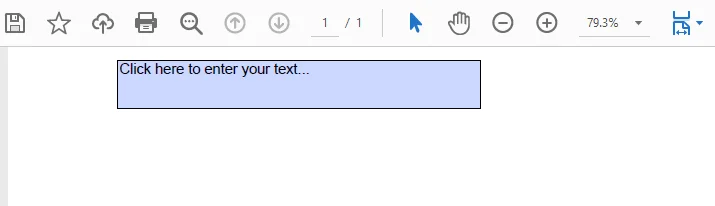
PdfTextBoxField cria um campo de formulário interativo, permitindo que os usuários abram o PDF resultante em um visualizador de PDF e cliquem diretamente para inserir ou editar conteúdo dentro da caixa.
A abordagem programática é particularmente útil ao criar fluxos de trabalho automatizados de geração de documentos que exigem a criação de formulários dinâmicos, faturas ou modelos de inscrição do zero.
Qual método você deve escolher?
O método correto depende de como você deseja adicionar e usar a caixa de texto.
| Solução | Melhor para | Prós | Contras |
|---|---|---|---|
| Adobe Acrobat | Edição no desktop e anotações em PDF | Controles precisos de posicionamento e formatação | Alguns recursos de edição e formulário exigem um plano pago |
| Google Docs | Alternativas simples e gratuitas para edição de PDF | Gratuito e não requer um editor de PDF para desktop | O layout do PDF pode mudar durante a conversão |
| Free Spire.PDF for Python | Desenvolvedores e fluxos de trabalho automatizados | Controle programático e suporte a formulários PDF interativos | Requer conhecimento básico de programação em Python |
Escolha o Adobe Acrobat quando precisar adicionar uma caixa de texto manualmente e quiser controle preciso sobre sua posição e aparência. Use o Google Docs quando precisar de uma solução gratuita para um documento relativamente simples e puder aceitar possíveis alterações de layout. Para aplicativos que precisam criar ou modificar campos PDF interativos programaticamente, o Free Spire.PDF for Python oferece uma abordagem baseada em código.
Você pode gostar: Como criar um PDF preenchível – 3 maneiras de tornar o PDF editável
Perguntas frequentes
P1: Posso adicionar uma caixa de texto a um PDF gratuitamente usando o Google Docs?
Sim. Você pode enviar um PDF para o Google Drive, abri-lo com o Google Docs e usar Inserir > Desenho > Caixa de texto para adicionar texto. Depois, você pode baixar o documento editado como PDF.
P2: Por que não consigo editar o texto em uma caixa de texto de PDF depois de salvar?
Uma caixa de texto pode ser adicionada como conteúdo regular do PDF, uma anotação ou um campo de formulário interativo. Se o texto foi adicionado como conteúdo regular ou achatado durante a exportação, ele não é mais um campo de formulário editável. Para permitir que os leitores de PDF insiram ou alterem o texto, você precisa criar um campo de texto de formulário interativo.
P3: Preciso ter o Adobe Acrobat instalado para executar scripts do Free Spire.PDF for Python?
Não. O Free Spire.PDF funciona independentemente do Adobe Acrobat. Você pode usar a biblioteca Python para criar e modificar documentos PDF sem instalar o Adobe Acrobat.
Conclusão
Adicionar uma caixa de texto a um PDF é simples depois que você escolhe o método certo. O Adobe Acrobat é adequado para adicionar caixas de texto manualmente, enquanto o Google Docs fornece uma alternativa online para documentos mais simples. Se você precisa de campos de texto interativos em um fluxo de trabalho automatizado de PDF, o Free Spire.PDF for Python permite criá-los programaticamente.
Leia também:
PDF에 텍스트 상자 추가하는 방법: 3가지 쉬운 방법
PDF에 텍스트 상자를 추가하는 것은 페이지에 추가 텍스트, 메모 또는 입력 영역을 배치해야 할 때 유용합니다. 작업 자체는 간단하지만, PDF에 텍스트 상자를 추가하는 방법을 아는 사람은 많지 않습니다. 이 가이드에서는 세 가지 방법을 다룹니다. 데스크톱 편집을 위한 Adobe Acrobat, 무료 대안인 Google Docs, 그리고 일괄 PDF 양식 생성을 위한 Python용 Free Spire.PDF입니다.
- Adobe Acrobat으로 PDF에 텍스트 상자 추가하기
- Google Docs로 PDF에 텍스트 상자 추가하기
- Python으로 PDF에 대화형 텍스트 상자 추가하기
- 어떤 방법을 선택해야 할까요?
- 자주 묻는 질문
Adobe Acrobat으로 PDF에 텍스트 상자 추가하기
Adobe Acrobat은 PDF에 텍스트를 추가하는 여러 가지 방법을 제공합니다. 편집 도구를 사용하여 페이지에 직접 새 텍스트를 배치하거나, 댓글 도구를 사용하여 원본 PDF 내용을 변경하지 않고 텍스트 상자 주석을 추가할 수 있습니다. 텍스트 상자가 작동하기를 원하는 방식에 맞는 옵션을 선택하세요.
PDF에 텍스트 직접 추가하기
텍스트가 PDF 콘텐츠의 일부가 되기를 원한다면 편집 도구를 사용하세요:
- 1단계: Adobe Acrobat에서 PDF 파일을 엽니다.
- 2단계: 측면 패널에서 PDF 편집을 클릭하여 상단 편집 도구 모음을 표시합니다.
- 3단계: 도구 모음에서 텍스트 추가를 선택한 다음, 페이지에서 클릭하고 드래그하여 텍스트 상자를 그립니다.
- 4단계: 상자 안에 추가하려는 내용을 입력합니다.
- 5단계: 오른쪽 패널을 사용하여 필요에 따라 글꼴, 크기, 정렬 및 기타 속성을 조정합니다.
댓글로 텍스트 상자 추가하기
원본 PDF 내용을 변경하지 않고 텍스트 상자를 추가하려면 Acrobat의 댓글 도구를 사용할 수 있습니다. 이렇게 하면 문서 내용과 별도로 편집하거나 제거할 수 있는 주석으로 텍스트 상자가 추가됩니다.
- 1단계: Adobe Acrobat에서 PDF 파일을 엽니다.
- 2단계: 도구 모음에서 댓글을 선택합니다.
- 3단계: 댓글 도구에서 텍스트 상자 추가를 선택합니다.
- 4단계: 페이지를 클릭하여 텍스트 상자를 삽입합니다.
- 5단계: 텍스트를 입력하고 필요에 따라 텍스트 상자 속성을 조정합니다.
참고: 텍스트 상자 주석은 문서 레이어 위에 떠 있으므로 주변 텍스트를 가릴 수 있다는 점을 명심하세요.
팁: PDF 파일에 일반 텍스트를 프로그래밍 방식으로 추가해야 하는 경우, 수동으로 편집하는 대신 Python을 사용하여 PDF 파일에 텍스트를 추가할 수 있습니다.
Google Docs로 PDF에 텍스트 상자 추가하기
빠른 온라인 솔루션을 선호한다면 웹 브라우저에서 바로 Google Docs를 사용하여 작업을 완료할 수 있습니다. 이 방법은 두 가지 간단한 단계로 구성됩니다. 먼저 PDF를 Google Drive에 업로드하여 Google Docs로 변환한 다음, 내장된 그리기 도구를 사용하여 텍스트 상자를 삽입하고 파일을 다시 PDF로 내보내는 것입니다. 자세한 단계는 다음과 같습니다.
PDF를 Google Docs로 변환하기
- 1단계: 웹 브라우저에서 Google Drive를 열고 드라이브에 PDF 파일을 업로드합니다.
- 2단계: 업로드한 PDF를 마우스 오른쪽 버튼으로 클릭하고 연결 프로그램을 선택한 다음 Google Docs를 선택합니다.
텍스트 상자 만들기 및 내보내기
PDF 콘텐츠가 Google Docs로 변환되면 그리기 도구를 통해 텍스트 상자를 만들 수 있습니다:
- 1단계: 텍스트 상자를 표시하려는 위치에 커서를 놓은 다음 삽입 > 그리기 > + 새로 만들기를 선택합니다.
- 2단계: 그리기 창 상단 도구 모음에서 텍스트 상자 아이콘을 클릭합니다.
- 3단계: 캔버스에서 클릭하고 드래그하여 상자를 그린 다음 그 안에 텍스트를 입력합니다.
- 4단계: 오른쪽 상단 모서리에서 저장 및 닫기를 클릭하여 Google Docs 문서에 텍스트 상자를 삽입합니다.
- 5단계: 파일 > 다운로드 > PDF 문서(.pdf)를 선택하여 편집한 문서를 컴퓨터에 다시 저장합니다.
팁: Google Docs는 간단하고 텍스트가 많은 PDF에 실용적인 옵션입니다. 원본 파일에 복잡한 레이아웃, 다단 표 또는 정밀하게 배치된 그래픽이 포함된 경우, PDF로 다시 내보내기 전에 변환된 문서를 주의 깊게 확인하세요.
Python으로 PDF에 대화형 텍스트 상자 추가하기
텍스트 필드를 프로그래밍 방식으로 추가하거나 PDF 양식 생성을 자동화된 워크플로에 통합해야 하는 경우, PDF 라이브러리를 사용하면 반복적인 수동 편집을 없앨 수 있습니다. Python을 사용하면 사용자가 PDF 리더에서 클릭하여 채울 수 있는 대화형 텍스트 상자를 만들 수 있습니다.
Python용 Free Spire.PDF 설치하기
Python용 Free Spire.PDF는 개발자가 프로그래밍 방식으로 PDF 문서를 생성, 읽기, 편집 및 변환할 수 있게 해주는 PDF 라이브러리입니다. 또한 PdfTextBoxField 클래스를 통한 대화형 텍스트 필드를 포함하여 PDF 양식 필드에 대한 지원도 제공합니다.
다음 명령으로 패키지를 설치하세요:
pip install Spire.Pdf.Free
대화형 텍스트 상자 필드 만들기
다음 예제는 새 PDF 문서를 만들고, 첫 번째 페이지에 대화형 텍스트 상자 필드를 추가하고, 모양을 구성한 다음 파일을 저장합니다.
import spire.pdf as pdf

# Create a new PDF document
doc = pdf.PdfDocument()

# Add a new blank page
page = doc.Pages.Add()

# Allow form fields to be created in the PDF
doc.AllowCreateForm = True

# Create an interactive text box field
text_box = pdf.PdfTextBoxField(page, "user_input_field")

# Set the location and dimensions
text_box.Bounds = pdf.RectangleF(50.0, 50.0, 300.0, 40.0)

# Set default text
text_box.Text = "Click here to enter your text..."

# Configure the font and border
font = pdf.PdfTrueTypeFont(
    "Arial",
    12.0,
    pdf.PdfFontStyle.Regular,
    True
)
text_box.Font = font
text_box.BorderWidth = 1.0
text_box.BorderStyle = pdf.PdfBorderStyle.Solid

# Allow multiple lines of text
text_box.Multiline = True

# Add the text field to the PDF form
doc.Form.Fields.Add(text_box)

# Save the generated PDF
doc.SaveToFile("/output/output_textbox.pdf", pdf.FileFormat.PDF)
doc.Close()
PdfTextBoxField는 대화형 양식 필드를 생성하여 사용자가 결과 PDF를 PDF 뷰어에서 열고 상자 안의 내용을 직접 클릭하여 입력하거나 편집할 수 있게 해줍니다.
프로그래밍 방식은 동적 양식, 인보이스 또는 신청서 템플릿을 처음부터 만들어야 하는 자동화된 문서 생성 워크플로를 구축할 때 특히 유용합니다.
어떤 방법을 선택해야 할까요?
올바른 방법은 텍스트 상자를 추가하고 사용하려는 방식에 따라 달라집니다.
| 솔루션 | 적합한 용도 | 장점 | 단점 |
|---|---|---|---|
| Adobe Acrobat | 데스크톱 편집 및 PDF 주석 | 정밀한 위치 지정 및 서식 제어 | 일부 편집 및 양식 기능은 유료 플랜 필요 |
| Google Docs | 간단하고 무료인 PDF 편집 대안 | 무료이며 데스크톱 PDF 편집기가 필요 없음 | 변환 중 PDF 레이아웃이 변경될 수 있음 |
| Python용 Free Spire.PDF | 개발자 및 자동화된 워크플로 | 프로그래밍 방식 제어 및 대화형 PDF 양식 지원 | 기본적인 Python 프로그래밍 지식 필요 |
텍스트 상자를 수동으로 추가하고 위치와 모양을 정밀하게 제어하려면 Adobe Acrobat을 선택하세요. 비교적 간단한 문서에 무료 솔루션이 필요하고 레이아웃 변경을 감수할 수 있다면 Google Docs를 사용하세요. 대화형 PDF 필드를 프로그래밍 방식으로 생성하거나 수정해야 하는 애플리케이션에는 Python용 Free Spire.PDF가 코드 기반 접근 방식을 제공합니다.
추천 글: 채울 수 있는 PDF 만드는 방법 – PDF를 편집 가능하게 만드는 3가지 방법
자주 묻는 질문
Q1: Google Docs를 사용하여 무료로 PDF에 텍스트 상자를 추가할 수 있나요?
네. PDF를 Google Drive에 업로드하고 Google Docs로 연 다음, 삽입 > 그리기 > 텍스트 상자를 사용하여 텍스트를 추가할 수 있습니다. 그런 다음 편집한 문서를 PDF로 다운로드할 수 있습니다.
Q2: 저장 후 PDF 텍스트 상자의 텍스트를 편집할 수 없는 이유는 무엇인가요?
텍스트 상자는 일반 PDF 콘텐츠, 주석 또는 대화형 양식 필드로 추가할 수 있습니다. 텍스트가 일반 콘텐츠로 추가되었거나 내보내기 중에 병합되었다면 더 이상 편집 가능한 양식 필드가 아닙니다. PDF 리더에서 텍스트를 입력하거나 변경할 수 있게 하려면 대화형 양식 텍스트 필드를 만들어야 합니다.
Q3: Python용 Free Spire.PDF 스크립트를 실행하려면 Adobe Acrobat이 설치되어 있어야 하나요?
아니요. Free Spire.PDF는 Adobe Acrobat과 독립적으로 작동합니다. Adobe Acrobat을 설치하지 않고도 Python 라이브러리를 사용하여 PDF 문서를 생성하고 수정할 수 있습니다.
결론
올바른 방법을 선택하기만 하면 PDF에 텍스트 상자를 추가하는 것은 간단합니다. Adobe Acrobat은 수동으로 텍스트 상자를 추가하는 데 적합하며, Google Docs는 더 간단한 문서를 위한 온라인 대안을 제공합니다. 자동화된 PDF 워크플로에서 대화형 텍스트 필드가 필요하다면 Python용 Free Spire.PDF를 사용하여 프로그래밍 방식으로 만들 수 있습니다.
함께 읽기:
Come aggiungere una casella di testo a un PDF: 3 metodi semplici
Indice dei contenuti
Aggiungere una casella di testo a un PDF è utile quando devi inserire testo aggiuntivo, note o aree di input in una pagina. Sebbene l'operazione sia semplice, non tutti sanno come aggiungere una casella di testo a un PDF. Questa guida illustra tre modi per farlo: Adobe Acrobat per la modifica su desktop, Google Docs come soluzione gratuita alternativa e Free Spire.PDF per Python per la creazione in batch di moduli PDF.
- Aggiungere una casella di testo a un PDF con Adobe Acrobat
- Aggiungere una casella di testo a un PDF con Google Docs
- Aggiungere una casella di testo interattiva a un PDF con Python
- Quale metodo dovresti scegliere?
- Domande frequenti
Aggiungere una casella di testo a un PDF con Adobe Acrobat
Adobe Acrobat offre diversi modi per aggiungere testo a un PDF. Puoi usare lo strumento Modifica per inserire nuovo testo direttamente nella pagina, oppure usare gli strumenti Commento per aggiungere un'annotazione a casella di testo senza modificare il contenuto originale del PDF. Scegli l'opzione che corrisponde a come vuoi che funzioni la casella di testo.
Aggiungere testo direttamente a un PDF
Se vuoi che il testo diventi parte del contenuto del PDF, usa lo strumento Modifica:
- Passaggio 1: Apri il tuo file PDF in Adobe Acrobat.
- Passaggio 2: Fai clic su Modifica PDF nel pannello laterale per visualizzare la barra degli strumenti di modifica in alto.
- Passaggio 3: Seleziona Aggiungi testo dalla barra degli strumenti, quindi fai clic e trascina sulla pagina per disegnare una casella di testo.
- Passaggio 4: Digita il contenuto che vuoi aggiungere all'interno della casella.
- Passaggio 5: Usa il pannello a destra per regolare il carattere, la dimensione, l'allineamento e altre proprietà secondo necessità.
Aggiungere una casella di testo come commento
Se vuoi aggiungere una casella di testo senza modificare il contenuto originale del PDF, puoi usare gli strumenti Commento di Acrobat. In questo modo la casella di testo viene aggiunta come annotazione che può essere modificata o rimossa separatamente dal contenuto del documento.
- Passaggio 1: Apri il tuo file PDF in Adobe Acrobat.
- Passaggio 2: Seleziona Commento dalla barra degli strumenti.
- Passaggio 3: Scegli Aggiungi casella di testo dallo strumento Commento.
- Passaggio 4: Fai clic sulla pagina per inserire la casella di testo.
- Passaggio 5: Inserisci il testo e regola le proprietà della casella di testo secondo necessità.
Nota: Tieni presente che le annotazioni a casella di testo fluttuano sopra il livello del documento, il che potrebbe bloccare il testo circostante.
Suggerimento: Se devi aggiungere testo normale ai file PDF a livello di programmazione, puoi usare Python per aggiungere testo ai file PDF invece di modificarli manualmente.
Aggiungere una casella di testo a un PDF con Google Docs
Se preferisci una soluzione online rapida, puoi usare Google Docs per completare l'operazione direttamente nel tuo browser web. Questo approccio prevede due semplici parti: prima, caricare il PDF su Google Drive e convertirlo in Google Docs, e poi, usare lo strumento Disegno integrato per inserire la casella di testo prima di esportare nuovamente il file in PDF. Ecco i passaggi dettagliati.
Convertire il PDF in Google Docs
- Passaggio 1: Apri Google Drive nel tuo browser web e carica un file PDF nel tuo drive.
- Passaggio 2: Fai clic con il pulsante destro del mouse sul PDF caricato, seleziona Apri con e scegli Google Docs.
Creare ed esportare la casella di testo
Una volta che il contenuto del PDF è stato convertito in Google Docs, puoi creare una casella di testo tramite lo strumento Disegno:
- Passaggio 1: Posiziona il cursore dove vuoi che appaia la casella di testo, quindi seleziona Inserisci > Disegno > + Nuovo.
- Passaggio 2: Fai clic sull'icona Casella di testo nella barra degli strumenti in alto della finestra Disegno.
- Passaggio 3: Fai clic e trascina sulla tela per disegnare la casella, quindi inserisci il testo all'interno.
- Passaggio 4: Fai clic su Salva e chiudi nell'angolo in alto a destra per inserire la casella di testo nel tuo documento Google Docs.
- Passaggio 5: Seleziona File > Scarica > Documento PDF (.pdf) per salvare il documento modificato sul tuo computer.
Suggerimento: Google Docs è un'opzione pratica per PDF semplici e ricchi di testo. Se il file originale contiene layout complessi, tabelle a più colonne o grafici posizionati con precisione, controlla attentamente il documento convertito prima di esportarlo nuovamente in PDF.
Aggiungere una casella di testo interattiva a un PDF con Python
Se devi aggiungere campi di testo a livello di programmazione o integrare la creazione di moduli PDF in un flusso di lavoro automatizzato, una libreria PDF può eliminare le ripetitive modifiche manuali. Con Python, puoi creare una casella di testo interattiva che gli utenti possono cliccare e compilare con un lettore PDF.
Installare Free Spire.PDF per Python
Free Spire.PDF per Python è una libreria PDF che consente agli sviluppatori di creare, leggere, modificare e convertire documenti PDF a livello di programmazione. Offre anche supporto per i campi modulo PDF, inclusi i campi di testo interattivi tramite la classe PdfTextBoxField.
Installa il pacchetto con:
pip install Spire.Pdf.Free
Creare un campo casella di testo interattiva
L'esempio seguente crea un nuovo documento PDF, aggiunge un campo casella di testo interattiva alla sua prima pagina, ne configura l'aspetto e salva il file.
import spire.pdf as pdf

# Create a new PDF document
doc = pdf.PdfDocument()

# Add a new blank page
page = doc.Pages.Add()

# Allow form fields to be created in the PDF
doc.AllowCreateForm = True

# Create an interactive text box field
text_box = pdf.PdfTextBoxField(page, "user_input_field")

# Set the location and dimensions
text_box.Bounds = pdf.RectangleF(50.0, 50.0, 300.0, 40.0)

# Set default text
text_box.Text = "Click here to enter your text..."

# Configure the font and border
font = pdf.PdfTrueTypeFont(
    "Arial",
    12.0,
    pdf.PdfFontStyle.Regular,
    True
)
text_box.Font = font
text_box.BorderWidth = 1.0
text_box.BorderStyle = pdf.PdfBorderStyle.Solid

# Allow multiple lines of text
text_box.Multiline = True

# Add the text field to the PDF form
doc.Form.Fields.Add(text_box)

# Save the generated PDF
doc.SaveToFile("/output/output_textbox.pdf", pdf.FileFormat.PDF)
doc.Close()
PdfTextBoxField crea un campo modulo interattivo, consentendo agli utenti di aprire il PDF risultante in un visualizzatore PDF e fare clic direttamente per inserire o modificare il contenuto all'interno della casella.
L'approccio programmatico è particolarmente utile quando si creano flussi di lavoro automatizzati di generazione di documenti che richiedono la creazione di moduli dinamici, fatture o modelli di domanda da zero.
Quale metodo dovresti scegliere?
Il metodo giusto dipende da come vuoi aggiungere e utilizzare la casella di testo.
| Soluzione | Ideale per | Pro | Contro |
|---|---|---|---|
| Adobe Acrobat | Modifica su desktop e annotazioni PDF | Posizionamento e controlli di formattazione precisi | Alcune funzionalità di modifica e moduli richiedono un piano a pagamento |
| Google Docs | Soluzioni alternative semplici e gratuite per la modifica di PDF | Gratuito e non richiede un editor PDF da desktop | Il layout del PDF potrebbe cambiare durante la conversione |
| Free Spire.PDF per Python | Sviluppatori e flussi di lavoro automatizzati | Controllo programmatico e supporto per moduli PDF interattivi | Richiede conoscenze di base di programmazione Python |
Scegli Adobe Acrobat quando devi aggiungere una casella di testo manualmente e desideri un controllo preciso sulla sua posizione e sul suo aspetto. Usa Google Docs quando hai bisogno di una soluzione gratuita per un documento relativamente semplice e puoi accettare possibili cambiamenti di layout. Per le applicazioni che devono creare o modificare campi PDF interattivi a livello di programmazione, Free Spire.PDF per Python offre un approccio basato sul codice.
Potrebbe interessarti: Come creare un PDF compilabile – 3 modi per rendere modificabile un PDF
Domande frequenti
D1: Posso aggiungere una casella di testo a un PDF gratuitamente usando Google Docs?
Sì. Puoi caricare un PDF su Google Drive, aprirlo con Google Docs e usare Inserisci > Disegno > Casella di testo per aggiungere testo. Puoi quindi scaricare il documento modificato come PDF.
D2: Perché non riesco a modificare il testo in una casella di testo PDF dopo il salvataggio?
Una casella di testo può essere aggiunta come contenuto PDF normale, come annotazione o come campo modulo interattivo. Se il testo è stato aggiunto come contenuto normale o appiattito durante l'esportazione, non è più un campo modulo modificabile. Per consentire ai lettori PDF di inserire o modificare il testo, devi creare un campo di testo modulo interattivo.
D3: Devo avere Adobe Acrobat installato per eseguire gli script di Free Spire.PDF per Python?
No. Free Spire.PDF funziona indipendentemente da Adobe Acrobat. Puoi usare la libreria Python per creare e modificare documenti PDF senza installare Adobe Acrobat.
Conclusione
Aggiungere una casella di testo a un PDF è semplice una volta scelto il metodo giusto. Adobe Acrobat è adatto per aggiungere caselle di testo manualmente, mentre Google Docs offre una soluzione online alternativa per documenti più semplici. Se hai bisogno di campi di testo interattivi in un flusso di lavoro PDF automatizzato, Free Spire.PDF per Python ti consente di crearli a livello di programmazione.
Leggi anche:
Comment ajouter une zone de texte à un PDF : 3 méthodes faciles
L'ajout d'une zone de texte à un PDF est utile lorsque vous devez placer du texte supplémentaire, des notes ou des zones de saisie sur une page. Bien que la tâche soit simple, tout le monde ne sait pas comment ajouter une zone de texte à un PDF. Ce guide couvre trois méthodes pour y parvenir : Adobe Acrobat pour l'édition sur ordinateur, Google Docs comme solution gratuite, et Free Spire.PDF pour Python pour la création de formulaires PDF en lot.
- Ajouter une zone de texte à un PDF avec Adobe Acrobat
- Ajouter une zone de texte à un PDF avec Google Docs
- Ajouter une zone de texte interactive à un PDF avec Python
- Quelle méthode choisir ?
- FAQ
Ajouter une zone de texte à un PDF avec Adobe Acrobat
Adobe Acrobat propose plusieurs façons d'ajouter du texte à un PDF. Vous pouvez utiliser l'outil Modifier pour placer du nouveau texte directement sur la page, ou utiliser les outils Commentaire pour ajouter une annotation de zone de texte sans modifier le contenu original du PDF. Choisissez l'option qui correspond à l'utilisation souhaitée de la zone de texte.
Ajouter du texte directement à un PDF
Si vous souhaitez que le texte fasse partie du contenu du PDF, utilisez l'outil Modifier :
- Étape 1 : Ouvrez votre fichier PDF dans Adobe Acrobat.
- Étape 2 : Cliquez sur Modifier le PDF dans le panneau latéral pour afficher la barre d'outils d'édition supérieure.
- Étape 3 : Sélectionnez Ajouter du texte dans la barre d'outils, puis cliquez et faites glisser sur la page pour dessiner une zone de texte.
- Étape 4 : Saisissez le contenu que vous souhaitez ajouter dans la zone.
- Étape 5 : Utilisez le panneau de droite pour ajuster la police, la taille, l'alignement et d'autres propriétés si nécessaire.
Ajouter une zone de texte en tant que commentaire
Si vous souhaitez ajouter une zone de texte sans modifier le contenu original du PDF, vous pouvez utiliser les outils Commentaire d'Acrobat. Cela ajoute la zone de texte en tant qu'annotation pouvant être modifiée ou supprimée indépendamment du contenu du document.
- Étape 1 : Ouvrez votre fichier PDF dans Adobe Acrobat.
- Étape 2 : Sélectionnez Commentaire dans la barre d'outils.
- Étape 3 : Choisissez Ajouter une zone de texte dans l'outil Commentaire.
- Étape 4 : Cliquez sur la page pour insérer la zone de texte.
- Étape 5 : Saisissez votre texte et ajustez les propriétés de la zone de texte si nécessaire.
Remarque : Gardez à l'esprit que les annotations de zone de texte flottent au-dessus de la couche du document, ce qui peut masquer le texte environnant.
Astuce : Si vous devez ajouter du texte standard à des fichiers PDF par programmation, vous pouvez utiliser Python pour ajouter du texte aux fichiers PDF au lieu de les modifier manuellement.
Ajouter une zone de texte à un PDF avec Google Docs
Si vous préférez une solution en ligne rapide, vous pouvez utiliser Google Docs pour effectuer le travail directement dans votre navigateur web. Cette approche comporte deux parties simples : premièrement, télécharger votre PDF sur Google Drive et le convertir en Google Docs, et deuxièmement, utiliser l'outil Dessin intégré pour insérer votre zone de texte avant d'exporter le fichier à nouveau au format PDF. Voici les étapes détaillées.
Convertir le PDF en Google Docs
- Étape 1 : Ouvrez Google Drive dans votre navigateur web et téléchargez un fichier PDF sur votre drive.
- Étape 2 : Cliquez avec le bouton droit sur le PDF téléchargé, sélectionnez Ouvrir avec, puis choisissez Google Docs.
Créer et exporter la zone de texte
Une fois le contenu du PDF converti en Google Docs, vous pouvez créer une zone de texte via l'outil Dessin :
- Étape 1 : Placez votre curseur à l'endroit où vous souhaitez que la zone de texte apparaisse, puis sélectionnez Insertion > Dessin > + Nouveau.
- Étape 2 : Cliquez sur l'icône Zone de texte dans la barre d'outils supérieure de la fenêtre Dessin.
- Étape 3 : Cliquez et faites glisser sur le canevas pour dessiner la zone, puis saisissez votre texte à l'intérieur.
- Étape 4 : Cliquez sur Enregistrer et fermer dans le coin supérieur droit pour insérer la zone de texte dans votre document Google Docs.
- Étape 5 : Sélectionnez Fichier > Télécharger > Document PDF (.pdf) pour enregistrer le document modifié sur votre ordinateur.
Astuce : Google Docs est une option pratique pour les PDF simples et riches en texte. Si le fichier original contient des mises en page complexes, des tableaux à plusieurs colonnes ou des graphiques positionnés avec précision, vérifiez attentivement le document converti avant de l'exporter à nouveau au format PDF.
Ajouter une zone de texte interactive à un PDF avec Python
Si vous devez ajouter des champs de texte par programmation ou intégrer la création de formulaires PDF dans un flux de travail automatisé, une bibliothèque PDF peut éliminer les modifications manuelles répétitives. Avec Python, vous pouvez créer une zone de texte interactive que les utilisateurs peuvent cliquer et remplir avec un lecteur PDF.
Installer Free Spire.PDF pour Python
Free Spire.PDF pour Python est une bibliothèque PDF qui permet aux développeurs de créer, lire, modifier et convertir des documents PDF par programmation. Elle offre également un support pour les champs de formulaire PDF, y compris les champs de texte interactifs via la classe PdfTextBoxField.
Installez le package avec :
pip install Spire.Pdf.Free
Créer un champ de zone de texte interactive
L'exemple suivant crée un nouveau document PDF, ajoute un champ de zone de texte interactive à sa première page, configure son apparence et enregistre le fichier.
import spire.pdf as pdf

# Create a new PDF document
doc = pdf.PdfDocument()

# Add a new blank page
page = doc.Pages.Add()

# Allow form fields to be created in the PDF
doc.AllowCreateForm = True

# Create an interactive text box field
text_box = pdf.PdfTextBoxField(page, "user_input_field")

# Set the location and dimensions
text_box.Bounds = pdf.RectangleF(50.0, 50.0, 300.0, 40.0)

# Set default text
text_box.Text = "Click here to enter your text..."

# Configure the font and border
font = pdf.PdfTrueTypeFont(
    "Arial",
    12.0,
    pdf.PdfFontStyle.Regular,
    True
)
text_box.Font = font
text_box.BorderWidth = 1.0
text_box.BorderStyle = pdf.PdfBorderStyle.Solid

# Allow multiple lines of text
text_box.Multiline = True

# Add the text field to the PDF form
doc.Form.Fields.Add(text_box)

# Save the generated PDF
doc.SaveToFile("/output/output_textbox.pdf", pdf.FileFormat.PDF)
doc.Close()
PdfTextBoxField crée un champ de formulaire interactif, permettant aux utilisateurs d'ouvrir le PDF résultant dans un lecteur PDF et de cliquer directement pour saisir ou modifier le contenu dans la zone.
L'approche programmatique est particulièrement utile lors de la création de flux de travail automatisés de génération de documents qui nécessitent la création de formulaires dynamiques, de factures ou de modèles de candidature à partir de zéro.
Quelle méthode choisir ?
La bonne méthode dépend de la façon dont vous souhaitez ajouter et utiliser la zone de texte.
| Solution | Idéal pour | Avantages | Inconvénients |
|---|---|---|---|
| Adobe Acrobat | Édition de bureau et annotations PDF | Contrôle précis du positionnement et du formatage | Certaines fonctions d'édition et de formulaire nécessitent un plan payant |
| Google Docs | Solutions simples et gratuites pour modifier des PDF | Gratuit et ne nécessite pas d'éditeur PDF de bureau | La mise en page du PDF peut changer lors de la conversion |
| Free Spire.PDF pour Python | Développeurs et flux de travail automatisés | Contrôle programmatique et prise en charge des formulaires PDF interactifs | Nécessite des connaissances de base en programmation Python |
Choisissez Adobe Acrobat lorsque vous devez ajouter une zone de texte manuellement et souhaitez un contrôle précis de sa position et de son apparence. Utilisez Google Docs lorsque vous avez besoin d'une solution gratuite pour un document relativement simple et que vous pouvez accepter d'éventuels changements de mise en page. Pour les applications qui doivent créer ou modifier des champs PDF interactifs par programmation, Free Spire.PDF pour Python offre une approche basée sur le code.
Vous aimerez peut-être : Comment créer un PDF remplissable – 3 façons de rendre un PDF modifiable
Questions fréquentes
Q1 : Puis-je ajouter une zone de texte à un PDF gratuitement avec Google Docs ?
Oui. Vous pouvez télécharger un PDF sur Google Drive, l'ouvrir avec Google Docs et utiliser Insertion > Dessin > Zone de texte pour ajouter du texte. Vous pouvez ensuite télécharger le document modifié au format PDF.
Q2 : Pourquoi ne puis-je pas modifier le texte dans une zone de texte PDF après l'enregistrement ?
Une zone de texte peut être ajoutée en tant que contenu PDF standard, annotation ou champ de formulaire interactif. Si le texte a été ajouté en tant que contenu standard ou aplati lors de l'exportation, il ne s'agit plus d'un champ de formulaire modifiable. Pour permettre aux lecteurs PDF de saisir ou de modifier le texte, vous devez créer un champ de texte de formulaire interactif.
Q3 : Dois-je installer Adobe Acrobat pour exécuter les scripts Free Spire.PDF pour Python ?
Non. Free Spire.PDF fonctionne indépendamment d'Adobe Acrobat. Vous pouvez utiliser la bibliothèque Python pour créer et modifier des documents PDF sans installer Adobe Acrobat.
Conclusion
L'ajout d'une zone de texte à un PDF est simple une fois que vous avez choisi la bonne méthode. Adobe Acrobat convient pour ajouter des zones de texte manuellement, tandis que Google Docs offre une solution en ligne pour les documents plus simples. Si vous avez besoin de champs de texte interactifs dans un flux de travail PDF automatisé, Free Spire.PDF pour Python vous permet de les créer par programmation.