When the editor is integrated into a business system, its UI usually needs to follow the product. Some products do not want users to see the vendor branding; some pages already have a header, so the editor's title bar looks redundant; sometimes the editor only occupies a narrow side panel where the full toolbar does not fit; and some products want documents to open at a suitable zoom level. All of these can be configured through customization, without changing the editor itself. The examples below use Word. The table below summarizes the Spire.OfficeJS UI settings; each is explained in the following sections.
| Setting | Purpose | Default |
|---|---|---|
whiteLabel |
Remove the vendor logo and branding text | false |
hideTitle |
Hide the top title bar | false |
hideStatusBar |
Hide the bottom status bar | false |
hideRuler |
Hide the ruler | false |
defToolbar |
Toolbar mode | full |
defaultZoom |
Zoom level at open | 1 |
zoomFit |
Fit width or page at open | None |
White-labeling
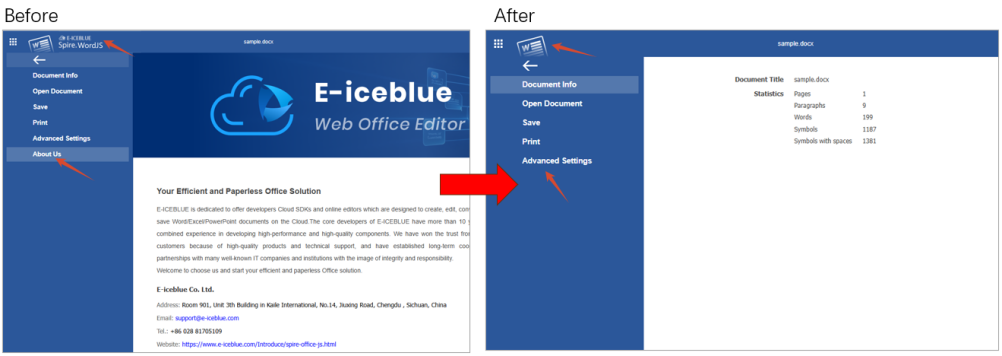
whiteLabel removes vendor branding from the editor UI. When enabled, the vendor logo on the right side of the title bar is hidden and the "File → About Us" entry disappears. Other menus, the toolbar, and document content are unaffected.
common: {
  whiteLabel: true
}
The figure below shows the before and after.
Hide UI regions
The title bar, status bar, and ruler sit at the top, bottom, and above the document page. When space is tight, hide any of them as needed; the three settings are independent.
Hide the title bar
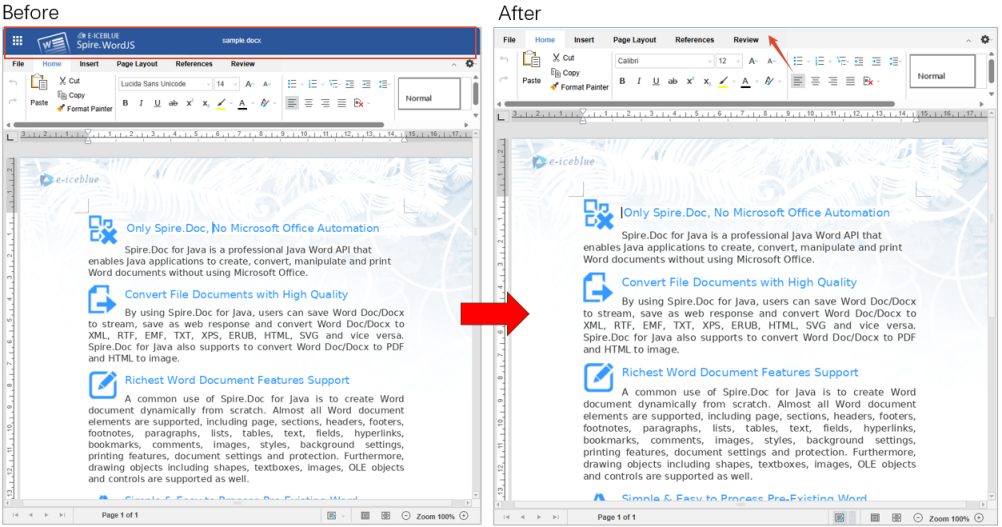
hideTitle hides the title bar at the top of the editor and gives the document more room. Use it when the surrounding page already has its own header.
common: {
  header: {
    hideTitle: true
  }
}
The figure below shows the before and after.
Hide the status bar
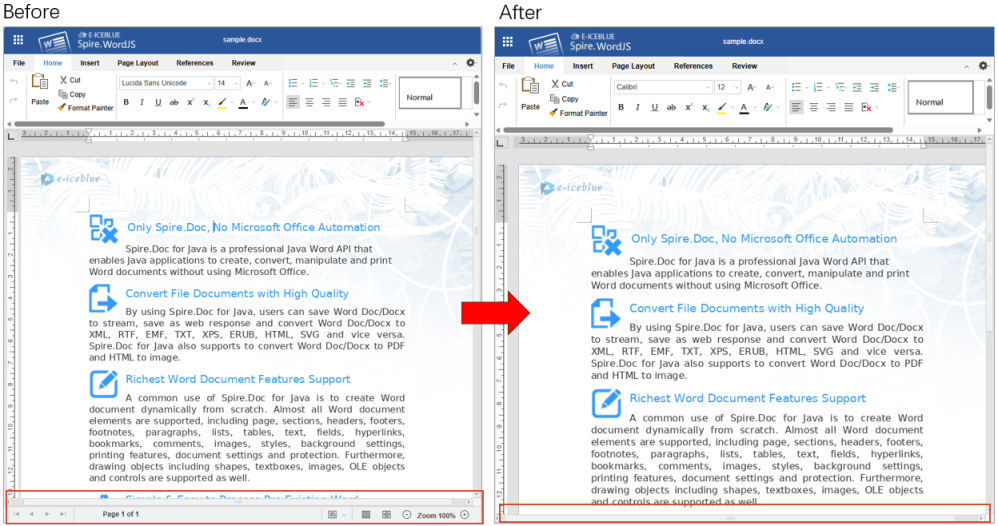
hideStatusBar hides the status bar at the bottom of the editor. The status bar shows page numbers, word count, zoom, and similar information; hiding it gives the document more height.
common: {
  hideStatusBar: true
}
The figure below shows the before and after.
Hide the ruler
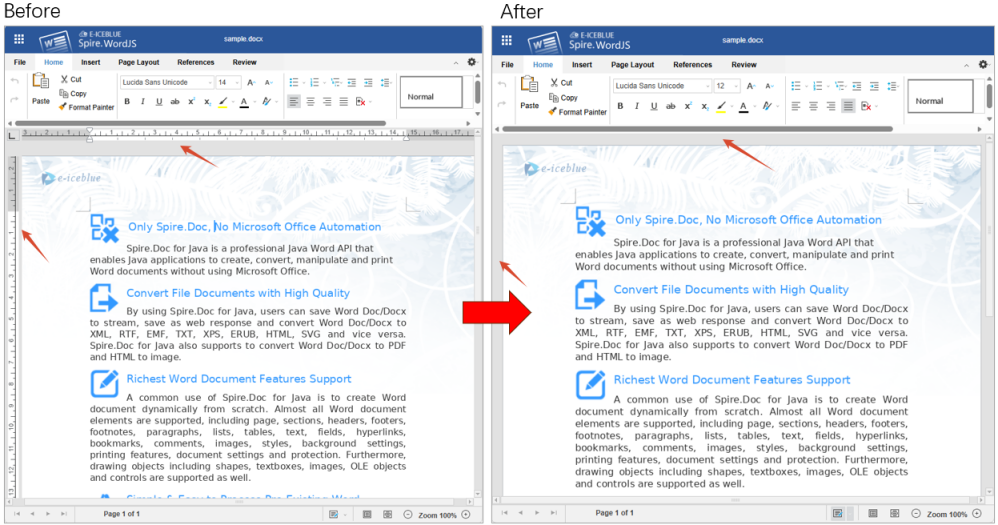
The ruler is a quick way to adjust indents and margins. hideRuler controls whether it is shown in WordJS and PresentationJS. The ruler is visible by default; set it to true to hide it.
common: {
  hideRuler: true
}
The figure below shows the before and after.
Note
These options only set the initial state when the document opens. Users can still show the title bar, status bar, or ruler again from the toolbar; they will be hidden again the next time the document opens.
Toolbar mode
defToolbar sets the toolbar style used when a document opens.
| Value | Description |
|---|---|
full |
Full toolbar (default), commands grouped by tab |
short |
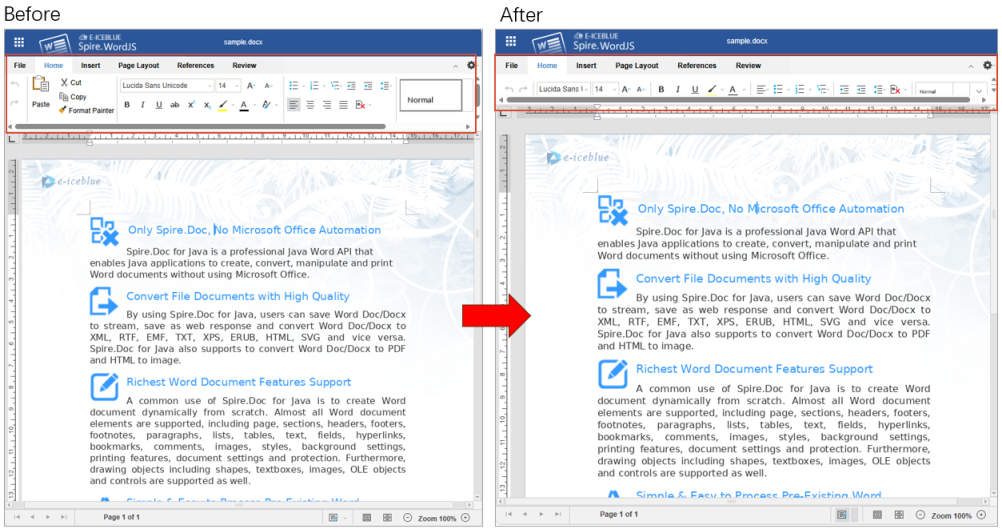
Compact toolbar, buttons condensed into one row for narrow containers |
common: {
  header: {
    defToolbar: 'short'
  }
}
The figure below compares the two modes.
Zoom
A document can open at a fixed zoom level, or automatically fit the editor width or the full page. The first uses defaultZoom; the second uses zoomFit.
Default zoom
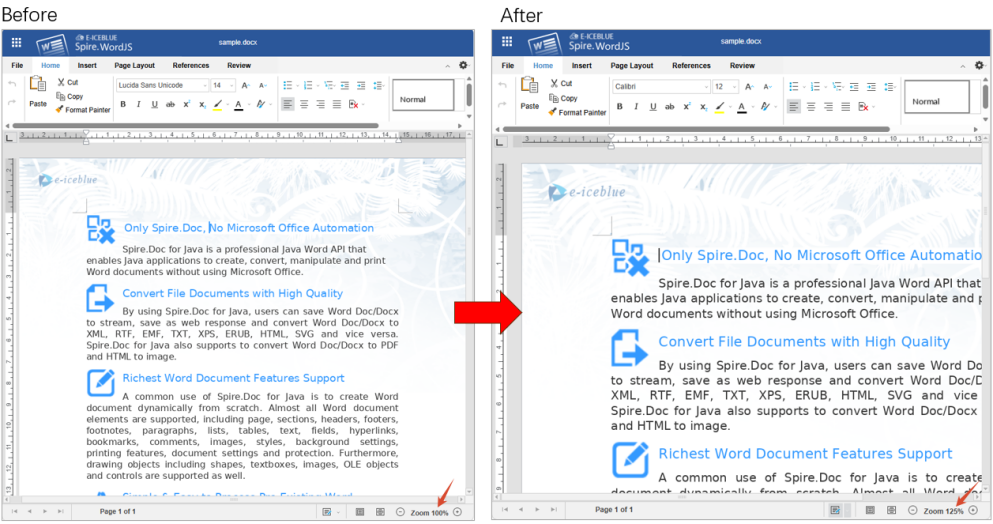
defaultZoom sets the zoom level used when a document opens. 1 means 100% and 1.25 means 125%.
common: {
  defaultZoom: 1.25
}
The figure below shows the status bar at 125%.
Zoom range
The supported range is 0.5–5. Values outside the range are clamped to 0.5 or 5, and a notice appears on the page.
Fit width / fit page
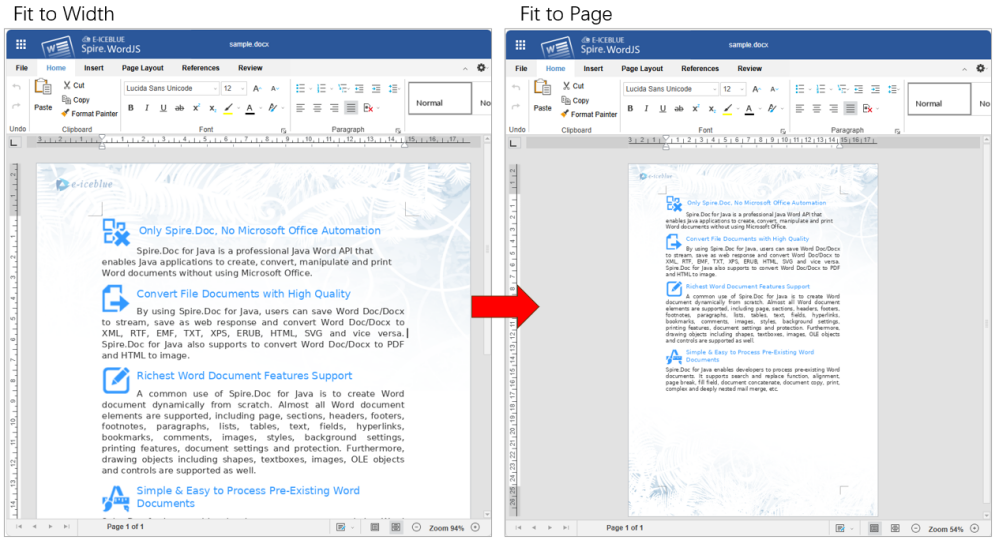
zoomFit makes the document fit the editor width or the full page when it opens. width fits the width; page fits the whole page.
| Value | Description |
|---|---|
width |
Fit width: the page width fills the editor |
page |
Fit page: the whole page is visible in the editor |
common: {
  zoomFit: 'width'
}
The figure below compares fit width and fit page.
Complete example
The configuration above, combined, is shown below:
<div id="editor"></div>
<script src="http://LocalExample:3000/web/editors/spireapi/SpireCloudEditor.js"></script>
<script>
var SERVER = 'http://LocalExample:3000';

var config = {
  fileAttrs: {
    fileInfo: { name: 'sample.docx', ext: 'docx' },
    sourceUrl: SERVER + '/samples/sample.docx'
  },
  user: {
    id: 'uid-1',
    name: 'Jonn',
    canSave: true,
    customization: {
      public: {
        common: {
          whiteLabel: true,
          defaultZoom: 1.25, // fixed zoom; use zoomFit instead to fit the container
          // zoomFit: 'width', // width = fit width, page = fit page
          hideStatusBar: true,
          hideRuler: true,
          header: {
            hideTitle: true,
            defToolbar: 'short'
          }
        }
      }
    }
  },
  editorAttrs: {
    editorMode: 'edit',
    editorType: 'document',
    viewLanguage: 'en',
    useWebAssemblyDoc: true,
    serverless: {
      useServerless: true,
      baseUrl: SERVER
    }
  }
};

new SpireCloudEditor.OpenApi('editor', config);
</script>
FAQ
The UI does not change after editing the configuration
Cause: The browser may have cached the old page. If you use the bundled example system, it reads its configuration at startup, so changes require a restart.
Solution: Force-refresh the page first. With the example system, restart the service and reopen the page.
hideTitle or defToolbar has no effect
Cause: hideTitle and defToolbar are title-bar settings and must be placed under common.header; placed directly under common, they are ignored.
Solution: Use the structure user.customization.public.common.header.hideTitle and user.customization.public.common.header.defToolbar.
White-labeling is on but the red notice or watermark remains
Cause: whiteLabel only removes vendor branding from the UI and does not handle the warning watermark. Without a valid License, the document still shows the trial notice and restricts content.
Solution: Contact [email protected] to purchase a License or apply for a temporary License, then fill in the License Key for the product in editorAttrs, for example spireDocJsLicense for Word.
