Review records modifications as revision marks instead of overwriting the original text. Once Track Changes is on, insertions, deletions, and formatting adjustments are recorded with their author, and other people can inspect, accept, or reject them one by one. This article uses Word as an example to explain the operations and permission configuration. In this article, "review" refers to the revision-related features on the Review tab.
Review Tab Capabilities
The Review tab in the Word editor provides the following revision-related capabilities:
| Capability | UI Location | Description |
|---|---|---|
| Track Changes toggle | Review → Track Changes | When on, new edits are recorded as revisions instead of changing the body text directly |
| Display mode | Review → Display Mode | Switches the view between "All Markup", "No Markup", and "Original" |
| Reviewing pane | Review → Reviewing Pane | Lists the revisions in the document in one place, click a revision to jump to its location |
| Previous / Next | Review | Browses revisions one by one |
| Accept / Reject | Review | Accepts or rejects the current revision, or processes all revisions at once |
| Restrict Editing | Review → Restrict Editing | Protects the document, can be set to read-only, or to allow changes only as tracked changes |
The following sections explain display modes and the accept and reject operations. The other capabilities can be used directly from the locations listed in the table.
Display Modes
| Option | UI Description | Actual Meaning |
|---|---|---|
| All Markup | All changes (edits) | Shows all revision marks, suitable for editing and reviewing one by one |
| No Markup | Accepted all changes (preview) | Previews the result after "Accept All", without actually accepting revisions |
| Original | Rejected all changes (preview) | Previews the result after "Reject All", without actually rejecting revisions |
Note
"No Markup" and "Original" are previews only. To truly remove revisions, you must use "Accept" or "Reject". If you switch the display mode and then save, the revisions remain in the document.
Accept and Reject Revisions
"Accept" and "Reject" process one revision at a time by default and then jump to the next one. The drop-down menu can process all revisions at once, or you can click a revision mark in the body text to choose directly. Accepting or rejecting changes the body text directly, and you can undo before saving.
Configure Review Permissions
Revision capabilities are controlled by editorAttrs: canReview determines whether review is enabled, and canEdit determines whether editing is allowed.
editorAttrs: {
  editorMode: 'edit',
  canEdit: true,
  canReview: true
}
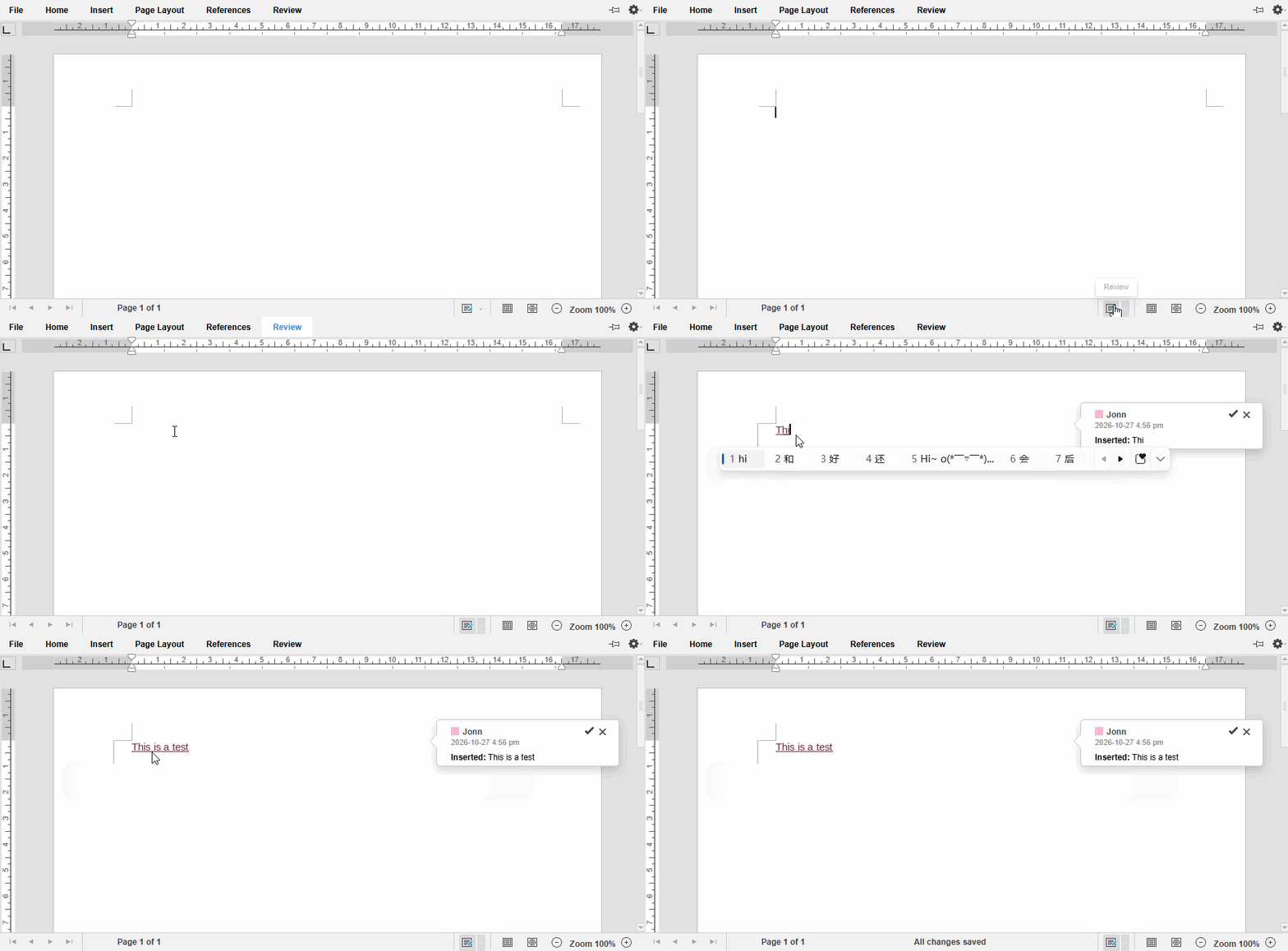
Review State on Open
The review state when a document opens is controlled by two switches under user.customization.public.common. Both are false by default, and you can turn them on individually as needed:
openReviewChanges: true: enters the track-changes state immediately after the document opens, so you do not need to click "Track Changes" manually.openReviewPanel: true: expands the reviewing pane when the document opens, suitable for handling revisions in one place, and requirescanReviewto betrue.
user: {
  customization: {
    public: {
      common: {
        openReviewChanges: true, // enters the track-changes state immediately after the document opens
        openReviewPanel: true    // expands the reviewing pane when the document opens
      }
    }
  }
}
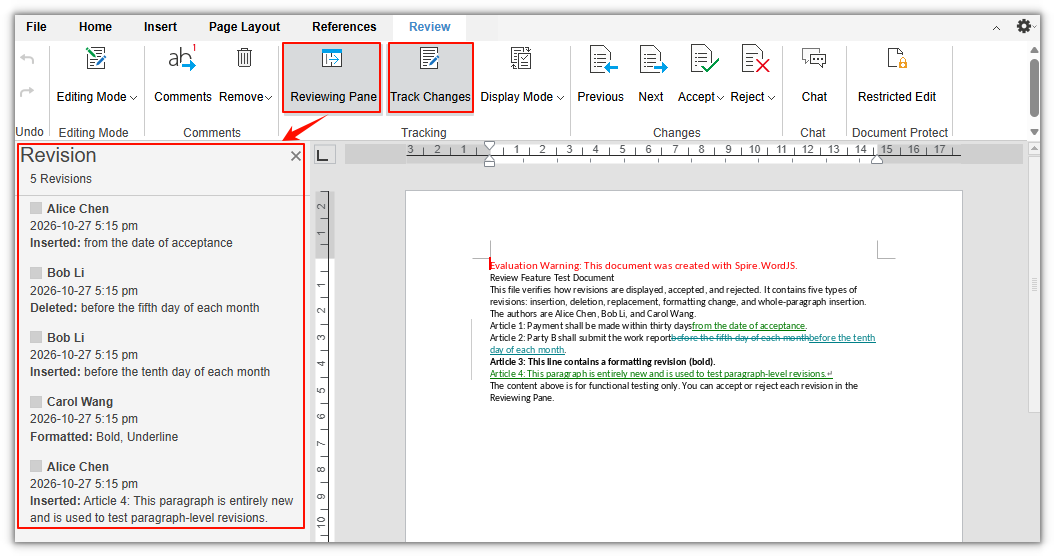
Read-Only Review
External reviewers can only view revisions and the reviewing pane. They cannot change the body text, and they cannot accept or reject revisions:
editorAttrs: {
  editorMode: 'edit',
  canEdit: false,
  canReview: true
}
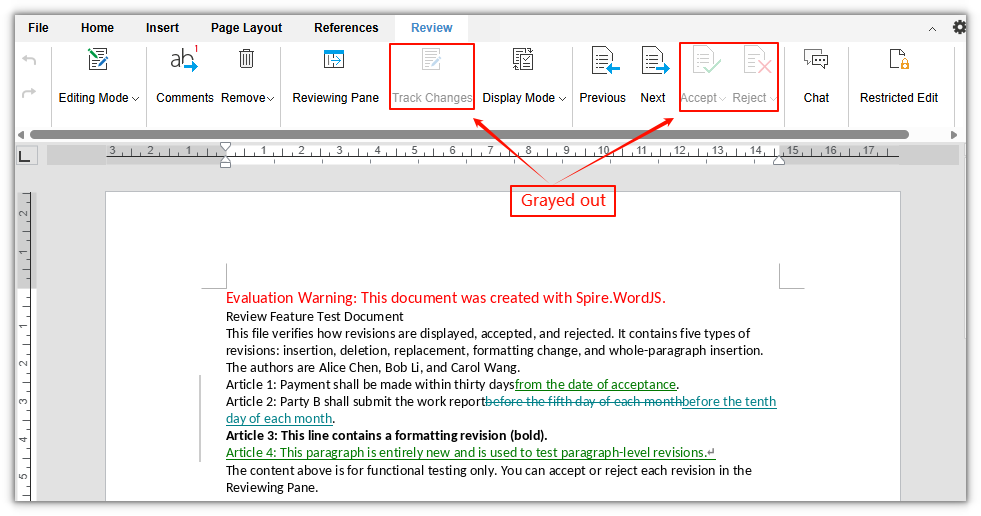
Disable Review
editorAttrs: {
  canReview: false
}
Users can still edit normally, but the Review tab no longer provides revision-related capabilities.
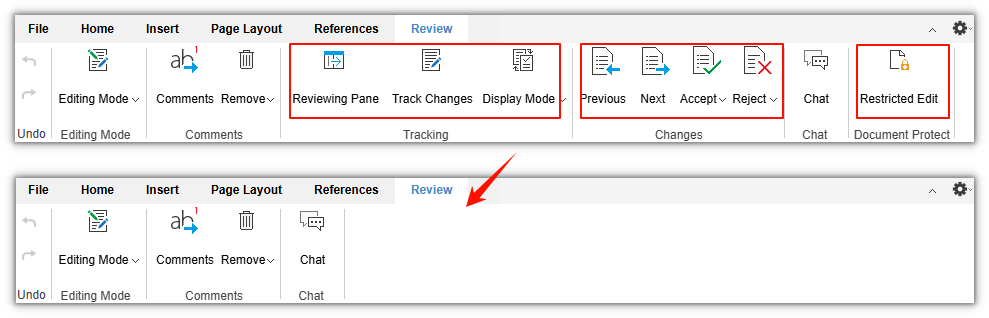
Control Review-Related Buttons
canReview only toggles the review capability as a whole. If you want to hide only some buttons (for example, keep viewing and navigation but remove "Accept" and "Reject"), configure user.customization.public.common.btnPermissions.docBtnPermissions. Removed buttons and their corresponding shortcuts are disabled as well:
user: {
  customization: {
    public: {
      common: {
        btnPermissions: {
          docBtnPermissions: [
            { modular: 'Toolbar', subModule: ['btnTurnOn', 'Accept', 'Reject'] }
          ]
        }
      }
    }
  }
}
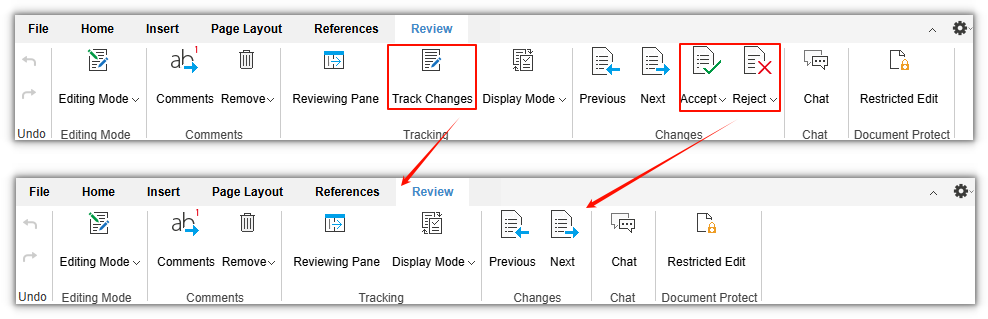
For more about button permission configuration, see the documentation on customizing the toolbar menu.
FAQ
The Track Changes toggle or Accept/Reject buttons are unavailable
Common causes are that the current session is in read-only review (canEdit: false, canReview: true), the document is protected, or the user does not have edit permission. Read-only review can view revisions but cannot toggle Track Changes or accept or reject revisions. If a reviewer needs to handle revisions, they must be given edit permission. If they need to handle revisions but should not change the body text freely, enable "Restrict Editing → Tracked Changes", so that all modifications can only be produced as tracked changes.
The Review tab is not visible after opening a document
Check the following in order:
- Whether
editorAttrs.editorModeisedit.viewmode does not provide editing or review. - Whether
editorAttrs.canReviewistrue, and whether bothcanEdit: trueand a valid license are available. - Whether
btnReviewwas removed throughbtnPermissions, or the document is protected as read-only.
Revision authors are wrong or all the same
Revision authors come from user.name in the current session, and the user identity comes from user.id. Make sure each user uses a unique, stable id, pass the correct display name when opening the document, and do not let multiple users share a fixed account.
