For many business systems, previewing a document means asking the user to download it and open it locally, or relying on a browser plug-in. Spire.OfficeJS supports opening documents directly in the page, and users do not need to install Office. The document can come from an address the business system can already access or from the user's local selection. This article uses Word as an example to explain how to open documents with Spire.OfficeJS:
Document opening process
The figure and steps below describe the process of opening a document. "Business page" refers to the page in your own business system that hosts the editor.
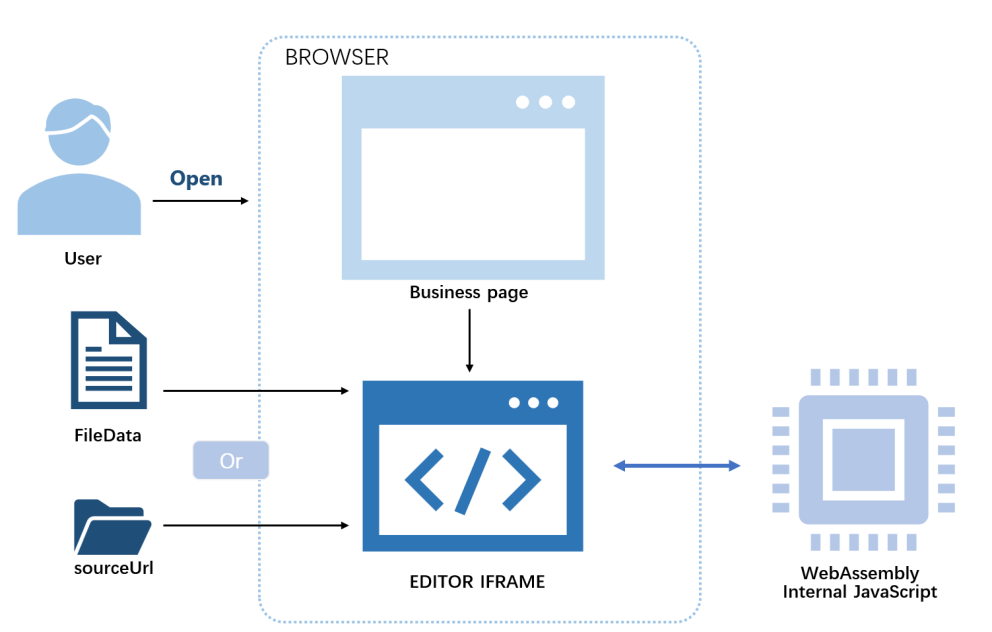
- The user opens the document through the business page to view or edit it.
- The business page prepares the
config:sourceUrl(orserverless.fileData),fileInfo,user, andeditorAttrs. SpireCloudEditor.OpenApicreates the editor iframe.- In
sourceUrlmode, the browser reads the document from your business storage; infileDatamode, the bytes passed in by the page are used directly. - WebAssembly converts the Office document into the editor's internal format, and the internal JavaScript renders the content on the page.
Ways to open a document
Spire.OfficeJS supports two ways to open a document: use sourceUrl when the document already has an accessible URL, and use fileData when the document comes from the user's local selection and has not been uploaded yet. The steps for each option are described below.
Open a document with sourceUrl
Use this option when the document already has an accessible URL. Create an empty .html file and add the key content following the steps below; replace LocalExample with the actual deployment address.
Add the editor container:
<div id="editor"></div>Include the editor script:
<script src="http://LocalExample:3000/web/editors/spireapi/SpireCloudEditor.js"></script>Prepare the
config. The important parts are the document URL and thewebresource URL:var config = { fileAttrs: { fileInfo: { name: 'sample.docx', ext: 'docx' }, sourceUrl: 'http://LocalExample:3000/samples/sample.docx' }, user: { id: 'uid-1', name: 'Jonn' }, editorAttrs: { editorMode: 'edit', editorType: 'document', viewLanguage: 'en', useWebAssemblyDoc: true, serverless: { useServerless: true, baseUrl: 'http://LocalExample:3000' } } };Initialize the editor:
new SpireCloudEditor.OpenApi('editor', config);
Open a document with fileData
Use this option when the document comes from the user's local selection and has not been uploaded yet. The page structure is the same as in the sourceUrl option (container + editor script); the difference is that you add a file selector and put the document bytes into serverless.fileData.
Add the file selector and the editor container:
<input type="file" id="fileInput" accept=".doc,.docx">
<div id="editor"></div>
Read the file, build the
config, and initialize:var opened = false; document.getElementById('fileInput').addEventListener('change', function (e) { var file = e.target.files[0]; if (!file) return; var ext = file.name.split('.').pop().toLowerCase(); var reader = new FileReader(); reader.onload = function (event) { var config = { fileAttrs: { fileInfo: { name: file.name, ext: ext }, sourceUrl: 'offline' // placeholder; it is not requested in fileData mode }, user: { id: 'uid-1', name: 'Jonn' }, editorAttrs: { editorMode: 'edit', editorType: 'document', viewLanguage: 'zh', useWebAssemblyDoc: true, serverless: { useServerless: true, baseUrl: 'http://LocalExample:3000', fileData: event.target.result } } }; var targetId = opened ? 'SpireCloudEditor' : 'editor'; opened = true; new SpireCloudEditor.OpenApi(targetId, config); }; reader.readAsArrayBuffer(file); });
FAQ
sourceUrl is configured but the document fails to load
Cause: The document is read directly by the browser. If sourceUrl cannot be reached, the editor cannot get the document and it will not open.
Solution: Set sourceUrl to an address the browser can open directly, and make sure the document can be accessed in the browser.
Do I need sourceUrl when using the fileData option
Cause: In fileData mode, the editor uses the bytes passed in by the page directly and does not request sourceUrl; however, sourceUrl must not be empty.
Solution: Set sourceUrl to a placeholder value such as offline.
The document content is incomplete and a watermark is shown
Cause: A valid license is not configured, or the license does not match the product that opens the document. Without a license, the editor shows red watermark text in the document and limits the document length, so the content is displayed incompletely.
Solution: Fill in the license field for the corresponding product in editorAttrs; for example, fill in spireDocJsLicense for WordJS. If you use the bundled example system, configure the License Key under server.customization in example/config/default.json.
