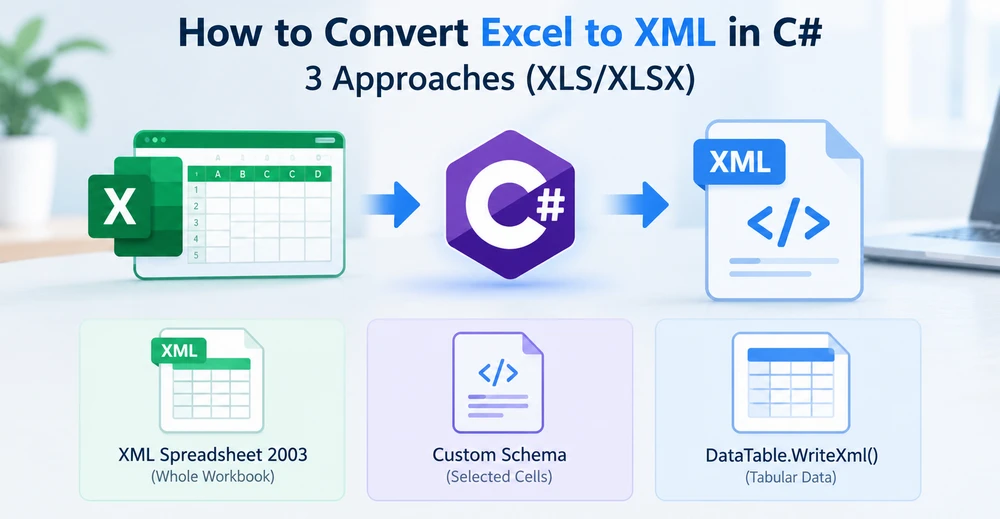
Converting Excel to XML in C# can mean three different things, and the code you write depends on which one you need. You may want to save an entire workbook as an XML spreadsheet, export a few columns into a custom XML structure for another system, or serialize tabular data with .NET's built-in DataTable.WriteXml(). Each produces a different document, and they are not interchangeable.
This tutorial shows how to convert Excel to XML in C# using Spire.XLS for .NET, a standalone library that reads and writes Excel files without Microsoft Excel or Office Interop installed. You will learn to export a whole workbook as XML Spreadsheet 2003, build a custom XML schema from selected cells, and serialize a DataTable, then handle the data type details that matter in production.
Quick Navigation
- Which XML Format Does Excel to XML in C# Produce?
- Set Up a .NET Excel-to-XML Project
- Convert an Excel Workbook to XML in C#
- Export Excel to XML in C# with a Custom Schema
- Convert Excel Data to XML with DataTable.WriteXml()
- XLS, XLSX, and Data Handling
- Frequently Asked Questions
- Summary
Which XML Format Does Excel to XML in C# Produce?
Before writing code, decide which XML the receiving system expects. Three formats come up in Excel work, and mixing them up is the most common mistake in this task.
| XML type | What it is | When to use it |
|---|---|---|
| XML Spreadsheet 2003 (SpreadsheetML) | One XML file describing a workbook, with Workbook, Worksheet, Row, and Cell elements |
When a downstream tool accepts an Excel 2003 XML spreadsheet |
| Office Open XML (OOXML) | The .xlsx format. It is a ZIP package containing separate XML parts for the workbook, worksheets, styles, and shared strings |
When you need to read or modify the internal parts of an XLSX file |
| Custom XML | A document whose element names and hierarchy you define | When an API, database import, or partner system requires a fixed schema |
An XML file whose root is <Workbook xmlns="urn:schemas-microsoft-com:office:spreadsheet"> is XML Spreadsheet 2003. An XLSX file is a ZIP container holding several XML parts rather than one XML document. Because both are described as "XML" in Excel documentation, the two are easy to confuse.
If you are covering the OOXML package format instead, see convert Excel to Open XML in C#. That is a separate topic from this article. If you do not need code at all, the no-code options are covered in other ways to convert Excel to XML.
Set Up a .NET Excel-to-XML Project
Install Spire.XLS for .NET
dotnet add package Spire.XLS
Import the namespace
using Spire.Xls;
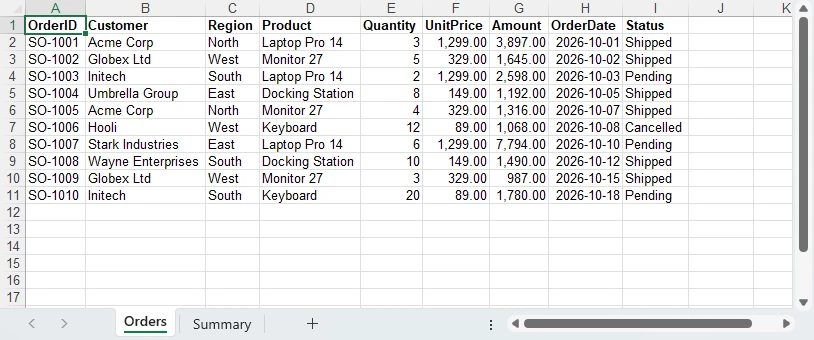
The examples below read SalesOrders.xlsx, which has an Orders sheet with columns OrderID, Customer, Region, Product, Quantity, UnitPrice, Amount, OrderDate, and Status, plus a Summary sheet. Both .xls and .xlsx files load through the same LoadFromFile() call.
The sample workbook used in the examples:
Convert an Excel Workbook to XML in C#
To save a whole workbook as an XML spreadsheet, load the file and call Workbook.SaveAsXml().
using Spire.Xls;

using (Workbook workbook = new Workbook())
{
    // Load the Excel workbook.
    workbook.LoadFromFile("SalesOrders.xlsx");

    // Save the workbook as an XML spreadsheet.
    workbook.SaveAsXml("output.xml");
}
SaveToFile("output.xml", FileFormat.XML) produces the same file. In a test with Spire.XLS 16.10.3, the two calls returned documents of identical size and identical MD5 hash, so use whichever reads better in your code.
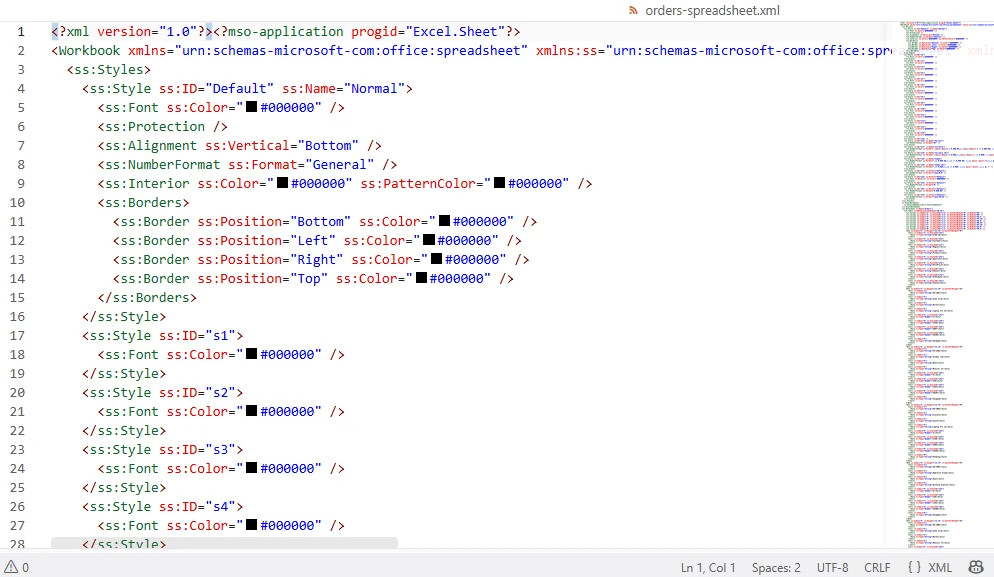
The output is XML Spreadsheet 2003. An OOXML package is a separate format. A real XML Spreadsheet file starts like this:
<?xml version="1.0"?>
<?mso-application progid="Excel.Sheet"?>
<Workbook xmlns="urn:schemas-microsoft-com:office:spreadsheet"
          xmlns:ss="urn:schemas-microsoft-com:office:spreadsheet"
          xmlns:x="urn:schemas-microsoft-com:office:excel">
  <ss:Styles>...</ss:Styles>
  <ss:Worksheet ss:Name="Orders">
    <ss:Table ss:DefaultColumnWidth="48.75">
      <Row ss:Index="1">
        <Cell ss:Index="1"><Data ss:Type="String">OrderID</Data></Cell>
        <Cell ss:Index="2"><Data ss:Type="String">Customer</Data></Cell>
        <Cell ss:Index="3"><Data ss:Type="String">Region</Data></Cell>
        <Cell ss:Index="4"><Data ss:Type="String">Product</Data></Cell>
      </Row>
      ...
The exported orders-spreadsheet.xml opened in a text editor:
To read the file back, use LoadFromXml(). LoadFromXml() reads XML Spreadsheet files, while LoadFromFile() handles XLS and XLSX workbooks.
using (Workbook workbook = new Workbook())
{
    // Load an XML Spreadsheet 2003 file.
    workbook.LoadFromXml("output.xml");
    // Workbook.Worksheets is now available.
}
The export includes the workbook's styles and cell formatting along with the cell data, so the XML document describes the full spreadsheet rather than a bare data table.
Export Excel to XML in C# with a Custom Schema
A workbook export is convenient, but most integrations need their own element names. Converting an Excel spreadsheet to XML with a custom schema usually starts with one range and a fixed set of element names. The sample workbook has these values in the Orders sheet:
| OrderID | Amount | OrderDate |
|---|---|---|
| SO-1001 | 3897.00 | 2026-10-01 |
| SO-1002 | 1645.00 | 2026-10-02 |
| SO-1003 | 2598.00 | 2026-10-03 |
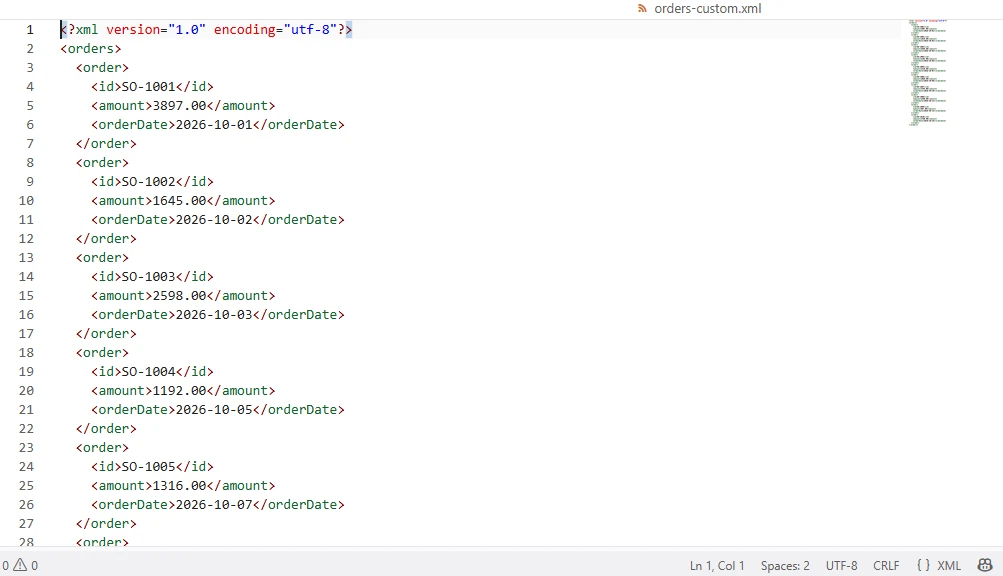
and the target system expects this structure:
<?xml version="1.0" encoding="utf-8"?>
<orders>
  <order>
    <id>SO-1001</id>
    <amount>3897.00</amount>
    <orderDate>2026-10-01</orderDate>
  </order>
  <order>
    <id>SO-1002</id>
    <amount>1645.00</amount>
    <orderDate>2026-10-02</orderDate>
  </order>
  <order>
    <id>SO-1003</id>
    <amount>2598.00</amount>
    <orderDate>2026-10-03</orderDate>
  </order>
</orders>
Export the range to a DataTable, then write the XML yourself with XmlWriter.
using System;
using System.Data;
using System.Globalization;
using System.Text;
using System.Xml;
using Spire.Xls;

using (Workbook workbook = new Workbook())
{
    workbook.LoadFromFile("SalesOrders.xlsx");
    Worksheet sheet = workbook.Worksheets["Orders"];

    var options = new ExportTableOptions
    {
        ExportColumnNames = true,
        KeepDataType = true,
        KeepDataFormat = false,
        ComputedFormulaValue = true
    };

    // AllocatedRange covers only the cells actually used.
    DataTable table = sheet.ExportDataTable(sheet.AllocatedRange, options);

    var settings = new XmlWriterSettings
    {
        Indent = true,
        Encoding = new UTF8Encoding(false)
    };

    using (XmlWriter writer = XmlWriter.Create("orders-custom.xml", settings))
    {
        writer.WriteStartDocument();
        writer.WriteStartElement("orders");

        foreach (DataRow row in table.Rows)
        {
            writer.WriteStartElement("order");

            writer.WriteElementString("id",
                Convert.ToString(row["OrderID"], CultureInfo.InvariantCulture));

            string amount = row.IsNull("Amount")
                ? string.Empty
                : Convert.ToDecimal(row["Amount"], CultureInfo.InvariantCulture)
                         .ToString("F2", CultureInfo.InvariantCulture);
            writer.WriteElementString("amount", amount);

            string orderDate = row.IsNull("OrderDate")
                ? string.Empty
                : Convert.ToDateTime(row["OrderDate"], CultureInfo.InvariantCulture)
                         .ToString("yyyy-MM-dd", CultureInfo.InvariantCulture);
            writer.WriteElementString("orderDate", orderDate);

            writer.WriteEndElement();
        }

        writer.WriteEndElement();
        writer.WriteEndDocument();
    }
}
AllocatedRange covers only the cells in use, so the exported records match the actual data. A fixed range such as sheet.Range["A1:C100"] also includes the empty rows below the data; if you use a fixed range, skip rows where every value is null or empty.
Two options control the output. KeepDataType = true with KeepDataFormat = false keeps Amount as a decimal and OrderDate as a DateTime. With KeepDataFormat = true, the export uses the displayed text instead, such as 2026/10/29. XmlWriter also escapes &, <, and > in cell values, so the output stays well-formed.
If the source columns are numbers stored as text, or dates stored as plain strings, convert them explicitly before writing. Under invariant culture, Convert.ToDecimal expects 1250.50 rather than 1,250.50.
This approach writes the selected data only. When you also need merged cells, column widths, and fonts, use the workbook export in the previous section.
The custom output written to orders-custom.xml:
Convert Excel Data to XML with DataTable.WriteXml()
When the target accepts a standard table-shaped XML document, DataTable.WriteXml() removes the manual element writing.
using System.Data;
using Spire.Xls;

using (Workbook workbook = new Workbook())
{
    workbook.LoadFromFile("SalesOrders.xlsx");
    Worksheet sheet = workbook.Worksheets[0];

    var options = new ExportTableOptions
    {
        ExportColumnNames = true,
        KeepDataType = true,
        KeepDataFormat = false
    };

    DataTable table = sheet.ExportDataTable(sheet.AllocatedRange, options);
    table.TableName = "Orders";

    table.WriteXml("orders.xml", XmlWriteMode.IgnoreSchema);
}
The output root is <DocumentElement>, with one <Orders> element per row:
<?xml version="1.0" standalone="yes"?>
<DocumentElement>
  <Orders>
    <OrderID>SO-1001</OrderID>
    <Customer>Acme Corp</Customer>
    <Region>North</Region>
    ...
    <Amount>3897</Amount>
    <OrderDate>2026-10-01T00:00:00+08:00</OrderDate>
    <Status>Shipped</Status>
  </Orders>
</DocumentElement>
The DataTable output, with one <Orders> element per row:
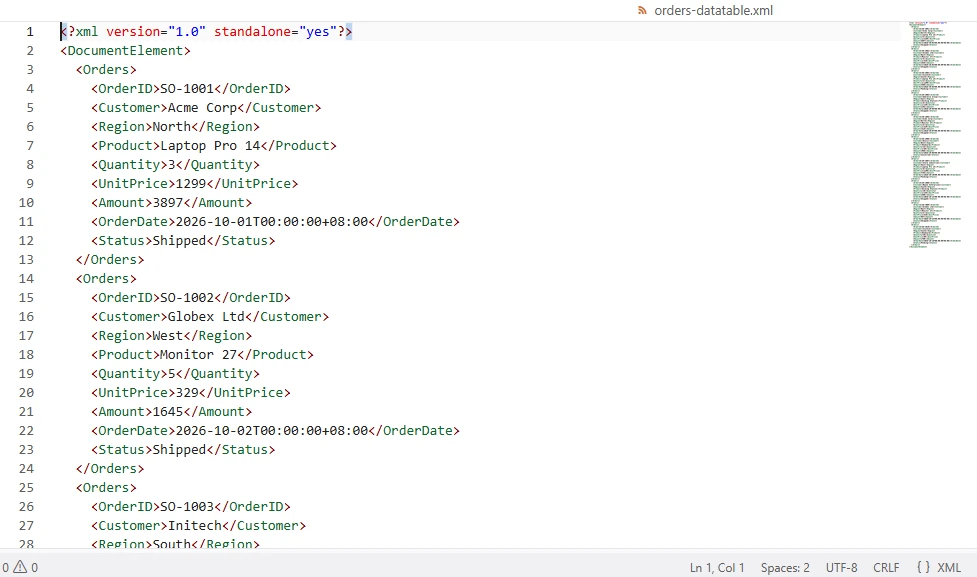
Date values are written with the local offset, so the same workbook produces a different string on a server in another time zone. Normalize the values first if the consumer expects UTC.
If the receiving system requires a different root, wrap the table in a DataSet. Rename the table first, or you get <Orders><Orders> instead of one element per row:
table.TableName = "Order";

var dataSet = new DataSet("Orders");
dataSet.Tables.Add(table);
dataSet.WriteXml("orders-dataset.xml", XmlWriteMode.IgnoreSchema);
The output now uses the root and record names you chose:
<?xml version="1.0" standalone="yes"?>
<Orders>
  <Order>
    <OrderID>SO-1001</OrderID>
    ...
XmlWriteMode.WriteSchema adds an XSD schema block to the document. Use it when the consumer reads the schema.
For more on the export side, see converting Excel data to a DataTable in C#.
XLS, XLSX, and Data Handling
XLS vs XLSX input
Both formats load with LoadFromFile(), and the output format is independent of the input extension. An .xlsx file exported with SaveAsXml() becomes one XML spreadsheet document; the package parts inside the original file are a separate format. Decide the output format first, then pick the method.
Dates and numbers
Excel stores dates as numbers and displays them through a format. When you export through a DataTable, choose between the typed value and the displayed text. For cross-system exchange, keep the typed value and format it at write time, as the earlier yyyy-MM-dd example does.
Formulas
ComputedFormulaValue = true writes the calculated result. Set it to false when the consumer needs the formula expression itself.
Headers and empty cells
ExportColumnNames = true turns the first row into column names. Keep titles, notes, and blank rows out of the selected range. Decide up front whether a missing value becomes an omitted element, an empty element, or an explicit null marker, and choose the form your consumer expects.
Multiple worksheets
A workbook export writes every worksheet. A range export writes one sheet. To produce custom XML from several sheets, loop over the collection and write each sheet into its own parent element. The snippet reuses the settings and options objects defined earlier.
using (XmlWriter writer = XmlWriter.Create("workbook-custom.xml", settings))
{
    writer.WriteStartDocument();
    writer.WriteStartElement("workbook");

    foreach (Worksheet sheet in workbook.Worksheets)
    {
        DataTable table = sheet.ExportDataTable(sheet.AllocatedRange, options);

        writer.WriteStartElement("sheet");
        writer.WriteAttributeString("name", sheet.Name);

        foreach (DataRow row in table.Rows)
        {
            writer.WriteStartElement("row");
            foreach (DataColumn column in table.Columns)
            {
                writer.WriteStartElement("field");
                writer.WriteAttributeString("name", column.ColumnName);
                writer.WriteString(Convert.ToString(row[column], CultureInfo.InvariantCulture));
                writer.WriteEndElement();
            }
            writer.WriteEndElement();
        }

        writer.WriteEndElement();
    }

    writer.WriteEndElement();
    writer.WriteEndDocument();
}
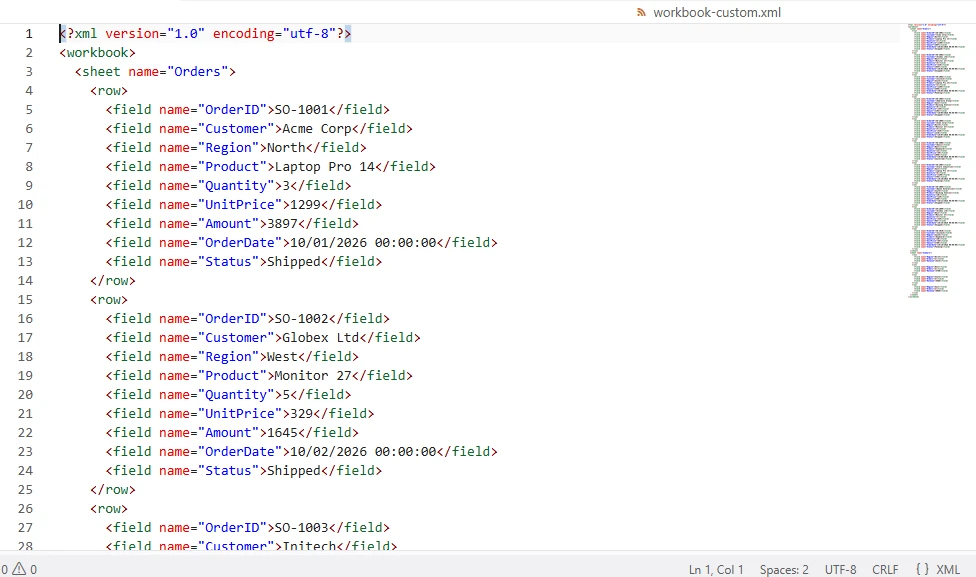
The column name goes into an attribute rather than an element name on purpose. XML element names cannot contain spaces or start with a digit, so headers such as Order ID or 2026 Total need a safe name; the attribute form accepts any header as written.
To include only populated sheets, check table.Rows.Count before writing the <sheet> element.
The multi-sheet output, with each sheet and column name kept:
Large files
For very large sheets, read rows in chunks, or write directly with XmlWriter while iterating cells.
If you need the reverse direction, see convert XML to Excel and PDF in C#. For CSV input instead of Excel, see convert CSV to XML in C#.
Frequently Asked Questions
How do I convert XLSX to XML in C#?
Load the file with Workbook.LoadFromFile() and call SaveAsXml() to produce an XML Spreadsheet 2003 document. If you need custom element names instead, export the range to a DataTable and write it with XmlWriter or DataTable.WriteXml().
Does SaveAsXml() produce Office Open XML?
SaveAsXml() produces XML Spreadsheet 2003. In the Spire.XLS 16.10.3 test, the output used the urn:schemas-microsoft-com:office:spreadsheet namespace and a Workbook root, which identifies XML Spreadsheet 2003. Office Open XML is the .xlsx package format and is handled as a separate format.
How can I export only one worksheet to XML?
Export the range from that worksheet with Worksheet.ExportDataTable(), then serialize it. A workbook-level SaveAsXml() call always covers the whole workbook.
Can I control the element names?
Yes, with XmlWriter. You define the root, the record element, field names, nesting, and value formatting. DataTable.WriteXml() is faster to write but fixes the structure to the table.
Can I export XLS files the same way?
Yes. .xls and .xlsx both load with LoadFromFile(), and the export steps are the same for an XLS to XML conversion as for an XLSX to XML conversion.
Summary
Converting Excel to XML in C# means choosing which XML the receiving system needs before choosing the API. With Spire.XLS for .NET, SaveAsXml() produces an XML Spreadsheet 2003 document for the whole workbook, XmlWriter produces whatever schema your integration requires, and DataTable.WriteXml() produces a standard table-shaped document with one element per row.
The differences between the three outputs are practical, not cosmetic. XML Spreadsheet 2003 keeps workbook structure and formatting, custom XML keeps only the fields you write, and the DataTable route keeps the table shape but fixes the root and record names. SpreadsheetML and the XML parts inside an XLSX package are different formats, so confirm which one the consumer expects.
Keep data types intact by setting KeepDataType = true and KeepDataFormat = false, select the range with AllocatedRange instead of a fixed block, and decide how missing values should appear before the first file reaches the consumer.
If you need to test Spire.XLS for .NET in a real business environment, you can apply for a temporary license.
