A shape in Excel is usually there to point at something: the arrow on a diagram, the triangle that flags a number, the cloud that circles an area. Give it a hyperlink and the drawing becomes an entry point a reader can click. A shape, like a picture, is not a cell, and its hyperlink lives on the shape object itself, so both setting and reading one go through the worksheet's shape collection rather than its cell hyperlink collection. Spire.XLS for JavaScript does this in the browser on WebAssembly, handling input and output files through a virtual file system (VFS) with no backend service.
This article covers two core feature points:
For installation and project setup, see Integrating Spire.XLS for JavaScript in a React Project. The examples below assume Spire.XLS is installed and the WebAssembly module has been initialised.
Set a hyperlink on a shape
Setting a hyperlink on a shape is what turns a drawing into a clickable entry point: a reader who clicks the shape on the worksheet opens the address it points at. The link belongs to the shape itself rather than to a cell, so the shape has to be taken from the worksheet's shape collection first, and the address handed to its own link object. The steps are:
- Load the font and the test data file into the VFS.
- Load the workbook with
workbook.LoadFromFile. - Add the shapes into the space left for them with
sheet.PrstGeomShapes.AddPrstGeomShape. - Take the shape count from
sheet.PrstGeomShapes.Countand walk every shape on the worksheet with it. - Take each shape's link object from its
HyLinkproperty and write the address into itsAddress. - Save the workbook with
workbook.SaveToFile. - Dispose of the workbook with
workbook.Disposeto free resources.
The complete code example below shows how to set a hyperlink on a shape in Excel in React:
function App() {
  const shapeHyperlink = async () => {
    // get the Spire.XLS WASM module
    const xlsModule = window.wasmModule?.spirexls;

    // check that the module is ready
    if (!xlsModule) {
      alert('Spire.Xls is not ready yet');
      return;
    }

    // load the font and the test data file into the VFS
    await window.spire.FetchFileToVFS('ARIAL.TTF', '/Library/Fonts/', `${process.env.PUBLIC_URL}/font/`);
    const inputFileName = 'ShapeLink.xlsx';
    await window.spire.FetchFileToVFS(inputFileName, '', `${process.env.PUBLIC_URL}data/`);

    // load the workbook
    const workbook = new xlsModule.Workbook();
    workbook.LoadFromFile({ fileName: inputFileName });

    // take the first worksheet and add the three shapes into the space left for them
    const sheet = workbook.Worksheets.get(0);
    const shapes = sheet.PrstGeomShapes;
    shapes.AddPrstGeomShape(10, 1, 90, 60, xlsModule.PrstGeomShapeType.Triangle);
    shapes.AddPrstGeomShape(10, 3, 90, 60, xlsModule.PrstGeomShapeType.CurvedRightArrow);
    shapes.AddPrstGeomShape(10, 5, 90, 60, xlsModule.PrstGeomShapeType.Cloud);

    // set a hyperlink on each shape in turn
    const addresses = [
      'https://www.e-iceblue.com/Introduce/xls-for-javascript.html',
      'https://www.e-iceblue.com/Buy/Spire.XLS-JavaScript.html',
      'https://www.e-iceblue.com/Download/Spire-Office-JavaScript.html',
    ];
    for (let i = 0; i < shapes.Count; i++) {
      shapes.get(i).HyLink.Address = addresses[i];
    }

    // save the workbook
    const outputFileName = 'ShapeHyperlink.xlsx';
    workbook.SaveToFile({ fileName: outputFileName, fileFormat: xlsModule.FileFormat.Version2010 });

    // dispose of the workbook to free resources
    workbook.Dispose();

    // read the result file from the VFS and start the download
    const fileArray = window.dotnetRuntime.Module.FS.readFile(outputFileName);
    const blob = new Blob([fileArray], { type: 'application/vnd.openxmlformats-officedocument.spreadsheetml.sheet' });
    const url = URL.createObjectURL(blob);
    const a = document.createElement('a');
    a.href = url;
    a.download = outputFileName;
    a.click();
    URL.revokeObjectURL(url);
  };

  return (
    <div style={{ textAlign: 'center', height: '300px' }}>
      <h1>Add Hyperlinks to Shapes in Excel</h1>
      <button id="shape-hyperlink" onClick={shapeHyperlink}>Set a hyperlink on the shape</button>
    </div>
  );
}

export default App;
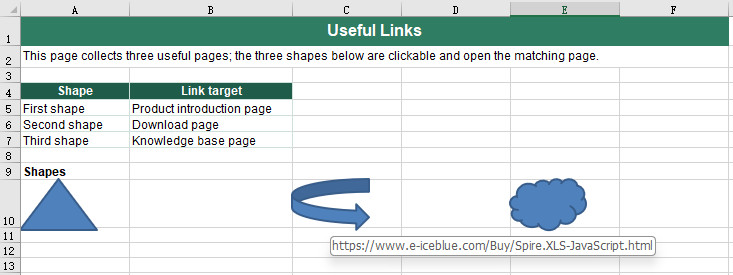
After running, the effect of setting a hyperlink on a shape:
Read the hyperlink from a shape
Reading the hyperlink off a shape is how a finished sheet is checked over: whether every shape carries a link, and whether they point at the right addresses. The addresses that come back are written out as a text file, which makes them easy to line up against a list of links. Shape hyperlinks are not kept in the cell hyperlink collection, so the shapes have to be taken from the worksheet one by one, and each one asked for its own link object. The steps are:
- Load the font and the test data file into the VFS.
- Load the workbook with
workbook.LoadFromFile. - Take the shape count from
sheet.PrstGeomShapes.Countand walk every shape on the worksheet with it. - Take this shape's link object from its
HyLinkproperty. - Read the target address from the link object's
Address, collecting the addresses as you go. - Write the collected addresses into a text file with
FS.writeFile, one address per line. - Dispose of the workbook with
workbook.Disposeto free resources.
The complete code example below shows how to read the hyperlink from a shape in Excel in React:
function App() {
  const readShapeHyperlink = async () => {
    // get the Spire.XLS WASM module
    const xlsModule = window.wasmModule?.spirexls;

    // check that the module is ready
    if (!xlsModule) {
      alert('Spire.Xls is not ready yet');
      return;
    }

    // load the font and the test data file into the VFS
    await window.spire.FetchFileToVFS('ARIAL.TTF', '/Library/Fonts/', `${process.env.PUBLIC_URL}/font/`);
    const inputFileName = 'ShapeHyperlinks.xlsx';
    await window.spire.FetchFileToVFS(inputFileName, '', `${process.env.PUBLIC_URL}data/`);

    // load the workbook
    const workbook = new xlsModule.Workbook();
    workbook.LoadFromFile({ fileName: inputFileName });

    // walk the shapes of the worksheet and read the hyperlink off each one
    const sheet = workbook.Worksheets.get(0);
    const shapes = sheet.PrstGeomShapes;
    const addresses = [];
    for (let i = 0; i < shapes.Count; i++) {
      addresses.push(shapes.get(i).HyLink.Address);
    }

    // write the addresses that were read into a text file
    const outputFileName = 'ReadShapeHyperlink.txt';
    window.dotnetRuntime.Module.FS.writeFile(outputFileName, addresses.join('\n'));

    // dispose of the workbook to free resources
    workbook.Dispose();

    // read the result file from the VFS and start the download
    const fileArray = window.dotnetRuntime.Module.FS.readFile(outputFileName);
    const blob = new Blob([fileArray], { type: 'text/plain' });
    const url = URL.createObjectURL(blob);
    const a = document.createElement('a');
    a.href = url;
    a.download = outputFileName;
    a.click();
    URL.revokeObjectURL(url);
  };

  return (
    <div style={{ textAlign: 'center', height: '300px' }}>
      <h1>Add Hyperlinks to Shapes in Excel</h1>
      <button id="read-shape-hyperlink" onClick={readShapeHyperlink}>Read the hyperlink from the shape</button>
    </div>
  );
}

export default App;
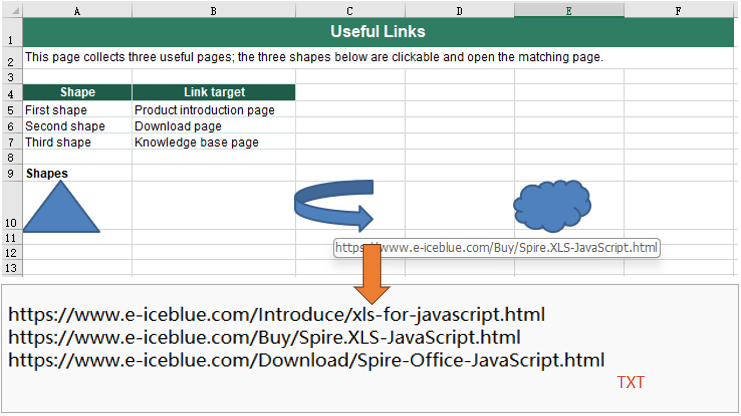
After running, the effect of reading the hyperlink from a shape:
FAQ
Why does a shape's hyperlink not show up in sheet.HyperLinks?
Cause: sheet.HyperLinks collects cell hyperlinks only. A shape is not a cell; it belongs to the worksheet's shape collection, and the link hangs on the shape object's HyLink.
Solution: Go through the shape collection. In this example, after a hyperlink was set on the shapes, sheet.HyperLinks.Count was still 0, and it was still 0 after the file was saved and opened again. Read a shape's link with sheet.PrstGeomShapes.get(i).HyLink.Address.
Get a Free License
Spire.XLS for JavaScript offers a 30-day full-featured free trial license with no functional limitations. Apply here to evaluate before purchasing.
