Excel workbooks often need to tie scattered content together: one click on a summary page jumps to a detail worksheet, one click on a quote opens the source file kept beside it. That "jump elsewhere" ability belongs to cell hyperlinks, and the link type decides where the jump goes -- another worksheet inside the same workbook, or a file outside it. Spire.XLS for JavaScript does this in the browser through WebAssembly; input and output files are managed by a virtual file system (VFS), with no backend service required.
This article covers two feature points:
For installation and project setup, see Integrating Spire.XLS for JavaScript in a React Project. The examples below assume Spire.XLS is installed and the WebAssembly module has been initialized.
Add a link to another worksheet
A cross-sheet link solves the "jump from here to there" problem inside one workbook: it strings the content scattered across worksheets into a clickable path, so that the reader does not have to hunt for the right sheet. A link sits on a cell, so the first move is to create a hyperlink object on the target cell and then say, in turn, where it jumps and what text it shows. The steps are:
- Load the font and the test data file into the VFS.
- Load the workbook with
workbook.LoadFromFile. - Create a hyperlink object on the target cell with
sheet.HyperLinks.Add. - Mark the type as a workbook-internal link with the hyperlink's
Typeproperty, set toxlsModule.HyperLinkType.Workbook. - Set the text shown on the cell with the
TextToDisplayproperty. - Write the jump target into the
Addressproperty, in the form "sheet name!cell", for exampleData!B7. - Style the link text blue and underlined so that it reads differently from ordinary text.
- Save the workbook with
workbook.SaveToFile. - Dispose of the workbook with
workbook.Disposeto free resources.
The complete code example below shows how to add a cross-sheet hyperlink to an Excel cell in React:
function App() {
  const linkToOtherSheet = async () => {
    // get the Spire.XLS WASM module
    const xlsModule = window.wasmModule?.spirexls;

    // check that the module is ready
    if (!xlsModule) {
      alert('Spire.Xls is not ready yet');
      return;
    }

    // load the font and the test data file into the VFS
    await window.spire.FetchFileToVFS('ARIAL.TTF', '/Library/Fonts/', `${process.env.PUBLIC_URL}/font/`);
    const inputFileName = 'SheetLink.xlsx';
    await window.spire.FetchFileToVFS(inputFileName, '', `${process.env.PUBLIC_URL}data/`);

    // load the workbook
    const workbook = new xlsModule.Workbook();
    workbook.LoadFromFile({ fileName: inputFileName });

    // take the first worksheet and add a hyperlink object to cell B5
    const sheet = workbook.Worksheets.get(0);
    const cell = sheet.Range.get('B5');
    const hyperlink = sheet.HyperLinks.Add({ range: cell });

    // mark it as a workbook-internal link that points at cell B7 of the second worksheet
    hyperlink.Type = xlsModule.HyperLinkType.Workbook;
    hyperlink.TextToDisplay = 'View the full-year total in the data sheet';
    hyperlink.Address = 'Data!B7';

    // colour the link text blue and underline it so that it reads as a link
    cell.Style.Font.Color = xlsModule.Color.get_Blue();
    cell.Style.Font.Underline = xlsModule.FontUnderlineType.Single;

    // save the workbook
    const outputFileName = 'LinkToOtherSheetCell.xlsx';
    workbook.SaveToFile({ fileName: outputFileName, fileFormat: xlsModule.FileFormat.Version2010 });

    // dispose of the workbook to free resources
    workbook.Dispose();

    // read the result file from the VFS and start the download
    const fileArray = window.dotnetRuntime.Module.FS.readFile(outputFileName);
    const blob = new Blob([fileArray], { type: 'application/vnd.openxmlformats-officedocument.spreadsheetml.sheet' });
    const url = URL.createObjectURL(blob);
    const a = document.createElement('a');
    a.href = url;
    a.download = outputFileName;
    a.click();
    URL.revokeObjectURL(url);
  };

  return (
    <div style={{ textAlign: 'center', height: '300px' }}>
      <h1>Add Cross-Sheet and External File Links in Excel</h1>
      <button id="link-to-other-sheet" onClick={linkToOtherSheet}>Add a link to another worksheet</button>
      <button id="link-to-external-file" onClick={linkToExternalFile}>Add a link to an external file</button>
    </div>
  );
}

export default App;
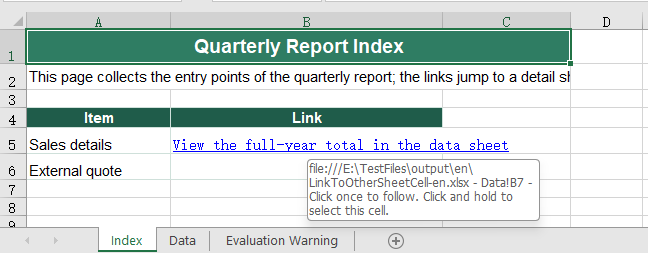
After running, the effect of adding a cross-sheet link:
Add a link to an external file
A cross-sheet link can only jump within the same workbook, so once the target falls outside it, the link has to become a file link. It differs from a cross-sheet link in just two places: the type is marked as a file link, and the jump target becomes a file path -- either a full path or a path relative to the current workbook. The steps are:
- Load the font and the test data file into the VFS.
- Load the workbook with
workbook.LoadFromFile. - Create a hyperlink object on the target cell with
sheet.HyperLinks.Add. - Mark the type as a file link with the
Typeproperty, set toxlsModule.HyperLinkType.File. - Set the text shown on the cell with the
TextToDisplayproperty. - Write the path of the external file into the
Addressproperty, for example../files/Quote.xlsx. - Style the link text blue and underlined so that it reads differently from ordinary text.
- Save the workbook with
workbook.SaveToFile. - Dispose of the workbook with
workbook.Disposeto free resources.
The complete code example below shows how to add an external-file hyperlink to an Excel cell in React:
function App() {
  const linkToExternalFile = async () => {
    // get the Spire.XLS WASM module
    const xlsModule = window.wasmModule?.spirexls;

    // check that the module is ready
    if (!xlsModule) {
      alert('Spire.Xls is not ready yet');
      return;
    }

    // load the font and the test data file into the VFS
    await window.spire.FetchFileToVFS('ARIAL.TTF', '/Library/Fonts/', `${process.env.PUBLIC_URL}/font/`);
    const inputFileName = 'SheetLink.xlsx';
    await window.spire.FetchFileToVFS(inputFileName, '', `${process.env.PUBLIC_URL}data/`);

    // load the workbook
    const workbook = new xlsModule.Workbook();
    workbook.LoadFromFile({ fileName: inputFileName });

    // take the first worksheet and add a hyperlink object to cell B6
    const sheet = workbook.Worksheets.get(0);
    const cell = sheet.Range.get('B6');
    const hyperlink = sheet.HyperLinks.Add({ range: cell });

    // mark it as a file link that points at a file outside the workbook
    hyperlink.Type = xlsModule.HyperLinkType.File;
    hyperlink.TextToDisplay = 'Open the external quote';
    hyperlink.Address = '../files/Quote.xlsx';

    // colour the link text blue and underline it so that it reads as a link
    cell.Style.Font.Color = xlsModule.Color.get_Blue();
    cell.Style.Font.Underline = xlsModule.FontUnderlineType.Single;

    // save the workbook
    const outputFileName = 'LinkToExternalFile.xlsx';
    workbook.SaveToFile({ fileName: outputFileName, fileFormat: xlsModule.FileFormat.Version2010 });

    // dispose of the workbook to free resources
    workbook.Dispose();

    // read the result file from the VFS and start the download
    const fileArray = window.dotnetRuntime.Module.FS.readFile(outputFileName);
    const blob = new Blob([fileArray], { type: 'application/vnd.openxmlformats-officedocument.spreadsheetml.sheet' });
    const url = URL.createObjectURL(blob);
    const a = document.createElement('a');
    a.href = url;
    a.download = outputFileName;
    a.click();
    URL.revokeObjectURL(url);
  };

  return (
    <div style={{ textAlign: 'center', height: '300px' }}>
      <h1>Add Cross-Sheet and External File Links in Excel</h1>
      <button id="link-to-other-sheet" onClick={linkToOtherSheet}>Add a link to another worksheet</button>
      <button id="link-to-external-file" onClick={linkToExternalFile}>Add a link to an external file</button>
    </div>
  );
}

export default App;
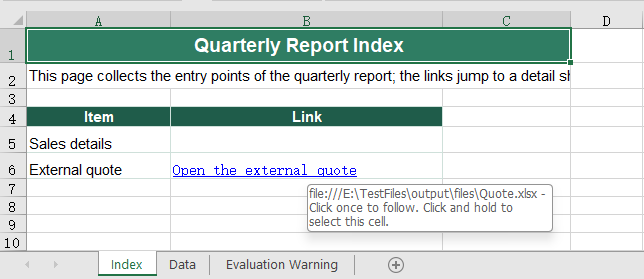
After running, the effect of adding an external-file link:
FAQ
Why does adding a link to a cell that already has text replace that text with the address
Reason: The text a cell shows is decided by TextToDisplay. Create a link without setting it and the address moves up to serve as the display text; the replacement happens the moment the link is added, so reading Range.Text afterwards returns the address rather than the original text.
Solution: Read the text before adding the link, then hand it back to TextToDisplay once the link is in place:
const cell = sheet.Range.get('B6');
const text = cell.Text;                  // keep the original text before adding the link
const hyperlink = sheet.HyperLinks.Add({ range: cell });
hyperlink.Type = xlsModule.HyperLinkType.File;
hyperlink.Address = '../files/Quote.xlsx';
hyperlink.TextToDisplay = text;          // hand the text back, so the cell still shows it
How do I remove a link but keep the text in the cell
Reason: The link and the text are two different things -- the link hangs on the cell, while the text is the cell's content. Range.ClearAll() clears the content, so using it to get rid of a link takes the text with it.
Solution: Remove the link by index with sheet.HyperLinks.RemoveAt, and the cell text stays as it was. For example, sheet.HyperLinks.RemoveAt(0) removes the first link; the text is still in the cell afterwards, it simply is no longer clickable.
Get a Free License
Spire.XLS for JavaScript offers a 30-day full-featured free trial license with no functional limitations. Apply here to evaluate before purchasing.
