When data is split into categories and subcategories, each carrying a value, rows of a table make it hard to see at a glance how much of the whole each category represents. A treemap nests rectangles by hierarchy and sizes each rectangle by its value, so subcategories of the same category sit side by side and their proportions can be compared directly. Turning such data into a treemap, then adding labels and fill colors, produces a chart that can go straight into a report or a shared document. Spire.XLS for JavaScript creates and renders treemap charts in the browser through WebAssembly, with input and output files managed by a virtual file system (VFS) and no backend service required.
This article covers two features:
For installation and project setup, see Integrating Spire.XLS for JavaScript in a React Project. The examples below assume that Spire.XLS is installed and the WebAssembly module is initialized.
Create a Treemap Chart
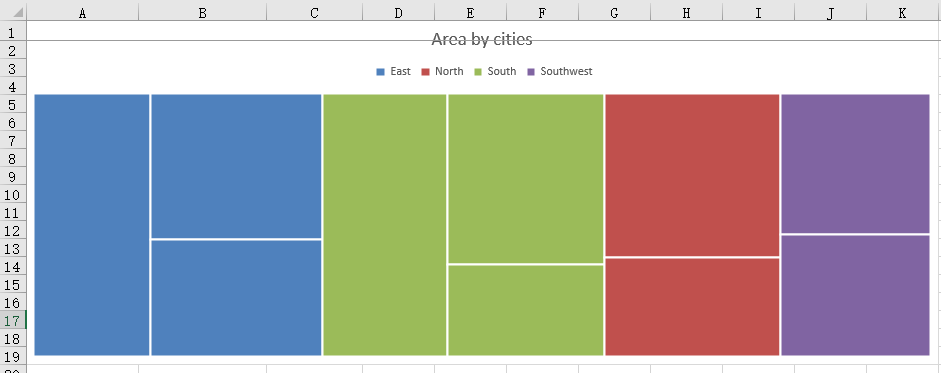
A treemap uses rectangle area to represent values and the nesting of rectangles to represent hierarchy. To build a usable chart, start with three columns, category, item, and value, then set the chart type to tree map and fix the chart position and title. Once the chart is created, saving it in an Excel workbook lets the chart be opened, edited, or shared in spreadsheet software.
How to create a treemap chart and what it produces:
| Call | Result |
|---|---|
window.spire.FetchFileToVFS |
Loads the font file and the test data file into the VFS |
workbook.LoadFromFile({ fileName }) |
Loads the workbook that holds the two-level data |
workbook.Worksheets.get(0) |
Gets the first worksheet of the workbook |
sheet.Charts.Add() |
Adds a chart object to the worksheet |
chart.ChartType = xlsModule.ExcelChartType.TreeMap |
Sets the chart type to tree map |
chart.DataRange = sheet.Range.get("A2:C11") |
Uses two hierarchy columns and one value column as the chart data |
chart.ChartTitle |
Sets the chart title |
chart.TopRow / chart.BottomRow / chart.LeftColumn / chart.RightColumn |
Sets the position and size of the chart on the worksheet |
workbook.SaveToFile({ fileName }) |
Writes the workbook with the treemap chart into the VFS |
The steps are:
- Load the font file and the Excel test file into the VFS with
window.spire.FetchFileToVFS. - Create a workbook with
new Workbook()and load the test file withworkbook.LoadFromFile. - Get the first worksheet with
workbook.Worksheets.get(0). - Add a chart with
sheet.Charts.Add()and setchart.ChartTypetoxlsModule.ExcelChartType.TreeMap. - Set
chart.DataRangetosheet.Range.get("A2:C11"), where the first two columns are the group and the item and the third column decides the rectangle area. - Set
chart.ChartTitle, then fix the chart position and size throughchart.TopRow,chart.BottomRow,chart.LeftColumn, andchart.RightColumn. - Call
workbook.SaveToFileto writeCreateTreeMap.xlsx, release the workbook withworkbook.Dispose, and read the workbook back from the VFS to trigger the download.
Below is the complete example that creates a treemap chart and saves it in an Excel workbook in React:
function App() {
  const createTreeMap = async () => {
    // Get the Spire.XLS WASM module
    const xlsModule = window.wasmModule?.spirexls;

    // Check that the module is ready
    if (!xlsModule) {
      alert('Spire.Xls is not ready yet');
      return;
    }

    // Load the font and the test data file into the VFS
    await window.spire.FetchFileToVFS('ARIAL.TTF', '/Library/Fonts/', `${process.env.PUBLIC_URL}/font/`);
    const inputFileName = 'TreeMapData.xlsx';
    await window.spire.FetchFileToVFS(inputFileName, '', `${process.env.PUBLIC_URL}data/`);

    // Load the workbook
    const workbook = new xlsModule.Workbook();
    workbook.LoadFromFile({ fileName: inputFileName });

    // Get the first worksheet
    const sheet = workbook.Worksheets.get(0);

    // Add a chart and set its type to tree map
    const chart = sheet.Charts.Add();
    chart.ChartType = xlsModule.ExcelChartType.TreeMap;

    // Set the data range: the first two columns are the group and the item, the third is the value
    chart.DataRange = sheet.Range.get('A2:C11');

    // Set the position and size of the chart
    chart.TopRow = 1;
    chart.BottomRow = 20;
    chart.LeftColumn = 1;
    chart.RightColumn = 12;

    // Set the chart title
    chart.ChartTitle = 'Area by cities';

    // Save the workbook with the tree map chart into the VFS
    const outputFileName = 'CreateTreeMap.xlsx';
    workbook.SaveToFile({ fileName: outputFileName });

    // Dispose of the workbook to release its resources
    workbook.Dispose();

    // Read the result back out of the VFS and trigger the download
    const fileArray = window.dotnetRuntime.Module.FS.readFile(outputFileName);
    const blob = new Blob([fileArray], { type: 'application/vnd.openxmlformats-officedocument.spreadsheetml.sheet' });
    const url = URL.createObjectURL(blob);
    const a = document.createElement('a');
    a.href = url;
    a.download = outputFileName;
    a.click();
    URL.revokeObjectURL(url);
  };

  return (
    <div style={{ textAlign: 'center', height: '300px' }}>
      <h1>Create a Tree Map Chart in React</h1>
      <button id="create-treemap" onClick={createTreeMap}>Create Tree Map</button>
    </div>
  );
}

export default App;
The workbook after creating the treemap chart:
Set Treemap Labels and Fill Colors
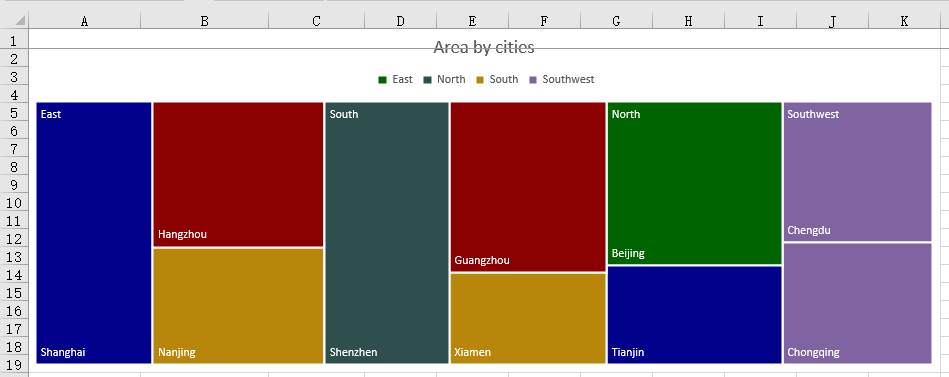
By default, a treemap is rendered without any data labels, so readers can rely only on the legend to tell the groups apart and cannot see which item each area stands for. Rectangles in the same group also share one color, which makes neighboring areas less distinct. Turning on name labels for the rectangles and then assigning darker fill colors in data point order places each item name directly on its area; the white labels stay legible on the dark fills, and both the group structure and the relative sizes become easy to read.
How to set treemap labels and fill colors and what it produces:
| Call | Result |
|---|---|
chart.Series.get(0).DataPoints |
Gets the data point collection, one point per rectangle |
points.get(i).DataFormat.Fill.FillType = xlsModule.ShapeFillType.SolidColor |
Makes that rectangle use a solid fill |
points.get(i).DataFormat.Fill.ForeColor = colors[i % colors.length] |
Assigns a fill color to that rectangle |
chart.Series.get(0).DataPoints.DefaultDataPoint.DataLabels.HasCategoryName = true |
Enables category name labels, so item names appear on the rectangles |
chart.Series.get(0).DataFormat.TreeMapLabelOption = xlsModule.ExcelTreeMapLabelOption.Overlapping |
Overlays item names directly on the rectangles and leaves group names in the group corner |
xlsModule.ExcelTreeMapLabelOption.Banner |
Gives group names a strip at the top of each group and keeps item names inside the rectangles |
xlsModule.ExcelTreeMapLabelOption.None |
Hides every label in the chart |
The steps are:
- Load the test workbook and create the chart as described in the previous section, keeping the data range, position, and title unchanged.
- Get the data points with
chart.Series.get(0).DataPoints, loop over the data rows, and setDataFormat.Fill.FillTypetoxlsModule.ShapeFillType.SolidColorandForeColorto the chosen color for each point. - Set
chart.Series.get(0).DataPoints.DefaultDataPoint.DataLabels.HasCategoryNametotrue. Data labels are off by default on a treemap, so category names appear on the rectangles only after this is enabled. - Set
chart.Series.get(0).DataFormat.TreeMapLabelOptiontoxlsModule.ExcelTreeMapLabelOption.Overlappingso item names are drawn directly on the rectangles; useBannerinstead when group names should take a strip at the top of each group. - Write
TreeMapStyled.xlsxwithworkbook.SaveToFileand trigger the download, then release the workbook withworkbook.Dispose.
Below is the complete example. The chart setup is kept from the previous section so that it runs on its own; the additions are the fill colors and the labels:
function App() {
  const styleTreeMap = async () => {
    // Get the Spire.XLS WASM module
    const xlsModule = window.wasmModule?.spirexls;

    // Check that the module is ready
    if (!xlsModule) {
      alert('Spire.Xls is not ready yet');
      return;
    }

    // Load the font and the test data file into the VFS
    await window.spire.FetchFileToVFS('ARIAL.TTF', '/Library/Fonts/', `${process.env.PUBLIC_URL}/font/`);
    const inputFileName = 'TreeMapData.xlsx';
    await window.spire.FetchFileToVFS(inputFileName, '', `${process.env.PUBLIC_URL}data/`);

    // Load the workbook
    const workbook = new xlsModule.Workbook();
    workbook.LoadFromFile({ fileName: inputFileName });

    // Get the first worksheet
    const sheet = workbook.Worksheets.get(0);

    // Add a tree map chart and set its data range
    const chart = sheet.Charts.Add();
    chart.ChartType = xlsModule.ExcelChartType.TreeMap;
    chart.DataRange = sheet.Range.get('A2:C11');
    chart.TopRow = 1;
    chart.BottomRow = 20;
    chart.LeftColumn = 1;
    chart.RightColumn = 12;
    chart.ChartTitle = 'Area by cities';

    // Prepare the fill colors used in the loop
    const colors = [
      xlsModule.Color.get_DarkGreen(),
      xlsModule.Color.get_DarkBlue(),
      xlsModule.Color.get_DarkGoldenrod(),
      xlsModule.Color.get_DarkRed(),
      xlsModule.Color.get_DarkSlateGray(),
    ];

    // Set the fill color of every rectangle in data point order (10 data rows)
    const points = chart.Series.get(0).DataPoints;
    for (let i = 0; i < 10; i++) {
      points.get(i).DataFormat.Fill.FillType = xlsModule.ShapeFillType.SolidColor;
      points.get(i).DataFormat.Fill.ForeColor = colors[i % colors.length];
    }

    // Enable category name labels and overlay the item names on the rectangles
    chart.Series.get(0).DataPoints.DefaultDataPoint.DataLabels.HasCategoryName = true;
    chart.Series.get(0).DataFormat.TreeMapLabelOption = xlsModule.ExcelTreeMapLabelOption.Overlapping;

    // Save the workbook with the tree map chart into the VFS
    const outputFileName = 'TreeMapStyled.xlsx';
    workbook.SaveToFile({ fileName: outputFileName });

    // Dispose of the workbook to release its resources
    workbook.Dispose();

    // Read the result back out of the VFS and trigger the download
    const fileArray = window.dotnetRuntime.Module.FS.readFile(outputFileName);
    const blob = new Blob([fileArray], { type: 'application/vnd.openxmlformats-officedocument.spreadsheetml.sheet' });
    const url = URL.createObjectURL(blob);
    const a = document.createElement('a');
    a.href = url;
    a.download = outputFileName;
    a.click();
    URL.revokeObjectURL(url);
  };

  return (
    <div style={{ textAlign: 'center', height: '300px' }}>
      <h1>Create a Tree Map Chart in React</h1>
      <button id="style-treemap" onClick={styleTreeMap}>Set Labels and Fill Colors</button>
    </div>
  );
}

export default App;
The workbook after setting treemap labels and fill colors:
FAQ
Treemap labels do not appear
Cause: Data labels are off by default on a treemap, so no names are drawn on the rectangles. TreeMapLabelOption only controls how labels are laid out, and setting it alone does not make labels visible.
Solution: Set DataLabels.HasCategoryName on the data points to true first, then set TreeMapLabelOption: use Overlapping to draw item names directly on the rectangles, or Banner to give group names a strip at the top of each group. For example:
chart.Series.get(0).DataPoints.DefaultDataPoint.DataLabels.HasCategoryName = true;
chart.Series.get(0).DataFormat.TreeMapLabelOption = xlsModule.ExcelTreeMapLabelOption.Overlapping;
How can the position and size of a treemap be adjusted
Cause: The position of a chart is controlled by TopRow, BottomRow, LeftColumn, and RightColumn, which mark the first and last row and column the chart covers.
Solution: Adjust these four properties before saving the workbook. Larger values widen the range of rows and columns the chart covers, so the chart takes up more space on the worksheet.
How should the data for a treemap be arranged
Cause: A treemap reads hierarchy and values by column, so the order of the columns determines how groups, items, and areas correspond to one another.
Solution: Arrange the data in three columns: the first for the category, the second for the item, and the third for the value, and keep the value column numeric. Start chart.DataRange at the first data row, for example sheet.Range.get("A2:C11"), so the header row is not included.
Get a Free License
Spire.XLS for JavaScript offers a 30-day full-featured free trial license with no functional limitations. Apply here to evaluate before purchasing.
