Tables exported from multiple systems or entered by hand often contain duplicate records: the same record written twice, or the same entry appearing on adjacent rows. These duplicate rows inflate sums and counts, skew pivot results, and make later filtering and reconciliation harder. Spire.XLS for JavaScript removes duplicate rows in the browser through WebAssembly, with input and output files managed in a virtual file system (VFS) and no back-end service required.
This article covers three core features:
- Remove all duplicate rows in a worksheet
- Remove duplicate rows in a specified range
- Remove duplicate rows by columns and header
For installation and project configuration, see Integrating Spire.XLS for JavaScript in a React Project. The examples below assume that Spire.XLS is installed and the WebAssembly module has been initialized.
Remove all duplicate rows in a worksheet
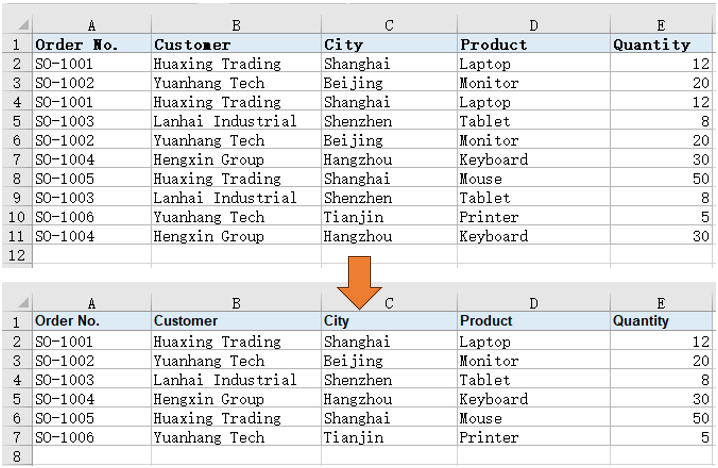
When an entire sheet records the same set of fields, two rows are duplicates if every cell in them is identical. Calling RemoveDuplicates() directly compares rows across the used range of the whole worksheet, keeps the first row of each duplicate group, deletes the rest, and shifts the following rows up. This form treats the first row as ordinary data as well: it is kept as the first occurrence, while a data row identical to it is treated as a duplicate and deleted.
Writing and result for removing all duplicate rows in a worksheet:
| Writing | Result |
|---|---|
sheet.RemoveDuplicates() |
Compares every column across the used range, keeps the first occurrence, and deletes identical later rows |
The steps are:
- Load the font file and the Excel test file into the VFS with
window.spire.FetchFileToVFS. - Create a workbook with
new Workbook()and load the test file throughworkbook.LoadFromFile. - Get the first worksheet with
workbook.Worksheets.get(0). - Call
sheet.RemoveDuplicates()to delete rows whose cells are identical across all columns. - Write
RemoveAllDuplicates.xlsxwithworkbook.SaveToFile, release resources withworkbook.Dispose, and read the workbook from the VFS to trigger the download.
Below is the complete code example that removes all duplicate rows in a worksheet:
function App() {
  const removeAllDuplicates = async () => {
    // Get the Spire.XLS WASM module
    const xlsModule = window.wasmModule?.spirexls;

    // Check that the module is ready
    if (!xlsModule) {
      alert('Spire.Xls is not ready yet');
      return;
    }

    // Load the font and the test data file into the VFS
    await window.spire.FetchFileToVFS('ARIAL.TTF', '/Library/Fonts/', `${process.env.PUBLIC_URL}/font/`);
    const inputFileName = 'RemoveDuplicateRows.xlsx';
    await window.spire.FetchFileToVFS(inputFileName, '', `${process.env.PUBLIC_URL}data/`);

    // Load the workbook
    const workbook = new xlsModule.Workbook();
    workbook.LoadFromFile({ fileName: inputFileName });

    // Get the first worksheet
    const sheet = workbook.Worksheets.get(0);

    // Remove duplicate rows across all columns in the worksheet
    sheet.RemoveDuplicates();

    // Save the de-duplicated workbook into the VFS
    const outputFileName = 'RemoveAllDuplicates.xlsx';
    workbook.SaveToFile({ fileName: outputFileName });

    // Dispose of the workbook to release its resources
    workbook.Dispose();

    // Read the result back out of the VFS and trigger the download
    const fileArray = window.dotnetRuntime.Module.FS.readFile(outputFileName);
    const blob = new Blob([fileArray], { type: 'application/vnd.openxmlformats-officedocument.spreadsheetml.sheet' });
    const url = URL.createObjectURL(blob);
    const a = document.createElement('a');
    a.href = url;
    a.download = outputFileName;
    a.click();
    URL.revokeObjectURL(url);
  };

  return (
    <div style={{ textAlign: 'center', height: '300px' }}>
      <h1>Remove Duplicate Rows in Excel in React</h1>
      <button id="remove-all-duplicates" onClick={removeAllDuplicates}>Remove All Duplicates</button>
    </div>
  );
}

export default App;
Workbook after removing all duplicate rows in the worksheet:
Remove duplicate rows in a specified range
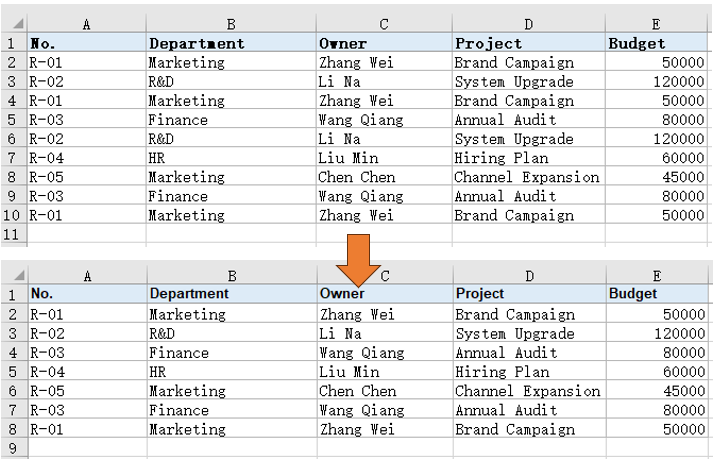
Whole-sheet deduplication processes every record in the used range, but sometimes only one block of detail should be cleaned, for example when a worksheet holds two unrelated blocks of records and only one block needs deduplication. Specifying a start and an end position limits the operation to that range, leaving rows outside it untouched while comparing whole rows inside it. Row and column numbers are 1-based, and both endpoints are included.
Writing and result for removing duplicate rows in a specified range:
| Writing | Result |
|---|---|
sheet.RemoveDuplicates(startRow, startColumn, endRow, endColumn) |
Processes only the specified range and deletes identical duplicate rows inside it |
The steps are:
- Load the font file and the Excel test file into the VFS with
window.spire.FetchFileToVFS. - Create a workbook with
new Workbook()and load the test file throughworkbook.LoadFromFile. - Get the second worksheet that holds the range data with
workbook.Worksheets.get(1). - Call
sheet.RemoveDuplicates(2, 1, 7, 5)to deduplicate only rows 2-7 and columns 1-5. - Write
RemoveDuplicatesInRange.xlsxwithworkbook.SaveToFile, release resources withworkbook.Dispose, and read the workbook from the VFS to trigger the download.
Below is the complete code example that removes duplicate rows in a specified range:
function App() {
  const removeDuplicatesInRange = async () => {
    // Get the Spire.XLS WASM module
    const xlsModule = window.wasmModule?.spirexls;

    // Check that the module is ready
    if (!xlsModule) {
      alert('Spire.Xls is not ready yet');
      return;
    }

    // Load the font and the test data file into the VFS
    await window.spire.FetchFileToVFS('ARIAL.TTF', '/Library/Fonts/', `${process.env.PUBLIC_URL}/font/`);
    const inputFileName = 'RemoveDuplicateRows.xlsx';
    await window.spire.FetchFileToVFS(inputFileName, '', `${process.env.PUBLIC_URL}data/`);

    // Load the workbook
    const workbook = new xlsModule.Workbook();
    workbook.LoadFromFile({ fileName: inputFileName });

    // Get the second worksheet that holds the range data
    const sheet = workbook.Worksheets.get(1);

    // Remove duplicates only in rows 2-7 and columns 1-5
    sheet.RemoveDuplicates(2, 1, 7, 5);

    // Save the de-duplicated workbook into the VFS
    const outputFileName = 'RemoveDuplicatesInRange.xlsx';
    workbook.SaveToFile({ fileName: outputFileName });

    // Dispose of the workbook to release its resources
    workbook.Dispose();

    // Read the result back out of the VFS and trigger the download
    const fileArray = window.dotnetRuntime.Module.FS.readFile(outputFileName);
    const blob = new Blob([fileArray], { type: 'application/vnd.openxmlformats-officedocument.spreadsheetml.sheet' });
    const url = URL.createObjectURL(blob);
    const a = document.createElement('a');
    a.href = url;
    a.download = outputFileName;
    a.click();
    URL.revokeObjectURL(url);
  };

  return (
    <div style={{ textAlign: 'center', height: '300px' }}>
      <h1>Remove Duplicate Rows in Excel in React</h1>
      <button id="remove-duplicates-in-range" onClick={removeDuplicatesInRange}>Remove Duplicates in Range</button>
    </div>
  );
}

export default App;
Workbook after removing duplicate rows in the specified range:
Remove duplicate rows by columns and header
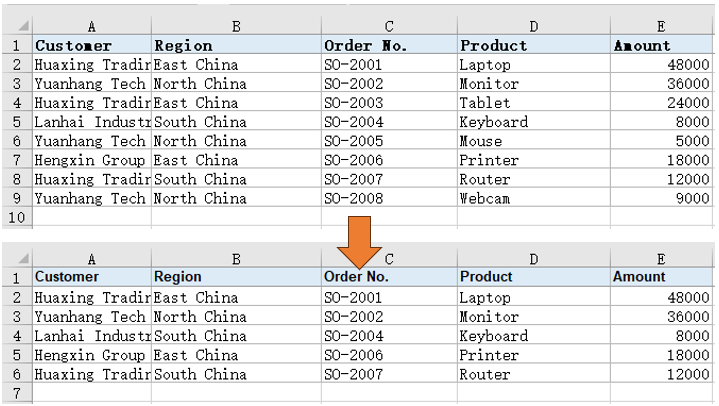
Duplicates in business tables are often not identical rows but repeated key fields: several detail rows may share the same key fields while differing in the rest, yet only one record should remain when reporting by those keys. Declaring whether the first row is a header and choosing which columns take part in the comparison lets you match duplicates by key fields. When the first row is declared as a header, it is kept and excluded from the comparison; column numbers are counted from 0 relative to the start column, so [0, 1] means the start column and the column immediately to its right.
Writing and result for removing duplicate rows by columns and header:
| Writing | Result |
|---|---|
sheet.RemoveDuplicates(startRow, startColumn, endRow, endColumn, hasHeaders, columnOffsets) |
Keeps the header row and compares the selected columns |
The steps are:
- Load the font file and the Excel test file into the VFS with
window.spire.FetchFileToVFS. - Create a workbook with
new Workbook()and load the test file throughworkbook.LoadFromFile. - Get the third worksheet that holds the column-based data with
workbook.Worksheets.get(2). - Call
sheet.RemoveDuplicates(1, 1, 9, 5, true, [0, 1])to keep the header and compare the customer and region columns. - Write
RemoveDuplicatesByColumns.xlsxwithworkbook.SaveToFile, release resources withworkbook.Dispose, and read the workbook from the VFS to trigger the download.
Below is the complete code example that removes duplicate rows by columns and header:
function App() {
  const removeDuplicatesByColumns = async () => {
    // Get the Spire.XLS WASM module
    const xlsModule = window.wasmModule?.spirexls;

    // Check that the module is ready
    if (!xlsModule) {
      alert('Spire.Xls is not ready yet');
      return;
    }

    // Load the font and the test data file into the VFS
    await window.spire.FetchFileToVFS('ARIAL.TTF', '/Library/Fonts/', `${process.env.PUBLIC_URL}/font/`);
    const inputFileName = 'RemoveDuplicateRows.xlsx';
    await window.spire.FetchFileToVFS(inputFileName, '', `${process.env.PUBLIC_URL}data/`);

    // Load the workbook
    const workbook = new xlsModule.Workbook();
    workbook.LoadFromFile({ fileName: inputFileName });

    // Get the third worksheet that holds the column-based data
    const sheet = workbook.Worksheets.get(2);

    // Keep the header row and compare the customer and region columns
    sheet.RemoveDuplicates(1, 1, 9, 5, true, [0, 1]);

    // Save the de-duplicated workbook into the VFS
    const outputFileName = 'RemoveDuplicatesByColumns.xlsx';
    workbook.SaveToFile({ fileName: outputFileName });

    // Dispose of the workbook to release its resources
    workbook.Dispose();

    // Read the result back out of the VFS and trigger the download
    const fileArray = window.dotnetRuntime.Module.FS.readFile(outputFileName);
    const blob = new Blob([fileArray], { type: 'application/vnd.openxmlformats-officedocument.spreadsheetml.sheet' });
    const url = URL.createObjectURL(blob);
    const a = document.createElement('a');
    a.href = url;
    a.download = outputFileName;
    a.click();
    URL.revokeObjectURL(url);
  };

  return (
    <div style={{ textAlign: 'center', height: '300px' }}>
      <h1>Remove Duplicate Rows in Excel in React</h1>
      <button id="remove-duplicates-by-columns" onClick={removeDuplicatesByColumns}>Remove Duplicates by Columns</button>
    </div>
  );
}

export default App;
Workbook after removing duplicate rows by columns and header:
FAQ
Are hidden or filtered-out rows deleted
Cause: RemoveDuplicates decides duplicates solely by cell content and does not check whether a row is visible. Rows hidden manually or hidden by a filter still take part in the comparison and are deleted if they match another row. A hidden row that survives stays hidden.
Solution: Hiding or filtering cannot exclude rows from the comparison. Narrow the range to the data you want to process, or copy the rows you want to keep to a separate worksheet first.
How can I tell how many rows were deleted
Solution: Read LastRow before and after the call; the difference is the number of rows deleted:
const before = sheet.LastRow;
sheet.RemoveDuplicates(1, 1, 9, 5, true, [0, 1]);
const removed = before - sheet.LastRow;
Get a Free License
If you wish to delete the evaluation message from the resulting documents, or to get rid of function limitations, please contact sales to obtain a valid 30-day temporary license.
