Page margins decide how much blank space sits between the body and the edge of the paper. Too little and the content crowds the edge and looks cramped; too much and a page holds very little. Existing PDFs usually have their layout fixed already — adding a ring of white space, or trimming the excess away, used to mean re-laying out page after page in desktop software; and once documents are processed in bulk by a program, the margins have to follow the layout.
This article shows how to increase or decrease PDF page margins with Spire.PDF for JavaScript. It is built on WebAssembly and loads, modifies and saves PDF documents directly in the browser, all locally, reading and writing files through a virtual file system (VFS) with no backend involved.
This article covers two core features:
For installation and project setup, see How to Integrate Spire.PDF for JavaScript in a React Project. The examples below assume Spire.PDF is installed and the WebAssembly module is initialized.
Increase PDF Page Margins
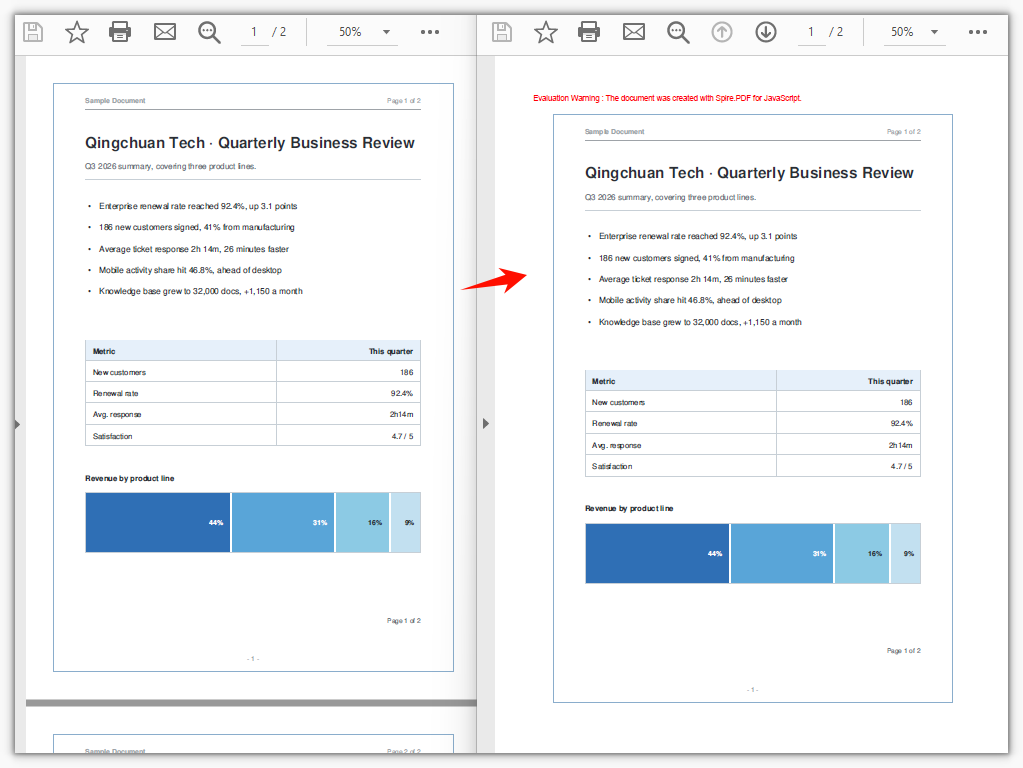
Increasing the margins is like giving the document a larger sheet of paper: use CreateTemplate() to capture each page's content as a template and draw it onto a new page with a larger size, where PdfMargins reserves the blank space on all four sides — the content keeps its size, and a ring of white space appears around it.
function App() {
  const increasePdfMargins = async () => {
    // Get the Spire.PDF WASM module
    const pdfModule = window.wasmModule?.spirepdf;

    // Check whether the module is ready
    if (!pdfModule) {
      alert('Spire.PDF is not ready yet');
      return;
    }

    // Load the PDF to be adjusted into the VFS
    const inputFileName = 'SampleDocument.pdf';
    await window.spire.FetchFileToVFS(inputFileName, "", `${process.env.PUBLIC_URL}/data/`);

    // Load the original document and take its first page to compute the new page size
    const originalPdf = new pdfModule.PdfDocument();
    originalPdf.LoadFromFile(inputFileName);
    const firstPage = originalPdf.Pages.get_Item(0);

    // Add 40 points of padding on every side
    const marginsToAdd = new pdfModule.PdfMargins();
    marginsToAdd.Top = 40;
    marginsToAdd.Bottom = 40;
    marginsToAdd.Left = 40;
    marginsToAdd.Right = 40;

    // New page size = original size + the four margins, so the content area keeps its original size
    const newSize = new pdfModule.SizeF({
      width: firstPage.Size.Width + marginsToAdd.Left + marginsToAdd.Right,
      height: firstPage.Size.Height + marginsToAdd.Top + marginsToAdd.Bottom,
    });

    // Capture each page's content as a template and draw it onto a new page with margins
    const newPdf = new pdfModule.PdfDocument();
    for (let i = 0; i < originalPdf.Pages.Count; i++) {
      const template = originalPdf.Pages.get_Item(i).CreateTemplate();
      const page = newPdf.Pages.Add({ size: newSize, margins: marginsToAdd });
      page.Canvas.DrawTemplate({ template: template, location: new pdfModule.PointF(0, 0) });
    }

    const outputFileName = 'IncreaseMargins.pdf';
    newPdf.SaveToFile(outputFileName);
    newPdf.Close();
    originalPdf.Close();

    // Read the generated file from the VFS and trigger the download
    const fileArray = window.dotnetRuntime.Module.FS.readFile(outputFileName);
    const blob = new Blob([fileArray], { type: 'application/pdf' });
    const url = URL.createObjectURL(blob);
    const a = document.createElement('a');
    a.href = url;
    a.download = outputFileName;
    a.click();
    URL.revokeObjectURL(url);
  };

  return (
    <div style={{ textAlign: 'center', height: '300px' }}>
      <h1>Increase PDF Page Margins</h1>
      <button onClick={increasePdfMargins}>
        Start
      </button>
    </div>
  );
}

export default App;
Each side is padded by 40 points, so the page grows and a ring of white space appears around the original content:
Decrease PDF Page Margins
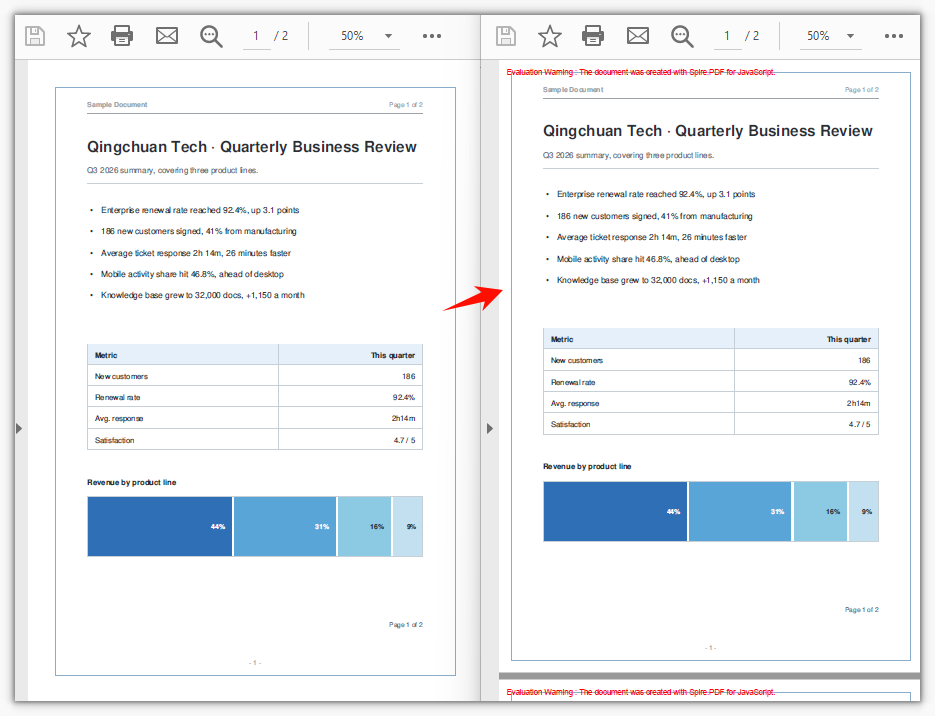
Decreasing the margins is the reverse: the new page is smaller than the original, and the template is drawn shifted toward the top-left, trimming the excess white space on all four sides. Note that the amount trimmed per side must not exceed the blank space already present on that side of the original document, or the content will be cut off at the page boundary.
function App() {
  const decreasePdfMargins = async () => {
    // Get the Spire.PDF WASM module
    const pdfModule = window.wasmModule?.spirepdf;

    // Check whether the module is ready
    if (!pdfModule) {
      alert('Spire.PDF is not ready yet');
      return;
    }

    // Load the PDF to be adjusted into the VFS
    const inputFileName = 'SampleDocument.pdf';
    await window.spire.FetchFileToVFS(inputFileName, "", `${process.env.PUBLIC_URL}/data/`);

    // Load the original document and take its first page to compute the new page size
    const originalPdf = new pdfModule.PdfDocument();
    originalPdf.LoadFromFile(inputFileName);
    const firstPage = originalPdf.Pages.get_Item(0);

    // Trim 20 points of white space off every side; the value must not exceed the blank already on that side
    const trim = 20;

    // New page size = original size − the four trimmed values
    const newSize = new pdfModule.SizeF({
      width: firstPage.Size.Width - trim * 2,
      height: firstPage.Size.Height - trim * 2,
    });

    // The new page reserves no extra margins of its own
    const noMargins = new pdfModule.PdfMargins();
    noMargins.Top = 0;
    noMargins.Bottom = 0;
    noMargins.Left = 0;
    noMargins.Right = 0;

    // Capture each page as a template and draw it shifted toward the top-left, trimming the white space on all four sides
    const newPdf = new pdfModule.PdfDocument();
    for (let i = 0; i < originalPdf.Pages.Count; i++) {
      const template = originalPdf.Pages.get_Item(i).CreateTemplate();
      const page = newPdf.Pages.Add({ size: newSize, margins: noMargins });
      page.Canvas.DrawTemplate({ template: template, location: new pdfModule.PointF(-trim, -trim) });
    }

    const outputFileName = 'DecreaseMargins.pdf';
    newPdf.SaveToFile(outputFileName);
    newPdf.Close();
    originalPdf.Close();

    // Read the generated file from the VFS and trigger the download
    const fileArray = window.dotnetRuntime.Module.FS.readFile(outputFileName);
    const blob = new Blob([fileArray], { type: 'application/pdf' });
    const url = URL.createObjectURL(blob);
    const a = document.createElement('a');
    a.href = url;
    a.download = outputFileName;
    a.click();
    URL.revokeObjectURL(url);
  };

  return (
    <div style={{ textAlign: 'center', height: '300px' }}>
      <h1>Decrease PDF Page Margins</h1>
      <button onClick={decreasePdfMargins}>
        Start
      </button>
    </div>
  );
}

export default App;
Each side is trimmed by 20 points of white space, so the page shrinks and the content moves closer to the paper's edge:
FAQ
Why not just change the page margins of the original document
Cause: Margins only decide where the content area begins, positioning content drawn afterward; content already drawn in the original document is fixed at absolute coordinates, and reassigning PageSettings.Margins does not move it.
Solution: Capture the original page's content as a template with CreateTemplate() and draw it onto a new page with margins — both examples above follow this approach.
The content gets cut off when decreasing the margins
Cause: The template is drawn starting at (-trim, -trim) while the page also shrinks by 2 × trim; once the amount trimmed exceeds the blank space already present on that side of the original document, the content crosses the page boundary and is clipped.
Solution: Set trim to no more than the blank space already present on that side. When the original document sits flush against the edge, widen it first with the increase approach, then consider narrowing it.
Why does the new page size have to include the margins
Cause: PdfMargins is the distance by which the canvas origin is inset; if the page size does not grow along with it, the content area ends up smaller than the original content and falls outside the page.
Solution: Compute the new page size as "original page size + the left and right (or top and bottom) margin sum" (when increasing), or "original page size − the left and right (or top and bottom) sum" (when decreasing), so the content area exactly fits the original content:
const newSize = new pdfModule.SizeF({
  width: firstPage.Size.Width + marginsToAdd.Left + marginsToAdd.Right,
  height: firstPage.Size.Height + marginsToAdd.Top + marginsToAdd.Bottom,
});
Get a Free License
If you want to remove the evaluation message from the result document, or lift the feature limitations, contact sales for a temporary license valid for 30 days.
