Before printing, imposing or watermarking pages, you need to know whether each page is landscape or portrait: a document that mixes the two leaves blank edges when printed directly, and lands out of place when imposed. A page may also have been rotated as a whole, in which case the recorded page size no longer matches the direction you see. Picking those pages out before batch processing means flipping through them one at a time in desktop software.
This article shows how to detect PDF page rotation and display orientation with Spire.PDF for JavaScript. It is built on WebAssembly and loads and parses PDF documents directly in the browser, all locally, reading and writing files through a virtual file system (VFS) with no backend involved.
Two features are covered:
For installation and project setup, see Integrate Spire.PDF for JavaScript in a React project. The examples below assume Spire.PDF is installed and the WebAssembly module is initialized.
Detect page rotation
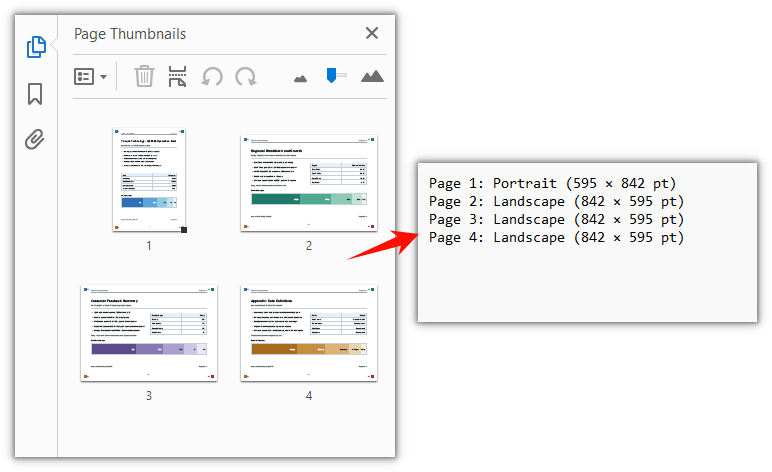
PdfPageBase.Rotation reads the angle a page has been rotated by; the value falls within the PdfPageRotateAngle enumeration of 0°, 90°, 180° and 270°.
function App() {
  const detectPageRotation = async () => {
    // Get the Spire.PDF WASM module
    const pdfModule = window.wasmModule?.spirepdf;

    // Check whether the module is ready
    if (!pdfModule) {
      alert('Spire.PDF is not ready yet');
      return;
    }

    // Load the PDF file to inspect into the VFS
    const inputFileName = 'PageOrientationSample.pdf';
    await window.spire.FetchFileToVFS(inputFileName, '', `${process.env.PUBLIC_URL}/data/`);

    // Create a PdfDocument object and load the PDF document
    const doc = new pdfModule.PdfDocument();
    doc.LoadFromFile(inputFileName);

    // The enumeration values are indices rather than angles, so map indices to degrees first
    const DEGREES = {
      [pdfModule.PdfPageRotateAngle.RotateAngle0.value]: 0,
      [pdfModule.PdfPageRotateAngle.RotateAngle90.value]: 90,
      [pdfModule.PdfPageRotateAngle.RotateAngle180.value]: 180,
      [pdfModule.PdfPageRotateAngle.RotateAngle270.value]: 270,
    };

    // Read the rotation angle page by page
    const lines = [];
    for (let i = 0; i < doc.Pages.Count; i++) {
      const page = doc.Pages.get_Item(i);
      lines.push(`Page ${i + 1}: rotation angle ${DEGREES[page.Rotation.value]}°`);
    }

    // Write the detection result into the VFS
    const outputFileName = 'PageRotationResult.txt';
    window.dotnetRuntime.Module.FS.writeFile(outputFileName, lines.join('\r\n'));
    doc.Close();

    // Read the generated file back from the VFS and trigger the download
    const fileArray = window.dotnetRuntime.Module.FS.readFile(outputFileName);
    const blob = new Blob([fileArray], { type: 'text/plain' });
    const url = URL.createObjectURL(blob);
    const a = document.createElement('a');
    a.href = url;
    a.download = outputFileName;
    a.click();
    URL.revokeObjectURL(url);
  };

  return (
    <div style={{ textAlign: 'center', height: '300px' }}>
      <h1>Detect Page Rotation</h1>
      <button onClick={detectPageRotation}>
        Start Detection
      </button>
    </div>
  );
}

export default App;
Detection result with the rotation angle recorded page by page:
Detect page orientation
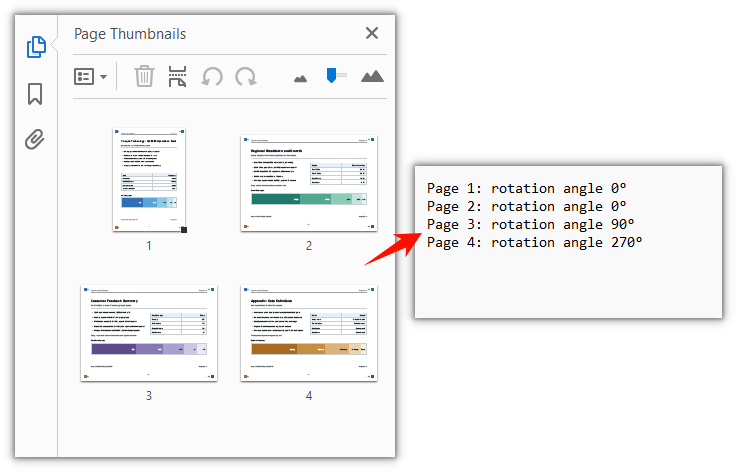
Whether a page is landscape or portrait cannot be told from its size alone: PdfPageBase.Size gives the width and height of the visible page box and does not include the rotation; when a page is rotated by 90° or 270°, the width and height have to be swapped to get the direction the page actually shows.
function App() {
  const detectPageOrientation = async () => {
    // Get the Spire.PDF WASM module
    const pdfModule = window.wasmModule?.spirepdf;

    // Check whether the module is ready
    if (!pdfModule) {
      alert('Spire.PDF is not ready yet');
      return;
    }

    // Load the PDF file to inspect into the VFS
    const inputFileName = 'PageOrientationSample.pdf';
    await window.spire.FetchFileToVFS(inputFileName, '', `${process.env.PUBLIC_URL}/data/`);

    // Create a PdfDocument object and load the PDF document
    const doc = new pdfModule.PdfDocument();
    doc.LoadFromFile(inputFileName);

    const { RotateAngle90, RotateAngle270 } = pdfModule.PdfPageRotateAngle;

    // Judge the display orientation page by page
    const lines = [];
    for (let i = 0; i < doc.Pages.Count; i++) {
      const page = doc.Pages.get_Item(i);
      const pageSize = page.Size;

      // Size excludes rotation: at 90° or 270° the width and height swap to give the displayed size
      const quarterTurn = page.Rotation === RotateAngle90 || page.Rotation === RotateAngle270;
      const width = quarterTurn ? pageSize.Height : pageSize.Width;
      const height = quarterTurn ? pageSize.Width : pageSize.Height;
      const orientation = width >= height ? 'Landscape' : 'Portrait';

      lines.push(`Page ${i + 1}: ${orientation} (${width.toFixed(0)} × ${height.toFixed(0)} pt)`);
    }

    // Write the detection result into the VFS
    const outputFileName = 'PageOrientationResult.txt';
    window.dotnetRuntime.Module.FS.writeFile(outputFileName, lines.join('\r\n'));
    doc.Close();

    // Read the generated file back from the VFS and trigger the download
    const fileArray = window.dotnetRuntime.Module.FS.readFile(outputFileName);
    const blob = new Blob([fileArray], { type: 'text/plain' });
    const url = URL.createObjectURL(blob);
    const a = document.createElement('a');
    a.href = url;
    a.download = outputFileName;
    a.click();
    URL.revokeObjectURL(url);
  };

  return (
    <div style={{ textAlign: 'center', height: '300px' }}>
      <h1>Detect Page Display Orientation</h1>
      <button onClick={detectPageOrientation}>
        Start Detection
      </button>
    </div>
  );
}

export default App;
Detection result after judging each page by its display orientation:
FAQ
page.Rotation.value returns 0, 1, 2, 3 instead of 0, 90, 180, 270
Cause: The four members of PdfPageRotateAngle — RotateAngle0, RotateAngle90, RotateAngle180, RotateAngle270 — carry the values 0, 1, 2, 3 in the WebAssembly binding, and .value returns that index rather than the angle. Writing page.Rotation.value === 90 is always false.
Solution: Build an index-to-angle map before using the value. Rotation is corrected with an index too — page.Rotation takes an index, so passing 90 is read as index 2 and writes 180° into the document:
// Index → angle
const DEGREES = {
  [pdfModule.PdfPageRotateAngle.RotateAngle0.value]: 0,
  [pdfModule.PdfPageRotateAngle.RotateAngle90.value]: 90,
  [pdfModule.PdfPageRotateAngle.RotateAngle180.value]: 180,
  [pdfModule.PdfPageRotateAngle.RotateAngle270.value]: 270,
};

// Set the current page to 90° — .value is the index
page.Rotation = pdfModule.PdfPageRotateAngle.RotateAngle90.value;
page.Size returns portrait dimensions for a page that clearly shows as landscape
Cause: PdfPageBase.Size and ActualSize return the width and height of the page's visible box — the CropBox if one was set, otherwise the MediaBox — and that value does not follow /Rotate. Page 3 of the sample document has a page box of 595 × 842 pt with /Rotate at 90°, so it renders as an 842 × 595 landscape page while Size still returns 595 × 842.
Solution: After reading Rotation, swap the width and height yourself:
const { RotateAngle90, RotateAngle270 } = pdfModule.PdfPageRotateAngle;
const quarterTurn = page.Rotation === RotateAngle90 || page.Rotation === RotateAngle270;

const width = quarterTurn ? page.Size.Height : page.Size.Width;
const height = quarterTurn ? page.Size.Width : page.Size.Height;
doc.Sections is empty in a loaded PDF, and PageSettings.Orientation cannot be read
Cause: Sections holds page settings, and LoadFromFile does not rebuild sections for pages that already exist, so doc.Sections.Count is 0 and a following doc.Sections.get_Item(0) throws Arg_IndexOutOfRangeException. PageSettings.Orientation describes the layout intent for a newly created page, not the direction recorded in the file.
Solution: For existing pages, read page-level properties only — doc.Pages.get_Item(i) followed by Rotation and Size. Leave PageSettings.Orientation for new pages added through Sections.Add():
// Inspecting existing pages
const page = doc.Pages.get_Item(0);
const angle = DEGREES[page.Rotation.value];

// Orientation only comes into play when creating a new page
const section = doc.Sections.Add();
section.PageSettings.Orientation = pdfModule.PdfPageOrientation.Landscape;
Get a Free License
If you want to remove the evaluation message from the result documents, or lift the feature limits, contact sales for a 30-day temporary license.
