Validating the page count before an upload, estimating paper before a batch print, knowing the document's size before splitting it by page — in each of these cases what you need is a single number: how many pages the document has. Getting that number in the browser isn't straightforward. A rendering library only draws the pages, so you end up counting them yourself; sidestep that layer and the file has to go to a server to be parsed.
This article shows how to get the page count of a PDF document with Spire.PDF for JavaScript. It loads and parses PDF documents directly in the browser on top of WebAssembly, so everything happens locally. Files are read and written through a virtual file system (VFS), with no backend involved. This article walks through counting the total number of pages in a document.
For installation and project setup, see Integrate Spire.PDF for JavaScript in a React Project. The examples below assume Spire.PDF is installed and the WebAssembly module has been initialized.
Get the Page Count of a PDF Document
Once the document is loaded, doc.Pages is its page collection, and Count gives the number of pages in that collection — the document's total page count. There is no need to loop over the pages and tally them up.
function App() {
  const getPageCount = async () => {
    // Get the Spire.PDF WASM module
    const pdfModule = window.wasmModule?.spirepdf;

    // Check whether the module is ready
    if (!pdfModule) {
      alert('Spire.PDF is not ready yet');
      return;
    }

    // Load the PDF file to be counted into the VFS
    const inputFileName = 'Multipage_Document.pdf';
    await window.spire.FetchFileToVFS(inputFileName, '', `${process.env.PUBLIC_URL}/data/`);

    // Create a PdfDocument object and load the PDF document
    const doc = new pdfModule.PdfDocument();
    doc.LoadFromFile(inputFileName);

    // Pages is the document's page collection; Count is the total page count
    const pageCount = doc.Pages.Count;

    // Write the result to the VFS
    const outputFileName = 'PageCountResult.txt';
    const report = `Document: ${inputFileName}\r\nTotal pages: ${pageCount}`;
    window.dotnetRuntime.Module.FS.writeFile(outputFileName, report);
    doc.Close();

    // Read the generated file from the VFS and trigger the download
    const fileArray = window.dotnetRuntime.Module.FS.readFile(outputFileName);
    const blob = new Blob([fileArray], { type: 'text/plain' });
    const url = URL.createObjectURL(blob);
    const a = document.createElement('a');
    a.href = url;
    a.download = outputFileName;
    a.click();
    URL.revokeObjectURL(url);
  };

  return (
    <div style={{ textAlign: 'center', height: '300px' }}>
      <h1>Get PDF Page Count</h1>
      <button onClick={getPageCount}>
        Count Pages
      </button>
    </div>
  );
}

export default App;
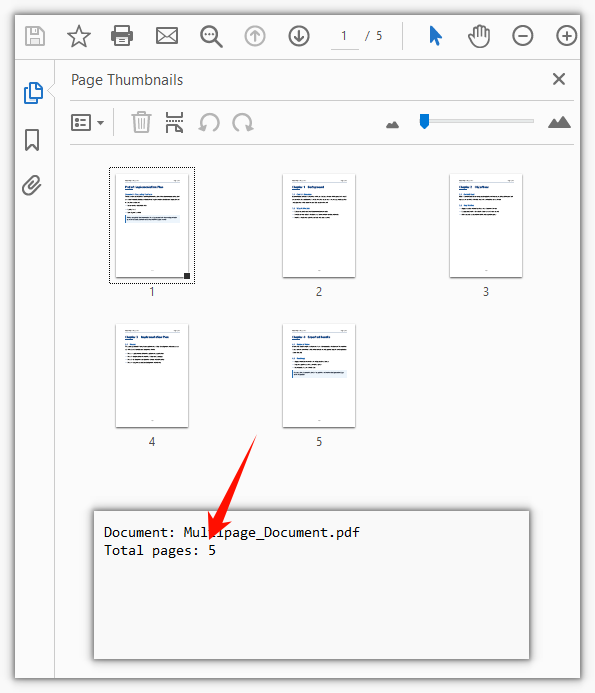
The result is written to a text file that records the document's total page count:
FAQ
The page number shown in a reader doesn't match the total page count
Cause: Pages.Count counts physical pages — how many pages the document actually contains. The number shown in a reader comes from page labels (/PageLabels), which can be configured separately: excluding the cover from numbering, using roman numerals for the table of contents, restarting the body at 1. As a result, the 5th physical page may display as iii or 1 in a reader.
Solution: If what you need is the displayed number, read the page's own PageLabel instead of Count:
// What label the 5th physical page displays in a reader
const page = doc.Pages.get_Item(4);
console.log(page.PageLabel);
When the document has no page labels set, PageLabel returns an empty string — in that case the displayed number matches the physical page order, so Count is the answer.
Loading an encrypted PDF to count pages throws "Can not open an encrypted document. The password is invalid."
Cause: The document is protected by an open password, and without it LoadFromFile cannot read the content at all, so the page count is out of reach as well. This check happens at load time — it is thrown before Pages.Count is ever read.
Solution: Pass the open password as the second argument to LoadFromFile, then read the page count:
// The second argument is the open password
doc.LoadFromFile(inputFileName, 'spire123');
const pageCount = doc.Pages.Count;
Using Count as a loop bound throws an index-out-of-range error on the last page
Cause: Pages is zero-indexed, so the valid range is 0 to Count - 1. When the loop is written as i <= doc.Pages.Count, the final pass tries to fetch page number Count, and get_Item throws an out-of-range error — underneath it is .NET's ArgumentOutOfRangeException, which the WASM runtime wraps as a JS Error with the message ArgumentOutOfRange_IndexMustBeLess Arg_ParamName_Name, index. The error's name is just the generic Error, so match on that message.
Solution: Use < in the loop condition:
// The upper bound is Count - 1, so use < rather than <=
for (let i = 0; i < doc.Pages.Count; i++) {
  const page = doc.Pages.get_Item(i);
}
Get a Free License
If you want to remove the evaluation message from result documents, or lift the feature limits, contact sales for a 30-day temporary license.
