Once a contract or approval form is finalized, it often needs an "Approved" stamp or a timestamp in the corner to record who confirmed it and when. Doing this in desktop software means stamping each file by hand, which gets slow as the pile grows; sending the document to a server to process means the file leaves the local machine.
Spire.PDF for JavaScript loads, modifies, and saves PDF documents in the browser with WebAssembly. Stamps are generated locally and files are read and written through a virtual file system (VFS), with no backend involved. The library treats a stamp as a type of annotation: PdfRubberStampAnnotation sets the stamp's position and size on the page, while its appearance comes from a PdfTemplate assigned through PdfAppearance — draw an image on the template for an image stamp, or text for a text stamp.
This article covers three core features:
For installation and project setup, see How to Integrate Spire.PDF for JavaScript in a React Project. The examples below assume Spire.PDF is installed and the WebAssembly module is initialized.
Add an Image Stamp
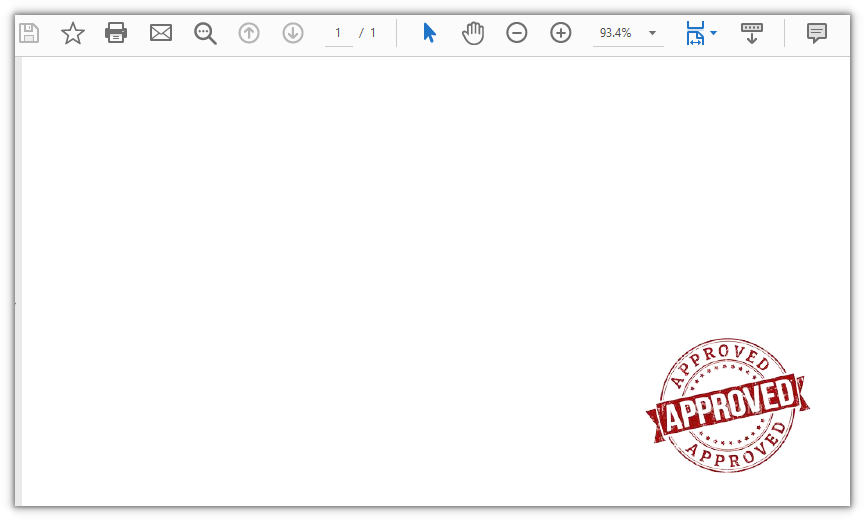
Spire.PDF for JavaScript provides the PdfRubberStampAnnotation class for placing a stamp at a given position on the page. It only defines the stamp's position and size; the appearance is set through PdfAppearance.
function App() {
  const addImageStamp = async () => {
    // Get the Spire.PDF WASM module
    const pdfModule = window.wasmModule?.spirepdf;

    // Check that the module is ready
    if (!pdfModule) {
      alert('Spire.PDF is not ready yet');
      return;
    }

    // Load the PDF and the stamp image into the VFS
    const inputFileName = 'SampleDocument.pdf';
    await window.spire.FetchFileToVFS(inputFileName, "", `${process.env.PUBLIC_URL}/data/`);
    const stampImageName = 'Seal.png';
    await window.spire.FetchFileToVFS(stampImageName, "", `${process.env.PUBLIC_URL}/data/`);

    // Create a PdfDocument object and load the document
    let doc = new pdfModule.PdfDocument();
    doc.LoadFromFile(inputFileName);

    // Get the first page
    let page = doc.Pages.get_Item(0);

    // Load the stamp image
    let image = pdfModule.PdfImage.FromFile(stampImageName);

    // Scale the image to fit within 120 points
    const maxSize = 120;
    const scale = Math.min(maxSize / image.Width, maxSize / image.Height, 1);
    const stampWidth = image.Width * scale;
    const stampHeight = image.Height * scale;

    // Create a template the same size as the stamp and fill it with the image
    let template = new pdfModule.PdfTemplate({ width: stampWidth, height: stampHeight });
    template.Graphics.DrawImage({ image: image, x: 0, y: 0, width: stampWidth, height: stampHeight });

    // Frame the stamp in the bottom-right corner; the rectangle matches the template
    let rect = new pdfModule.RectangleF({
      location: new pdfModule.PointF(page.ActualSize.Width - stampWidth - 40, page.ActualSize.Height - stampHeight - 40),
      size: new pdfModule.SizeF({ width: stampWidth, height: stampHeight })
    });

    // Create the stamp annotation and set the template as its appearance
    let stamp = new pdfModule.PdfRubberStampAnnotation({ rectangle: rect });
    let appearance = new pdfModule.PdfAppearance(stamp);
    appearance.Normal = template;
    stamp.Appearance = appearance;

    // Add the stamp annotation to the page's annotation collection
    page.AnnotationsWidget.Add(stamp);

    // Save the document
    const outputFileName = 'ImageStamp.pdf';
    doc.SaveToFile(outputFileName);
    doc.Close();

    // Read the generated file from the VFS and trigger the download
    const fileArray = window.dotnetRuntime.Module.FS.readFile(outputFileName);
    const blob = new Blob([fileArray], { type: 'application/pdf' });
    const url = URL.createObjectURL(blob);
    const a = document.createElement('a');
    a.href = url;
    a.download = outputFileName;
    a.click();
    URL.revokeObjectURL(url);
  };

  return (
    <div style={{ textAlign: 'center', height: '300px' }}>
      <h1>Add an Image Stamp</h1>
      <button onClick={addImageStamp}>
        Add Stamp
      </button>
    </div>
  );
}

export default App;
A PDF document with an image stamp in the bottom-right corner:
Add a Text Stamp
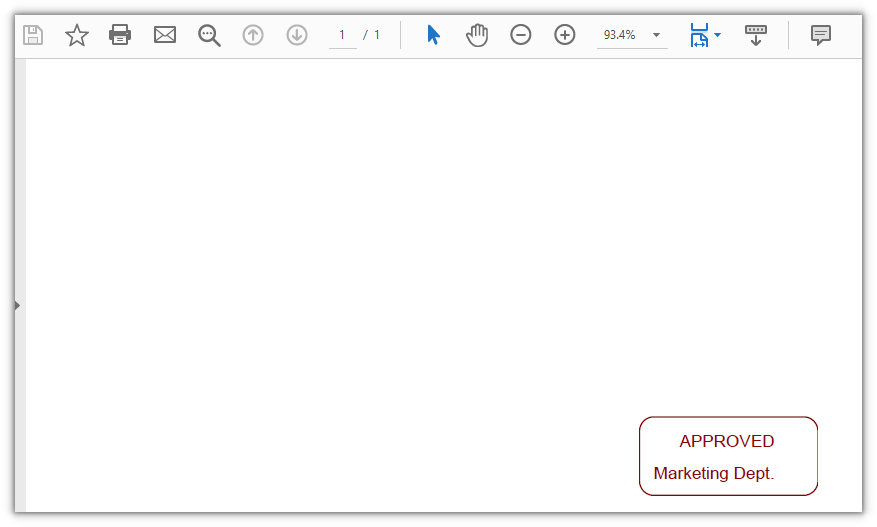
Spire.PDF for JavaScript also provides PdfPath, PdfPen, and PdfTrueTypeFont for drawing text as a stamp. PdfPath builds a rounded rectangle from four arcs, DrawPath strokes it into a border, and DrawString writes the text inside — a text stamp with a border.
function App() {
  const addTextStamp = async () => {
    // Get the Spire.PDF WASM module
    const pdfModule = window.wasmModule?.spirepdf;

    // Check that the module is ready
    if (!pdfModule) {
      alert('Spire.PDF is not ready yet');
      return;
    }

    // Load a font into the VFS font directory
    await window.spire.FetchFileToVFS('ARIAL.TTF', '/Library/Fonts/', `${process.env.PUBLIC_URL}/font/`);

    // Load the PDF into the VFS
    const inputFileName = 'SampleDocument.pdf';
    await window.spire.FetchFileToVFS(inputFileName, "", `${process.env.PUBLIC_URL}/data/`);

    // Create a PdfDocument object and load the document
    let doc = new pdfModule.PdfDocument();
    doc.LoadFromFile(inputFileName);

    // Get the first page
    let page = doc.Pages.get_Item(0);

    // Create the template that holds the stamp
    let template = new pdfModule.PdfTemplate({ width: 125, height: 55 });

    // Build the font from the file in the VFS and prepare the brush
    let font = new pdfModule.PdfTrueTypeFont({ fontFile: '/Library/Fonts/ARIAL.TTF', size: 12, style: pdfModule.PdfFontStyle.Bold });
    let brush = new pdfModule.PdfSolidBrush({ pdfRGBColor: new pdfModule.PdfRGBColor({ color: pdfModule.Color.get_DarkRed() }) });
    let pen = new pdfModule.PdfPen({ brush: brush });

    // Build a rounded-rectangle path from four arcs and a line
    const radius = 20;
    let path = new pdfModule.PdfPath();
    path.AddArc({ x: 0, y: 0, width: radius, height: radius, startAngle: 180, sweepAngle: 90 });
    path.AddArc({ x: template.Width - radius, y: 0, width: radius, height: radius, startAngle: 270, sweepAngle: 90 });
    path.AddArc({ x: template.Width - radius, y: template.Height - radius, width: radius, height: radius, startAngle: 0, sweepAngle: 90 });
    path.AddArc({ x: 0, y: template.Height - radius, width: radius, height: radius, startAngle: 90, sweepAngle: 90 });
    path.AddLine({ x1: 0, y1: template.Height - radius, x2: 0, y2: radius / 2 });

    // Stroke the path into the stamp border
    template.Graphics.DrawPath({ pen: pen, path: path });

    // Write two lines of text inside the border
    template.Graphics.DrawString({ s: 'APPROVED', font: font, brush: brush, point: new pdfModule.PointF(28, 10) });
    template.Graphics.DrawString({ s: 'Marketing Dept.', font: font, brush: brush, point: new pdfModule.PointF(10, 32) });

    // Frame the stamp in the bottom-right corner; the rectangle matches the template
    let rect = new pdfModule.RectangleF({
      location: new pdfModule.PointF(page.ActualSize.Width - template.Width - 40, page.ActualSize.Height - template.Height - 40),
      size: template.Size
    });

    // Create the stamp annotation and set the template as its appearance
    let stamp = new pdfModule.PdfRubberStampAnnotation({ rectangle: rect });
    let appearance = new pdfModule.PdfAppearance(stamp);
    appearance.Normal = template;
    stamp.Appearance = appearance;

    // Add the stamp annotation to the page's annotation collection
    page.AnnotationsWidget.Add(stamp);

    // Save the document
    const outputFileName = 'TextStamp.pdf';
    doc.SaveToFile(outputFileName);
    doc.Close();

    // Read the generated file from the VFS and trigger the download
    const fileArray = window.dotnetRuntime.Module.FS.readFile(outputFileName);
    const blob = new Blob([fileArray], { type: 'application/pdf' });
    const url = URL.createObjectURL(blob);
    const a = document.createElement('a');
    a.href = url;
    a.download = outputFileName;
    a.click();
    URL.revokeObjectURL(url);
  };

  return (
    <div style={{ textAlign: 'center', height: '300px' }}>
      <h1>Add a Text Stamp</h1>
      <button onClick={addTextStamp}>
        Add Stamp
      </button>
    </div>
  );
}

export default App;
A text stamp with a rounded border and the word APPROVED:
Add a Date and Time Stamp
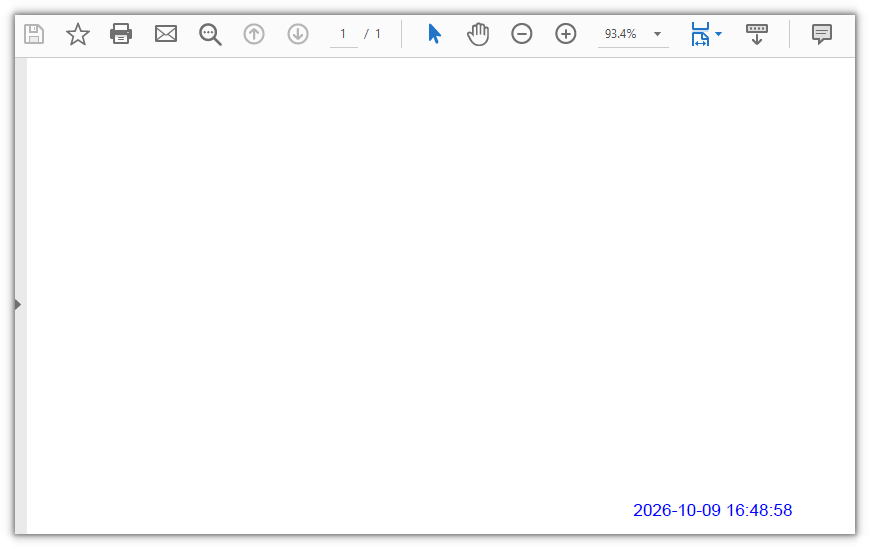
Spire.PDF for JavaScript also provides PdfTemplate for rendering arbitrary content as a stamp appearance. The code below draws a single line of the current time on the template: the string is generated with the browser's native Date, and since DrawString draws any plain string, the stamp content changes with the moment it is generated.
function App() {
  const addDateTimeStamp = async () => {
    // Get the Spire.PDF WASM module
    const pdfModule = window.wasmModule?.spirepdf;

    // Check that the module is ready
    if (!pdfModule) {
      alert('Spire.PDF is not ready yet');
      return;
    }

    // Load a font into the VFS font directory
    await window.spire.FetchFileToVFS('ARIAL.TTF', '/Library/Fonts/', `${process.env.PUBLIC_URL}/font/`);

    // Load the PDF into the VFS
    const inputFileName = 'SampleDocument.pdf';
    await window.spire.FetchFileToVFS(inputFileName, "", `${process.env.PUBLIC_URL}/data/`);

    // Create a PdfDocument object and load the document
    let doc = new pdfModule.PdfDocument();
    doc.LoadFromFile(inputFileName);

    // Get the first page
    let page = doc.Pages.get_Item(0);

    // Get the current date and time
    const now = new Date();
    const pad = (value) => String(value).padStart(2, '0');
    let timeString = `${now.getFullYear()}-${pad(now.getMonth() + 1)}-${pad(now.getDate())} ${pad(now.getHours())}:${pad(now.getMinutes())}:${pad(now.getSeconds())}`;

    // Create a template sized for the text
    let template = new pdfModule.PdfTemplate({ width: 150, height: 16 });

    // Prepare the font and brush
    let font = new pdfModule.PdfTrueTypeFont({ fontFile: '/Library/Fonts/ARIAL.TTF', size: 12 });
    let brush = new pdfModule.PdfSolidBrush({ pdfRGBColor: new pdfModule.PdfRGBColor({ color: pdfModule.Color.get_Blue() }) });

    // Draw the time text onto the template
    template.Graphics.DrawString({ s: timeString, font: font, brush: brush, point: new pdfModule.PointF(0, 0) });

    // Frame the stamp in the bottom-right corner; the rectangle matches the template
    let rect = new pdfModule.RectangleF({
      location: new pdfModule.PointF(page.ActualSize.Width - template.Width - 20, page.ActualSize.Height - template.Height - 20),
      size: template.Size
    });

    // Create the stamp annotation and set the template as its appearance
    let stamp = new pdfModule.PdfRubberStampAnnotation({ rectangle: rect });
    let appearance = new pdfModule.PdfAppearance(stamp);
    appearance.Normal = template;
    stamp.Appearance = appearance;

    // Add the stamp annotation to the page's annotation collection
    page.AnnotationsWidget.Add(stamp);

    // Save the document
    const outputFileName = 'DateTimeStamp.pdf';
    doc.SaveToFile(outputFileName);
    doc.Close();

    // Read the generated file from the VFS and trigger the download
    const fileArray = window.dotnetRuntime.Module.FS.readFile(outputFileName);
    const blob = new Blob([fileArray], { type: 'application/pdf' });
    const url = URL.createObjectURL(blob);
    const a = document.createElement('a');
    a.href = url;
    a.download = outputFileName;
    a.click();
    URL.revokeObjectURL(url);
  };

  return (
    <div style={{ textAlign: 'center', height: '300px' }}>
      <h1>Add a Date and Time Stamp</h1>
      <button onClick={addDateTimeStamp}>
        Add Stamp
      </button>
    </div>
  );
}

export default App;
A stamp in the page corner recording the current date and time:
FAQ
The stamp is too large and its position is off
Cause: A stamp's position and size on the page come from the rectangle of PdfRubberStampAnnotation, and the appearance fills that rectangle. When the template size and the rectangle size differ, the appearance is stretched; when the rectangle uses the image's pixel dimensions without scaling, the stamp can cover the body text or run off the page.
Solution: Work out the target display size first, give the template and the rectangle the same width and height, then position them relative to the page size:
// Give the template and the rectangle the same width and height
let template = new pdfModule.PdfTemplate({ width: stampWidth, height: stampHeight });
let rect = new pdfModule.RectangleF({
  location: new pdfModule.PointF(page.ActualSize.Width - stampWidth - 40, page.ActualSize.Height - stampHeight - 40),
  size: template.Size
});
Text in the stamp renders as hollow boxes
Cause: PdfTrueTypeFont loads a font file through fontFile. If that file does not contain the glyphs for the text (for example, a Western font used with non-Latin characters), those characters have no glyph to draw and render as a row of boxes.
Solution: Use a font that contains the glyphs, and load the file into the VFS font directory /Library/Fonts/ first:
await window.spire.FetchFileToVFS('ARIAL.TTF', '/Library/Fonts/', `${process.env.PUBLIC_URL}/font/`);
const font = new pdfModule.PdfTrueTypeFont({ fontFile: '/Library/Fonts/ARIAL.TTF', size: 12 });
How to customize the date and time format
Cause: DrawString draws exactly the string you pass in, so the format is decided entirely by the code that builds the string. Methods such as toLocaleString depend on the browser's locale, so the output can differ from one environment to another.
Solution: For a fixed format, build the string from the Date getters:
const now = new Date();
const pad = (value) => String(value).padStart(2, '0');
const timeString = `${now.getFullYear()}-${pad(now.getMonth() + 1)}-${pad(now.getDate())} ${pad(now.getHours())}:${pad(now.getMinutes())}`;
Get a Free License
If you want to remove the evaluation message from the resulting documents, or to get rid of the functional limitations, please contact sales for a temporary license valid for 30 days.
