Excel files are commonly used to store structured data, while Markdown is widely used in technical documentation, static websites, and Git-based publishing workflows. When you need to reuse spreadsheet data in Markdown documents, manually copying and reformatting Excel tables can be time-consuming and error-prone. A more reliable approach is to automate the conversion with Python.
This tutorial demonstrates how to convert Excel to Markdown in Python using Spire.XLS for Python. You will learn how to convert entire workbooks, export specific sheets or cell ranges, as well as batch processing with simple code examples.
In This Article
- Why Convert Excel to Markdown?
- Install Python Excel to Markdown Library
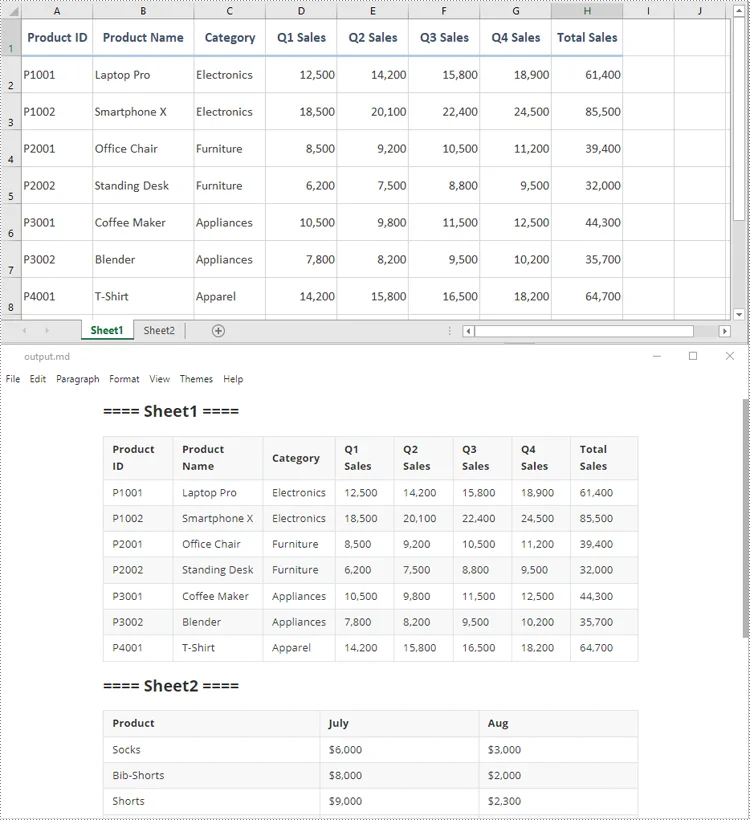
- Basic Excel to Markdown Conversion in Python
- Advanced Excel to Markdown Conversion Scenarios
- Best Practices for Converting Excel to Markdown
- Conclusion
- FAQs
Why Convert Excel to Markdown?
Converting Excel tables to Markdown can be useful in several scenarios:
- Create documentation: Add Excel tables to README files and wikis.
- Use with Git: Markdown is text-based and easier to track than Excel files.
- Publish online: Use Excel data in blogs or docs sites.
- Share data easily: Markdown tables are lightweight and widely compatible across platforms.
Install Python Excel to Markdown Library
To convert Excel files to Markdown in Python, install Spire.XLS for Python from PyPI:
pip install spire.xls
Markdown conversion is supported in Spire.XLS for Python 16.4.0 and later versions. If you are using an earlier version, upgrade the package first:
pip install --upgrade spire.xls
Basic Excel to Markdown Conversion in Python
The simplest way to convert an Excel file to Markdown is to load the workbook and save it as a .md file.
The process only requires three main steps:
- Create a Workbook object.
- Load the Excel file using the Workbook.LoadFromFile() method.
- Save the workbook as a Markdown file using the Workbook.SaveToMarkdown() method.
from spire.xls import Workbook

# Create a Workbook object
workbook = Workbook()

# Load an Excel file
workbook.LoadFromFile("report.xlsx")

# Save the workbook as a Markdown file
workbook.SaveToMarkdown("output.md")

# Release resources
workbook.Dispose()
Output:
Advanced Excel to Markdown Conversion Scenarios
In many real-world projects, you may not always need to convert the entire workbook. You may want to customize how images and hyperlinks are exported, convert only one worksheet, export a selected range, or process a folder of Excel files automatically.
The following sections show how to implement these conversions in Python.
1. Customize Image and Hyperlink Export Options
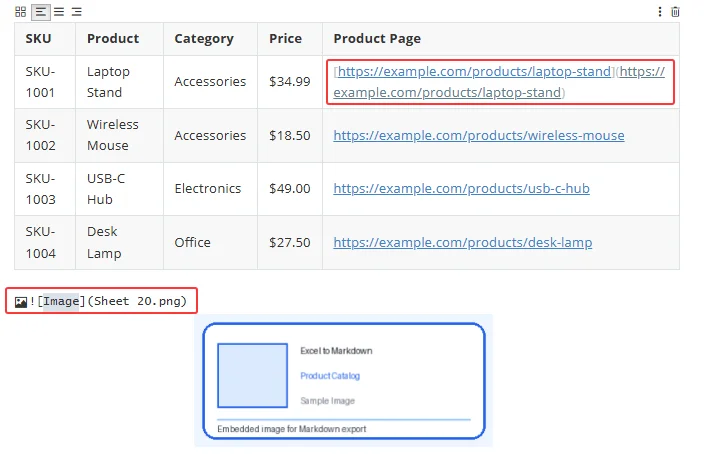
When exporting Excel to Markdown, images and hyperlinks are written as Markdown syntax. You can use the properties of the MarkdownOptions class to control how image paths and hyperlinks are saved in the output file.
| Property | When Set to True | When Set to False |
|---|---|---|
| SavePicInRelativePath | Images are saved with relative paths, such as  . |
Images are saved with absolute paths, such as  . |
| SaveHyperlinkAsRef | Hyperlinks are saved as reference-style links, such as [Link Text][ref1] . |
Hyperlinks are saved as inline links, such as [Link Text](https://example.com) . |
Using relative image paths is usually better for documentation projects because the Markdown file and image folder can be moved together. Inline links are often easier to read and maintain in smaller Markdown files.
The following example shows how to convert an Excel workbook to Markdown with custom image and hyperlink options:
from spire.xls import Workbook, MarkdownOptions

# Create a Workbook object
workbook = Workbook()

# Load an Excel file
workbook.LoadFromFile("sample.xlsx")

# Create a MarkdownOptions object
markdown_options = MarkdownOptions()

# Save images with relative paths
markdown_options.SavePicInRelativePath = True

# Save hyperlinks as inline links
markdown_options.SaveHyperlinkAsRef = False

# Save the workbook as a Markdown file
workbook.SaveToMarkdown("custom_options.md", markdown_options)

# Release resources
workbook.Dispose()
Output:
2. Convert a Specific Sheet to Markdown
If an Excel workbook contains multiple worksheets, but you only need to export one sheet, you can copy the target worksheet to a new workbook with the AddCopy method, and then save that new workbook as a .md file.
This approach helps avoid exporting unnecessary sheets into the same Markdown document.
from spire.xls import Workbook


def convert_specific_sheet(excel_file, sheet_name, output_md):
    """
    Convert a specific worksheet in an Excel file to Markdown.
    """
    workbook = Workbook()
    new_workbook = None

    try:
        # Load the Excel file
        workbook.LoadFromFile(excel_file)

        # Find the target worksheet by name
        worksheet = None
        for ws in workbook.Worksheets:
            if ws.Name == sheet_name:
                worksheet = ws
                break

        if worksheet is None:
            print(f"Worksheet '{sheet_name}' was not found.")
            return

        # Create a new workbook that contains only the target worksheet
        new_workbook = Workbook()
        new_workbook.Worksheets.Clear()
        new_workbook.Worksheets.AddCopy(worksheet)

        # Save the new workbook as Markdown
        new_workbook.SaveToMarkdown(output_md)

        print(f"Worksheet '{sheet_name}' converted successfully to {output_md}.")

    finally:
        # Release resources
        if new_workbook is not None:
            new_workbook.Dispose()

        workbook.Dispose()


# Usage
convert_specific_sheet("report.xlsx", "Sheet 1", "sheet1.md")
3. Export a Selected Cell Range to Markdown
Sometimes, you may only need to export part of a worksheet, such as a summary table, a data range, or a report section. In this case, you can copy the required cell range to a new workbook and save it as a Markdown file.
The following example converts a selected range from a specific worksheet to a Markdown file:
from spire.xls import Workbook, CopyRangeOptions


def convert_cell_range_to_markdown(excel_file, sheet_name, cell_range, output_md):
    """Convert a specific cell range from an Excel worksheet to Markdown.

    Example cell range: "A1:C5"
    """
    workbook = Workbook()
    new_workbook = Workbook()

    try:
        # Load the original Excel file
        workbook.LoadFromFile(excel_file)

        # Get the target worksheet by name
        worksheet = workbook.Worksheets[sheet_name]
        if worksheet is None:
            print(f"Worksheet '{sheet_name}' was not found.")
            return

        # Get the specific source cell range (e.g., "A1:C5")
        src_range = worksheet.Range[cell_range]

        # Initialize the new workbook with a single blank sheet
        new_workbook.CreateEmptySheets(1)
        new_sheet = new_workbook.Worksheets[0]

        # Define the destination range starting at cell A1 in the new sheet.
        # We use the row and column count of the source range to match the size perfectly.
        dest_range = new_sheet.Range[
            1, 1, src_range.Rows.Count, src_range.Columns.Count
        ]

        # Copy ONLY the selected range (all data, formulas, and formatting)
        src_range.Copy(dest_range, CopyRangeOptions.All)

        # Save the new isolated workbook as Markdown
        new_workbook.SaveToMarkdown(output_md)

        print(
            f"Cell range '{cell_range}' from worksheet '{sheet_name}' "
            f"converted successfully to {output_md}."
        )

    except Exception as e:
        print(f"An error occurred: {e}")

    finally:
        # Release resources
        new_workbook.Dispose()
        workbook.Dispose()


# Usage
convert_cell_range_to_markdown(
    "report.xlsx", "Sheet 1", "A1:C5", "cell_range.md"
)
This method is useful when you want to reuse only the key part of a worksheet in documentation, instead of exporting the entire sheet.
4. Batch Convert Multiple Excel Files to Markdown
For large-scale conversion tasks, you can loop through a folder and convert all .xlsx and .xls files to Markdown automatically.
This is especially useful when you need to generate documentation from multiple reports, export datasets regularly, or integrate Excel-to-Markdown conversion into a publishing workflow.
from pathlib import Path
from spire.xls import Workbook


def batch_convert_excel_to_markdown(input_folder, output_folder):
    """
    Convert all Excel files in a folder to Markdown files.
    Supported formats: .xlsx and .xls
    """
    input_dir = Path(input_folder)
    output_dir = Path(output_folder)

    # Create the output folder if it does not exist
    output_dir.mkdir(parents=True, exist_ok=True)

    # Supported Excel file extensions
    excel_extensions = {".xlsx", ".xls"}

    converted_count = 0

    for input_file in input_dir.iterdir():
        # Skip folders, temporary Excel files, and unsupported files
        if not input_file.is_file():
            continue

        if input_file.name.startswith("~$"):
            continue

        if input_file.suffix.lower() not in excel_extensions:
            continue

        output_file = output_dir / f"{input_file.stem}.md"

        workbook = Workbook()

        try:
            # Load the Excel file
            workbook.LoadFromFile(str(input_file))

            # Save as Markdown
            workbook.SaveToMarkdown(str(output_file))

            converted_count += 1
            print(f"Converted: {input_file.name} -> {output_file.name}")

        except Exception as e:
            print(f"Failed to convert {input_file.name}: {e}")

        finally:
            workbook.Dispose()

    print(f"\nBatch conversion complete. {converted_count} file(s) converted.")


# Usage
batch_convert_excel_to_markdown("./excel_files", "./markdown_output")
Best Practices for Converting Excel to Markdown
To get cleaner Markdown output, keep the following tips in mind:
- Use simple table structures whenever possible.
- Unmerge merged cells if the output is intended for Markdown tables.
- Remove unused rows and columns before conversion.
- Use relative image paths for portable documentation projects.
- Review the generated Markdown file before publishing it to GitHub, a wiki, or a static website.
Conclusion
Converting Excel to Markdown in Python with Spire.XLS for Python makes it easy to generate Markdown files from workbook data with minimal code. It is a practical solution for developers who need to add Excel data export to documentation, reporting, or publishing workflows.
FAQs
Q1: What Excel formats can be converted to Markdown?
A1: Common Excel formats such as .xlsx and .xls can be loaded and saved as Markdown files.
Q2: Are images preserved when converting Excel to Markdown?
A2: Yes. By default, images can be embedded in the Markdown output as Base64 strings. You can also configure the export options to save images with relative or absolute file paths.
Q3: Do I need Microsoft Office to convert Excel to Markdown in Python?
A3: No. Spire.XLS for Python works independently and does not require Microsoft Excel or Microsoft Office to be installed.
Get a Free License
To fully experience the capabilities of Spire.XLS for .NET without any evaluation limitations, you can request a free 30-day trial license.